Troubleshooting Errors in Windows Updates
Learn how to troubleshoot and resolve common Windows Update errors — such as component store corruption, missing files, or .NET update failures.
Problem
At times, you may encounter an error during the installation of the Windows updates.
Applies to
- Error code: -4294965695
- Error code: -2145116147
- Error code: -2145124318
- Error code: -2145124322
- Error code: -2145124348
- Error code: -2146498172
- Error code: -2146498173
- Error code: -2146498304
- Error code: -2146762496
- Error code: -1906441913
- Error code: -2146498170
- Error code: -2146498168
- Error code: -2145099757
- Error code: -2146498547
- Error code: -2146498171
- Error code: -1073740791
- Error code: -2145124345
- Error code: -2145124333
- Error code: -2145124338
- Error code: -2145091565
- Error code: -2146498513
- Error code: -2146498299
- Error code: -2145099760
- Error code: -2146498530
- Error code: -1073741807
- Error code: -2145124323
- Error code: -2146885628
- Error code: -1073741819
- Error code: -2147024816
- Error code: -2145099774
- Error code: -2146498160
- Error code: -1906440620
- Error code: -2147956481
- Error code: -1906441221
- Error code: -1906441208
- Error code: -1906441222
- Error code: -2145091564
- Error code: -2146498174
- Error code: -2147219196
- Error code: -2145099769
- Error code: -2146498159
- Error code: -1047526399
- Error code: -1906441223
- Error code: -1072365564
- Error code: -1073740760
- Error code: -14081
- Error code: -2145124297
- Error code: -2145124341
- Error code: -2146498167
- Error code: -2146498529
- Cannot find object or property
- Catastrophic failure
- The referenced assembly could not be found
- Incorrect function
- Data error [cyclic redundancy check]
- The component store has been corrupted
- No signature was present in the subject
- Specific file not found
- The file or directory is corrupted and unreadable
- Transaction support within the specified resource manager is not started or was shutdown due to an error
- The service did not start due to a logon failure
- The Data is Invalid
- Reached the end of the file
- One or more required members of the transaction are not present
- Element not found
- OLE received a packet with an invalid header
- Class does not exist
- The directory name is invalid
- The Configuration Registry Database is Corrupt
- The request failed due to a fatal device hardware error
- The WOF driver encountered a corruption in the compressed file's Resource Table
- An illegal character was encountered. For a multi-byte character set this includes a lead byte without a succeeding trail byte. For the Unicode character set this includes the characters 0xFFFF and 0xFFFE
- Windows was unable to parse the requested XML data
- No such interface supported
- The timestamp signature and/or certificate could not be verified or is malformed
- An error occurred closing file. Please check the file to make sure it is not corrupted.
- The file exists
- The specified buffer contains ill-formed data
- An identity contains two definitions for the same attribute
- Transaction support within the specified resource manager is not started or was shut down due to an error
- The parameter is incorrect
- Class not registered
- The WOF driver encountered a corruption in the compressed file's Resource Table
- The system cannot find the file specified. Error code: 2
- Unspecified error
- An attempt was made to create more links on a file than the file system supports
- One or more errors occurred while processing the request
- The interface is unknown
Cause
The issue occurs when one or more Windows Update component files become corrupted or go missing. This corruption prevents the system from properly detecting, downloading, or installing new updates. As a result, the update process may repeatedly fail or get stuck during installation. In some cases, users may also see errors related to update services or damaged system files. This typically indicates an integrity problem within the Windows Update components.
Resolution
Follow the steps given below to resolve this issue:
For Windows Dot Net updates
- Search for patch ID 108183 - Microsoft .NET Framework Repair Tool in the supported patches list.
If you are not able to find the patch ID, go to Patch Database Settings → Windows → enable the Optional Updates checkbox. After enabling, search for the patch ID in the supported patches list.
- Select the patch and click on Install patch.
- Deploy the configuration on the failed targets.
- Once the configuration is executed successfully, retry the deployment of the failed patches.
If the issue still exists,
- Uninstall and reinstall the .NET framework version installed.
- Then restart the system, perform a patch scan and deploy the failed patches if it still appears in the missing patches list.
- If the issue still persists, then follow the resolution for Windows OS updates.
For Windows OS updates
- Search for the Component Store Corruption repair update in the supported patches list.
If you are not able to find the repair update, go to Patch Database Settings → Windows → enable the Optional Updates checkbox. After enabling, search for the repair update in the supported patches list.
- Select the patch and click on Install patch.
- Deploy the configuration on the failed targets.
- Once the configuration is executed successfully, retry the deployment of the failed patches.
If the issue still persists, deploy the Windows update component restore patch using Patch Manager Plus:
- Deploying the Windows update component restore patch will not impact any data on the target computers, and will only resolve issues in the operating system (if any).
To deploy the Windows update component restore patch, follow the steps given below:
Downloading the ISO file
Applicable from build 2605 and above: Starting from build 2605, manual upload of the ISO file is not mandatory for Windows update component restore.
Key points:
- Dependency patches will not appear in the "Uploaded Patches" view by default.
- The system will automatically handle ISO download and deployment during the Windows update component restore process.
- If the ISO download fails, the corresponding dependency patch will appear in the Uploaded Patches view, allowing manual intervention.
- If a previously uploaded ISO is available, the deployment will continue using the manually uploaded file.
- If patches were previously uploaded and later deleted for any reason, the dependency patch will not appear in the "Uploaded Patches" view but will be automatically re-downloaded during the next deployment attempt.
- Download the Windows ISO file from VLSC in Microsoft 365 Admin Center (MAC) or MSDN.
You can also download the ISO from the Microsoft Software Download Center provided that you have a license key to deploy the package.
- Ensure that the editions, architecture, version, and OS languages of your target computers are the same as the downloaded ISO file.
Deploying Windows update component restore patch using Patch Manager Plus
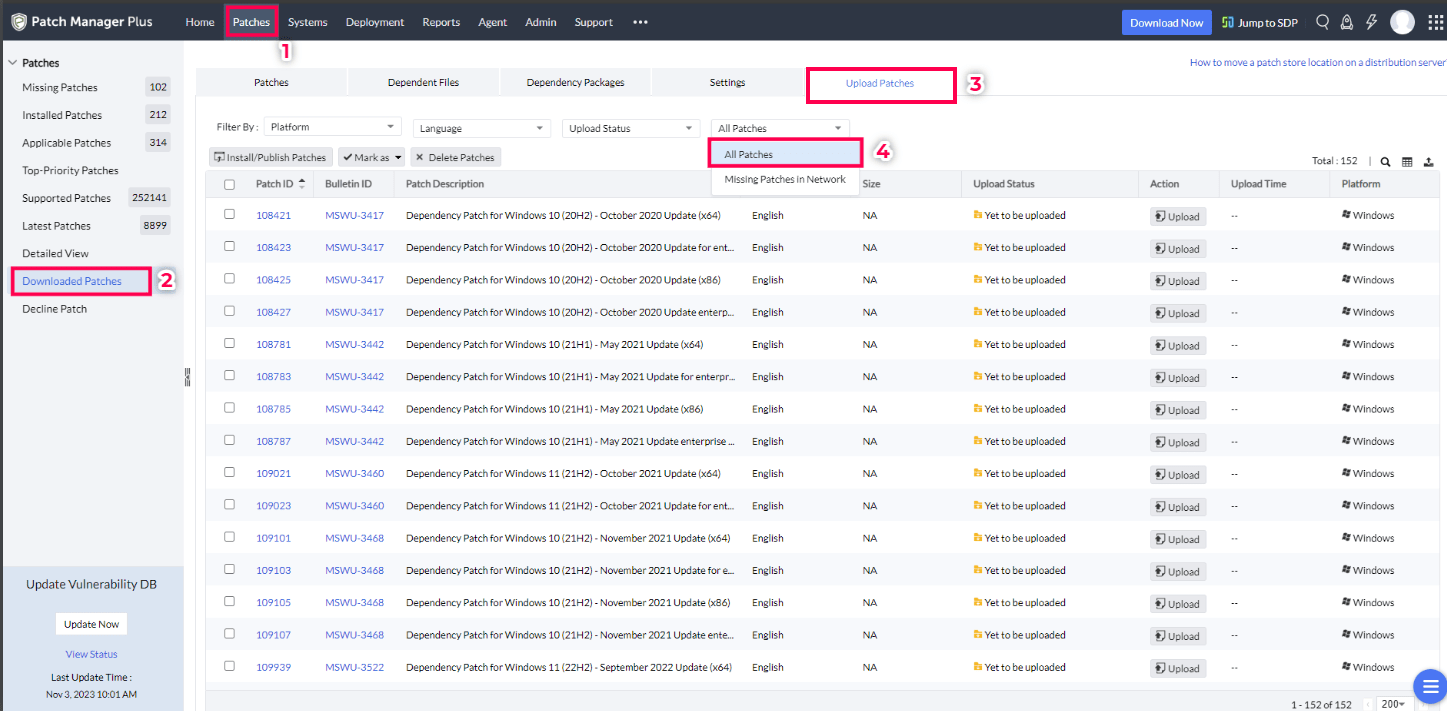
- In the product console, navigate to Patches → Downloaded Patches → Upload Patches and select All Patches in the filter.
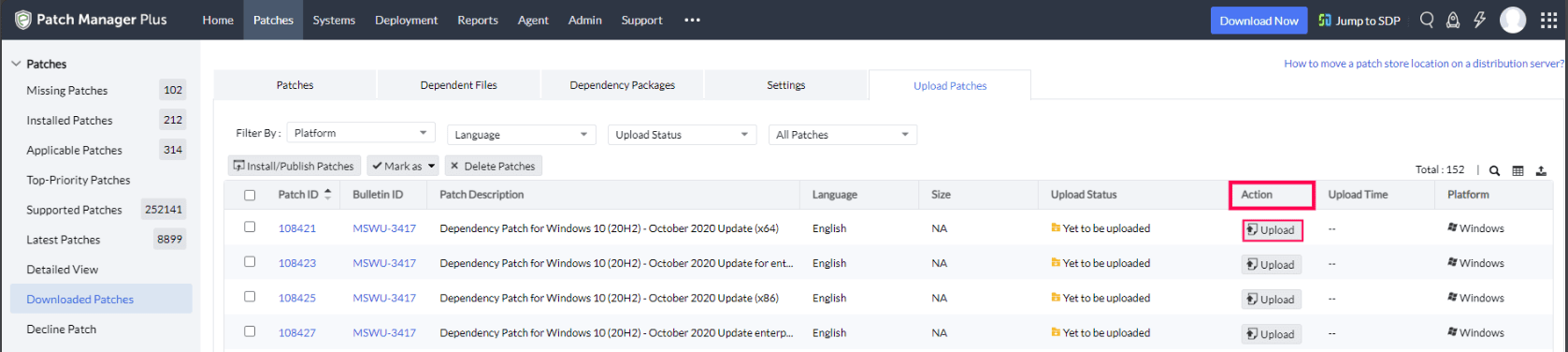
- Browse and select the required patch and click on Upload from the Action column.
- Upload the ISO file, choose a Checksum type, and enter the checksum value.
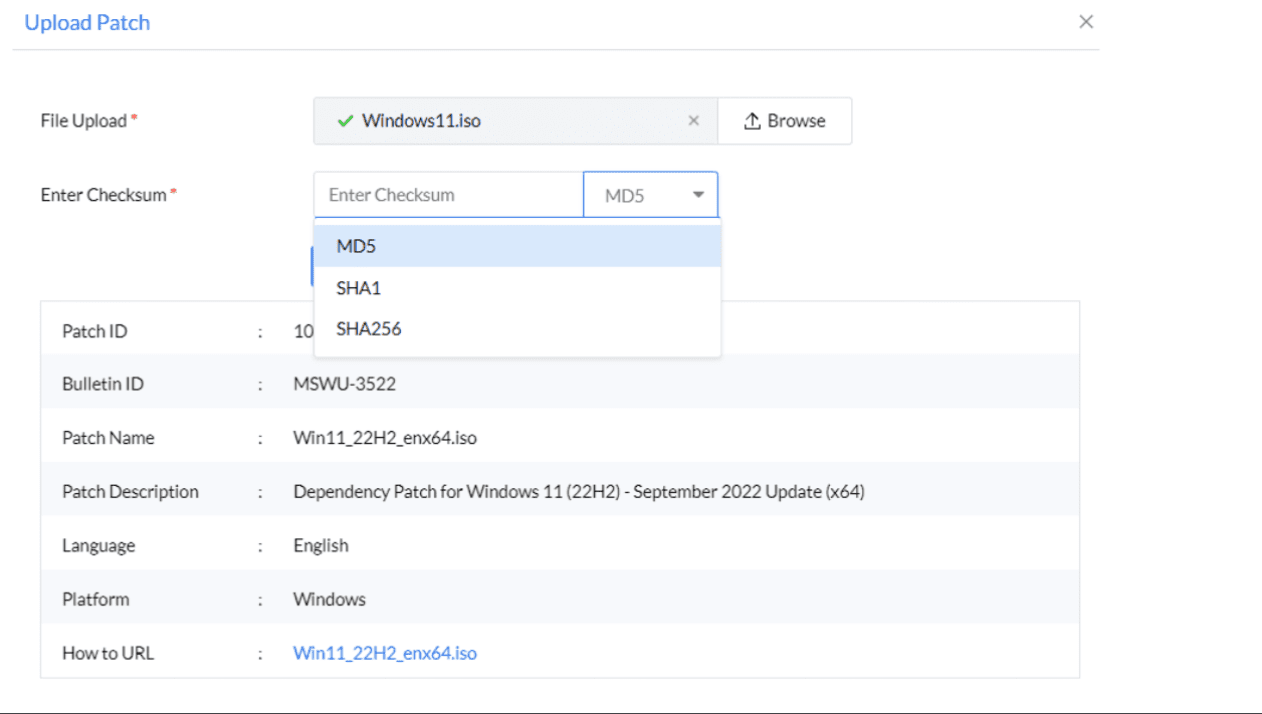
- Once the checksum is validated, click on Upload. To calculate the checksum, refer here.
- Once the dependency patch has been uploaded, you can deploy the Windows update component restore patches to agents from the Supported Patches view on the console.