Integrating PAM360 with AI for Intelligent Insights
PAM360 brings AI-driven capabilities that help administrators quickly analyze key activity patterns and identify potential risks associated with privileged access. By offering AI capabilities for critical functions, PAM360 helps reduce manual effort, improve access governance, and adapt to evolving security demands across diverse environments. This document outlines the detailed steps to integrate PAM360 with AI providers (BYOK) or self-hosted LLMs (BYO-LLM), and leverage their capabilities to generate intelligent insights that enhance privileged access management. It covers the following topics:
1. Roles and Permissions
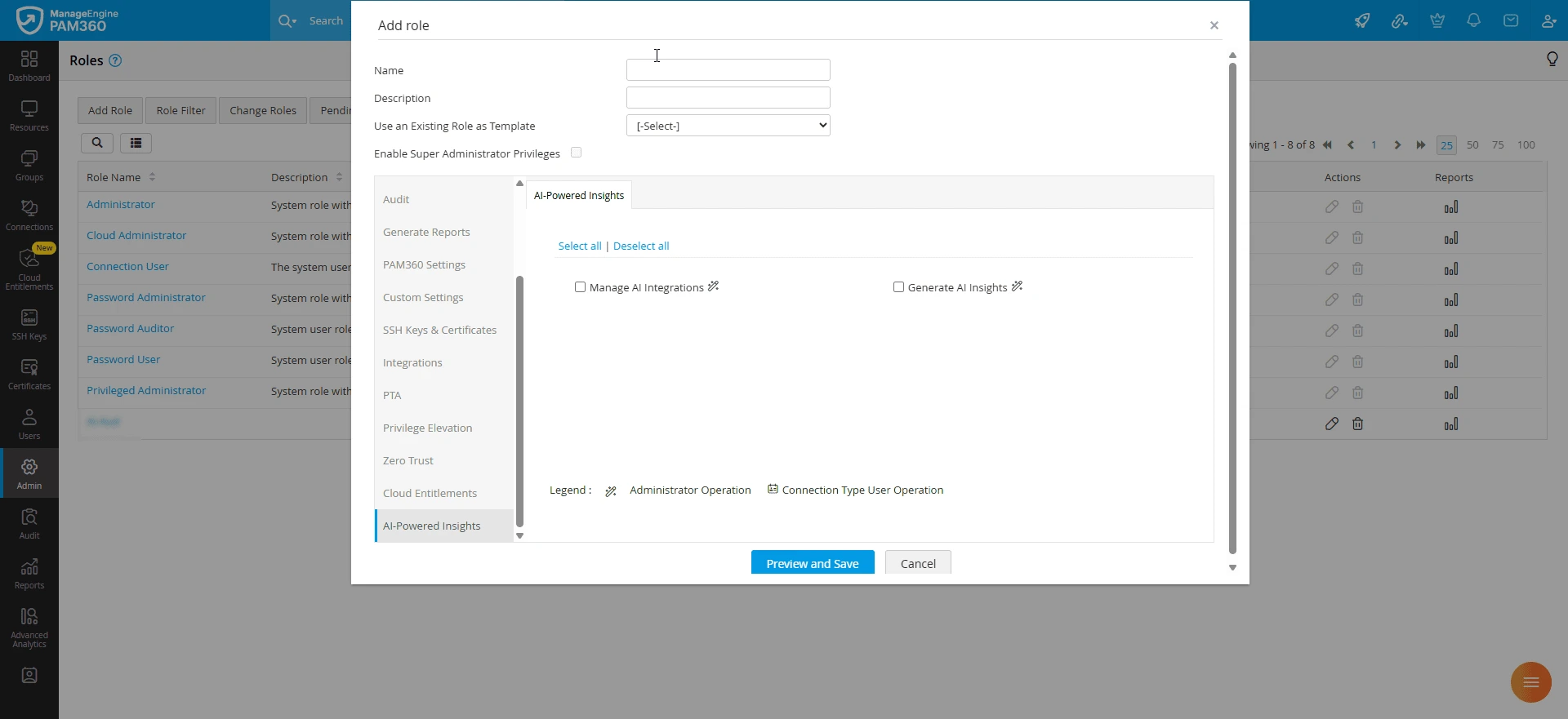
By default, users with the administrator type user role can manage AI integrations and generate AI insights for the supported functionalities in PAM360. Additionally, PAM360 allows administrators to configure custom user roles with the following privileges to manage the AI integrations and generate AI insights using the integrated AI platform:
- Manage AI Integrations - Navigate to Admin >> Customization >> Roles >> Add Role >> AI-Powered Insights, and enable the custom role Manage AI Integrations. Enabling this privilege will allow the users to enable, manage, and disable AI integrations with PAM360.
- Generate AI Insights - Navigate to Admin >> Customization >> Roles >> Add Role >> AI-Powered Insights, and enable the custom role Generate AI Insights. Enabling this privilege will allow the users to generate AI insights for the supported functionalities.
2. Supported Capabilities
PAM360 integrates with AI providers or self-hosted LLMs to offer intelligent insights into various aspects of privileged access management. The integration offers the following AI capabilities to enhance privileged access management through contextual decision-making:
2.1 AI Summaries for Recorded Sessions
PAM360 leverages AI models capabilities to automatically generate concise summaries of recorded RDP, SSH, and Telnet sessions. These summaries offer a quick overview of all the commands executed by the user and help administrators quickly understand the intent and actions carried out during each session without manually reviewing the full-length session recordings. This capability saves time and highlights any suspicious activity or deviation from standard access behavior, aiding faster incident response and forensic analysis.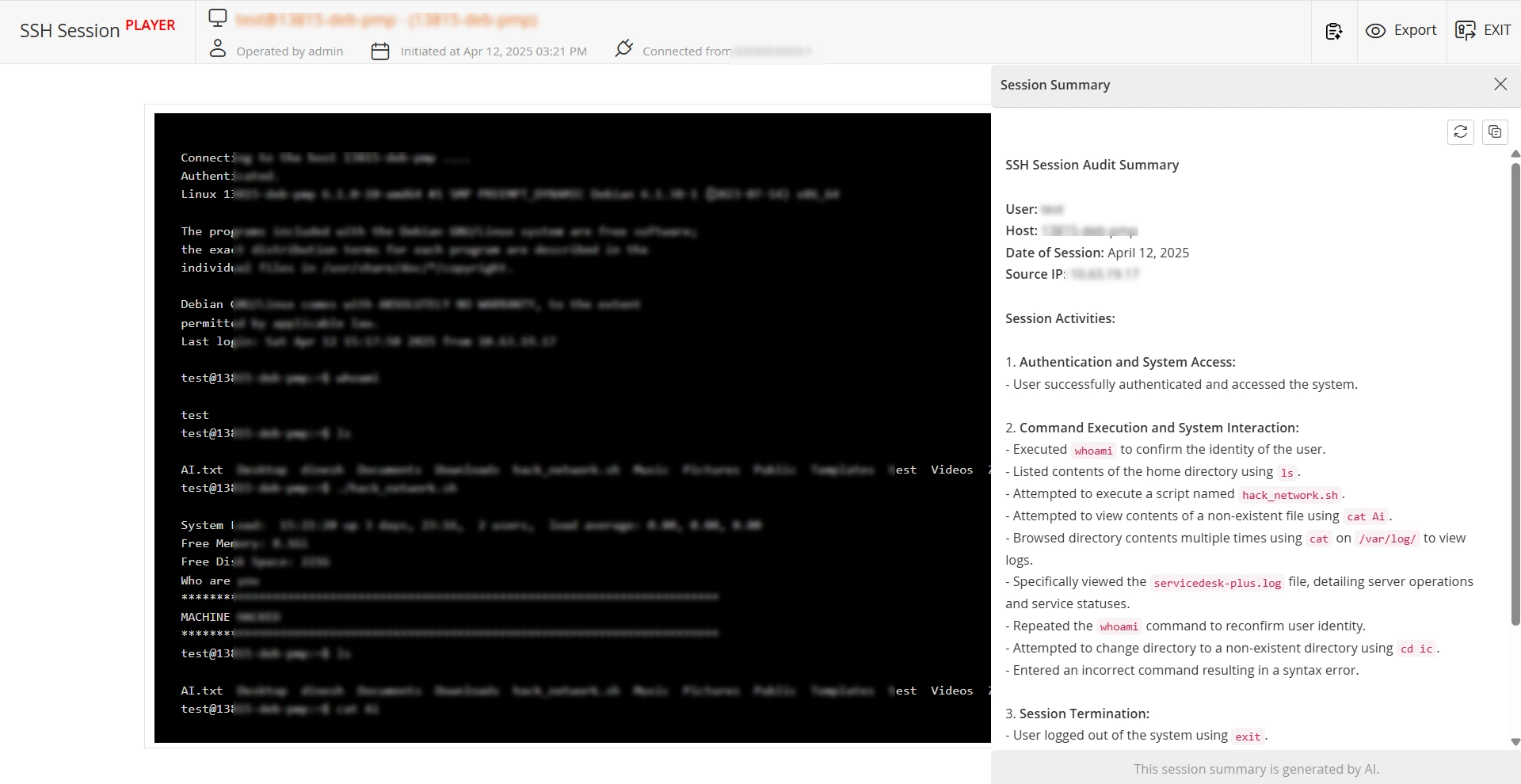
Explore this link for more details about generating session summaries for recorded sessions using AI.
2.2 Risk Remediation for Cloud Entitlements
In cloud environments, where identities are often assigned excessive privileges, PAM360 uses AI models to provide intelligent insights to remediate the risks associated with cloud identities. Alongside PAM360’s built-in remediation suggestions, AI-based remediation suggestions are now available, offering additional flexibility and context-driven recommendations. The integration offers IAM policy recommendations that help revoke excessive privileges to remediate these risks, thereby allowing administrators to enforce least-privilege access policies more effectively to improve the security posture and reduce the attack surface on cloud identities.
Administrators can also generate policy remediation summaries for excessive privilege risks associated with an identity, based on IAM policy recommendations provided by PAM360 and integrated AI models. These summaries highlight the differences in the currently attached and recommended IAM policies and specify how the suggested policy ensures a least privilege approach.
Explore this link for more details about generating IAM policy suggestions to remediate the risks associated with the Identity and to generate policy remediation summaries that highlights how the recommended policy remediates the risk of excessive privileges to the identity using AI.
3. Integration Steps
PAM360 supports integration with the following AI providers (BYOK) or self-hosted LLMs (BYO-LLM):
- AI Providers: OpenAI, Microsoft Azure OpenAI Service, Anthropic, Google AI, DeepSeek, and SiliconFlow
- Self-Hosted LLMs: Phi-3, Mistral AI, LLaMA, Qwen, and Others (i.e., any LLMs that support OpenAI-compatible API standards)
3.1 Integrating AI Providers with PAM360
Follow these steps to integrate the desired AI providers with PAM360 to unlock AI-powered insights across various functionalities within the application:
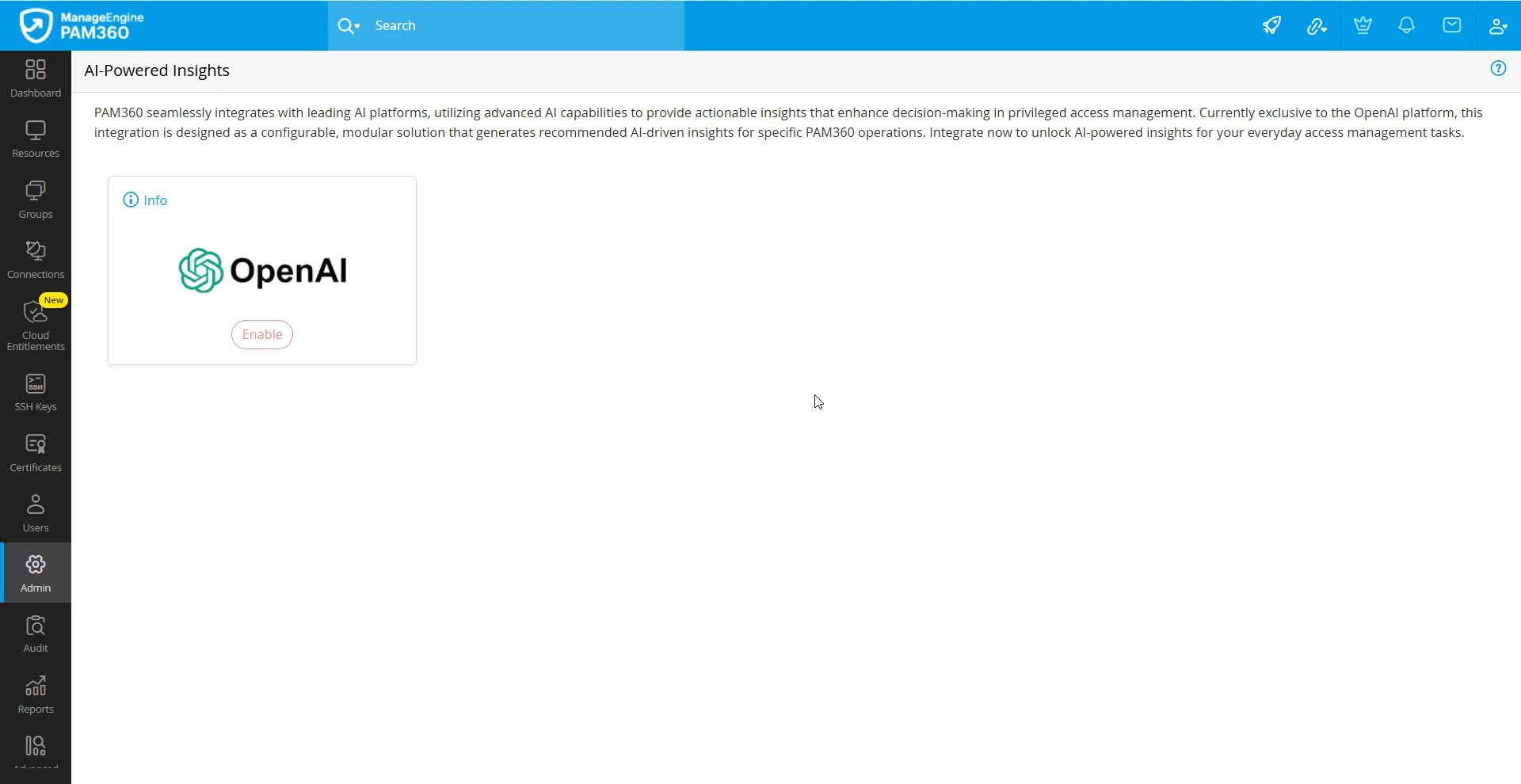
- Navigate to Admin >> Integrations >> AI-Powered Insights.
- On the AI-Powered Insights page, under the AI Provider section, click the Enable button below the desired AI provider.
- In the configuration slider that appears, enter the following details:
- Enterprise API Key - Enter the API key generated on the AI provider website.
Additional Detail
AI integrations in PAM360 can be enabled by configuring enterprise API keys obtained from the respective platforms.
- AI Model - Choose the enterprise-licensed model from the available options to generate intelligent insights. Model marked with a star icon is recommended based on our internal evaluation and observed performance.

- Select the specific AI-powered functionalities you want to enable in PAM360 within the supported Cloud Entitlements and Remote Sessions modules.
- Cloud Entitlements
- Policy Suggestion - Enable this check box to use the AI model to generate recommended policy suggestions for an excessive privilege risk associated with a cloud identity.
Additional Detail
The currently attached policy and identity usage behavior of the selected identity will be analyzed by AI model to suggest a least-privilege policy.
- Policy Remediation Summary - Enable this check box to generate a policy remediation summary for an excessive privilege risk associated with an identity.
Additional Detail
The selected AI model compares the previously attached and currently suggested AWS inline policies to summarize key differences and highlight how excessive privileges are remediated to ensure that only just enough permissions are granted.
- Policy Suggestion - Enable this check box to use the AI model to generate recommended policy suggestions for an excessive privilege risk associated with a cloud identity.
- Remote Sessions
- Recorded Legacy SSH Session Summary - Enable this checkbox to use the selected AI model to generate a summary for recorded legacy SSH sessions.
- Recorded Telnet Session Summary - Enable this checkbox to use the selected AI model to generate a summary for recorded Telnet sessions.
- Recorded Windows Events Session Summary - Enable this checkbox to use the selected AI model to generate a summary for recorded RDP sessions.
Caution
The recordings may include system events, user inputs, outputs, keystrokes, and actions performed by the user, which will be analyzed by the AI model to generate an insightful summary.
- Cloud Entitlements
- Enterprise API Key - Enter the API key generated on the AI provider website.
- After entering the required details, click Test to verify communication between PAM360 and the AI provider.
- Upon successful test result, click Enable to integrate the AI provider with PAM360 successfully.
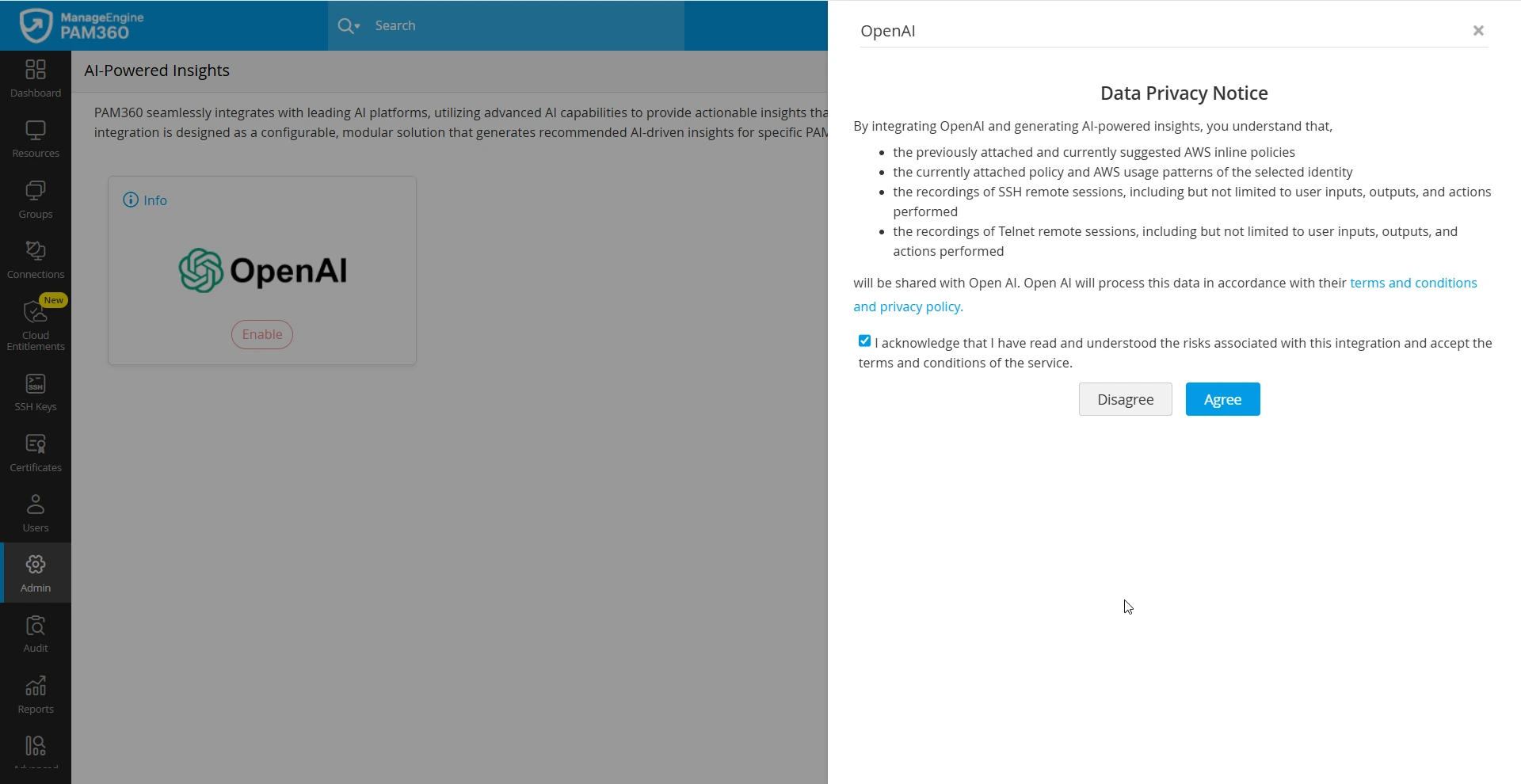
- On the AI Terms of Use page that appears, read and approve the terms and conditions and click the Agree button to integrate the AI provider with PAM360 for the selected features.
You have successfully integrated an AI provider with PAM360 to generate intelligent insights for your preferred features. After integration, you can edit the configuration at any time, disable the integration, or replace it with a new AI provider or self-hosted LLM directly from the AI-Powered Insights page.
Caution
- When you integrate an AI provider to generate intelligent insights for the supported PAM360 features, only the essential data required for the selected AI-powered functionality is shared with the AI provider.
- Ensure you have not opted-in to share data with the AI provider in your enterprise AI account settings.
3.2 Integrating Self-Hosted LLMs with PAM360
Follow these steps to integrate your self-hosted LLM with PAM360 to unlock AI-powered insights across various functionalities within the application:
- Navigate to Admin >> Integrations >> AI-Powered Insights.
- On the AI-Powered Insights page, under the Self-Hosted LLM section, click Enable below the desired LLM. If your organization’s hosted LLM is not listed, select Enable under Others.
- In the configuration slider that appears, enter the following details:
- AI Provider Name - If you selected Others, enter the name of the AI provider.
- LLM Endpoint URL - Enter the HTTPS endpoint URL where the LLM is hosted and ensure that the HTTPS certificate is imported into the PAM360 server. For more details on importing the certificate, refer to Question 11 in this document.
Caution
PAM360 only supports HTTPS-based communication. Ensure that your LLM endpoint is configured to use HTTPS before providing the URL.
- AI Model - Choose the AI model from the available options to generate intelligent insights. Model marked with a star icon is recommended based on our internal evaluation and observed performance.
- Model Name - If you selected Others, enter the AI model name.
- API Key - Enter the API key generated on the self-hosted LLM server.
- Select the specific AI-powered functionalities you want to enable in PAM360 within the supported Cloud Entitlements and Remote Sessions modules.
- Cloud Entitlements
- Policy Suggestion - Enable this check box to use the AI model to generate recommended policy suggestions for an excessive privilege risk associated with a cloud identity.
Additional Detail
The currently attached policy and identity usage behavior of the selected identity will be analyzed by AI model to suggest a least-privilege policy.
- Policy Remediation Summary - Enable this check box to generate a policy remediation summary for an excessive privilege risk associated with an identity.
Additional Detail
The selected AI model compares the previously attached and currently suggested AWS inline policies to summarize key differences and highlight how excessive privileges are remediated to ensure that only just enough permissions are granted.
- Policy Suggestion - Enable this check box to use the AI model to generate recommended policy suggestions for an excessive privilege risk associated with a cloud identity.
- Remote Sessions
- Recorded Legacy SSH Session Summary - Enable this checkbox to use the selected AI model to generate a summary for recorded legacy SSH sessions.
- Recorded Telnet Session Summary - Enable this checkbox to use the selected AI model to generate a summary for recorded Telnet sessions.
- Recorded Windows Events Session Summary - Enable this checkbox to use the selected AI model to generate a summary for recorded RDP sessions.
Caution
The recordings may include system events, user inputs, outputs, keystrokes, and actions performed by the user, which will be analyzed by the AI model to generate an insightful summary.
- Cloud Entitlements
- After entering the required details, click Test to verify communication between PAM360 and the LLM endpoint.
- Upon successful test result, click Enable to integrate the self-hosted LLM with PAM360 successfully.
- On the AI Terms of Use page that appears, read and approve the terms and conditions and click the Agree button to integrate the self-hosted LLM with PAM360 for the selected features.
You have successfully integrated a self-hosted LLM with PAM360 to generate intelligent insights for your preferred features. After integration, you can edit the configuration at any time, disable the integration, or replace it with a new self-hosted LLM or AI provider directly from the AI-Powered Insights page.
Additional Detail
When you integrate a self-hosted LLM to generate intelligent insights for the supported PAM360 features, only the essential data required for the selected AI-powered functionality is shared with the LLM.