Configuring PAM360 Remote Connect
PAM360 Remote Connect is an independent desktop client for Windows machines that allows you to launch direct remote connections to Windows and SSH-based target resources using password-less authentication, without the need to install multiple remote clients or use a web browser. Similar to the PAM360 web interface, Remote Connect provides a seamless authentication mechanism for initiating RDP and SSH-based sessions.
Remote Connect is intended for a trusted subset of privileged users in an enterprise who do not require metered access to the resources within their environment. It can be installed on any Windows machine independently and does not require the PAM360 server to run on the same system. To use PAM360 Remote Connect, the target machines should be configured as resources in PAM360 and be reachable over RDP or SSH protocols. Once these conditions are met, you can install the application on your machine and initiate remote connections to the required endpoints.
This document outlines the system requirements, installation process, and supported operations within the interface. Read further to learn about the PAM360 Remote Connect application in detail.
This help document covers the following topics in detail:
- System Requirements
- Installing and Logging in to PAM360 Remote Connect
- Supported Operations in the PAM360 Remote Connect Interface
Caution
A working instance of the PAM360 web application is required in your workstation to use the PAM360 Remote Connect application.
1. System Requirements
The prerequisites to install the PAM360 remote connect application are as follows:
| Hardware Requirements | Supported Operating Systems |
|---|---|
Processor
RAM
Hard Disk
| Windows
Additional Detail: PAM360 Remote Connect can also be run on VMs of the above operating systems. |
2. Installing and Logging in to PAM360 Remote Connect
Follow these steps to install the PAM360 Remote Connect application to your machine and log in to your account via the Remote Connect application:
- Log in to your PAM360 account, and click on the Profile icon at the top-right corner of the screen.
- In the sliding window that appears, scroll down to the bottom and click on the Remote Connect icon. You will be redirected to the PAM360 Remote Connect download page.
- Click on the Download button to download the PAM360RemoteConnect.exe file to your machine.
- Alternatively, access the PAM360 Remote Connect download page and download the PAM360RemoteConnect.exe file directly to your machine.
- Once the download is complete, run the exe file and install the Remote Connect application by following the instructions displayed in the installation wizard.
- Once the installation is complete, launch the PAM360 Remote Connect application.
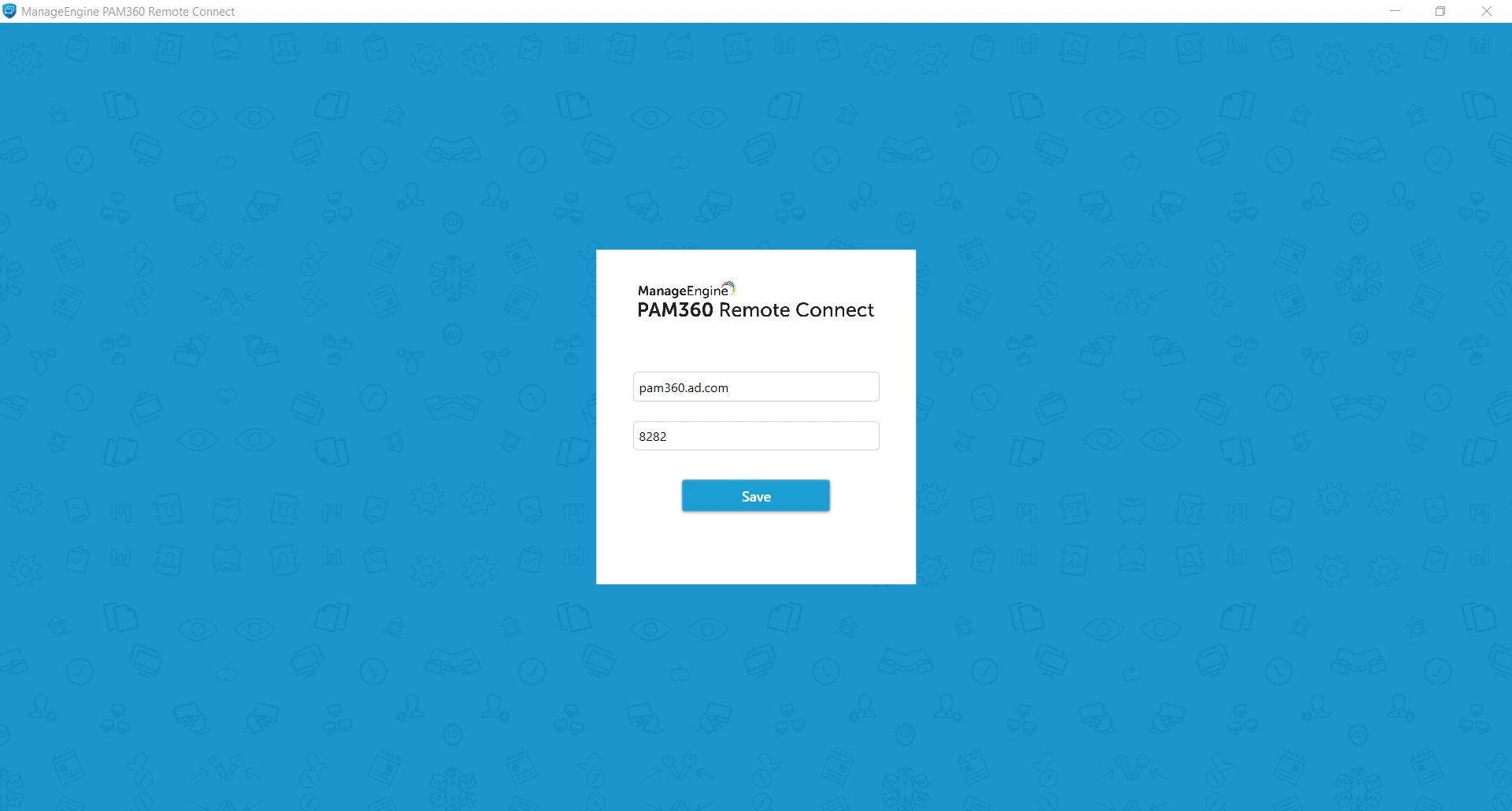
- On the server configuration page, enter the following details and click Save.
- Server Name - The hostname of the machine where the PAM360 server is running.
- Port - Specify the port number in this field.
Additional Detail
Click the Server Configuration option present at the top-right corner of the login page to modify the server details at any time.
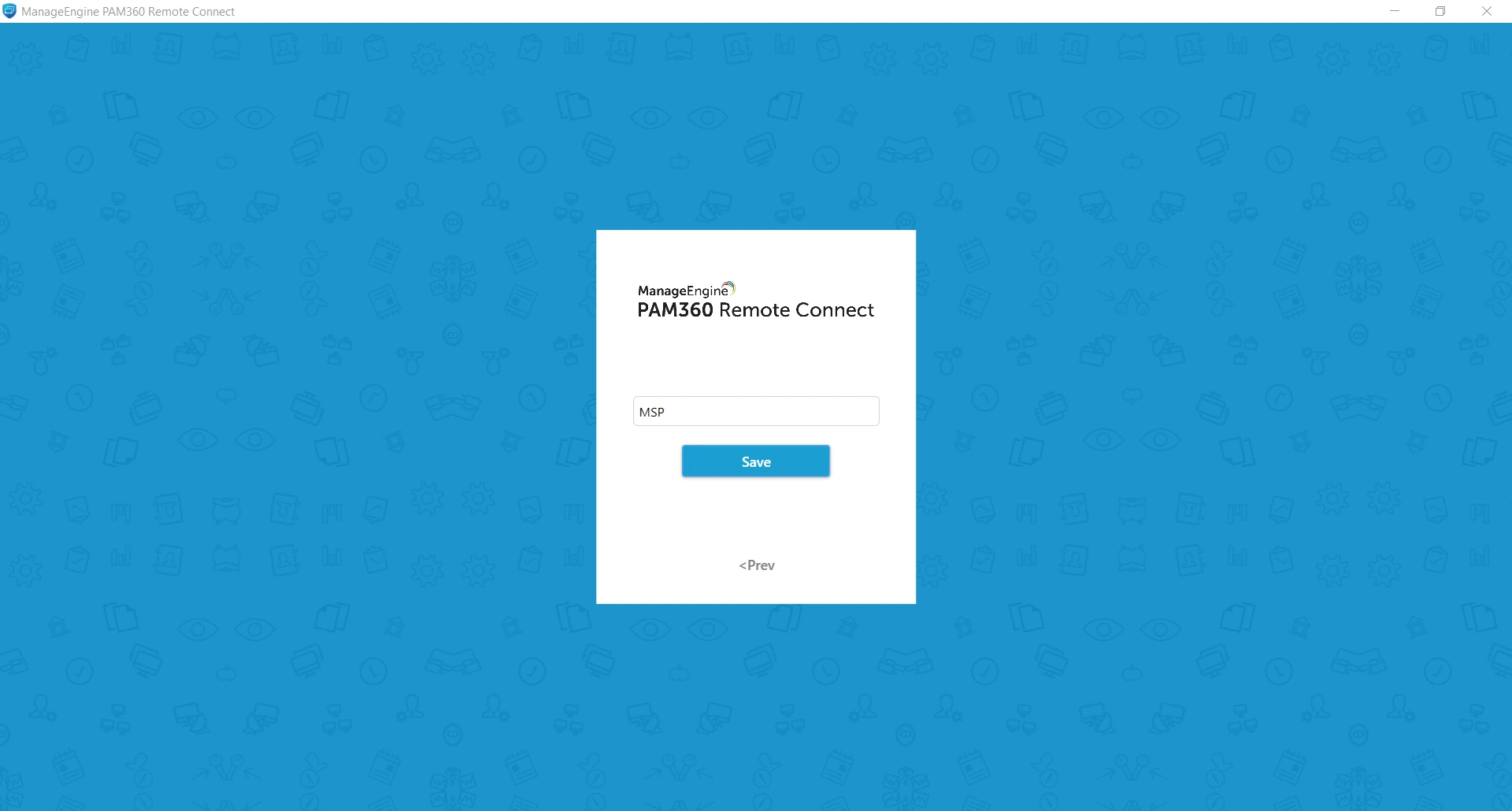
- If you are using an MSP build, enter your organization name. You can find your organization name in the PAM360 access URL. For example, if your access URL is https://hostname:8282/xyz, then your organization name is xyz. If you are unsure of your organization name, contact your administrator.
- Now, you will be redirected to the login page. Enter your PAM360 login credentials in the respective fields and click Login to access your account. PAM360 remote connect supports all authentication methods supported by the PAM360 web interface.
3. Supported Operations in the PAM360 Remote Connect Interface
All RDP, SSH, and thick-client installed database resources shared with you in the PAM360 web interface will be displayed in the PAM360 remote connect application, along with the available connection options. The display area is split into two panes: Resources and Accounts. Under the Resources pane, you will find the list of resources shared with you.
Click on a resource to view the available accounts. Similar to the Connections tab in PAM360's web application, the Accounts pane is divided into Local Accounts, Domain Accounts, and Other Domain Accounts sections, depending on the selected resource type. You can establish remote connections to a resource using either the local accounts or one of the available domain accounts. Click here to learn about the connection tab operations in detail.
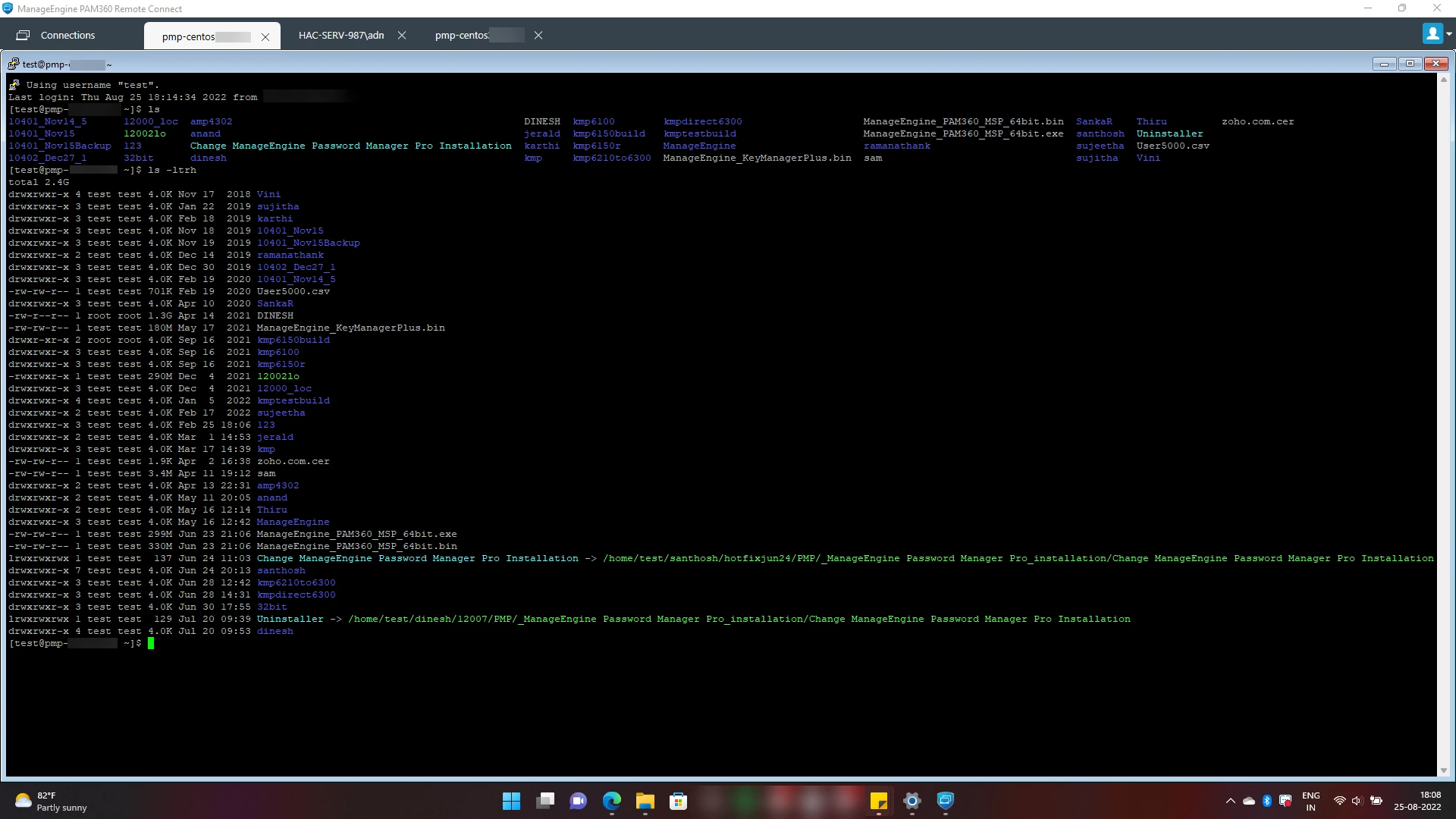
Using the PAM360 Remote Connect application, you can launch remote connections to target machines as performed in an MSTSC connection, via SSH PuTTY client, and third-party thick-client applications for database connections. You can launch concurrent remote connections and manage them from different tabs in the same window.
You can perform the following actions on the PAM360 Remote Connect application:
- Both the Resources and Accounts panes have individual search bars that you can use to locate the desired resources and accounts using keyword search.
- Use the sort option in the Resources pane to sort the resources in alphabetical or reverse alphabetical order.
- Click the Refresh button to sync the resources and accounts shared with you by your administrator.
Additional Detail
Single-click auto logon using Active Directory/Microsoft Entra ID/LDAP credentials is currently not supported in PAM360 Remote Connect, so the 'Logged-in AD/Microsoft Entra ID/LDAP credential' tab will not be displayed.
3.1 Launching Remote Connections via PAM360 Remote Connect Application
To launch a remote connection to the desired resource,
- Click on the desired resource you want to connect to in the Resources pane.
- Switch to the desired tab within the accounts section, hover over the account you want to use to launch a remote connection to the selected resource, and click Connect.

Additional Detail
If access control is configured for a resource, you should submit an access request by clicking Request for the account before launching a remote connection. You can establish the connection only after the request has been approved by an administrator.
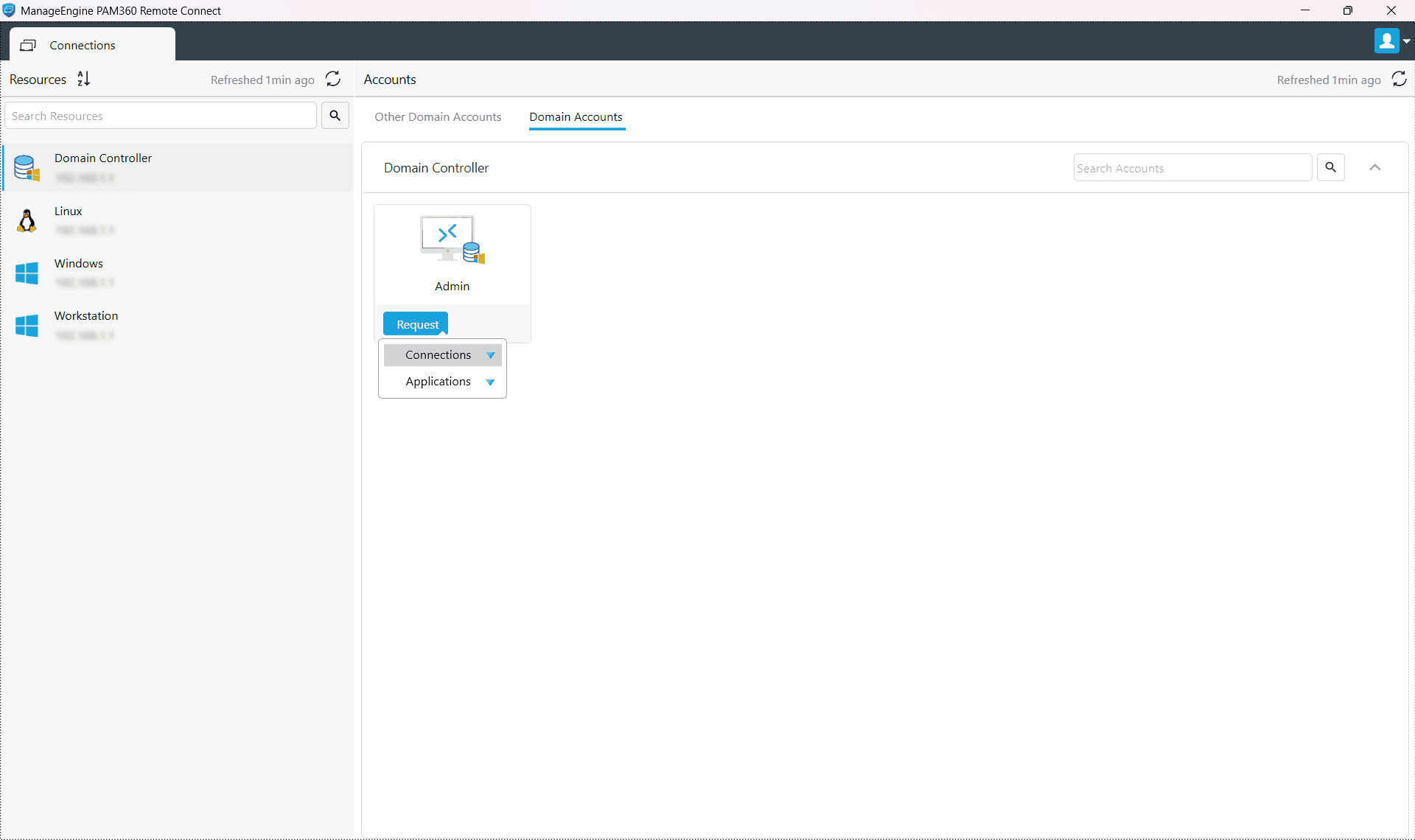
- Choose Connections from the displayed options and select the desired connection protocol. The connection will be opened in a new tab.
3.2 Launching Thick-Client Applications Using Application Credential Injection
Follow these steps to log in to a third-party thick-client application using Application Credential Injection:
- Click on the desired resource you want to access in the Resources pane.
- Access the Local Accounts section and select the required account for connection.
- Hover over the Connect button, then click Application from the dropdown to launch the session through the corresponding thick-client application.
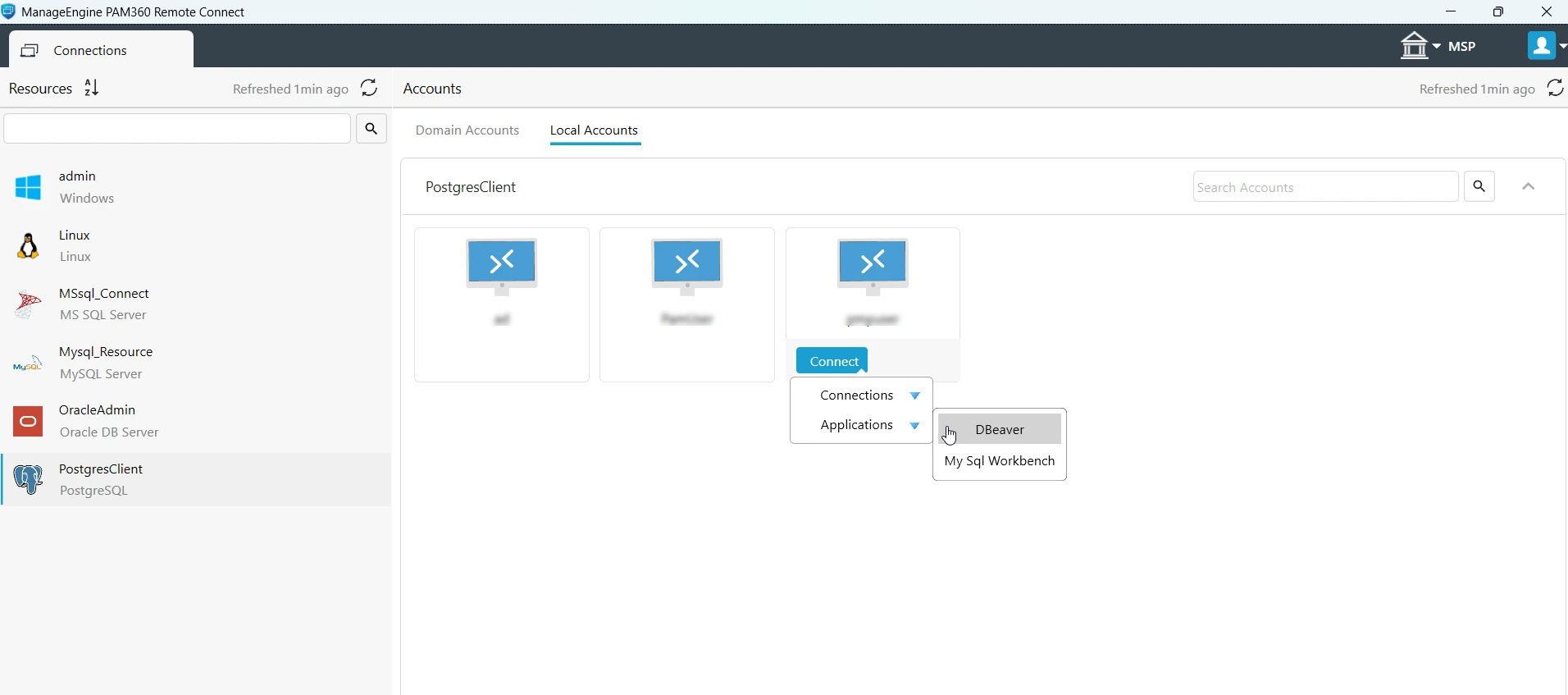
Now, the passwords will be auto-filled automatically, establishing a secure connection to the selected database server without any manual intervention. If you face any issues while connecting to the database server using the third-party thick-client application, terminate the connection window and re-initiate the connection using the application after some time.
Caution
Avoid interacting with other applications or windows immediately after launching the connection, as it may disrupt the password autofill in the thick-client application. Once the password is auto-filled and the connection is successfully established, you can proceed with your tasks as usual.
Additional Details
- You can launch only one instance of a thick-client application at a time. However, if the target database server is MySQL and you have already launched a connection using DBeaver, you can launch another connection to the same account using the MySQL Workbench application (if it is already installed and configured) from PAM360 Remote Connect.
- Some common pop-ups, such as the tip of the day, authentication dialog boxes encountered during login, are automatically managed by PAM360 Remote Connect. However, you should handle any unknown pop-ups, such as update DBeaver messages, etc., to ensure that the connection executes as expected.