Working with RemoteApp in PAM360
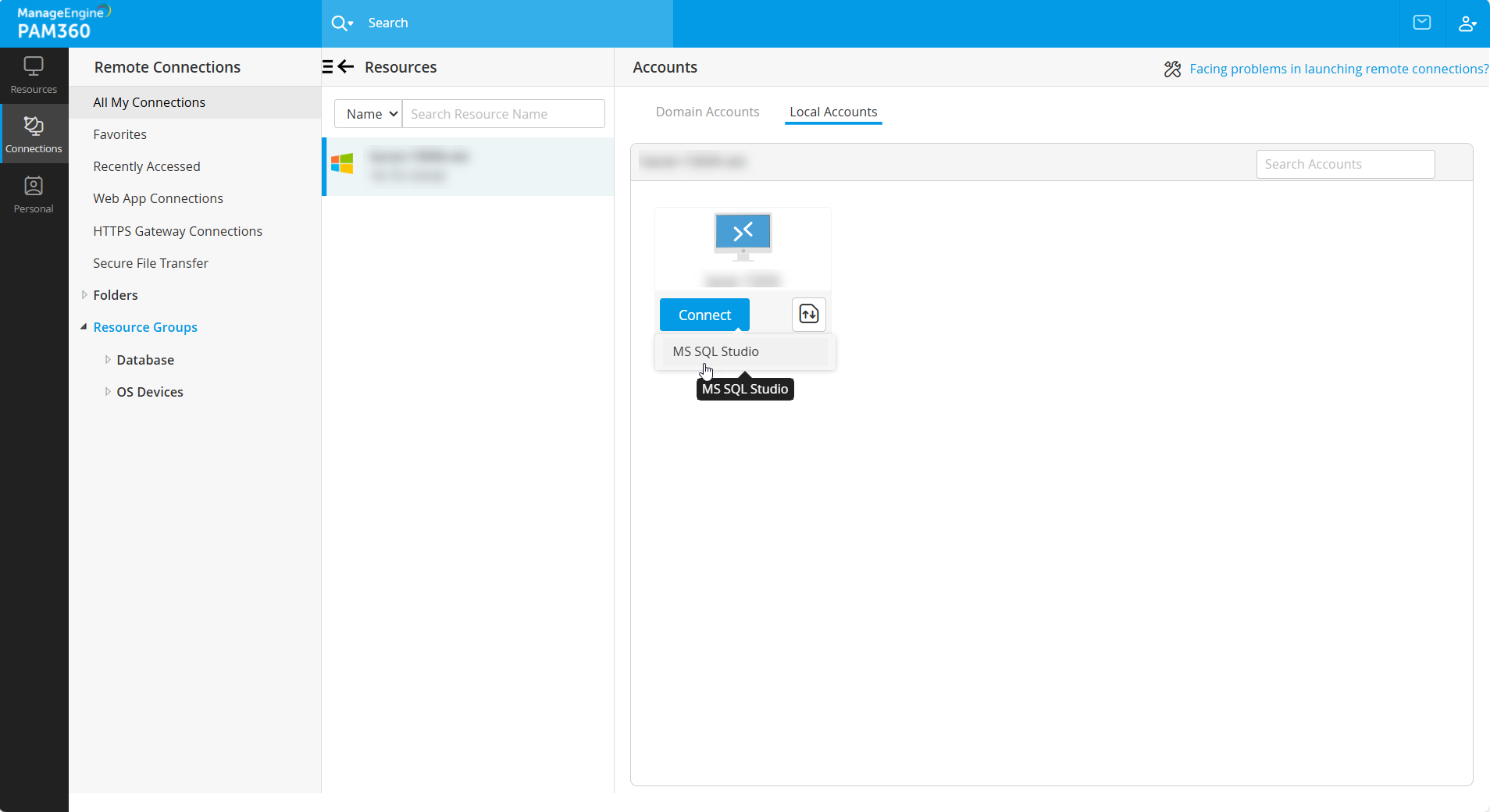
PAM360 provides a seamless way to remotely connect to applications (apps) preconfigured on target systems. Additionally, it enables direct remote system access while enhancing usability through RemoteApp integration. By adding remote apps to RDP connections, IT administrators can streamline privileged session management, ensuring users access only the intended applications. For instance, if a user launches a RemoteApp configured for MS SQL Studio, they will only be able to access MS SQL Studio on the remote system, with no permissions to open other programs. With PAM360, you can manage remote applications through the following actions:
- Prerequisites
- Adding Remote Apps Manually
- Discovering Remote Apps Automatically
- Associating Remote Apps with a Resource
- Sharing with RemoteApp Only Access
- Accessing Remote Apps from a Remote Resource
1. Prerequisites
Before proceeding with RemoteApp configurations in PAM360, ensure the following prerequisites are met:
- For Windows Domain server machines, the respective application must be configured as a RemoteApp. For reference, follow the steps outlined in our ME_AMP_RemoteApp Configuration document (section 2, refer from step 1 to 10).
- The PAM360 server must have the Microsoft .NET Framework and Visual C++ Redistributable (Visual Studio 2015 and above) installed to enable automatic discovery of remote apps.
2. Adding Remote Apps Manually
PAM360 allows manual addition of remote apps, which can then be associated with specific resources. Follow these steps to add a remote app:
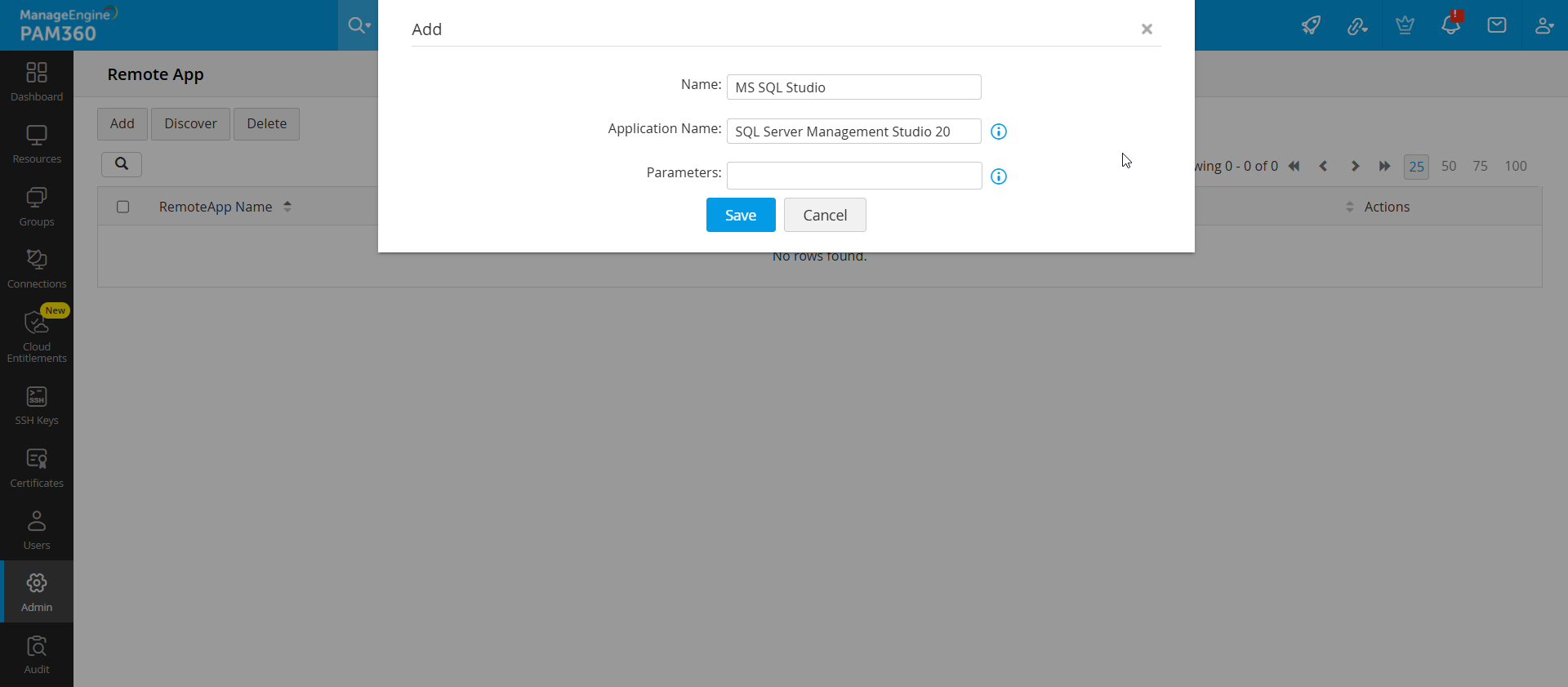
- Navigate to Admin >> Privileged Session >> RemoteApp and click Add.
- In the pop-up window, enter the following details:
- Name: Provide a display name for the remote app in PAM360.
- Application Name: Enter the exact name of the application as it appears on the remote system.
- Parameters: Specify additional parameters, such as a specific folder or file to open when launching the application. For example: If the application is notepad.exe, you can specify a particular text file to open by default.
- Click Save to confirm the changes.
3. Discovering Remote Apps Automatically
Beyond manual addition, PAM360 can automatically discover remote apps on machines where the RemoteApp feature is already configured. Ensure you have met the prerequisites before proceeding. Follow these steps to discover Remote Apps:
- Navigate to Admin >> Privileged Session >> RemoteApp and click Discover.
- Select Windows Domain from the Resource Name dropdown.
- From the Account Name dropdown, choose the account where the Microsoft RemoteApp feature is configured and remote applications are published.
- Click Fetch to retrieve a list of available remote apps from the selected machine.
- Select the required remote apps and click the Add and Associate.
The chosen remote apps will now be listed on the RemoteApp Dashboard, where they can be further configured and associated with specific resources.
4. Associating Remote Apps with a Resource
PAM360 allows you to associate the remote apps that were added manually or discovered into PAM360 with a selected resource. After this, you will be able to access these remote apps through the resource. Read further to know about associating the remote apps via RemoteApp:
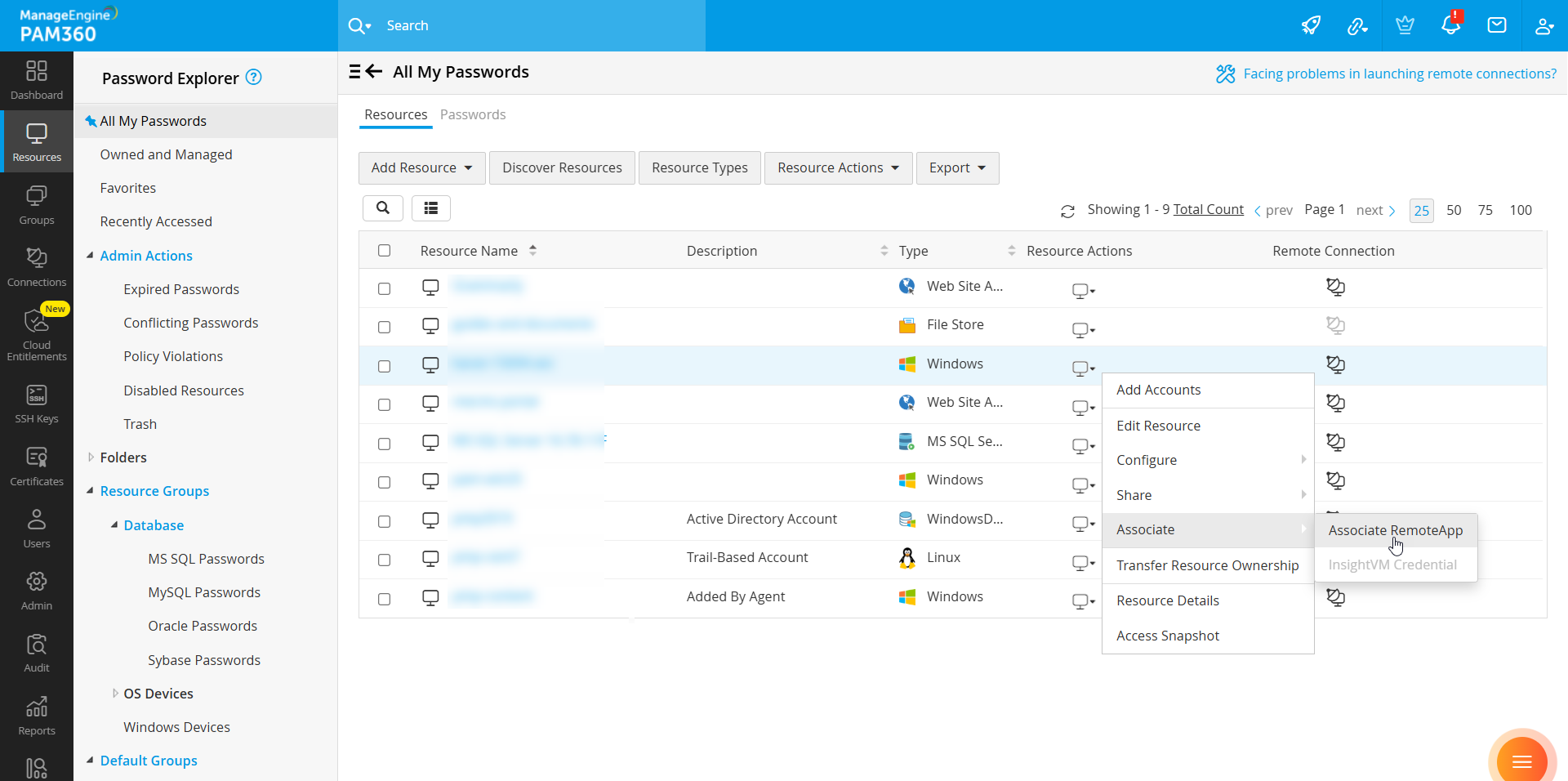
- Navigate to the Resources tab.
- From the list of available resources, locate the desired resource and click Resource Actions >> Associate RemoteApp.
- In the pop-up that opens, select the applications from the Available Applications column and move them to the Selected Applications column using the arrow keys.
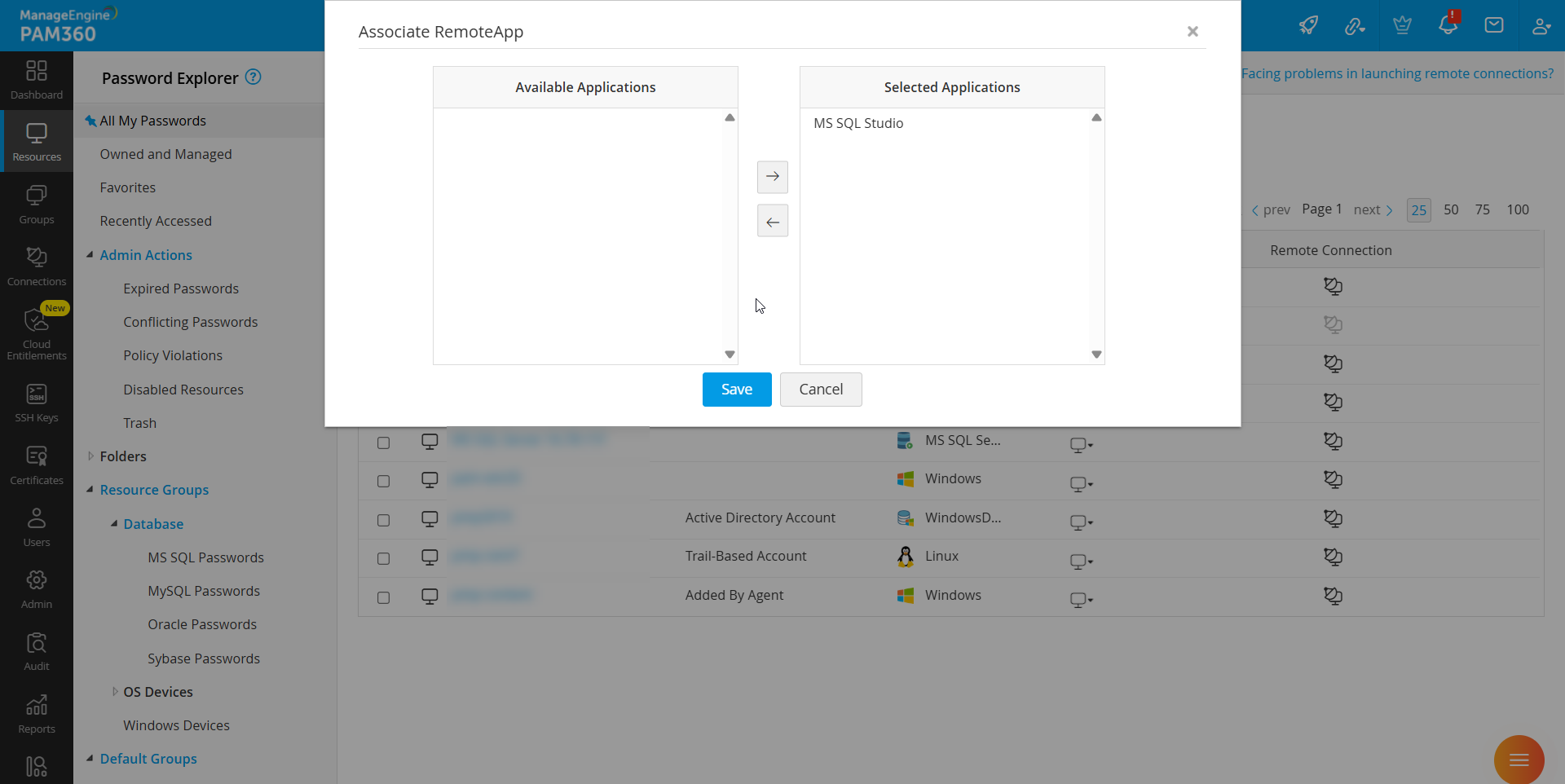
- Click Save to finalize the association.
The selected remote apps are now successfully associated to the resource.
5. Sharing with RemoteApp Only Access
Additional Details
Resources or accounts can be shared with RemoteApp Only access exclusively for Connection Users.
To grant RemoteApp Only access to a user or user group, follow these steps:
- Navigate to the respective resource or account. and click Share >> With Users or User Groups.
- On the page that appears, locate the user and click Grant.
- Select RemoteApp Only as the permission type.
- In the dialog box that appears, choose the required associated applications and click Save to finalize the access settings.
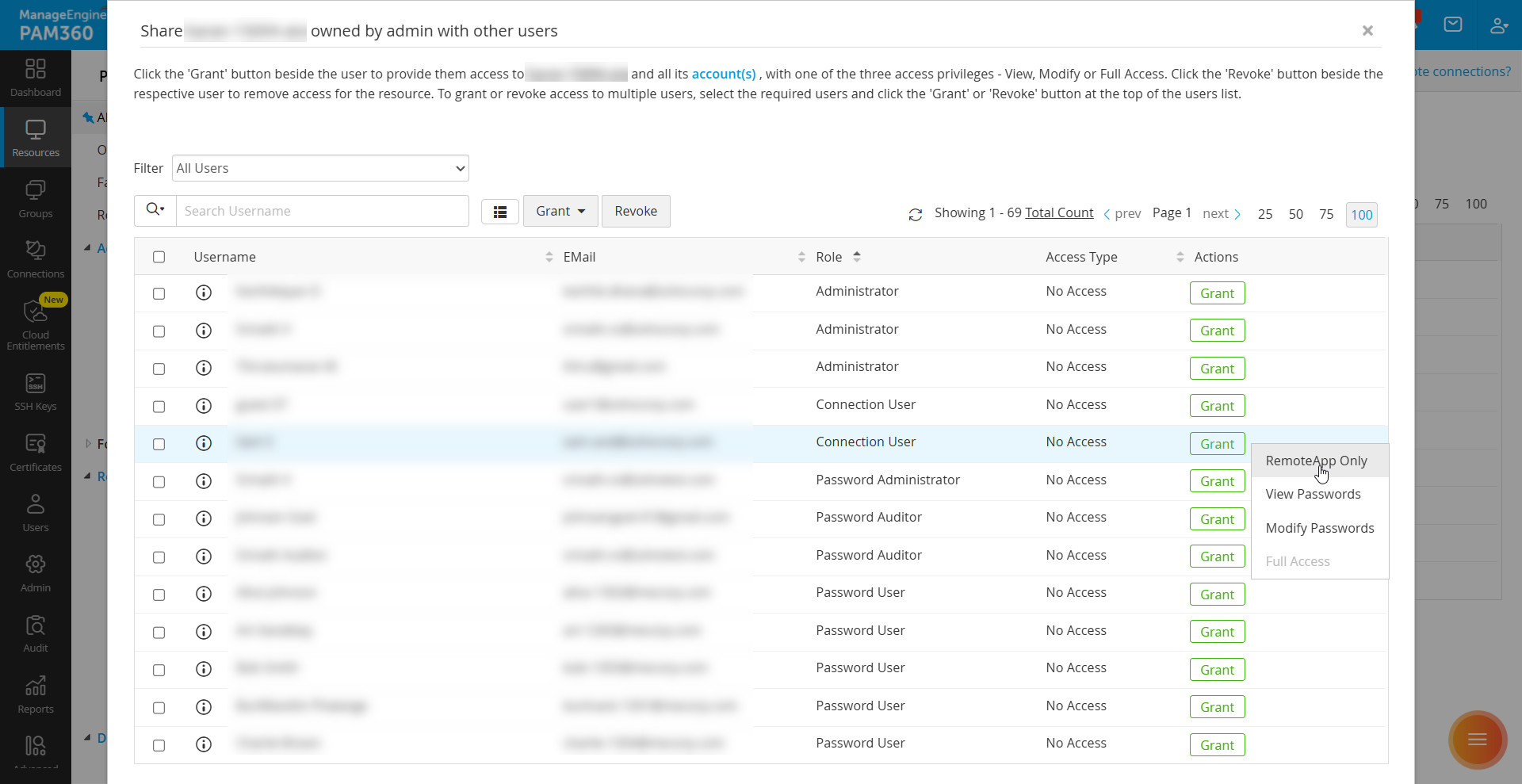

The selected user or user group now has restricted access to only the specified remote applications on the account or resource, ensuring enhanced security and controlled access.
6. Accessing Remote Apps from a Remote Resource
Once remote apps are associated with a resource, Connection Users can access them only if an administrator shares them with the RemoteApp Only permission. With this configuration in place, users can launch remote applications securely from the Connection tab, ensuring restricted and controlled access to privileged sessions.