PAM360 Reports
Reports in PAM360 are a crucial component in ensuring the security, compliance, and efficiency of password and privileged access management within an enterprise. These reports provide comprehensive insights into various activities, including password inventory, policy compliance, user activity, and more, aiding in better decision-making and risk mitigation. The reporting capabilities within PAM360 are designed to provide essential data through tables and graphs, making it easier to analyze information and maintain a robust security posture.
PAM360 offers pre-configured reports, categorized into different types, along with the flexibility to create custom reports to suit specific needs. These reports cover all aspects of privileged access management, ensuring that organizations can stay compliant, detect vulnerabilities, and maintain transparency.
This help document covers the following topics in details:1. Importance of Reports in PAM360
- Security Auditing and Compliance - As the PAM360 application manages highly sensitive access, regular reporting is vital for ensuring compliance with regulations such as GDPR, PCI DSS, and ISO/IEC 27001. Reports offer a detailed record of privileged access activities, helping auditors and stakeholders demonstrate compliance and detect any potential policy violations.
- Accountability and Transparency - Reports in PAM360 provide a clear log of who accessed what, when, and for how long. This ensures transparency and accountability within the organization by creating a trail of privileged access. Suspicious activities or unauthorized access attempts can be flagged for further investigation, helping to enhance security.
- Monitoring and Oversight - Regular reporting allows IT and security teams to monitor access patterns and behaviors. For instance, anomalies such as employees accessing sensitive systems outside of regular working hours can be detected, helping prevent insider threats and unauthorized breaches.
- Risk Mitigation - Detailed reports help organizations identify high-risk accounts or vulnerabilities. If a privileged account has excessive access, reports can highlight this, helping security teams to take appropriate measures to mitigate risks before they become security incidents.
- Incident Response - In the event of a security breach or policy violation, reports serve as crucial evidence for post-incident investigations. They provide a clear trail of user activities, helping security teams identify the root cause, contain the damage, and implement preventive measures for the future.
- Optimization and Efficiency - Reports enable organizations to optimize workflows and access control policies. For example, you can determine how often privileged accounts are used, identify unnecessary resource access, and adjust access levels to improve overall efficiency.
- User Behavior Analytics - PAM360 can generate reports with insights into user behavior. This allows security teams to distinguish between normal and abnormal behavior, identify compromised accounts, and detect insider threats based on deviations from regular patterns.
- Regulatory and Management Reporting - High-level reports provide summaries and insights into security operations, helping management understand the effectiveness of PAM policies. Executives and board members can use these reports to make informed decisions to enhance the organization's overall security posture.
2. Report Categories in PAM360
Including Robust reporting features within PAM360 help organizations enforce security policies, maintain operational transparency, and meet compliance requirements. The wide range of available pre-configured, custom, and query reports ensures that all aspects of privileged access management, from password security to user activity monitoring, are covered, making PAM360 an essential tool for maintaining a secure and efficient IT environment. The report categories available in the PAM360 application are: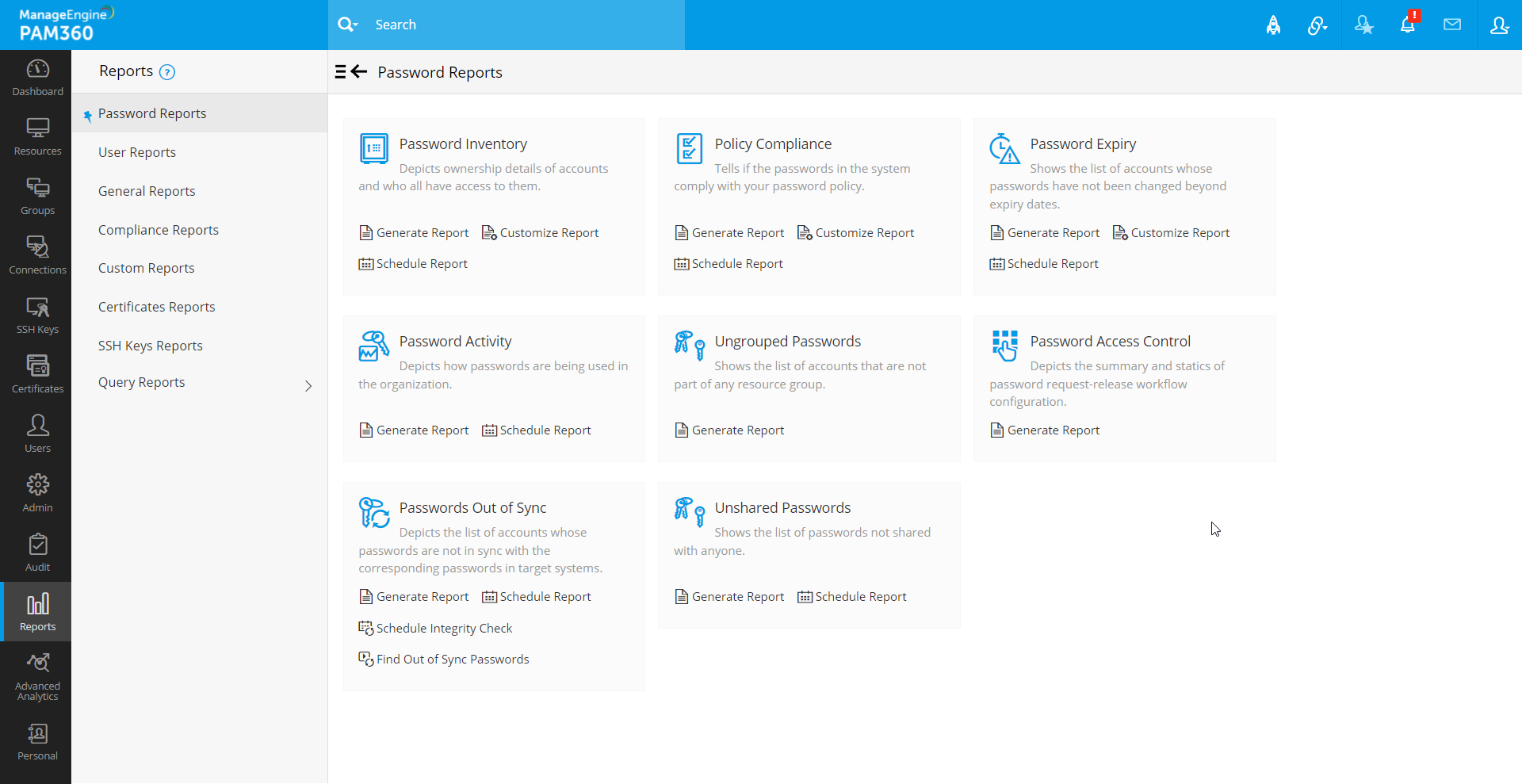
- Password Reports - These reports offer insights into password inventory, password expiry, and policy compliance, helping administrators manage passwords efficiently and securely.
- User Reports - Track user activity and access behavior, providing a detailed view of user-specific actions, which is crucial for monitoring privileged access.
- General Reports - Provide a high-level overview of password activities, allowing continuous monitoring of privileged access and system events.
- Compliance Reports - Ensure adherence to regulatory requirements by tracking compliance with internal and external policies like GDPR, PCI DSS, ISO/IEC 27001, etc.
- Custom Reports - Generate tailored reports using various filters and parameters to meet specific organizational needs.
- Query Reports - Run custom SQL queries in the PAM360 database for more granular and specific data reporting.
Click on the respective report categories to learn more about them in detail.
3. Scheduling Report Generation
All PAM360 reports can be generated at a periodic interval based on the organization's requirements. This can be achieved using the Schedule Report option provided by PAM360. The generated scheduled reports can be sent via email with the desired format to the required recipients.
Follow these steps to create a schedule for a PAM360 report:
- Navigate to the Reports tab, select the desired report category in the left pane, and click the Schedule Report option under the desired report.
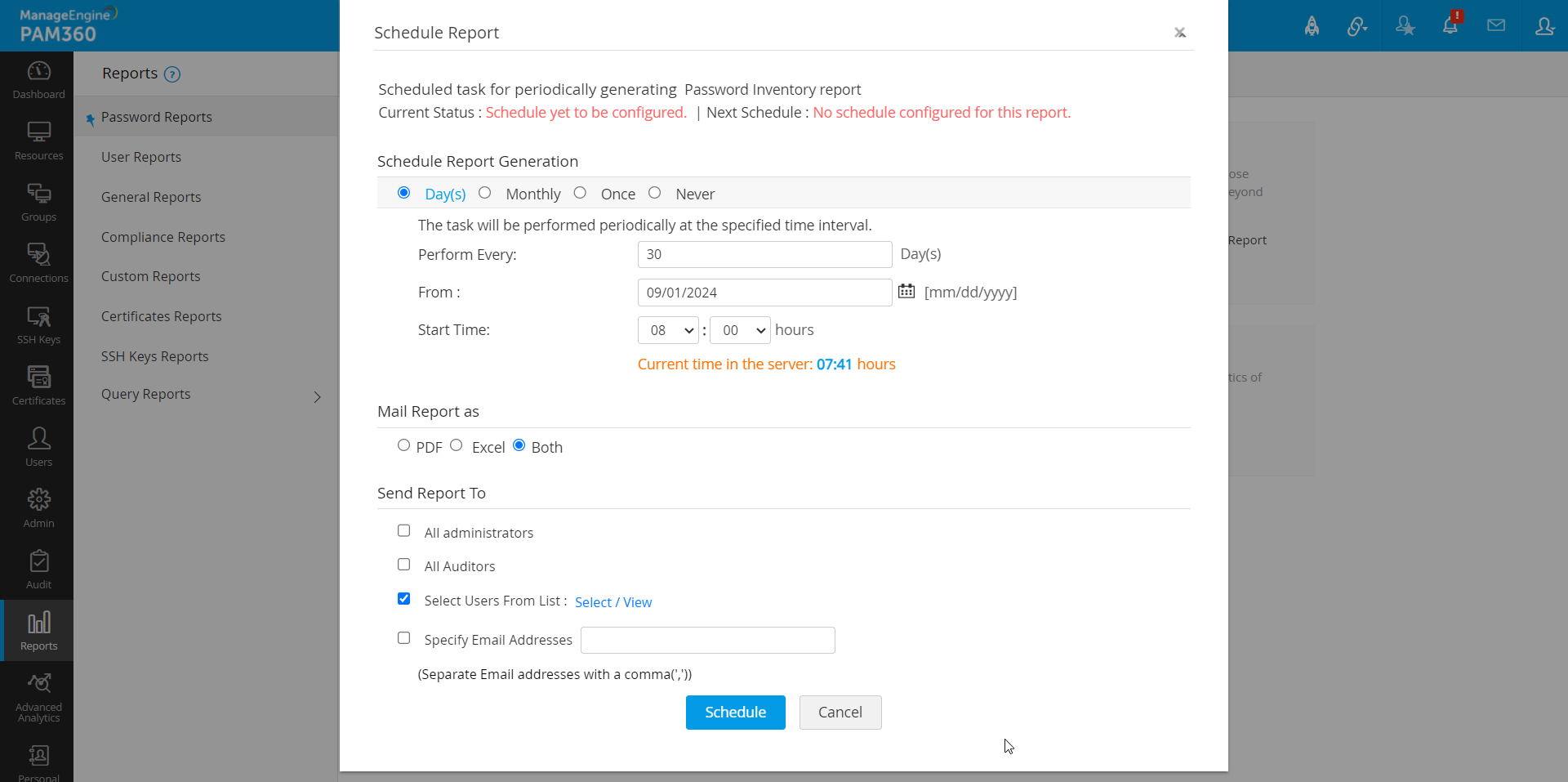
- In the Schedule Report pop-up window that appears, enter the following details:
- In the Configure Report Generation Schedule drop-down, select how often the schedule should run from the given options: Once, Days, Monthly, or Never.
- Select Once to execute the schedule only once, Days to repeat it every few days, Monthly to run it once every month, or Never to disable the existing schedule.
- If you select Once, specify the date and time when the schedule should be executed.
- If you choose the occurrence as Day(s), enter the number of days after which the schedule should repeat, the schedule start date, and the start time in the given fields.
- If you choose the occurrence as Monthly, select the date on which the schedule should be executed every month and the start time in the given fields. The schedule will run on the selected date and time each month.
- If you choose the occurrence as Never, any configured report generation schedule will be disabled.
- Select the file format in which the report should be mailed to the selected recipients. You can choose between PDF, Excel, or both.
- Then, select the desired users who should receive the selected report in mail. Click the Select Users or Select User Groups button to choose the desired users or user groups in your environment to whom receive the report in mail.
- You can also enable the Specify Email Addresses checkbox and enter the email address of the specific users who should receive the report in the given field. You can enter multiple email addresses in the comma-separated format.
- After entering the required details, click Save to configure the report generation schedule successfully.
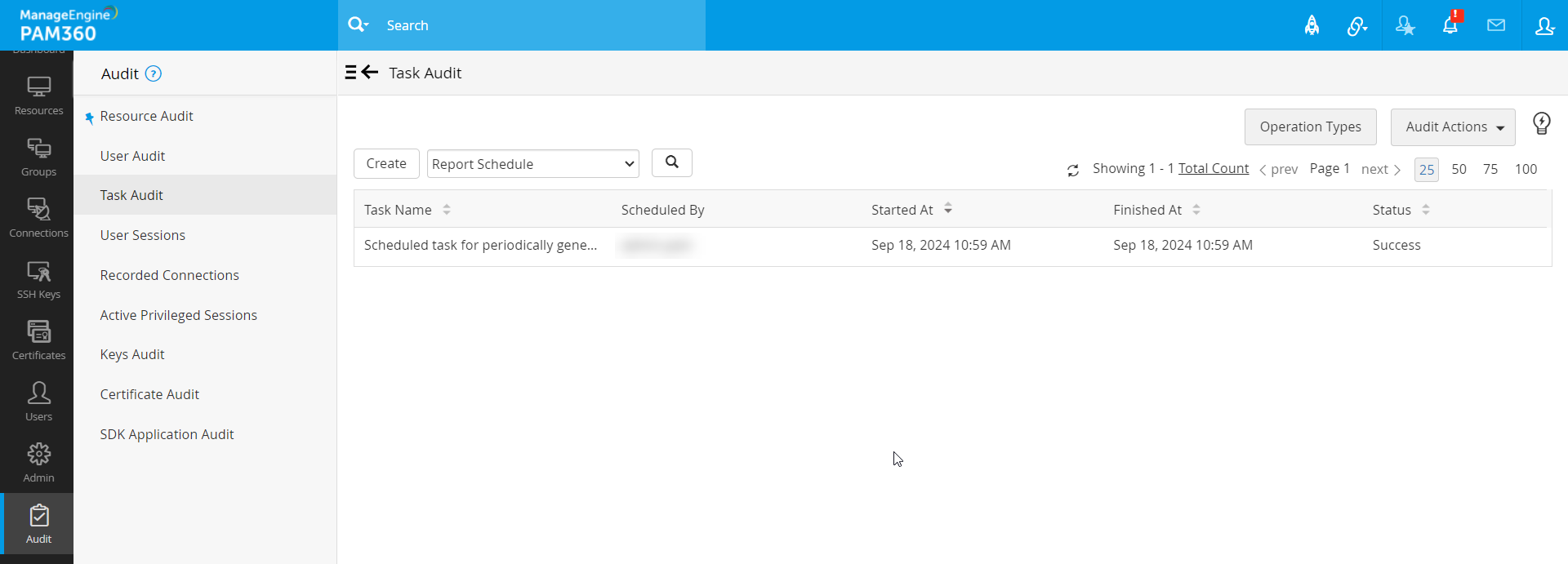
When a scheduled task is executed, the details are captured in the Audit tab. Navigate to Audit >> Task Audit to view the executed scheduled task details.
Follow these steps to terminate an existing schedule:
- Click the Schedule Report button under the desired report for which the schedule should be terminated.
- In the Schedule Report pop-up window that appears, change the schedule frequency to Never using the Configure Report Generation Schedule drop-down to terminate an existing schedule for selected report and click Save.