Configure Qumulo Core auditing
Prerequisites
- Qumulo Core should be joined to your Active Directory domain before it is configured for auditing in ADAudit Plus.
Ports
Create a Qumulo Core local user for IP retrieval
Creating a dedicated local user with the required roles allows ADAudit Plus to access and retrieve IP-related audit data from Qumulo Core during event collection.
- Log in to the Qumulo Core Web UI.
- Navigate to Cluster > Local Users & Groups.
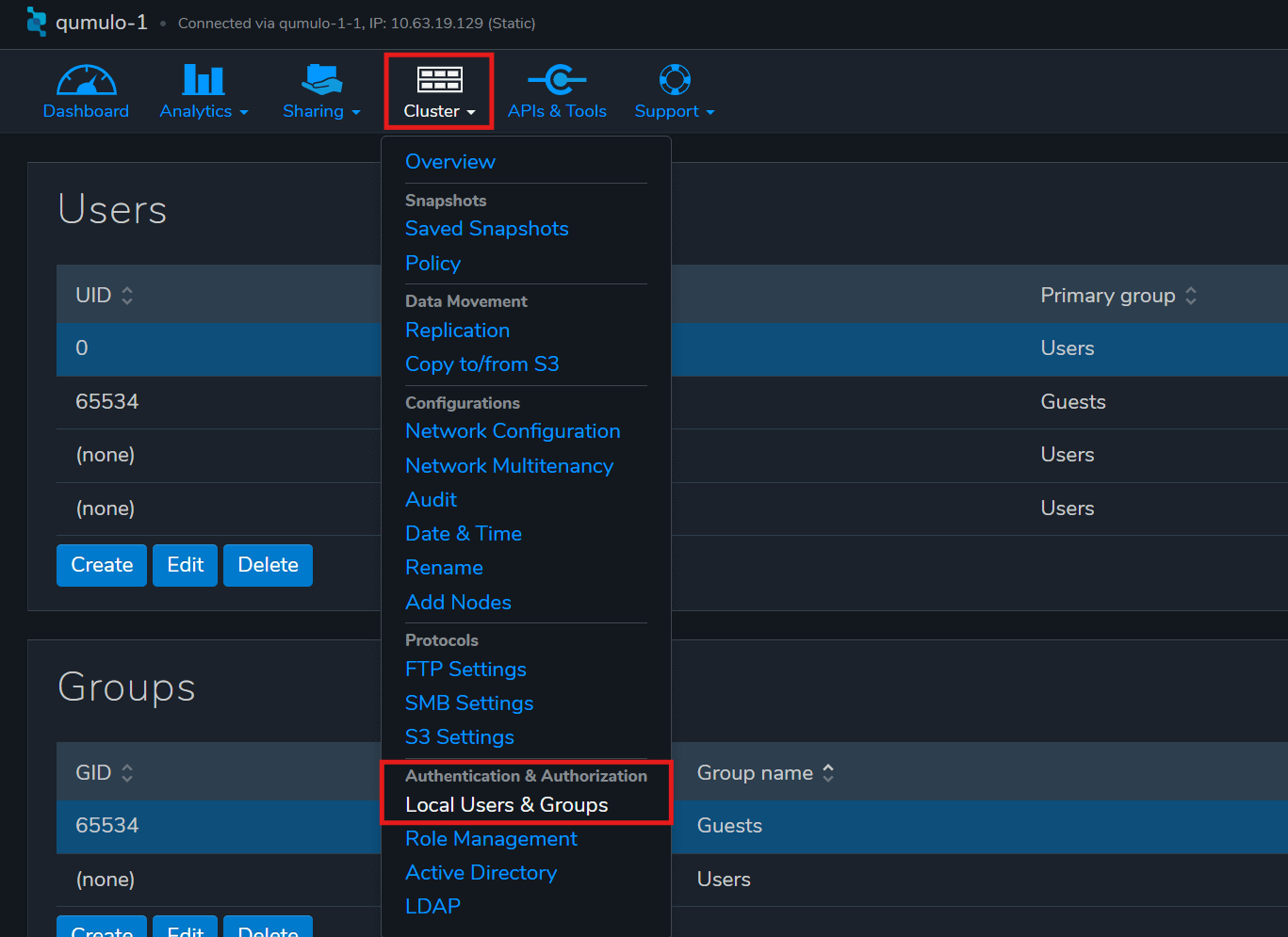
- Under Users, click Create.
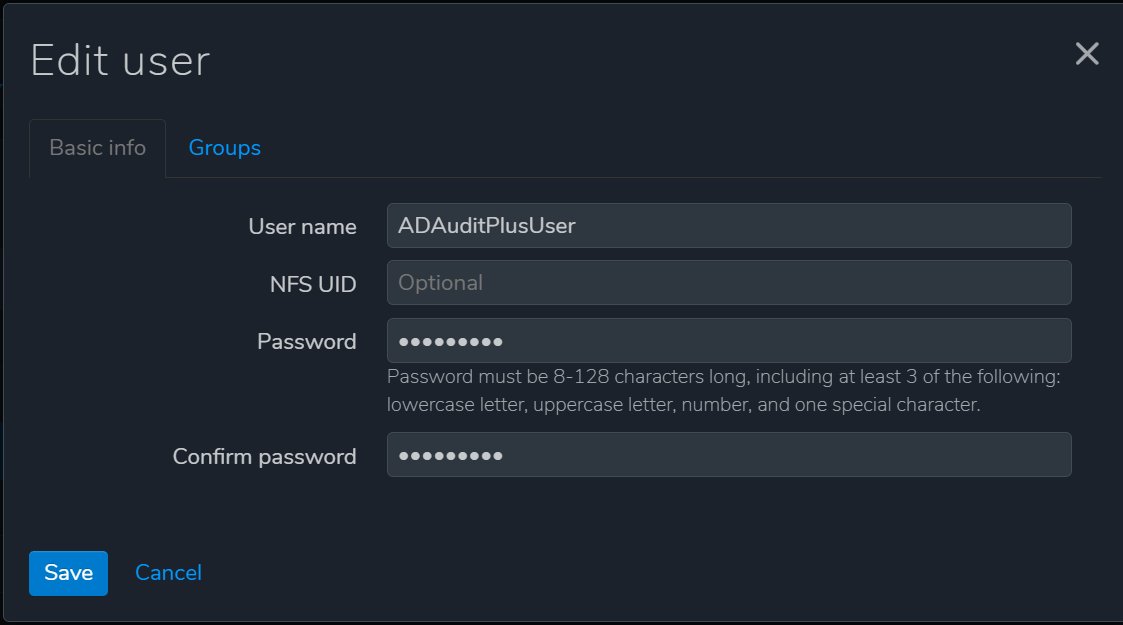
- Enter a User name (for example, ADAuditPlusUser), along with a Password. Confirm the password and click Save.
Create a role with necessary privileges:
- In the Qumulo Core Web UI, go to Cluster > Role Management.
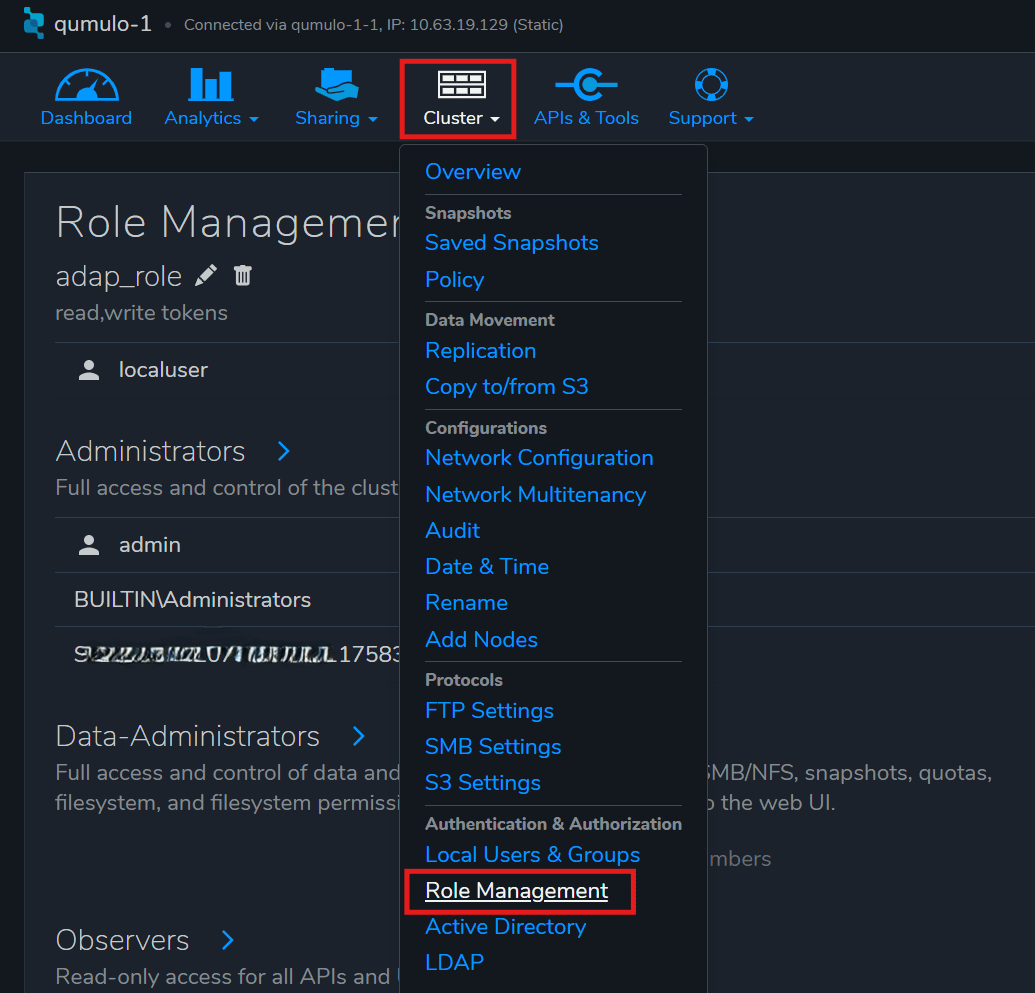
- Click Create Role.
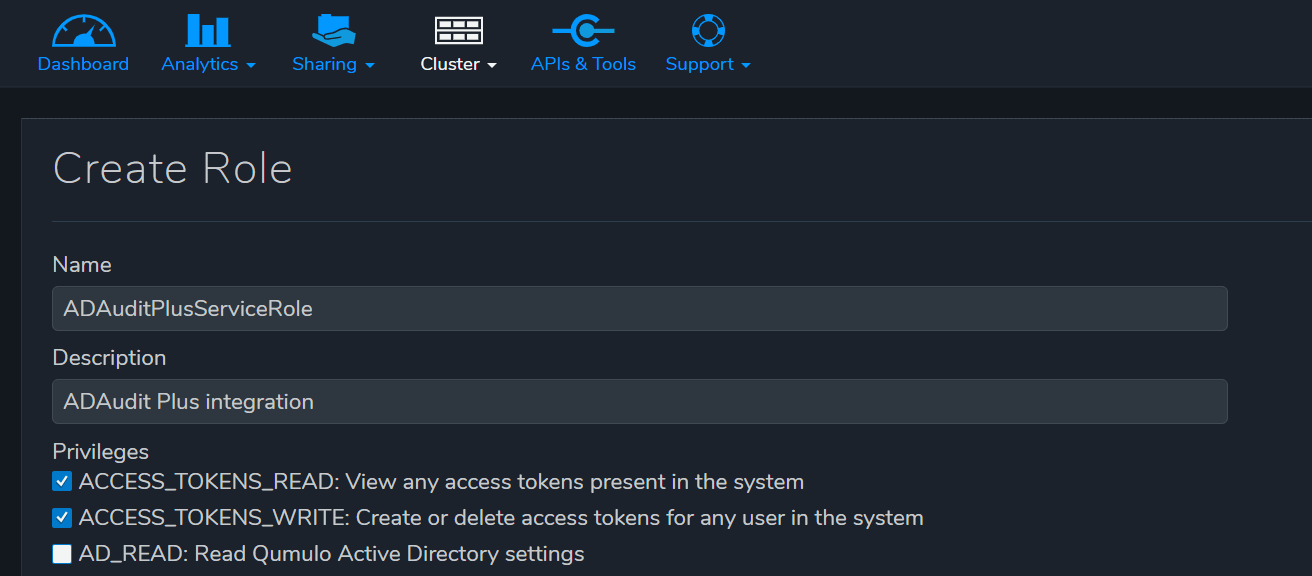
- Assign a Name as ADAuditPlusServiceRole, provide a Description, and select the following privileges:
- ACCESS_TOKENS_READ
- ACCESS_TOKENS_WRITE
- NETWORK_READ
Note: The above privileges are required for ADAudit Plus to authenticate the service account, retrieve access tokens, and collect network IP information, ensuring that events are audited from all associated IPs.

Assign the user to the role:
- In the Qumulo Core Web UI, locate the role you just created and select Add Member.
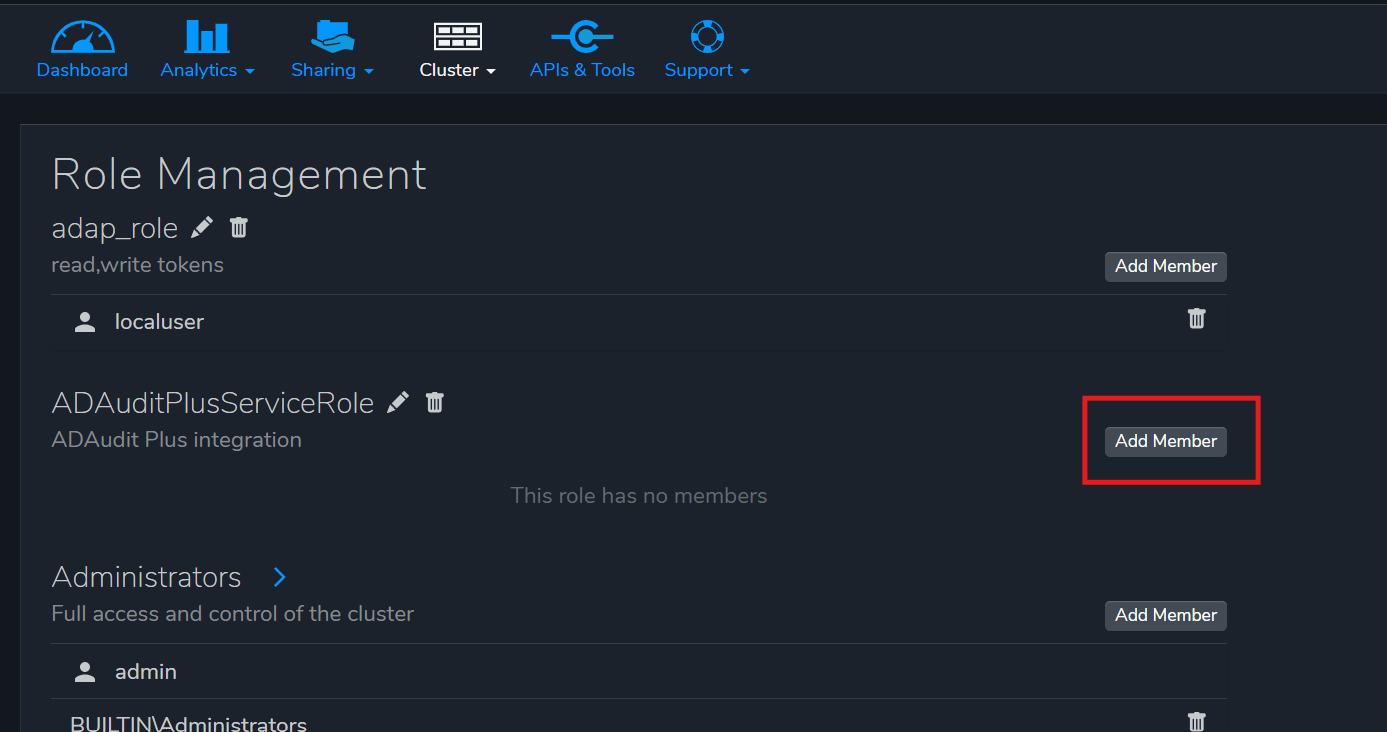
- In the Add Member dialog box, for Trustee, enter the Qumulo local account username you created in the Create a Qumulo Core local user for IP retrieval step. Then click Yes, Add Member.
Configure minimum permissions for share access
These minimum permissions let the ADAudit Plus user retrieve the list of shares from Qumulo Core without granting excessive privileges.
- In the Qumulo Core Web UI, navigate to Cluster > Role Management.In the Role Management section, click Create Role.
Assign the Name as ADAuditPlusSMBRole, provide a Description, and select the following privilege:
Note: The SMB_SHARE_READ privilege allows ADAudit Plus to securely retrieve SMB shares on Qumulo Core for monitoring file access activities.
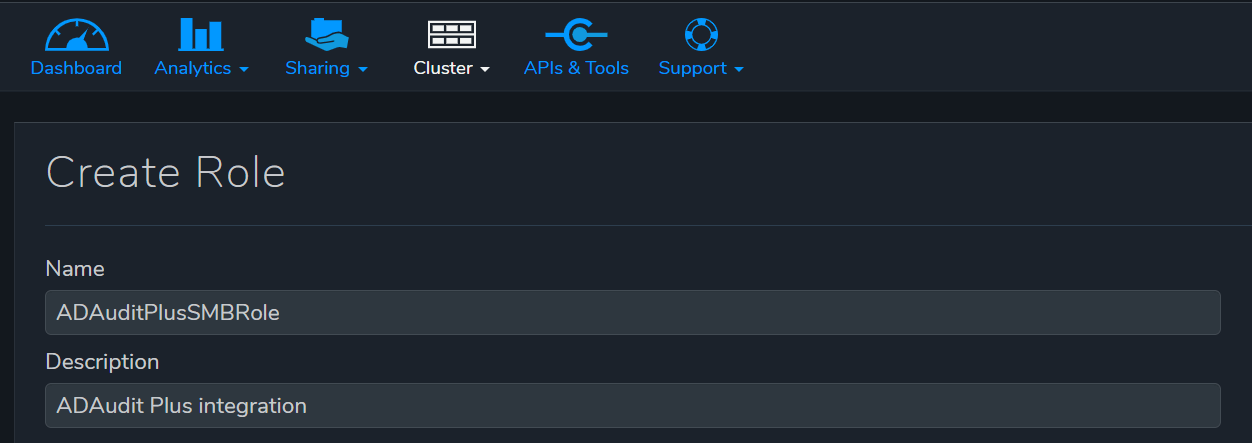

Assign the ADAudit Plus domain user to the role
Use the same domain user account configured in ADAudit Plus under Domain Settings when setting up Qumulo Core.
- In the Qumulo Core Web UI, navigate to Role Management and locate the role you created.Click Add Member. In the Add Member dialog box, for Trustee, enter the user's name (the domain user configured). Click Yes, Add Member.
Syslog configuration in Qumulo Core
Verify audit log forwarding configuration to ADAudit Plus:
- In the Qumulo Core Web UI, navigate to Cluster > Audit
- Under the Configuration section:
- Set the Remote Syslog Address to the IP address of the ADAudit Plus server.
- Select Custom and enter 1468 as the port number.
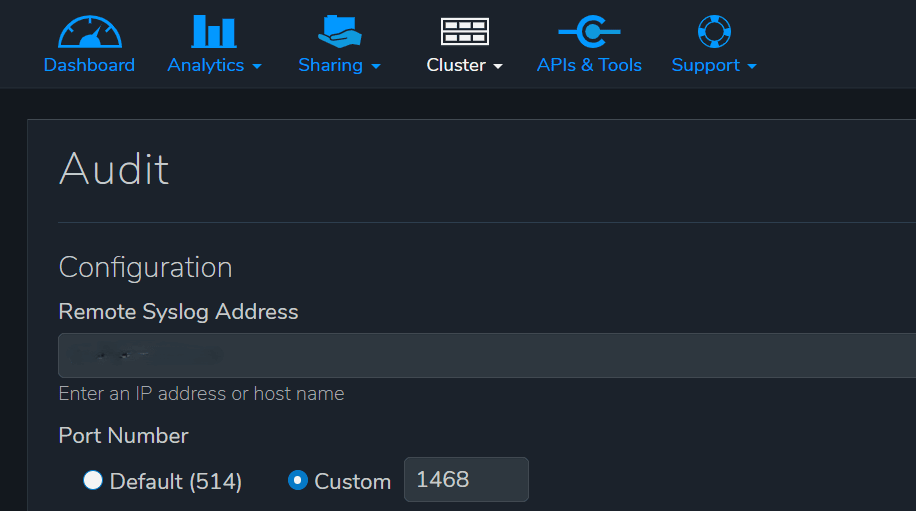
This step ensures that Qumulo Core is configured to forward audit logs to ADAudit Plus over TCP port 1468.
Add Qumulo NAS servers
To add your Qumulo Core server to the ADAudit Plus console for auditing, follow these steps:
- Log in to the ADAudit Plus web console with admin credentials.Navigate to File Audit > Configured Server(s) > Qumulo NAS .Click Add Server in the top-right corner.
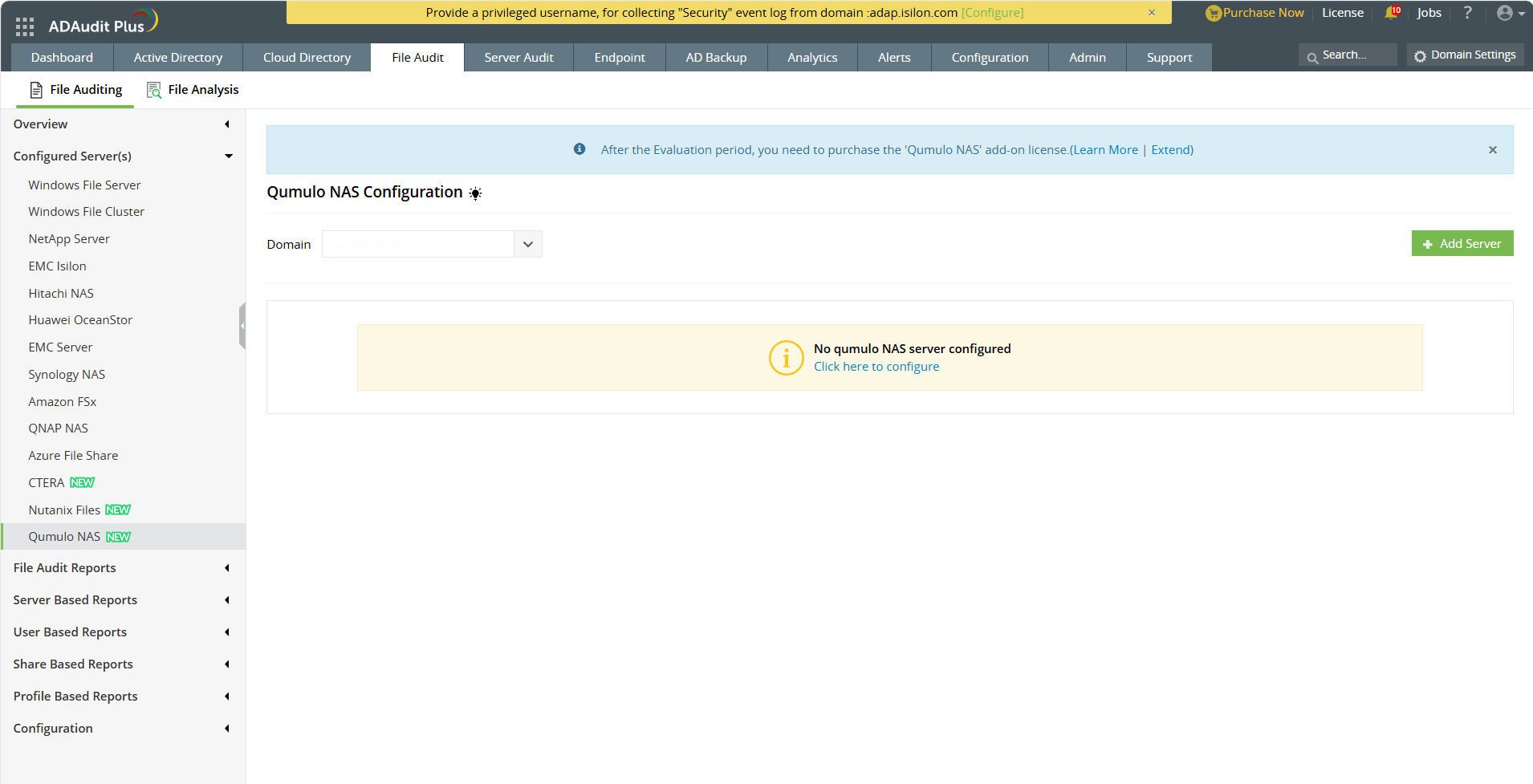
- In the Add Qumulo NAS server pop-up, enter the Qumulo NAS name, User name, and Password of the local user account.
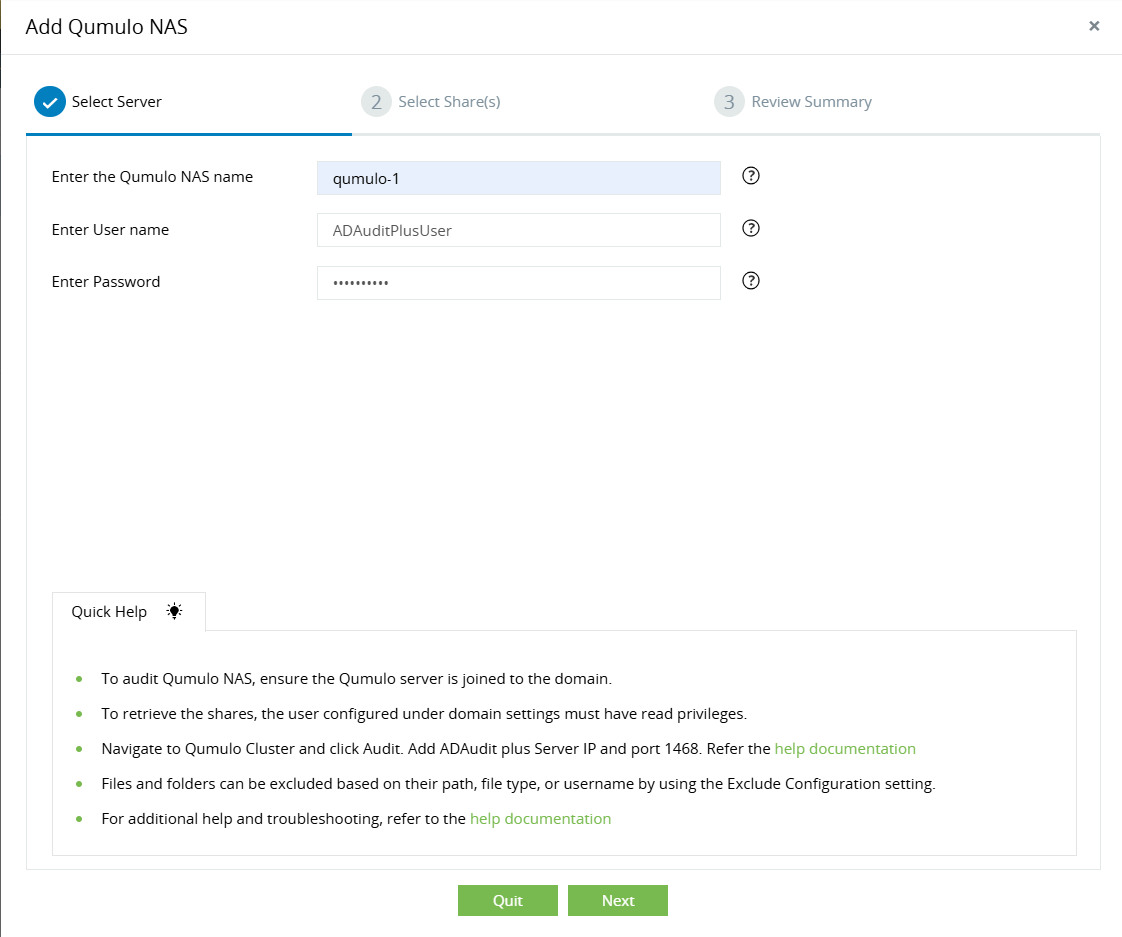
- Click Next to proceed with the setup.
- Select the shares you wish to audit and click Next.
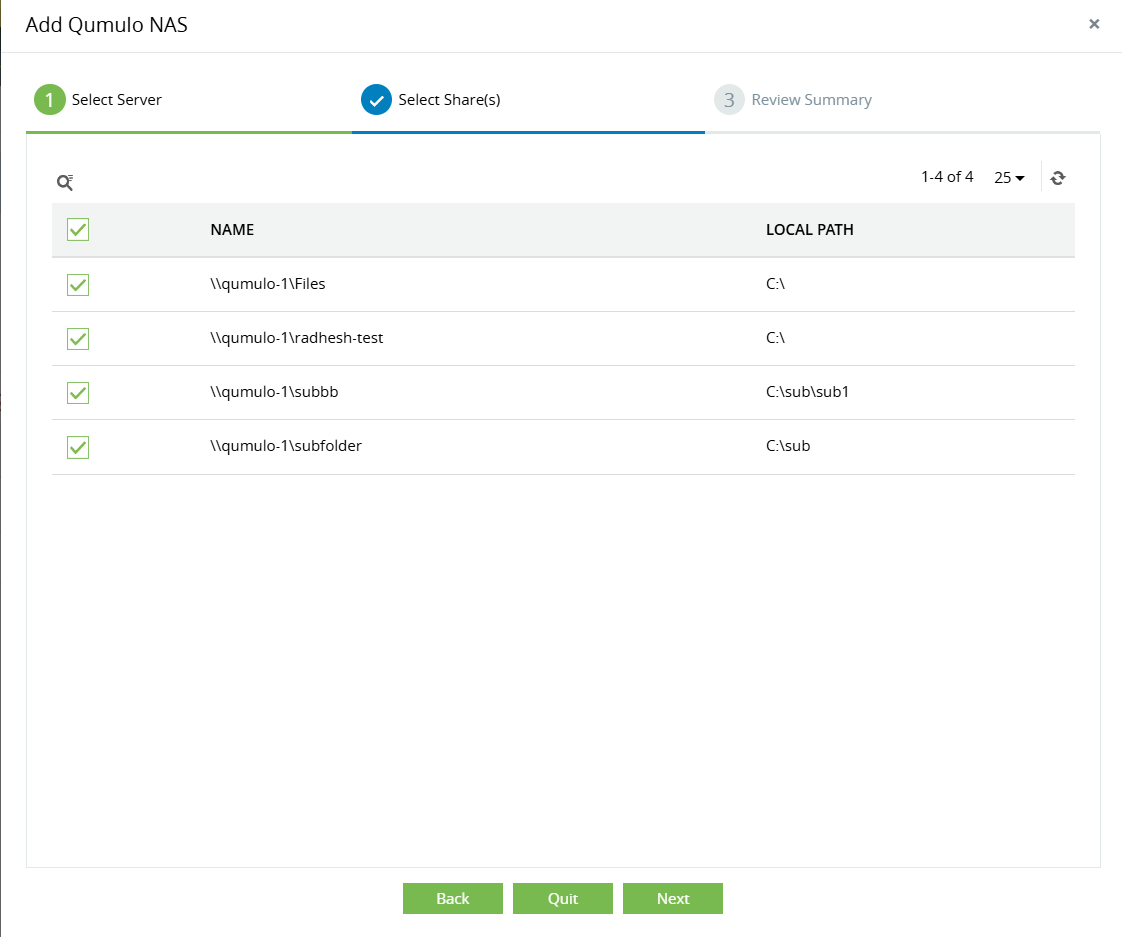
Review your selection and click OK.
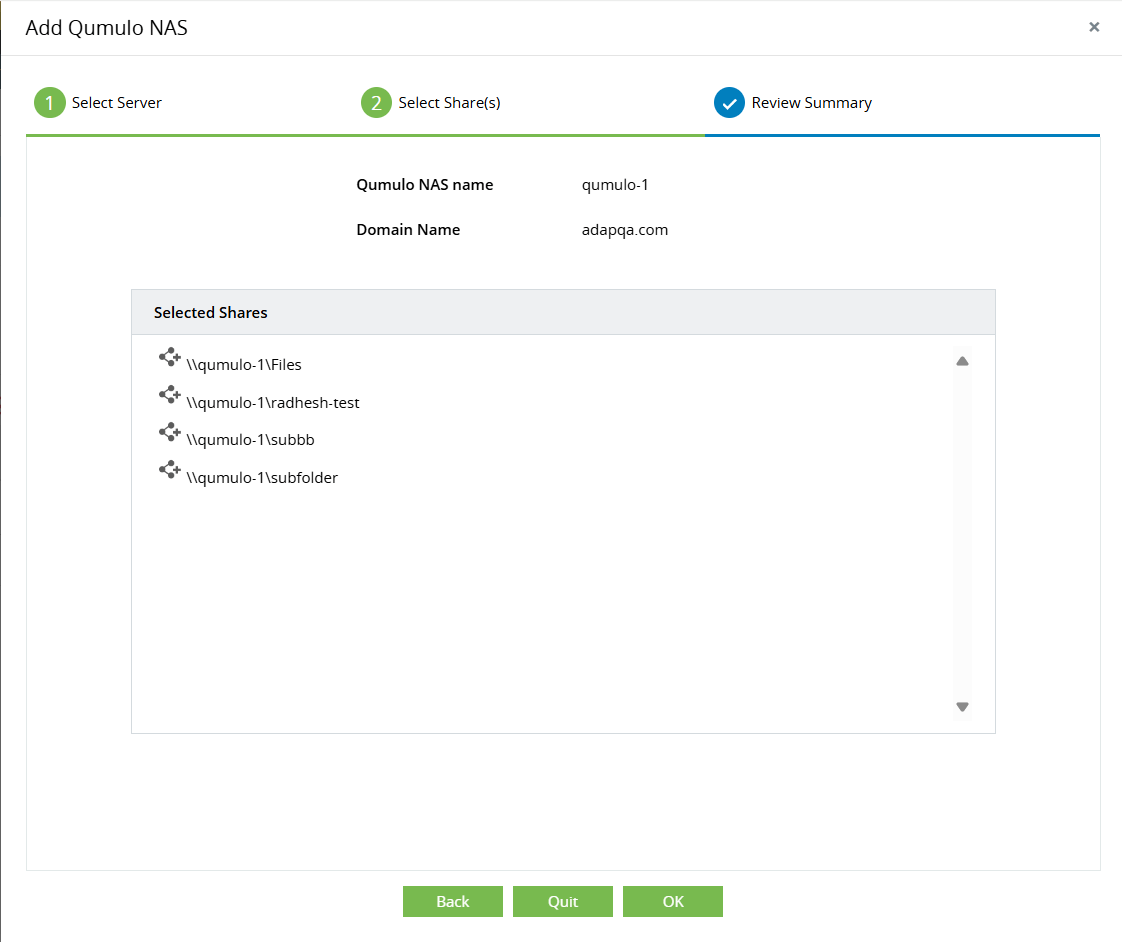
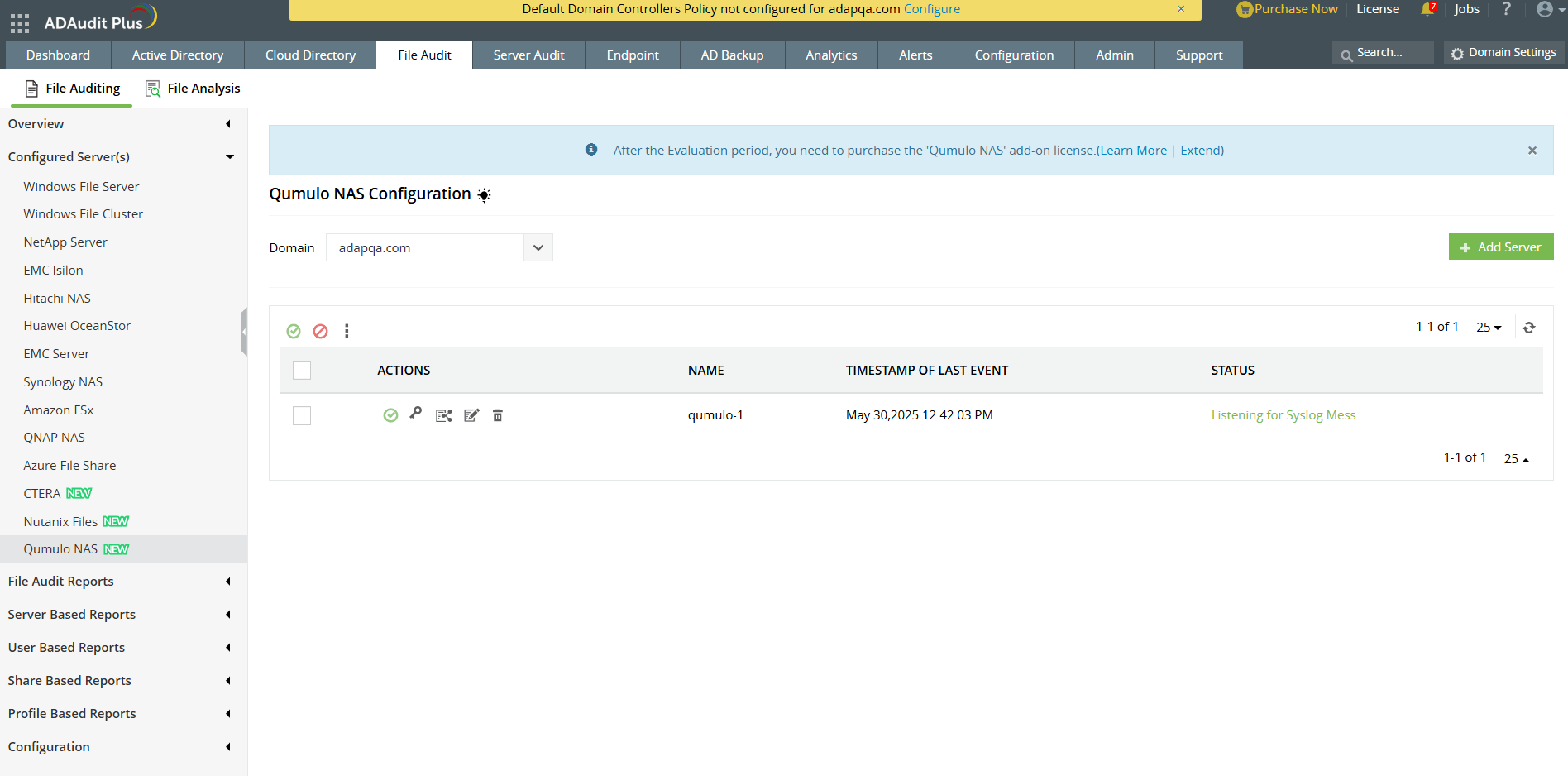
The Qumulo NAS server has been successfully added! ADAudit Plus will begin collecting data from Qumulo Core, and the timestamp will be updated on the Configured Server(s) page.
Don't see what you're looking for?
-
Visit our community
Post your questions in the forum.
-
Request additional resources
Send us your requirements.
-
Need implementation assistance?
Try OnboardPro