 Schedule Demo
 Get Quote
 Store
StoreUser reports
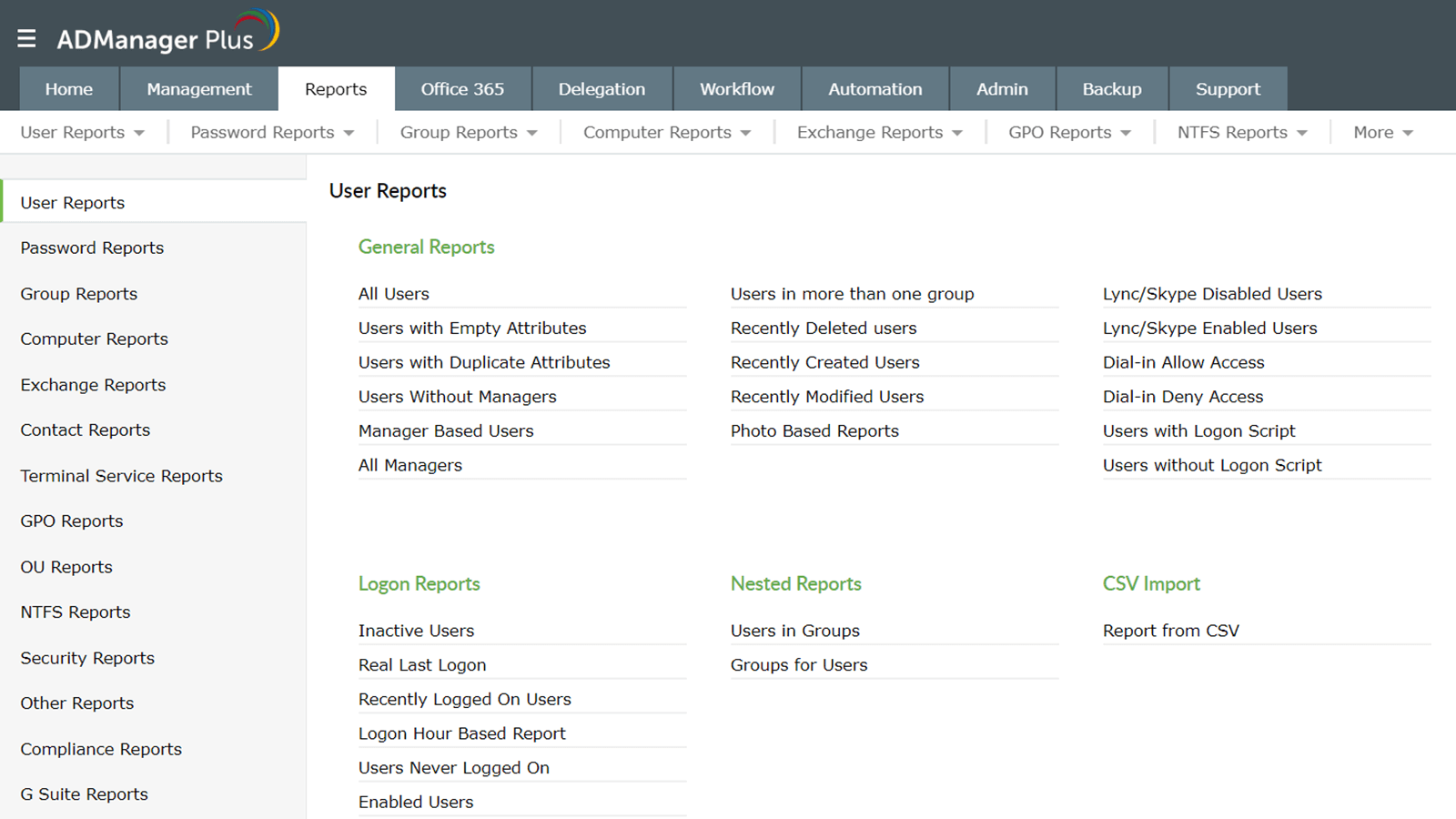
General reports
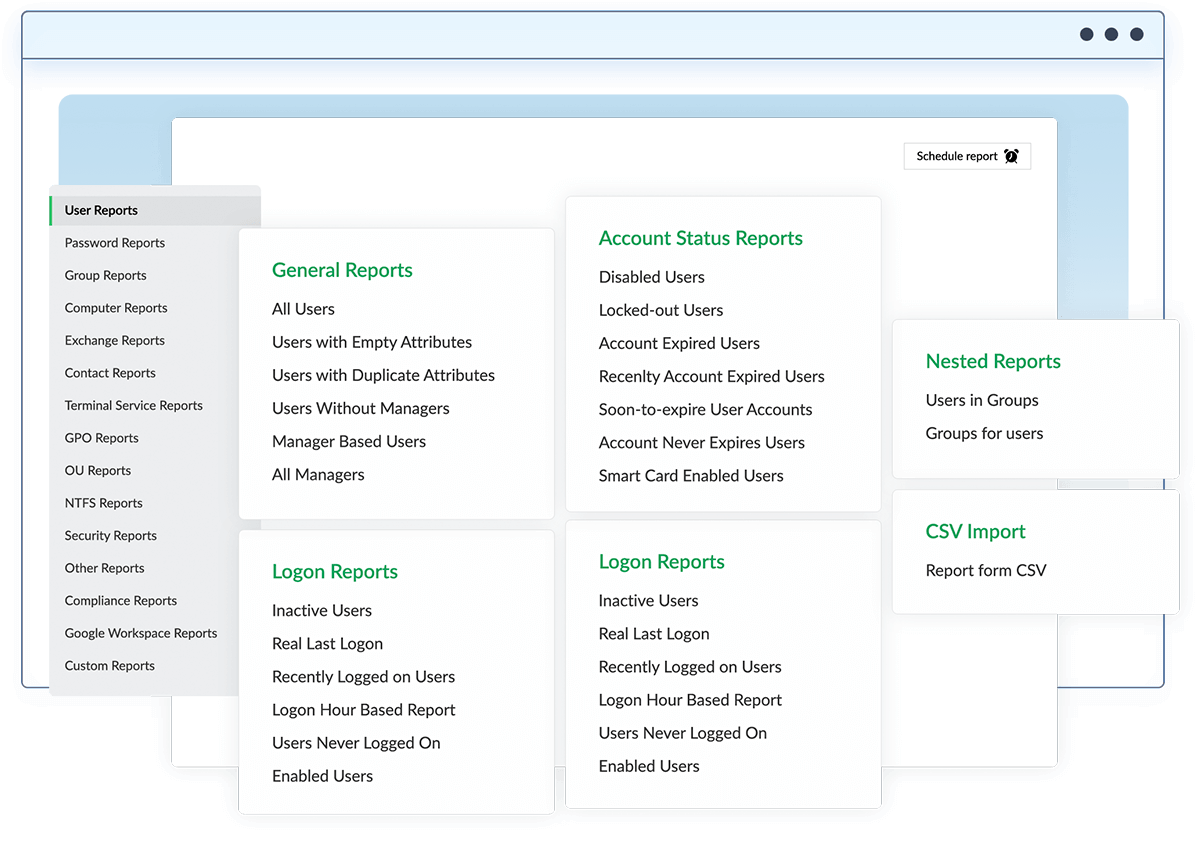
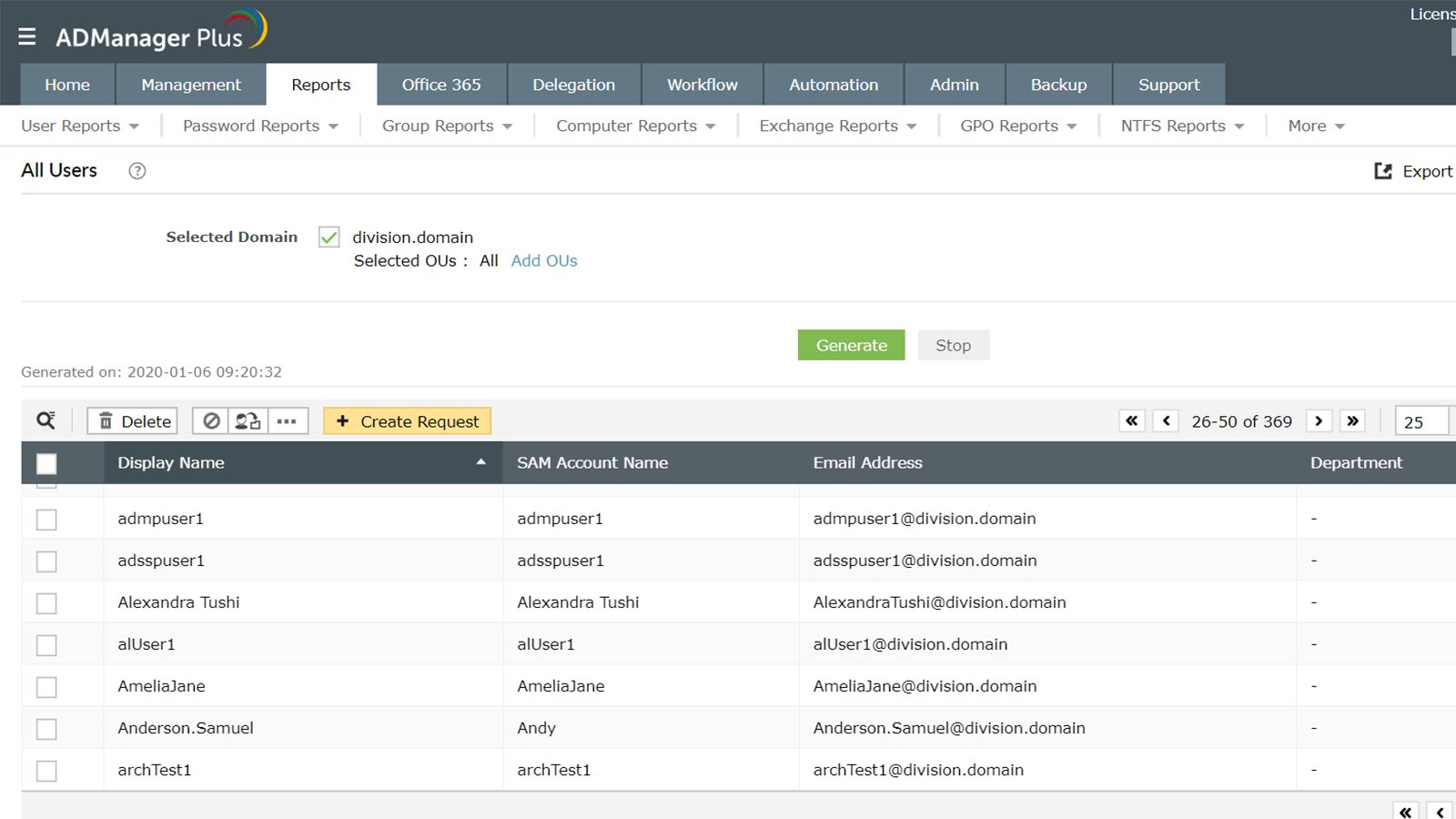
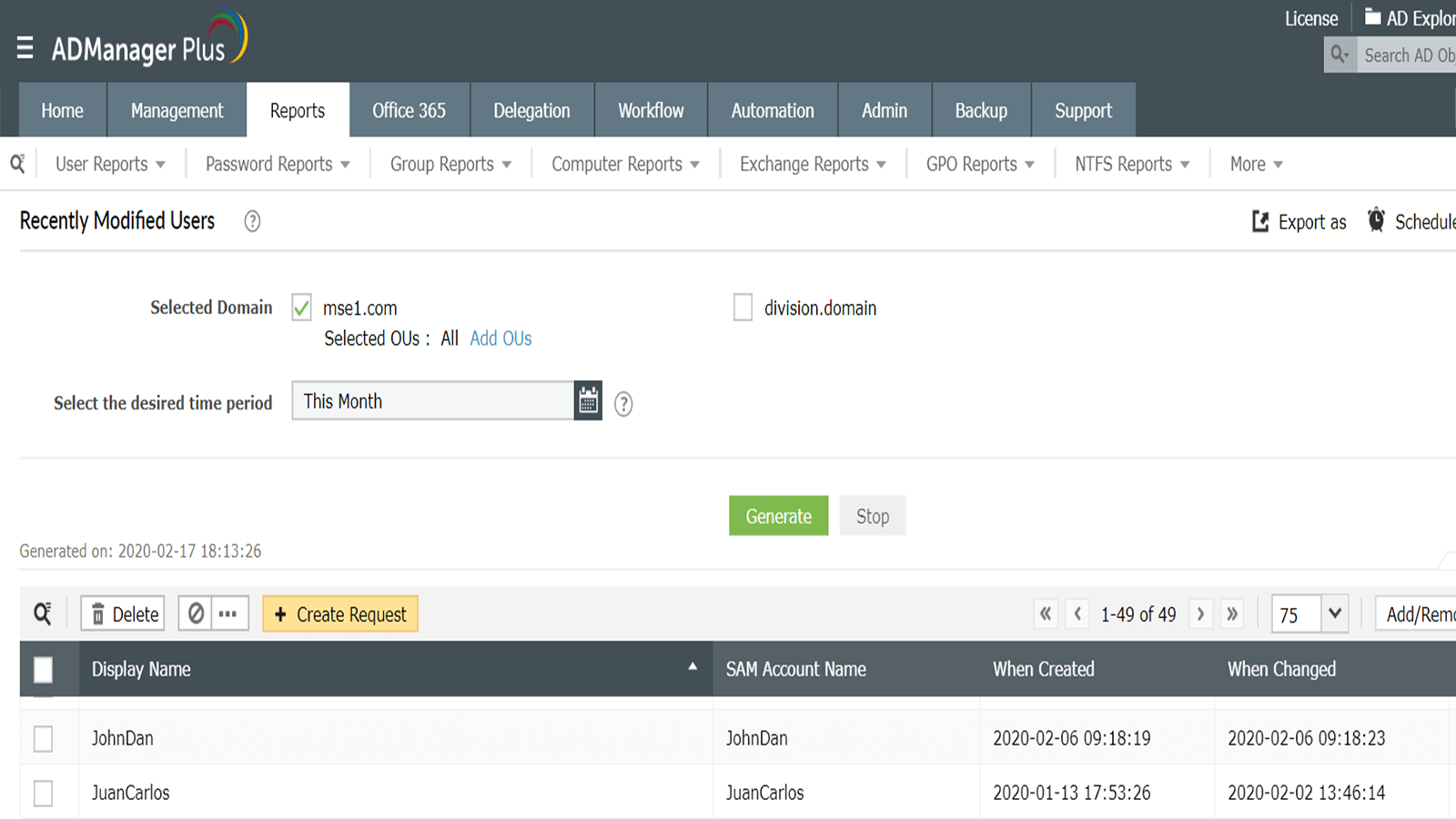
View complete details about all users, user accounts that have empty and duplicate attributes, and recently created, modified, or deleted users.
Learn moreLearn moreAccount status reports
View the status of user accounts including enabled and disabled users, accounts that have been locked out, smart card enabled user accounts, and more.
Learn moreLearn moreReal last logon report
View information about the true last logon time of user accounts in your organization without scripting in PowerShell.
Learn moreLearn moreInactive users report
Identify AD users who have been inactive for a specified period of time and manage them right from the report.
Learn moreLearn moreNever logged on users report
View information about users who have never logged on to the domain and avoid security attacks by managing them right from the report.
Learn moreLearn moreRecently logged on users report
Find out which users recently logged on based on their last logon time.
Learn moreLearn moreGeneral reports
View general information about all user accounts in your organization.
All users - View details about all users in selected domains.
Recently updated users - Get details about recently created, modified, and deleted user accounts.
Users with empty attributes - Identify users with blank attributes.
Download Demo request
Account Status Reports
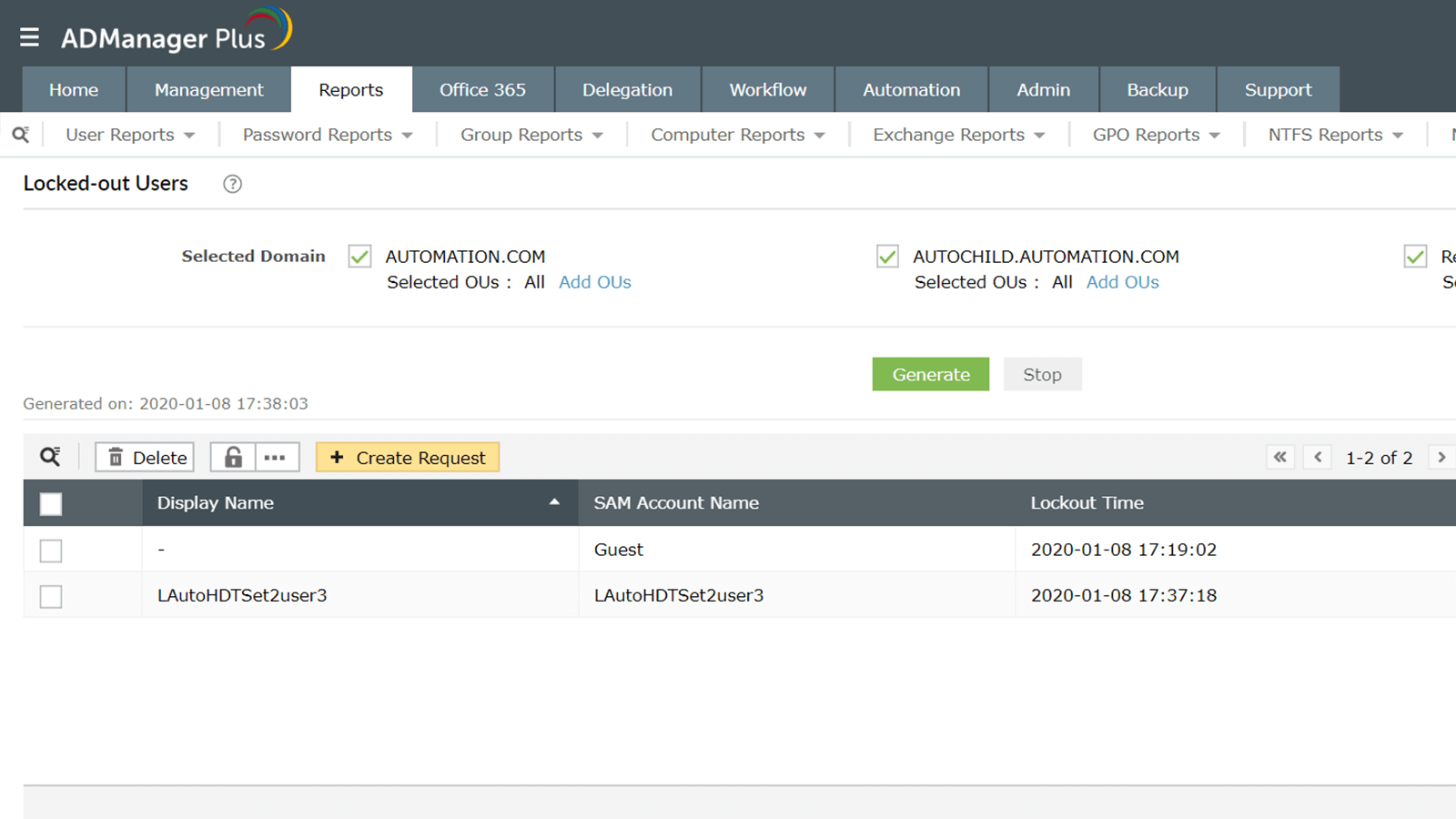
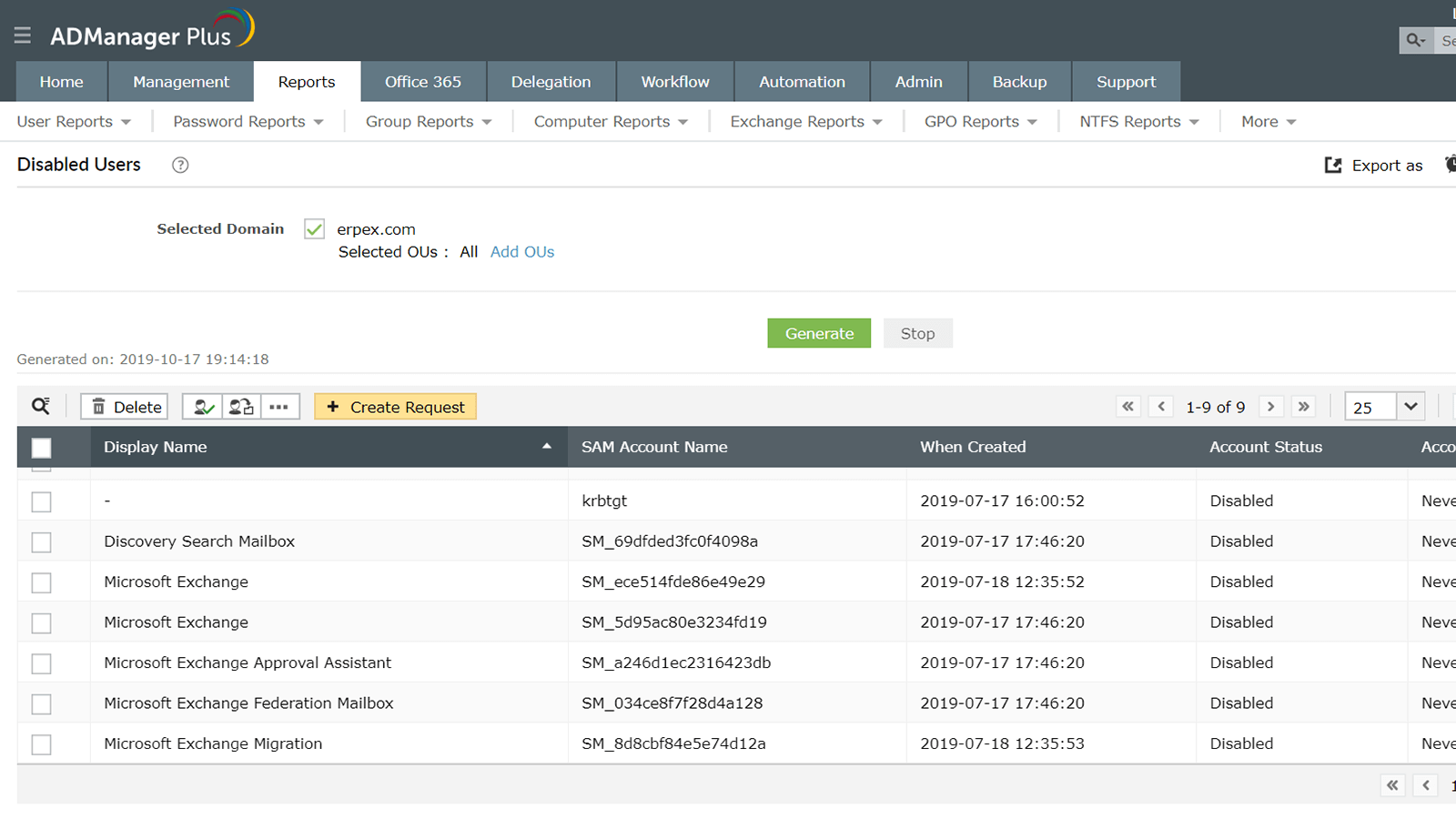
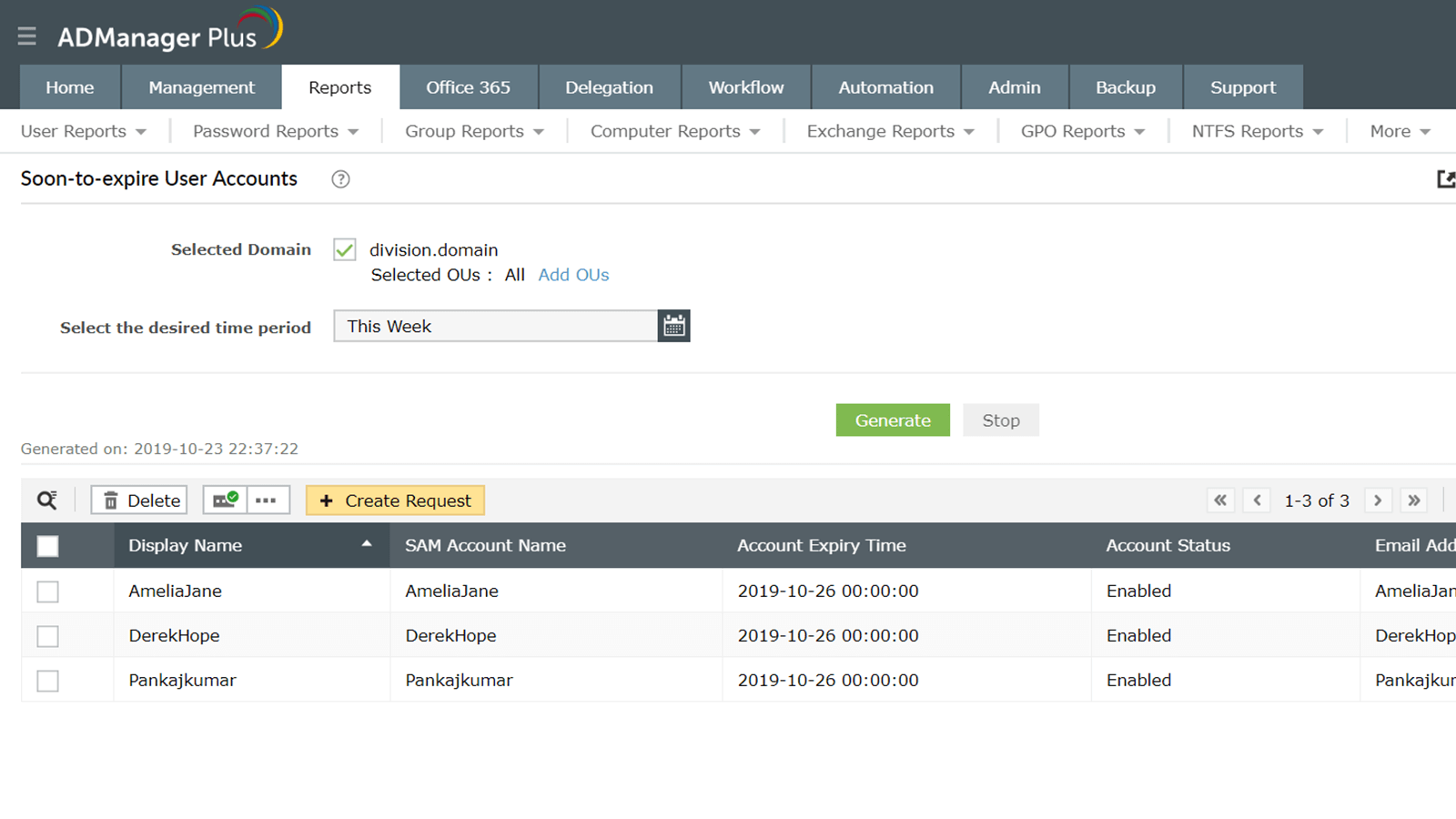
Manage user accounts efficiently by swiftly identifying their account status. Use these reports to:
- Discover users who have been locked out due to an abnormal number of incorrect login attempts.
- Identify disabled accounts in order to delete them or move them to a different OU.
- Locate user accounts that are obsolete or are soon to be obsolete.
Depending on your organization's housekeeping policy, these reports will help you clean up your Active Directory (AD). They'll also help you save time by reducing the amount of PowerShell scripting you have to do.
Download Demo request
Real Last Logon Report
In a multiple domain controller (DC) environment, it's difficult to ascertain when a user last logged on. Each DC shows a different last logon time and using the native tools to discover the exact last logon time is complex and time-consuming. ADManager Plus queries all DCs in your environment to give you the exact last logon time for all users.
In addition to just viewing all the information pertaining to a user's last logon time, you can also perform management actions right from the report. You can disable, delete, or enable a user.
Download Demo request
Inactive Users Report
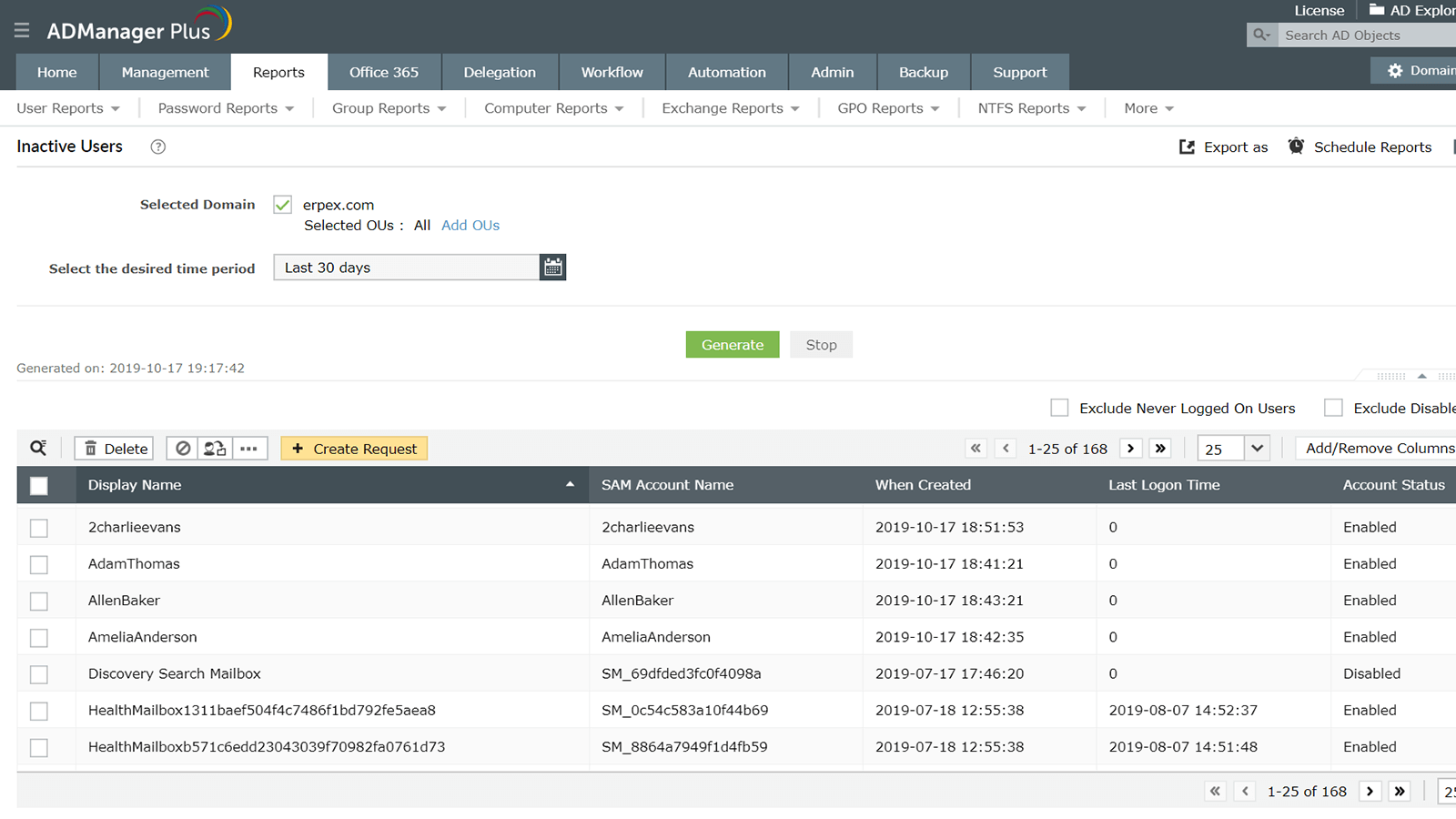
Using PowerShell and other native tools to discover inactive users is a time-consuming and complex process. Especially since an environment with multiple domain controllers gives a different last logon time for each DC. ADManager Plus simplifies this by querying all DCs so you can see which users have been inactive for a particular period of time.
The built-in management functionality of this report allows you to:
- Delete or disable selected users.
- Move users to a specific container.
- Reset users' passwords.
- Modify SMTP addresses.
Download Demo request
Never Logged on Users Report
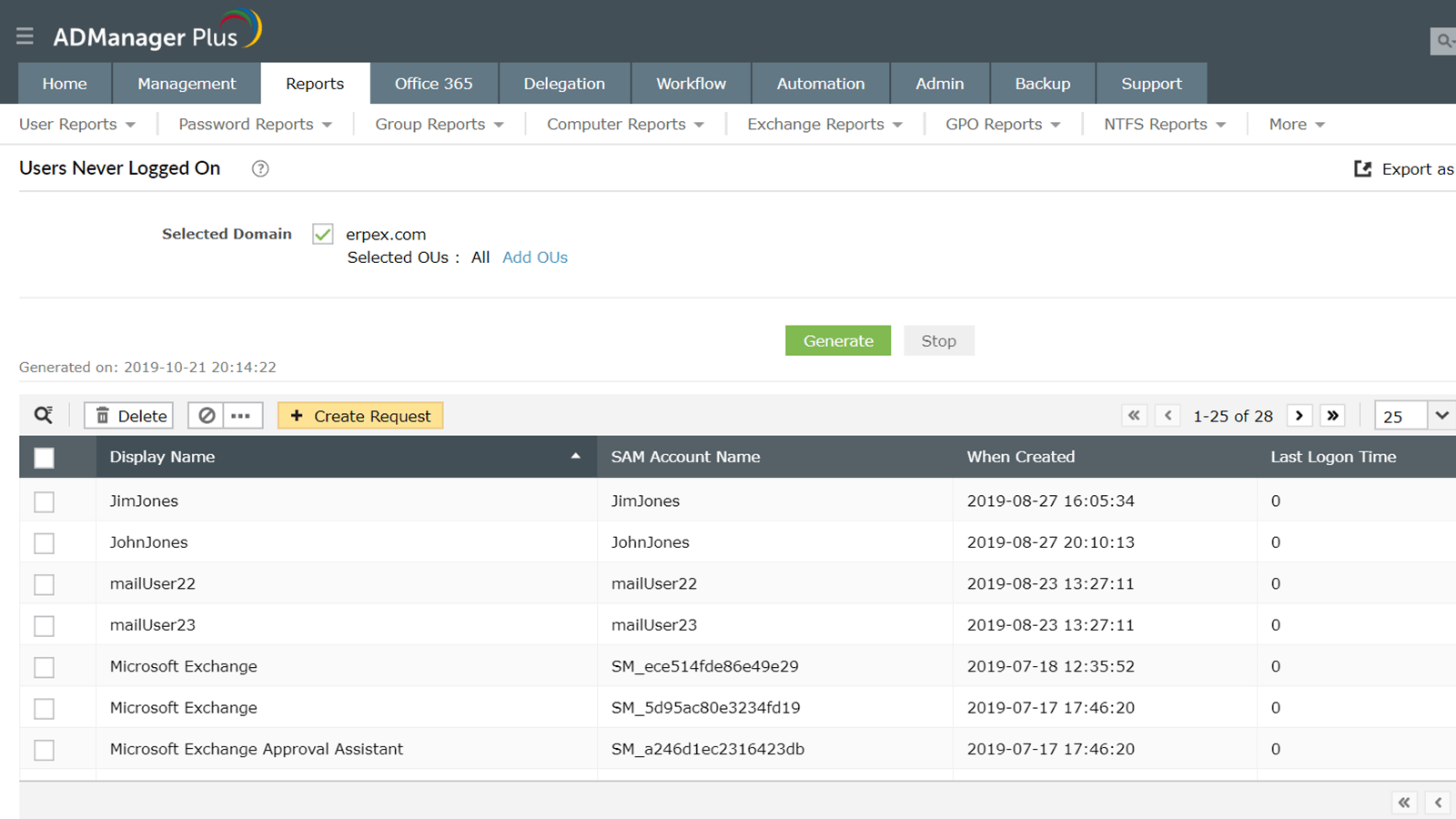
User accounts that were never logged on to can create security mishaps, since they serve as potential entry points for attackers. While Microsoft Saved Queries help in identifying users who have not logged on to their accounts, getting the creation time for each user account is a complex process.
ADManager Plus displays not just the never logged on users, but also when each account was created. Additionally, you can enable, disable, delete, and move users that have never logged on right from the report itself.
Download Demo request
Recently Logged on Users Report
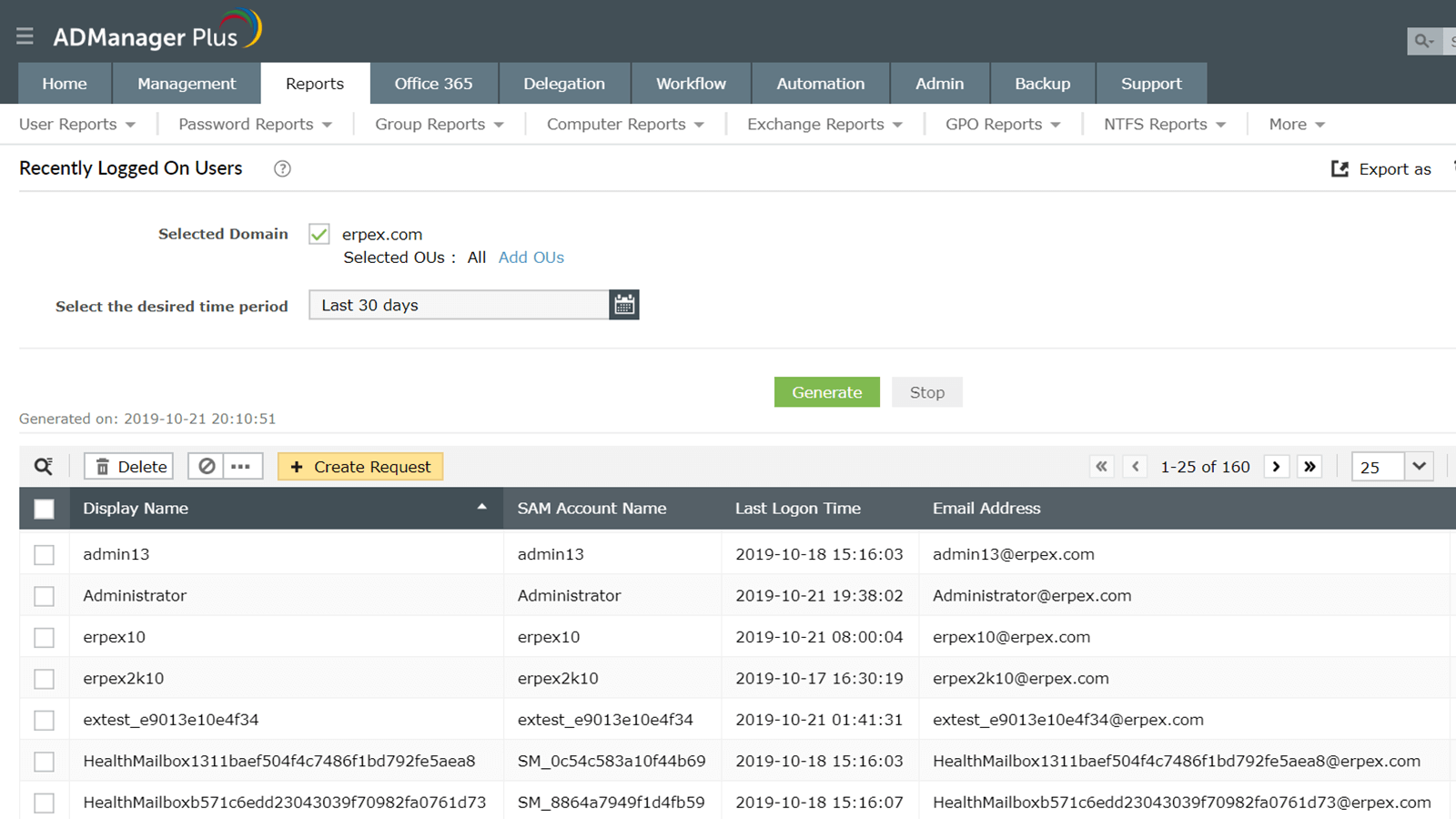
Identify the users who logged on to their account within the past N days. ADManager Plus queries all the domain controllers in your AD environment to determine when users last logged on.
All you need to do is select a period of time and the domains and OUs you'd like to audit, and ADManager Plus will do the rest.
Download Demo request
Group Reports
General reports
Get details about recently created, deleted, and modified groups, groups with and without managers, and more.
Learn moreLearn moreDetailed group membership report
Get details about the members of both security and distribution groups, including nested members.
Learn moreLearn moreUsers not in groups report
Identify all Active Directory users who are not members of specified security or distribution groups.
Learn moreLearn moreGroups without members report
View information about groups that do not contain any members and delete or move them from within the report.
Learn moreLearn moreUsers in more than one group report
Identify users who are members of more than one group, excluding their primary groups. Manage these users from within the report effortlessly.
Learn moreLearn moreGroup type and scope reports
Get information about groups based on their type (security and distribution groups) and scope.
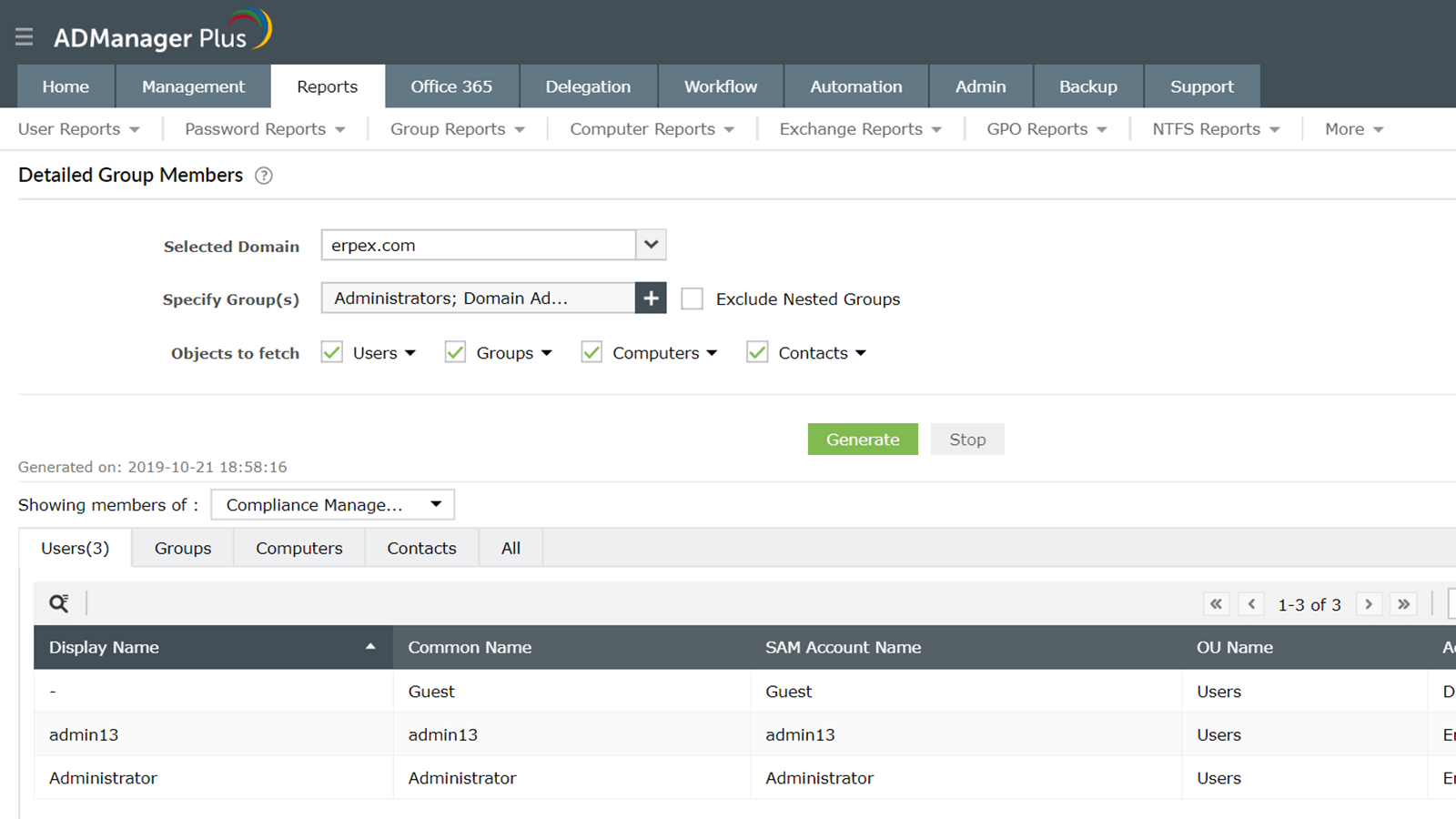
Learn moreLearn moreDetailed Group Membership
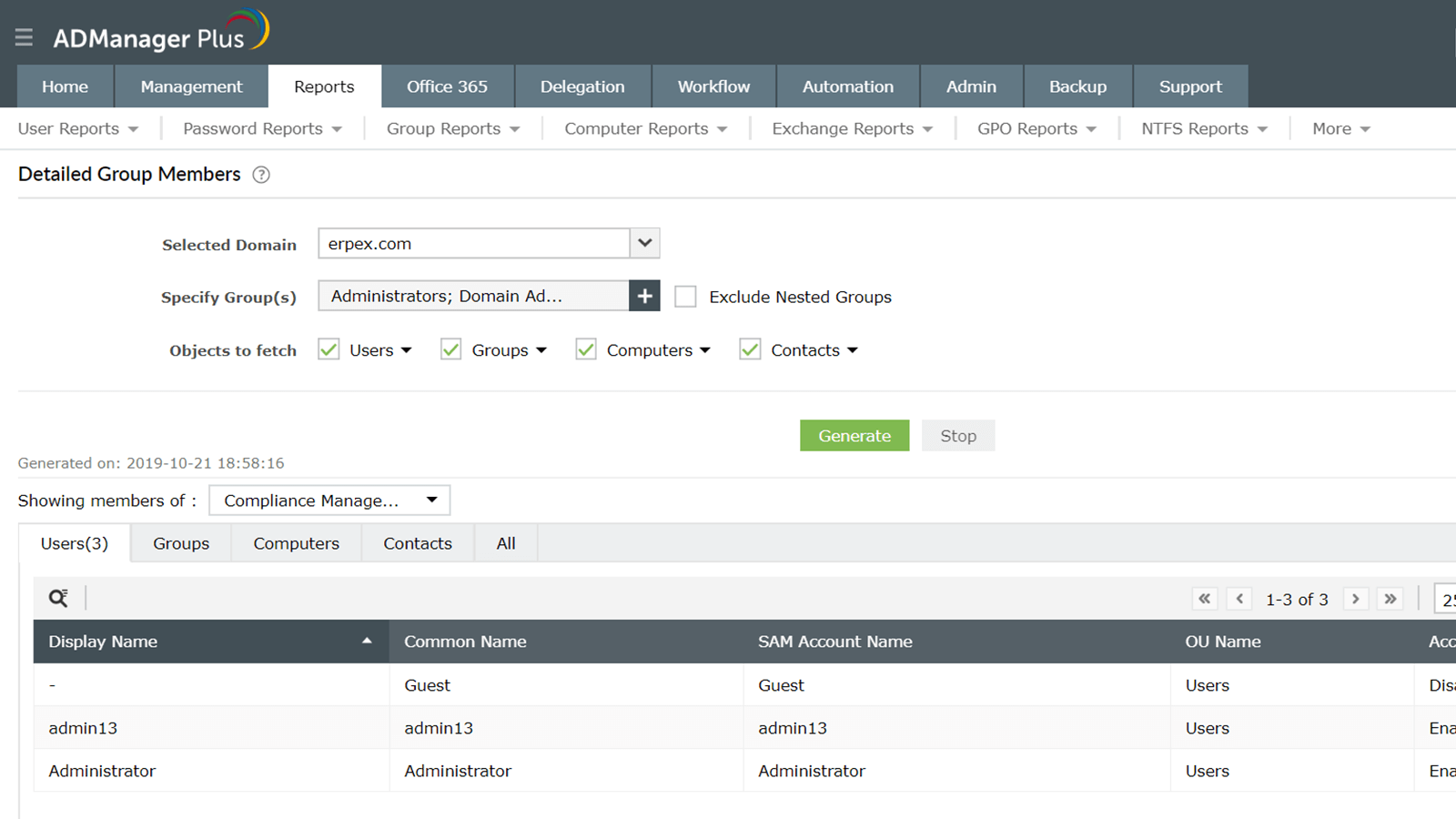
View information about all members of selected groups, including users, contacts, computers, and nested groups. Filter the results to both exclude and include certain kinds of users, contacts, computers, and group objects.
Organize group membership information in a table, or view a summary of membership details for each object.
Download Demo request
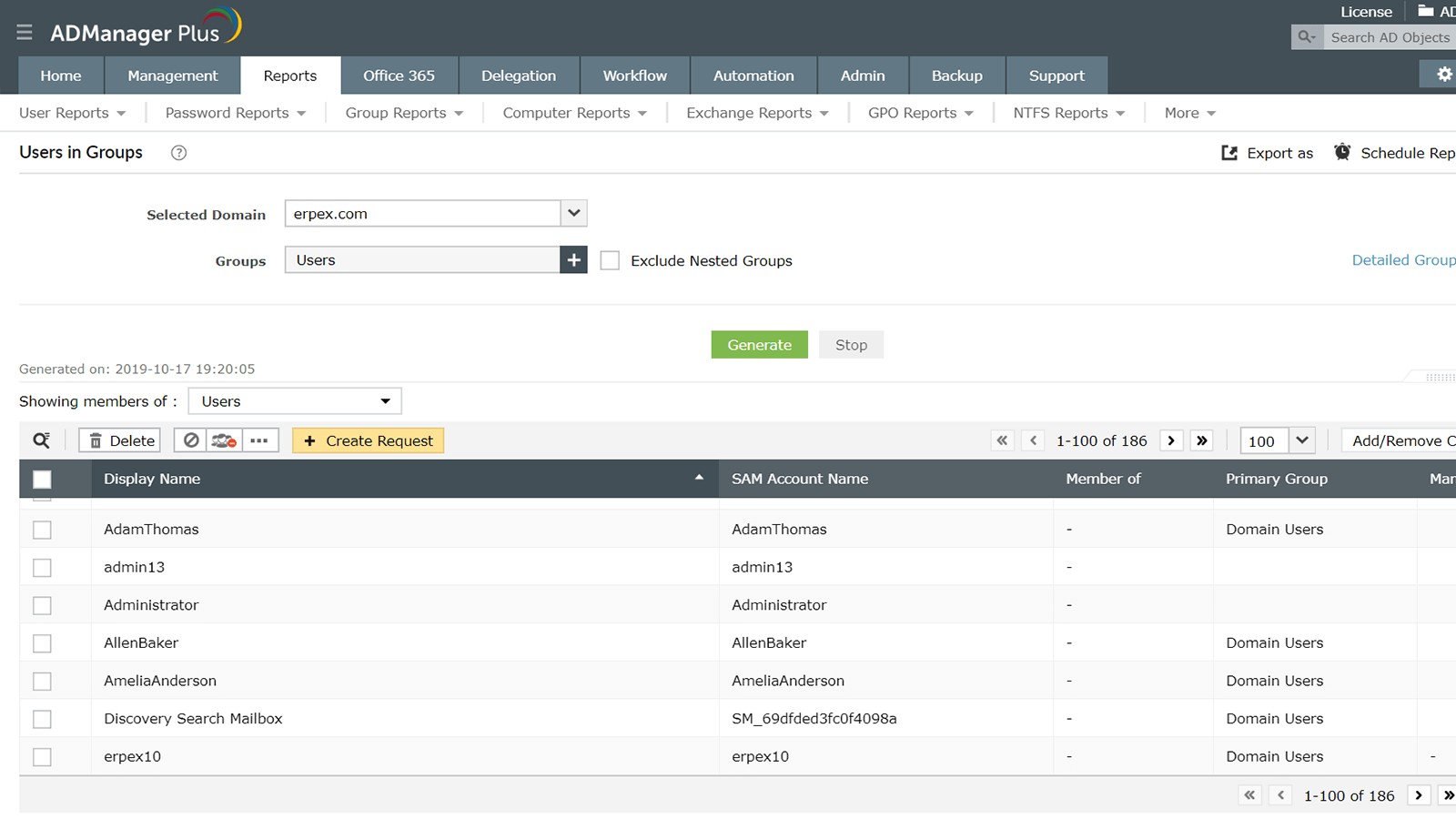
Users not in groups report
Quickly identify Active Directory users who aren't members of the specified group and view other relevant information.
With this report, you can:
- Detect accounts created but never assigned to any group and ensure they have the appropriate group-based access.
- Export the report in multiple formats, such as CSV, XLSX, PDF, and HTML.
- Disable, delete, or move users instantly.
Download Demo request
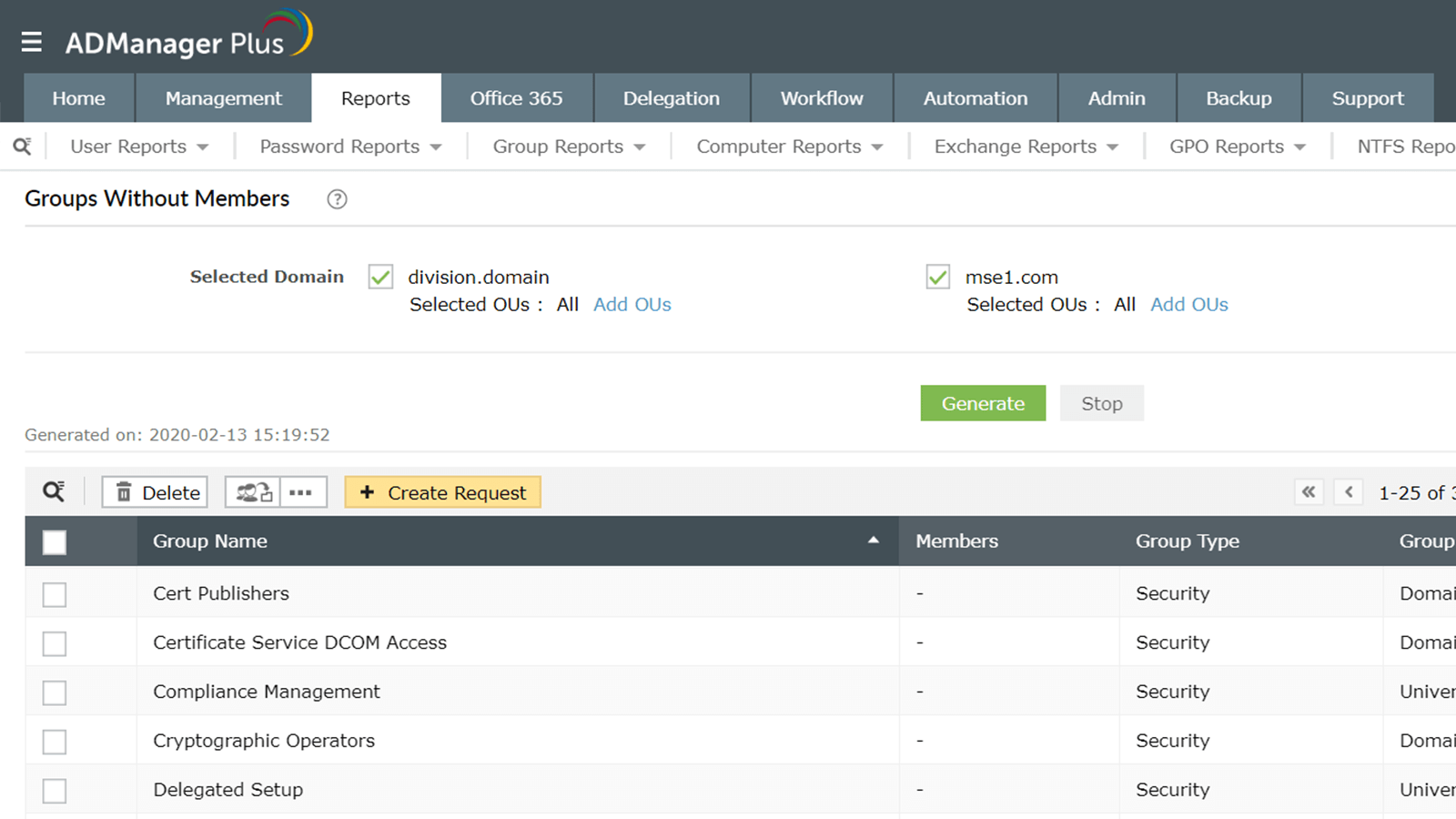
Groups Without Members
Get information about groups in your organization that do not have any members, including details such as the group's name, type, scope, domain name, and more. This way, you can identify the groups in your domain that are no longer needed and decide how you wish to proceed.
In addition to listing the groups that do not have members, this report also allows you to manage groups. You can:
- Delete groups.
- Move groups.
- Modify groups' organization and Exchange attributes.
Download Demo request
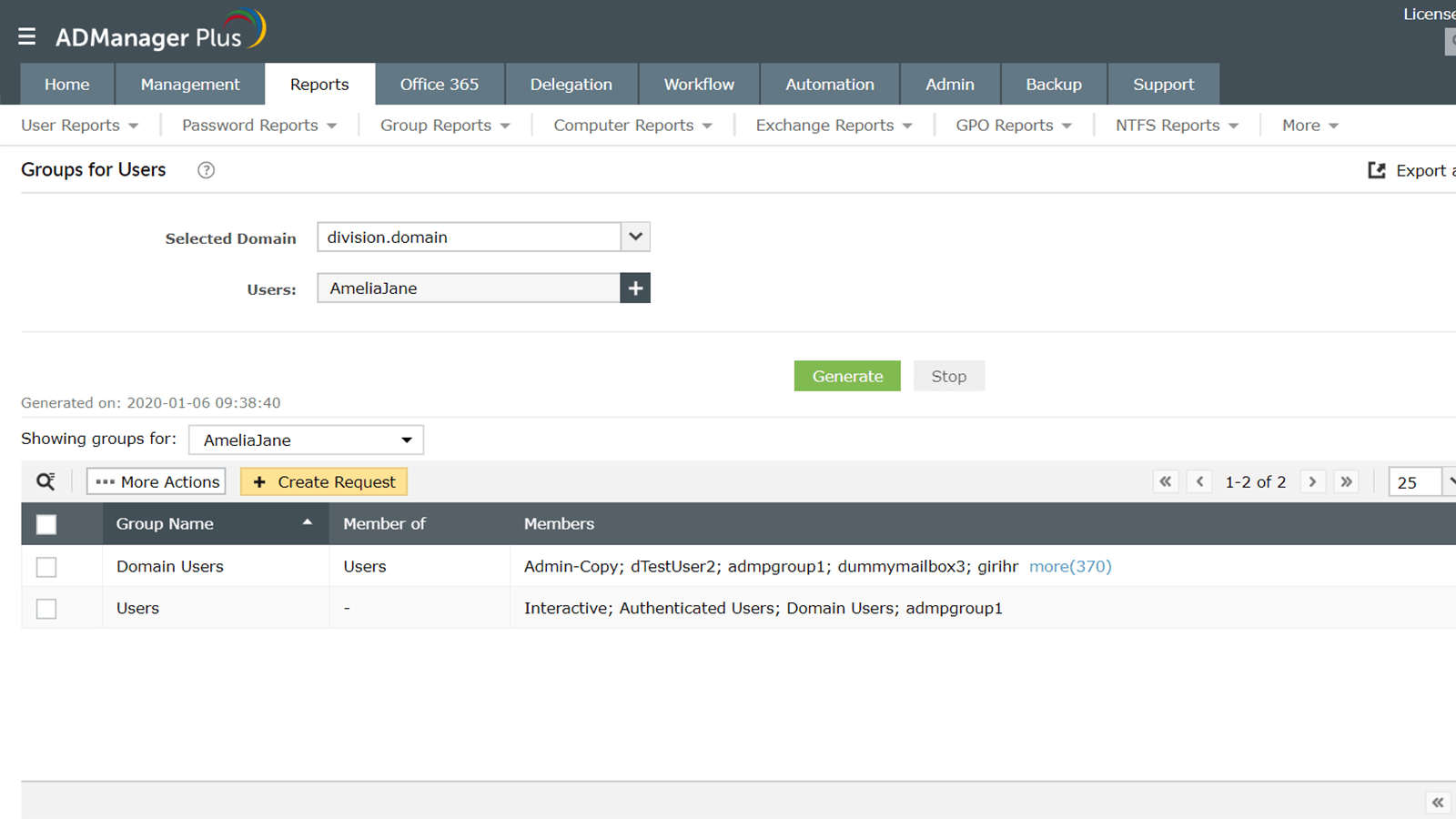
Users in more than one Group
View information about users who are members of more than one group, not including their primary groups. Get details such as the user's display name, SAM account name, groups they belong to, primary group name, manager, and more.
Manage users from within this report by resetting their passwords, enabling or disabling their accounts, modifying their SMTP addresses, and much more.
Download Demo request
General reports
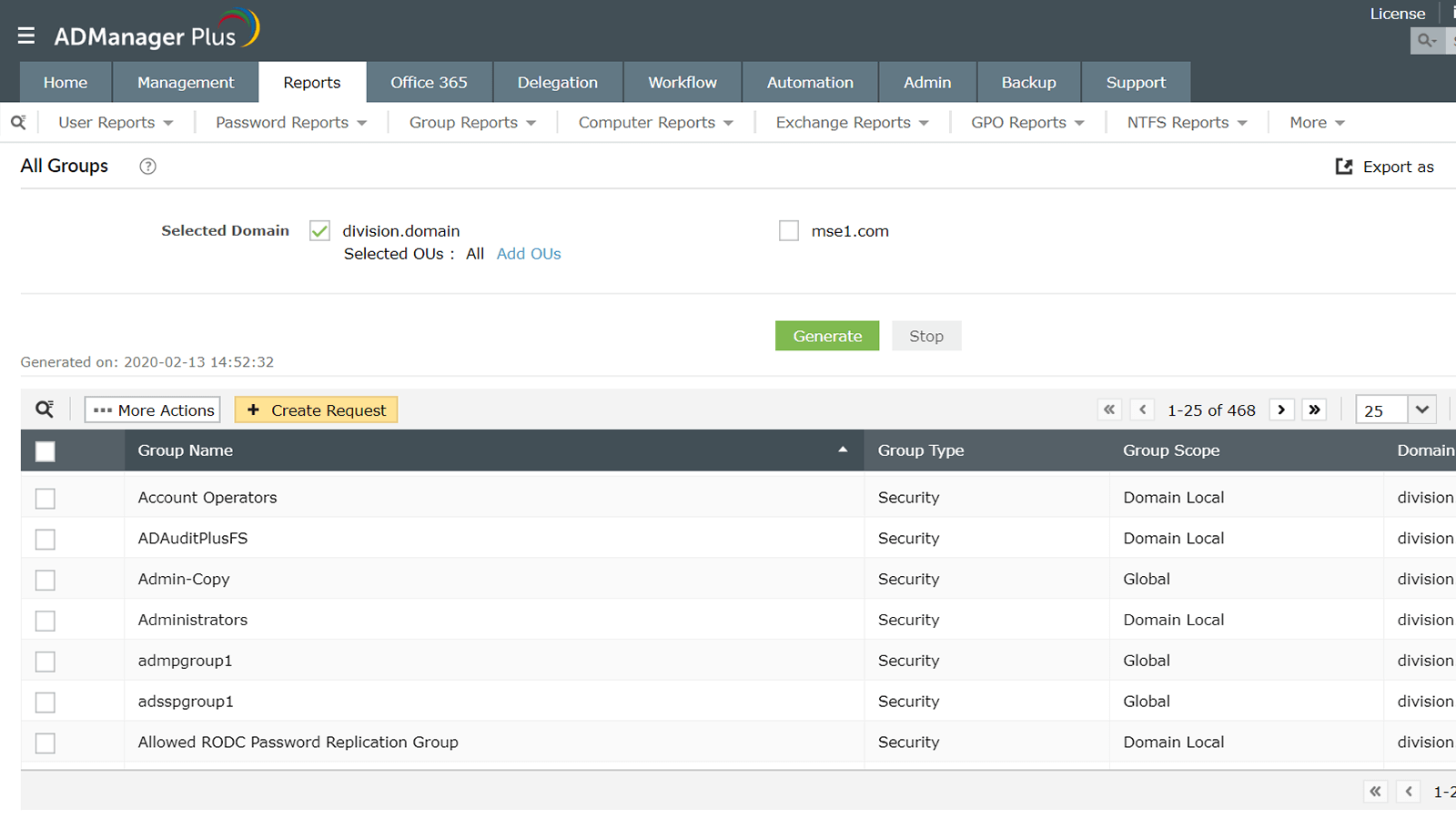
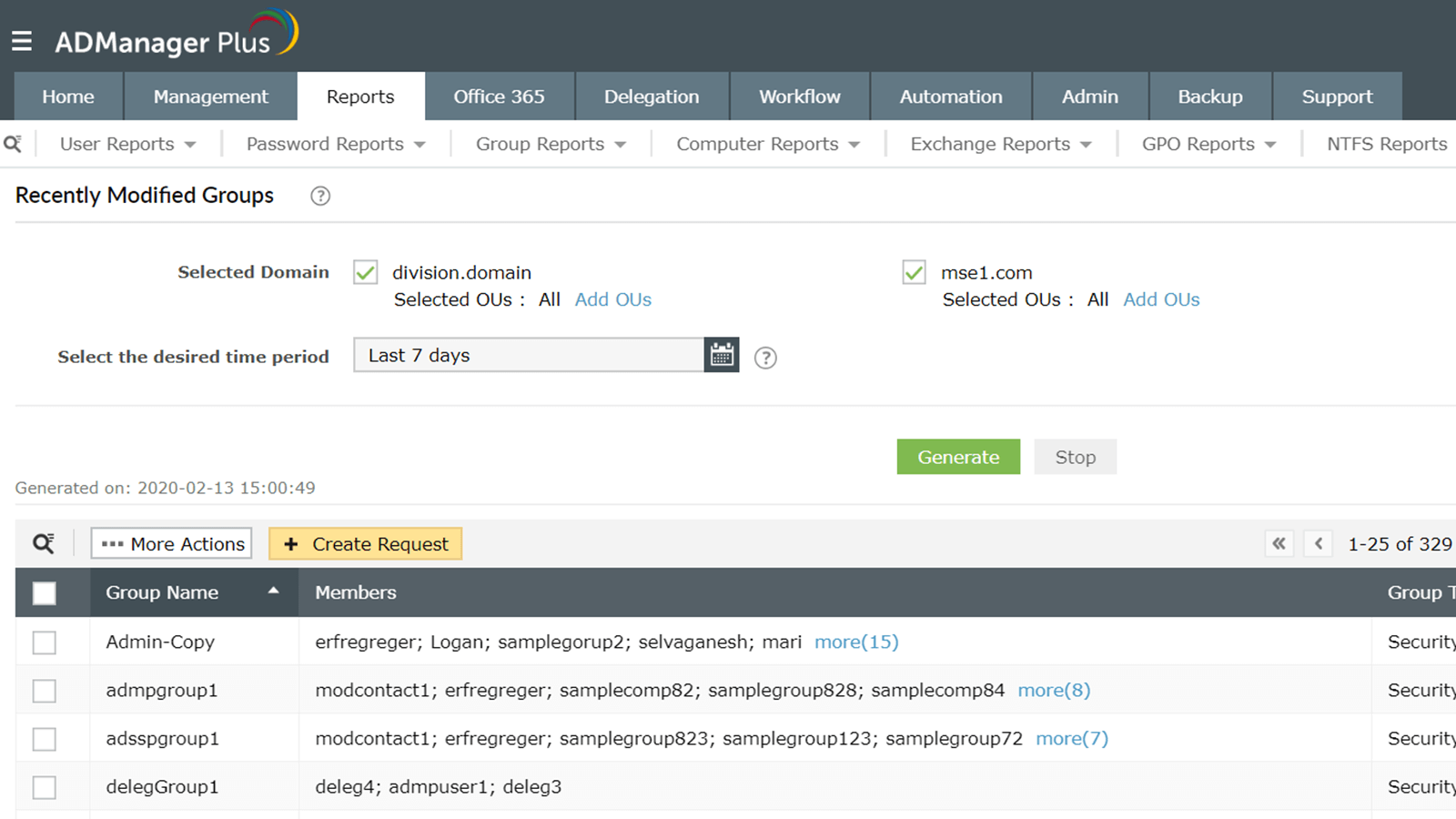
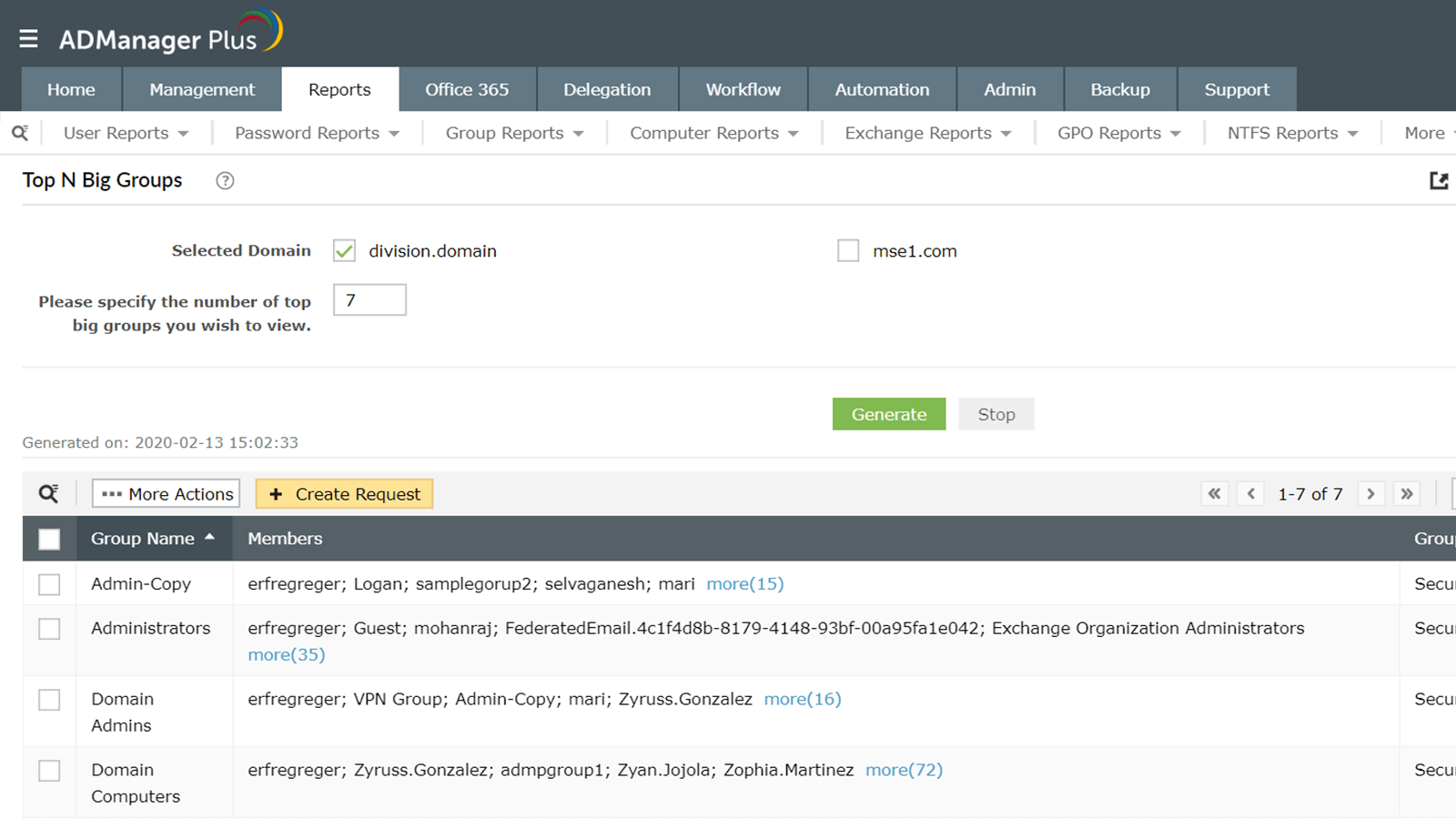
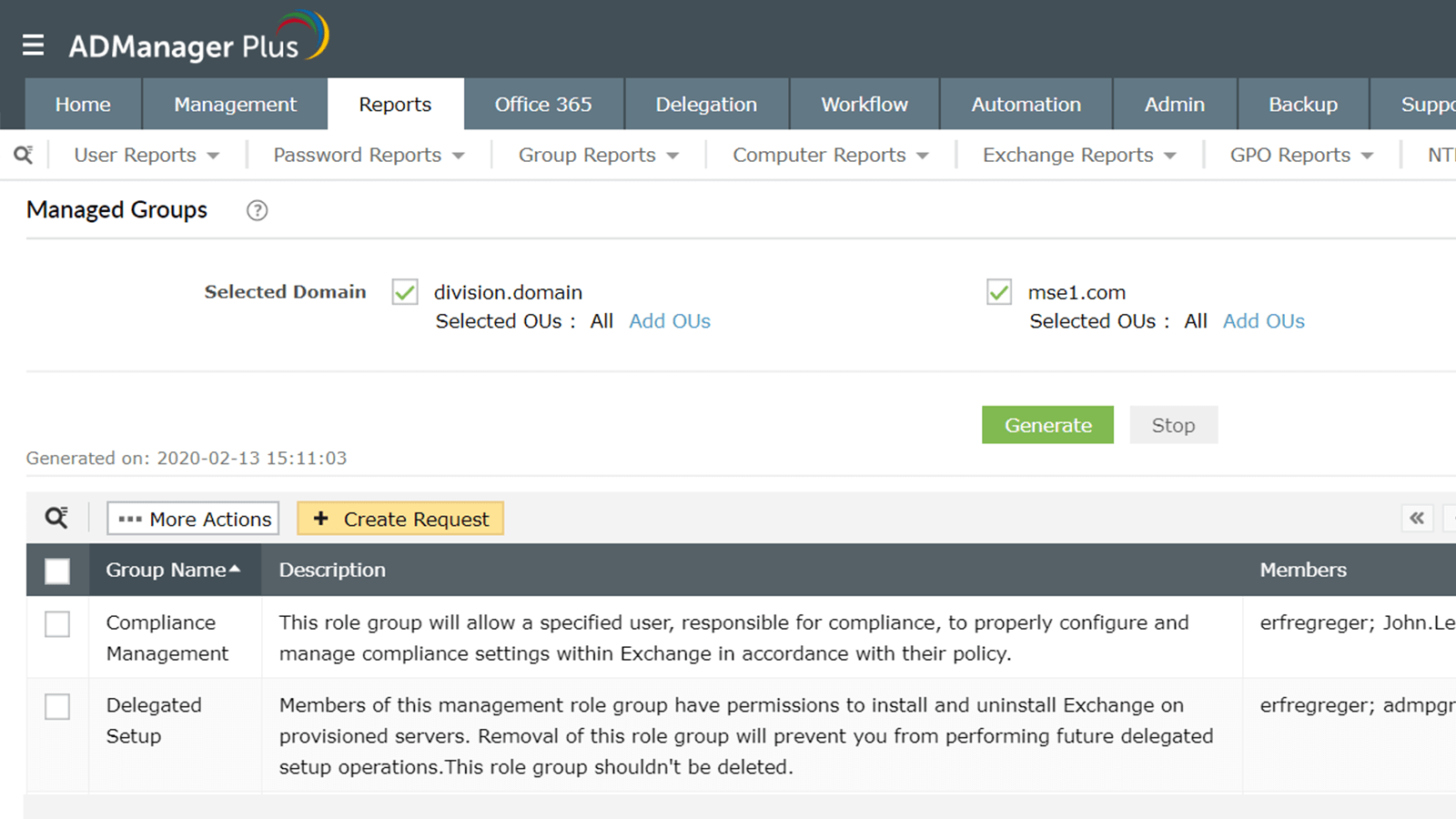
View basic information about the groups in your organization.
- Get details about all the groups in any domain.
- View groups that were created, modified, or deleted over a specific period of time.
- Find the groups with the largest number of members.
- Identify groups that have the Managed By attribute filled.
- View groups that don't have a manager.
Download Demo request
Group Type and Scope Reports
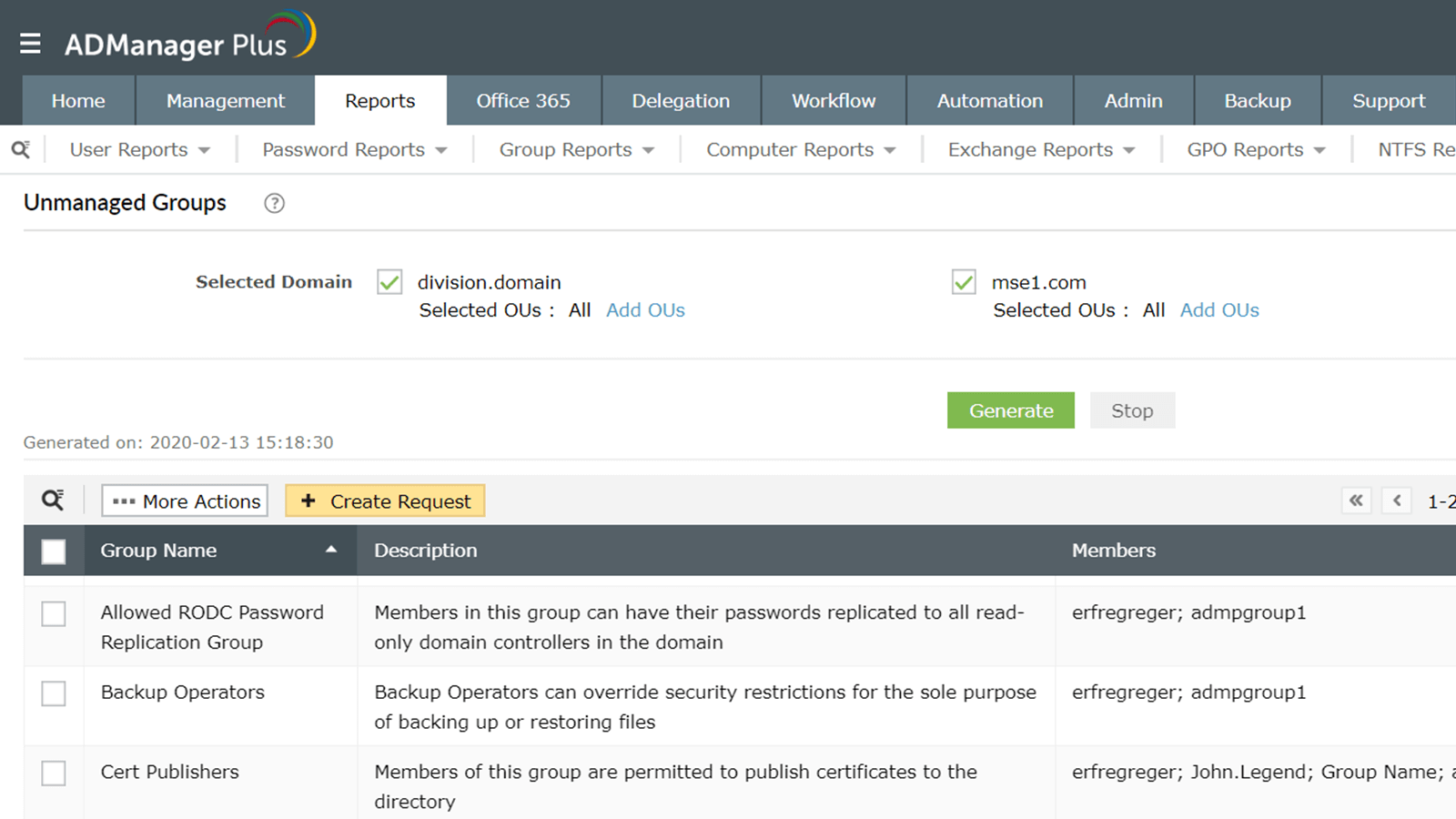
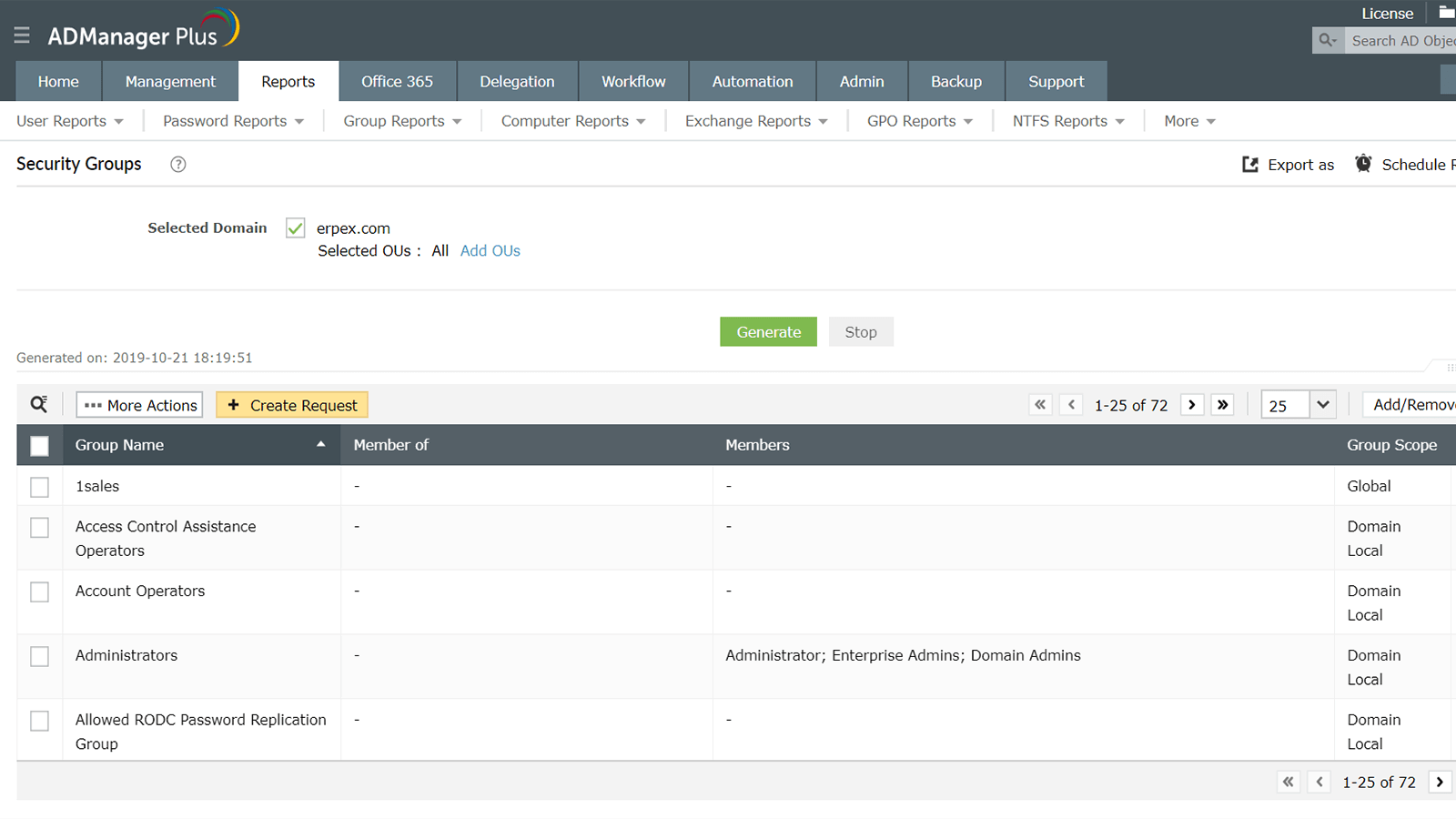
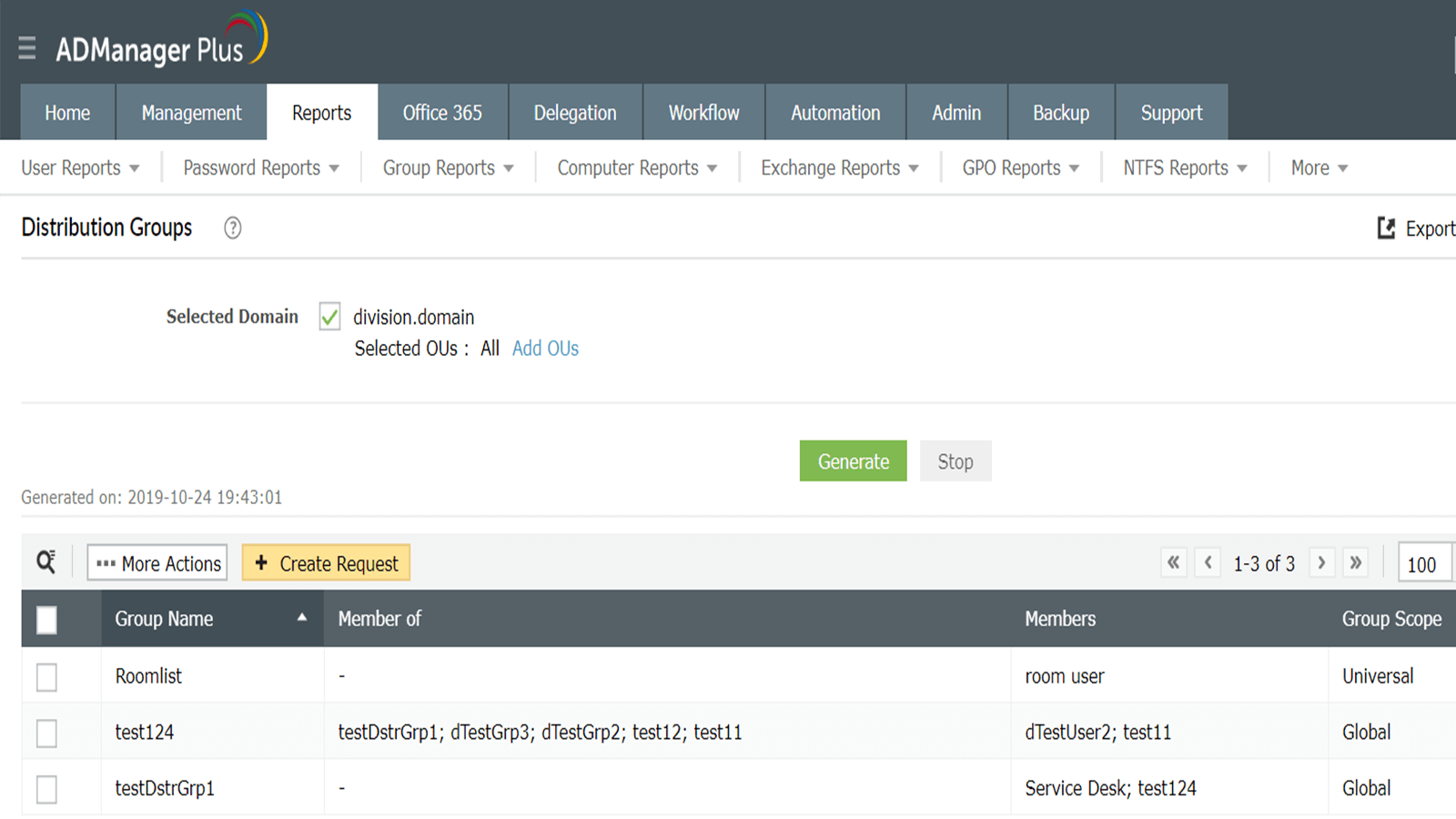
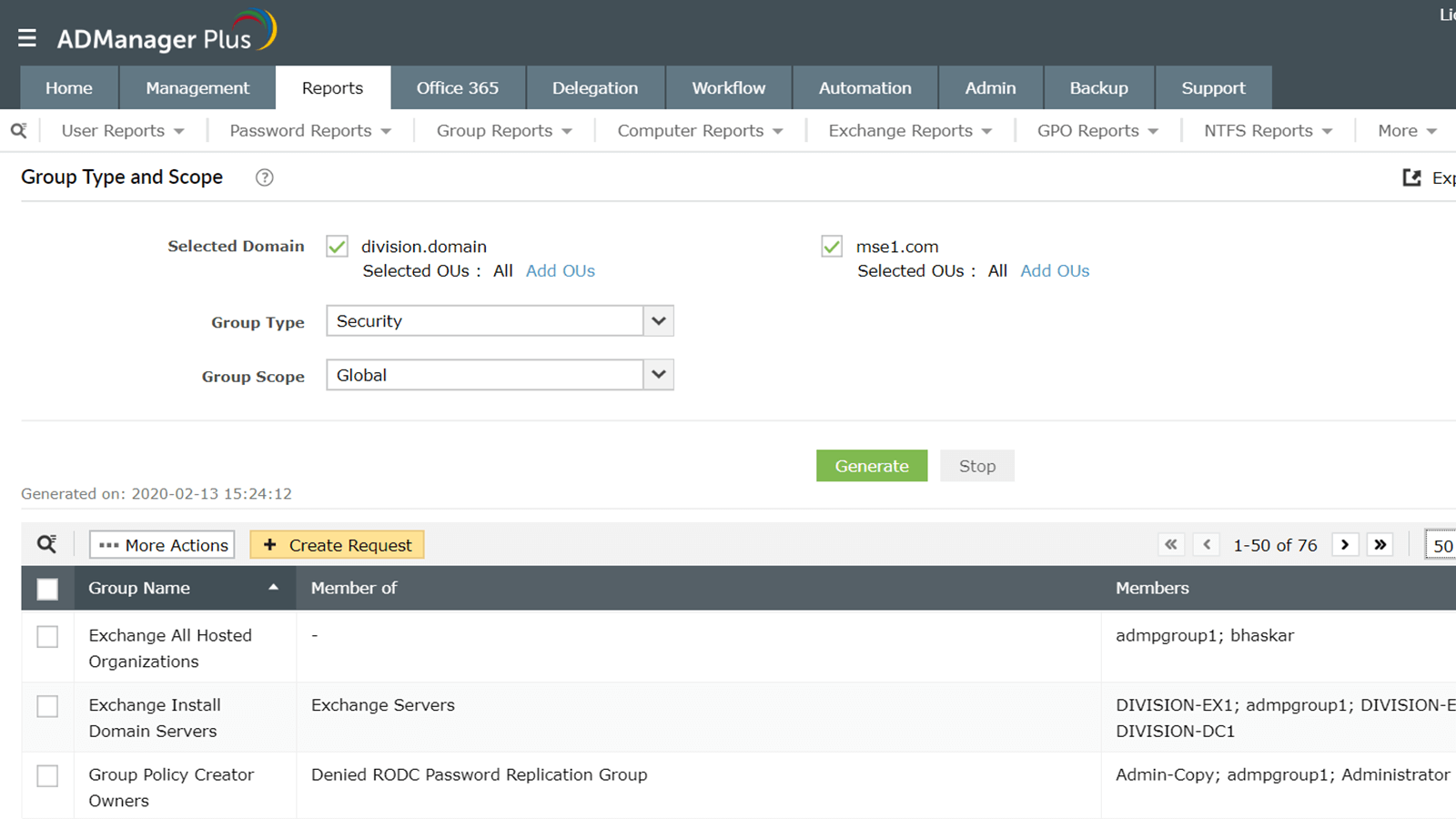
Use these reports to identify groups in your organization based on their type and scope. With these reports, you can:
- Get details about the security groups present in domains.
- View information about the distribution groups present in domains.
- List groups based on both their type and scope.
Download Demo request
Computer reports
General reports
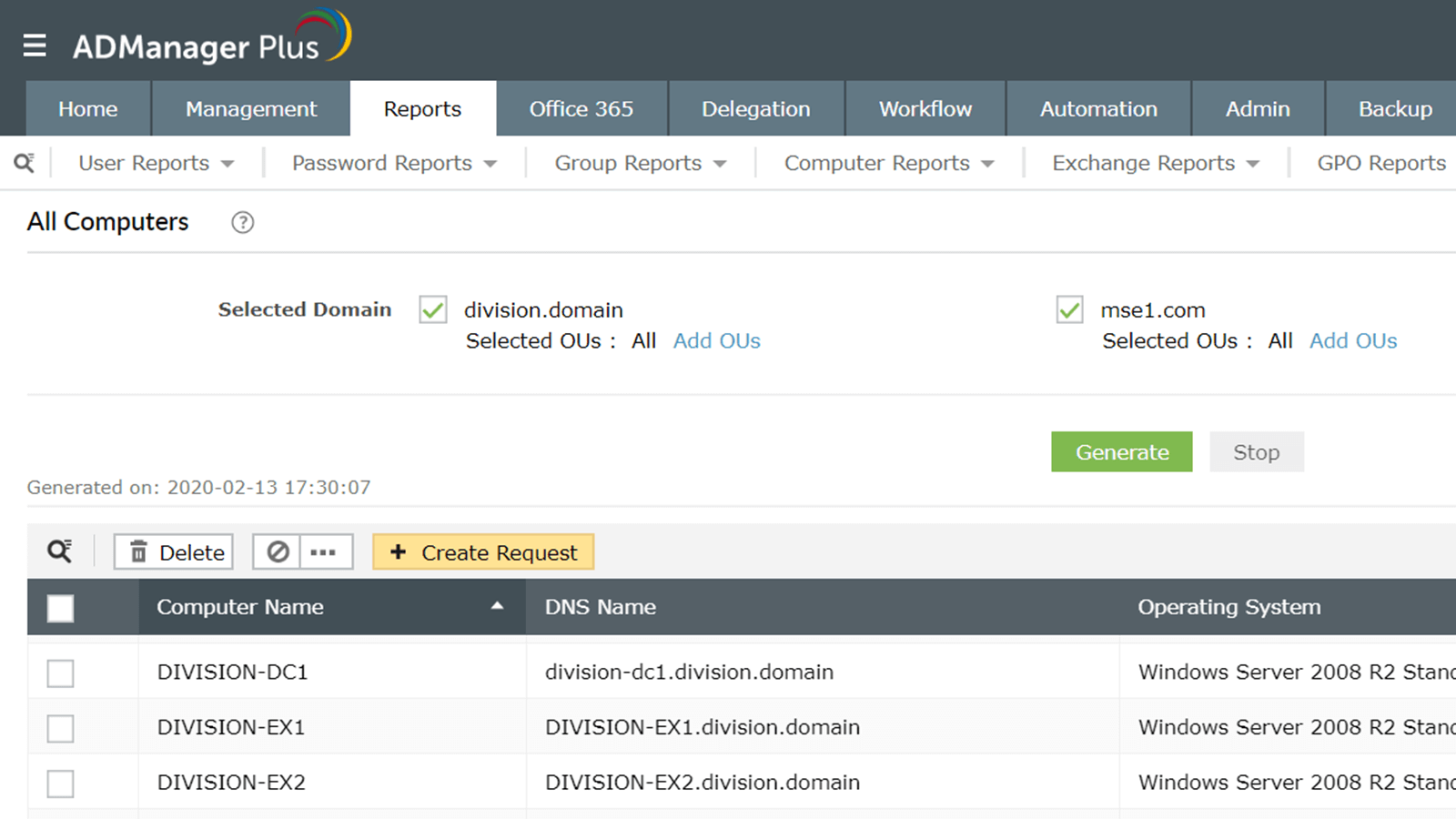
Get a complete picture of your organization's workstations, servers, and domain controllers.
Learn moreLearn moreInactive computers report
View a list of all computers in the domain that have been inactive for a specified time period.
Learn moreLearn moreDisabled computers report
View all the computers that have been disabled for specified domains and enable or delete them right from the report.
Learn moreLearn moreComputer status report
View information about the status of computer accounts such as which ones were recently created, deleted, or moved.
Learn moreLearn moreActive computers report
Find out which computers users logged on to during a specified time period and manage those computers from the same console.
Learn moreLearn moreBitLocker reports
Gain insights into which computers have BitLocker enabled or disabled, their encryption statuses, and recovery keys.
Learn moreLearn moreGeneral reports
These reports provide granular information on computer objects in your domain. Using some of the pre-packaged computer reports available in ADManager Plus, you can get details about:
All computers: View information about all the computers in your domain.
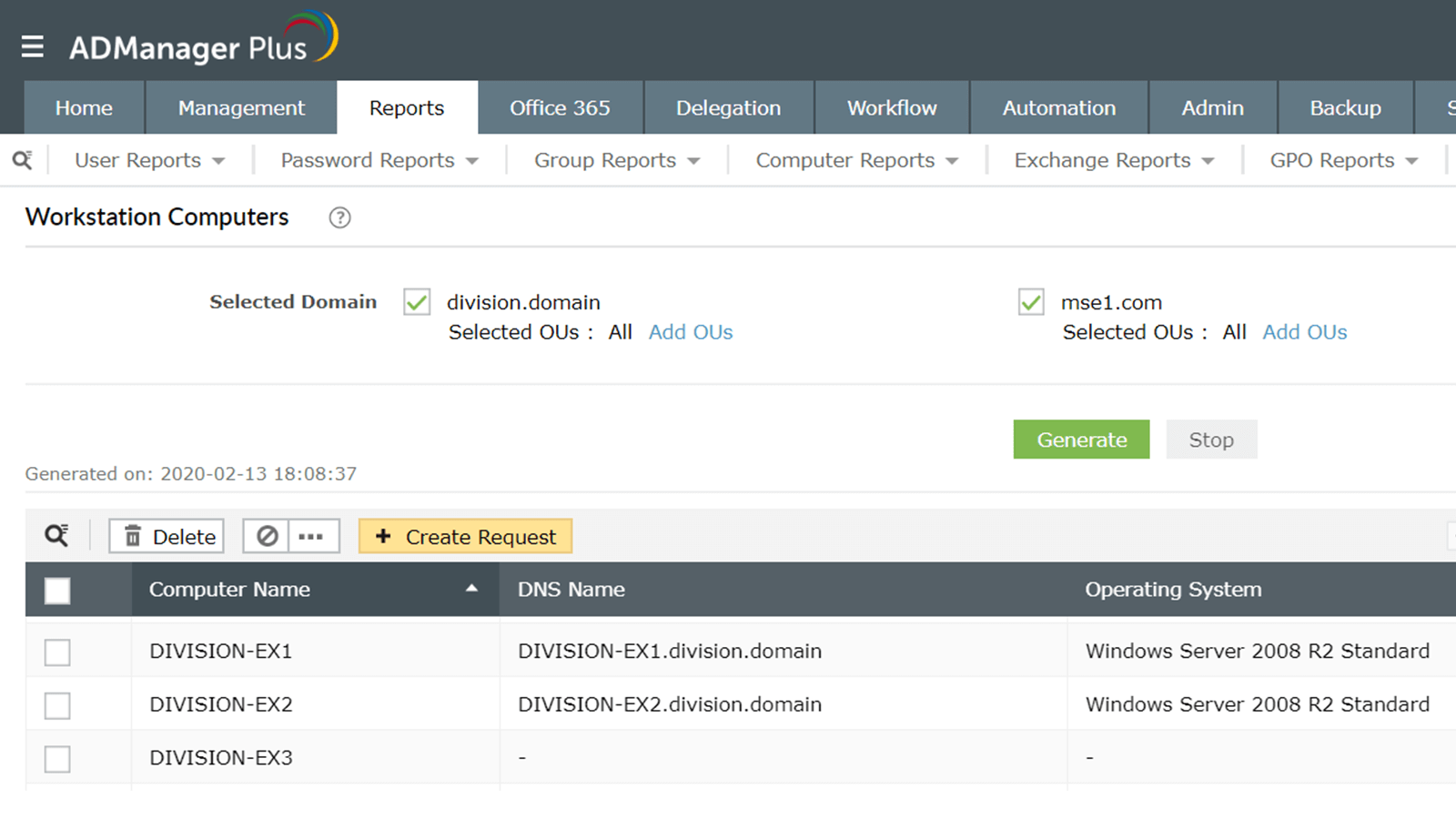
Workstations: List details about all the workstations in selected domains.
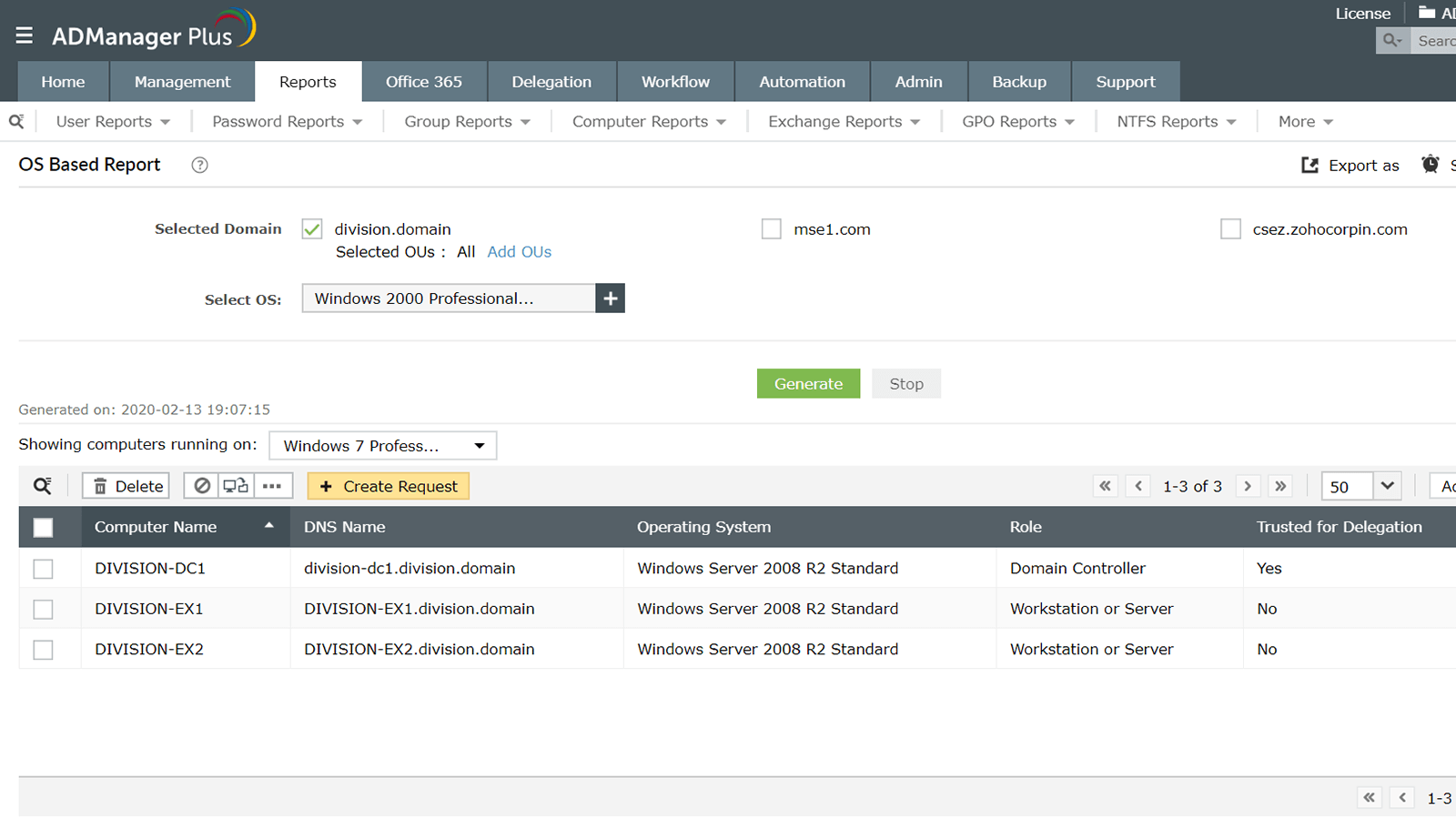
OS-based computers: Get information about computers based on the version of their operating system.
Download Demo request
Inactive Computers Report
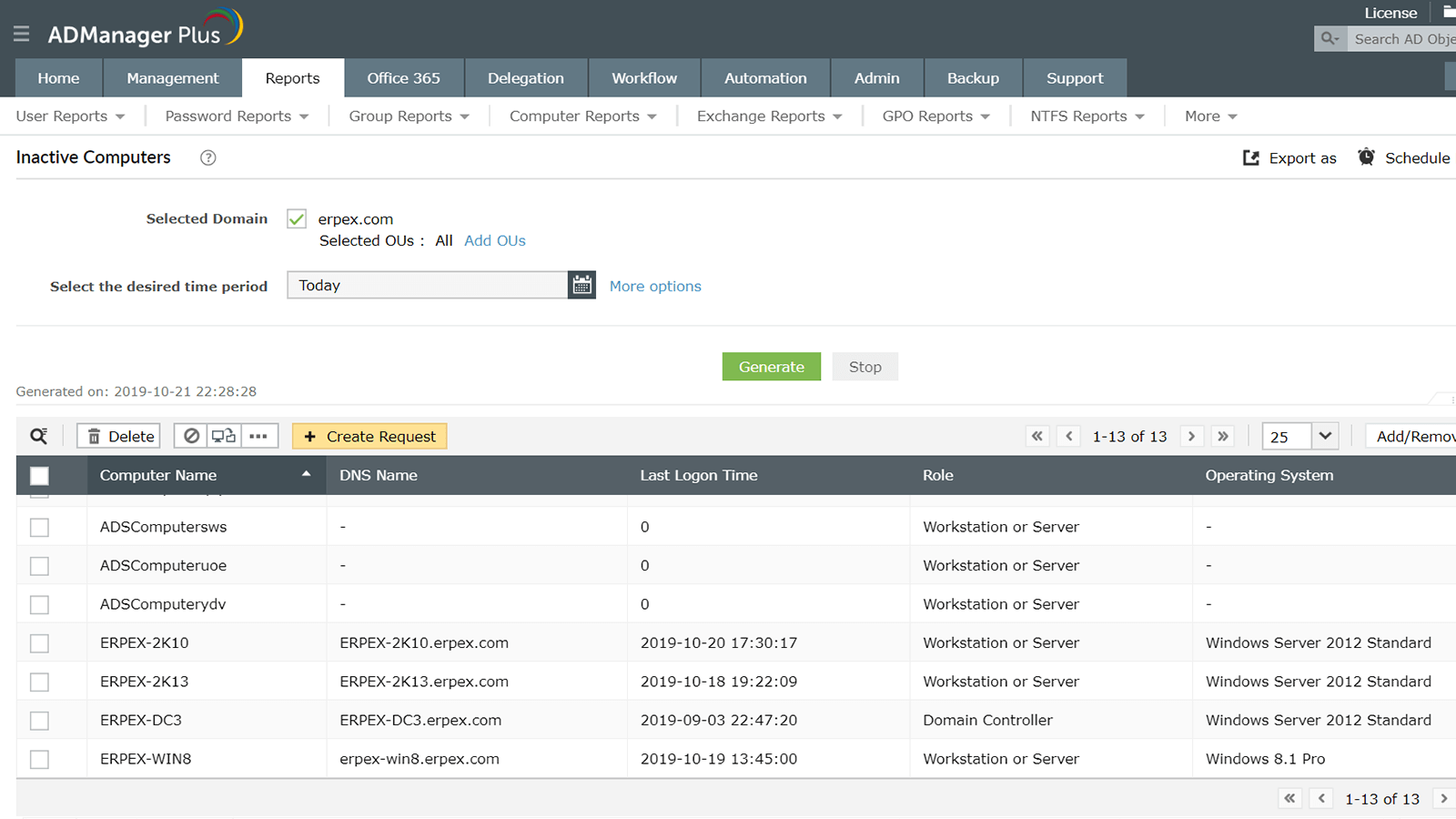
ADManager Plus lists detailed information about all computers that haven't been logged on to over a particular period of time. It queries all domain controllers in order to obtain this information.
Optimize the number of computer accounts in your organization by deleting or disabling inactive computers. ADManager Plus not only lists out the inactive computers for you, but also helps you enable, disable, or delete them right from the report. You can also move or reset computers and modify their general and group attributes.
Download Demo request
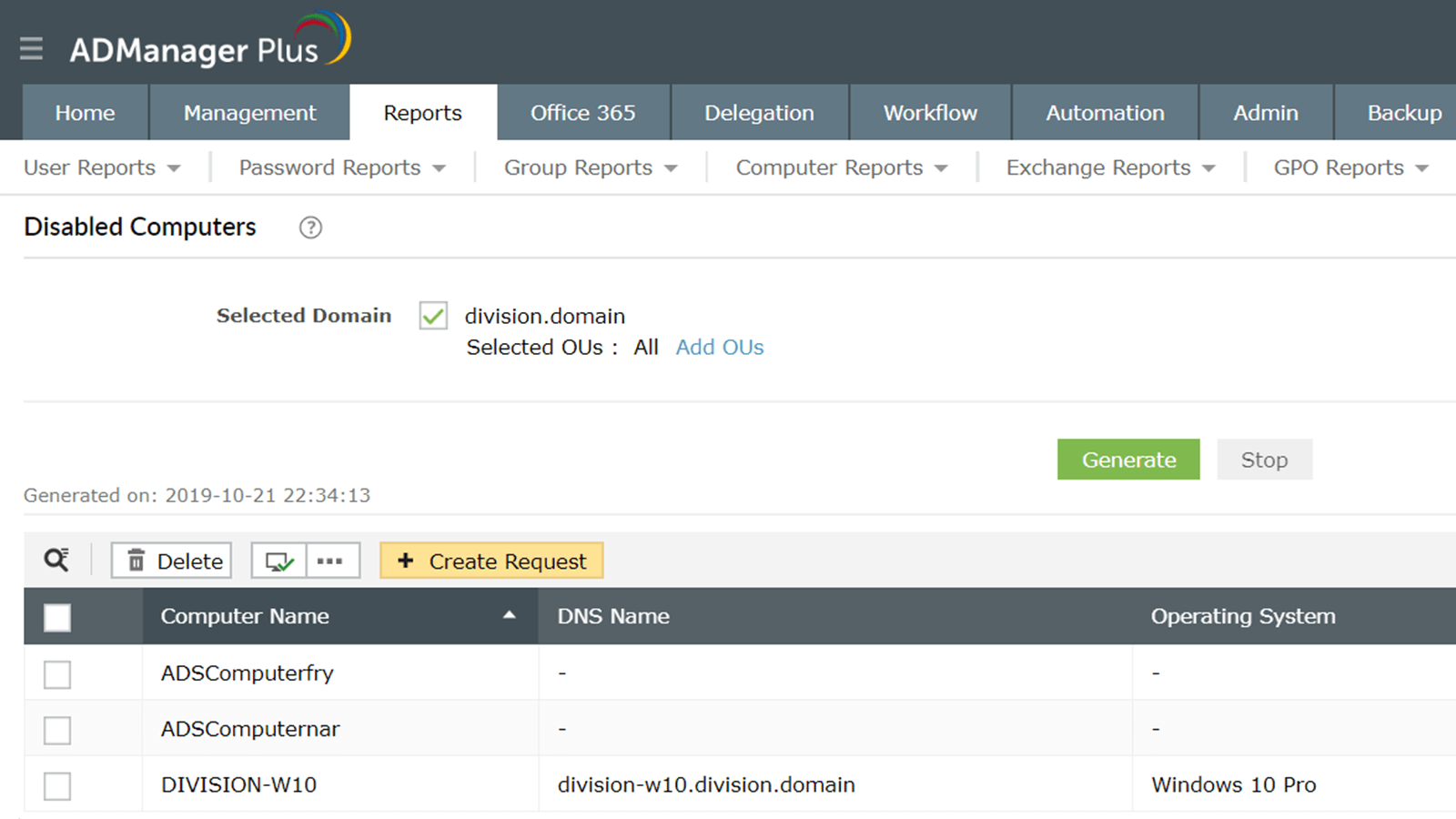
Disabled Computers Report
Get detailed information about computers that have been disabled, including each computer's name, DNS name, OS, creation time, and more. Based on this information, you can decide if you want to delete the computers to free up some space or re-enable them.
In addition to just viewing this information, you can also perform actions on these computers from within the report. Enable, disable, delete, move, or reset computers, or modify their general and group attributes as needed.
Download Demo request
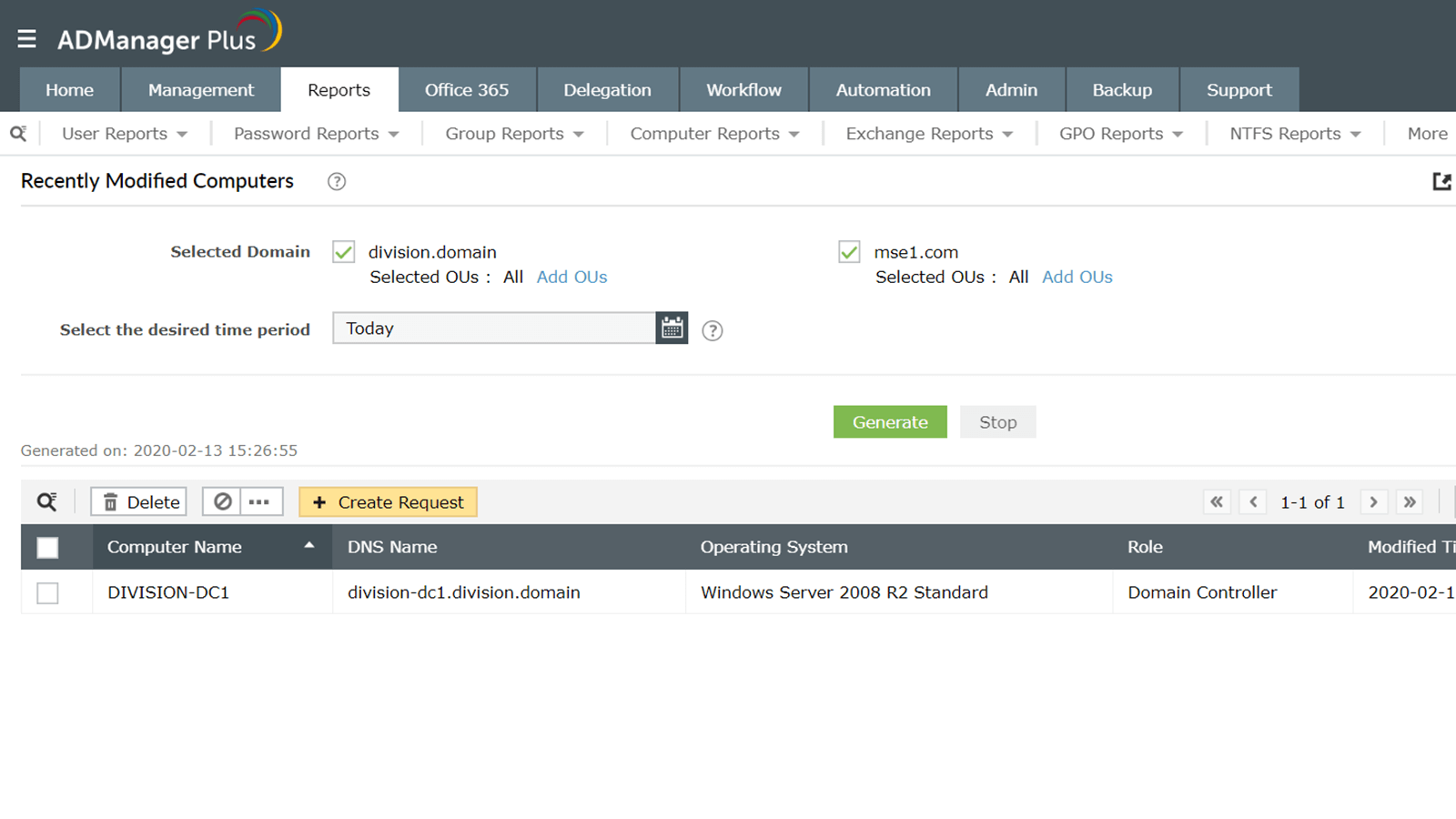
Computer Status Reports
Get details about the status of computer accounts in your organization. Using these reports, you can get information on:
- Computers that were recently created, deleted, and moved.
- Computers that have a manager assigned to them.
- Computers that do not have a manager assigned to them.
Additionally, you can also delete or disable computers directly from the report. You can also add computers to specific groups, reset or move computers, and modify their general and group attributes.
Download Demo request
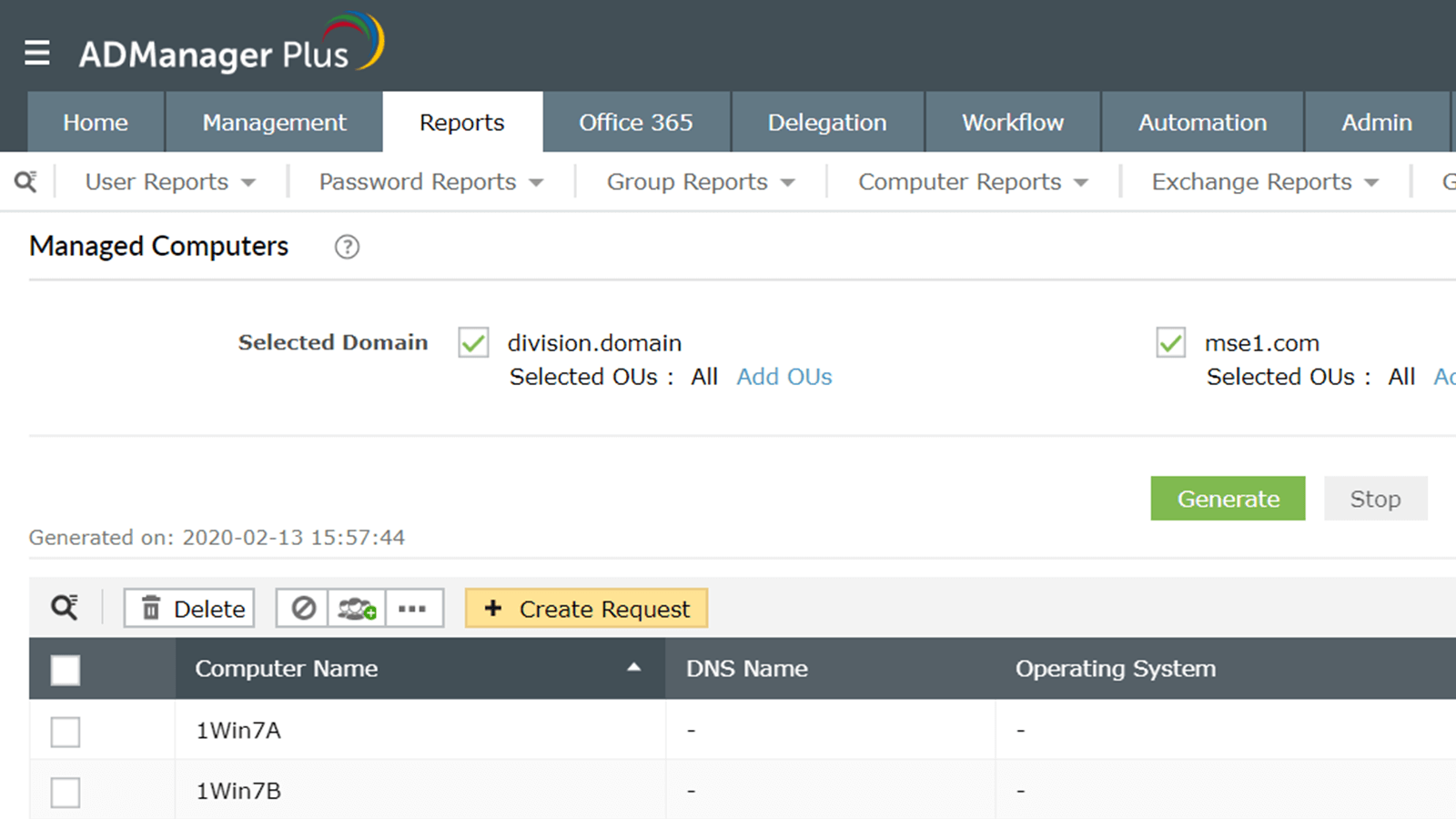
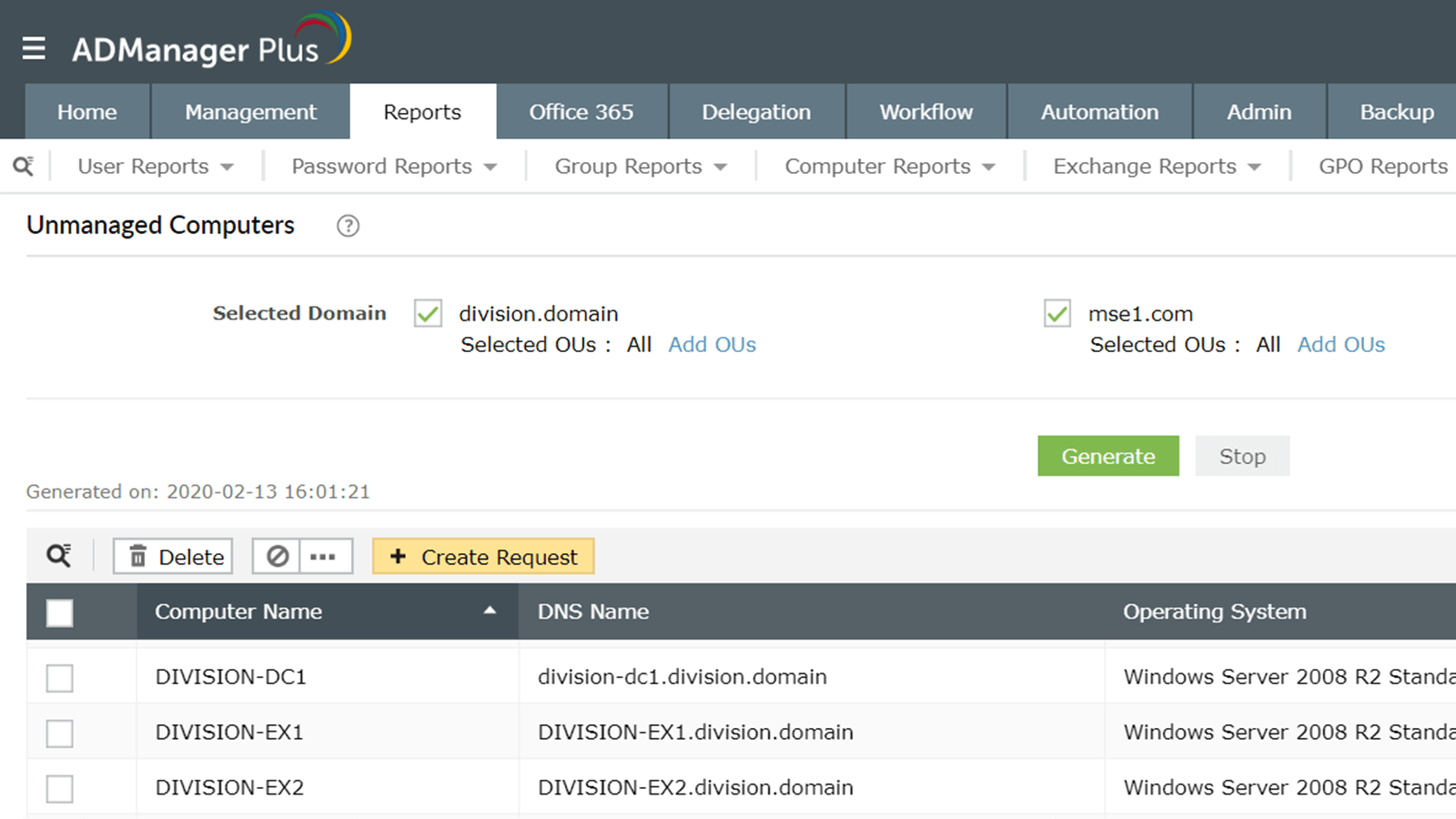
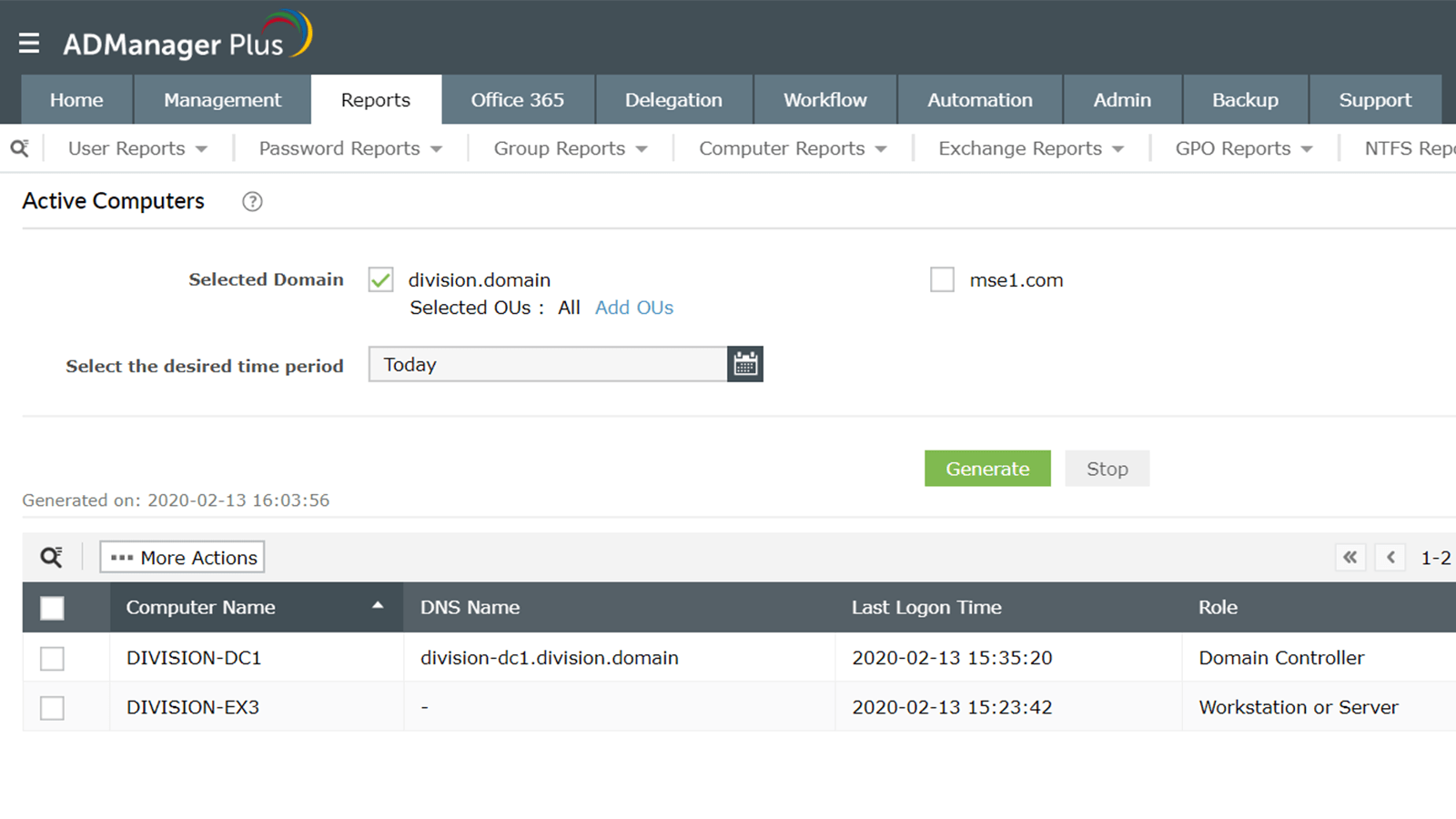
Active Computers
See which computers users have logged on to in your domain within a specific period of time. View details such as each computer's name, DNS name, last logon time, role, operating system, and more.
In addition to just viewing this information, you can also perform management actions right from within reports.
- Enable, disable, delete, reset, or move computers.
- Modify computers' general and group attributes.
Download Demo request
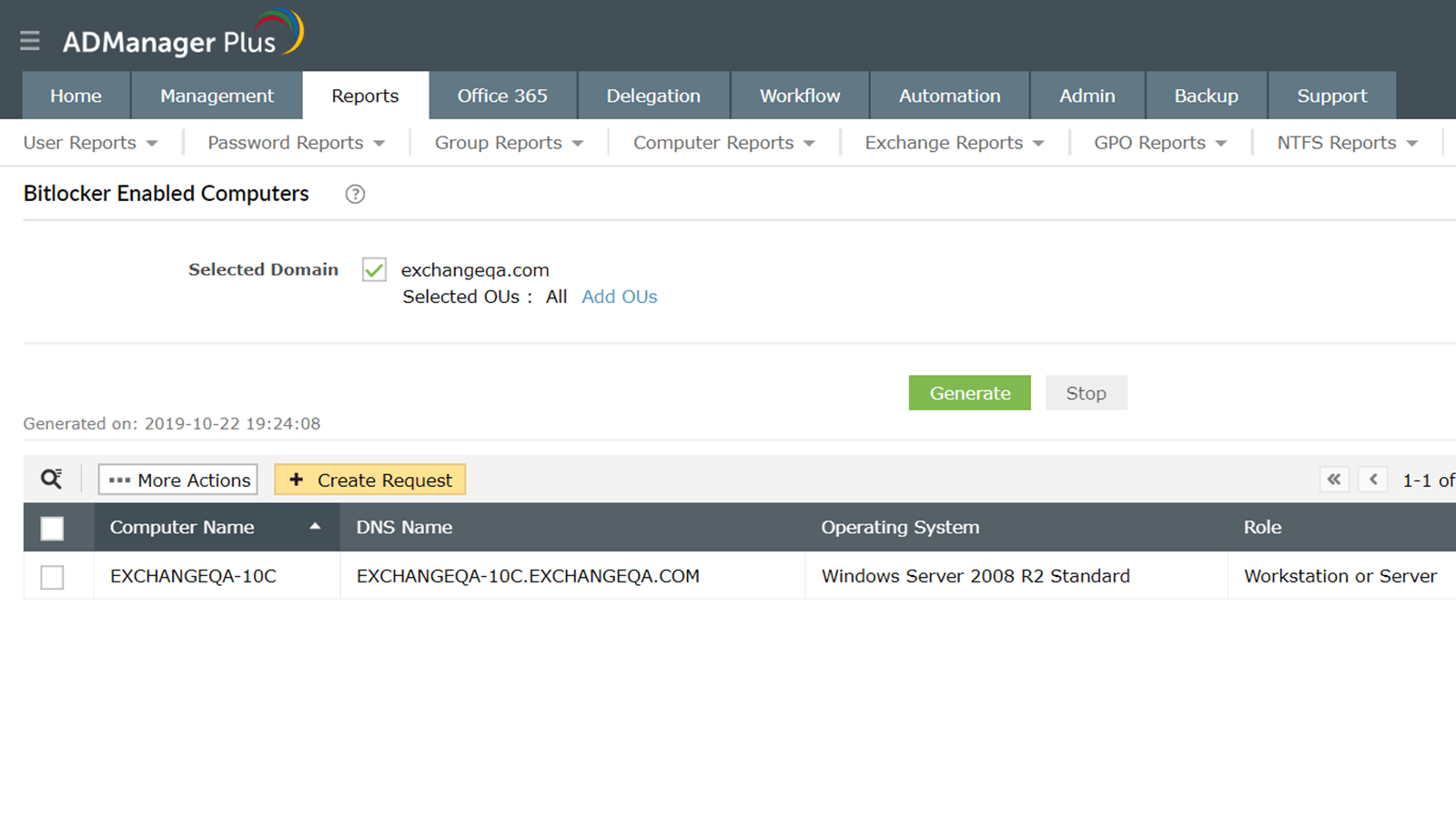
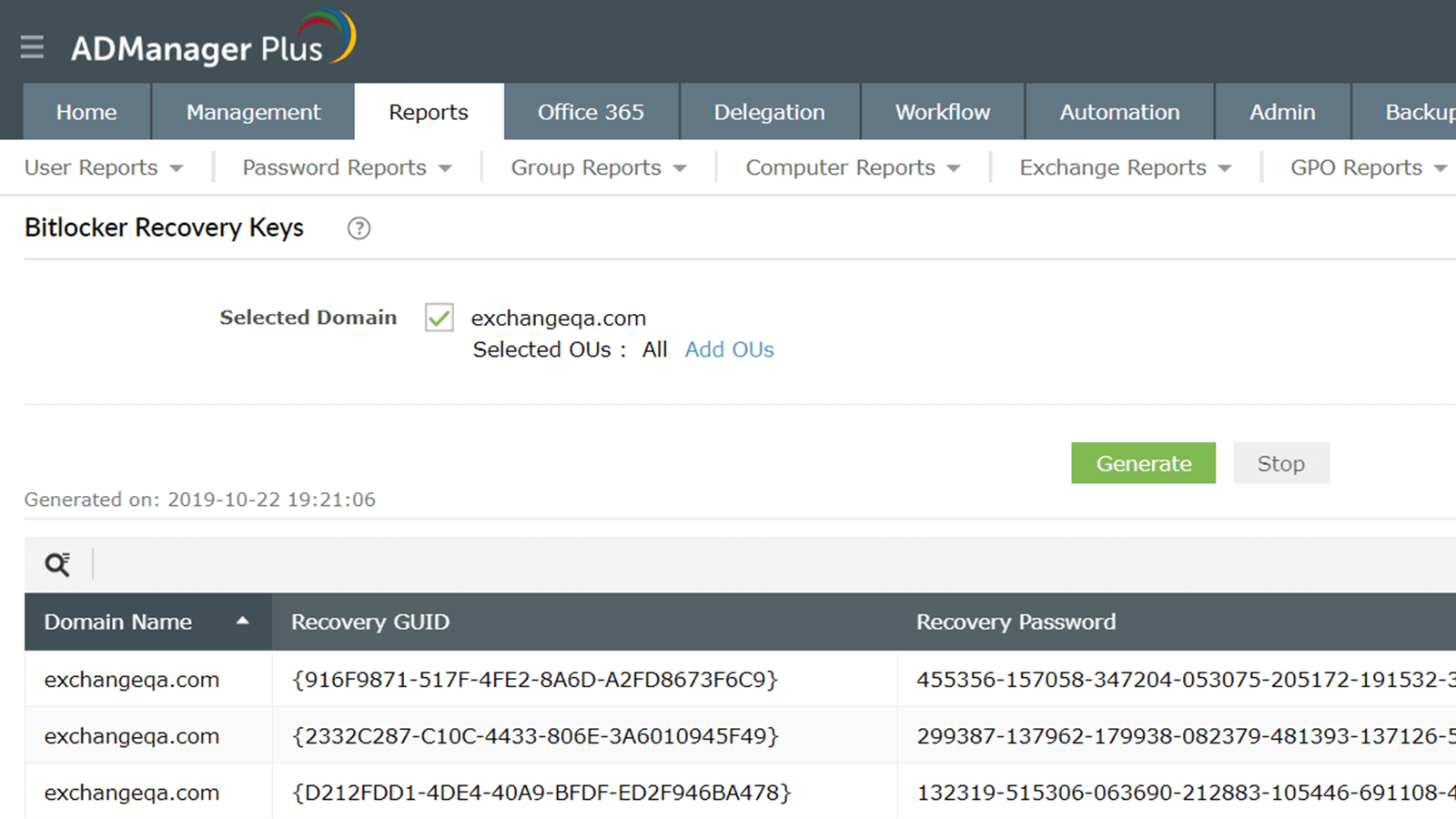
BitLocker reports
Generate a list of all computers with BitLocker encryption enabled or disabled along with the BitLocker recovery keys stored in Active Directory.
Fetch information about your computers' BitLocker-encrypted drives, including their volume Globally Unique Identifiers (GUIDs), recovery GUIDs, and recovery passwords. Export reports containing key packages for the encrypted drives in the format of your choice. Having these details by your side will help you unlock and recover corrupted BitLocker-encrypted drives.
Download Demo request
Password reports
Recent logon failures report
View a list of users whose logon attempts failed over a specified time period.
Learn moreLearn moreUsers with unchanged passwords report
View details about all users who haven't changed their passwords recently, including their display name & more
Learn moreLearn moreUsers with expired passwords report
List details about all the users whose passwords have expired including the user's display name, and more.
Learn moreLearn moreUsers with soon to expire passwords report
Identify users whose passwords are about to expire and notify them in advance to avoid frantic calls to the help desk.
Learn moreLearn moreUsers whose passwords never expire report
View complete information about users whose passwords never expire, including their display and more.
Learn moreLearn moreUsers required to change passwords at the next logon report
View information about users whose passwords need to be changed the next time they try to log on.
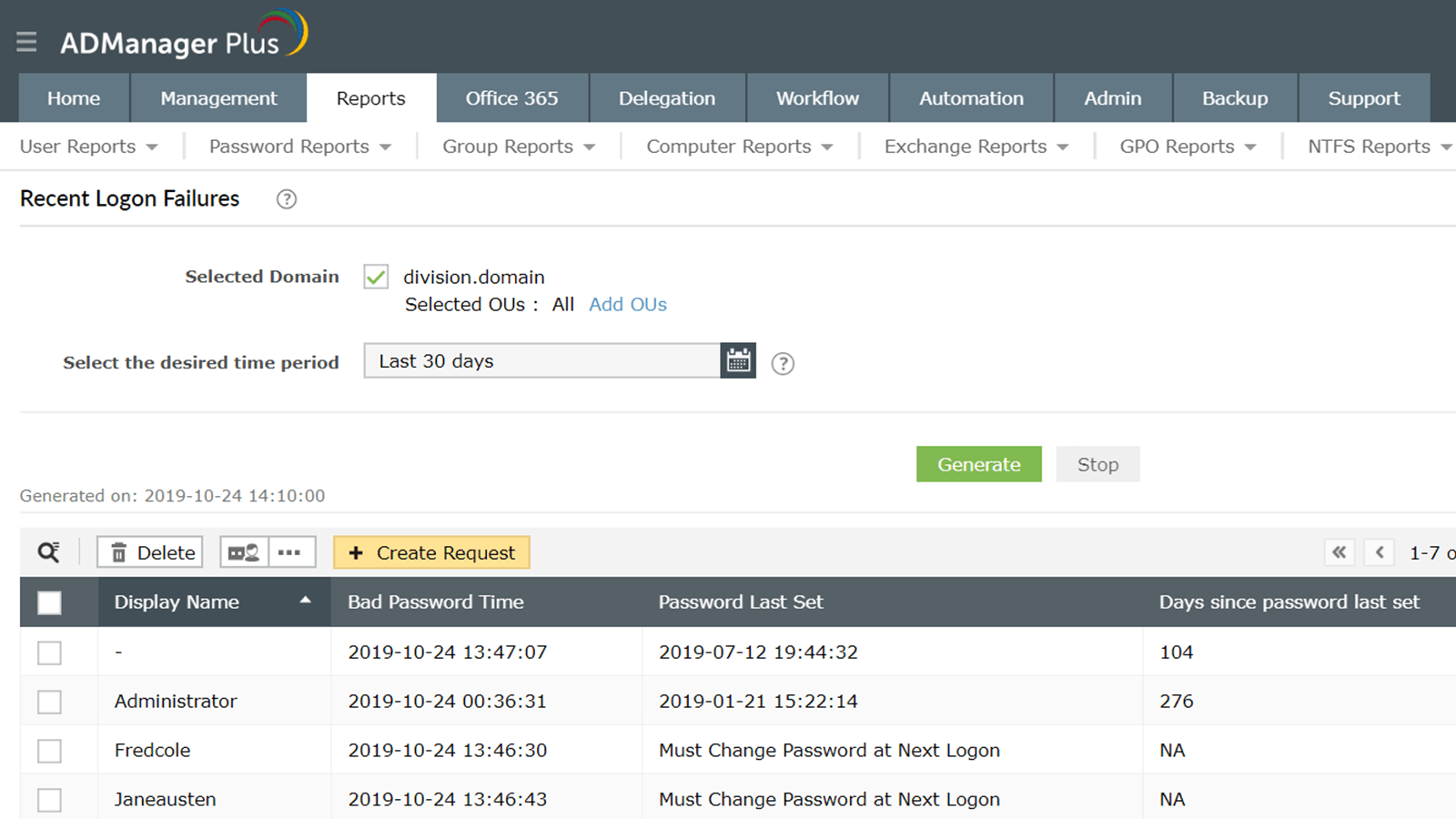
Learn moreLearn moreRecent Logon Failures Report
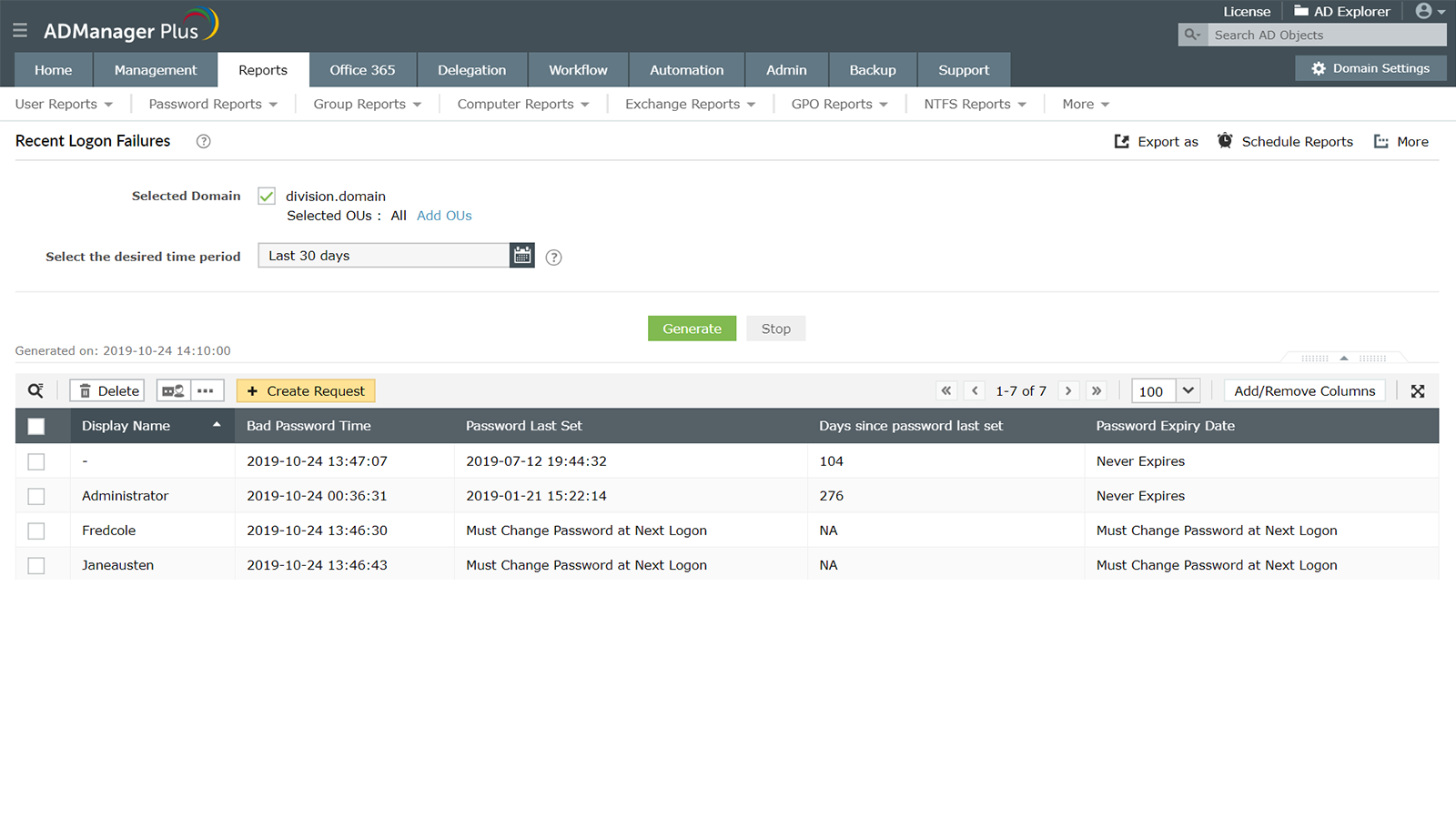
View a list of users whose logon attempts failed over a specified time period. Take a look at the user's display name, bad password time, password expiration date, when they last changed their password, and more.
Manage users from the report itself to:
- Delete users.
- Make users change their passwords at their next logon.
- Enable and disable users.
Download Demo request
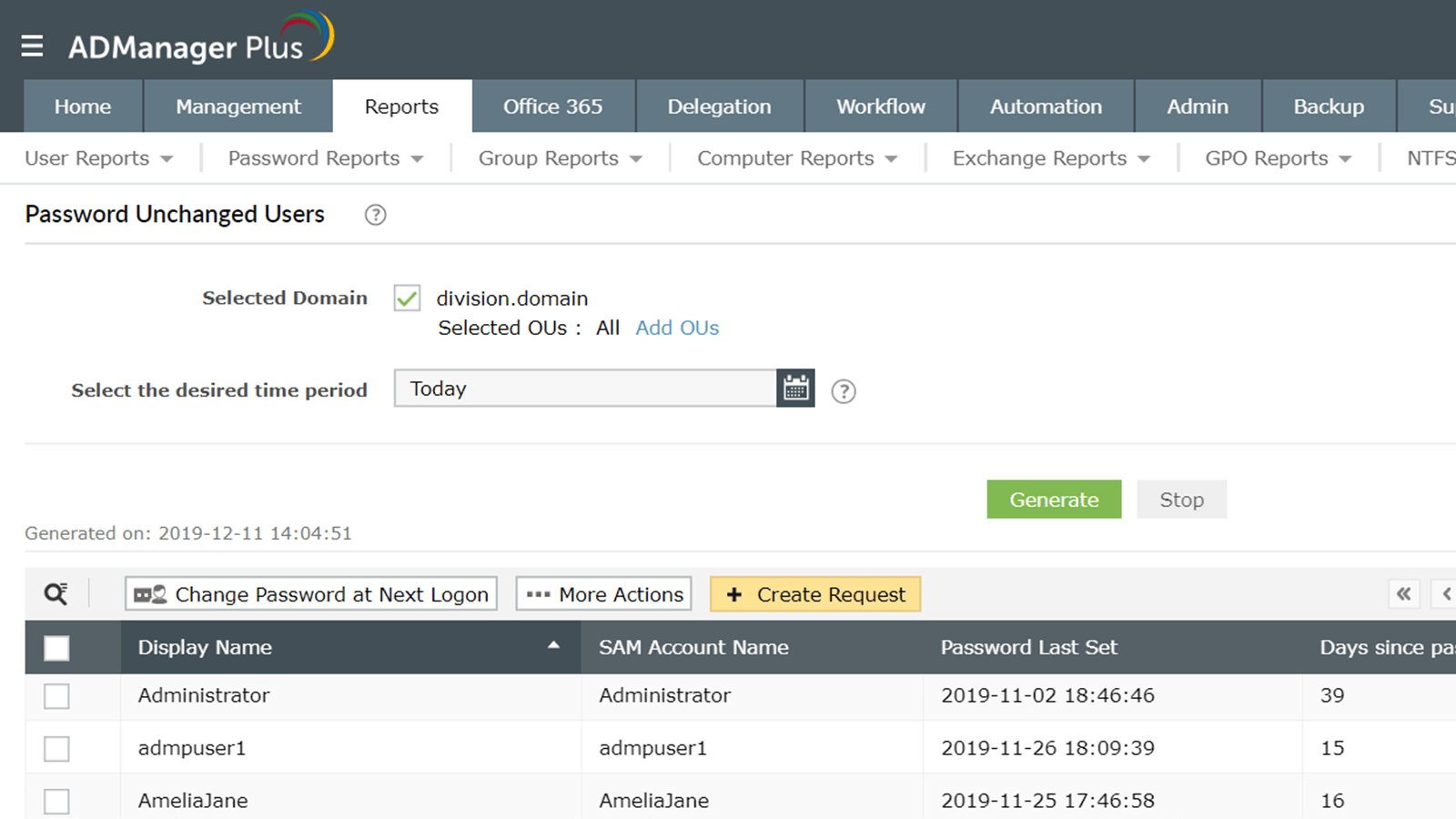
Users with unchanged passwords report
View details about all users who haven't changed their passwords recently, including their display name, SAM account name, password status, expiration date, the time and date their password was last set, and more.
You can also perform management actions from within the report:
- Delete users.
- Make users change their password at their next logon.
- Enable and disable users.
Download Demo request
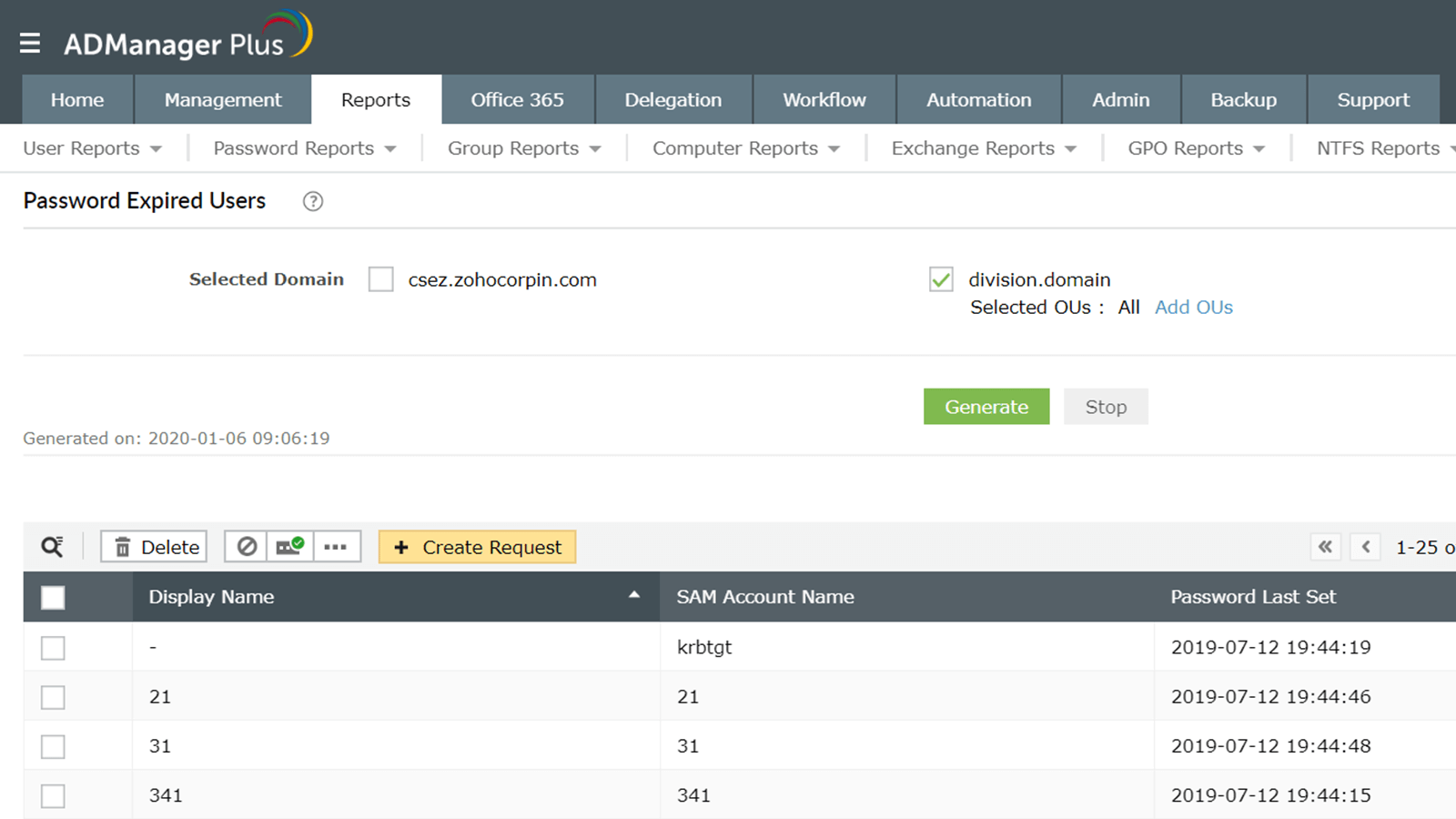
Users with expired passwords report
List details about all the users whose passwords have expired including the user's display name, SAM account name, when their password was last set, its expiration date, and more.
Through the report's built-in management functionality, you can:
- Disable users.
- Delete users.
- Set users' passwords to never expire.
Download Demo request
Users with soon to expire passwords report
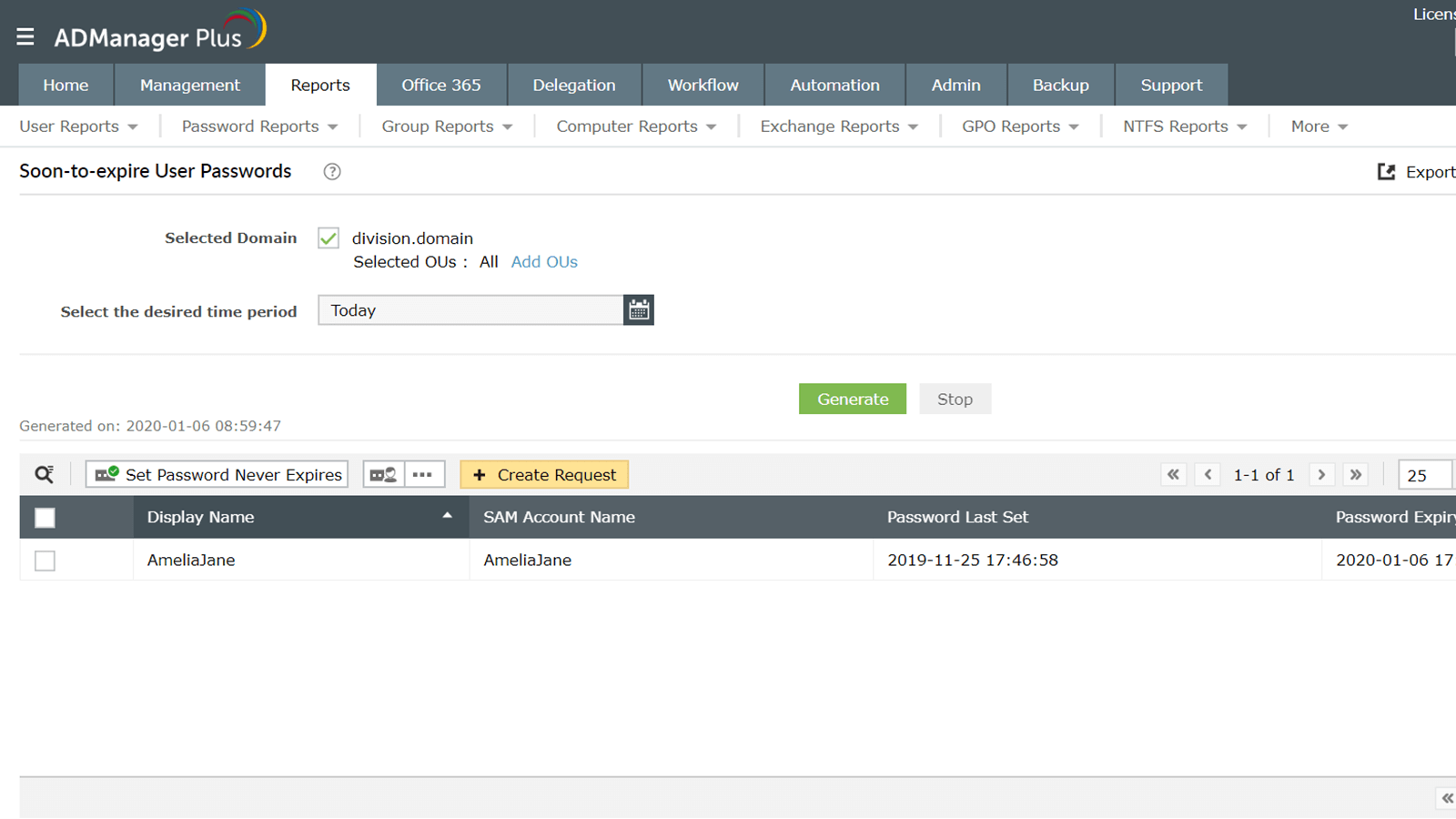
Identify users whose passwords are about to expire and notify them in advance to avoid frantic calls to the help desk.
With the built-in management functionality of this report, you can:
- Ensure that selected users' passwords never expire.
- Make users change their passwords at their next logon.
Download Demo request
Users whose Passwords Never Expire
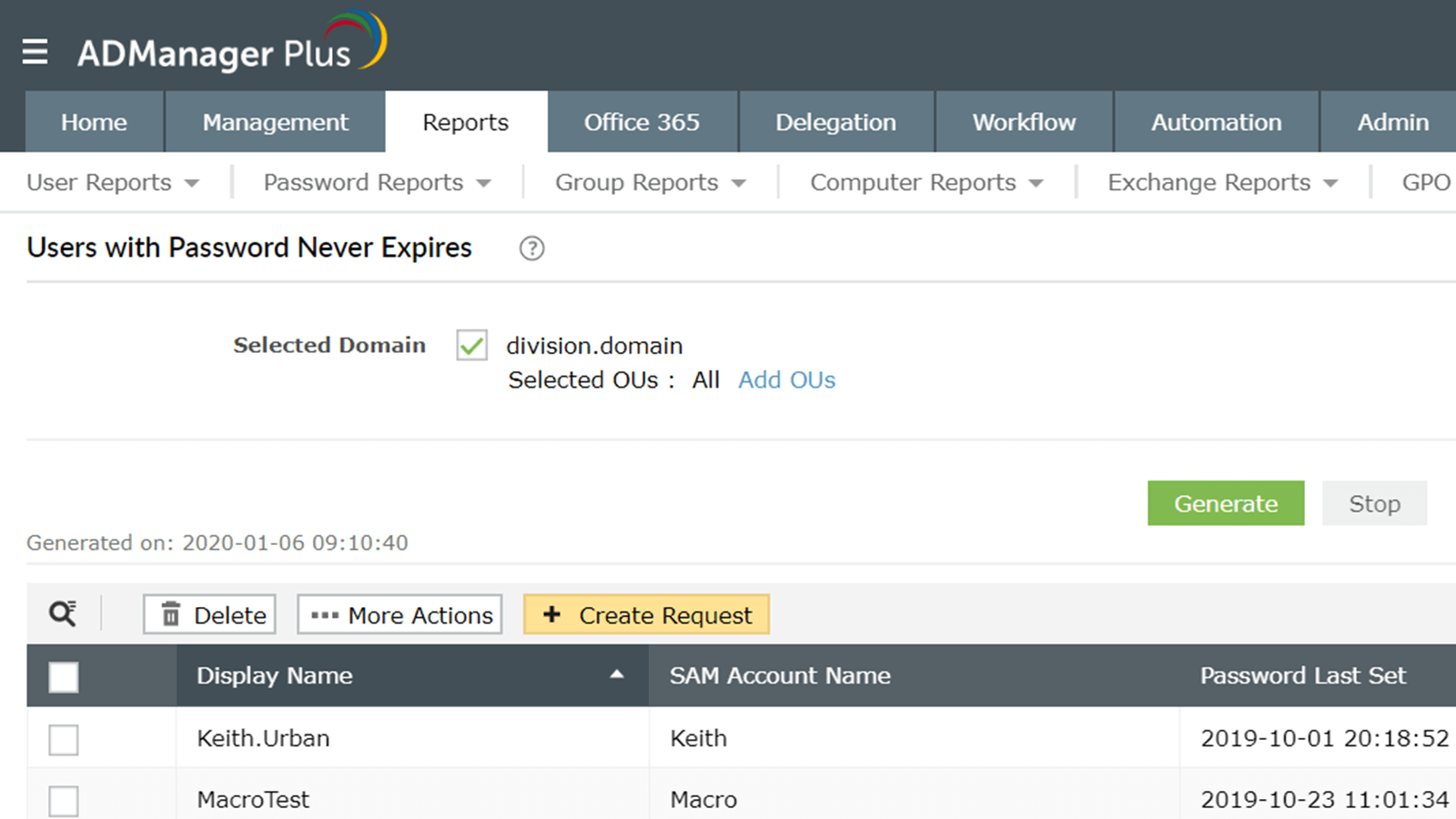
View complete information about users whose passwords never expire, including their display and SAM account names, the number of days since their password was last set, and more.
With the built-in management functionality of this report, you can:
- Delete users.
- Enable and disable users.
- Modify SMTP addresses.
Download Demo request
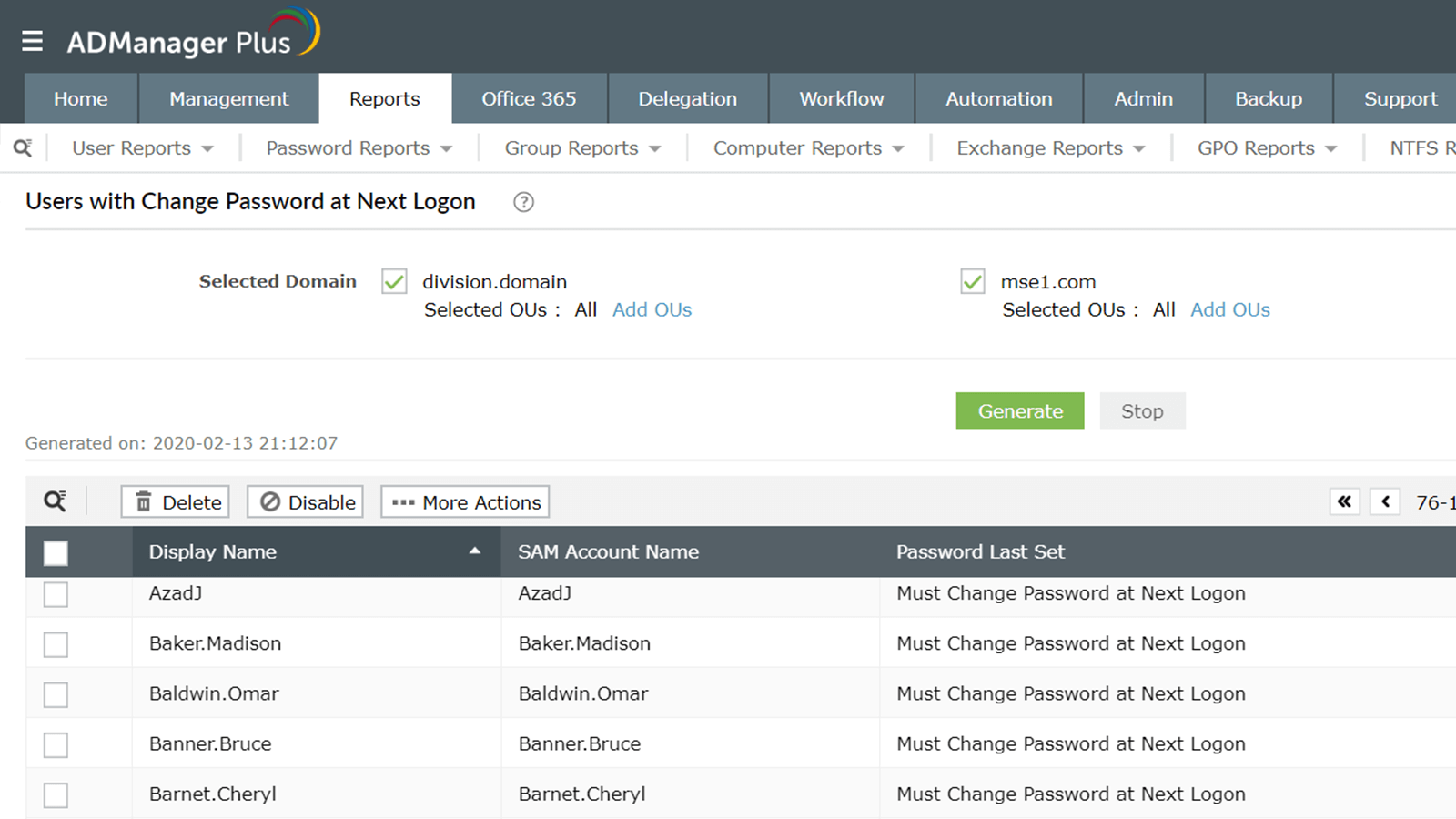
Users with Password Change at Next Logon
View information about users whose passwords need to be changed the next time they try to log on. Review each user's display name, password expiration date, the number of days since their password was last set, and more.
With the built-in management functionality of this report, you can:
- Delete users.
- Enable and disable users.
Download Demo request
NTFS reports
Permissions for folders report
View information about users and groups who have access to folders in specified paths and prevent unauthorized access to folders.
Learn moreLearn moreShared folders on servers report
View a list of all computers in the domain that have been inactive for a specified time period.
Learn moreLearn moreFolders accessible by accounts report
See which folders selected user accounts have permissions over and identify what kind of permissions they have.
Learn moreLearn moreServer permissions report
List users and groups who have access to selected servers.
Learn moreLearn moreServers accessible by accounts report
List the servers that can be accessed by specified accounts (users or groups) in your organization.
Learn moreLearn moreNon-inheritable folders report
Get details about folders protected from inheritable permissions to make sure that unauthorized accounts don't gain access to vital folders and directories because of inherited permissions.
Learn moreLearn morePermissions for Folders
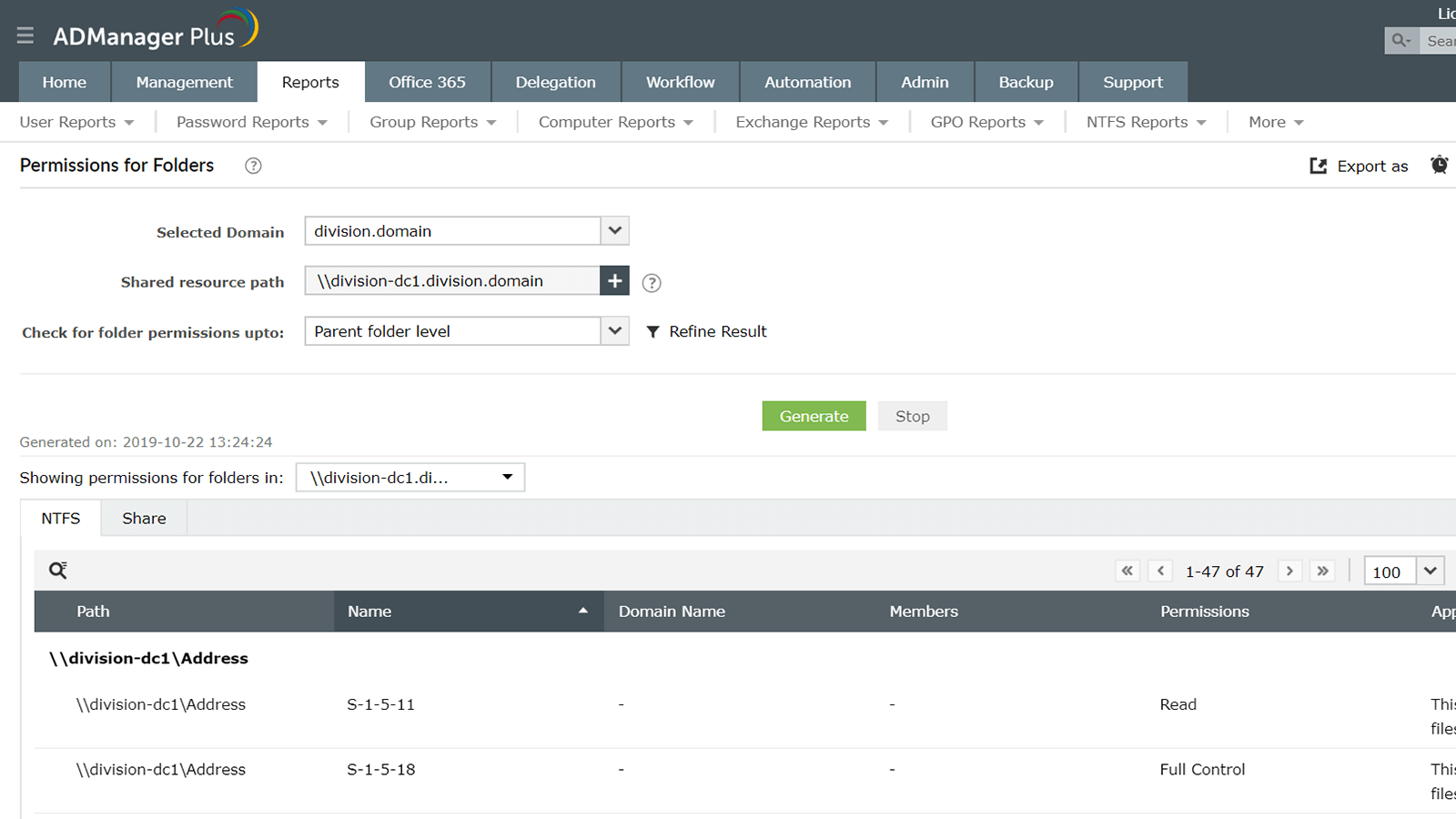
View all the permissions users and groups have over folders—including users' home folders—in specified paths in your AD environment. This report displays information such as the level of access a user or group has over folders and whether the permission was inherited or explicit. With this information by your side, you can prevent unauthorized access to folders which could lead to data loss and leaks in your organization.
Download Demo request
Shared Folders in Servers
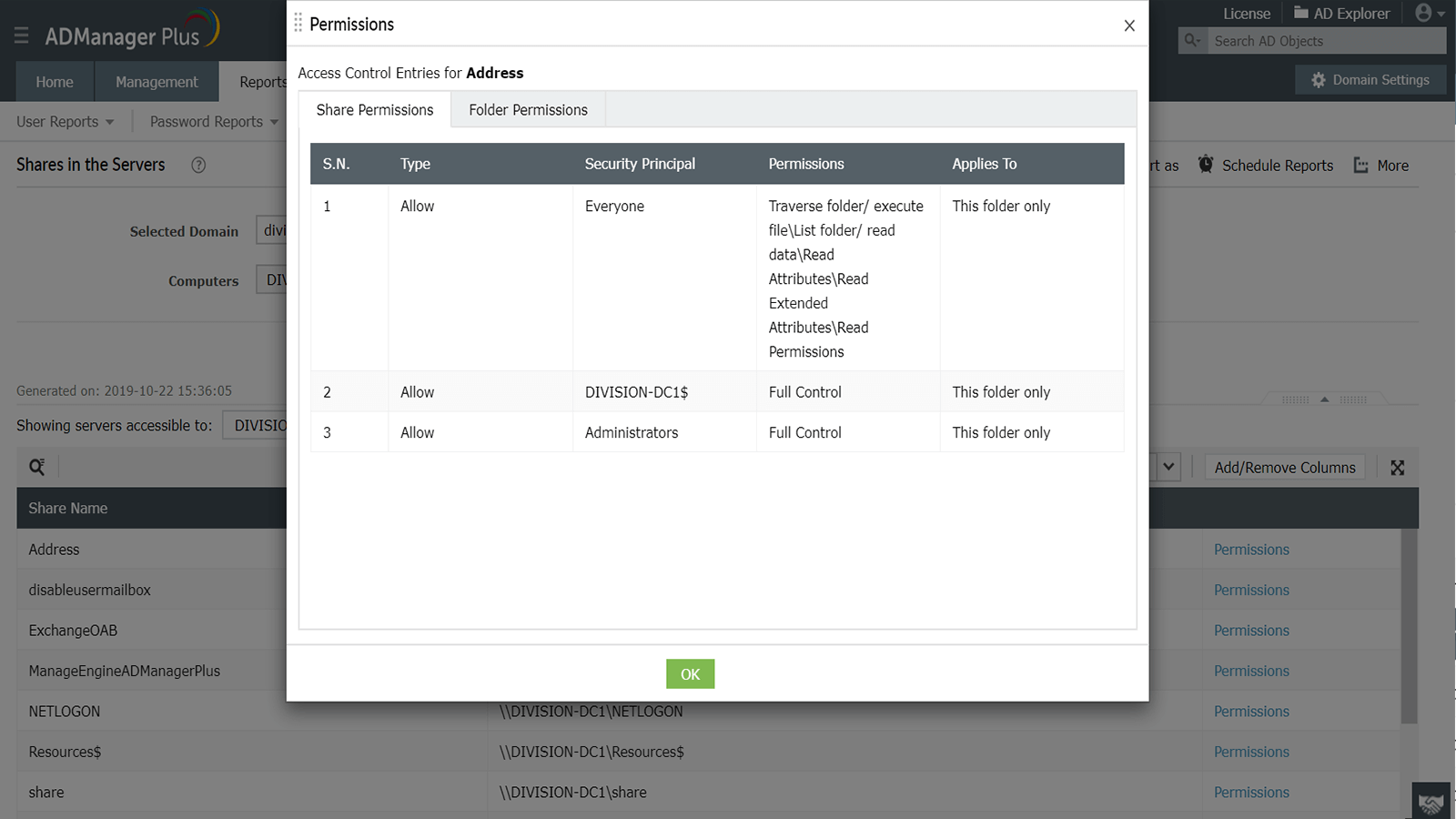
View information about all shared folders and their respective permissions. Use this report to ensure that only desired folders are shared. Audit the shared folders' locations, accounts (security principals) that have permissions over shared folders, the scope of the permissions (folder, sub-folder, etc.), and more.
Download Demo request
Folders Accessible by Accounts
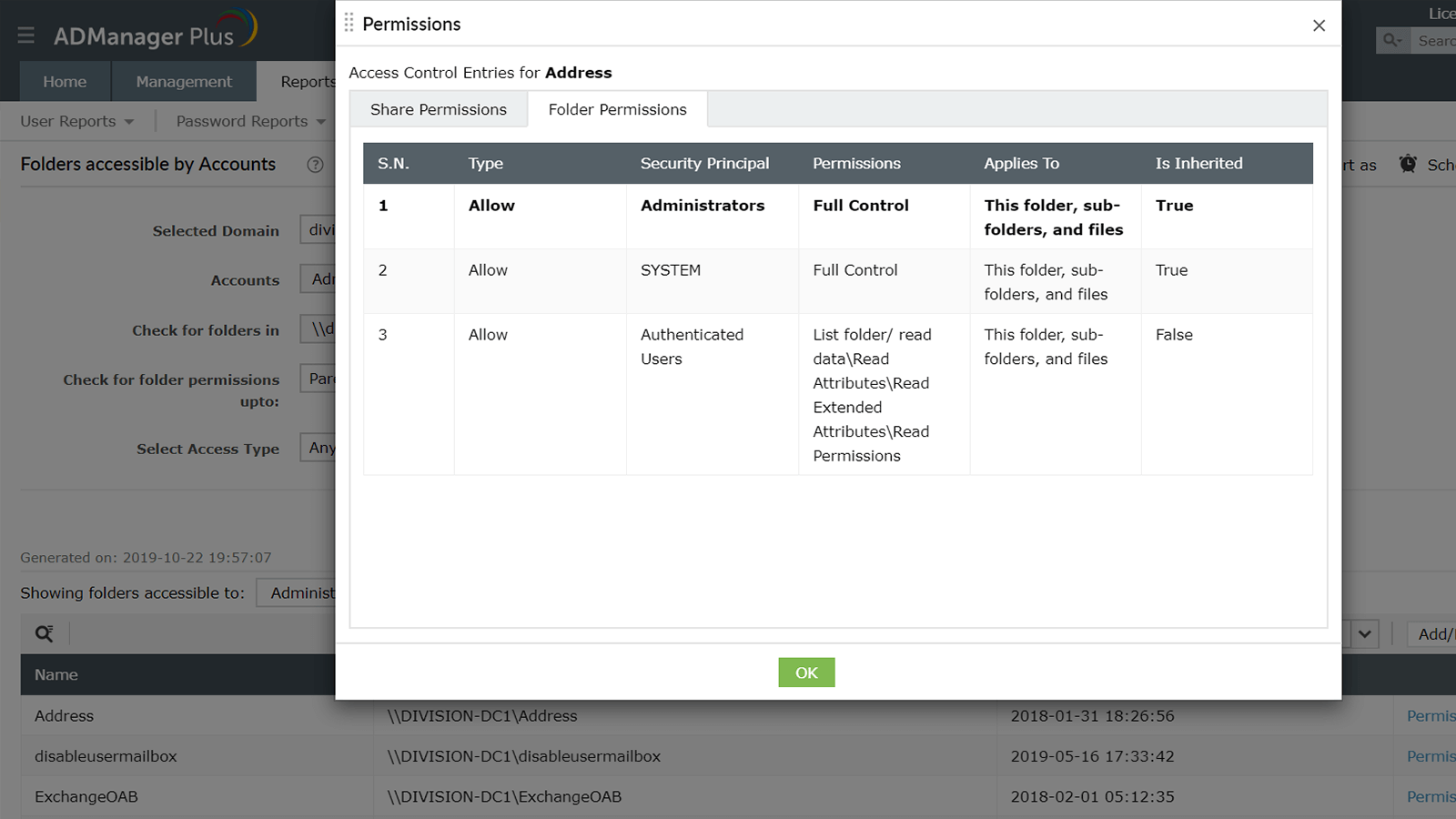
View information about folders specified accounts have access rights over, including the folders' name, location, creation time, and more. You can check for folders in a specific path and filter the results based on access level (any control or full access). Review the folders that accounts can access to ensure that no account has unauthorized permissions over an important folder.
Download Demo request
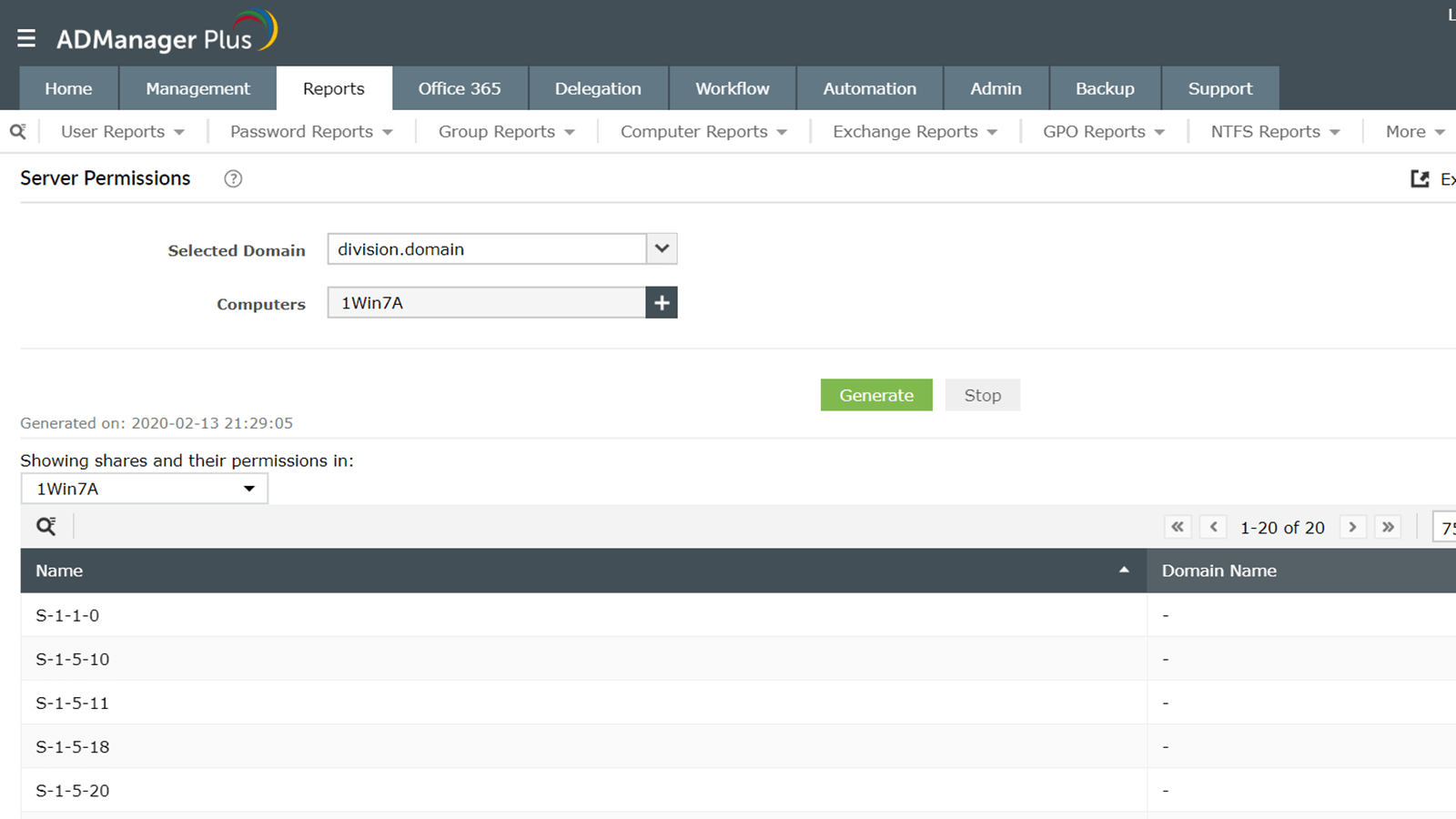
Server Permissions
Identify which AD users and groups have access rights over specific servers. View information about the server permissions, including the server and domain names, the type of object that has permissions over that server (user or group), what kind of permissions they have, and more. With this report by your side, you can completely secure your AD infrastructure.
Download Demo request
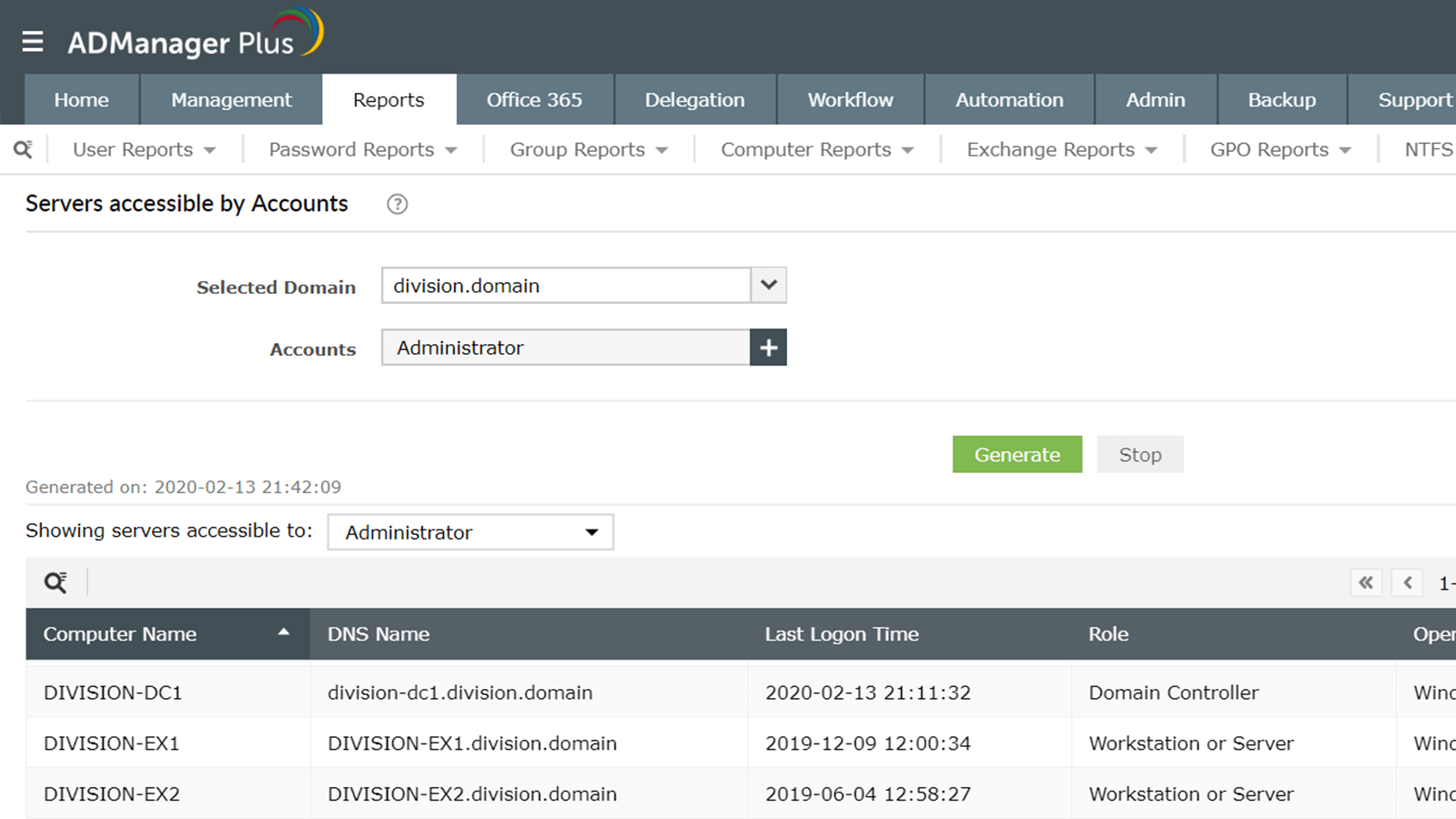
Servers Accessible by Accounts
List all the servers that specific users and groups can access. View each server's DNS name, last logon time, role, OS, and more.
Download Demo request
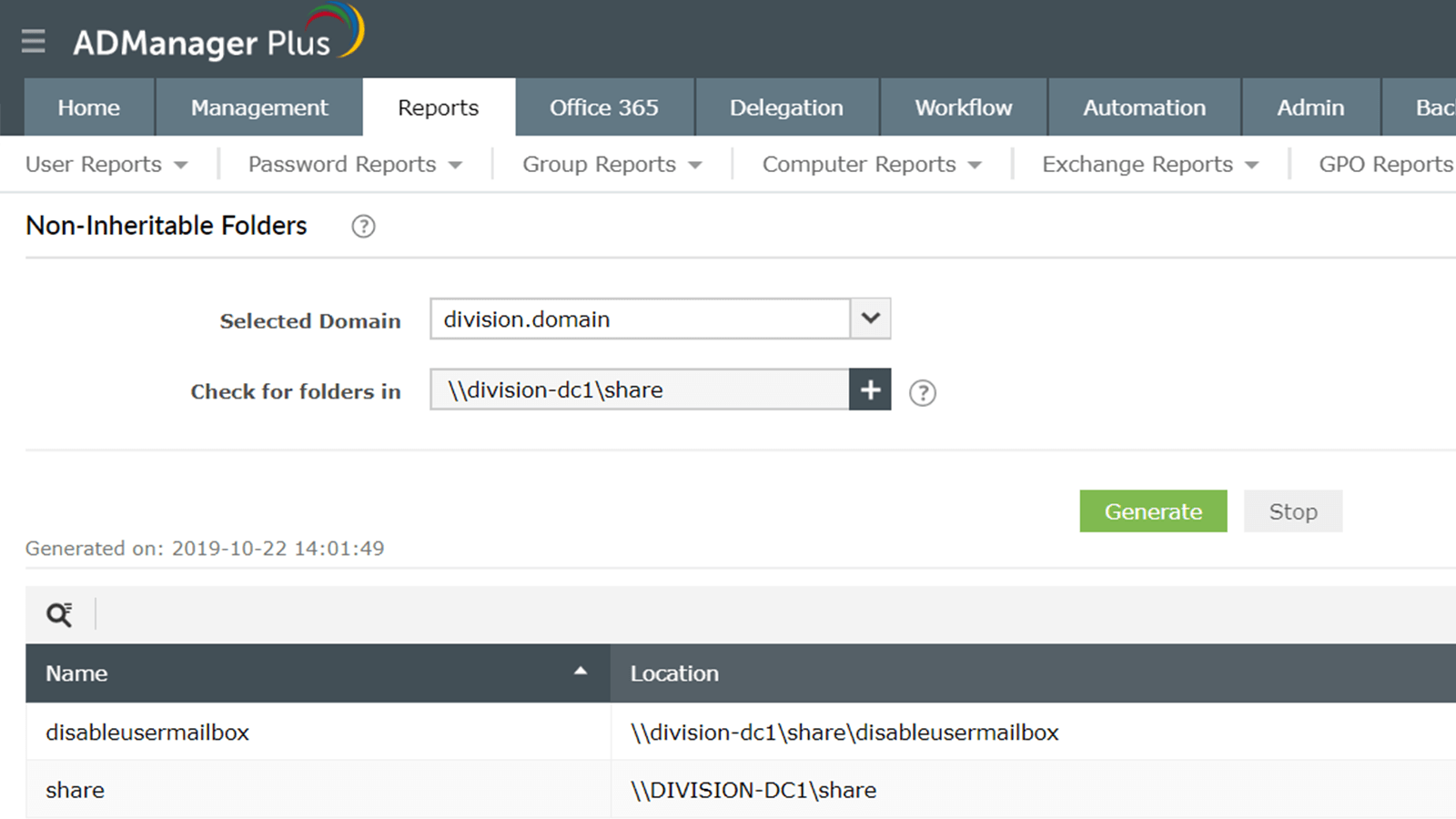
Non-Inheritable Folders
View details about all the files and folders protected from inheritable permissions. Specify a path to generate a list of all the files and folders in that path that are protected from inheriting permissions from their parent objects. Look at each protected folders' name, creation time, location, and more.
Download Demo request
GPO reports
General reports
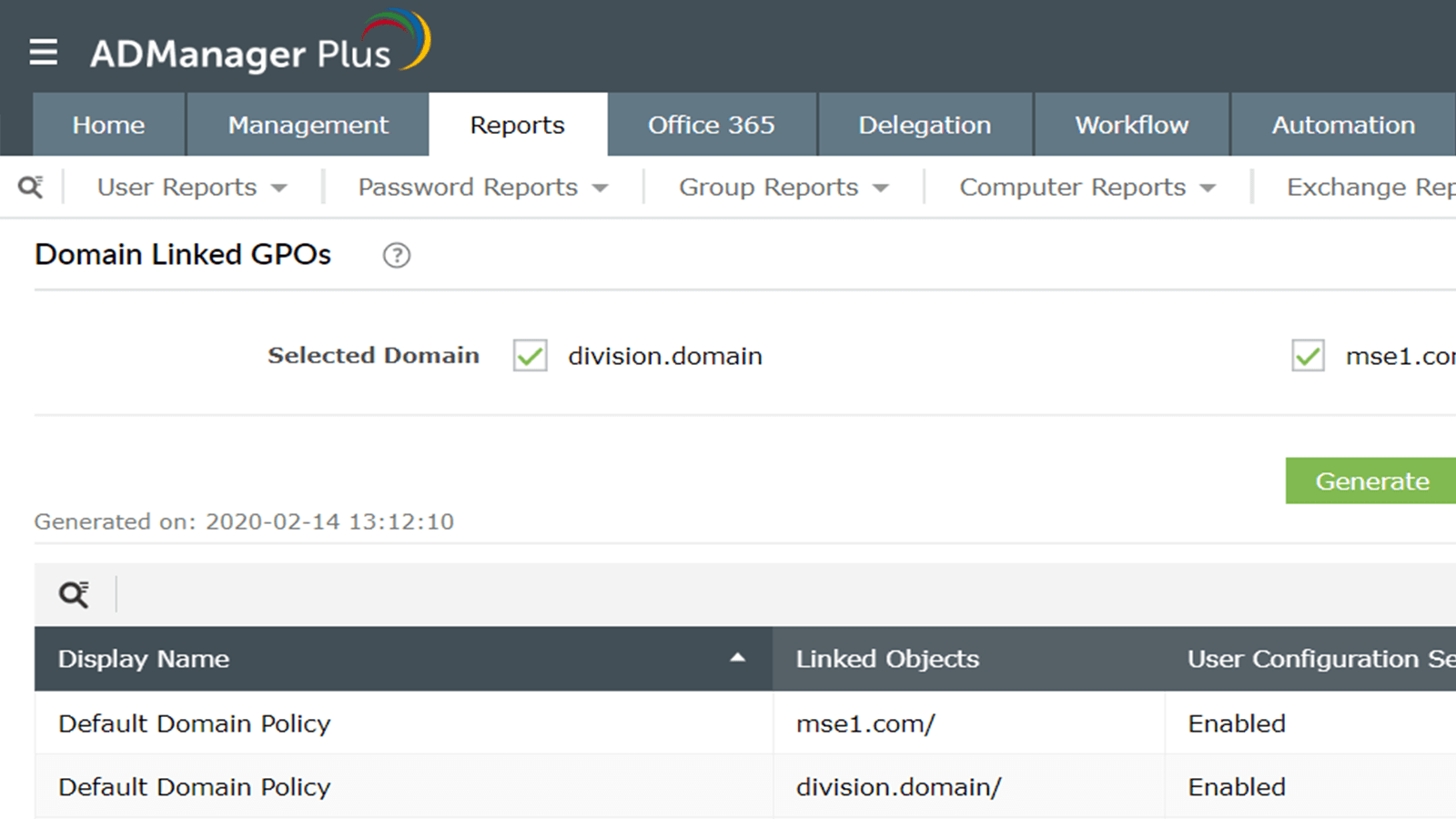
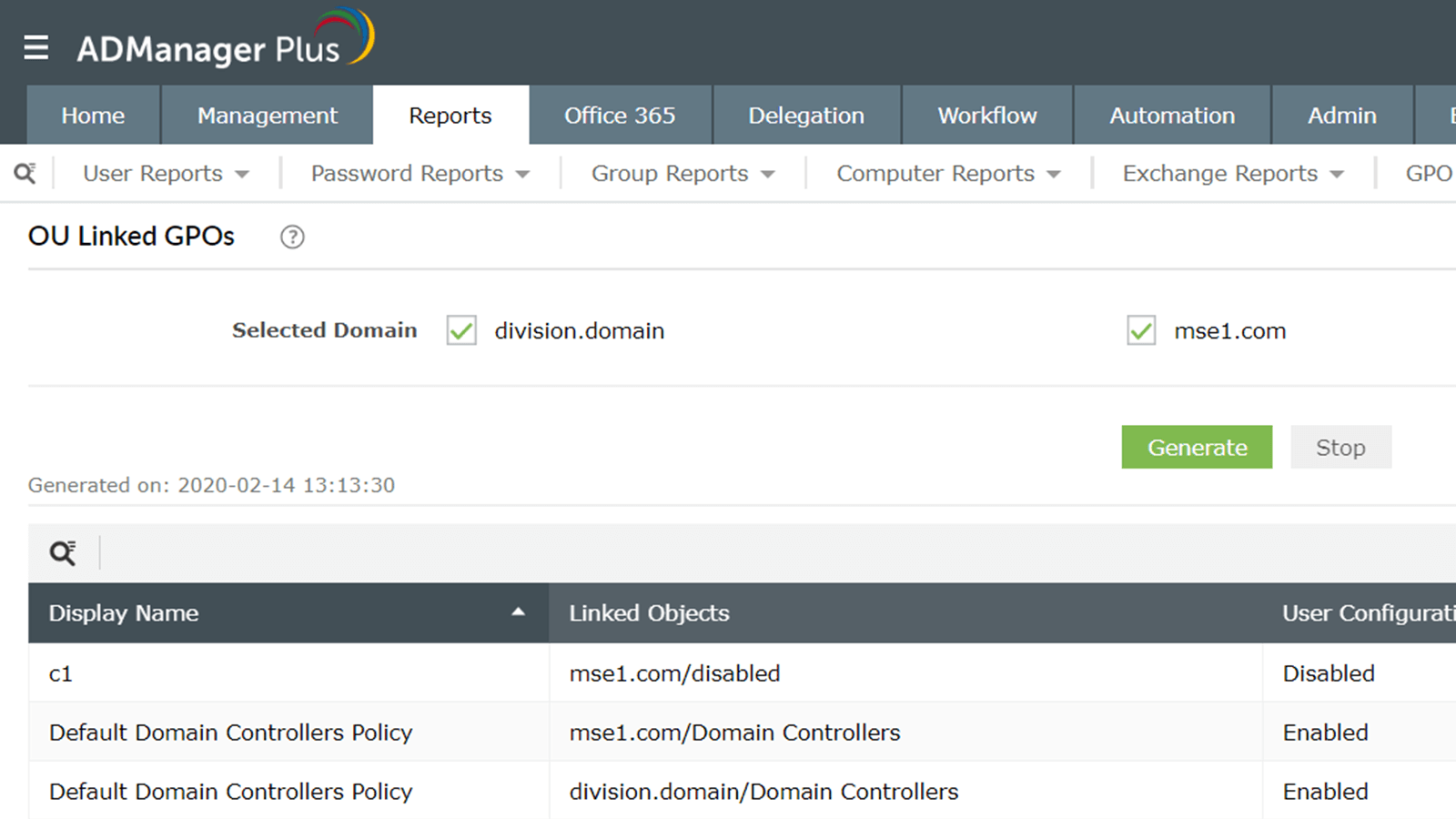
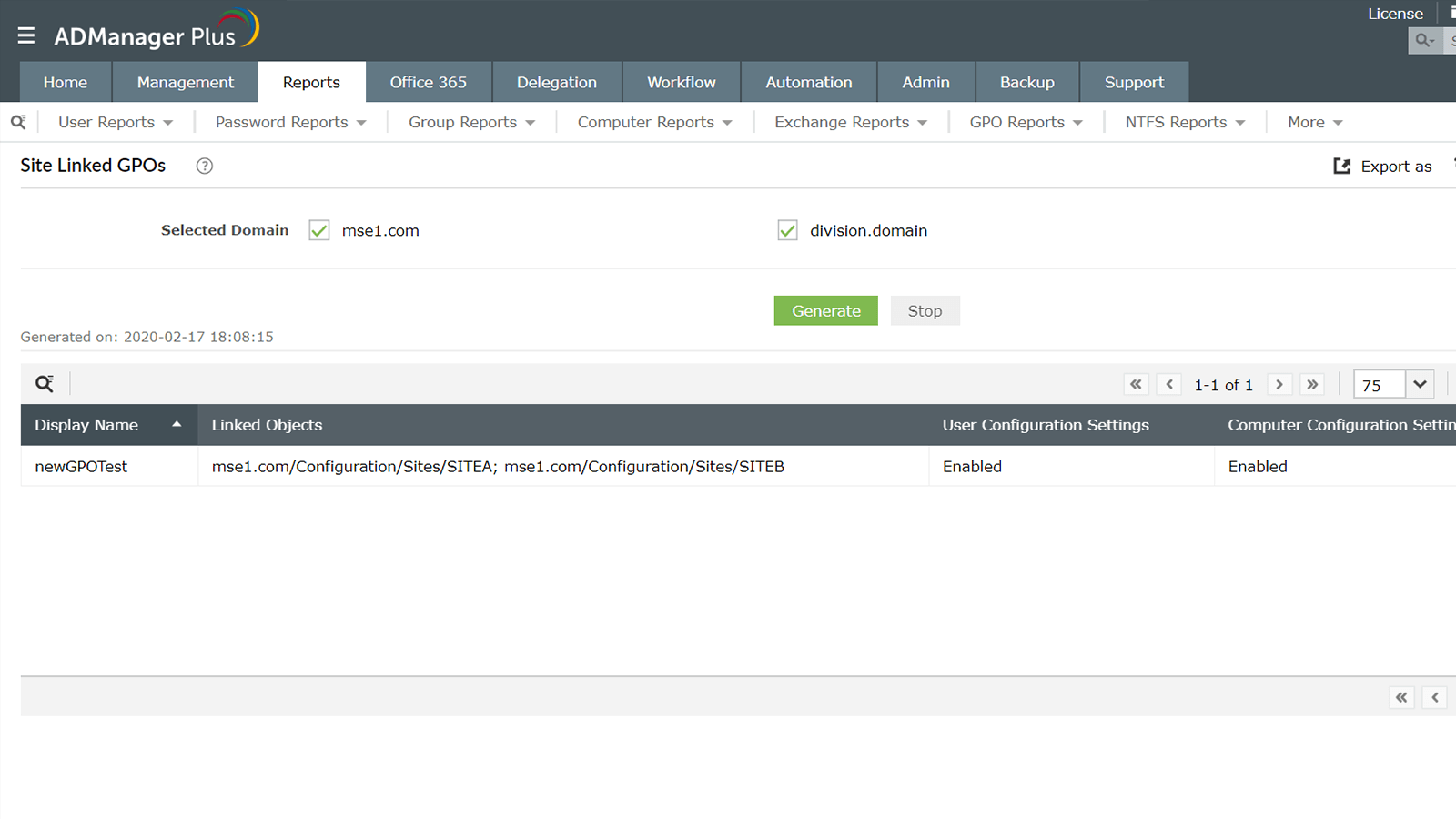
ADManager Plus offers several reports to help you analyze different facets of the GPOs in your organization.
Learn moreLearn moreAll GPOs and linked Active Directory objects report
View information about Group Policy Objects (GPOs) and the AD objects linked with them.
Learn moreLearn moreUnused GPOs report
View details about the unused GPOs in your AD environment that are not linked to any OU.
Learn moreLearn moreDisabled GPOs report
View information about all the GPOs that have been disabled in your AD environment.
Learn moreLearn moreResultant Set of Policy report
Identify and obtain advanced GPO-related information about site, domain, and OU-linked GPOs.
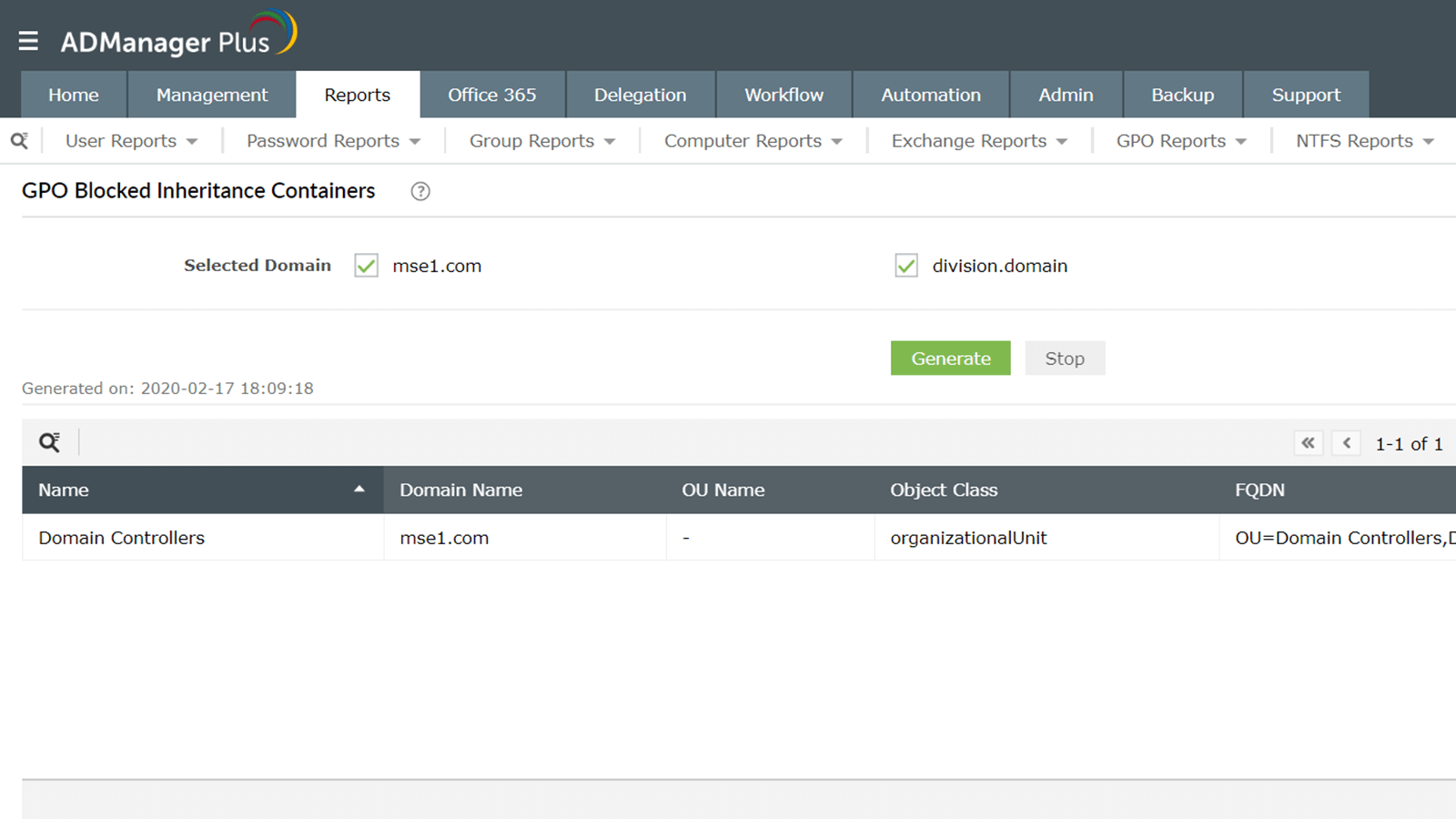
Learn moreLearn moreGPOs with blocked inheritance report
View objects that have been blocked from inheriting GPO settings.
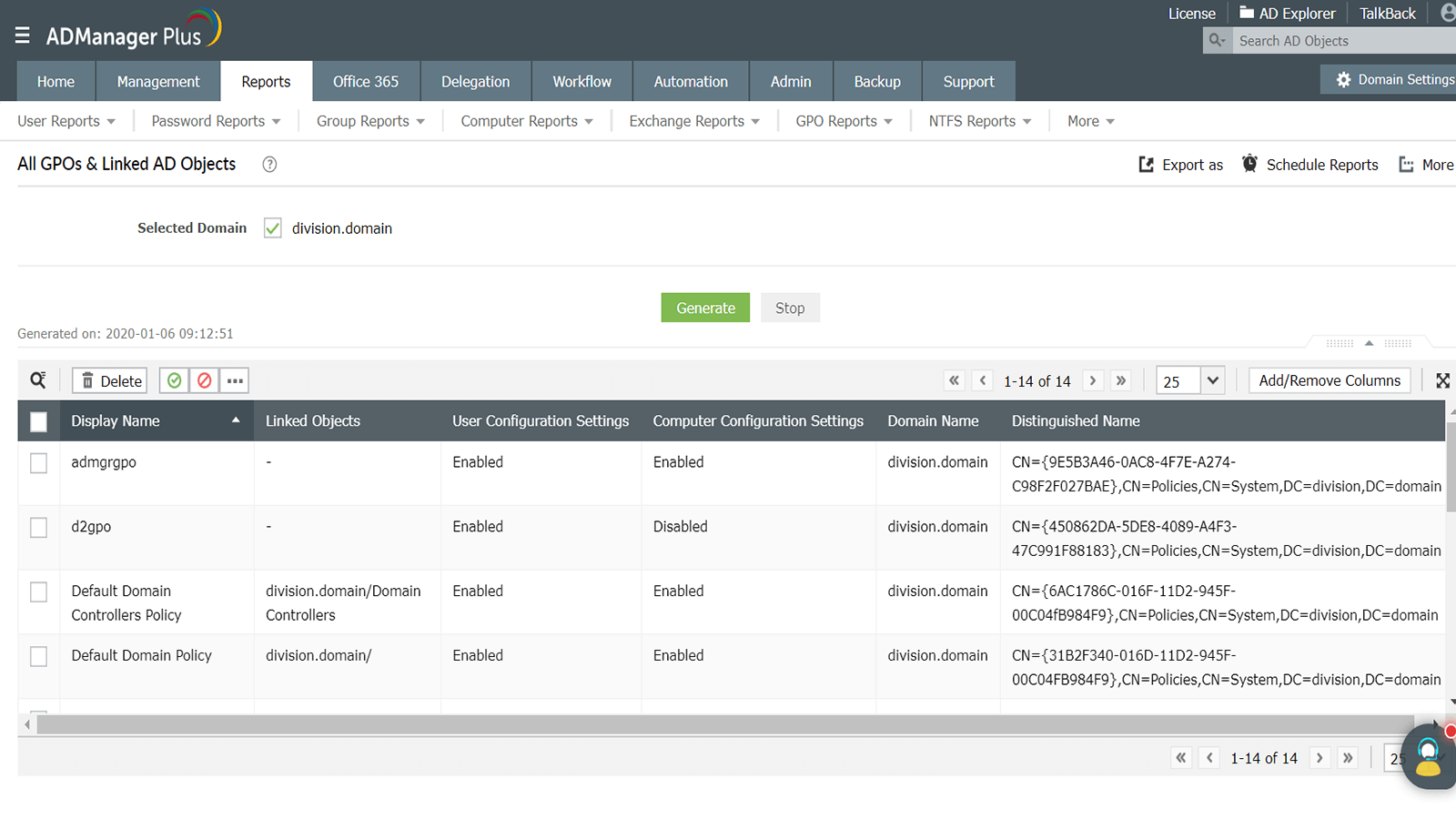
Learn moreLearn moreAll GPOs and Linked AD Objects
View all GPOs and the AD objects linked with them, including details such as the GPO's display name, linked objects, user and computer configuration settings, creation and modification times, and more.
Download Demo request
Unused GPOs
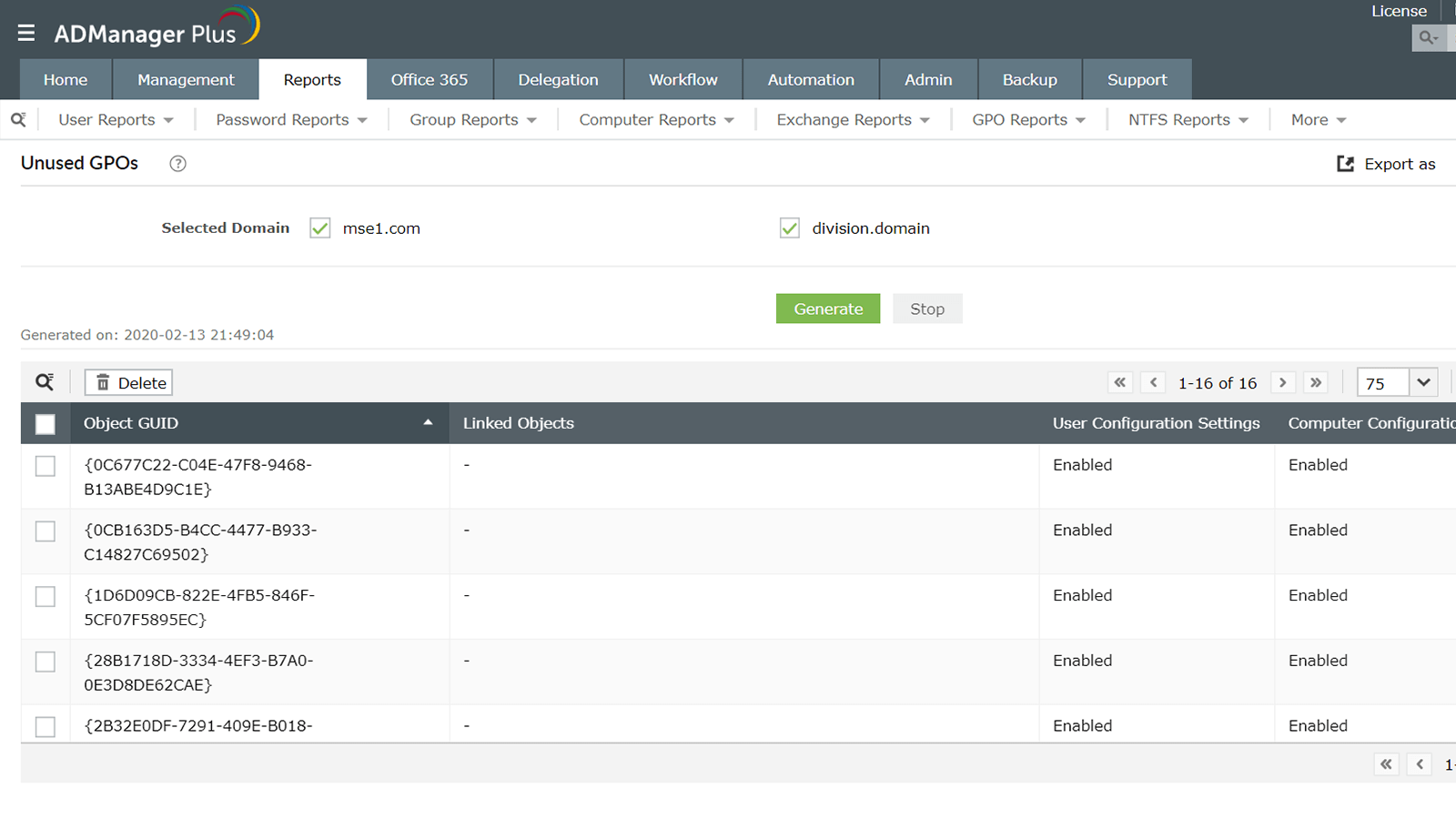
Identify all the GPOs that are not linked to an OU in your domain. Once you've located the unlinked GPOs, you can clean up AD effortlessly. Find details such as each GPO's display name, linked objects, user and computer configuration settings, domain name, and more.
Download Demo request
Disabled GPOs Report
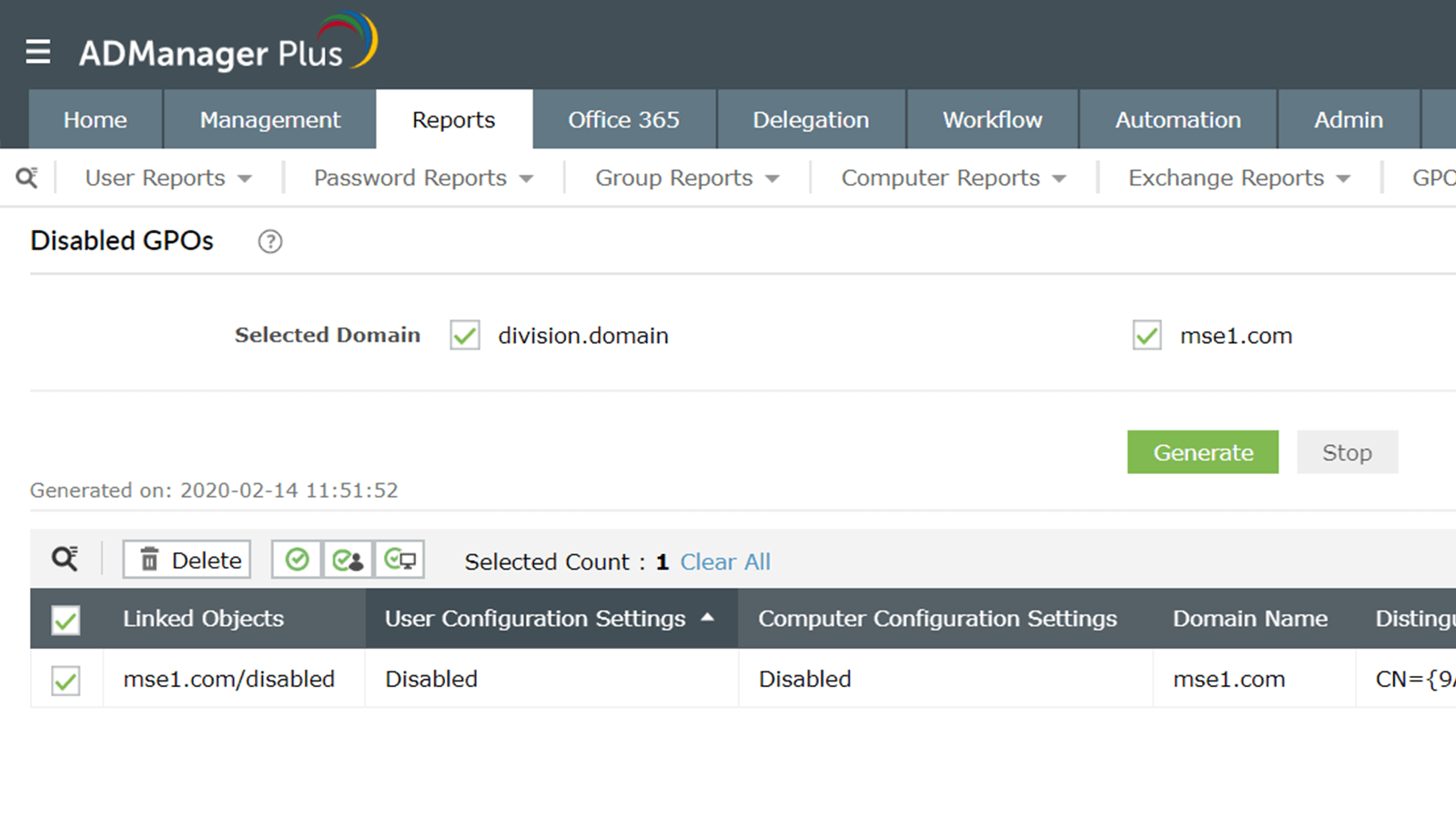
Identify all the disabled GPOs present in your AD environment. View complete details about all the GPOs that have been disabled, including their display name, linked objects, user and computer configuration settings, domain name, and more.
Download Demo request
General reports
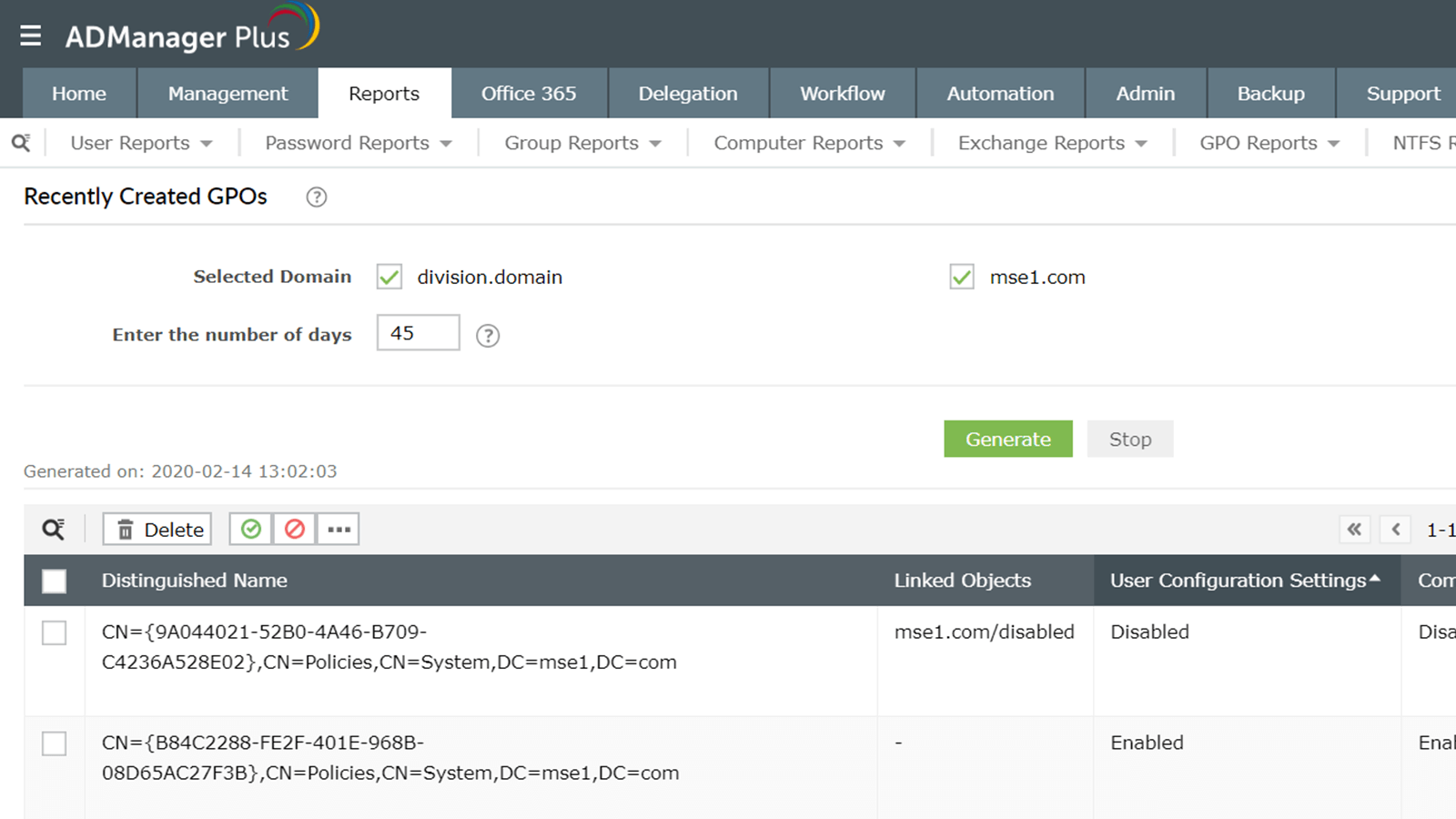
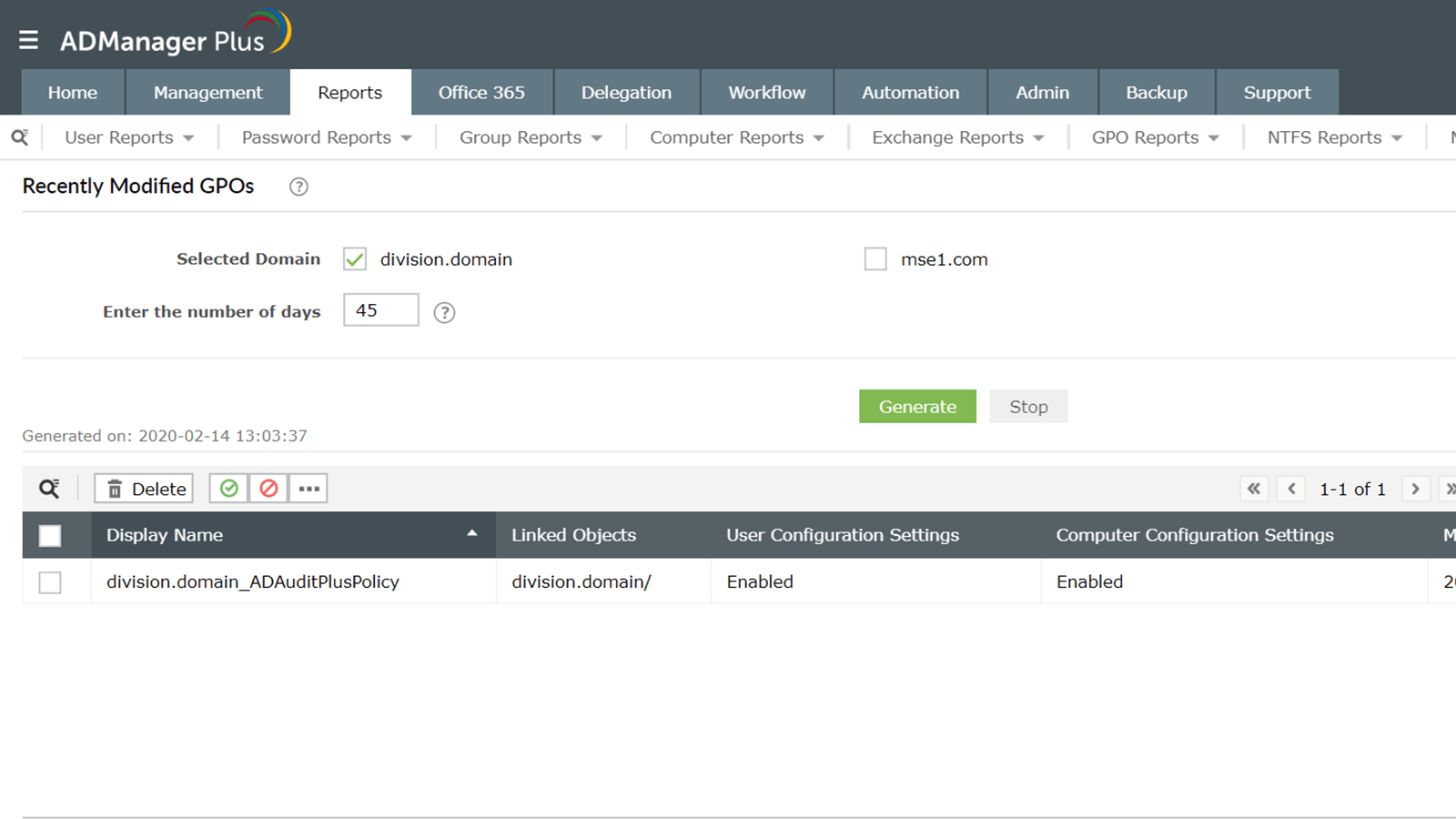
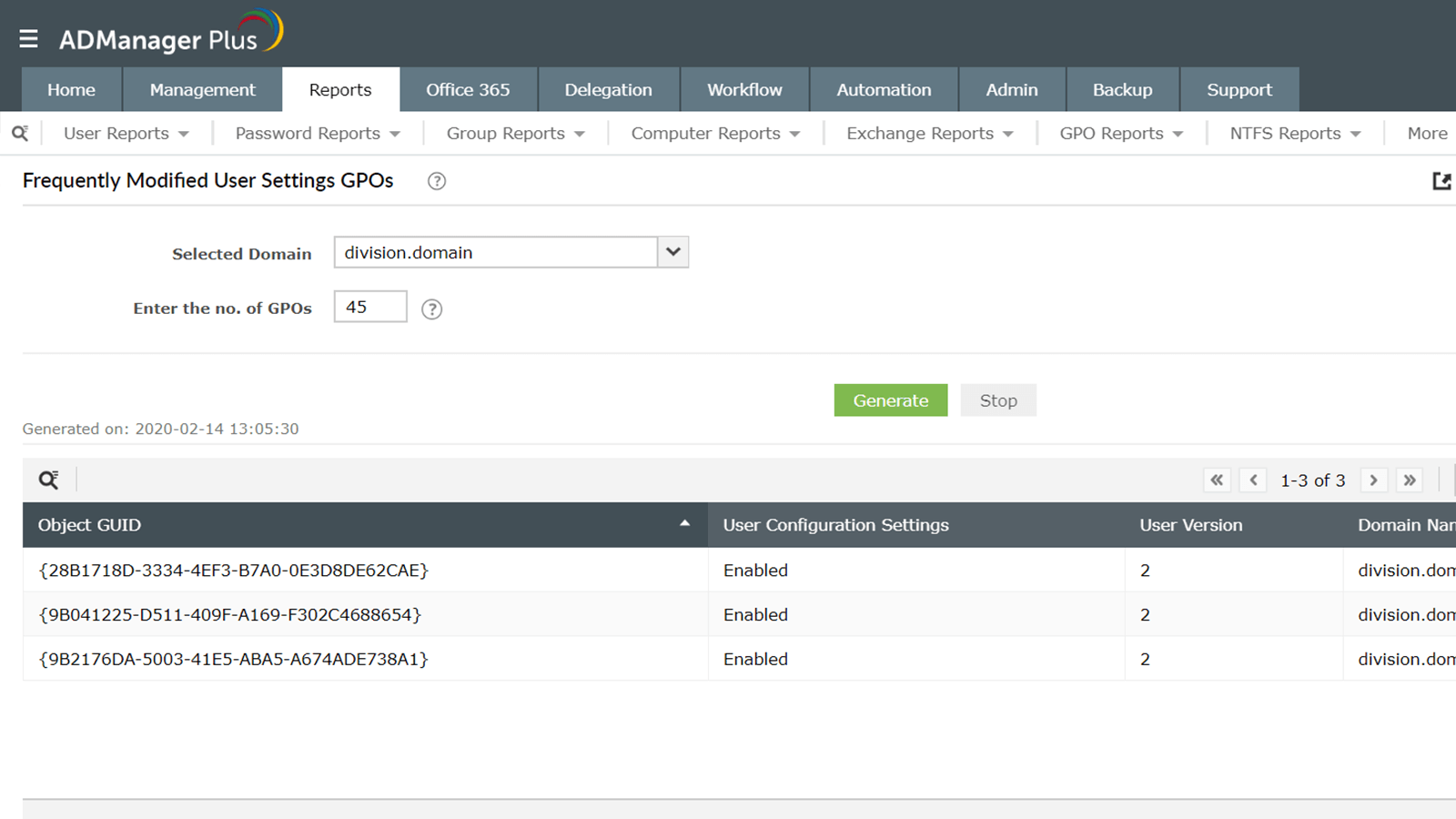
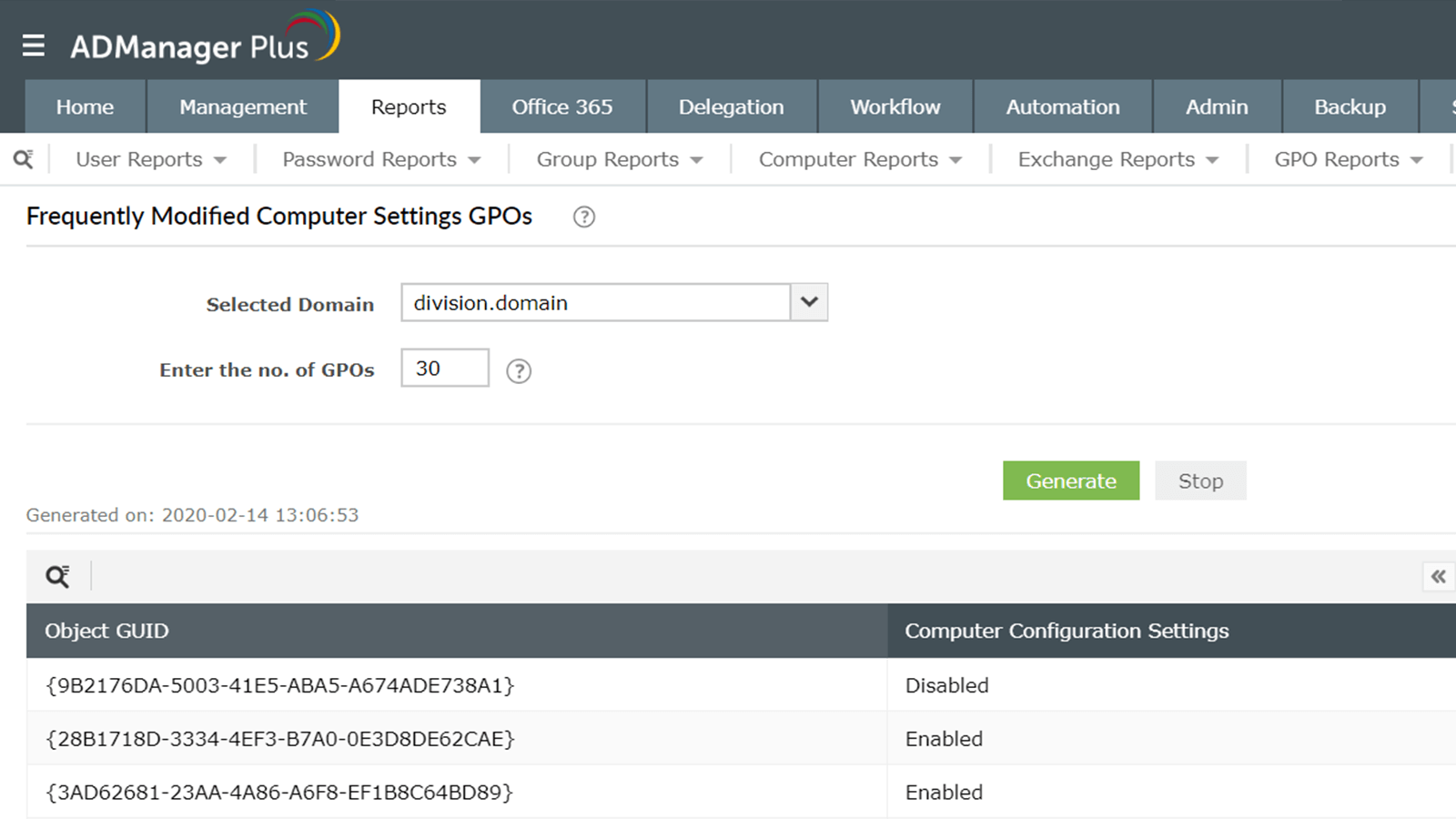
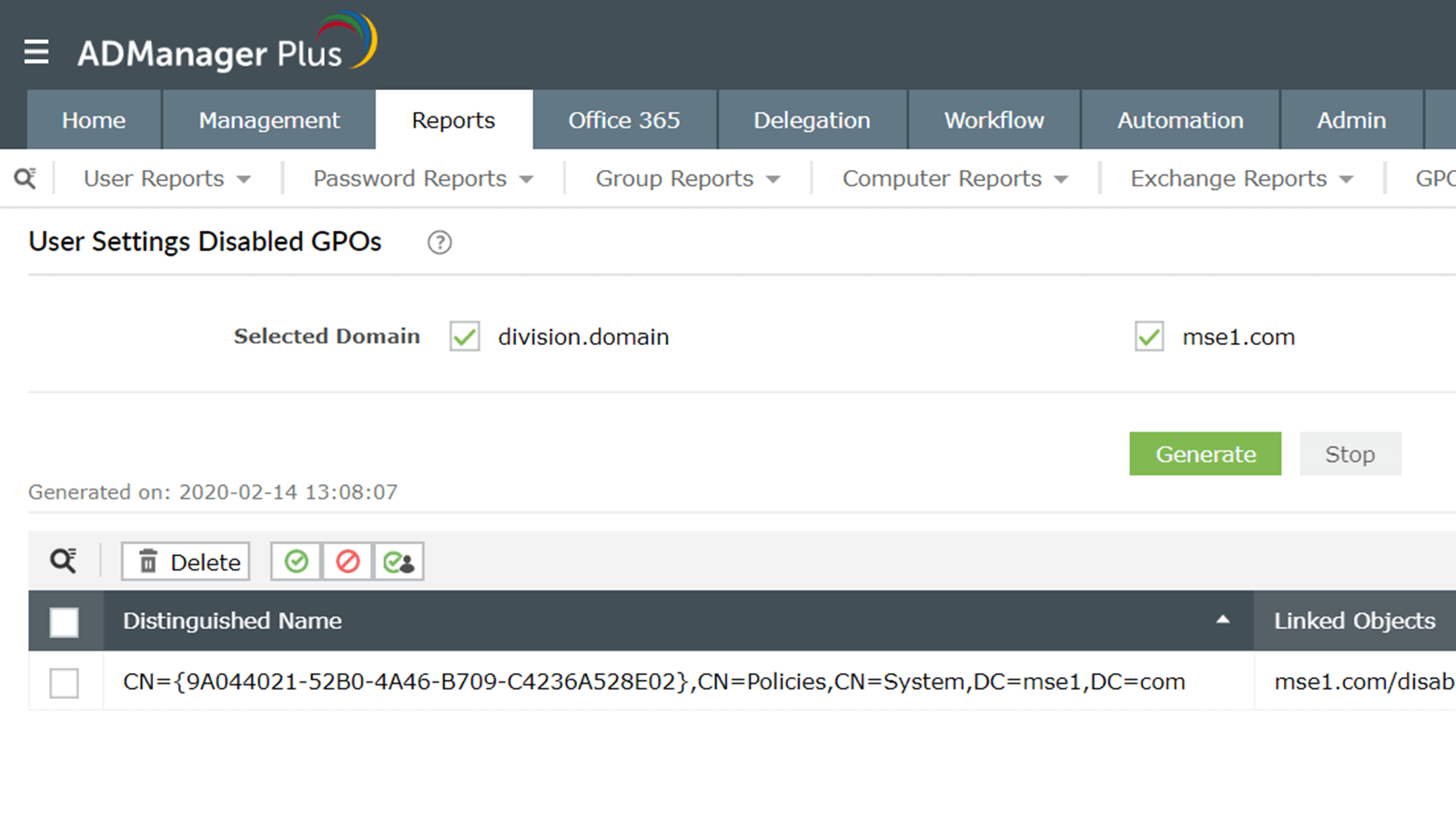
ADManager Plus offers several reports to help you analyze different facets of the GPOs in your organization. These reports allow you to:
- Identify recently created GPOs.
- Discover recently modified GPOs.
- Check frequently modified user and computer settings.
- Identify disabled GPOs with user and computer settings.
Download Demo request
Resultant Set of Policy report
Quickly view the cumulative set of Group Policies applied to a user or computer, without using the gpresult PowerShell command.
With this report, you can:
- Detect conflicting or missing Group Policy settings and troubleshoot GPO application issues.
- Ensure security and configuration policies are properly enforced across the domain.
- Export the report in multiple formats, such as CSV, XLSX, PDF, and HTML.
Download Demo request
GPO Blocked Inheritance Reports
Get detailed information about objects with blocked inheritance, including details such as their display name, linked objects, user and computer configuration settings, domain name, and more.
Download Demo request