Alarm Summary Reports
Alarm Summary Reports allows you to create customized reports that cover multiple metric categories like availability and health from monitors of various resources types. You can create reports based on various monitoring parameters from different monitor types and customize them by configuring various criteria to display data and generate reports accordingly. These reports often helps you to obtain in-depth insights into trend analysis, frequent alarms and response time patterns to identify potential recurring issues.
To create a new Alarm Summary Report, follow the steps given below:
- Go to Settings → Reporting and click on Alarm Summary Reports. Alternatively, you can access the same under the dropdown next to the Reports tab.
- From Applications Manager v180200 onwards, Alarm Summary Report can be accessed by expanding OVERVIEW in the left side pane and then clicking on Custom Reports → Alarm Summary Reports from the Reports tab.
- Click on Create New Report button available on the top right corner. New Alarm Summary Reports configuration page will appear.
- Specify the required Name and Description for the report to be created.
- Select the category of monitors for which you wish to generate reports from the Monitor Type drop-down list. All Monitor types will be selected by default.
- Select the metrics for which you wish to generate reports.
- From the Show Monitors drop-down list, you can select the option to either:
- Show all monitors
- Show monitors from the selected monitor group
- Choose the list of monitors to be displayed by yourself
- Severity options provided for Availability attribute are Up and Down. For other attributes including Health, the possible values are Critical, Clear and Warning.
- Once the configurations are done, click on Preview button located at the bottom to display a preview of the report to be generated. You can click on Edit button to return to the previous page in case you need to make additional changes to the report configuration.
- Finally, click on Save to finish adding the report.
Upon saving, the report will be generated and stored, and can be viewed by clicking on the report name in the Alarm Summary Reports page. You can choose to export and download the required report in PDF/Excel format as well as create a copy of the required report using the Copy Report option. You can also select and delete the required reports using the Delete button.
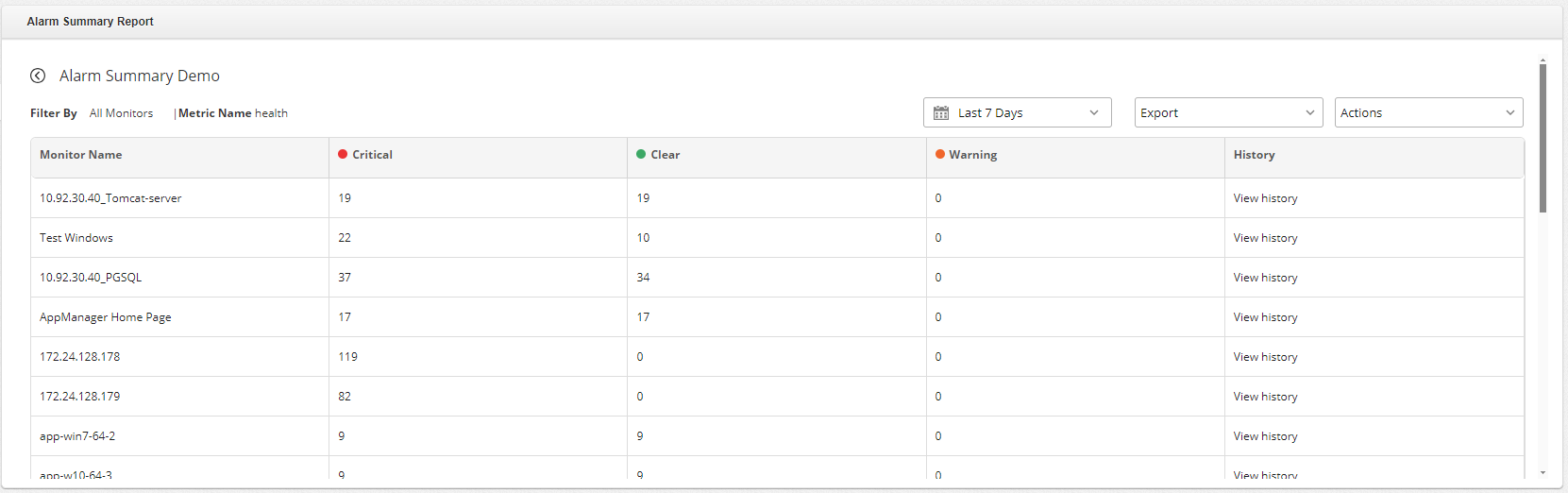
Clicking on the View History link will show the last 30 days alarm history of the respective attribute.
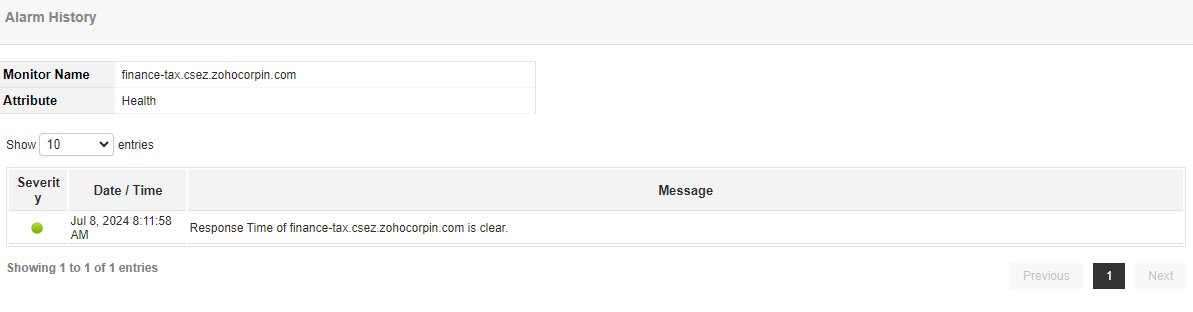
Alarm History Report
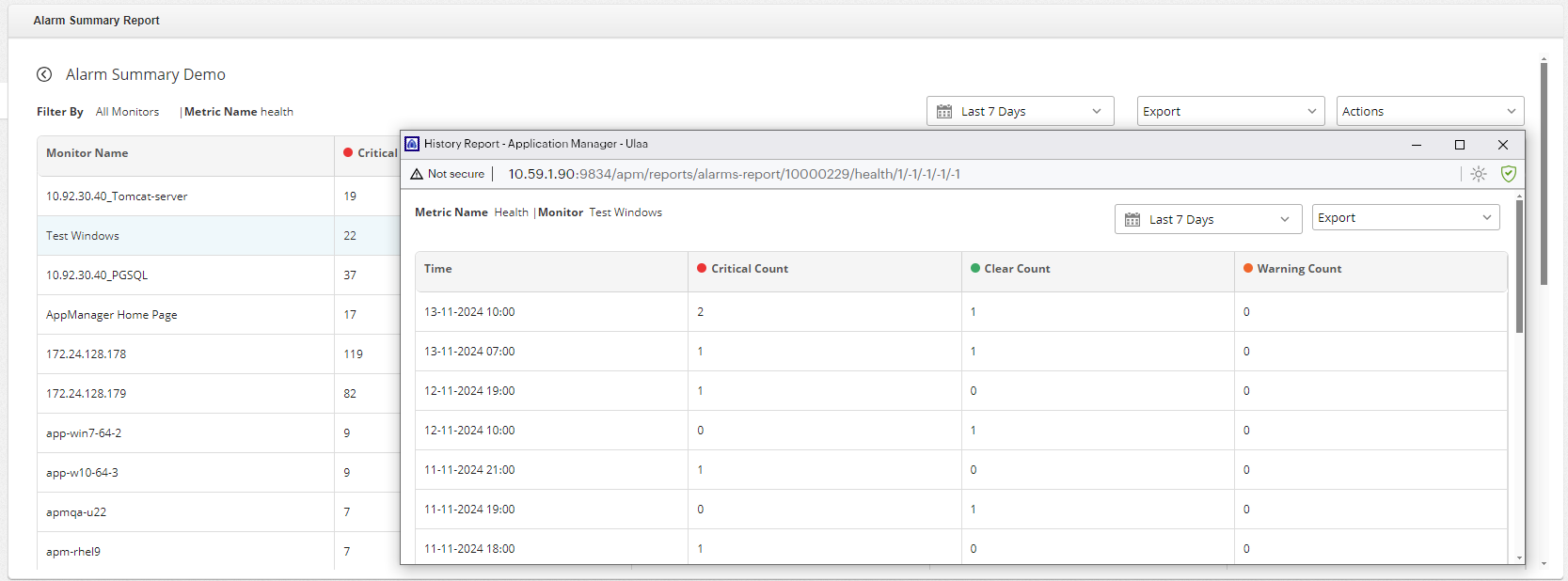
In Alarm Summary report, you have an option to view the Alarm history of the respective attribute of selected Monitor. Clicking on the Monitor Name or any of the alert count will redirect you to the Alarm Report History page. In this report, you can access the hourly data for the selected attributes. It provides you with the option to choose the Time period for report generation, which is Today by default. You can choose to export and download the required report in PDF/Excel format as well.