AppManagerDataExporter for Windows
- Installing the AppManagerDataExporter
- Upgrading the AppManagerDataExporter
- Uninstalling the AppManagerDataExporter
- Changing the configuration after installing the AppManagerDataExporter
- Commands to manage AppManagerDataExporter
Installing the AppManagerDataExporter
To install the AppManagerDataExporter, follow the steps given below:
- Navigate to the APM Tab → Add new monitor page → Click on the respective agent and download the exporter.
- Launch the installer and follow the steps given in the installation wizard.
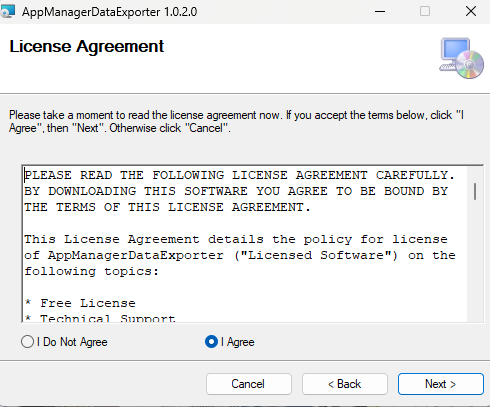
- Read the license agreement, select I Agree, and click Next to continue.
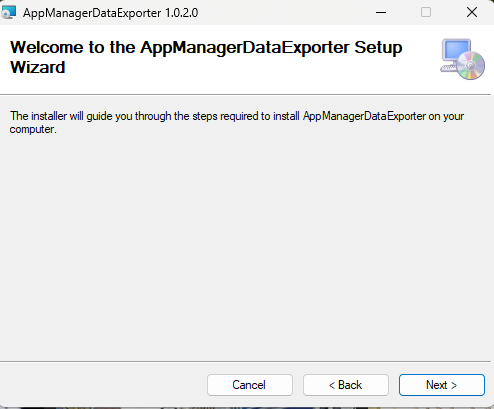
- Click Next to continue.
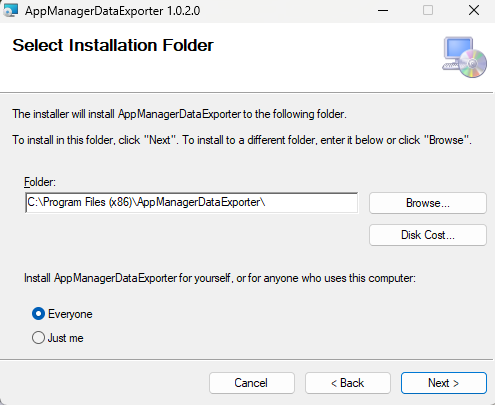
- Select the installation folder and click Next to continue.
- Fill the input fields with the required data:
- Enter the License key. (To get your license key login to Applications Manager, click on the APM Tab → Add Monitor → click on the respective agent → copy the license key)
- APM Host (Hostname/IP Address of the Applications manager)
- APM SSL Port (SSL port of the Applications Manager)
- To communicate using HTTP protocol, enable the Server Transfer Prototcol option and enter the webclient port in the Host Port field
- Enable Proxy for communication if required
- Enter the Proxy URL to connect to the Proxy server
Note: If the proxy for communication is configured between the Applications Manager server and the Data Exporter, the Proxy URL must be entered in the input field.
Note: Kindly ensure that the Applications Manager URL is accessible from the server (i.e., https://apmhostname:sslport or http://apmhostname:port) and also make sure there are no extra spaces when pasting the license key from the Applications Manager portal into the Device key field as input.
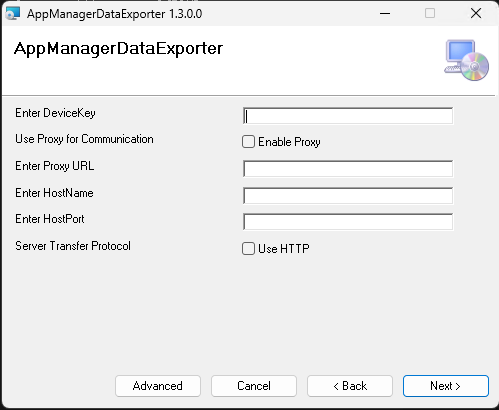
- Optional: Click Advanced to edit ports.
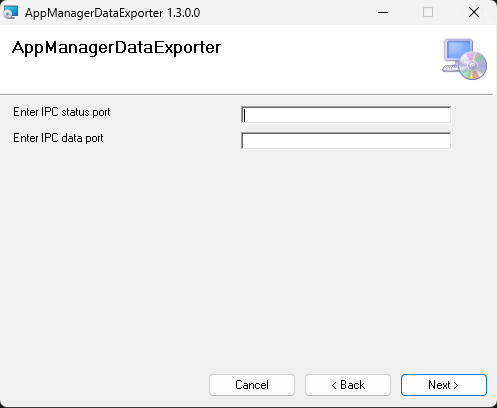
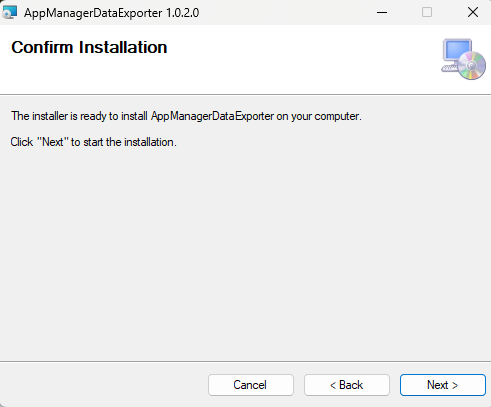
- Click Next to confirm installation.
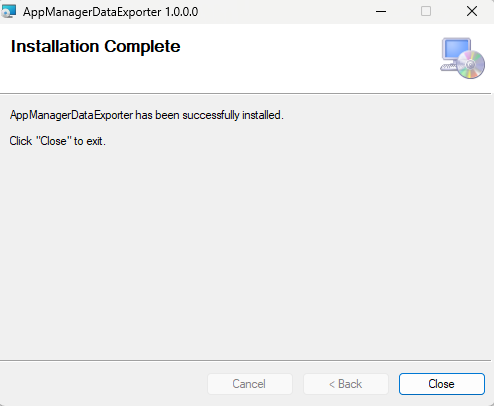
- After the installation is complete, click Close.
Note: The 'Advanced' option is supported from v1.3.1 , and the IPC Data Port and IPC Status port numbers must be the same as in the PHP/Python agent.
Upgrading the AppManagerDataExporter
To upgrade, download the latest AppManagerDataExporter package and follow the installation steps. The installer will automatically overwrite the existing Data Exporter components with the updated version.
Note: No manual uninstallation is required before upgrading.
Uninstalling the AppManagerDataExporter
Execute the uninstallation commands given below to uninstall the AppManagerDataExporter:
- Navigate to Control Panel → Programs and Features.
- Right-click AppManagerDataExporter and select Uninstall.
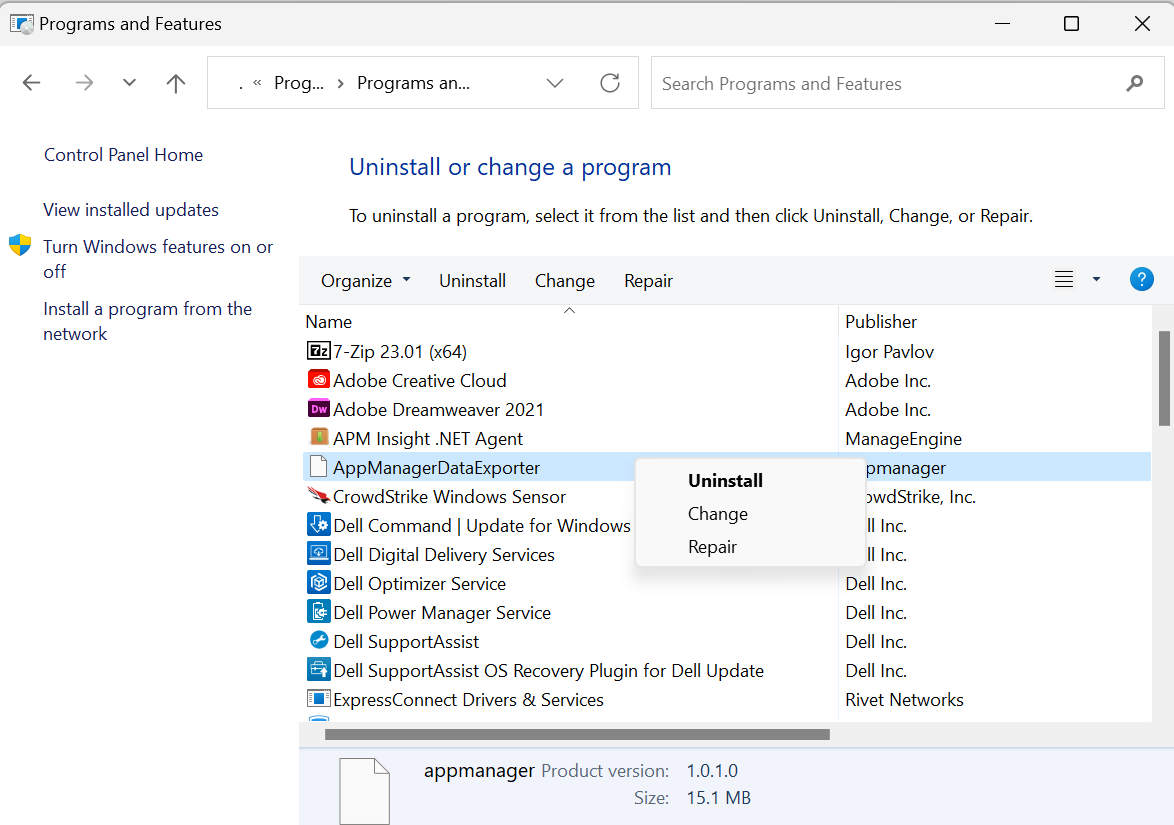 .
.
Changing the configuration after installing the AppManagerDataExporter
Modify the configuration.json file located in the <installation path>\AppManagerDataExporter\conf directory.
Note: The default installation path is C:\Program Files (x86).
| Option | Description |
|---|---|
| license.key | APMInsight license key (APM Tab → Add Monitor → click on the respective agent → copy the license key) |
| behind.proxy | The option for enabling or disabling proxy (Enter true or false) |
| proxy.url | Complete proxy URL |
| agent.status.port | Inter Process Communication status port number (Restarting AppManagerDataExporter is required) |
| agent.data.port | Inter Process Communication data port number (Restarting AppManagerDataExporter is required) |
| service.log.dir | The path to the directory where logs will be stored |
| service.log.level | The logging level (Possible values are INFO, WARNING, DEBUG, and NOLOG) |
| service.log.size | Log size limit before rotating the log file (Enter the size in bytes) |
Commands to manage AppManagerDataExporter
The following are the commands for managing AppManagerDataExporter:
- Open Run, type services.msc, and click OK.
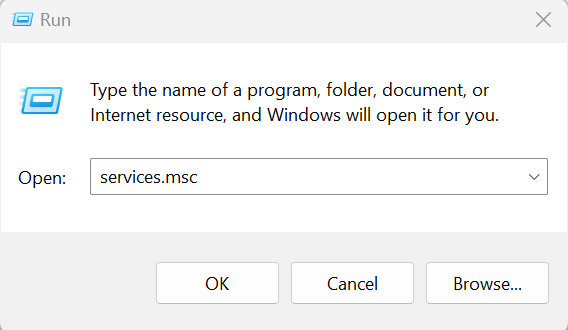 .
. - Right click AppManagerDataExporter and select the necessary action. (Stop, Pause, or Restart)
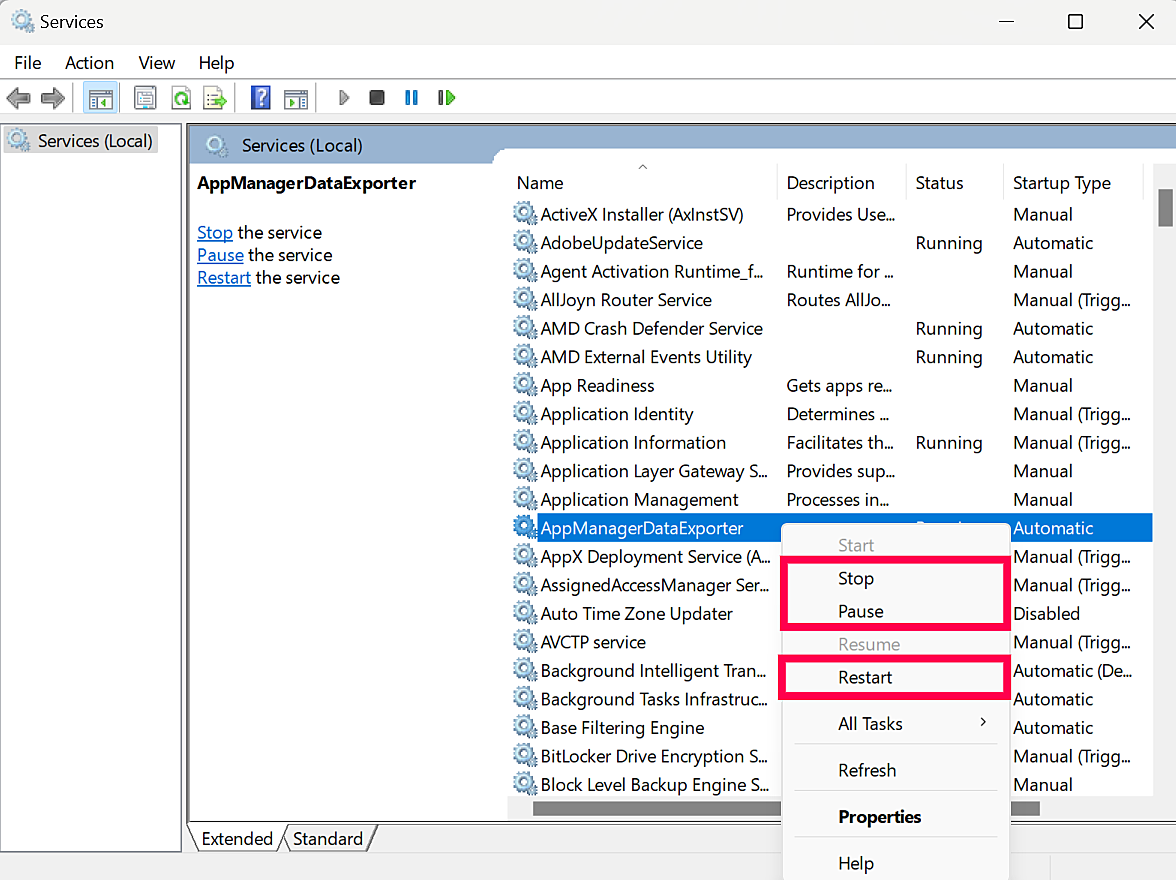 .
.

