Install APM Insight Java Agent in Azure Web App
Follow the steps below to install and configure the APM Insight Java Agent in your Azure App Service environment:
- Create a new folder under <APP_HOME>/WEB-INF/lib directory, say appmanager.
- Download the latest APM Insight Java agent (apminsight-javaagent.zip) file.
- Extract the zip file into the newly-created appmanager folder to find agent jar and its configuration files.
Open the apminsight.conf file in any text editor and include the following keys:
license.key=[LICENSE KEY]
apm.host=http://[HOST]:[PORT]Example:
license.key=APMI_74447444b666d7ab5174cc3021a9b68dd4b3364d50f99c2969360810313e8fac
apm.host=http://apm-prod-server:9090
To learn more about the configurations, visit our Configuration Guide page.
- Login to the Azure portal, then bundle your application and deploy it in Azure WebApp service.
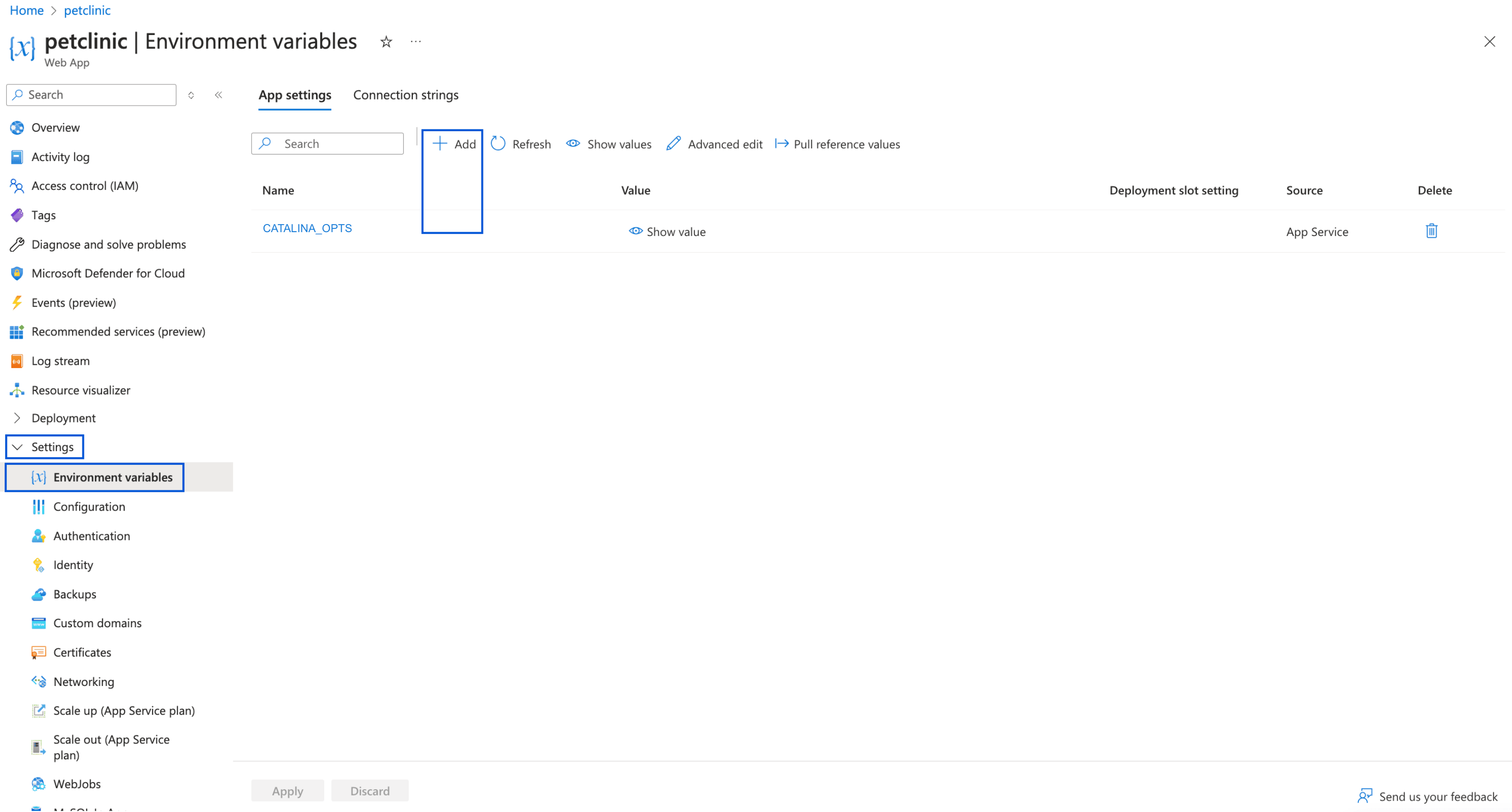
Add the following JVM argument in the App Settings page, located under Settings → Environment variables from the left pane of your WebApp.
If using Tomcat server, please add the Key "CATALINA_OPTS" and Value as
-javaagent:/usr/home/tomcat/webapps/ROOT/WEB-INF/lib/appmanager/apminsight-javaagent.jarIf using Jetty server, please add the Key "JAVA_OPTIONS" and Value as
-javaagent:D:/home/site/wwwroot/webapps/{APP_NAME}/WEB-INF/lib/appmanager/apminsight-javaagent.jar
- Restart your Webapp once for the changes to take effect.
Note:
- You can also configure a secure APM URL. Ensure that the connection is stable and free from certificate-related issues.
Example: https://apm-prod-server:8443 - For an Applications Manager failover setup, you can specify multiple hosts in a comma-separated format (supported from Java Agent v6.8), as shown below:
apm.host=http://apm-prod-server-A:9090, http://apm-prod-server-B:9090

