AppLogs Configuration
The AppLogs Configuration page in Applications Manager provides centralized control over how logs are collected, classified, and processed for analysis. From this page, you can configure log profiles, define log types, and manage global AppLogs settings.
To access this page, navigate to the AppLogs tab and click on Configurations.
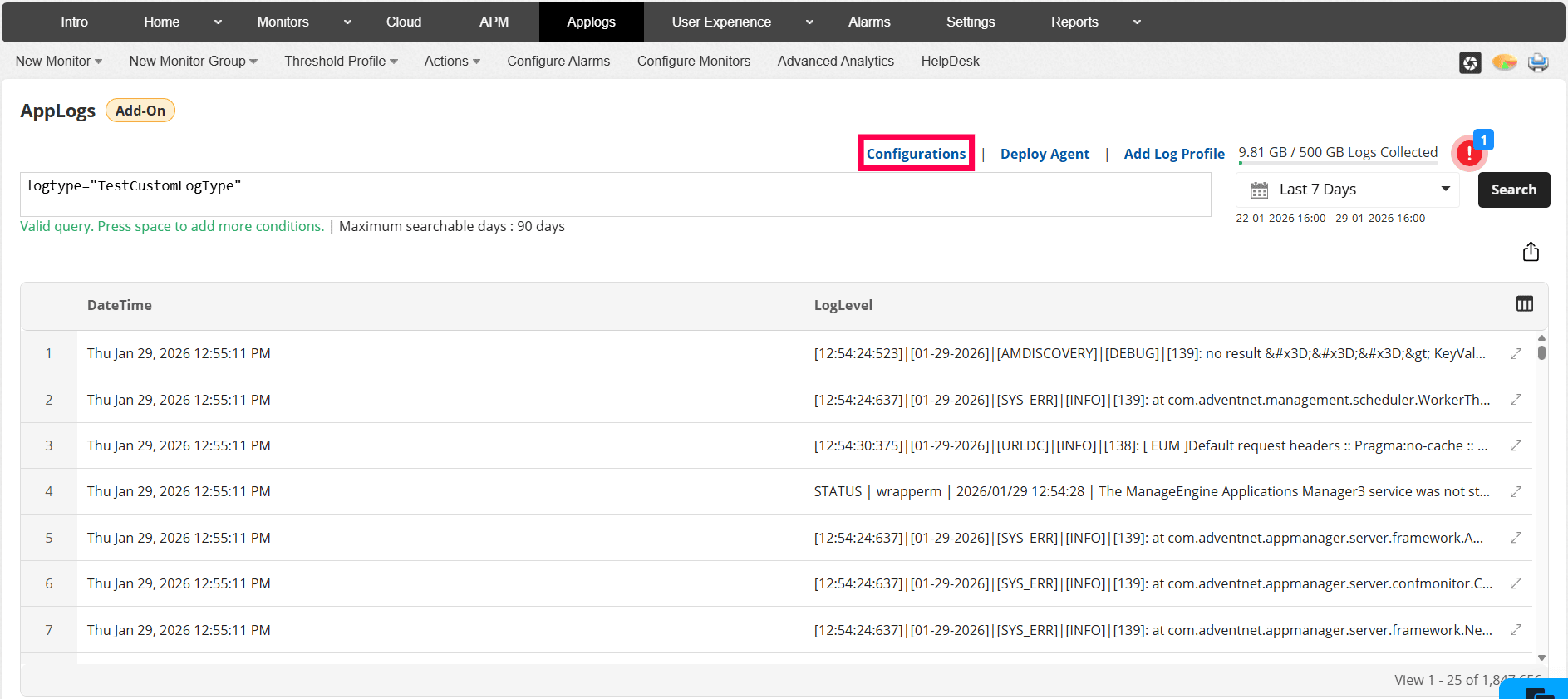
The Applogs Configurations page includes 3 tabs: Log Profiles, Log Types, and Settings.
Log Profiles
Log profiles define what logs are collected and from where. A log profile associates a specific log type with one or more log file paths and servers onboarded via the FSO Agent.
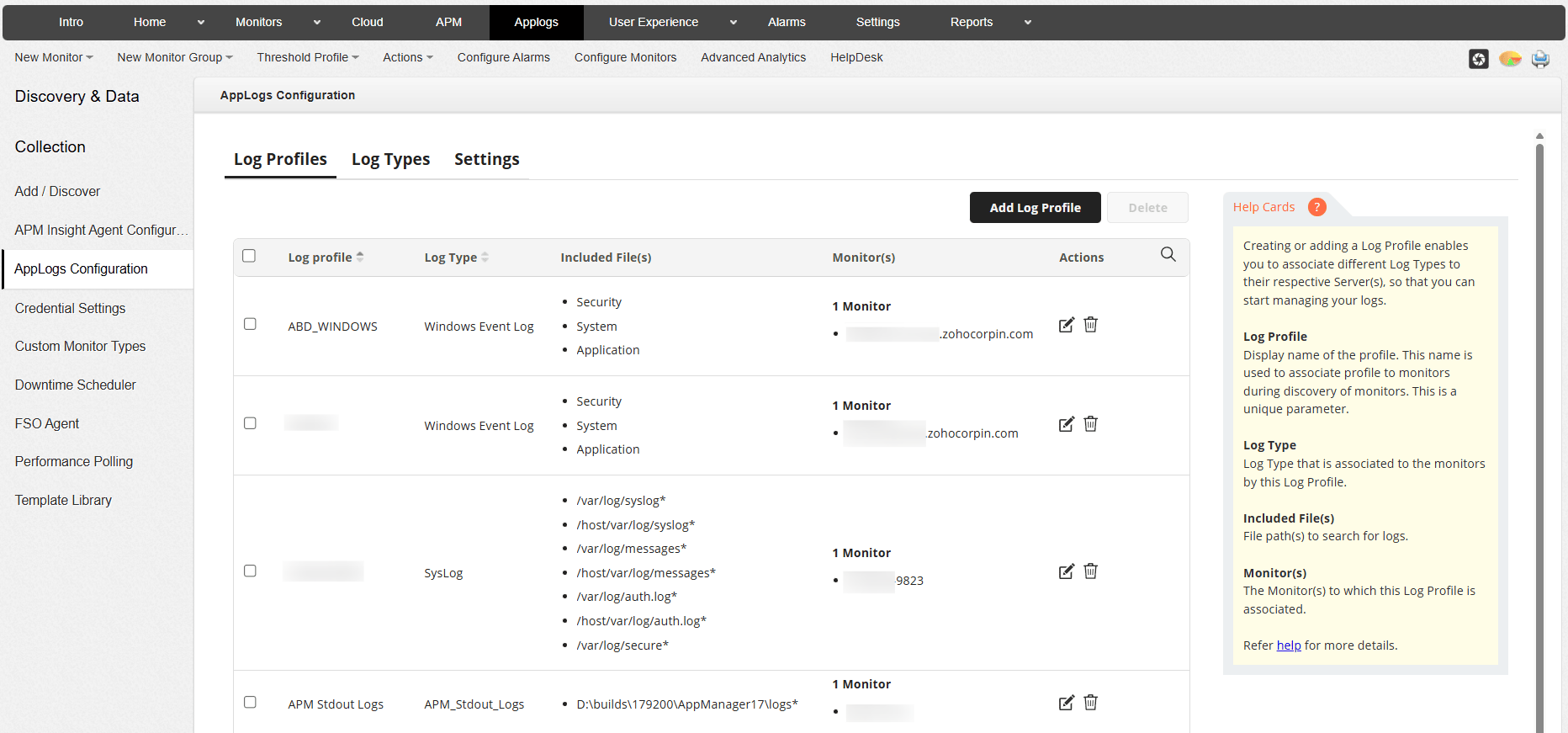
Each log profile helps Applications Manager determine:
- The log type used to parse the log entries
- The file paths or directories from which logs should be collected
- The servers (onboarded via the FSO Agent) to which the log profile applies
From the Log Profiles tab, you can:
- Create new log profiles
- Edit existing log profiles to update file paths or server associations
- Delete log profiles that are no longer required
Log profiles help ensure consistent and controlled log collection across multiple servers and applications.
Log Types
The Log Types tab displays all predefined and custom log types available in AppLogs. A log type defines the structure and format of log entries generated by an application or service.
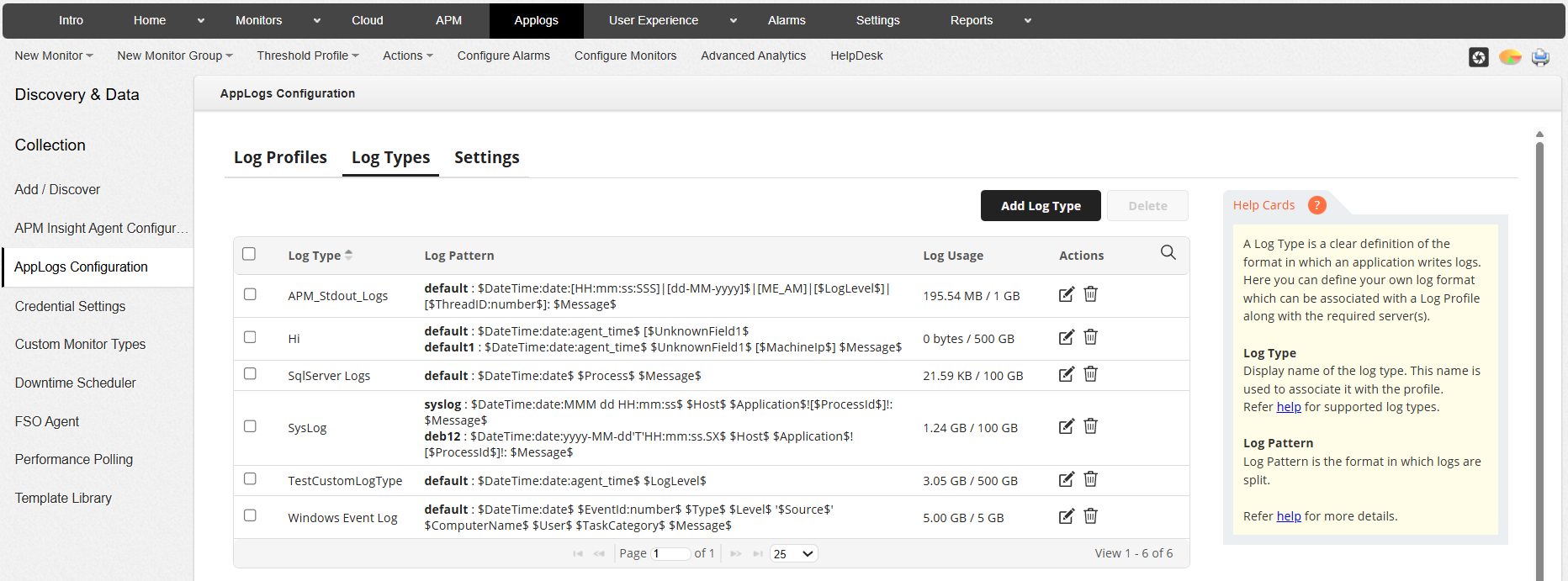
From this section, you can:
- View predefined log types supported by AppLogs
- Create custom log types for applications with unique log formats
- Update or manage existing custom log type definitions
- Delete custom log types that are no longer required
Configuring the correct log type ensures that log entries are parsed accurately and are searchable using fields and filters.
Settings
The Settings tab allows you to configure global AppLogs behavior. These settings control how logs are read, retained, and optimized for storage and performance.
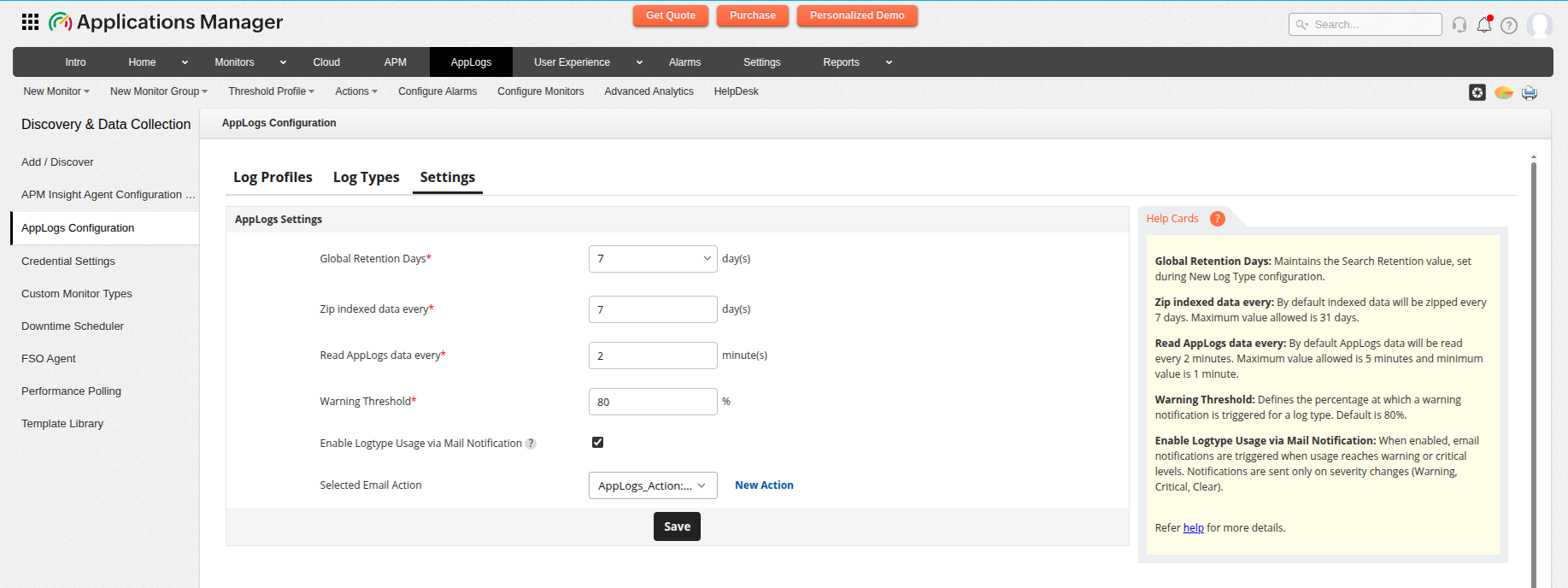
From this section, you can configure the following options:
- Global Retention Days: Specifies the number of days log data is retained and available for search across all log types.
- Zip indexed data every: Defines how frequently indexed log data is compressed to optimize disk usage. By default, indexed data is zipped every 7 days.
- Read AppLogs data every: Specifies how frequently Applications Manager processes log data from the AppLogs agent to control log ingestion frequency. Recommended interval: 2 minutes (Min: 1 minute | Max: 5 minutes)
- Warning threshold: Specifies the percentage limit at which a warning alert is triggered for a log type. The default value is 80%.
- Enable Logtype Usage via Mail Notification: Allows you to send email notifications whenever LogType usage reaches warning or critical levels. Notifications are triggered only when there is a change in severity (Warning, Critical, or Clear). Once enabled, select the appropriate email action from the dropdown or create a new email action, if required.
These settings help you balance log visibility, storage utilization, and system performance.
After configuring AppLogs, you can analyze collected logs using search and filtering capabilities, correlate them with metrics and alerts, and investigate issues and security events.

