Schedule demo

Configuring OAuth for G-Suite Server


Steps to configure OAuth for G-Suite Server:

  1. Log in to console.developers.google.com.
  2. In the dashboard, click Create Project to create a new project.
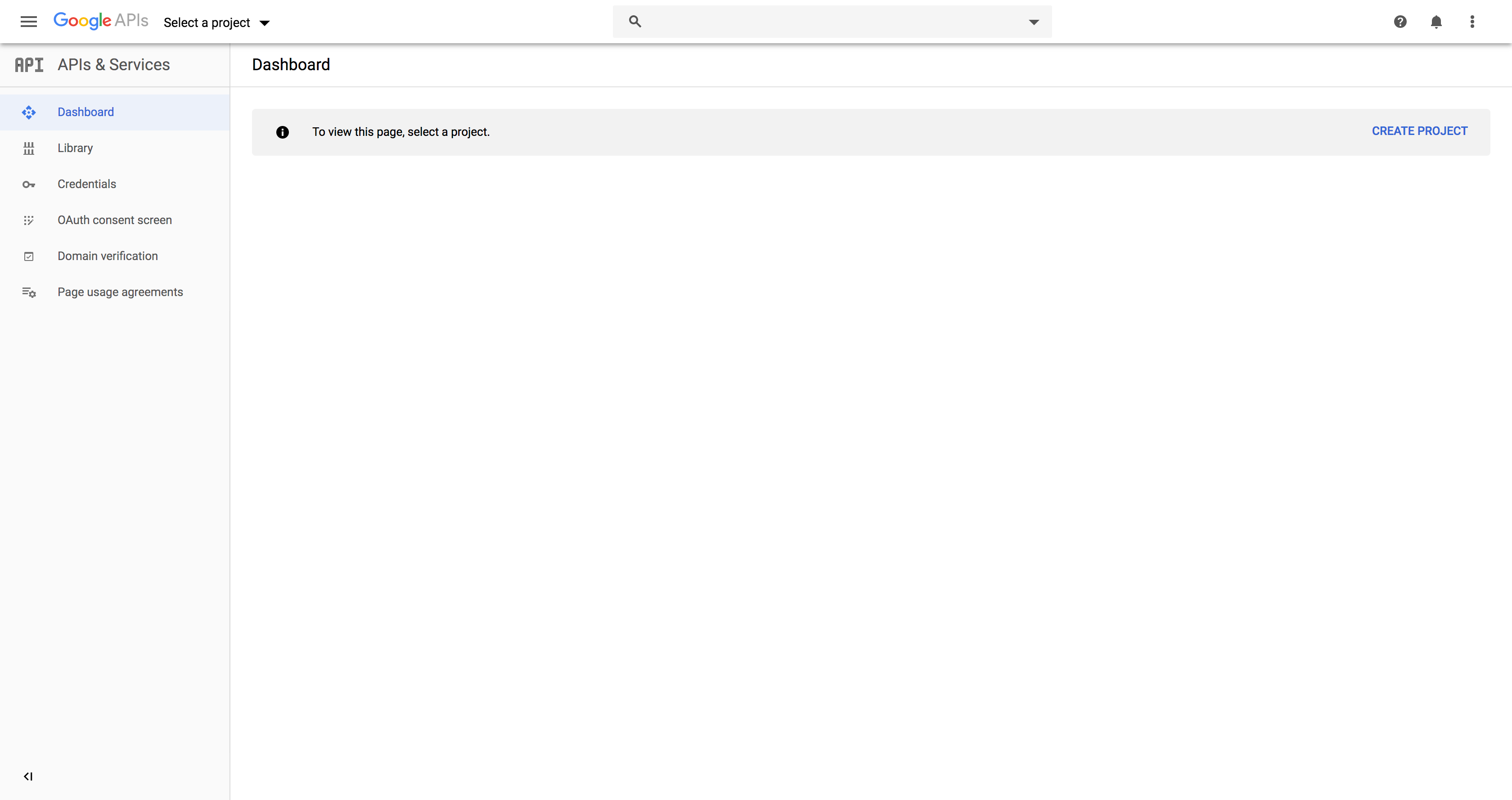
    Applications Manager Configuring OAuth for G-Suite Server: Creating a new project in G-Suite server

  3. Enter the Project Name.
  4. For Location, click on Browse and select the parent organization.
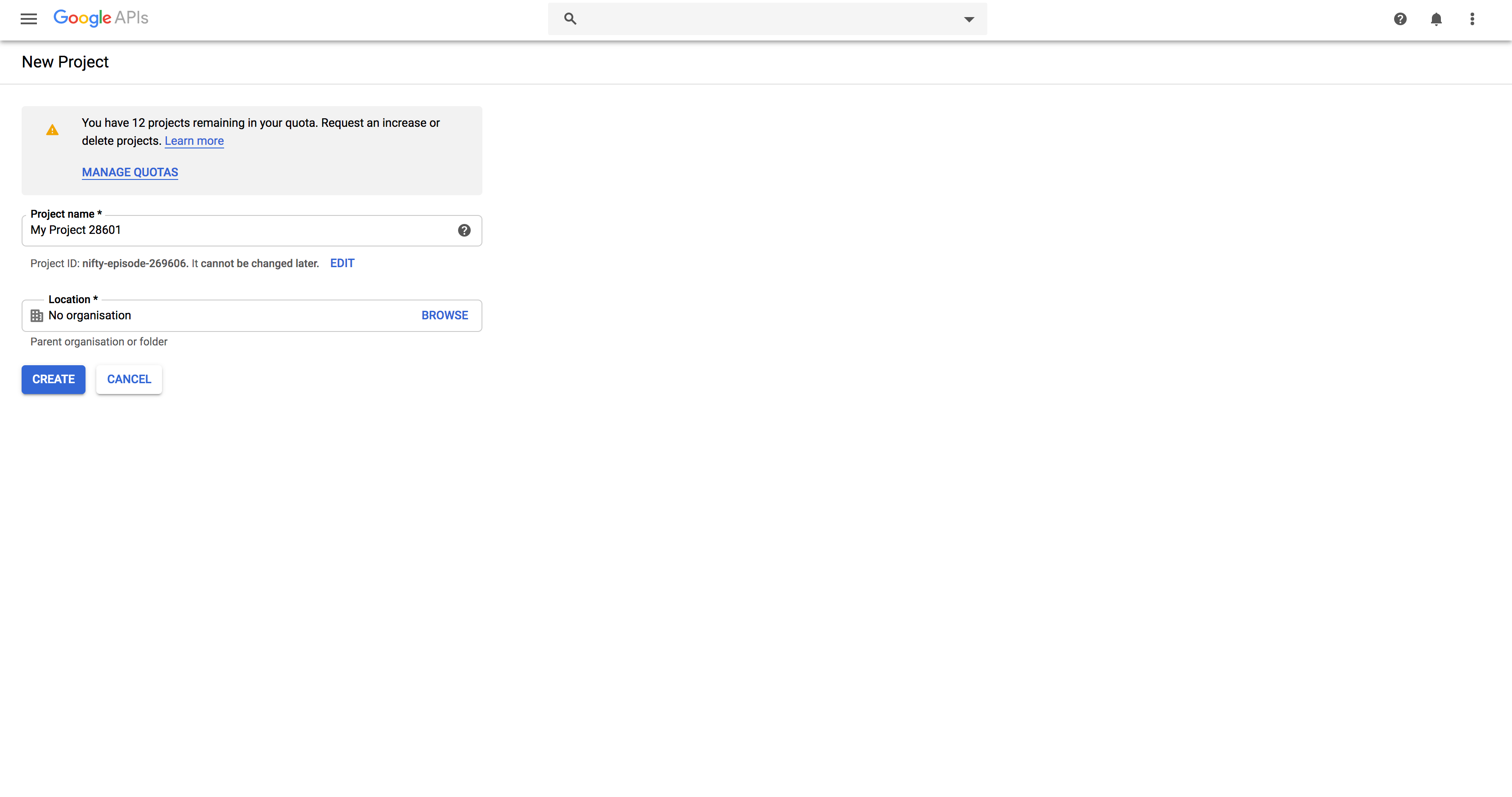
    Applications Manager Configuring OAuth for G-Suite Server: Selecting parent organization in G-Suite server

  5. In the left panel of the displayed project details page, navigate to APIs & Services -> Library.
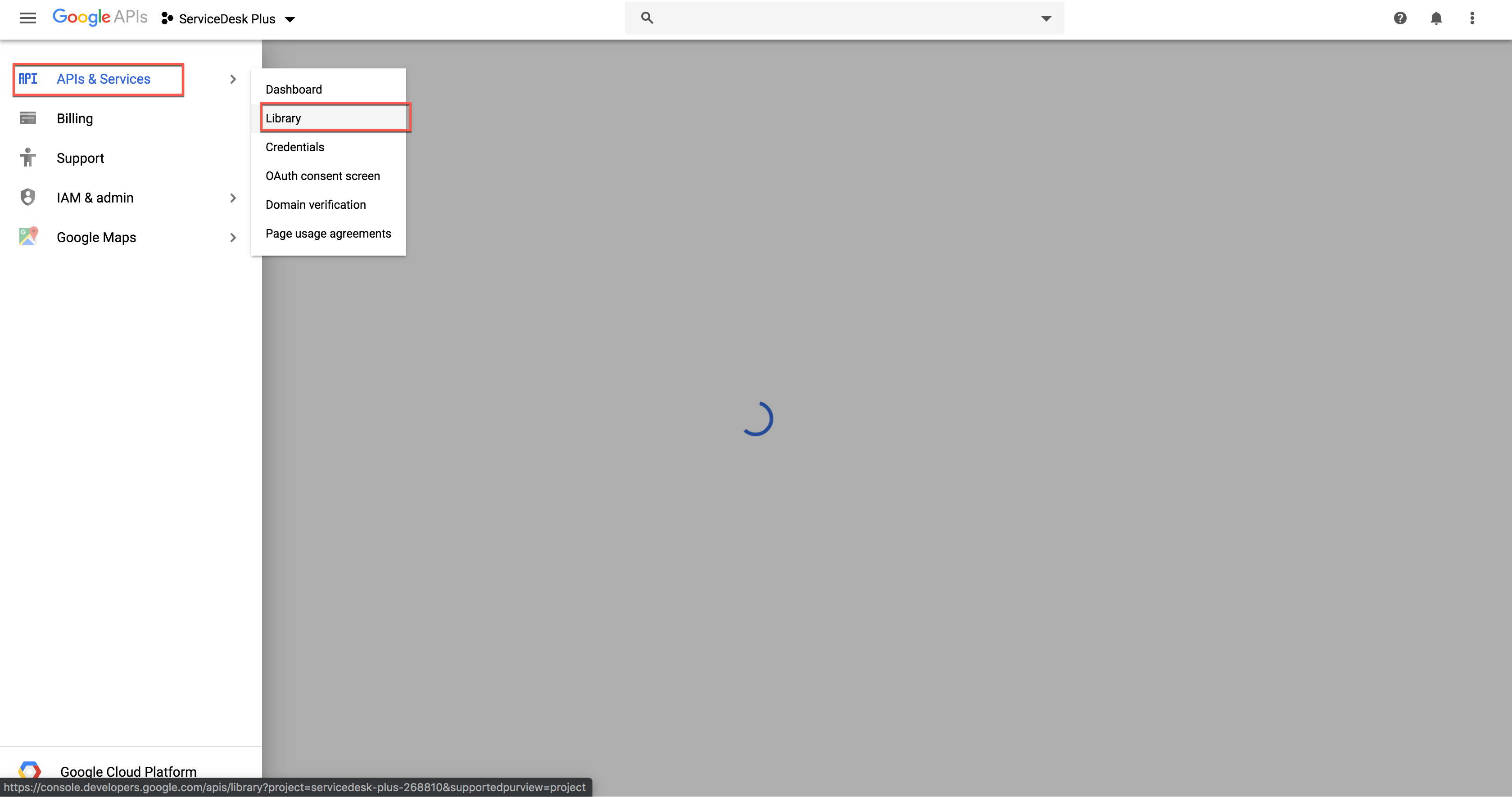
    Applications Manager Configuring OAuth for G-Suite Server: Viewing API & Services library in G-Suite server

  6. From the available list of APIs, select Gmail API and click on Enable. You can use the search option for quicker results.
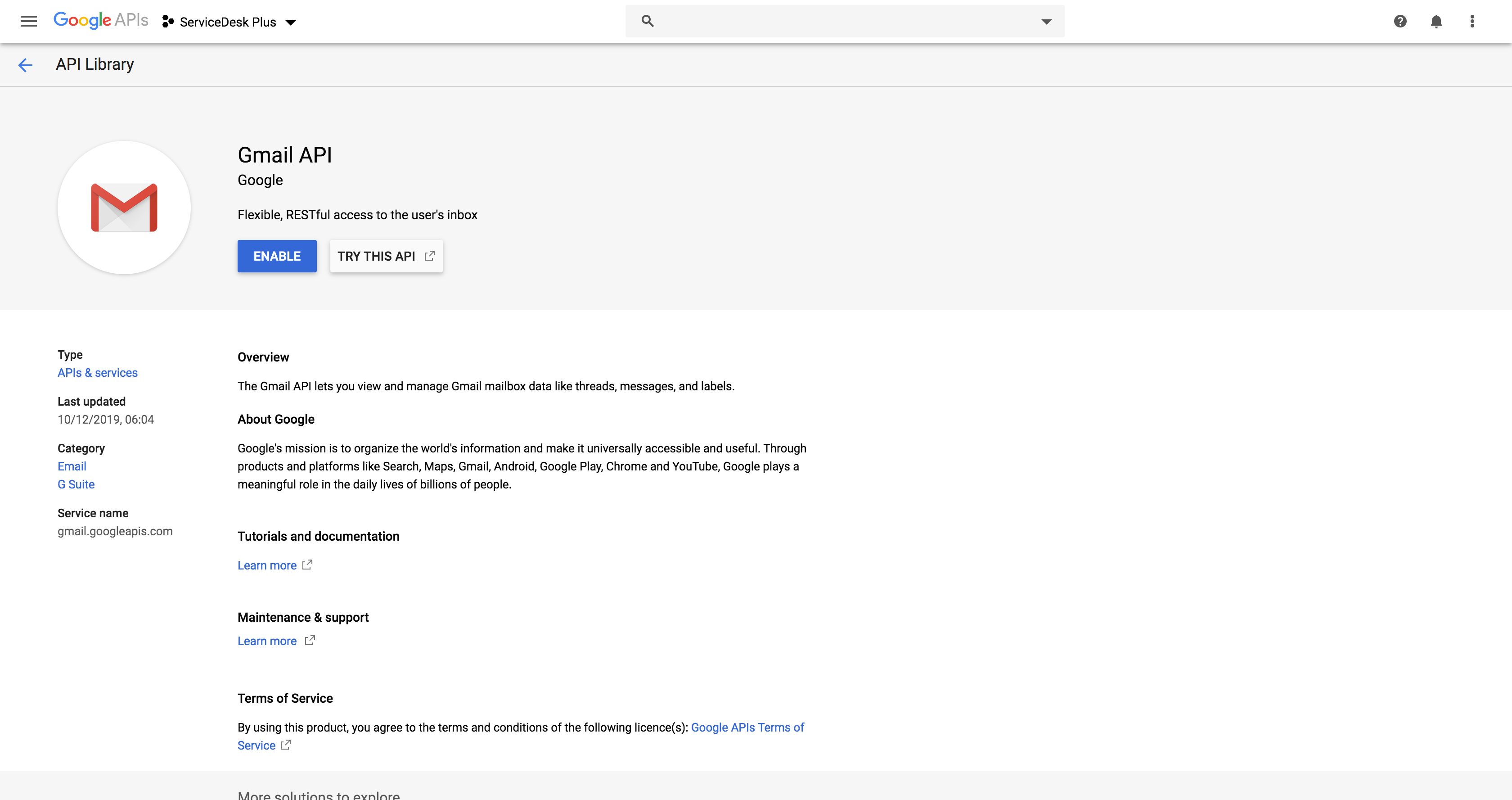
    Applications Manager Configuring OAuth for G-Suite Server: Enabling Gmail API in G-Suite server

  7. In the left panel, click on OAuth consent screen and choose the User Type and click on Create.
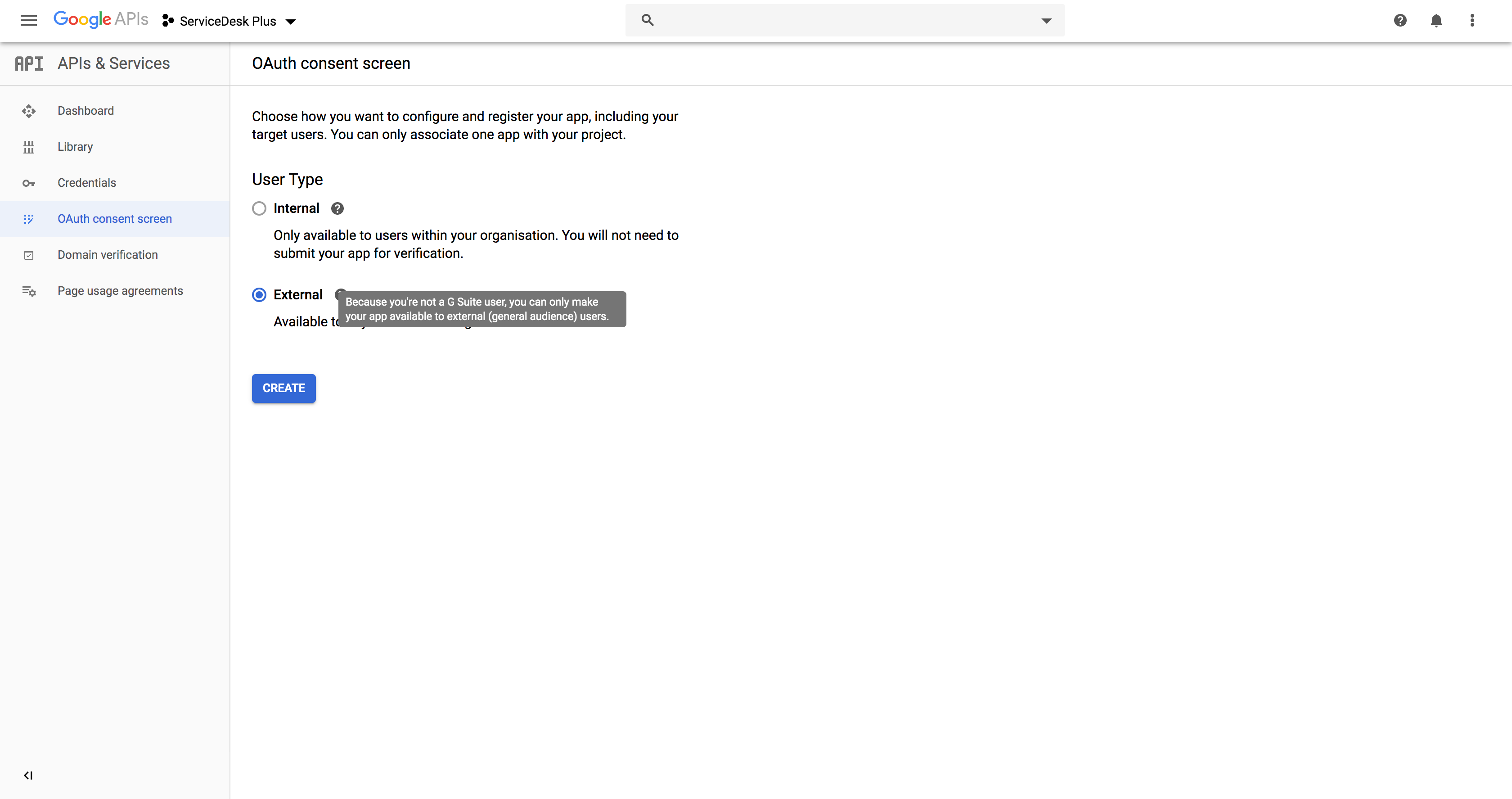
    Applications Manager Configuring OAuth for G-Suite Server: Choosing user type for OAuth consent screen in G-Suite server

  8. In the displayed page, provide the Application Name, Application Logo, and Support email of your APM.
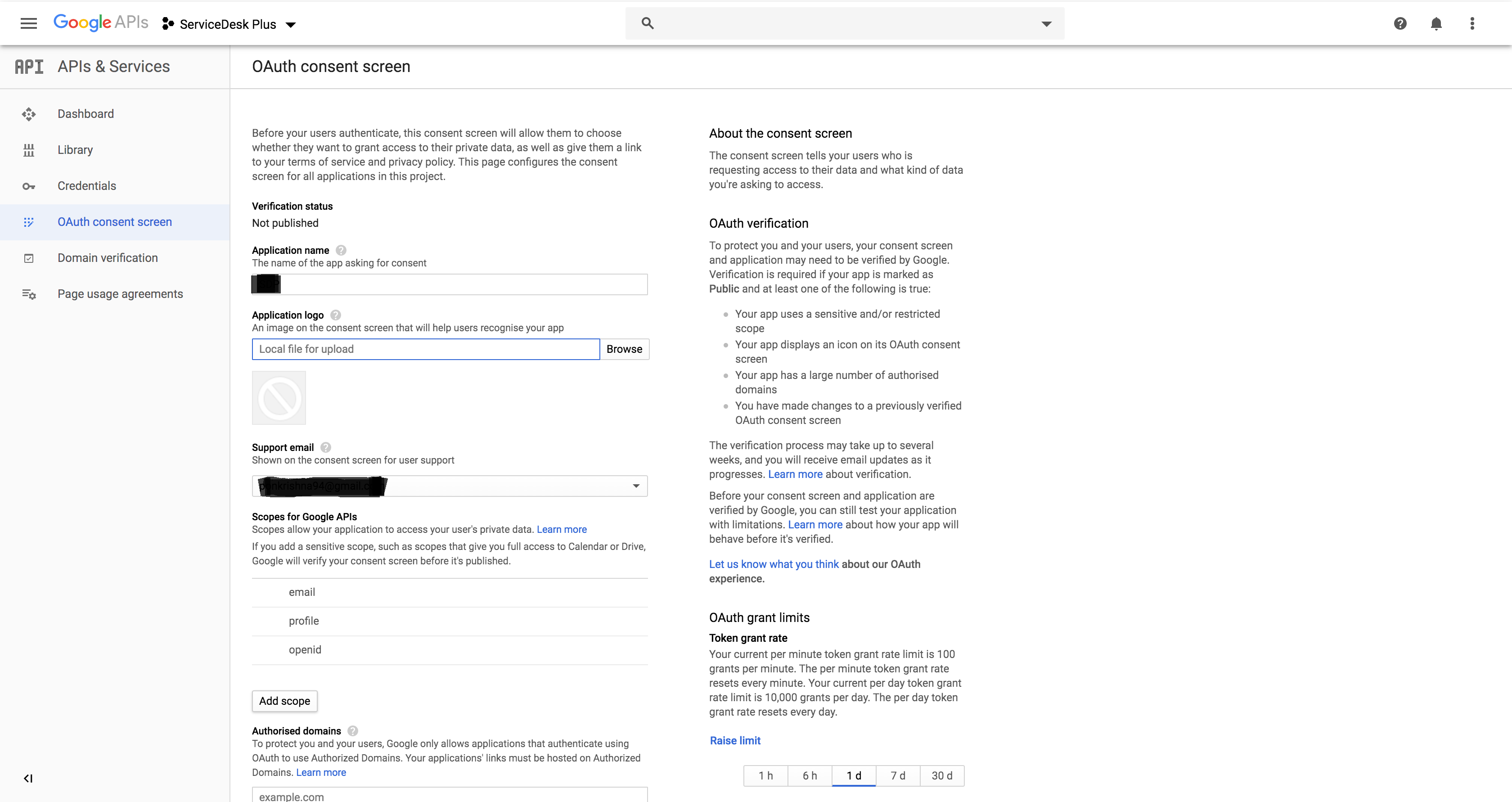
    Applications Manager Configuring OAuth for G-Suite Server: Entering application details in G-Suite server

  9. Click on Add Scope, choose Gmail API and click on Add.
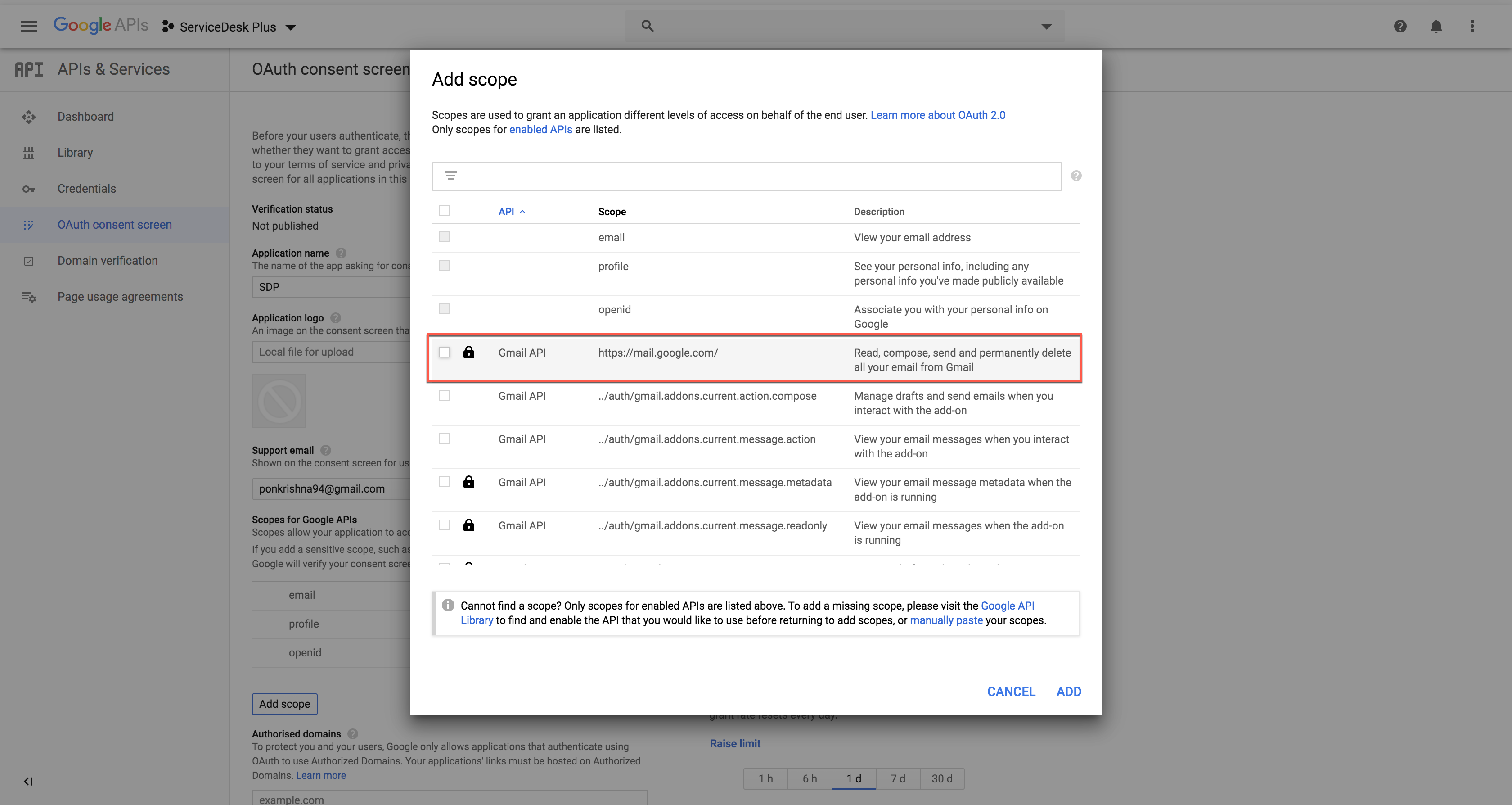
    Applications Manager Configuring OAuth for G-Suite Server: Adding Gmail API scope in G-Suite server

  10. The scope will be displayed as shown in the below screenshot. Copy the Scope to APM and click on Save.
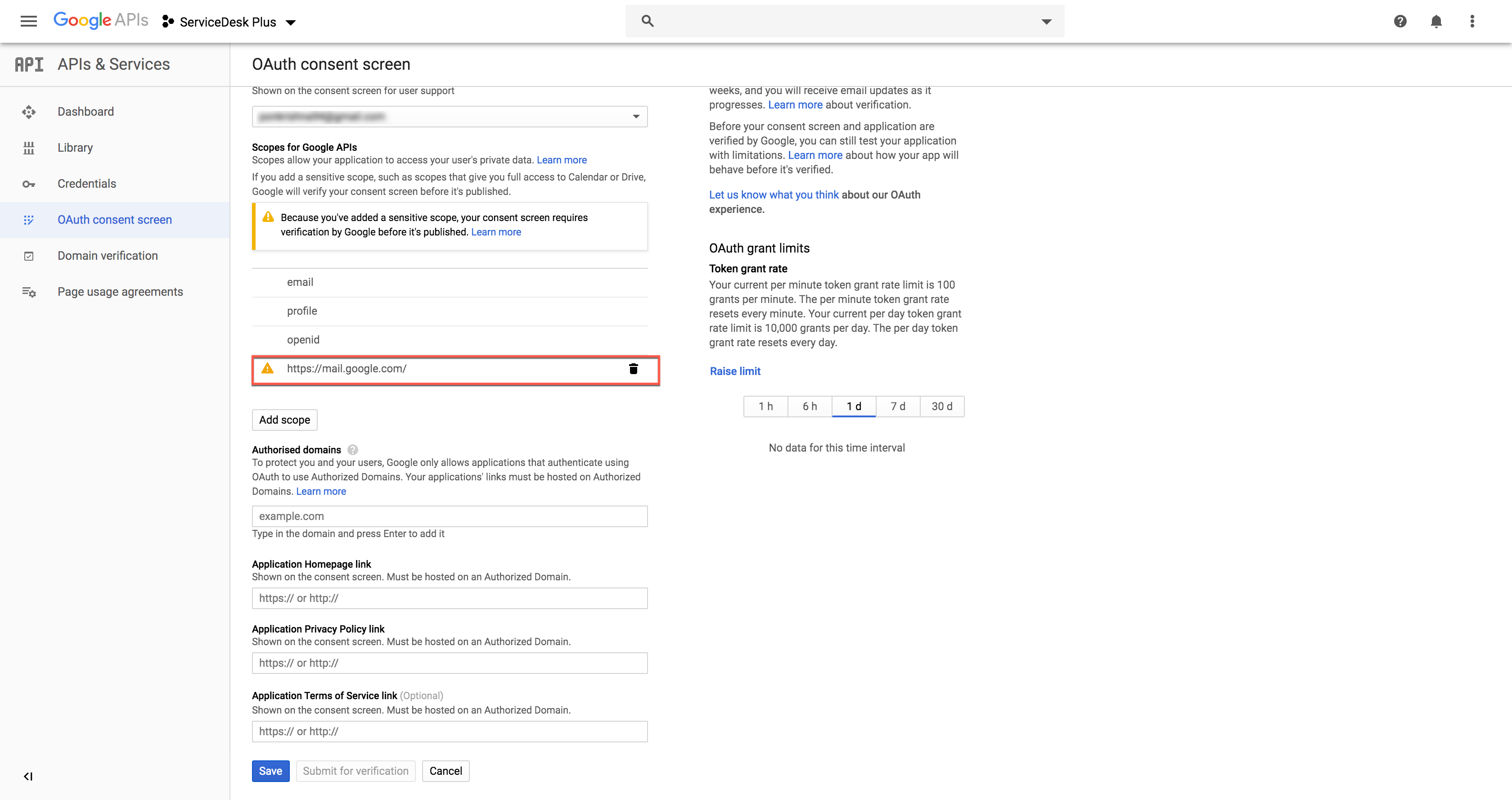
    Applications Manager Configuring OAuth for G-Suite Server: Copying scope in G-Suite server

  11. In the left panel, click on Credentials -> Create Credentials -> OAuth Client ID.
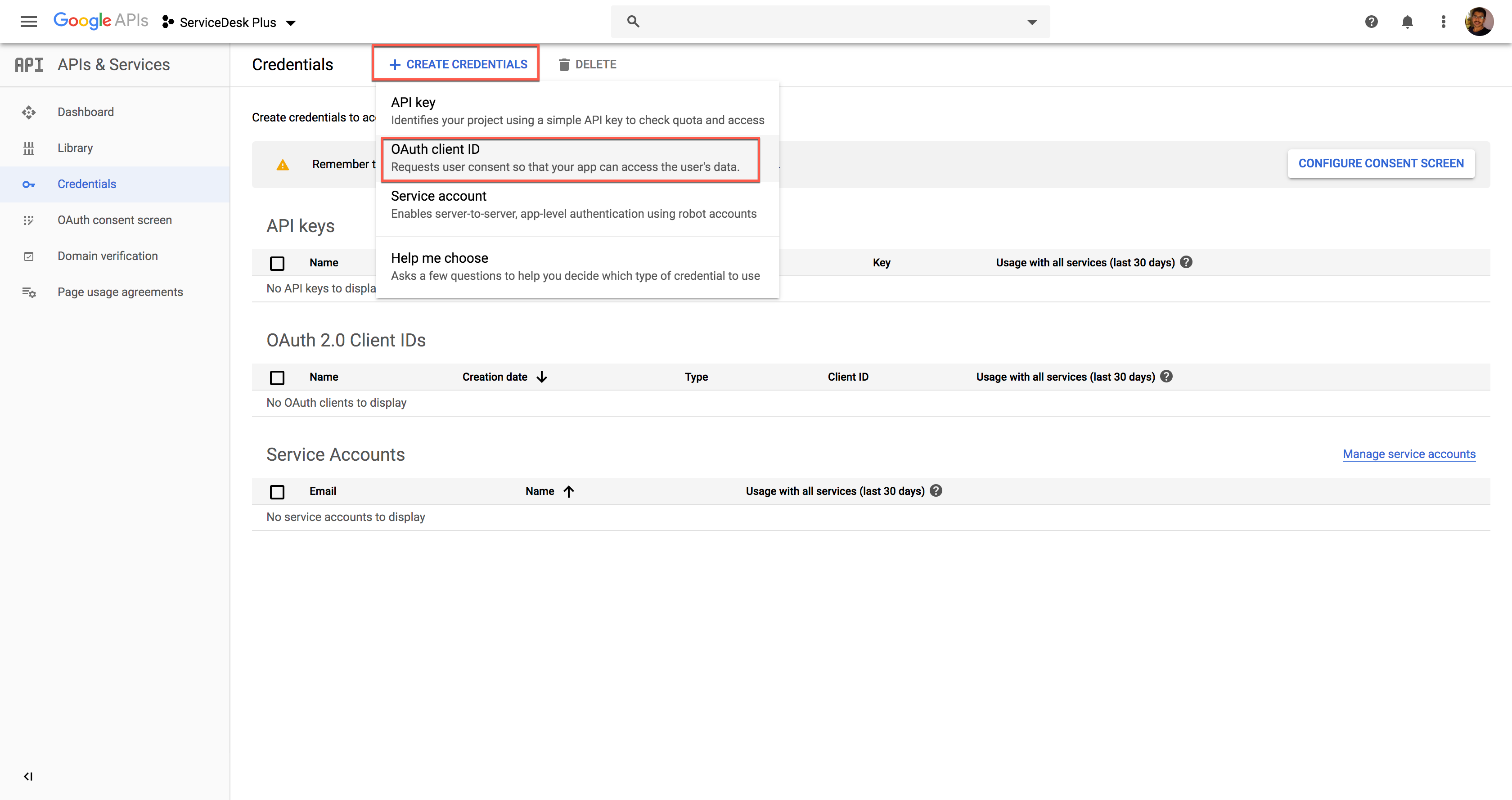
    Applications Manager Configuring OAuth for G-Suite Server: Creating OAuth client ID credential in G-Suite server

  12. Click on DOWNLOAD JSON to download the file containing the authorization server details. Copy these details to Client Details in APM.
  13. Provide a Name of your choice.
  14. In Authorized Redirect URIs field, copy-paste the Redirect URL of APM and click on Save.

    Applications Manager Configuring OAuth for G-Suite Server: Downloading JSON of authorization server details

You have now configured G-Suite as the authorization server for your organization using Gmail as the mail server.

Note:
Use the following values to configure OAuth setup for G-Suite:
  • Authorization endpoint URL :https://accounts.google.com/o/oauth2/auth
  • Scope : https://mail.google.com
  • Query Parameters :
    Name -access_type
    Value -offline
  • Token endpoint URL :https://oauth2.googleapis.com/token
  • Token Request Method :Post request body
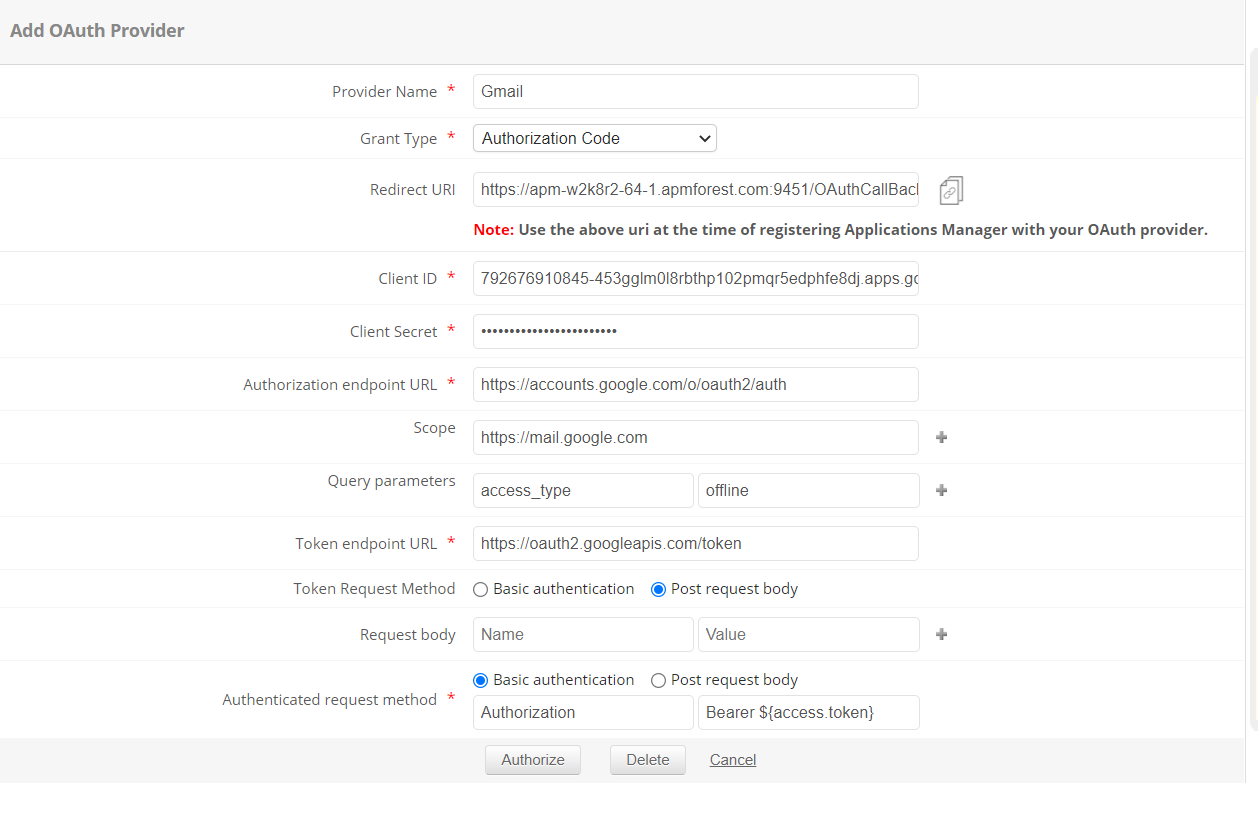
Applications Manager Configuring OAuth for G-Suite Server: Adding OAuth provider for G-Suite

Loved by customers all over the world

"Standout Tool With Extensive Monitoring Capabilities"

It allows us to track crucial metrics such as response times, resource utilization, error rates, and transaction performance. The real-time monitoring alerts promptly notify us of any issues or anomalies, enabling us to take immediate action.

Reviewer Role: Research and Development

carlos-rivero
"I like Applications Manager because it helps us to detect issues present in our servers and SQL databases."
Carlos Rivero

Tech Support Manager, Lexmark

Trusted by over 6000+ businesses globally

