How to Install agents using Start Up Script?
Windows startup script is a script that runs automatically when the operating system starts up. It is used to trigger the agent installation process automatically when a machine boots up. This ensures that the agent is installed before the user logs in, providing seamless deployment across multiple systems. Windows GPO Tool can be used to install agents using Startup Script.
If a new GPO policy is applied, the installation for existing installed agents will be skipped on all machines. The remaining agents will be installed according to the new policy.
Advantages:
- Common method of agent installation through traditional GPO editor.
- It allows for customization with additional parameters or scripts during GPO configuration for agent installation.
Disadvantages:
- Requires a system restart for the GPO policy to apply, delaying agent installation until then.
- In remote work environments with machines connected through VPN, this method may not be suitable if the VPN is not connected during the restart.
- Complex to configure via traditional GPO editor
For Endpoint Central versions 10.1.2124.1 and above, it is recommended to use exe based installation.
- .EXE
- .MSI
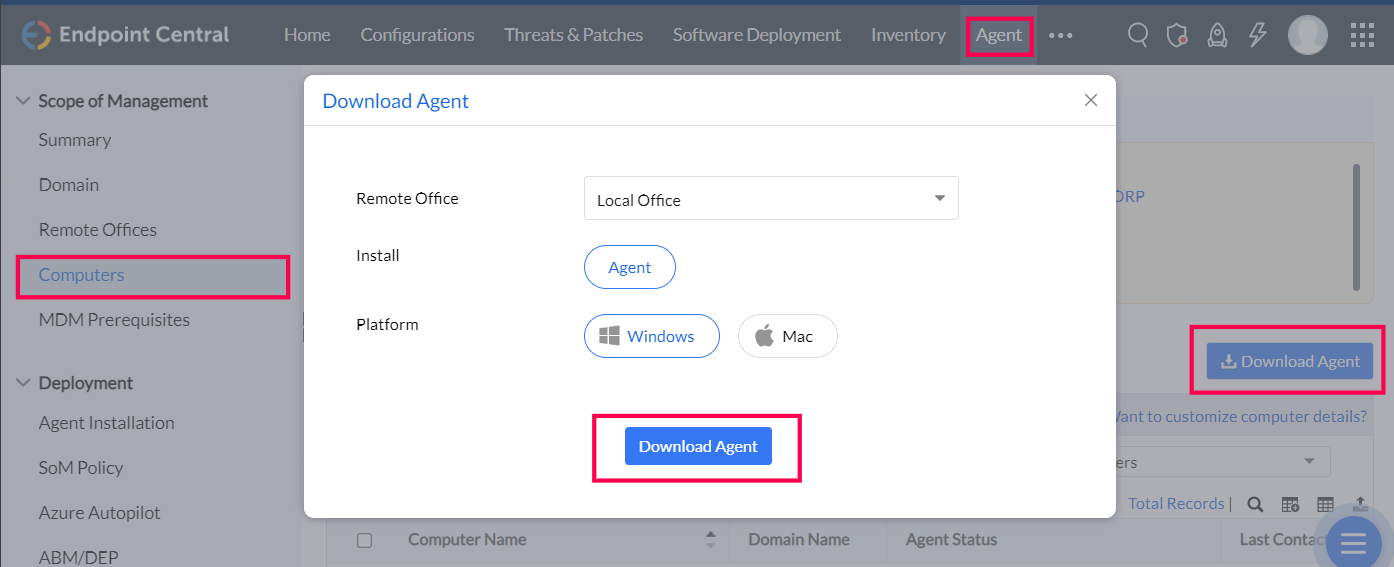
1.Download the agent package
- Open the server web console.
- Navigate to theAgent > Computers
- Select the required remote office
- Click the Download Agent button
- Rename the file to LocalOffice_Agent.exe
3. Create a GPO to identify targets for deployment
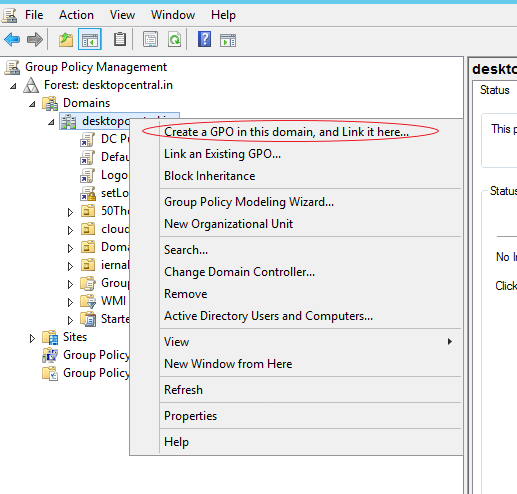
- Open the Group Policy Management Console (GPMC) by opening Run (Windows key + R) and typing gpmc.msc .
- Once in the GPMC, right-click on your target "organizational unit" (typically a domain), and select 'Create a GPO in this domain, and Link it here' option.
Note: To install agents selectively on a few devices
- Click on the Scope tab
- Under Security Filtering section, click Add
- In the Select User, Computer, or Group dialog box, click Object Types
- Select specific computer object types
- Click OK
- Specify the computer names
- Click on Check Names
- Click Ok
4. Enter a Name for the new GPO. For example, "EC_Agent_Install". Once the new GPO is created, you can see it in the GPMC in the left navigation pane, under Group Policy Objects.
5. Create a start-up task to execute the deployment and installation of the Windows Agent.
- Open the Group Policy Management Editor by right-clicking on the new GPO you created, and selecting Edit.
- Expand Computer Configuration --> Policies --> Windows Settings --> Scripts(Startup/Shutdown).
- Right click Startup and click Properties and switch to PowerShell Scripts.
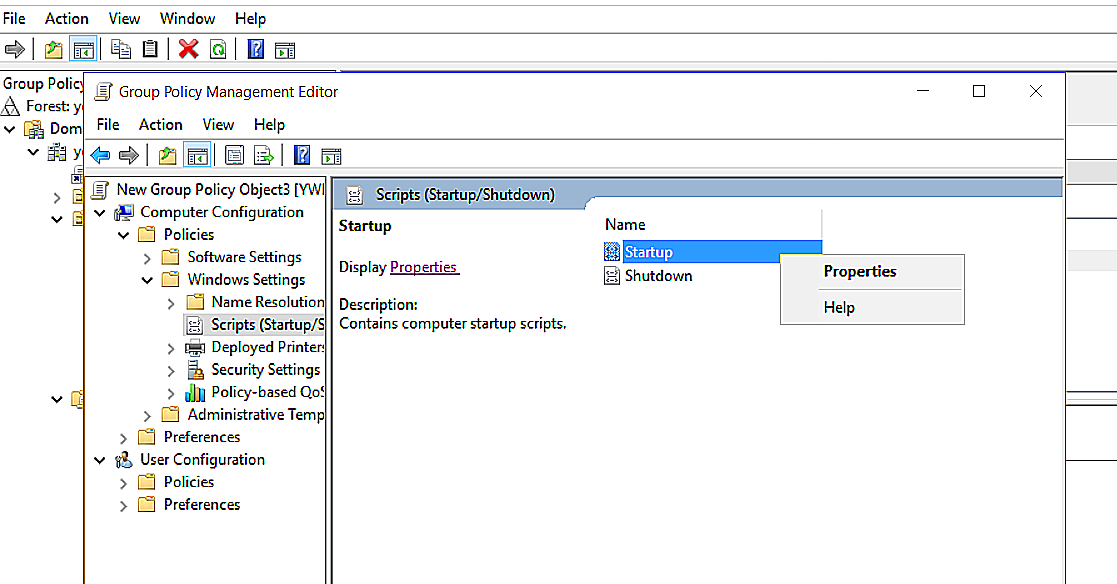
- Click Show File
- Paste the Installagent.ps1 and LocalOffice_Agent.exe downloaded above into the created folder.
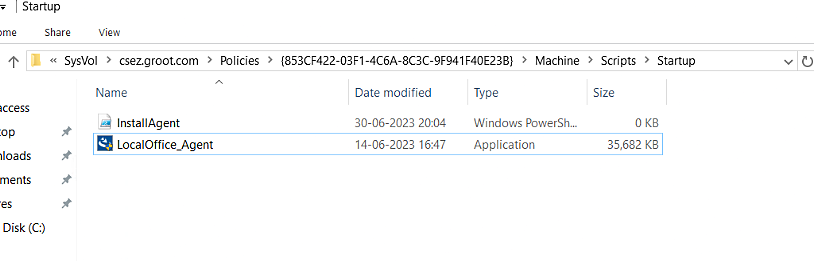
- Now copy the network path, as it is needed in later steps. Network path format - \\Domain name\SysVol\Domain name\Policies\{ID}\Machine\Scripts\Startup
Note: If the files can't be placed in the shared UNC folder path, open folder and with local path and paste the files.
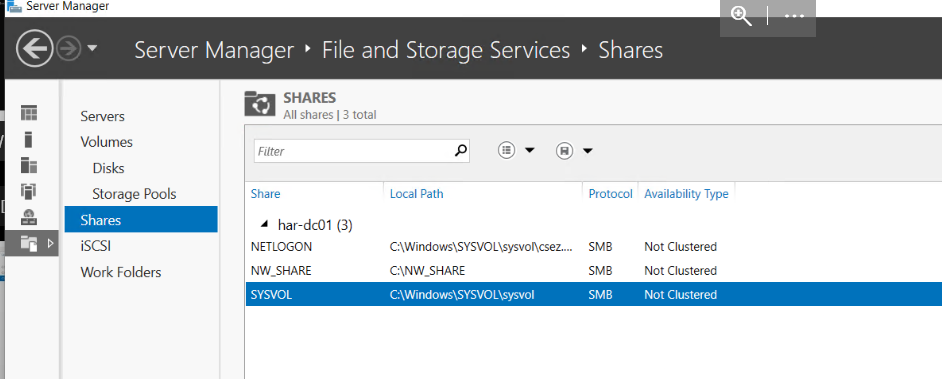
- Open Server manager -> File and storage services -> Shares
- Copy the Local Path of SYSVOL
- Open the SYSVOL folder and respective script folder Eg: C:\Windows\SYSVOL\sysvol\Domain\Policies\{853CF422-03F1-4C6A-8C3C-9F941F40E23B}\Machine\Scripts\Startup
- Browse and navigate to the location, copy the full path (\\Domain name\SysVol\Domain name\Policies\{ID}\Machine\Scripts\Startup) of PSInstallAgent.ps1 script.
- In the Startup Properties dialog box, click Add.
- Make sure to select "PowerShell Scripts". Then specify the path (copied location) and the script as shown below:
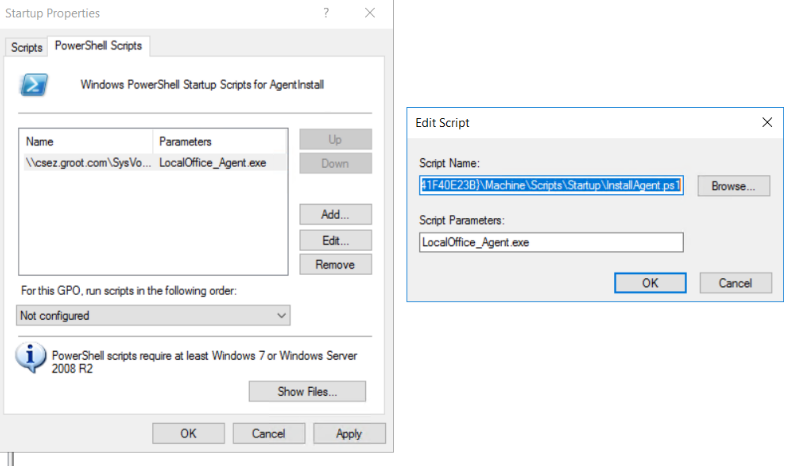
- Script name:\\domain.com\SysVol\ \Policies\{id}\Machine\Scripts\Startup\Installagent.ps1 (Replace \\domain.com\SysVol\domain.com\Policies {id}\Machine\Scripts\Startup with the network path you copied earlier.
- Script parameters:LocalOffice_Agent.exe (exe file name)
Note: As an alternative to the execution of PowerShell, you can also execute VBscript script for agent installation using GPO
1. Download the
- 2. Place it in the Script folder as mentioned above.
- 3. Select "Scripts".
- 4. Change the script and parameters as below.
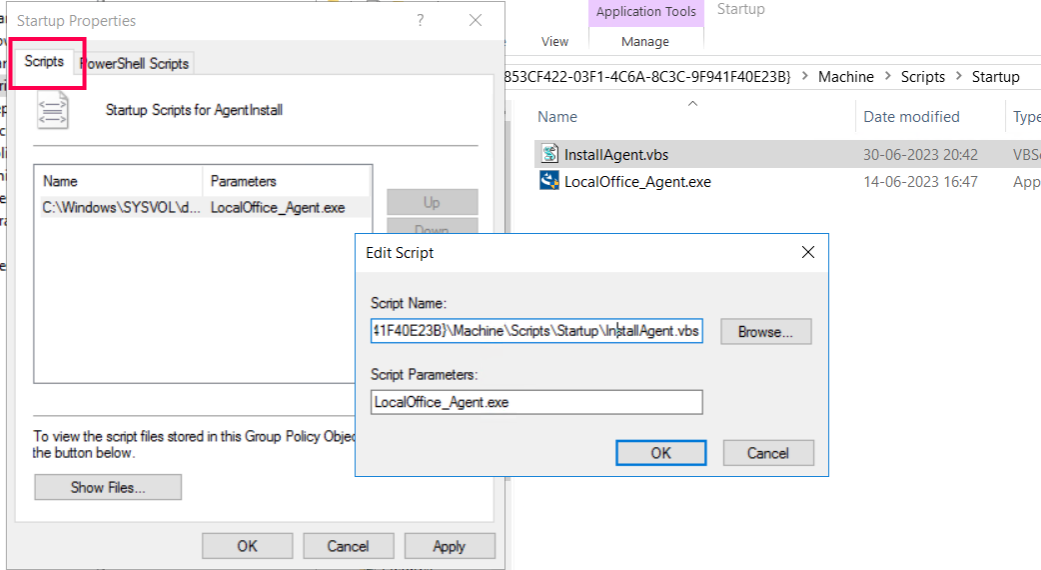
- Script Name: \\domain.com\SysVol\domain.com\Policies\{id}\Machine\Scripts\Startup\Installagent.vbs (*replace \\domain.com\SysVol\domain.com\Policies\{id}\Machine\Scripts\Startup with the network path you copied earlier.
- Script Parameters: LocalOffice_Agent.exe
6. Click OK to close the Add a Script dialog box
7. Click OK to close the Startup Properties dialog box
8. Close the Group Policy Object Editor
9. Close the Group Policy Management dialog box
10. The script will be executed when the client computers reboot
Troubleshooting steps:
Ensure the network path is accessible from the endpoints and check if the required files for installation are present in the shared folder.
Reach out to support with the below files if issue persists.
1. GPO result from the client machine.
- In client machine, open command prompt with administrator mode.
- In command prompt, navigate to C:\ and run the command gpresult /h gprep.html
- Kindly upload gprep.html file under C:\ from the client machine.
2. Event Logs
Export and upload application and system event viewer logs
Note: Ensure that the network has a Domain based setup and not Workgroup setup. You can map the script to the entire domain even if you have installed the agents in a few client computers as the script will install the agent only in the computers in which the agent is not installed.
- Download the Zip file, extract it and follow the steps given below
- Navigate to the server web console, -> Agent -> Agent Installation.
- Under Using Directory Services, in the GPO tab, click on Download Agent.
Select the required office.
Note: This can be a local office or a remote office depending on which computers you want to install agents in.
- Save the .msi & .mst file in this path \\Domain name\SysVol\Domain name\Policies\{ID}\Machine\Scripts\Startup. Kindly include DCAgentServerInfo.json file only if the build version is 10.1.2124.1 and above.
Kindly include DCAgentServerInfo.json file only if the build version is 10.1.2124.1 and above.
How to obtain { ID } Value :-
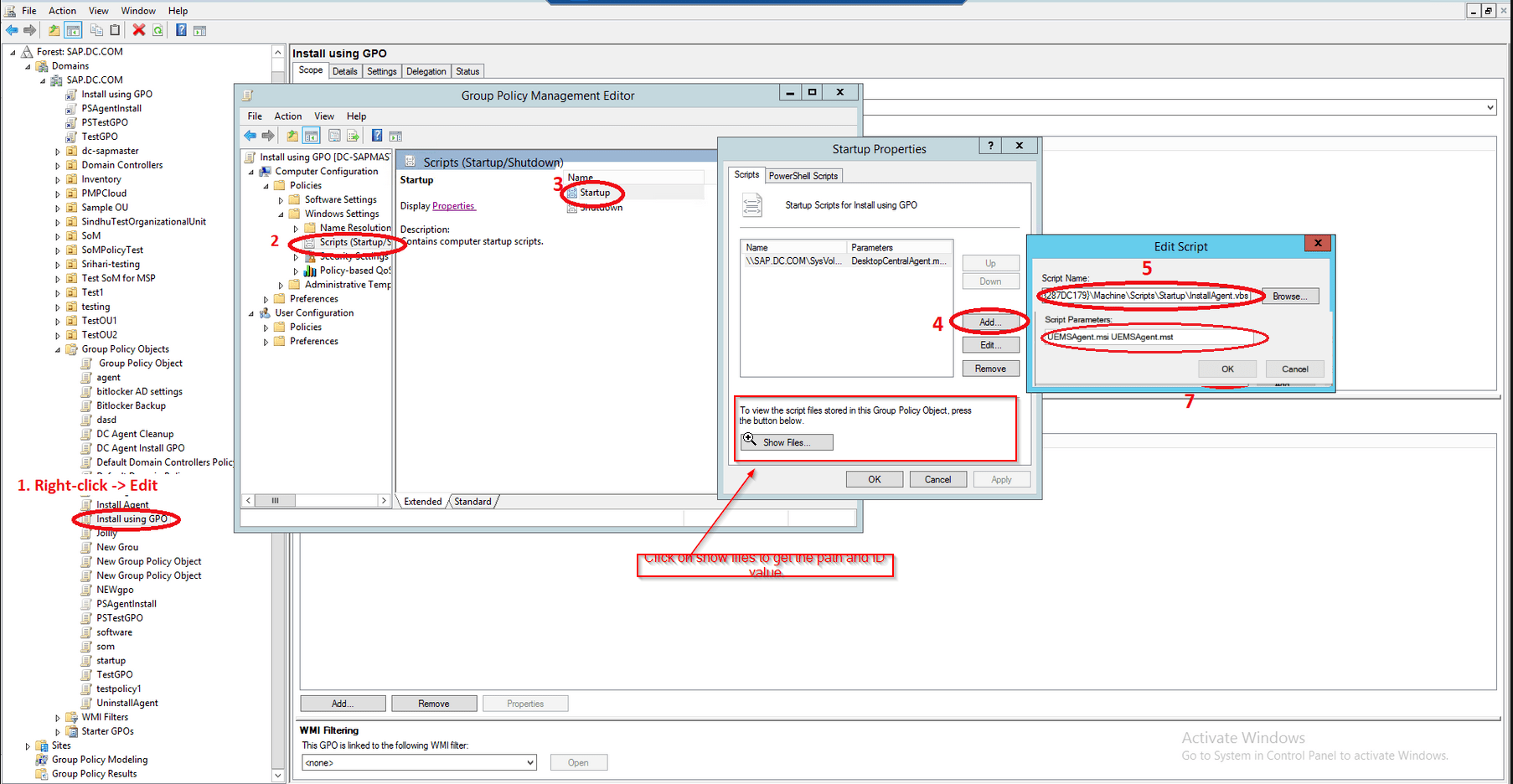
- Click on start>Run
- Enter gpmc.msc
- Click OK
- Right click the domain to select, create and link a GPO here
- Specify a name for the GPO
- Select the GPO
Note: These steps need to be followed if you wish to install agents in a select few devices (refer this image). Do not follow these steps if you want to install agents in all the devices.
- Click on the Scope tab
- Under Security Filtering section, click Add
- In the Select User, Computer, or Group dialog box, click Object Types
- Select specific computer object types
- Click OK
- Specify the computer names
- Click on Check Names
- Click OK
- Right click the GPO and click on Edit.
Note: As an alternative to the execution of VBscript, you can execute PowerShell script for agent installation using GPO.
For executing VBScript, follow these steps (refer this image):
- Expand Computer Configuration --> Policies --> Windows Settings --> Scripts
- Right click Startup and click Properties
- Click Show Files
- Drag and drop the InstallAgent.vbs (download the .txt file and rename it as .vbs) UEMSAgent.msi UEMSAgent.mst to this location and Copy the location (\\Domain name\SysVol\Domain name\Policies\{ID}\Machine\Scripts\Startup) and close.
Kindly include DCAgentServerInfo.json file only if the build version is 10.1.2124.1 and above.
- In the Startup Properties dialog box, click Add
Browse and navigate to the location, copy the browsed path (\\Domain name\SysVol\Domain name\Policies\{ID}\Machine\Scripts\Startup) and select InstallAgent.vbs script. Then specify the path (copied location) and the script as mentioned below:
(\\Domain name\SysVol\Domain name\Policies\{ID}\Machine\Scripts\Startup)\InstallAgent.vbs- Specify the script parameters as mentioned below:
UEMSAgent.msi UEMSAgent.mst
For Build 100653 and above :-
- If SSL third party certificate is uploaded in the server, go to Admin -> Security Settings -> Import SSL Certificates,the below files should be added along with Agent installer files:-
DMRootCA.crt
Specify the script arguments as:
- "UEMSAgent.msi UEMSAgent.mst DMRootCA.crt"
- If SSL third party certificate is not uploaded in the server, Admin -> Security Settings -> Import SSL Certificates,the below files should be added along with Agent installer files:-
DMRootCA.crt DMRootCA-Server.crt
- Specify the script arguments as
- "UEMSAgent.msi UEMSAgent.mst DMRootCA.crt DMRootCA-Server.crt"
For executing PowerShell script, follow these steps and refer this image):
- Ensure if PowerShell is enabled in all the client computers before execution of this script.
- Expand Computer Configuration --> Policies --> Windows Settings --> PowerShell scripts
- Right click Startup and click Properties
- Click Show Files
- Drag and drop the InstallAgent.ps1 (download the .txt file and rename it as .ps1) & UEMSAgent.msi UEMSAgent.mst to this location and copy the location (\\Domain name\SysVol\Domain name\Policies\{ID}\Machine\Scripts\Startup) and close.
Kindly include DCAgentServerInfo.json file only if the build version is 10.1.2124.1 and above.
- In the Startup Properties dialog box, click Add
- Browse and navigate to the location, copy the browsed path (\\Domain name\SysVol\Domain name\Policies\{ID}\Machine\Scripts\Startup) and select the PSInstallAgent.ps1 script. Then specify the path (copied location) and the script as mentioned below:
(\\Domain name\SysVol\Domain name\Policies\{ID}\Machine\Scripts\Startup)\PSInstallAgent.ps1
- Specify the script parameters as mentioned below:
"UEMSAgent.msi" "UEMSAgent.mst"
For Build 100653 and above :-
- If SSL third party certificate is uploaded in the server, go to Admin -> Security Settings -> Import SSL Certificates,the below files should be added along with Agent installer files:-
DMRootCA.crt
Specify the script arguments as"UEMSAgent.msi UEMSAgent.mst DMRootCA.crt"
- If SSL third party certificate is not uploaded in the server, Admin -> Security Settings -> Import SSL Certificates,the below files should be added along with Agent installer files:-
DMRootCA.crt DMRootCA-Server.crt
Specify the script arguments as"UEMSAgent.msi UEMSAgent.mst DMRootCA.crt DMRootCA-Server.crt"
- Click OK to close the Add a Script dialog box
- Click OK to close the Startup Properties dialog box
- Close the Group Policy Object Editor
- Close the Group Policy Management dialog box
Note: The script can be deployed to all the computers in the domain. It is to be noted that the target shouldn't be a user group.
Notes
- Set the file association properties of .vbs files to Microsoft Windows (r) based script host in all the client computers. This ensures that the script is executed successfully. Do not modify the file association properties to open in a text editor as the execution of the script will fail.
- You can leave the GPO object installed indefinitely to ensure that the agent is installed in future client computers.
- This will not re-install the agent that is already installed as the script is programmed to ensure that it doesn't re-install agents that are already installed. This will not cause any problems during startup.
You also do not need to update and download the UEMSAgent.msi file every time the server is updated to a new version. The agent is programmed to check for new versions from the server and upgrade itself automatically. When an agent is installed, it updates itself automatically when new versions are released.
You have now installed an agent in client computers using a GPO.
Configuring IP Scope will help you while you deploy agents using GPO
- If IP scope is configured for all the remote offices created in the server, administrators can directly download local office UEMSAgent.msi and deploy it in all remote offices using GPO.
- IP scope has an automatic intelligence to detect computers within the specified IP range and reinstall the appropriate agent for the remote office.
- Know more on IP Scope here
These are the other ways by which you can proceed with agent installation.
Listed below are a few possible issues that can be encountered during agent installation, and resolution steps for the same.
If you still find issues with installing the agents, then feel free to contact our support team at endpointcentral-support@manageengine.com.