BitLocker Encryption Pre-requisites
The system requirements and configuration checks a computer must clear before a BitLocker policy can encrypt it.
Compatibility
Supported operating systems
BitLocker isn't available on every Windows edition — check the device is on one of these first.
Windows editions that support BitLocker
- Windows 11 Pro, Enterprise, and Education editions
- Windows 10 Pro, Enterprise, and Education editions
- Windows 8.1 Pro and Enterprise editions
- Windows 8 Pro and Enterprise editions
- Windows 7 Ultimate and Enterprise editions
- Windows 7 Vista Ultimate and Enterprise editions
- Windows Server 2008 and above
Servers
Enabling BitLocker on server machines
BitLocker is off by default on Server OS computers and needs to be turned on manually, either through Server Manager or the command line.
Enable through Server Manager
- On the Windows taskbar, open Server Manager and choose Add Roles and Features to launch the wizard.
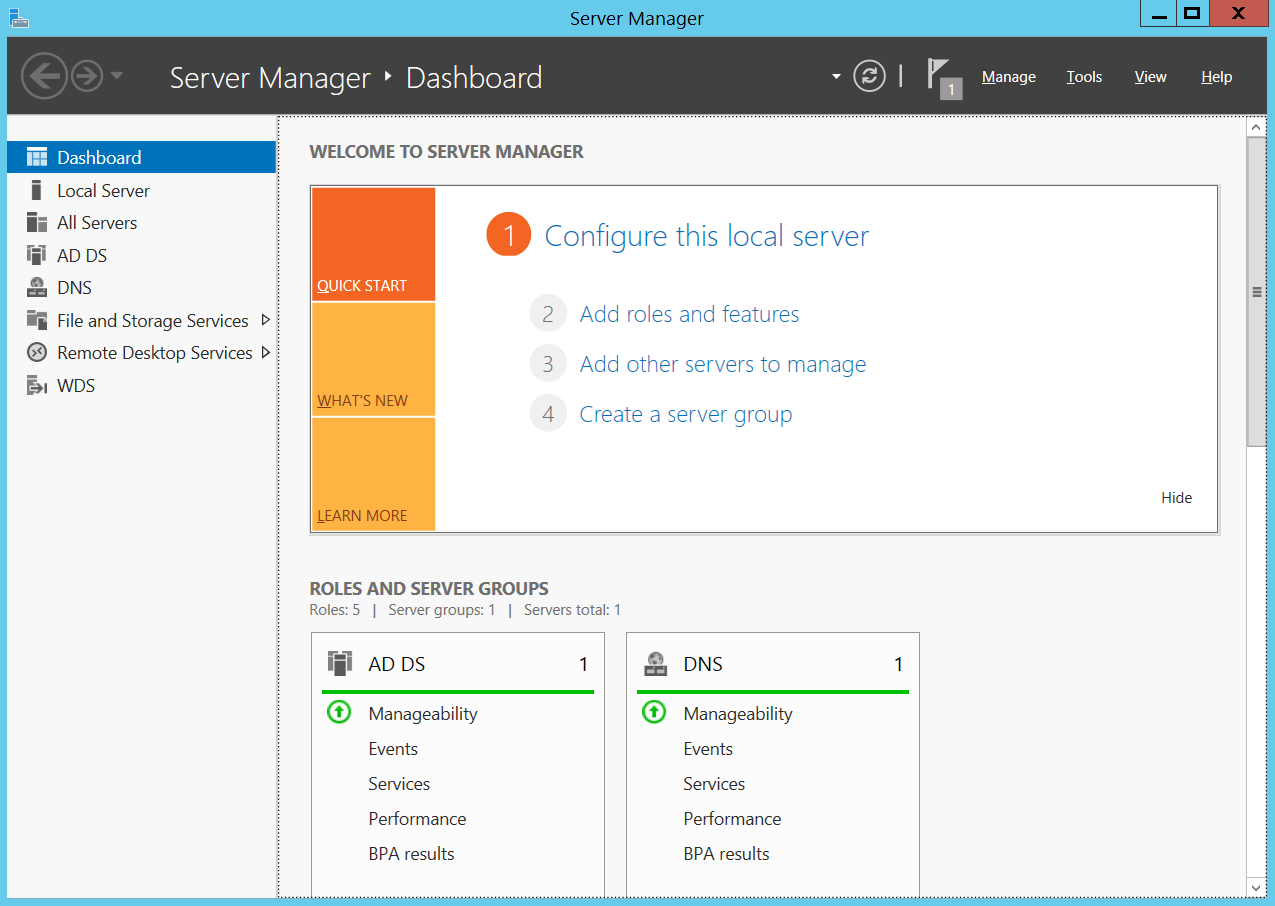
Opening the Add Roles and Features wizard. - In the Features pane, select BitLocker Drive Encryption Administration Utilities, along with BitLocker Drive Encryption Tools and BitLocker Recovery Password Viewer.
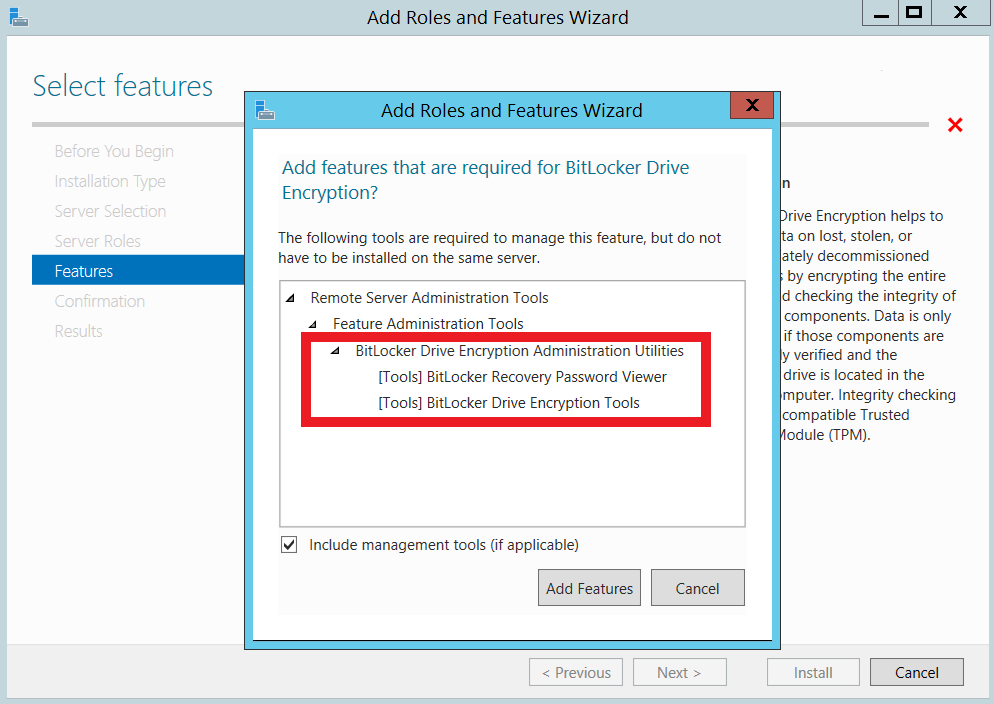
Selecting the BitLocker feature checkboxes. - Click Next, then click Install on the Confirmation pane to start the BitLocker feature installation. Follow the Confirmation pane for any additional features BitLocker requires.
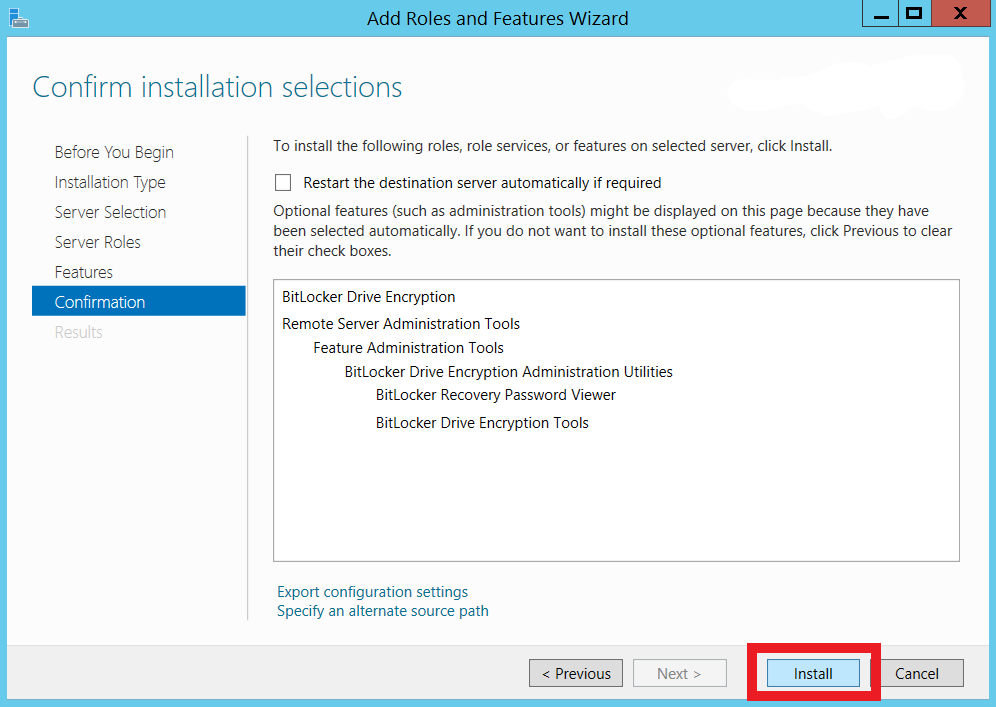
BitLocker installation confirmed. - Restart the computer to complete installation. Confirm success by checking that Active Directory Users and Computers shows a BitLocker Recovery tab.
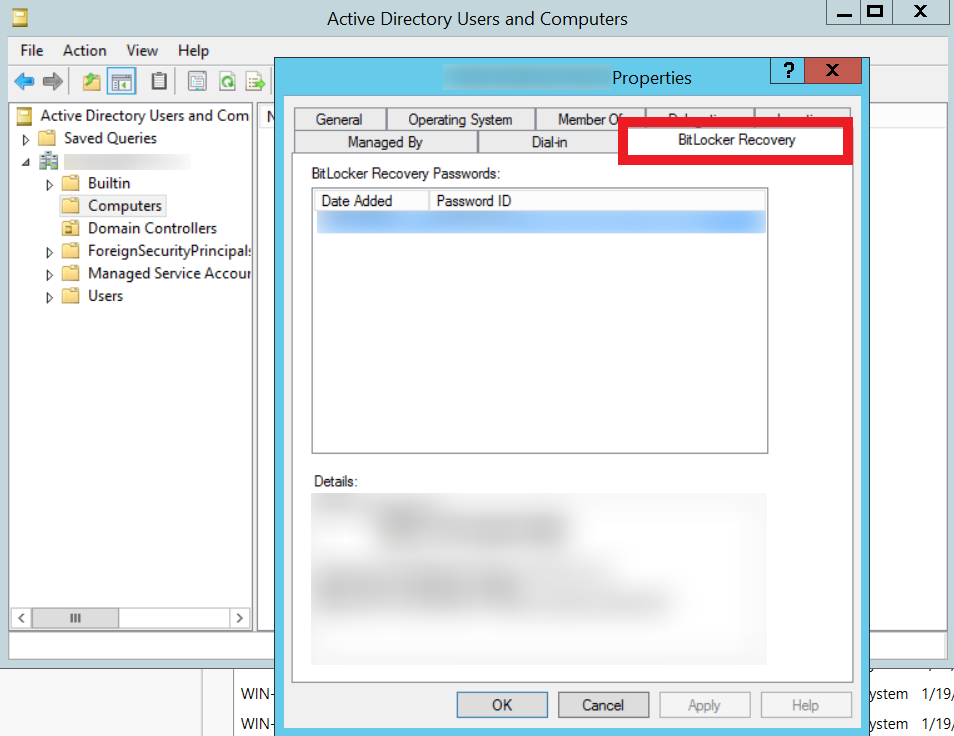
Confirming installation after restart.
Enable through Command Prompt
- Open Command Prompt with administrator rights and run the command below.Enable BitLocker feature via DISM
dism /online /Enable-Feature /all /FeatureName:BitLocker /quiet /norestart - Restart the computer to complete installation. Confirm success by checking that Active Directory Users and Computers shows a BitLocker Recovery tab for the computer object.
Fixing WMI registration
Windows Management Instrumentation (WMI) is Microsoft's remote protocol for management tasks and information retrieval, and BitLocker depends on it being registered correctly.
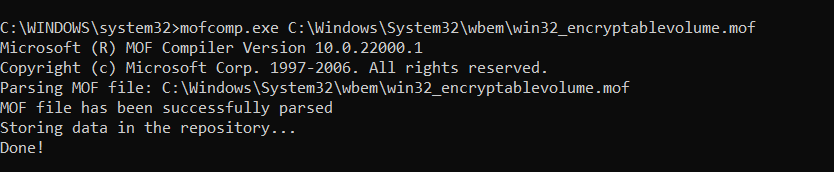
- Open Command Prompt with administrator rights and run the command below.Register BitLocker WMI provider
mofcomp.exe C:\Windows\System32\wbem\win32_encryptablevolume.mof - A successful run shows a confirmation that BitLocker WMI registration succeeded.
TPM
TPM ownership
TPM-based encryption needs full, not partial, ownership of the chip.
Why full TPM ownership matters
The Trusted Platform Module (TPM) is a microchip that encrypts drives using cryptographic keys to mitigate dictionary attacks. With only partial ownership of the TPM, BitLocker can't use its cryptographic keys — full ownership is required.
To gain full ownership, clear the TPM, which triggers the OS to automatically reinitialize and acquire full ownership.
BIOS
BIOS mode compatibility
TPM-aided encryption needs the right firmware mode.
UEFI is required for TPM-based encryption
TPM-aided BitLocker encryption is only supported in UEFI (Unified Extensible Firmware Interface) mode. If a device is running in Legacy or Compatibility Support Mode (CSM), switch it to UEFI mode to enable TPM-based encryption.
Policy conflicts
GPO configuration
Existing Group Policy settings can quietly fight the policy Endpoint Central deploys.
Clear conflicting BitLocker GPO settings
Group Policy (GPO) settings can control Microsoft BitLocker's preliminary actions, and existing GPO settings on a computer can counteract Endpoint Central's BitLocker policy.