# Configure Wi-Fi Profiles | User Configuration
Configuring Wi-Fi profiles for different machines in the network is made easy with Endpoint Central as our product supports Wi-Fi configuration for all kinds of operating systems. You can create, modify and delete existing Wi-Fi profiles using the Wi-Fi configuration. The only pre-requisite for deploying a Wi-Fi profile is to ensure that a Wi-Fi adapter is enabled on all the target computers beforehand. You can turn on the Wi-Fi adapter while creating a Wi-Fi profile and create multiple Wi-Fi profiles. Profiles within a configuration will be applied as per the specified sequence. If you have chosen to delete all configurations first and then create a new Wi-Fi profile, all the existing Wi-Fi profiles will be removed from the computer initially followed by the addition of the second profile.
## How to configure a Wi-Fi profile in Endpoint Central?
1. In Endpoint Central Console, navigate to **Configurations tab** --> **Add Configurations** --> **Configurations** --> **Windows**
2. Select **Wi-Fi** and choose **User**
3. Specify the **Name** and **Description** for the configuration.
4. In the Configure Wi-Fi settings:
- Select the option to enable or disable a wireless adapter
- Choose whether you want to create, modify or delete Wi-Fi profile
## To add a Wi-Fi profile
- Profile: Click **Add** profile
- Option: Choose whether you want to add a new profile or import a Wi-Fi profile
## To add a new Wi-Fi profile
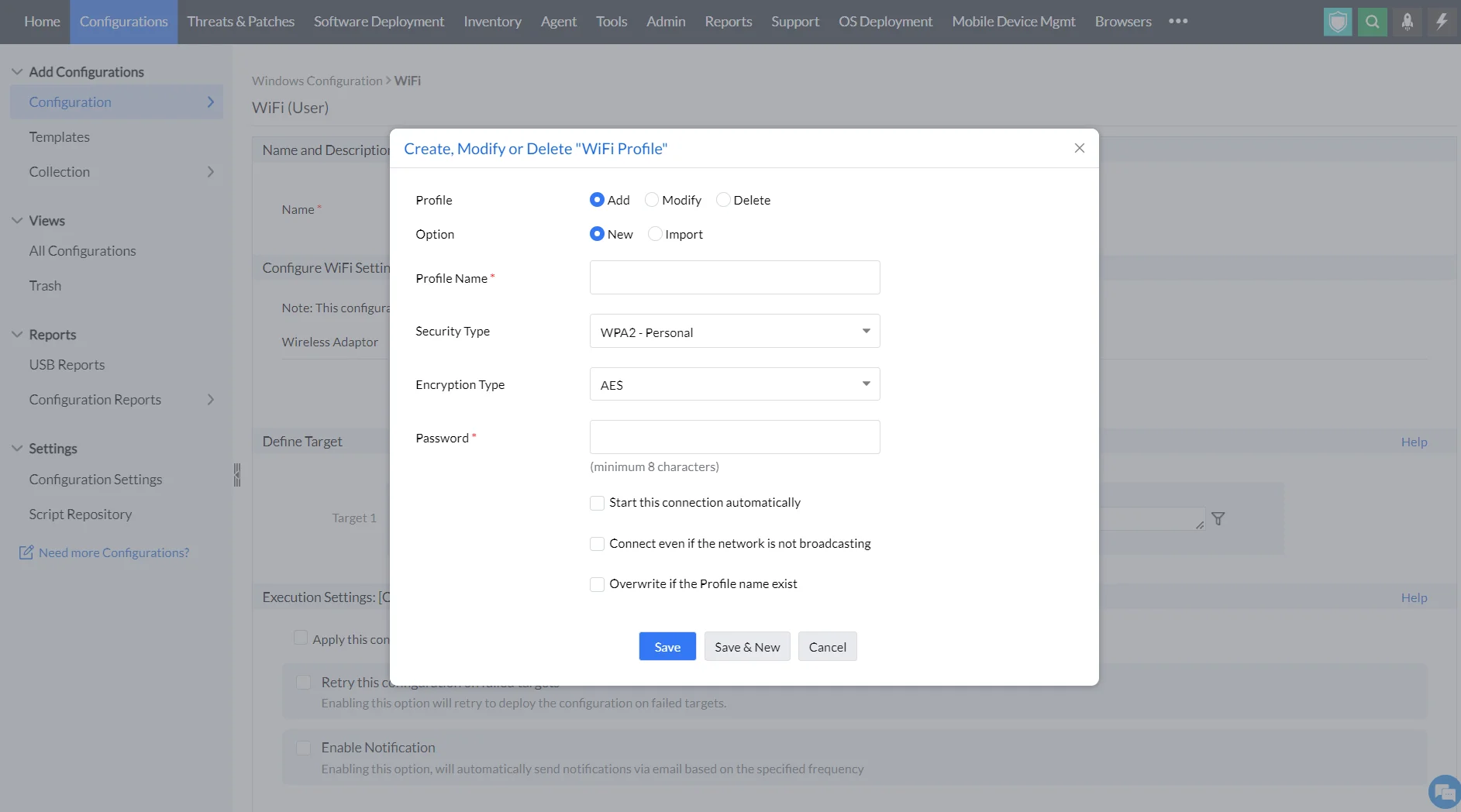
You will have to provide the following details.
| Configuration Option | Description |
|---|---|
| Profile Name | Name for the Wi-Fi configuration |
| Security Type | - No Authentication (Open)
- **WEP (Wired Equivalent Privacy)**: Outdated and insecure encryption, avoid if possible.
- **WPA-Personal (Wi-Fi Protected Access - Personal)**: Older security, better than WEP but not as strong as WPA2.
- **WPA2-Personal:** Strongest security for personal Wi-Fi with AES encryption.
- **WPA2-Enterprise**: High security with central server for business use.
- **WPA-Enterprise**: Less secure business option using WPA protocol. (802.1x is considered more secure than WPA and WPA2 Personal) |
| Encryption Type | - **AES** (Advanced Encryption Standard): Considered highly secure with 128-bit keys, it is the recommended encryption type for personal and business Wi-Fi networks.
- **TKIP** (Temporal Key Integrity Protocol): An older encryption algorithm introduced with WPA, TKIP is less secure than AES. |
| Connection Preferences | - Automatically connect to the configured Wi-Fi network
- Establish connection even if the network is not broadcasting |
| Overwrite Existing Profiles | Choose to overwrite if any existing profiles exist with the same name |
## To add and import a Wi-Fi profile
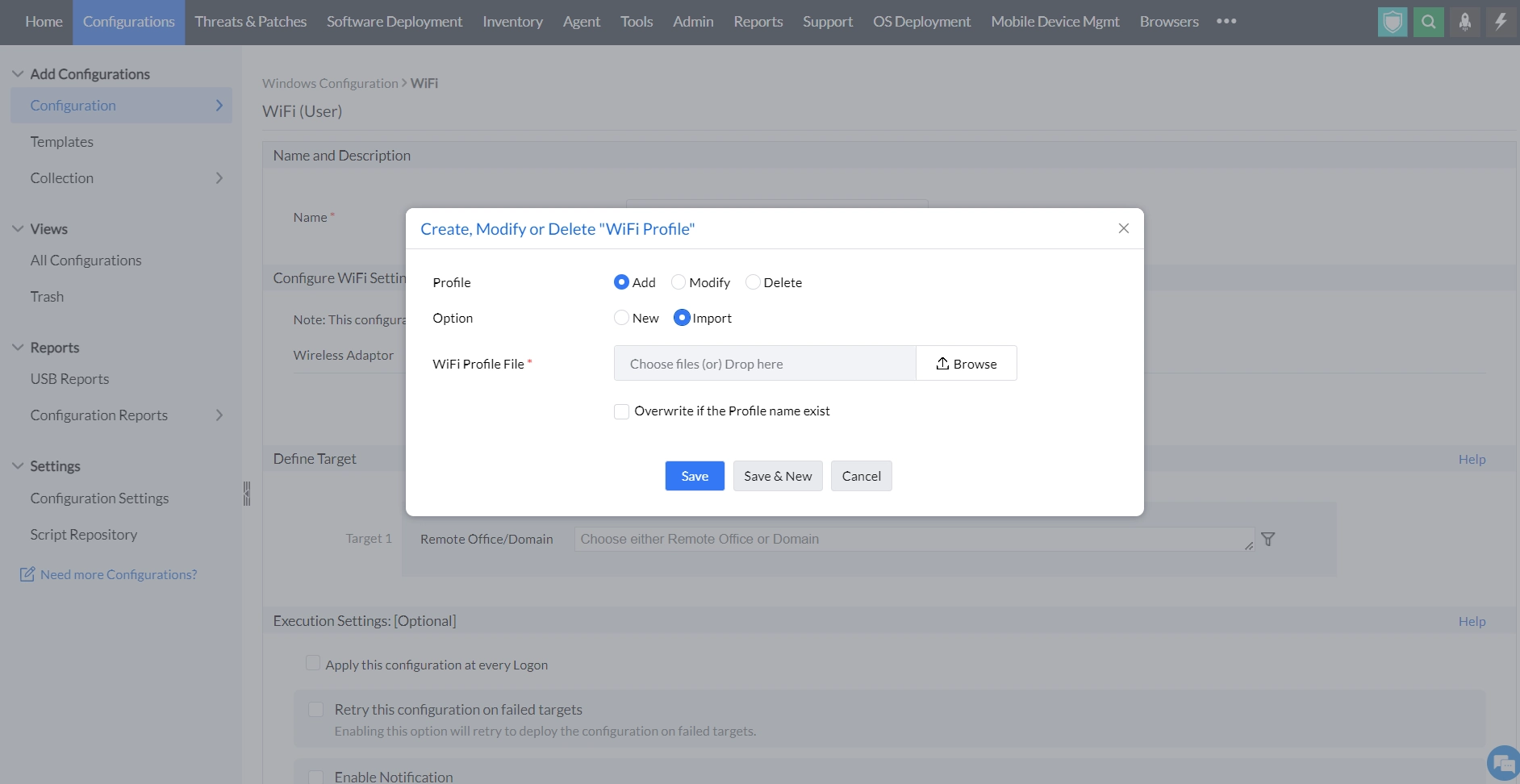
- Browse the necessary file and drop it in the drop-down menu
- Enable the option to overwrite a new profile if you want to
## To modify a Wi-Fi profile
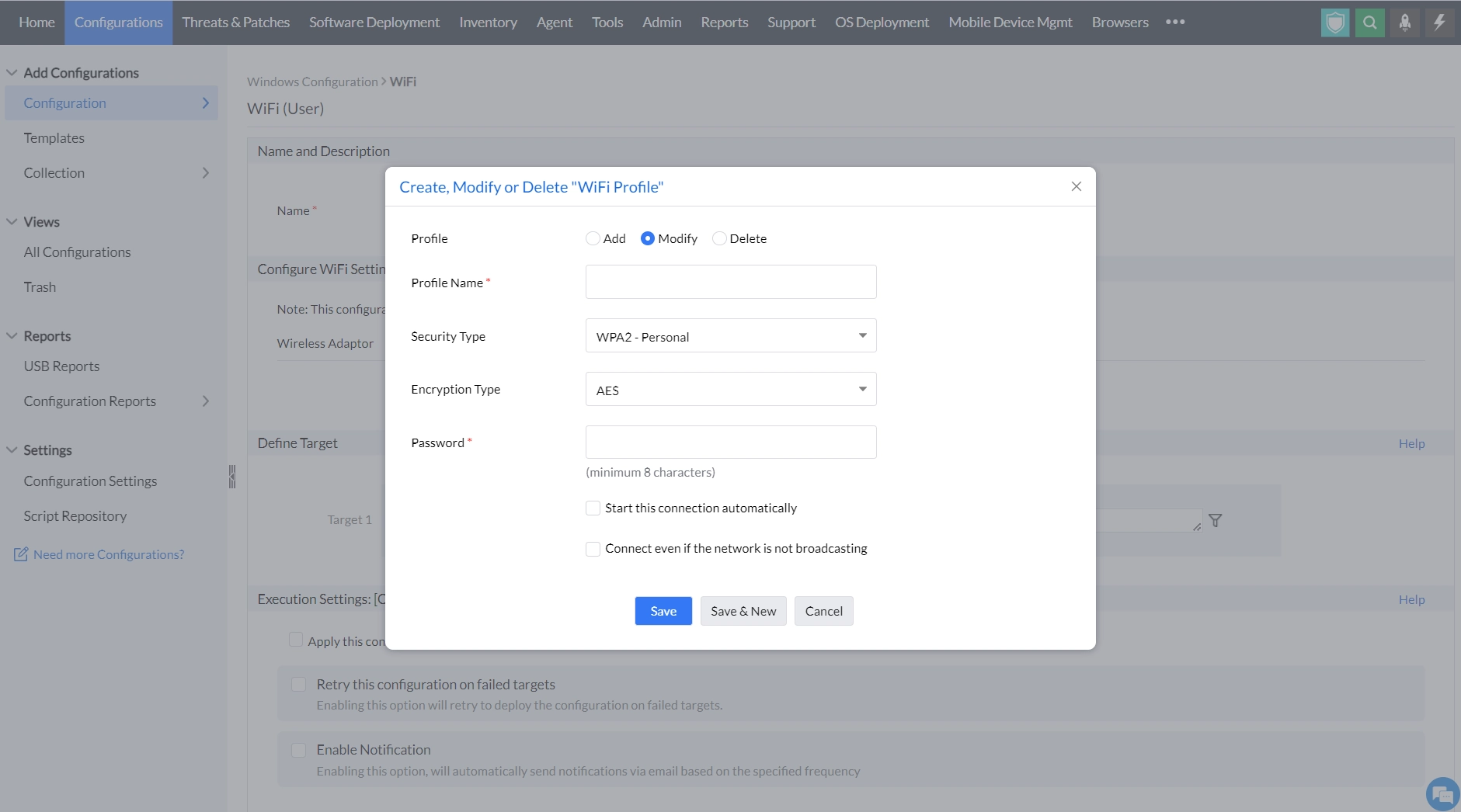
- Add **Profile type** ---> Select **Security Type** ---> Choose **Encryption type** ----> **Add Password**
- You can also enable two options to start the connection automatically and to connect even if the network is not broadcasting.
## To delete a Wi-Fi profile
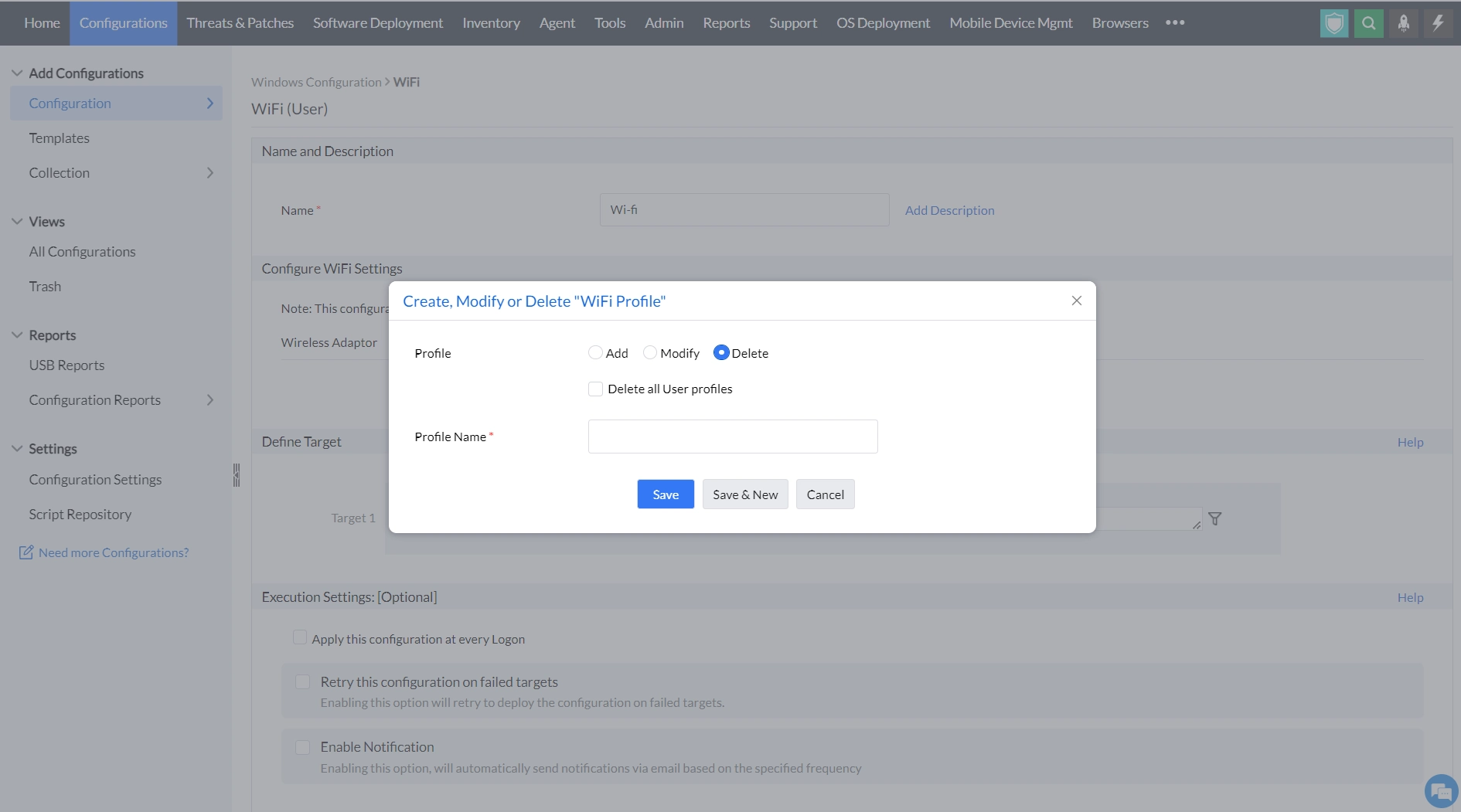
- Choose **Delete profile** ----> Enable the option to delete all user profiles if necessary ----> Enter **Profile Name**
After performing the functions to configure a Wi-Fi profile, follow the steps below:
1. Click **Save** to save the above mentioned configurations and **Save and New** to save and add a new configuration.
2. [Define the Target](https://www.manageengine.com/products/desktop-central/help/general/defining_targets.html)
3. Specify retry options if required and deploy the configuration.
4. You can also enable notifications to receive emails based on the specified frequency.
5. Click on the **Deploy** button to deploy the Wi-Fi configuration in all the targets.
6. To save the configuration as draft, click **Save as**
You have successfully configured Wi-Fi profiles for Windows machines.