# Configure Windows Services for Computers | Endpoint Central
**Last Updated On**: 08 Jul 2026
**5 minutes read**
Applications that have to be run automatically whenever the system starts can be configured to run as a Windows service. However in certain cases, after installing an application as a service, you may wish to change the startup type or disable the service. The Service Configuration enables you to change the settings for the services available in the **Control Panel -> Administrative Tools -> Services**.
## Step 1: Name the Configuration
Provide a name and description for the Service Configuration.
## Step 2: Define Configuration
Specify the following values:
| Parameter | Description |
|---|---|
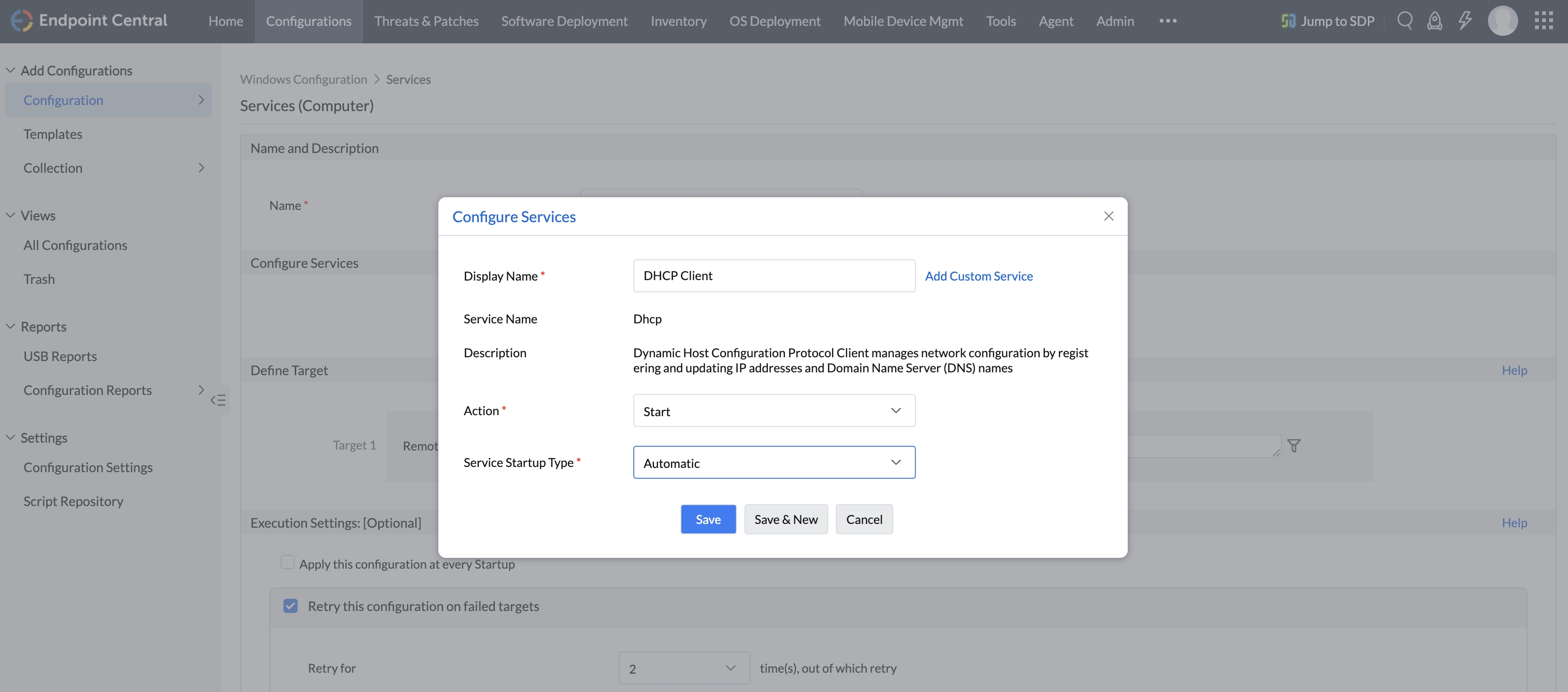
| Service Name | Select the name of the service from the combo box. The combo box contains the list of standard Windows services. If the required service is not listed, click Add Custom Service to either select the service from the Additional Services list or add your own by giving the required details. |
| Action | Specify the action to be performed from the following:
- **Don't Modify**: To preserve the client settings. This option is selected by default.
- **Start**: Select this option to start the service.
- **Stop**: Select this option to stop the service.
- **Restart**: Select this option to restart the service. |
| Service Startup Type | Select how the service should be started from the following options:
- **Don't Modify**: To preserve the client setting.
- **Manual**: Select this option if the service has to be manually started after the system startup.
- **Disabled**: Select this option to disable the service.
- **Automatic**: Select this option to automatically start the service along with the system.
- **Automatic (Delayed)**: Select this option to automatically start the service when the system starts, with a delay. |
### Example
To **start** the **DHCP Client** service and configure it to start **automatically** during system startup.
### Note
We do not manage dependency services directly, as their behavior depends on the nature of the service. Some dependency services automatically restart when the main service is restarted. If they do not, they must be manually added as a custom service.
1. To add more services, click Add More Service and repeat Step 2. The service gets added to the Services table.
2. To modify a service from this table, select the appropriate row, click

icon and change the required values.
3. To delete a service from this table, select the appropriate row and click

icon.
## Step 3: Define Target
Using the [Defining Targets](https://www.manageengine.com/products/desktop-central/help/general/defining_targets.html#Defining-Configuration-Target-Computers) procedure, define the targets for deploying the Service Configuration.
## Step 4: Deploy Configuration
Click the **Deploy** button to deploy the defined Service Configuration in the defined targets. The configuration will take effect during the next system startup.
To save the configuration as draft, click **Save as Draft**.