Integrate with ServiceNow
Overview
This guide outlines the steps for integrating Endpoint Central with ServiceNow to enhance IT asset management. Choose the installation type that meets your requirements:
- SOAP Integration - For essential CMDB Integration.
- Service Graph Connector - For advanced CMDB Integration.
- Endpoint Central App - For additional endpoint management features in ServiceNow.
For a detailed comparison of the data types synchronized across different integration methods, refer to this page.
Step 1: Choose Your Integration Level
Option A: SOAP Integration
This provides straightforward asset data synchronization using a SOAP-based connection. This option is ideal for users needing essential asset details with minimal setup.
Start Setup:
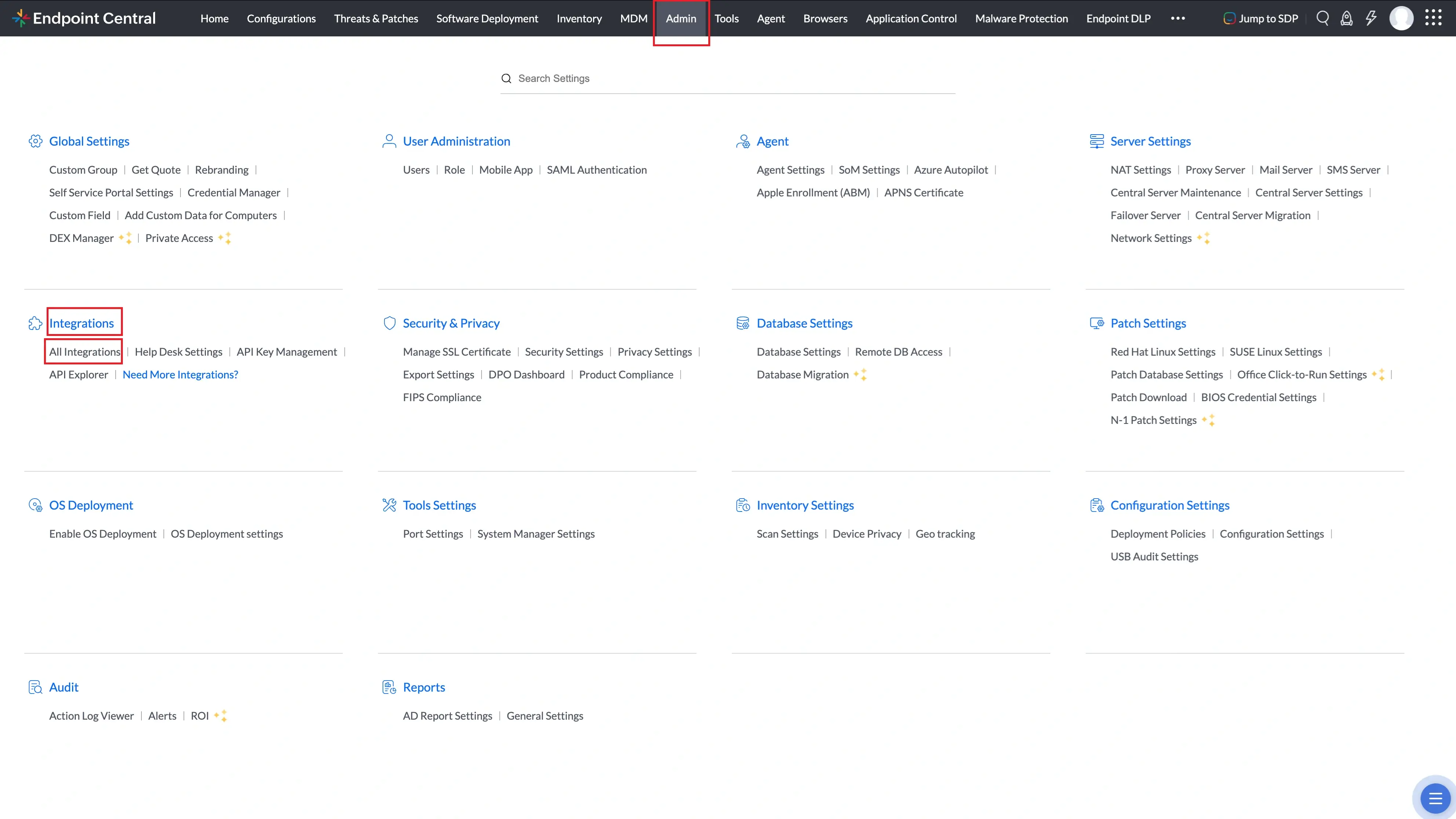
- Log in to Endpoint Central and navigate to the Admin section. From there, navigate to Integrations -> All Integrations.
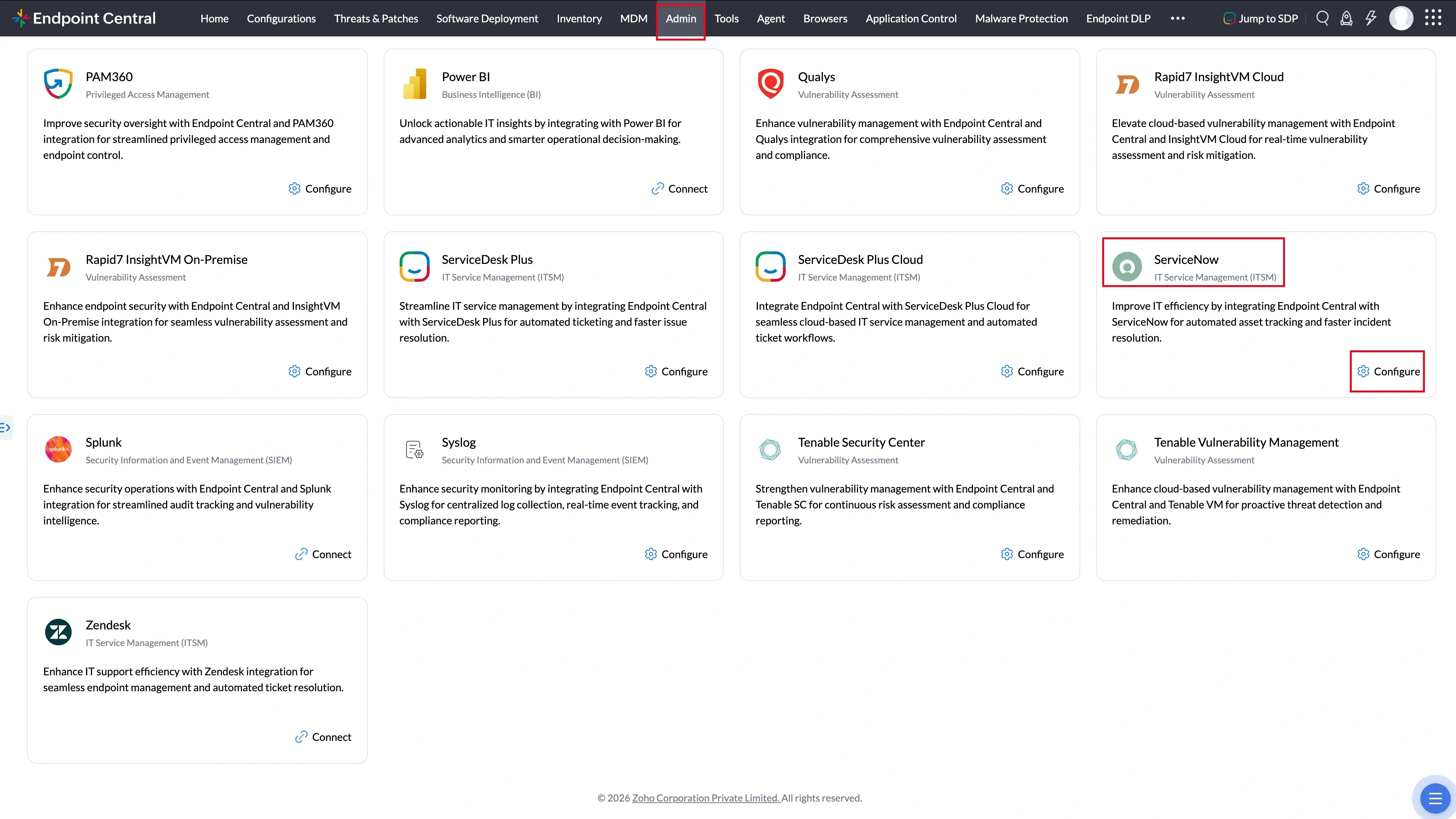
- Now here search ServiceNow and click Configure.
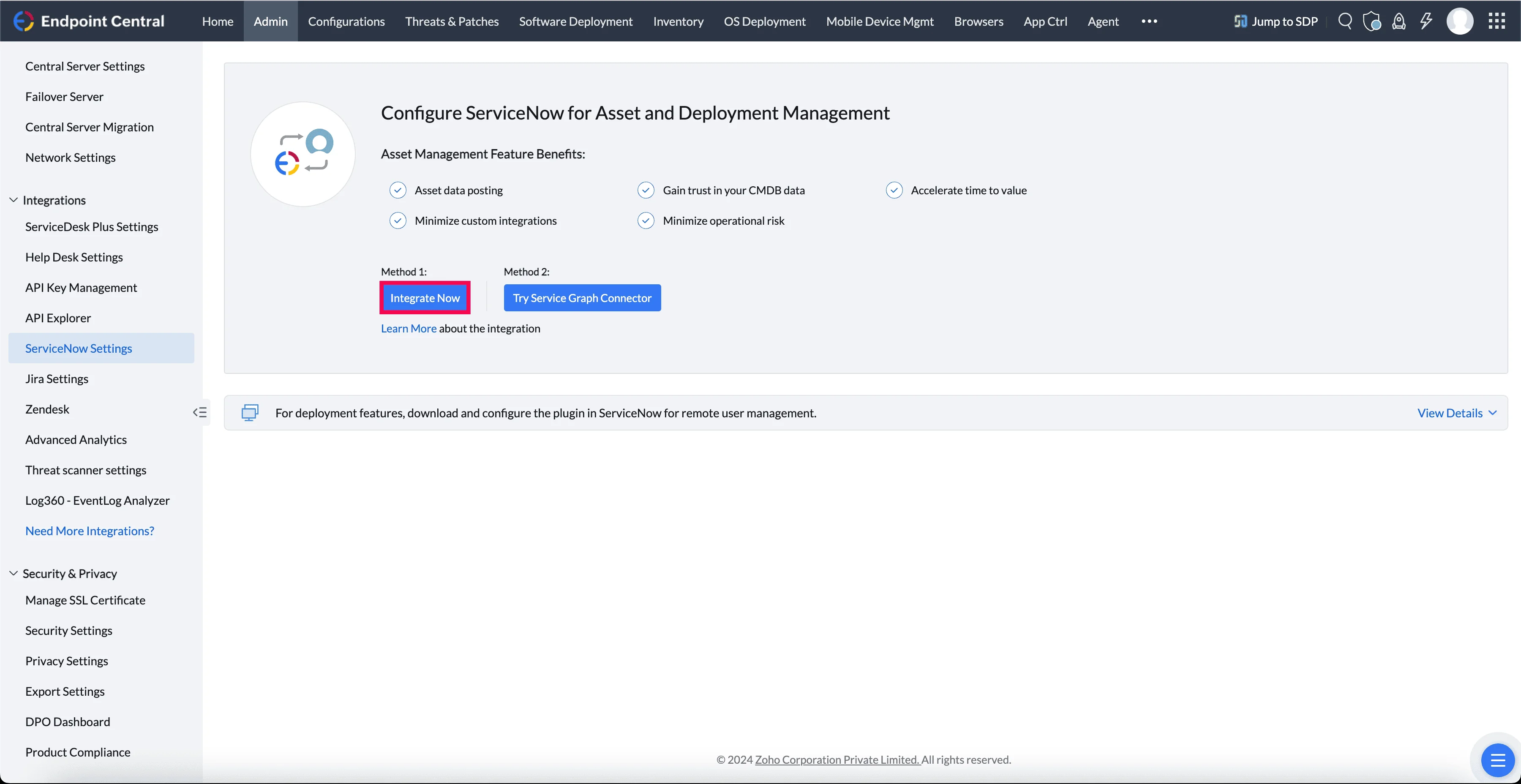
- Click Integrate Now.
- Enter ServiceNow instance Details:
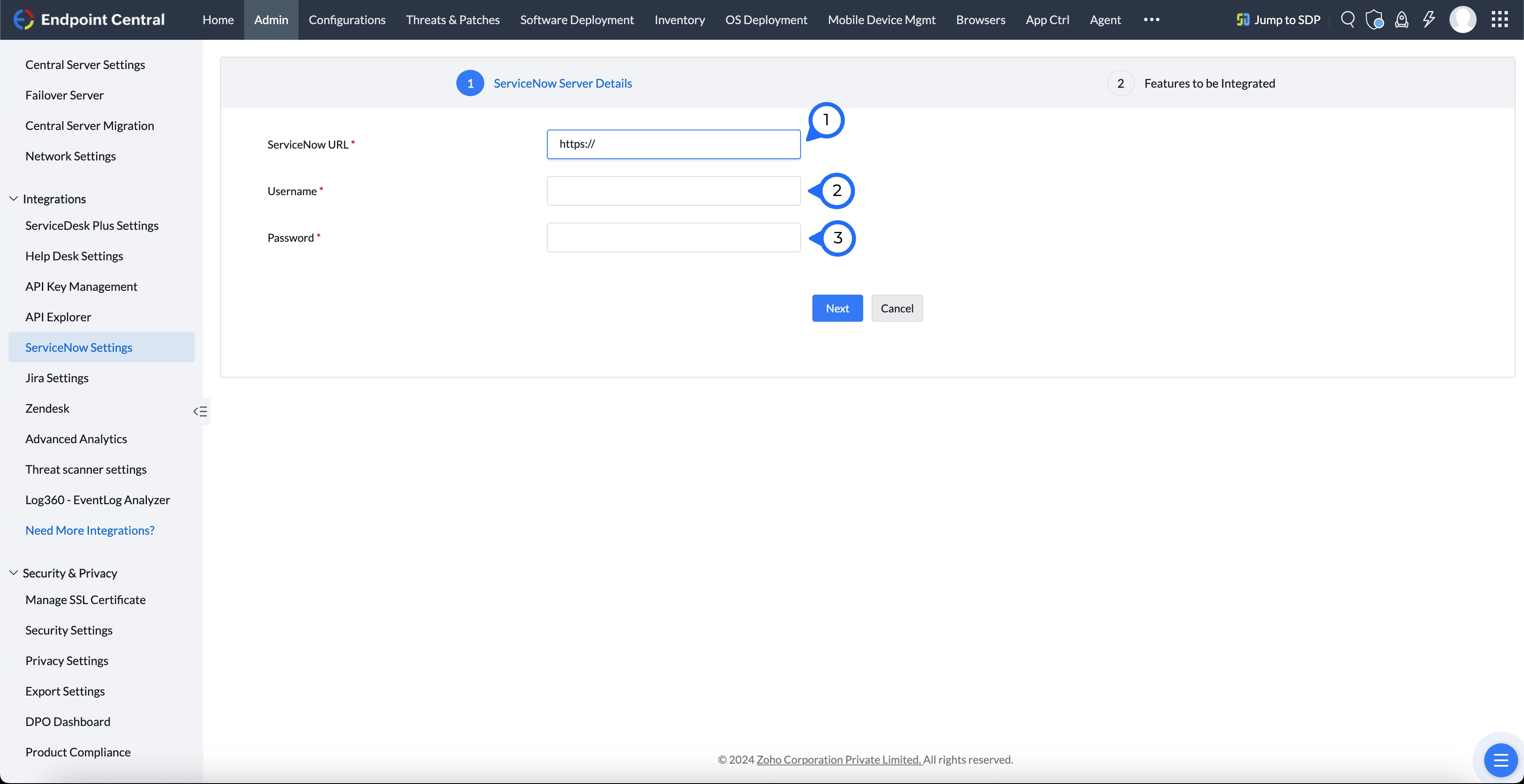
- ServiceNow URL: Enter the URL of your ServiceNow instance.
- Username: Provide your ServiceNow account username.
- Password: Enter the password associated with your ServiceNow account.
- Click Next to continue.
Configure Sync Settings: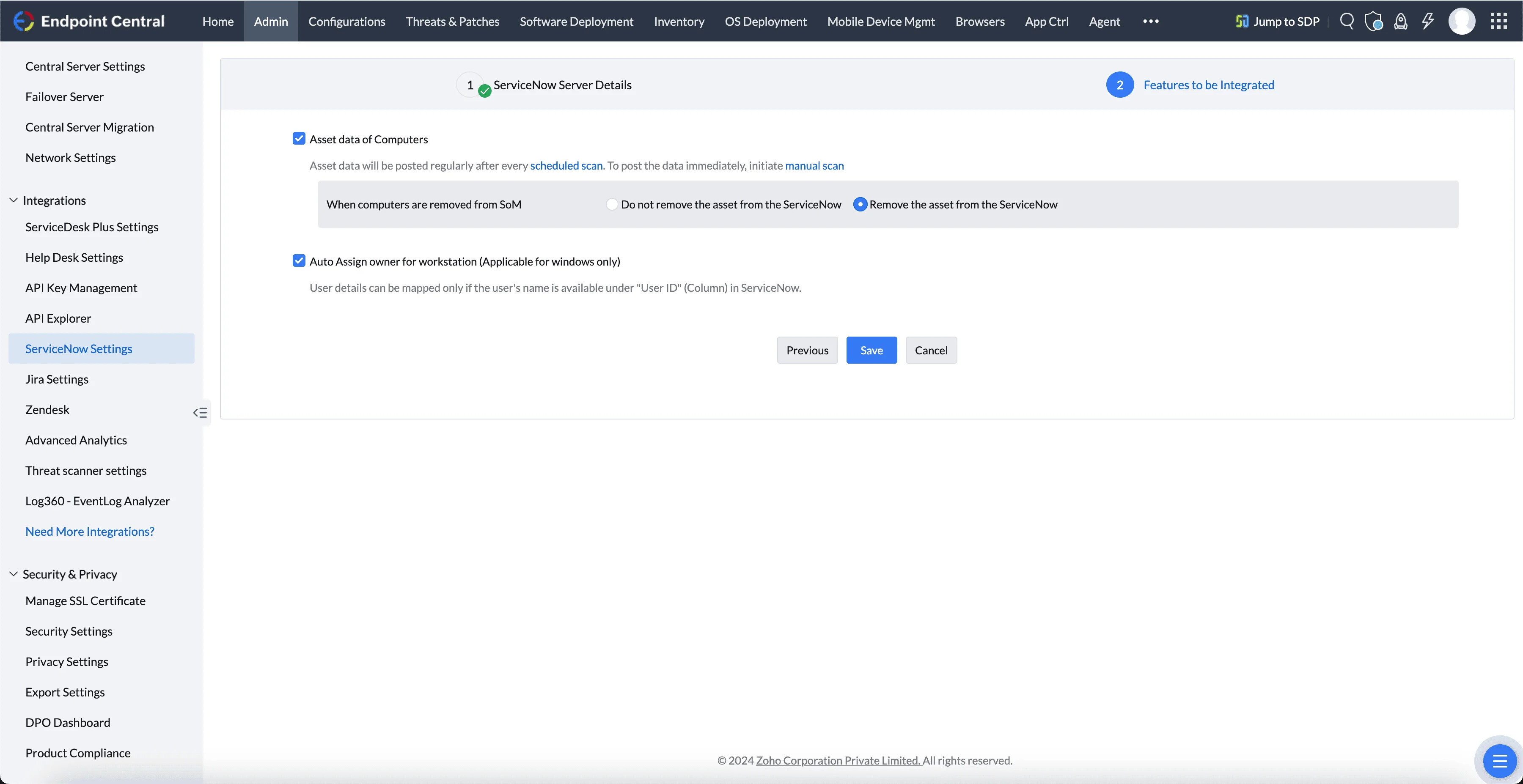
- Asset Data of Computers: Enable this to regularly sync computer asset data. You can also choose to post the last used time of software to ServiceNow SAM, which will sync data only for software configured under Software Metering.
- Auto-Assign Owner for Workstation: Automatically assign workstation owners based on user details.
Save Settings to complete the Basic Asset Sync setup.
Option B: Service Graph Connector Setup
The Advanced Asset Sync provides real-time, detailed synchronization using the Service Graph Connector, suitable for users who need comprehensive asset visibility.
Prerequisites
- A running ServiceNow instance with an active ITOM discovery license.
- An active Endpoint Central account with administrative privileges.
- A ServiceNow instance user account with a minimum of the following roles:
- x_manen_sgec.DCIntegrationUser (available after Service Graph Connector installation)
- discovery_admin (If SAM Pro is enabled)
- sam_admin (If SAM Pro is enabled)
- Log in to Endpoint Central and navigate to the Admin section. From there, navigate to Integrations -> All Integrations.
- Now here search ServiceNow and click Configure.
- Click Try Service Graph Connector.
- Then click Get Service Graph Connector and this action will redirect you to the ServiceNow Store.
- In the store, search for Service Graph Connector for Endpoint Central and complete the installation.
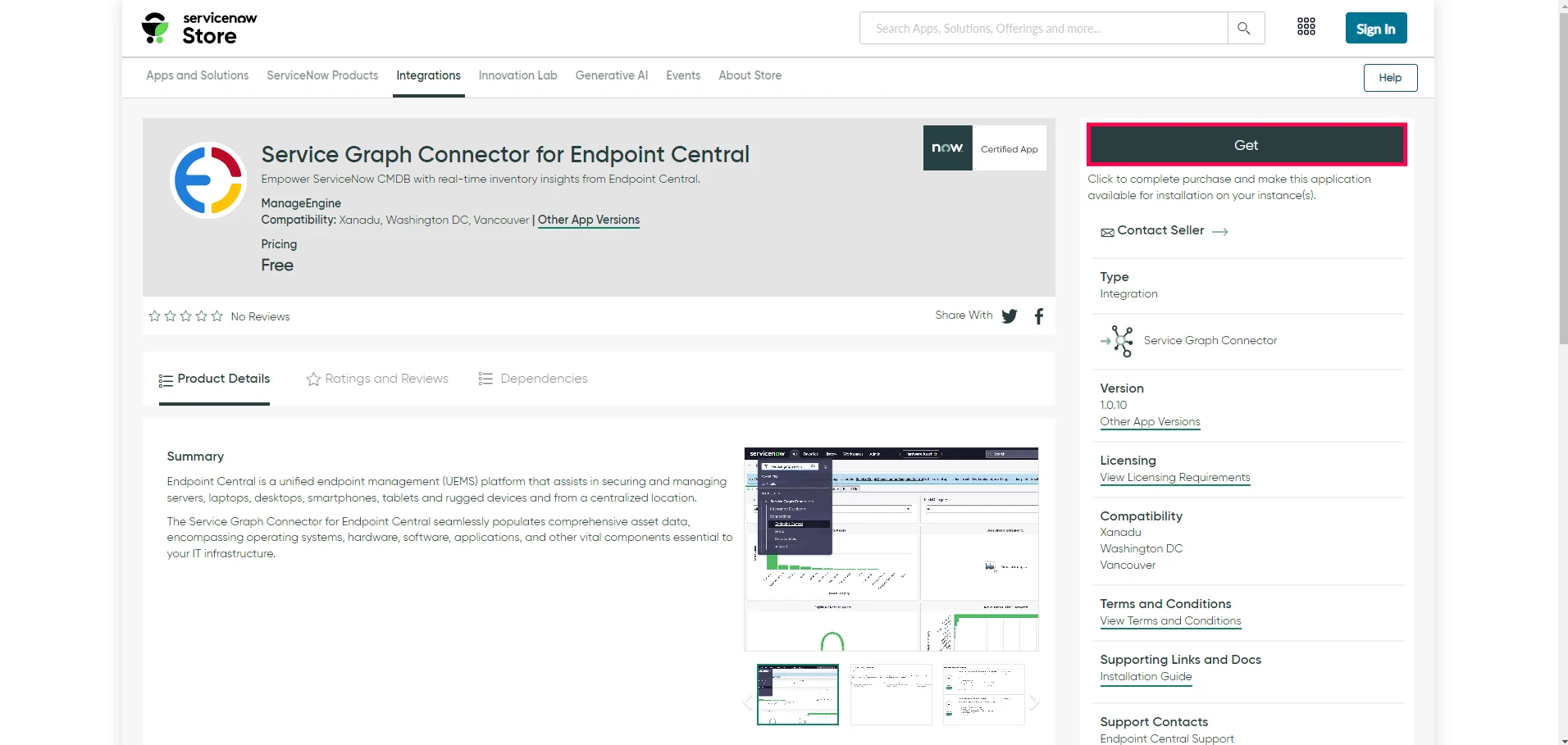
- After the installation, return to the ServiceNow Settings in Endpoint Central.
- Enter Server Details:
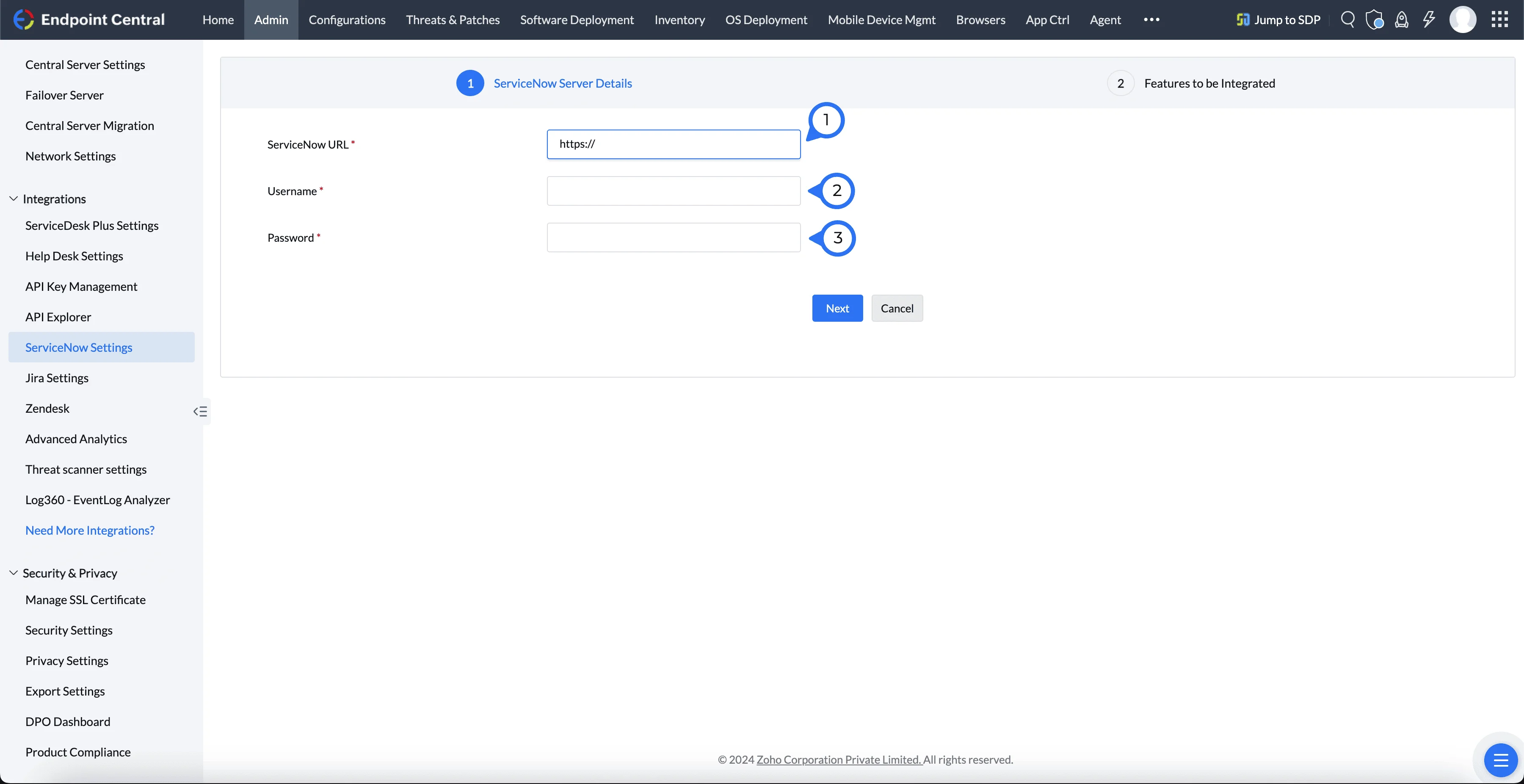
- ServiceNow URL: Enter your ServiceNow instance URL.
- Username: Enter your ServiceNow account username.
- Password: Enter your ServiceNow account password.
- Click Next to proceed.
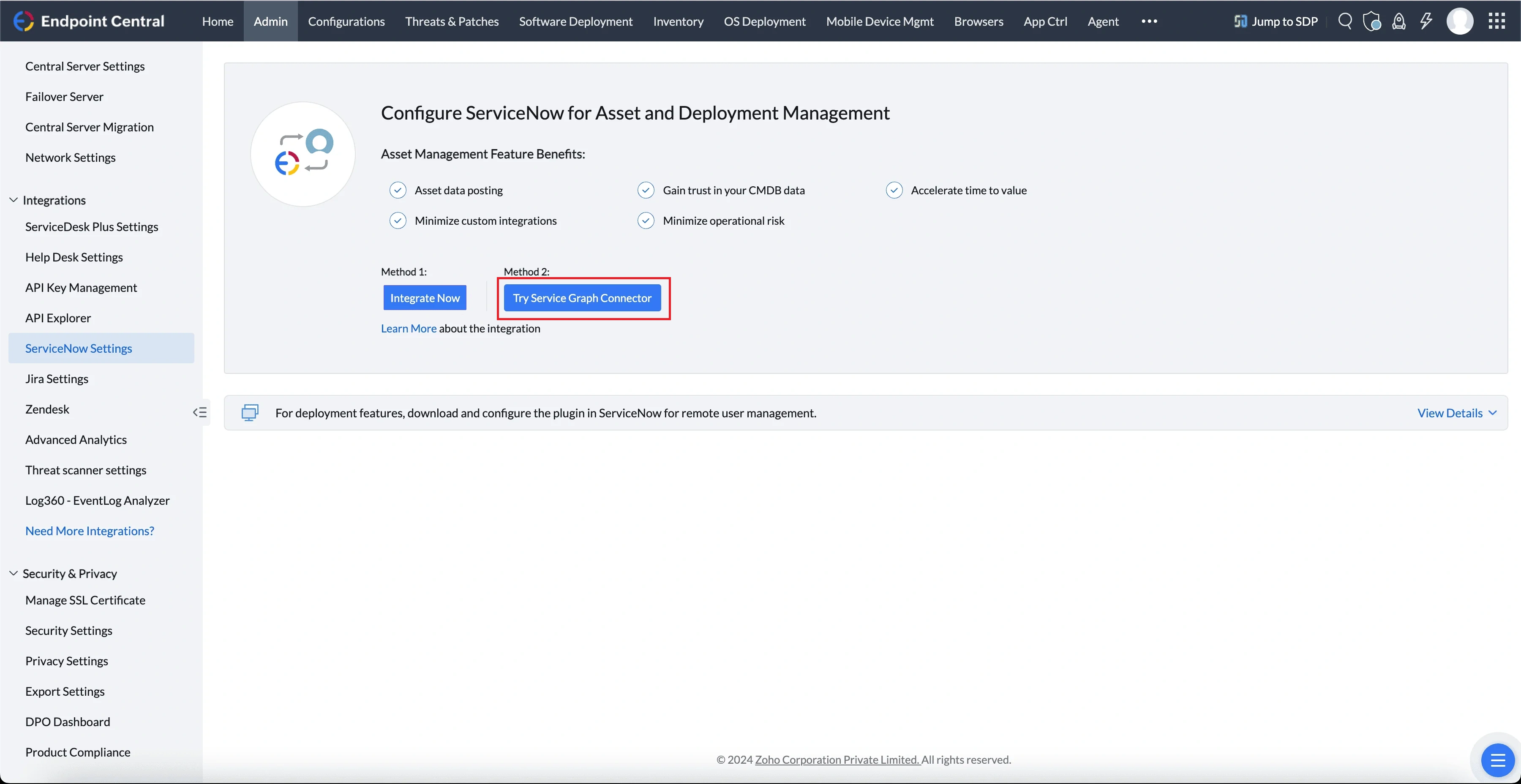
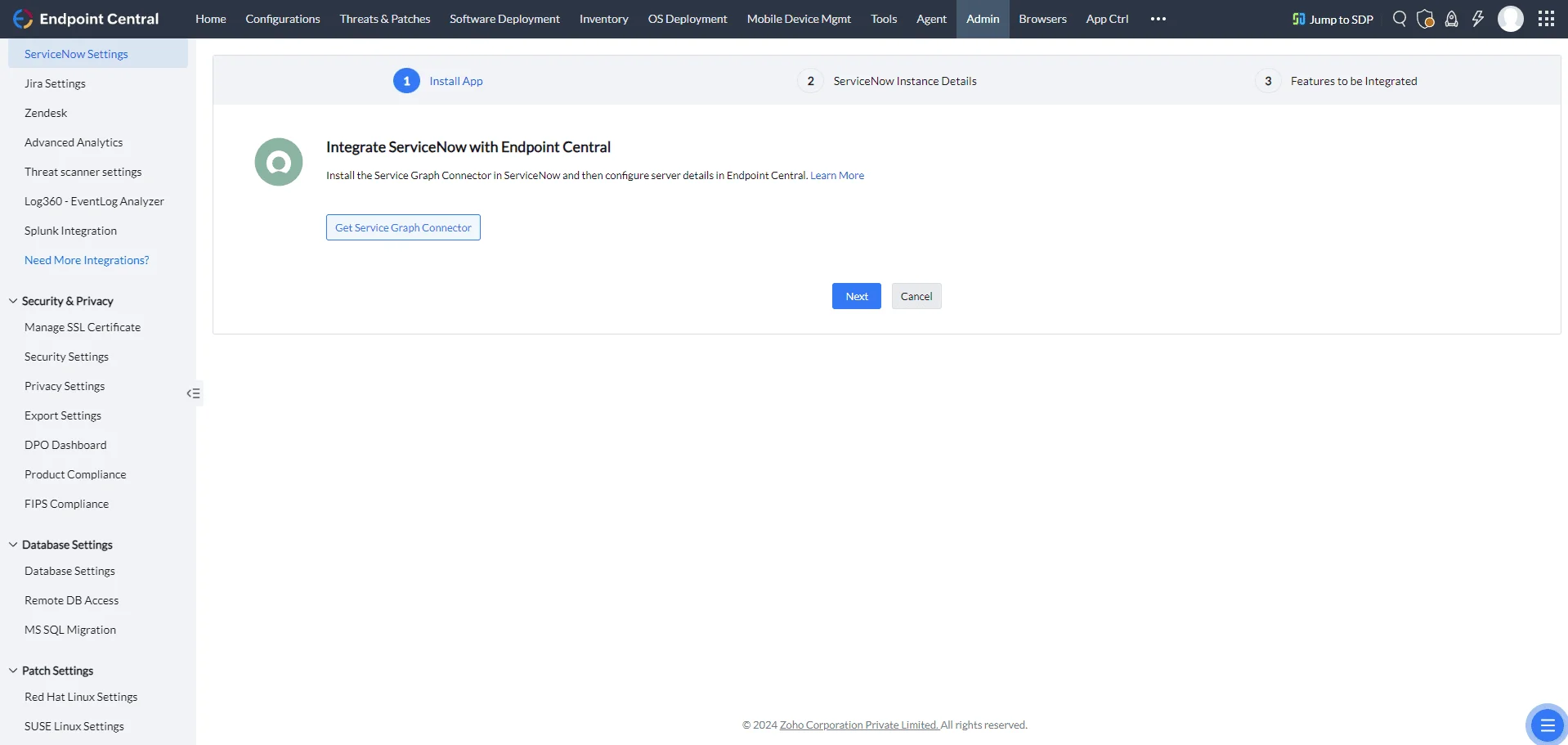
Configure Sync Settings: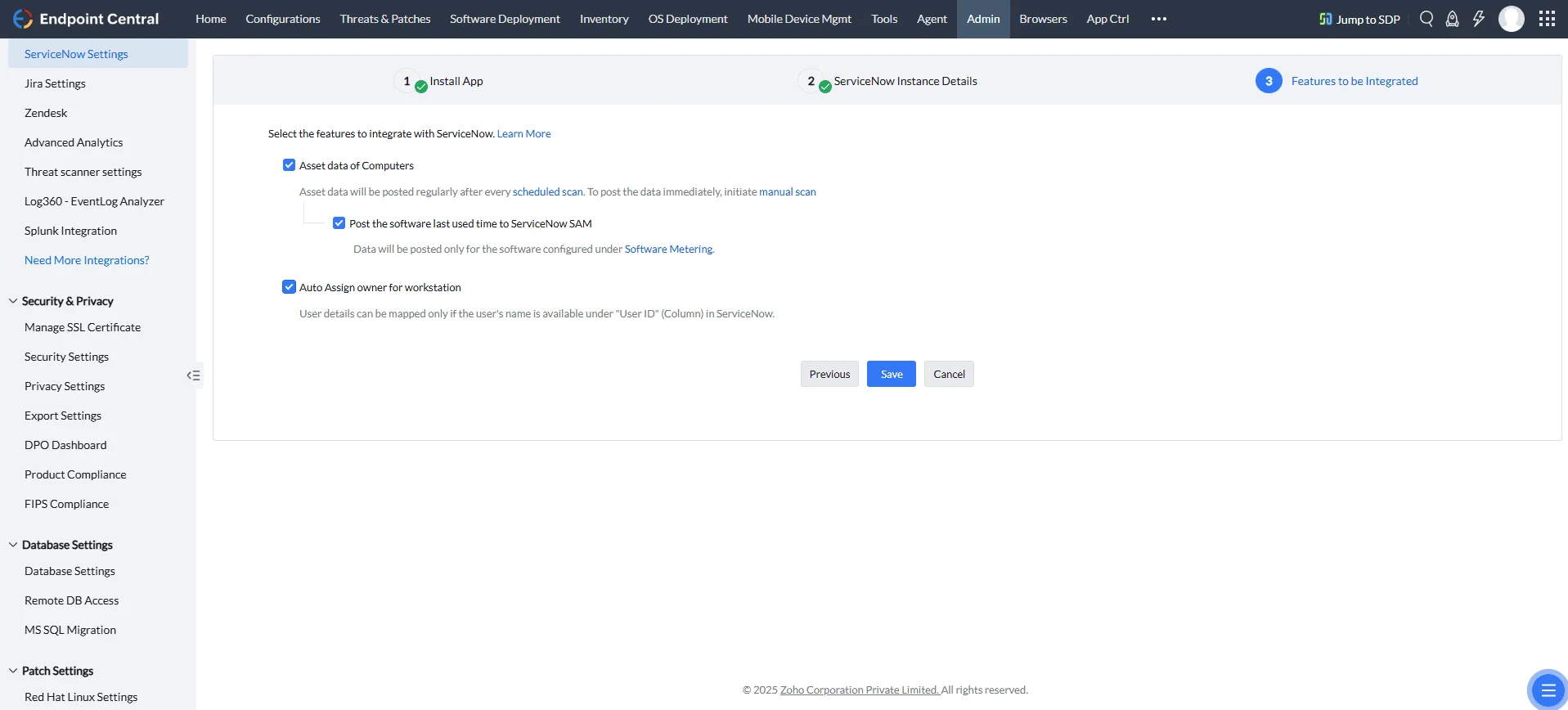
- Asset Data of Computers: Enable for real-time, detailed data synchronization.
- Post the software last used time to ServiceNow SAM: Enable this option to sync the last used time of software to ServiceNow's Software Asset Management (SAM). This data will be posted only for software configured under Software Metering.
- Auto-Assign Owner for Workstation: Automatically assigns workstation owners based on user details.
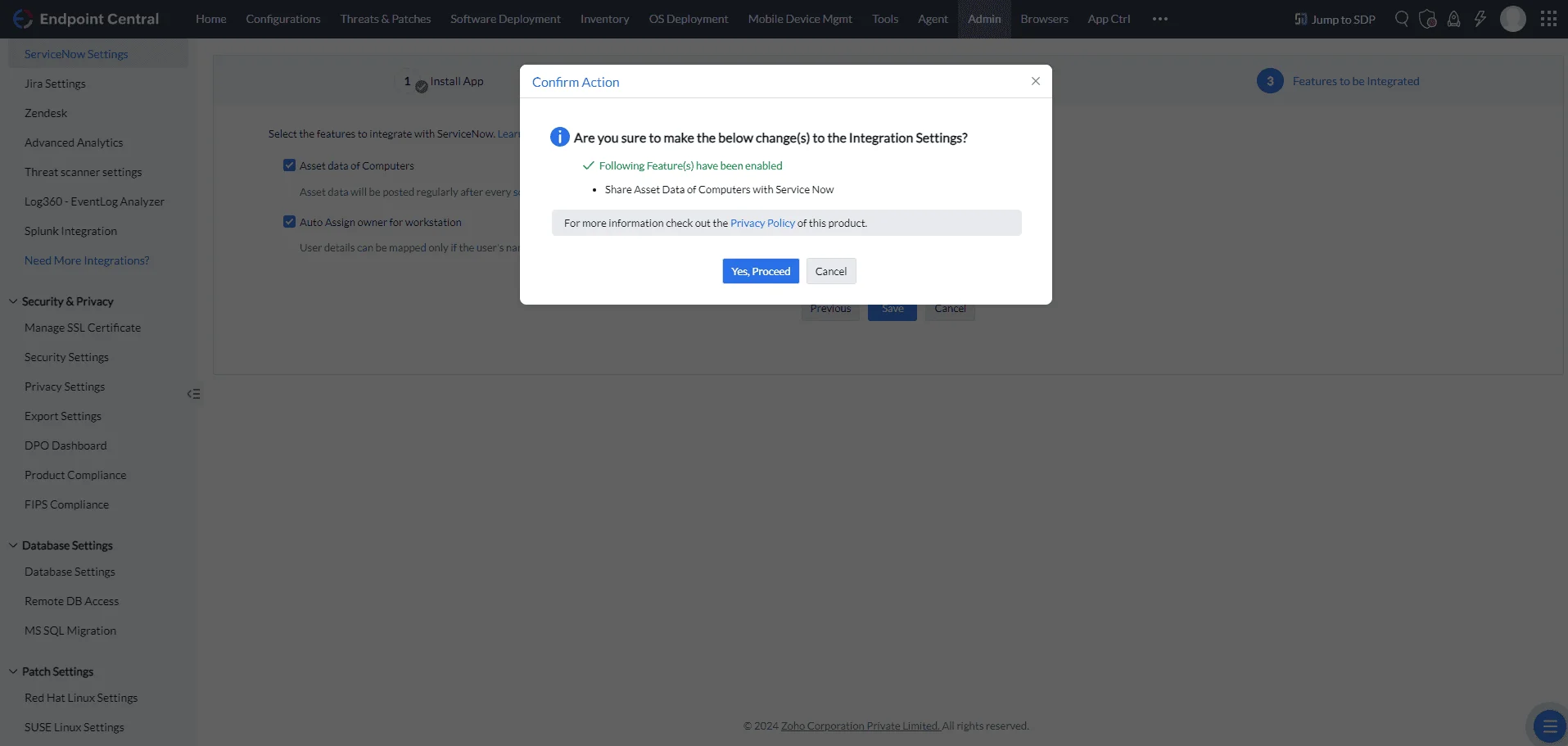
Save Settings to finalize the Service Graph Connector setup.
Step 2: Endpoint Central App Installation
For advanced IT management features in ServiceNow, including software deployment, remote power options, viewing patch insights etc, follow the detailed installation instructions for the Endpoint Central App on our dedicated page: