High CPU Usage
The High CPU Utilization insight automatically identifies devices where processor usage exceeds the configured threshold. Sustained high CPU can indicate resource-intensive applications, background services consuming excessive resources, or hardware that no longer meets the demands of the workload running on it.
This insight helps administrators:
- Identify the scope of impact — whether the issue is isolated to a few devices or widespread across the fleet
- Pinpoint the application or process most likely responsible
- Determine whether the issue is hardware-related or software-related
- Prioritize and execute remediation with confidence
When is this insight triggered?
The High CPU Utilization insight is generated when:
- CPU utilization exceeds the configured threshold.
- Default threshold: CPU usage greater than 75%.
- Threshold values can be customized based on organizational requirements.
Accessing the Insight
- In Endpoint Central, click DEX in the top navigation bar.
- Select Insights from the left sidebar.
- Locate the insight: Devices experiencing application slowdowns due to high CPU usage.
- Click the insight name to open the detail view.
Interpreting the Insight Metrics
The insight details page provides information that helps determine whether the issue is isolated to a few devices, associated with a specific application, or concentrated within a particular hardware group.
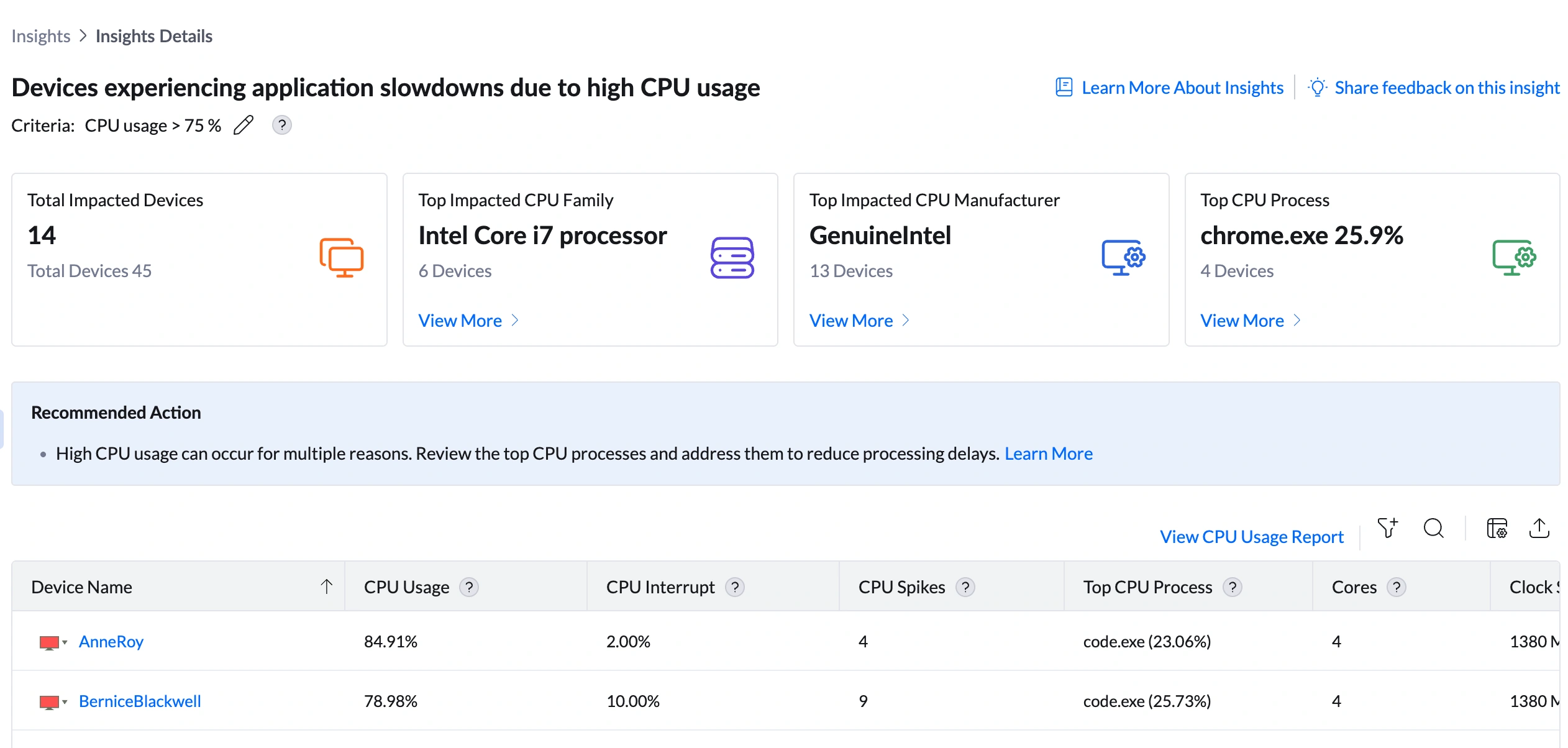
| Metric | What it shows | How to use it |
|---|---|---|
| Total Impacted Devices | Number of devices currently exceeding the CPU threshold | Assess scale. If the count has grown rapidly, check for recent software deployments or OS updates that may have triggered widespread impact. |
| Top Impacted CPU Family | The processor family most common among affected devices (e.g., Intel Core i7) | Determine if the issue is hardware-bound. If one CPU family accounts for the majority of impacted devices, the hardware may be under-spec for the current workload. Click View More to see a full breakdown by CPU family with % of devices affected and insight contribution %. |
| Top CPU Manufacturer | The hardware vendor most frequently represented among impacted devices | Identify if the issue is concentrated on a specific vendor's hardware. If so, check for vendor-recommended BIOS, firmware, or driver updates. Click View More to see manufacturer-level device counts and insight contribution %. |
| Top CPU Process | The application consuming the most CPU across impacted devices (e.g., ms-teams.exe, chrome.exe) | This is your primary investigation starting point. A single process appearing across multiple devices is the fastest path to root cause. Click View More to see a per-process breakdown of devices affected and contribution percentage. |
Analyzing Affected Devices
Below the summary bar, a device table lists every machine currently exceeding the CPU threshold. This is where you move from insight to investigation.
Understanding the columns
| Column | What to look for | What it means for remediation |
|---|---|---|
| CPU Usage % | Devices above 90% are critically impacted | Prioritize these for immediate action — the user is likely already experiencing significant slowdowns. |
| CPU Interrupt % | Values above 10% indicate hardware or driver-level issues | Software remediation will not help here. Investigate drivers, firmware, or hardware failure on this device specifically. |
| CPU Spikes | A high count (7—10) indicates a persistent, recurring problem — not a one-time event | A low spike count with high CPU % may self-resolve. A high spike count requires active remediation. |
| Top CPU Process | The process driving CPU on that specific device | Different devices may have different culprit processes. Treat each device's top process individually, not just the fleet-wide top process. |
| Cores / Clock Speed | Devices with 2 cores or low clock speed (e.g., 1380 MHz) will show higher CPU pressure for the same workload as a more capable machine | Provides context — low-spec devices may need hardware refresh rather than process remediation. |
| CPU Model / CPU Family | Helps identify if a specific hardware generation is consistently impacted | Cross-reference with the Top Impacted CPU Family drill-down to confirm whether hardware is the common factor. |
Sorting and filtering the table
- Click the CPU Usage % column header to sort descending and immediately surface the most critical devices.
- Use the search icon above the table to find a specific device by name.
- Use the filter icon to scope the table by device group, OS version, or branch office.
Root Cause Investigation
Use the following sequence to move from observation to a specific, confident root cause before taking action.
Step 1 — Identify the process
Review the Top CPU Process summary card and the Top CPU Process column in the device table. Ask:
- Is the same process appearing across most impacted devices? If yes, this is an application-level issue.
- Are different devices showing different top processes? If yes, the issue may be workload-specific — investigate device by device.
- Is the process unfamiliar? Before taking any action, validate the executable path and publisher information. An unrecognized process consuming high CPU could indicate a security concern.
Step 2 — Check CPU family and manufacturer drill-downs
Click View More under Top Impacted CPU Family to open the breakdown modal. This shows:
- CPU Family — the processor family name (e.g., Intel Core i7, Quad-Core Xeon)
- Total Devices in CPU Family — how many managed devices use this processor
- Affected Devices — how many are currently impacted
- % of Devices Affected — the proportion of that family that is affected
- Insight Contribution % — how much this CPU family contributes to the overall insight
Step 3 — Validate with the CPU Usage Report
For historical context and to confirm patterns over time, click View CPU Usage Report at the top right of the device table. This report provides:
- Logged On User — identifies who was using the device when CPU was collected, helping correlate spikes with specific user activity or workflows
- Collected Time — the exact timestamp of data collection, enabling you to identify time-of-day patterns (e.g., CPU spikes every morning during sync)
- Full device metrics — CPU Usage %, CPU Interrupt %, Top CPU Process, Cores, Clock Speed, CPU Model
Remediation
Use the table below to match what you observe to the right remediation path. Always verify the impact has resolved using the CPU Usage Report after taking action.
| If you see this... | Do this |
|---|---|
| The same process (e.g., ms-teams.exe) appears as Top CPU Process across 5+ devices | This is an application-level issue. Check for a pending update for that application. If no update exists, deploy a configuration policy via Configurations to limit background processing. Advise affected users on best practices (close unused windows, disable video during calls). |
| CPU Interrupt % is above 10% on a device | Software fixes will not resolve this. Open Device Manager on the end user machine and check for driver warnings or errors. Update or roll back the driver for the flagged device. If the issue persists after driver remediation, escalate to hardware review. |
| A specific CPU family shows 100% devices affected | The hardware may not meet the demands of the current workload. Compare the spec of this CPU family against the applications running on it. Escalate to hardware refresh planning for devices in this CPU family that cannot be upgraded. |
| CPU Spikes count is consistently high (7—10) across multiple devices with the same timestamp | Investigate whether a recent software deployment, OS update, or scheduled task coincides with the spike period. Navigate to Software Deployment and filter by the deployment date. If a package is confirmed as the trigger, review or roll back the deployment. |
| An unfamiliar process appears as the Top CPU Process | Do not remove or block the process immediately. First validate: right-click the device name > Remote Actions > Open Command Prompt, then run: wmic process where name='<process>' get executablepath,description. Verify the publisher and path before taking action — this may be a security incident. |
| A single user's device is persistently impacted while similar devices are not | Observe CPU usage during the user's normal workflow. Check for user-specific software installations or browser extensions not covered by standard policy. Review whether the device spec is adequate for this specific user's workload. |
| Device count increases significantly within a short period (hours) | Investigate recent changes: OS updates, software deployments, policy pushes. If a deployment aligns with the spike, review the package. |
Post-Remediation Monitoring
After taking corrective action, confirm the issue is resolved before closing the investigation.
- Return to DEX > Insights. The device count on the High CPU Utilization insight should have decreased. If it has not, the root cause has not been addressed.
- Open DEX > Reports > CPU Usage Report and filter by the previously impacted devices. Confirm CPU usage % has returned to expected levels.
- If a specific process was identified as the cause, verify it no longer appears as the Top CPU Process on those devices.
- Set up an Alert (DEX > Alerts) targeting the affected devices with a CPU threshold notification. This ensures you are informed immediately if the issue recurs.