Integrate with Tableau Desktop
Overview
The Endpoint Central Custom Connector (built with TACO SDK 3.0) enables administrators to fetch and analyse endpoint management data directly within Tableau Desktop.
Use this integration to build powerful visualizations, dashboards, and reports from your Endpoint Central environment.
1. Prerequisites
Before you begin, ensure the following are in place:
- Tableau Desktop: Version 2020.1 or later (required for TACO SDK 3.0 connector support).
- Endpoint Central Server: An active Endpoint Central server with build number 11.5.2627.01 or higher.
- JDBC Driver: Download the JDBC Driver and place it in the Tableau drivers folder -
C:\Program Files\Tableau\Drivers\
2. Installation and Setup
Step 1: Install the Connector
- Close Tableau Desktop if it is currently open.
- Download the Endpoint Central connector file.
- Copy the downloaded
.tacoconnector file. - Paste it into the Tableau repository's Connectors folder. The default paths are:
- Windows:
C:\Users\[Your Windows User]\Documents\My Tableau Repository\Connectors - Linux:
/opt/tableau/connectors
- Windows:
- If the Connectors folder does not exist, create it manually.
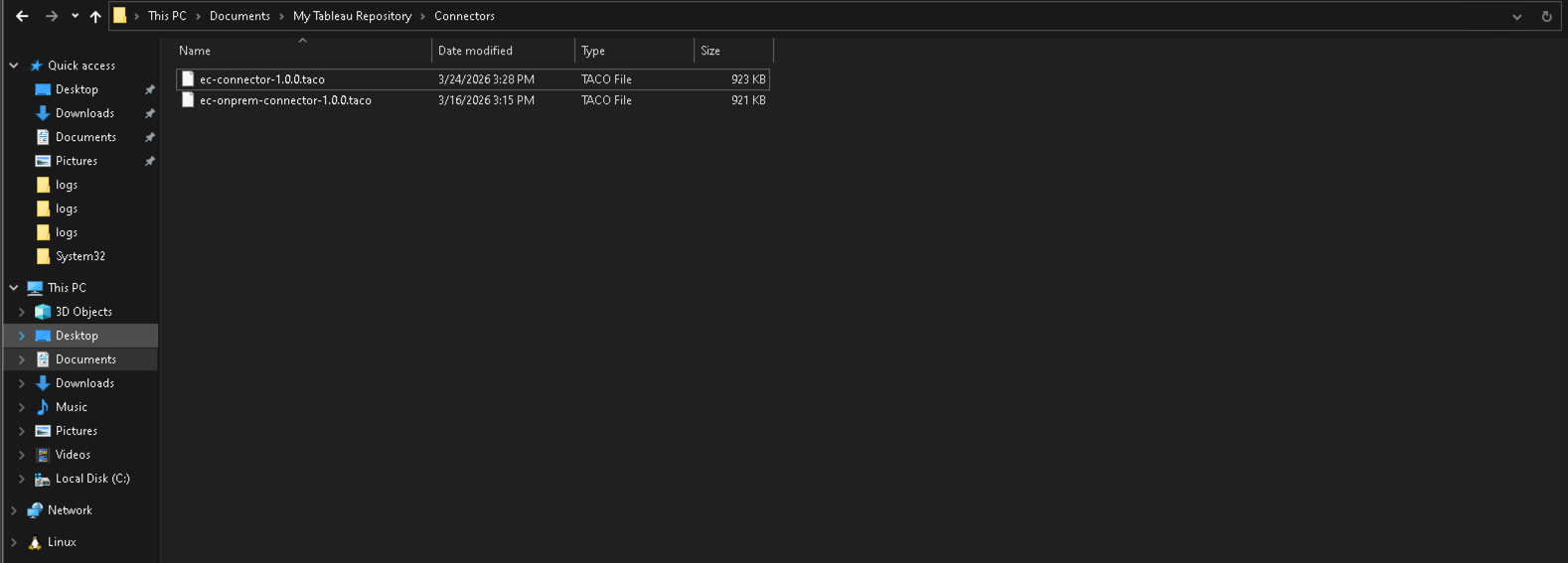
Step 2: Launch Tableau Desktop
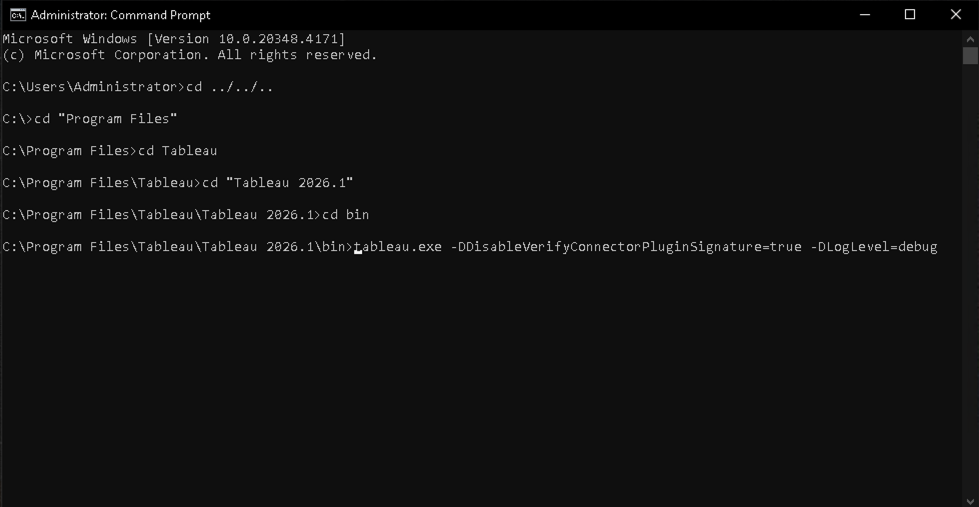
Open Command Prompt, navigate to the Tableau executable location, and run the below command. This loads Tableau with the custom connector enabled.
tableau.exe -DDisableVerifyConnectorPluginSignature=true
Step 3: Connect to Endpoint Central On-Premises
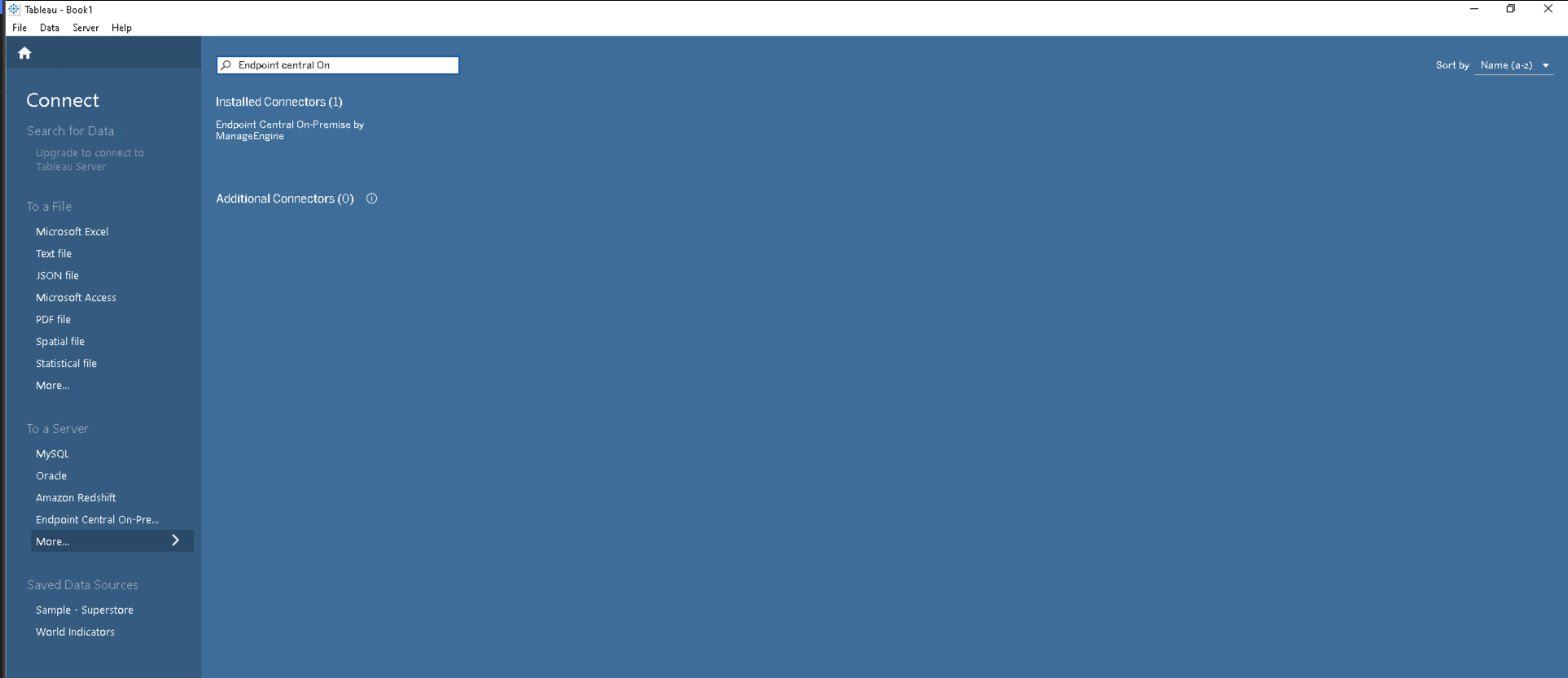
- On the Tableau start page, under Connect, click To a server.
- Search for or select Endpoint Central On-Premises by ManageEngine from the list of connectors.
- Enter your Server URL (e.g.,
https://eccore-wk22-1.csez.zohocorpin.com:8383) and your API Key.
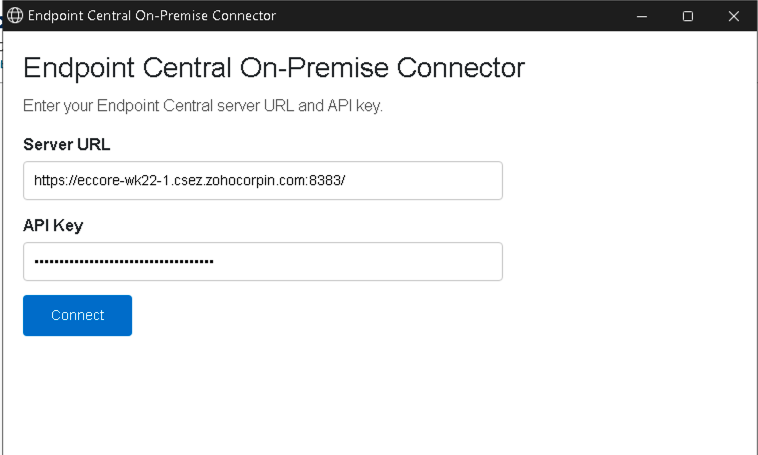
- Click Connect.
To generate an API key in Endpoint Central, refer to the official API documentation.
Step 4: Import Data
- After successful authentication, you will be returned to Tableau.
- The connector will display a list of available modules (e.g., Inventory, Patch Management, Asset Management).
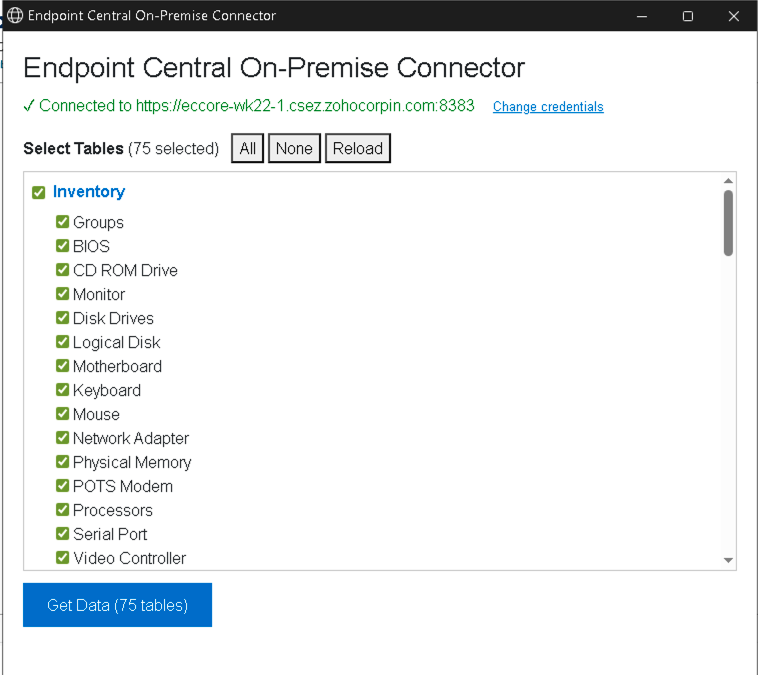
- Select the tables you wish to import and wait a few seconds for the import to complete.
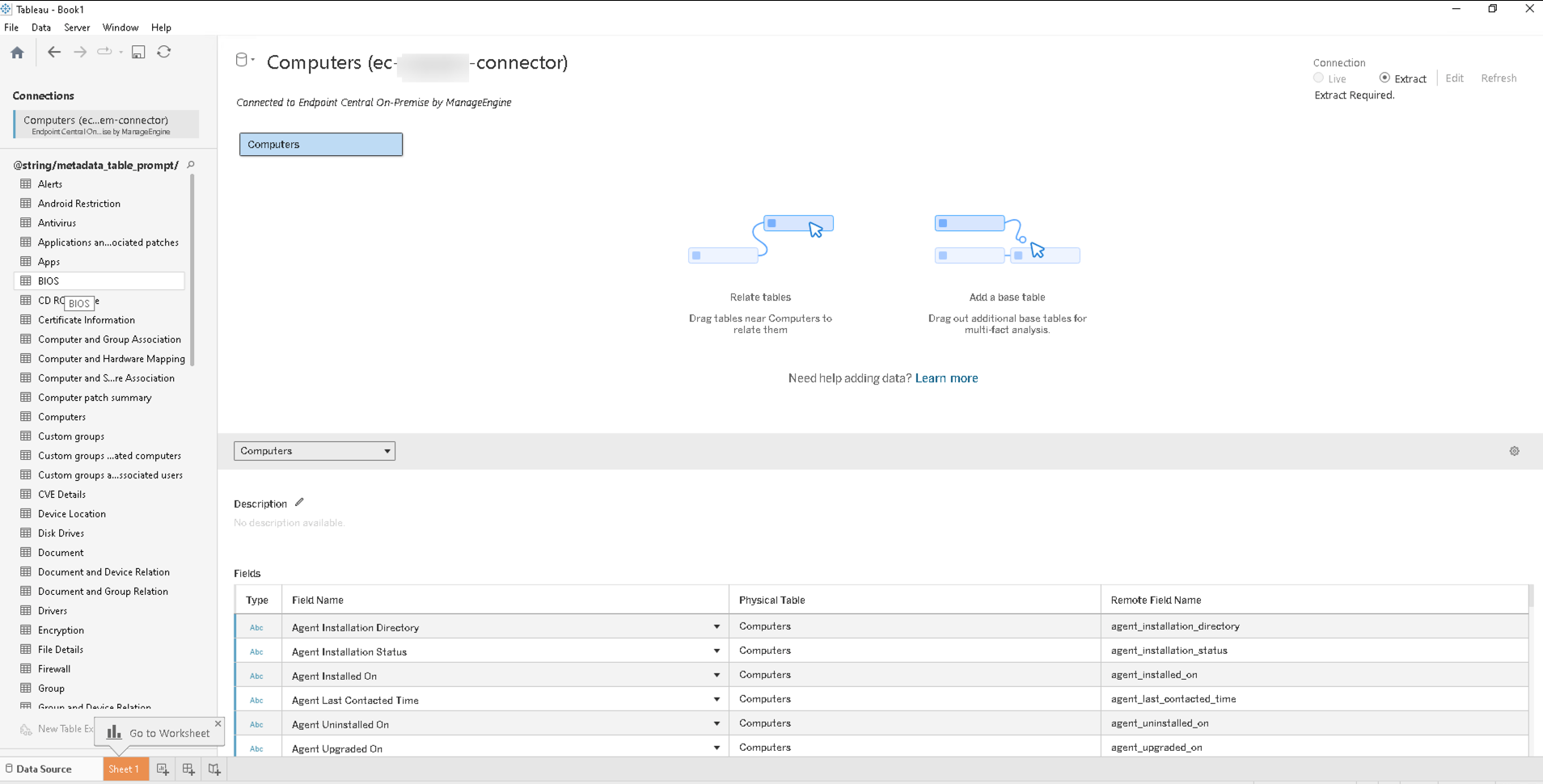
- Once done, the Data Source page will open, where you can add tables, define relationships, and begin building visualizations.
3. Building Dashboards
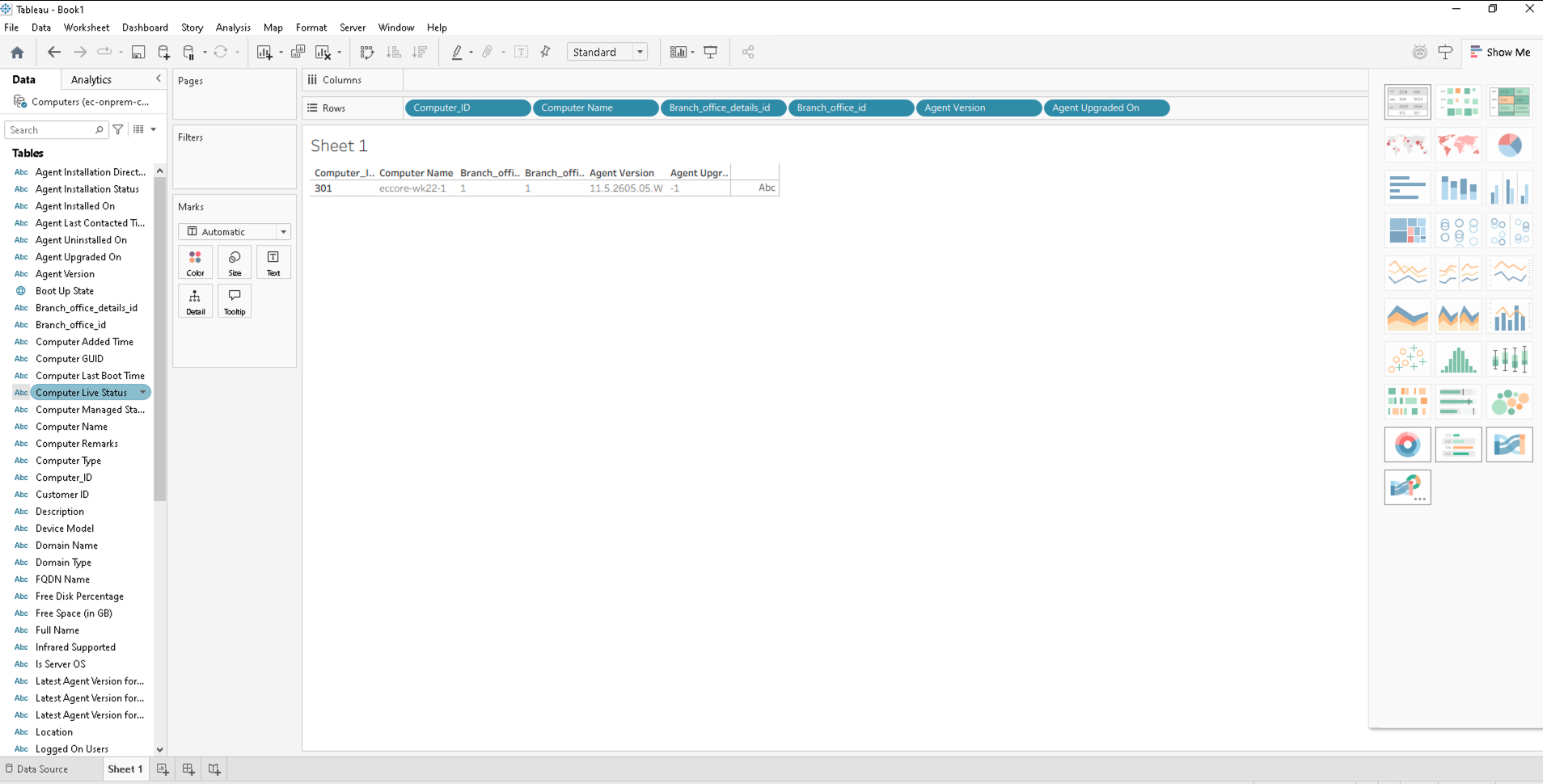
Use the imported data to create worksheets and dashboards in Tableau. To save your work, go to File > Save and choose either:
- Tableau Workbook (.twb): Saves the workbook structure without embedded data.
- Packaged Workbook (.twbx): Saves the workbook with embedded data for easy sharing.
4. Troubleshooting
If you encounter issues during connection, authentication, or data import, follow the steps below to collect diagnostic information before contacting support.
1. Verify Your Tableau Version
Confirm you are running a version of Tableau Desktop that fully supports TACO SDK 3.0 connectors (2020.1 or later).
2. Generate Clean Logs
Before reproducing the issue, clear existing logs to isolate relevant entries:
- Close all Tableau Desktop instances.
- Navigate to:
C:\Users\[Your Windows User]\Documents\My Tableau Repository - Rename the existing
Logsfolder toLogs_Backup. - Restart Tableau — a fresh Logs folder will be created automatically.
3. Reproduce the Issue with Debug Logging
- Navigate to the Tableau executable location and run the below command:
tableau.exe -DLogLevel=debug
- Repeat the steps that triggered the error (connection, authentication, or data loading).
- Note the exact date and time the error occurred — this helps locate the relevant log entries.
4. Package the Logs
- Close all Tableau Desktop sessions to ensure all log entries are written.
- Navigate to:
C:\Users\[Your Windows User]\Documents\My Tableau Repository - Right-click the
Logsfolder and select Send to > Compressed (zipped) folder. - Include the
Logs_Backupfolder as well for any pre-existing issues.
5. Contact Support
Share the following with support team: endpointcentral-support@manageengine.com
- The zipped
LogsandLogs_Backupfolders. - A detailed description of the steps you performed.
- The exact error message displayed.
- The date and time the issue occurred.
- Confirmation of the connector file version you are using.