Windows Feature Pack Errors
Description
This guide provides step-by-step troubleshooting solutions for common errors encountered during Windows 11 Feature Pack updates. Follow the recommended solutions carefully to resolve your issue.
General Troubleshooting Steps
Before proceeding with specific error resolutions, try these general troubleshooting steps:
- Restart your system and retry the deployment.
- Ensure the ISO file is properly downloaded and not corrupted.
- Check system requirements for the Windows version you are trying to install.
- Verify that no security policies (GPO, antivirus, endpoint security) are blocking the update.
- Make sure your system has enough disk space.
Validation Issues
The downloaded executable is not proper
Possible Cause
This issue occurs when the dependency file is deployed directly. Dependency patches are intended only for ISO-based installations and not for direct deployment.
Resolution
Avoid deploying the dependency patch. Instead, deploy the appropriate feature pack patch or the Windows update component restore patch to proceed with the installation.
Incorrect Function / Error code : 50002 / Invalid function
Possible Cause
7z.exe not found in agent bin directory
Resolution
Logs are necessary to find what is the exact reason for the failure of this error code.
Error code: 50003 / Edition Mismatch / The expected Edition is Enterprise, but it isn't found in the uploaded ISO file / The expected Edition is Professional, but it isn't found in the uploaded ISO file
Possible Cause
The deployment fails because the uploaded ISO file does not contain the exact edition of Windows running on the target system. During deployment, the system verifies whether the edition is present in the ISO, and if it's missing, the process fails.
Resolution
Download and upload the appropriate ISO file that matches the edition of the target system, then proceed with the deployment.
For enterprise systems, it is recommended to purchase the Enterprise edition and download the corresponding ISO file from the Microsoft 365 Admin Center before continuing with deployment.
For detailed steps on how to download the ISO file from the Microsoft 365 Admin Center, refer to this page
To confirm if the correct ISO edition was uploaded, review the following logs:
Check the machine's edition
- Log file: devicepatchscan.log
- Keyword: OS_NAME
[ 2024-06-04 10:52:25:555 ] [ 9408 ] [INFO] CreateAndAddAgentParams: added OS_NAME = Windows 10 Enterprise Edition (x64)
[ 2024-06-04 10:52:25:555 ] [ 9408 ] [INFO] CreateAndAddAgentParams: added SERVICE_PACK = Windows 10 Version 22H2 (x64)
[ 2024-06-04 10:52:25:555 ] [ 9408 ] [INFO] CreateAndAddAgentParams: added OS_VERSION = 10.0.19045
If the feature pack deployment failed via Patch
- Log file: Windows11update.log or Windows10update.log or dcprereqhandler.log
- Check: Number of editions included in the ISO
- Keyword: Count
[ 2024-12-12 14:57:38:335 ] [ 24680 ] [INFO] [FeaturePackCommonUtils::RetrieveIndexCount] Count Recieved from powershell: 1

[ 2024-12-12 14:57:39:370 ] [ 24680 ] [INFO]
[FeaturePackCommonUtils::ValidateISOEditionThroughPowershellMethod] Cmd : powershell.exe "Get-WindowsImage -ImagePath:'C:\Program Files (x86)\Patch Manager Plus\UEMS_Agent\patches\FeaturePackInstaller\sources\install.wim' -Index 1 | Select-Object -ExpandProperty EditionId"

[ 2024-12-12 14:57:39:370 ] [ 24680 ] [INFO]
[FeaturePackCommonUtils::ValidateISOEditionThroughPowershellMethod] Output : enterpriseeval

[ 2024-12-12 14:57:39:370 ] [ 24680 ] [INFO]
[FeaturePackCommonUtils::ValidateISOEditionThroughPowershellMethod] Comparing ISO Edition (enterpriseeval), Machine Edition (Enterprise)

[ 2024-12-12 14:57:39:520 ] [ 24680 ] [INFO]
[FeaturePackCommonUtils::ValidateISOEditionThroughDismMethod] cmd : dism /Get-WimInfo /WimFile:"C:\Program Files (x86)\Patch Manager Plus\UEMS_Agent\patches\FeaturePackInstaller\sources\install.wim" /English /index:1 | findstr /c:"Edition"

[ 2024-12-12 14:57:39:520 ] [ 24680 ] [INFO]
[FeaturePackCommonUtils::ValidateISOEditionThroughDismMethod] result : edition : enterpriseeval

[ 2024-12-12 14:57:39:520 ] [ 24680 ] [ERROR] [main] Failed to validate the ISO details

[ 2024-12-12 14:57:39:520 ] [ 24680 ] [ERROR] [main] The expected Edition is Enterprise, but it isn't found in the uploaded ISO file

[ 2024-12-12 14:57:39:520 ] [ 24680 ] [INFO] @@@ Inside CDCJson::WriteJSONDO
[ 2024-12-12 14:57:39:521 ] [ 24680 ] [INFO] @@@ end of CDCJson::WriteJSONDO

[ 2024-12-12 14:57:39:521 ] [ 24680 ] [INFO] [FeaturePackCommonUtils::DeleteExistingExtractedISO]
The folder C:\Program Files (x86)\Patch Manager Plus\UEMS_Agent\patches\FeaturePackInstaller folder exists. Deleting it

[ 2024-12-12 14:57:39:987 ] [ 24680 ] [INFO] [ApplicationCleanUp] Exit Code : 50003
If the feature pack deployment failed via Software Deployment (SWD)
- Log file: WindowsSWInstaller
- Check: Number of editions included in the ISO
- Keyword: Count
[ 2024-12-17 11:31:41:194 ] [ 19076 ] [INFO] [FeaturePackCommonUtils::RetrieveIndexCount] Count Recieved from powershell: 1

[ 2024-12-17 11:31:41:994 ] [ 19076 ] [INFO]
[FeaturePackCommonUtils::ValidateISOEditionThroughPowershellMethod] Cmd : powershell.exe "Get-WindowsImage -ImagePath:'C:\Program Files (x86)\Patch Manager Plus\UEMS_Agent\patches\WindowsSetup\sources\install.wim' -Index 1 | Select-Object -ExpandProperty EditionId"

[ 2024-12-17 11:31:41:994 ] [ 19076 ] [INFO]
[FeaturePackCommonUtils::ValidateISOEditionThroughPowershellMethod] Output : enterpriseeval

[ 2024-12-17 11:31:41:994 ] [ 19076 ] [INFO]
[FeaturePackCommonUtils::ValidateISOEditionThroughPowershellMethod] Comparing ISO Edition (enterpriseeval), Machine Edition (Enterprise)

[ 2024-12-17 11:31:42:074 ] [ 19076 ] [INFO]
[FeaturePackCommonUtils::ValidateISOEditionThroughDismMethod] cmd : dism /Get-WimInfo /WimFile:"C:\Program Files (x86)\Patch Manager Plus\UEMS_Agent\patches\WindowsSetup\sources\install.wim" /English /index:1 | findstr /c:"Edition"

[ 2024-12-17 11:31:42:074 ] [ 19076 ] [INFO]
[FeaturePackCommonUtils::ValidateISOEditionThroughDismMethod] result : edition : enterpriseeval

[ 2024-12-17 11:31:42:074 ] [ 19076 ] [ERROR] [ValidateISO] Failed to validate the ISO details

[ 2024-12-17 11:31:42:074 ] [ 19076 ] [main] ISO validation failed with error code : 50003

[ 2024-12-17 11:31:42:074 ] [ 19076 ] [INFO] [main] ExitCode : 50003
Error code: 50006 / Error code: 1047526908 / Language Mismatch for ISO file
Possible Cause
The deployment fails because the uploaded ISO file does not include the language installed on the target system. During deployment, the system checks if the exact system language is present in the ISO. If it's missing, the process will fail.
Resolution
Download and upload an ISO file that includes the language matching the target system’s installed language, then proceed with the deployment.
For example, if the system is running on en-GB, ensure that the English — International ISO file is downloaded and used.
To confirm if the correct ISO language was uploaded, review the following logs:
Check the machine’s default language
- Log file: devicepatchscan.log
- Keyword: String from Registry
[ 2025-01-19 09:23:35:945 ] [ 14820 ] [INFO] GetOSName: OS SP Name returned from global variable Windows 10 Version 22H2 (x64)
[ 2025-01-19 09:23:35:945 ] [ 14820 ] [INFO] GetOSName: OS Name returned from global variable Windows 10 Enterprise Edition (x64)
[ 2025-01-19 09:23:35:945 ] [ 14820 ] [INFO] String from Registry : 0809 and Integer after Conversion : 2057
To identify the machine language using the integer value (e.g., 0809 for English — United Kingdom), refer to the official Microsoft documentation on Default input locales for Windows language packs. This resource maps hexadecimal locale identifiers to their corresponding languages and regional variants.
If the feature pack deployment failed via Patch
Log file: Windows11update.log or Windows10update.log or dcprereqhandler.log
[ 2024-12-19 08:20:06:121 ] [ 23928 ] [ERROR] [FeaturePackCommonUtils::ValidateISOLanguage] Language folder :en-us do not exist
[ 2024-12-19 08:20:06:121 ] [ 23928 ] [ERROR] [main] Failed to validate the ISO details
[ 2024-12-19 08:20:06:122 ] [ 23928 ] [INFO] [FeaturePackCommonUtils::GetLanguageMismatchRemarks] Language folder : en-GB exist
[ 2024-12-19 08:20:06:122 ] [ 23928 ] [ERROR] [main] The system language is en-us, but the uploaded ISO file is en-GB
If the feature pack deployment failed via SWD
Log file: WindowsSWInstaller.log
[ 2024-11-08 13:45:13:789 ] [ 5364 ] [INFO]
[FeaturePackCommonUtils::RetrieveMachineOSLanguage] String from Registry : 0809 and Integer after Conversion : 2057
[ 2024-11-08 13:45:13:789 ] [ 5364 ] [INFO]
[FeaturePackCommonUtils::RetrieveMachineOSLanguage] Machine OS Language Retrieved : en-gb
:
:
[ 2024-11-08 13:46:15:215 ] [ 5364 ] [ERROR]
[FeaturePackCommonUtils::ValidateISOLanguage] Language folder : en-gb do not exist
[ 2024-11-08 13:46:15:215 ] [ 5364 ] [ERROR] [ValidateISO] Failed to validate the ISO details
[ 2024-11-08 13:46:15:216 ] [ 5364 ] [INFO] [main] ISO validation failed with error code : 50006
[ 2024-11-08 13:46:15:216 ] [ 5364 ] [INFO] [main] ExitCode : 50006
Error code: 50009
Possible Cause
The ISO file placed in the patches folder or SWD repository is less than 3 GB, indicating an incomplete or corrupted download, which can lead to deployment failure.
Resolution
Delete the ISO file from the patches folder or SWD repository from the agent machine and redeploy the Feature Pack. Before proceeding, verify the ISO file on the server—ensure it is above 3.5 GB. If it is not, delete the file and re-download a complete ISO before attempting deployment again.
Error Code : 2 / The system cannot find the file specified (for SWD) / Error code: 50040
Possible Cause
This issue may occur if:
- The ISO or executable file was not uploaded correctly.
- The ISO file was not renamed as follows:
- For Windows 10: Windows10.iso
- For Windows 11: Windows11.iso
- The installation switch was not specified using the .exe file name.
Resolution
Verify that the ISO file is correctly renamed and placed in the package directory as outlined in the Windows 10 and Windows 11 deployment articles and ensure the installation switch includes the executable file name.
Example scenario for 2:
[ 2024-10-25 12:29:38:932 ] [ 6032 ] [INFO] windows 11.ISO
:
[ 2024-10-25 12:31:00:885 ] [ 6032 ] [INFO] ######################### INSTALLATION #########################
[ 2024-10-25 12:31:00:885 ] [ 6032 ] [INFO] InstallGivenPackage : Going to perform the Installation action for the given Package.
[ 2024-10-25 12:31:00:886 ] [ 6032 ] [INFO] InstallEXEFile : Working Directory path -> C:\Program Files (x86)\Patch Manager Plus\UEMS_Agent\swrepository\swuploads\sw2.
[ 2024-10-25 12:31:00:886 ] [ 6032 ] [INFO] InstallEXEFile : Root path -> (null).
[ 2024-10-25 12:31:00:886 ] [ 6032 ] [INFO] InstallEXEFile : TimeOut Value -> 7200 seconds
[ 2024-10-25 12:31:00:886 ] [ 6032 ] [INFO] InstallEXEFile : Set the Current Directory called with -> C:\Program Files (x86)\Patch Manager Plus\UEMS_Agent\swrepository\swuploads\sw2.
[ 2024-10-25 12:31:00:886 ] [ 6032 ] [INFO] Message : The operation completed successfully.
[ 2024-10-25 12:31:01:263 ] [ 6032 ] [INFO] InstallEXEFile : Exit code of the process : 2
[ 2024-10-25 12:31:01:263 ] [ 6032 ] [INFO] deleteValue: Key found ...!: 0
[ 2024-10-25 12:31:01:264 ] [ 6032 ] [INFO] deleteValue: Delete value DCCreateProcessStatus success!
[ 2024-10-25 12:31:01:264 ] [ 6032 ] [ERROR] Error Code : 2 , Error Message : The system cannot find the file specified.
[ 2024-10-25 12:31:01:264 ] [ 6032 ] [INFO] InstallGivenPackage : Configured ExitCode and return code from process are : 0 and 2
[ 2024-10-25 12:31:01:264 ] [ 6032 ] [ERROR] InstallGivenPackage : Error while performing Installation function.
[ 2024-10-25 12:31:01:264 ] [ 6032 ] [INFO] ***************************************************************
If the ISO file is renamed as "Windows 11.iso" (with space), it must be renamed to Windows11.iso (without space).
[ 2024-10-16 17:51:28:458 ] [ 6036 ] [INFO] Win11_23H2_English_x64v2.iso
:
[ 2024-10-16 17:53:34:592 ] [ 6036 ] [INFO] ######################## INSTALLATION ########################
[ 2024-10-16 17:53:34:592 ] [ 6036 ] [INFO] InstallGivenPackage : Going to perform the Installation action for the given Package.
[ 2024-10-16 17:53:34:592 ] [ 6036 ] [INFO] InstallEXEFile : Working Directory path -> C:\Program Files (x86)\Patch Manager Plus\UEMS_Agent\swrepository\1\swuploads\Windows 11 upgrade latest.
[ 2024-10-16 17:53:34:592 ] [ 6036 ] [INFO] InstallEXEFile : Root path -> (null).
[ 2024-10-16 17:53:34:592 ] [ 6036 ] [INFO] InstallEXEFile : TimeOut Value -> 7200 seconds
[ 2024-10-16 17:53:34:592 ] [ 6036 ] [INFO] InstallEXEFile : Set the Current Directory called with -> C:\Program Files (x86)\Patch Manager Plus\UEMS_Agent\swrepository\1\swuploads\Windows 11 upgrade latest.
[ 2024-10-16 17:53:34:592 ] [ 6036 ] [INFO] Message : The operation completed successfully.
[ 2024-10-16 17:53:34:708 ] [ 6036 ] [INFO] InstallEXEFile : Exit code of the process : 2
[ 2024-10-16 17:53:34:708 ] [ 6036 ] [INFO] deleteValue: Key found ...!: 0
[ 2024-10-16 17:53:34:709 ] [ 6036 ] [INFO] deleteValue: Delete value DCCreateProcessStatus success!
[ 2024-10-16 17:53:34:709 ] [ 6036 ] [ERROR] Error Code : 2 , Error Message : The system cannot find the file specified.
[ 2024-10-16 17:53:34:709 ] [ 6036 ] [INFO] InstallGivenPackage : Configured ExitCode and return code from process are : 0 and 2
[ 2024-10-16 17:53:34:709 ] [ 6036 ] [ERROR] InstallGivenPackage : Error while performing Installation function.
[ 2024-10-16 17:53:34:709 ] [ 6036 ] [INFO] ***************************************************************
If the ISO file is named like "Win11_23H2_English_x64v2.iso", it should also be renamed to Windows11.iso.
Example scenario for 3:
If the upgrade uses an EXE, confirm the installation switch matches the actual EXE file name (e.g., WindowsSWD.exe).
[ 2024-12-17 15:19:19:960 ] [ 18032 ] [INFO] ######################## INSTALLATION ########################
[ 2024-12-17 15:19:19:960 ] [ 18032 ] [INFO] InstallGivenPackage : Going to perform the Installation action for the given Package.
[ 2024-12-17 15:19:19:960 ] [ 18032 ] [INFO] InstallEXEFile : Working Directory path -> C:\Program Files (x86)\Patch Manager Plus\UEMS_Agent\swrepository\6700400000182048\swuploads\sw67004000115187091.
[ 2024-12-17 15:19:19:961 ] [ 18032 ] [INFO] InstallEXEFile : Root path -> (null).
[ 2024-12-17 15:19:19:961 ] [ 18032 ] [INFO] InstallEXEFile : TimeOut Value -> 7200 seconds
[ 2024-12-17 15:19:19:961 ] [ 18032 ] [INFO] InstallEXEFile : Set the Current Directory called with -> C:\Program Files (x86)\Patch Manager Plus\UEMS_Agent\swrepository\6700400000182048\swuploads\sw67004000115187091.
[ 2024-12-17 15:19:19:962 ] [ 18032 ] [INFO] Message : The operation completed successfully.
[ 2024-12-17 15:19:19:962 ] [ 18032 ] [ERROR] InstallEXEFile : Unable to create the process for the installation arguments Win11SWD.exe and the error code is 2
[ 2024-12-17 15:19:19:962 ] [ 18032 ] [INFO] deleteValue: Key found ...!: 0
[ 2024-12-17 15:19:19:962 ] [ 18032 ] [INFO] deleteValue: Delete value DCCreateProcessStatus success!
[ 2024-12-17 15:19:19:963 ] [ 18032 ] [ERROR] Error Code : 2 , Error Message : The system cannot find the file specified.
[ 2024-12-17 15:19:19:963 ] [ 18032 ] [INFO] InstallGivenPackage : Configured ExitCode and return code from process are : 0 and 2
[ 2024-12-17 15:19:19:963 ] [ 18032 ] [ERROR] InstallGivenPackage : Error while performing Installation function.
[ 2024-12-17 15:19:19:963 ] [ 18032 ] [INFO] ***************************************************************
[ 2024-12-17 15:19:19:963 ] [ 18032 ] [ERROR] Error Code : 2 , Error Message : The system cannot find the file specified.
Error code: 50015
Possible Cause
This occurs when ISO extraction fails prior to proceeding with installation.
Resolution
In the Affected Agent machine,
- Extract the uploaded Iso manually to check if the ISO is corrupted.
- If manual extraction failed, reupload the ISO and redeploy.
- If manual extraction succeeded, contact support.
Steps to extract ISO
- Place the ISO in
<Agent Installed Dir>\patches
folder as "Windows.iso" - Open cmd prompt as Administrator
- Execute this cmd:
"<Agent installed Dir>\bin\7z.exe" x -y "<Agent Installed Dir>\patches\Windows.iso"
- Wait till the extraction is completed and check the extraction status.
Error code : 10 / Error code: 50032 / The environment is incorrect / The system architecture is x64, but the uploaded ISO file does not match this architecture / Architecture Mismatch
Possible Cause
This error occurs when the downloaded ISO file architecture (e.g., x86 or x64) does not match the system's architecture.
Resolution
Compare the system's architecture with that of the ISO file. If there's a mismatch, delete the existing ISO and download a new ISO that matches the system's architecture.
To verify this, review the windows11update.log or dcprereqhandler.log. If the ISO architecture is listed as "Unknown" instead of "x64", the ISO may be corrupted.
[ 2025-05-30 15:04:55:340 ] [ 7300 ] [INFO] [ExecuteCommand] ExecuteCommand() : Command : powershell.exe "Get-WindowsImage -ImagePath:'C:\Program Files (x86)\Patch Manager Plus\UEMS_Agent\\patches\FeaturePackInstaller\sources\install.wim'"
[ 2025-05-30 15:04:58:329 ] [ 7300 ] [INFO] [GetWimInfo] End OF GetWimInfo
[ 2025-05-30 15:04:58:329 ] [ 7300 ] [INFO] [LogIsoDetails] Iso WimInfo Index 1:
[ 2025-05-30 15:04:58:329 ] [ 7300 ] [INFO] [LogIsoDetails] ImageIndex : 1
ImageName : Windows 11 Home
ImageDescription : Windows 11 Home
ImageSize : 20,237,673,068 bytes
WIMBoot : False
Architecture : Unknown
Hal :
Error code: 50007 / Version Mismatch / The expected build version is ...
Possible Cause
This issue occurs when the uploaded ISO file does not match the target system’s current OS version or intended upgrade path.
Resolution
Download and upload the correct ISO file that matches the target system’s OS version, then proceed with the deployment.
If you intend to upgrade the system to Windows 11 23H2, but mistakenly upload the ISO for 24H2, the deployment will fail due to version mismatch.
[2024-12-13 21:04:14:423] [4604] [ERROR] [FeaturePackCommonUtils::ValidateISOBuildVersion]
Expected ISO Build Version 10.0.26100.1742 and Mounted ISO Build Version 10.0.22631 are not same.

[2024-12-13 21:04:14:423] [4604] [ERROR] [main]
The expected build version is 10.0.22631, while the ISO build version is 10.0.26100.1742

[2024-12-13 21:04:14:426] [4604] [INFO] @@@ Inside CDCJson::WriteJSONDO
[2024-12-13 21:04:14:426] [4604] [INFO] @@@ end of CDCJson::WriteJSONDO
[2024-12-13 21:04:14:426] [4604] [INFO] [FeaturePackCommonUtils::DeleteExistingExtractedISO]
C:\Program Files (x86)\Patch Manager Plus\UEMS_Agent\patches\FeaturePackInstaller folder exists. Deleting it

[2024-12-13 21:04:14:713] [4604] [INFO] [ApplicationCleanUp] Exit Code : 50007
Error code: 50033
Possible Cause
This error occurs during the initial validation of the ISO if, after extraction, the system cannot find install.wim or install.esd.
Resolution
Verify whether the ISO file is a valid Windows ISO. Kindly mount the uploaded ISO file and navigate to the 'sources' folder to check for the presence of the install.esd or install.wim file. If the file is not present, you will need to download a new ISO file.
Error code: 50036
Possible Cause
The system does not have enough free disk space. Minimum required free space:
Resolution
Verify that the required free disk space is available before proceeding with the feature pack deployment.
Incompatible Issues
Error code: 50010 / The System TPM Version is not Compatible with Windows 11
Possible Cause
The Windows 11 upgrade fails if the target system does not meet the minimum TPM requirement. Windows 11 requires TPM version 2.0 for successful installation.
Resolution
Refer to this page to know about minimum requirements.
Log name:
- Patch Deployment: Windows11update.log / Windows10update.log / dcprereqhandler.log
- Software Deployment (SWD): WindowsSWInstaller.log
[ 2024-08-13 16:27:09:418 ] [ 5468 ] [INFO] TPM Check Bypass Enabled : FALSE
[ 2024-08-13 16:27:09:419 ] [ 5468 ] [INFO] TPM Version Check : FALSE
[ 2024-08-13 16:27:09:419 ] [ 5468 ] [ERROR] The System TPM Version is not Compatible for Windows 11. Required TPM version : 2.0 and above
[ 2024-08-13 16:27:09:419 ] [ 5468 ] [INFO] ExitCode : 50010
Error code: 50011
Possible Cause
The upgrade to Windows 11 fails because the system does not have a supported processor.
Resolution
Ensure the system meets the minimum processor requirements defined by Microsoft for Windows 11. Refer to this page (CpuFms [Processor not compatible]).
Error code: 50012
Possible Cause
The upgrade fails because the system does not meet the minimum RAM requirement. Windows 11 requires at least 4 GB of RAM.
Resolution
Ensure the device has 4 GB or more RAM before attempting to upgrade to Windows 11. Refer to this page to learn more about Windows 11 requirements.
Error code: 50013
Possible Cause
This occurs when the system firmware is incompatible—specifically, the device does not support or have UEFI and Secure Boot enabled. These are mandatory requirements for upgrading to Windows 11.
Resolution
Verify that the system supports UEFI and that Secure Boot is enabled in the BIOS/UEFI settings before proceeding with the upgrade. To review Windows 11 firmware requirements, refer to this page (search for System Firmware).
Error code: 1047526904 / Feature pack update blocked due to the program 'xxxx'. Action : AutoUninstall
Possible Cause
Incompatible applications present on the system are blocking the upgrade.
Resolution
Upgrade the incompatible application(s) to the latest version or uninstall them, then proceed with the Feature Pack deployment.
How to identify incompatible apps:
Navigate to the Panther folder and open either data.xml or Compatdata.xml and then search for the keyword: CompatibilityInfo BlockingType="Hard"
This section lists all applications that are blocking the upgrade.
CompatData_2023_06_01_20_29_07_3_006f0018.xml:
<Programs>
  <Program Name="VMware Workstation" Id="00002467e056a1281877e58eb20249d1154800000904"
    IconId="00002467e056a1281877e58eb20249d1154800000904">
    <CompatibilityInfo BlockingType="Hard" StatusDetail="UpgradeBlock"/>
    <Link Target="https://go.microsoft.com/fwlink/?LinkId=2109246" Value="Learn More"/>
    <Action Name="AutoUninstall"
      Link="wsc:wicac:00002467e056a1281877e58eb20249d1154800000904" DisplayStyle="Link"
      ResolveState="NotRun"/>
  </Program>
</Programs>
CompatData_2024_10_10_16_25_27_3_006f0018.xml:
<Programs>
  <Program Name="McAfee DLP Endpoint" Id="0000a9134b5d07d84b027801a8feaa88cb4c00000904"
    IconId="0000a9134b5d07d84b027801a8feaa88cb4c00000904">
    <CompatibilityInfo BlockingType="Hard" StatusDetail="UpgradeBlock"/>
    <Link Target="https://go.microsoft.com/fwlink/?LinkId=2081941" Value="Learn More"/>
    <Action Name="AutoUninstall" Link="wsc:wicac:.0000a9134b5d07d84b027801a8feaa88cb4c00000904"
      DisplayStyle="Link" ResolveState="NotRun"/>
  </Program>
</Programs>
Error code: 1047526912 / Error code: 1047526910 / Feature pack update blocked due to the hardware 'Setup_InsufficientSystemPartitionDiskSpace' / Feature pack update blocked due to the hardware 'CpuFms' / Feature pack update blocked due to the hardware 'Setup_HostIsBootedFromPortableWorkspace'
Possible Cause
The PC does not meet the minimum system requirements to download or install the upgrade to Windows 11.
Resolution
During the upgrade process, Windows generates logs such as setupdiagresults.log, ScanResult.xml, and Compatdata, which can help identify incompatible hardware.
Steps to find incompatible hardware:
- Navigate to the Panther folder.
- Open data.xml or Compatdata.
- Search for the term: CompatibilityInfo BlockingType="Hard"
- This will list all the incompatible hardware.
1. Setup_InsufficientSystemPartitionDiskSpace:
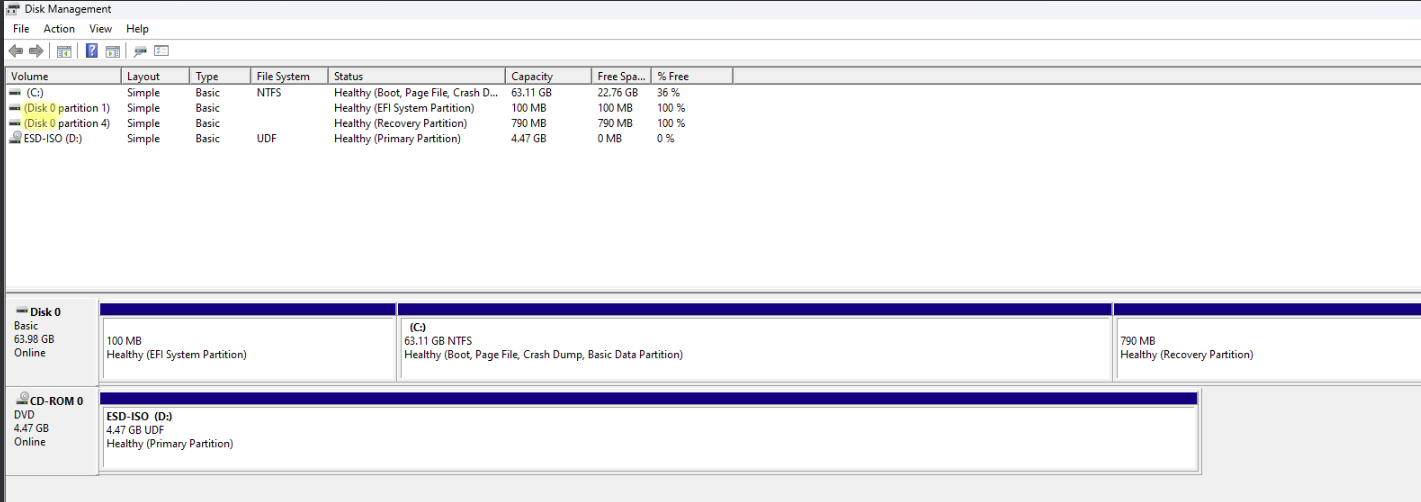
Windows feature or version upgrades may fail if the Microsoft reserved partition (MSR) lacks sufficient free space. According to Microsoft, upgrades fail when the reserved partition has less than 15 MB of free space.
Resolution
Ensure at least 15 MB of free space to proceed with Windows feature or version upgrades.
Steps to check free space in the Reserved Partition:
- Open Command Prompt as an administrator.
- Run the following commands one at a time:
mountvol S: /S
fsutil volume diskfree S:     --> Note the Total free bytes value.
mountvol S: /D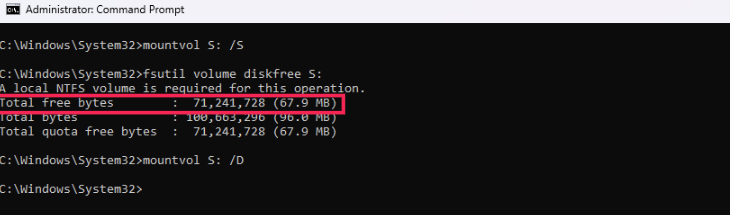
ScanResult.xml:
<HardwareItem HardwareType="Setup_InsufficientSystemPartitionDiskSpace" ActualValue1="15">
  <CompatibilityInfo BlockingType="Hard"/>
  <Action Name="Setup_InsufficientSystemPartitionDiskSpace" ResolveState="Hard"/>
</HardwareItem></Hardware>
2. CpuFms:
ScanResult.xml:
<HardwareItem HardwareType="CpuFms">
  <CompatibilityInfo BlockingType="Hard"/>
</HardwareItem>
This indicates that the system does not have a compatible processor required for the Windows upgrade.
Refer to the below links to check processor compatibility for their respective OS before proceeding with the Feature Pack deployment:
- Windows 11 Specifications — Microsoft (Search for “Processor not compatible”)
- CPU Compatibility List — Microsoft Docs
This will help you confirm whether the processor meets the minimum requirements for the upgrade.
3. Setup_HostIsUEFICompliant:
ScanResult.xml:
<HardwareItem
  HardwareType="Setup_HostIsUEFICompliant">
  <CompatibilityInfo BlockingType="Hard"/>
  <Action Name="Setup_HostIsUEFICompliant"
    ResolveState="Hard"/>
</HardwareItem>
This issue may occur if the UEFI (BIOS) of the machine is outdated or not compatible with the upgrade. Kindly update the BIOS, reboot the system, and then proceed with the Feature Pack upgrade.
4. TpmVersion:
<HardwareItem HardwareType="UefiSecureBoot">
  <CompatibilityInfo BlockingType="Hard"/>
</HardwareItem>
For Windows 11, the system must have TPM version 2.0 enabled. If this requirement is not met, the upgrade will fail. Verify that TPM 2.0 is present and enabled on the system. Refer to the official requirements: Windows 11 Specifications — Microsoft
5. UefiSecureBoot:
<HardwareItem HardwareType="UefiSecureBoot">
  <CompatibilityInfo BlockingType="Hard"/>
</HardwareItem>
The system does not meet the firmware requirement for Windows 11, such as lacking UEFI and Secure Boot support. Refer to the official Windows 11 requirements in this page (Search for System firmware). Ensure that UEFI firmware with Secure Boot is enabled on the device before proceeding with the upgrade.
6. Setup_HostIsBootedFromPortableWorkspace:
ScanResult.xml:
<HardwareItem
  HardwareType="Setup_HostIsBootedFromPortableWorkspace">
  <CompatibilityInfo BlockingType="Hard"/>
  <Action Name="Setup_HostIsBootedFromPortableWorkspace"
    ResolveState="Hard"/>
</HardwareItem>
A Portable Workspace device refers to a bootable USB drive or external storage device that contains a full installation of the Windows operating system. It allows users to run a personalized Windows environment on various machines without installing the OS locally.
Windows does not support upgrading devices running from a Portable Workspace. Contact Microsoft for further assistance.
Error code: 2138537982
Possible Cause
This error message 0x80888002 is due to unsupported hardware.
Resolution
Run the PC Health Check Tool to verify if the system meets the Windows 11 requirements.
This tool will provide a detailed report on whether the PC passes all necessary upgrade criteria.
Error code : 1047526904 / Your PC isn't supported yet on this version of Windows. Windows Update will automatically offer you this version of Windows once the issue has been resolved / Feature pack update blocked due to the hardware 'This PC can't be upgraded to this version of Windows.'. Your PC isn't supported yet on this version of Windows. Windows Update will automatically offer you this version of Windows once the issue has been resolved.
Possible Cause
During deployment, Patch Manager Plus validates the uploaded ISO details—including version, architecture, edition, and more—against the target system’s configuration. Once all validations are successfully passed, setup.exe is launched from the ISO using the following command-line switch:
/auto upgrade /DynamicUpdate enable /ShowOOBE none /quiet /noreboot /compat IgnoreWarning /BitLocker TryKeepActive /Eula Accept
ScanResult.xml and Compatdata are logs generated by Windows during the upgrade process. They contain diagnostic information about any issues and are useful for identifying errors that occur after setup.exe is triggered. The error has occurred after initiating the setup.exe from the ISO.
Resolution
Logs are necessary to find what is the exact reason.
Error code: 1047526945
Possible Cause
Installation cannot proceed because the system is low on disk space.
Resolution
Free up the disk space the redeploy the feature pack.
Environmental Issues
Error code : 50001
Possible Cause
This error occurs when the required data cannot be retrieved from the ISO file. This may be due to file corruption, an unsupported format, or issues during the mounting or extraction process.
Resolution
Delete the existing ISO File from the patch store. Then, re-download the ISO file from MS365 Admin Center or using the media creation tool and rename and copy the ISO file in the patches store and re-deploy the feature pack update.
Error code : 50004 / ISO file extraction failed
Possible Cause
This may happen if the files from previous extraction attempts were not properly closed, the tool used for extracting the ISO is blocked by an anti-virus program, or the uploaded ISO file is corrupted or incomplete.
Resolution
Solution 1: Process and System Cleanup in the affected machine
- Open Task Manager and terminate the following background processes, if running:
- setupprep.exe
- SetupHost.exe
- Alternative: Restart the affected machine and retry deployment
Solution 2: Disable AV
- Whitelist the agent installed folder (Default Agent Installation Path : C:\Program Files (x86)\Patch Manager Plus\UEMS_Agent). If the issue is still not solved, try disabling the Anti-Virus.
Solution 3: ISO File Replacement
- Upload a verified, uncorrupted ISO file for deployment.
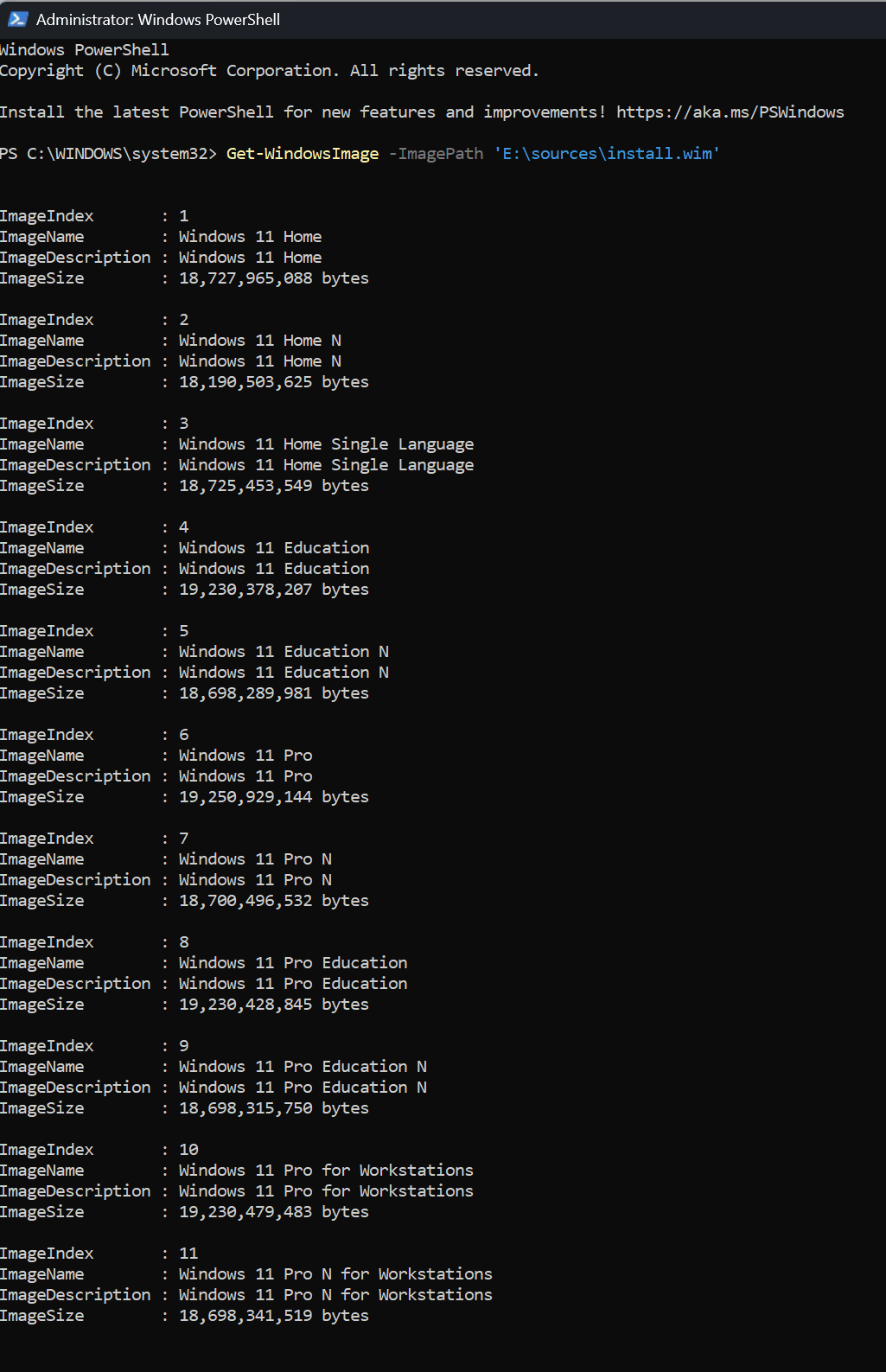
- To verify the integrity of the ISO, execute the following PowerShell command after mounting or extracting the ISO file:
Get-WindowsImage -ImagePath 'E:\sources\install.wim'
The output should display the list of Editions in the ISO as shown in the below image.
Error code : 50019
Possible Cause
This error indicates a failure in extracting the ISO file. Possible causes include insufficient permissions (access denied) or a corrupted ISO file.
Resolution
Logs are necessary to find what is the exact reason for the failure of this error code
Error code : 50031
Possible Cause
This happens when the Feature Pack installation is skipped because the same version was recently installed.
This error can also occur when the selected Feature Pack or Enablement Package does not support the endpoint's current source version. For example, the Windows 11 24H2-to-25H2 Enablement Package is not applicable to an endpoint running Windows 11 23H2.
Resolution
Verify the endpoint's current Windows version and select only the applicable Feature Pack. Remove an incompatible Enablement Package or Feature Pack from the deployment and redeploy the correct patch. For the source-version and edition mapping, see Windows 11 25H2 Feature Pack Deployment.
If the endpoint machine was successfully installed using the preceding configuration, then retrying the deployment with the same ISO build version within 3 days of the previous successful installation can cause this error.
If you want to redeploy with the same ISO build version, remove the following file from the affected system:
- C:\Program Files (x86)\Patch Manager Plus\UEMS_Agent\logs\installed_fp_details.json
Once removed, retry the deployment.
Error code : 50039
Possible Cause
Failure in constructing the scheduler.xml file—required for creating the task to run setup.exe via Task Scheduler—or an error occurred while retrieving the result from the executed setup.exe process.
Resolution
Logs are necessary to find what is the exact reason for the failure of this error code
Error code : 50035
Possible Cause
A rollback might have happened due to the antivirus (AV) blocking the setup process.
Resolution
Check if any AV is enabled and disable it before retrying the upgrade.
If you attempt to redeploy the same ISO build version, you may need to wait three days before reattempting.
To redeploy immediately, remove the following file from the affected system:
- C:\Program Files (x86)\Patch Manager Plus\UEMS_Agent\logs\installed_fp_details.json
Once removed, retry the deployment.
Error code: 1073741819 / 1073740940 / 1073741584 / 1047527137
Possible Cause
These error codes indicate an unexpected crash of the deployment executables setup.exe and setuphost.exe.
Resolution
The ISO crash issue has been resolved in the ISO released in January 2024. Kindly upgrade the system using the January 2024 ISO or any later version.
How to verify the ISO release month:
- For Patch deployments: Log file: windows11update.log / windows10update.log / dcprereqhandler.log
- For Software Deployment (SWD): Log file: windowsSWInstaller.log
ImageName : Windows 11 Education
ImageDescription : Windows 11 Education
ImageSize : 18,676,389,105 bytes
WIMBoot : False
Architecture : x64
Hal :
Version : 10.0.22621.2428
SPBuild : 2428
SPLevel : 0
EditionID : Education
InstallationType : Client
ProductType : WinNT
ProductSuite : Terminal Server
SystemRoot : WINDOWS
DirectoryCount : 26793
FileCount : 113754
CreatedTime : 10/1/2023 1:18:19 AM
ModifiedTime : 10/1/2023 1:51:34 AM
Languages : en-US (Default)
Access is denied / Error code: 50005 / 2147024891
Possible Cause
This error can occur if antivirus or encryption software interferes with the deployment by triggering an illegal operation. As a result, the system is unable to retrieve the requested file, typically because the user lacks the necessary access permissions.
Resolution
Temporarily disable or uninstall the antivirus software, then proceed with the Feature Pack deployment.
How to verify if an antivirus is present:
- Log file: setupdiagresult.log
- Keyword: Registered AV (This will indicate if any antivirus software is installed and active on the system.)
Matching Profile found: DebugSetupMemoryDump - C7C63D8A-C5F6-4255-8031-74597773C3C6
SetupDiag version: 1.5.0.0

System Information:
Machine Name = ACPLMUM-HO-L574
Manufacturer = Dell Inc.
Model = Latitude 3420
HostOSArchitecture = 1033
FirmwareType = UEFI
BiosReleaseDate = 20240708000000.000000+000
BiosVendor = 1.37.0
BiosVersion = 1.37.0
HostOSVersion =
HostOSBuildString = 22000.1.amd64fre.co_release.210604-1628
TargetOSBuildString = 10.0.26100.1591 (ge_release_svc_prod3.240820-2119)
HostOSLanguageId =
HostOSEdition = Professional
RegisteredAV = CrowdStrike Falcon Sensor
FilterDrivers = WinSetupMon
UpgradeStartTime = 27-11-2024 20:22:46
UpgradeEndTime = 28-11-2024 12:09:06
Error code: 50008
Possible Cause
This issue occurs when the system is unable to retrieve the mounted drive letter during deployment, often due to restrictions on PowerShell execution by Group Policy, antivirus, or endpoint security software.
Resolution
Ensure that PowerShell commands are allowed in your environment by updating the Group Policy, antivirus, or endpoint security settings. Once enabled, re-deploy the feature pack.
Error Code : 183 / Cannot create a file when that file already exists / The process cannot access the file because it is being used by another process / Error code: 2147023278
Possible Cause
The error occurs because windows installer or setup.exe is already processing another request.
Resolution
Suspend all configurations, reboot the machine, and create a new configuration to re-deploy the Feature Pack during system startup.
If the issue persists, open Task Manager and check for the following running tasks:
- setup.exe
- setuphost.exe
- windows installer
- windows setup
- Modern setup host
If any of the above are active, terminate them, then re-deploy the Feature Pack at system startup.
Error code : 50016
Possible Cause
Restart is pending from the previous Feature Pack installation.
Resolution
Restart the system to complete the Windows Feature upgrade.
Error code: 1047527161
Error code: 1047527161 (0xC1900107) indicates that a cleanup operation from a previous installation attempt is still pending. A system restart is required to proceed with the upgrade.
Resolution
Method 1:
Restart the system to complete the pending cleanup and then re-initiate the upgrade.
Method 2:
- Go to the C: drive in File Explorer.
- Click View and enable the Hidden items checkbox.
- Locate and rename the folder named $WINDOWS.~BT.
- Perform Disk Cleanup to remove residual files. Refer to this page to learn more about this (This article applies to windows 11 & windows 10).
- Redeploy the Feature Pack update.
Error code: 1047527167
Possible Cause
A driver caused a problem during the upgrade process.
Resolution
Disable or remove all third-party antivirus or antispyware software from the system. Disconnect all peripheral devices except the mouse, keyboard, and display. Then, update all installed drivers and redeploy the Feature Pack.
Error code: 1047526942 / Error code: 1047526941 / Error code: 1047526940 / Error code: 1047526939
Possible Cause
A pre-install script failed to execute or returned an error.
Resolution
If custom scripts are being used for setup tasks (e.g., installing software or applying policies), review the scripts for errors. Correct the script or delete it and redeploy the Feature Pack. Additionally, check if any encryption software is blocking the upgrade. If so, update it to the latest version or temporarily disable it before redeploying.
How to find the script causing the issue:
For example, search for entries indicating script execution errors, such as:
Check the log file: setupact.log
2024-11-08 14:23:37, Info MOUPG SetupManager:: ExecuteCustomScript: Running
[C:\Windows\system32\update\run\FDEBCBF7-9A83-479A-BFD6-887862DAD49A\preinstall.cmd]

2024-11-08 14:23:38, Info MOUPG SetupManager::ExecuteCustomScript: Script [C:\Windows\system32\update\run\FDEBCBF7-9A83-479A-BFD6-887862DAD49A\preinstall.cmd] returned: [0x4]

2024-11-08 14:23:38, Info MOUPG SetupManager: Reporting Data - DataId = [20], Value = [4]
2024-11-08 14:23:38, Info MOUPG SetupManager: Reporting Data - DataId = [21], Value = [FDEBCBF7-9A83-479A-BFD6-887862DAD49A]

2024-11-08 14:23:38, Error MOUPG CSetupManager::ExecuteCustomScript(12140): Result = 0xC19001E2
2024-11-08 14:23:38, Error MOUPG CSetupManager::InitializePkeyValidateAction(5563): Result = 0xC19001E2
2024-11-08 14:23:38, Error MOUPG CSetupManager::DlpManagerCallback(2462): Result = 0xC19001E2
2024-11-08 14:23:38, Error MOUPG SendCallbackMessage: [0x20001] -> user callback returned 0xC19001E2
2024-11-08 14:23:38, Error MOUPG CDlpTask::SendCallbackMessage(2667): Result = 0xC19001E2
2024-11-08 14:23:38, Error MOUPG CDlpTask::ExecuteActions(3454): Result = 0xC19001E2
The system cannot find the path specified
Possible Cause
The issue is caused due to antivirus (AV) interruption during the upgrade process.
Resolution
Temporarily disable or uninstall the antivirus software, then proceed with the Feature Pack deployment.
How to verify if an AV is present:
- Log Name: setupdiagresult.log
- Keyword: Look for Registered AV to identify the installed antivirus software.
Matching Profile found: DebugSetupMemoryDump - C7C63D8A-C5F6-4255-8031-74597773C3C6
SetupDiag version: 1.5.0.0

System Information:
Machine Name = ACPLMUM-HO-L574
Manufacturer = Dell Inc.
Model = Latitude 3420
HostOSArchitecture = 1033
FirmwareType = UEFI
BiosReleaseDate = 20240708000000.000000+000
BiosVendor = 1.37.0
BiosVersion = 1.37.0
HostOSVersion =
HostOSBuildString = 22000.1.amd64fre.co_release.210604-1628
TargetOSBuildString = 10.0.26100.1591 (ge_release_svc_prod3.240820-2119)
HostOSLanguageId =
HostOSEdition = Professional

RegisteredAV = CrowdStrike Falcon Sensor
FilterDrivers = WinSetupMon
UpgradeStartTime = 27-11-2024 20:22:46
UpgradeEndTime = 28-11-2024 12:09:06
Not enough disk space to download the patch (or) There is not enough space on the disk (or) The disk is full
Possible Cause
During update installation, Windows extracts packages to a separate folder, which requires sufficient space. This error can occur if the drive (typically C:) lacks space or if the Temp folder is full. Refer to this page to learn more.
Resolution
Before redeploying the Feature Pack, provide at least 16 GB of free disk space for a Windows 10 to Windows 10 update. Provide at least 22 GB for a Windows 10 to Windows 11 or Windows 11 to Windows 11 update. Clean up the system drive and clear the Temp folder as required.
To check the exact disk space required by Windows Setup, open setupact.log in the Panther folder and search for Current disk space required. After freeing the required space, redeploy the Feature Pack.
Not enough memory resources are available to complete this operation
Possible Cause
Feature Pack deployment requires a minimum of 20 GB free space for x64 systems and 16 GB for x86 systems.
Resolution
Verify that the system has the required free space before proceeding with the Feature Pack deployment.
Not enough memory resources are available to process this command
Possible Cause
This error can occur if the CPU or Memory usage was at 100% during the time of deployment.
Resolution
Deploy the patches during system startup.
How to verify system shutdown status:
Search for the keywords "shutdown" or "bootup" in the dcagentserviceaccess.log file.
Not enough storage is available to process this command
Possible Cause
This issue occurs due to low disk space on the system drive. This error will be returned by Windows during patch installation.
Resolution
The deployment requires at least 16 GB of free space. Verify the available disk space on the system, clean up junk files using Disk Cleanup, and clear the Temp folder. Free up space on the C: drive until it exceeds 16 GB, then redeploy the patch. This would resolve the issue.
The service cannot be started, either because it is disabled or because it has no enabled devices associated with it
Possible Cause
This issue may occur if the Windows Update-related services are stopped or disabled, preventing Windows OS updates from being installed.
Resolution
Check if the following services are enabled and running. If not, set their startup type to Automatic, Manual, or Automatic (Delayed Start) as appropriate:
- Windows Installer — Handles installation, modification, and removal of applications packaged as .msi or .msp. If disabled, dependent services may fail.
- Windows Module Installer — Manages the installation and removal of Windows updates and optional components. If disabled, updates may not install.
For more information and guidance, refer to this page
You can also refer to the official Microsoft documents attached below:
- https://support.microsoft.com/en-us/windows/get-help-with-windows-upgrade-and-installation-errors-ea144c24-513d-a60e-40df-31ff78b3158a#WindowsVersion=Windows_11
- https://docs.microsoft.com/en-us/windows/deployment/upgrade/resolution-procedures
Error code: 1047527154
Possible Cause
You will see an error message: MOSETUP_E_EULA_ACCEPT_REQUIRED
This occurs because the user has not accepted the End User License Agreement (EULA), which is mandatory for proceeding with the installation.
Resolution
To bypass the license agreement prompt and allow the upgrade to proceed, add the /EULA accept switch in the registry using the FP_COMMAND_LINE value.
Registry Configuration via Console:
Fill the registry configuration with the following details:
- Registry Configuration: Manual
- Action: Write Value
- Header Key: HKEY_LOCAL_MACHINE
- Sub-Key: SOFTWARE\WOW6432Node\AdventNet\DesktopCentral\DCAgent\Patch
- Data Type: REG_SZ
- Value Name: FP_COMMAND_LINE
- Value Data: /auto upgrade /DynamicUpdate disable /quiet /noreboot /compat IgnoreWarning /EULA accept /BitLocker TryKeepActive
Manual Registry Edit:
- Open Registry Editor on the affected machine.
- Navigate to HKEY_LOCAL_MACHINE\SOFTWARE\WOW6432Node\AdventNet\DesktopCentral\DCAgent\Patch (64-bit OS) or HKEY_LOCAL_MACHINE\SOFTWARE\AdventNet\DesktopCentral\DCAgent\Patch (32-bit OS)
- In the right pane, right-click and select New > String Value.
- Set the name as FP_COMMAND_LINE.
- Enter the desired switch value.Example/auto upgrade /DynamicUpdate disable /quiet /noreboot /compat IgnoreWarning /EULA accept /BitLocker TryKeepActiveNoteIf FP_COMMAND_LINE already exists, update the value with the required switches.
Refer to this page to learn more.
Error code : 216 / This version of %1 is not compatible with the version of Windows you're running. Check your computer's system information and then contact the software publisher
Possible Cause
You will get an error message: ERROR_MACHINE_TYPE_MISMATCH. This error indicates a mismatch between the deployed ISO and the system's Windows version.
Resolution
Compare the system's architecture with that of the ISO file. If there's a mismatch, delete the existing ISO and download a new ISO that matches the system's architecture.
To verify this, review the windows11update.log / windows10update.log / dcprereqhandler.log . If the ISO architecture is listed as "Unknown" instead of "x64", the ISO may be corrupted.
[ 2025-05-30 15:04:55:340 ] [ 7300 ] [INFO] [ExecuteCommand] ExecuteCommand() : Command : powershell.exe "Get-WindowsImage -ImagePath:'C:\Program Files (x86)\Patch Manager Plus\UEMS_Agent\\patches\FeaturePackInstaller\sources\install.wim'"
[ 2025-05-30 15:04:58:329 ] [ 7300 ] [INFO] [GetWimInfo] End OF GetWimInfo
[ 2025-05-30 15:04:58:329 ] [ 7300 ] [INFO] [LogIsoDetails] Iso WimInfo Index 1:
[ 2025-05-30 15:04:58:329 ] [ 7300 ] [INFO] [LogIsoDetails] ImageIndex : 1
ImageName : Windows 11 Home
ImageDescription : Windows 11 Home
ImageSize : 20,237,673,068 bytes
WIMBoot : False
Architecture : Unknown
Hal :
Error code : 1813 / The specified resource type cannot be found in the image file
Possible Cause
You will get an error message: ERROR_IMAGE_TYPE_NOT_FOUND. This is a custom error indicating that the required installation files—install.esd or install.wim—are either missing or inaccessible.
Resolution
Delete the existing configuration and package. Then, create a new configuration and package using the updated template Windows 11 FeaturePack Upgrade (DC). Refer to this page to learn more.
DNS server not authoritative for zone
Possible Cause
There may be an issue with the silent switch argument used during deployment.
Resolution
Share the switch arguments to the support team used so that they can analyze and identify any errors.
Feature pack update blocked due to Insufficient Free Disk Space (-1047526898)
Possible Cause
0xC190020E — MOSETUP_E_INSTALLDISKSPACE_BLOCK
This may happen when the windows Setup has determined that there is no enough free disk space on the system drive to continue the upgrade.
Resolution
Free up space on the system drive (C:) and then proceed with the deployment. Refer to this page to learn more about this
Verify the Logs to Confirm Required Disk Space
The SetupDiagResults.log file, generated by Windows during the upgrade process, provides details about installation failures.
Locate the SetupDiagResults.log file in the agent logs folder, and search for the entry “You must free up”.
This line specifies the total disk space required to complete the installation successfully.
Example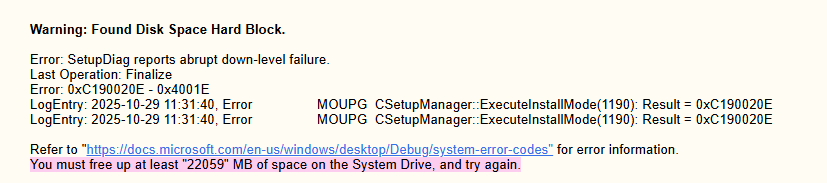
The wait operation timed out / Error code 258 / Either you haven't provided the silent switches or the silent switches are incorrect / The software package installation failed as the installation process took longer than the timeout limit or the silent switches were either incorrect or missing
Possible Cause
The primary reason for the feature pack deployment failure is low system performance. Typically, deploying a feature pack should take between 1 to 1.5 hours. However, if the deployment exceeds 4 hours, the workflow will terminate with a "Wait operation timed out" error.
Resolution
To resolve this issue, it is recommended to restart the system and redeploy the failed patches during system startup for successful installation. For software deployment (SWD), set the installation time limit to 6 hours.
Error code : -2147024865 / A device attached to the system is not functioning
Possible Cause
This error occurs when duplicate folders exist in the C:\Users directory or when the user does not have a valid Windows profile. Such inconsistencies can interfere with the deployment process.
Resolution
Delete or move any invalid or unnecessary user folders from the following path: C:\Users
Also, check and clean up duplicate or invalid profile entries from the registry: HKEY_LOCAL_MACHINE\SOFTWARE\Microsoft\Windows NT\CurrentVersion\ProfileList
To identify duplicate profiles:
- Navigate to the Panther logs in the agent log directory.
- Log file: setupact.log
- Keyword: Duplicate profile detected for S-... this will show the comparisons between two user profiles. Confirm the duplicate profile based on the error and profile name shown.
Example2024-12-04 10:17:09, Warning MIG Duplicate profile detected for user S-1-5-21-715849514-2861270963-1347632883-1004(C:\Users\Admin) vs. S-1-5-21-715849514-2861270963-1347632883-1001(C:\Users\Admin). 2024-12-04 10:17:09, Info MIG AdjustPrivilege: Privilege SeTakeOwnershipPrivilege will be Disabled 2024-12-04 10:17:09, Info MIG Privilege has been disabled 2024-12-04 10:17:09, Info MIG AdjustPrivilege: Privilege SeSecurityPrivilege will be Disabled 2024-12-04 10:17:09, Info MIG Privilege has been disabled 2024-12-04 10:17:09, Error MigPlatformStartupOnline caught exception: Win32Exception: Duplicate profile detected for S-1-5-21-715849514-2861270963-1347632883-1004. Abandoning.: The specified user does not have a valid profile. [0x000004E5] class Mig::CUserContext *__cdecl Mig::COnlineWinNTPlatform::AddUserContext(class Mig::CRegistryDataStore *,class UnBCL::String *,class UnBCL::String *,class UnBCL::String *,class UnBCL::String *,class UnBCL::Array<class UnBCL::String *> *,int,struct _FILETIME,int,int,class UnBCL::String *,class UnBCL::String *)Error code: 500100 / 50034
Possible Cause
The Windows setup process from Windows 10 to Windows 11 is initiated using Task Scheduler. However, the process creation fails during execution.
Resolution
To bypass this issue, modify the registry to use an alternate method for initiating the Windows setup process.
- Root Key: HKEY_LOCAL_MACHINE
- Sub Key: SOFTWARE\WOW6432Node\AdventNet\DesktopCentral\DCAgent\Patch\InternalSettings
- Value Name: ForceCreateProcess
- Data Type: REG_DWORD
- Value Data: 1
Setting this registry value forces the agent to use a different method to create the Windows setup process.
Error code: 500101 / 50041
Possible Cause
PowerShell and DISM commands are used to validate the provided ISO. However, the execution is either blocked or fails due to system restrictions.
Resolution
- Verify if any antivirus or security software is blocking PowerShell or DISM execution.
- Remove or modify any policies or restrictions that prevent the execution of PowerShell scripts or DISM commands.
%1 is not a valid Win32 application
Possible Cause
This error occurs when you have deployed the dependency patch of the feature pack.
Resolution
Scan the systems and check the missing patches list. Deploy the patch where its description starts with Feature Pack Update.
Unable to download the dependency file from the server
Possible Cause
This error occurs if there is a connectivity issue between the server and the agent.
Resolution
Redeploy the feature pack update. If the problem persists, contact support
Error Code: 50042
Possible Cause
This may occur if a previous deployment failed to terminate existing feature pack installation processes.
Resolution
Perform process and system cleanup on the affected machine:
- Open Task Manager and terminate the following processes (if running):
- setupprep.exe
- SetupHost.exe
- Alternative: Restart the affected machine and retry the deployment.
If you want any further guidance, contact support