Patch Deployment Policy
Deployment Policy and its Need
A Deployment Policy is an end-to-end customized policy configured by IT administrators to deploy patches according to the enterprise's needs. It helps design a user-specific patching policy, enabling an effective patching system across all endpoints managed by the enterprise, regardless of location.
When deploying software or a patch using Endpoint Central, you can specify various Deployment Settings such as installation timing, user permissions to skip deployments, and reboot policies. These settings can be created as Policies and used when defining configurations or tasks. Any policy can be marked as a default policy, so it applies by default to all subsequent configurations or tasks created.
There are several ways to create deployment policies: Policies can be created from the Deployment Policies page. You can access the Deployment Policies page by Navigating to Threats and Patches -> Deployment -> Deployment Policies. When a task must run at its next eligible opportunity, select the built-in Deploy Anytime at the Earliest policy from Apply Deployment Policy. Built-in policies appear under Created by Others.
Wake on LAN applies to:
- Windows
Pre-deployment activities apply to:
- Windows
- Linux
Post-deployment Reboot/Shutdown applies to:
- Windows
- macOS
- Linux
Post-deployment Custom Script applies to:
- Windows
- Linux
Deployment Schedule
Each enterprise has unique rules and regulations with a customized working pattern to maximize returns. Patch deployment might sometimes hinder system productivity due to high bandwidth consumption. To avoid this, the admin can customize the deployment schedule.
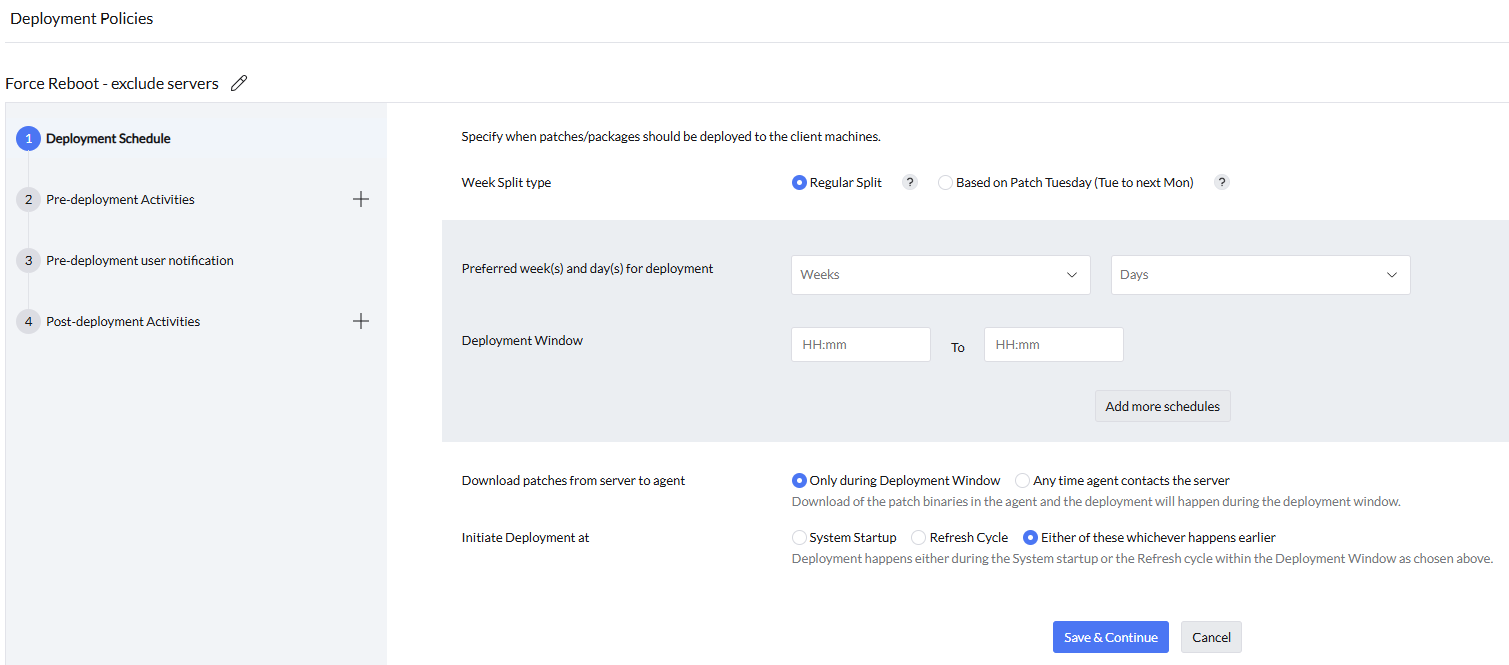
To do this,
- Click Create Policy under Deployment Policy.
- Specify a name for the policy.
- Under Deploy based on, choose Weeks & Days, Patch Tuesday (Tue to next Mon), or Calendar Dates. The Patch Tuesday week runs from the second Tuesday of the month through the following Monday, and each subsequent week is the next seven-day period. For example, if Patch Tuesday falls on the 11th, the Patch Tuesday week is the 11th through the 17th, and the first week after Patch Tuesday is the 18th through the 24th. Use the date ranges shown in the policy to confirm the applicable weeks. Specify whether deployment can occur on any day or only on selected days. For deployment only on weekends, select Saturdays and Sundays. When a specific day is selected, an eligible patch waits until the next configured deployment day and window.
- Specify the Deployment Window, which is the time interval for deployment on the client computer. The window is evaluated using each target computer's local system time. You can specify an interval between 3 hours and 24 hours. It is recommended to provide a minimum of 3 hours to ensure the agent communicates with the product server at least once during this window to receive inputs for initiating the deployment.
- The option to enable "Download patches from server to agent" can be configured during the deployment window or when the agent contacts the server.
- Deployment can be initiated during the system startup or refresh cycle. At Startup refers to when the computer is turned on from a powered-off state or after a restart. Retry also occurs during the 90-minute agent refresh cycle.
A saved policy modification is received by a target during its next agent refresh. The default agent refresh interval is 90 minutes.
Multiple deployment periods
A Deployment Policy can include multiple deployment periods. Configure the required periods in the deployment template associated with the policy.
Deployment window behavior
When Download patches from server to agent is configured to download only during the Deployment Window, agent-side downloading begins only after the patch becomes eligible for deployment and an applicable deployment window is open. For example, when deployment is delayed for three days after approval, downloading begins during the applicable window on or after the third day.
If a patch download is in progress when the deployment window ends, the active transfer stops and resumes from its partial progress in the next available deployment window. A patch installation that is already in progress when the deployment window ends is allowed to complete. If you create the APD or deployment task after the deployment window for that day has already ended, the task does not run until the next window.
Enable Patch outside deployment window when systems that repeatedly miss the configured window must be patched after a grace period. Set Force deploy to unpatched systems after they have missed to the required number of deployment days. For a required restart, select whether Force reboot can occur within or outside the deployment or reboot window.
The deployment schedule is evaluated using each endpoint's local time. If only specific deployment days are selected, an eligible endpoint waits until the next selected day and deployment period.
To avoid waiting for a recurring deployment window, apply the built-in Deploy Anytime at the Earliest policy to the deployment task.
Configuring Pre-Deployment Activities
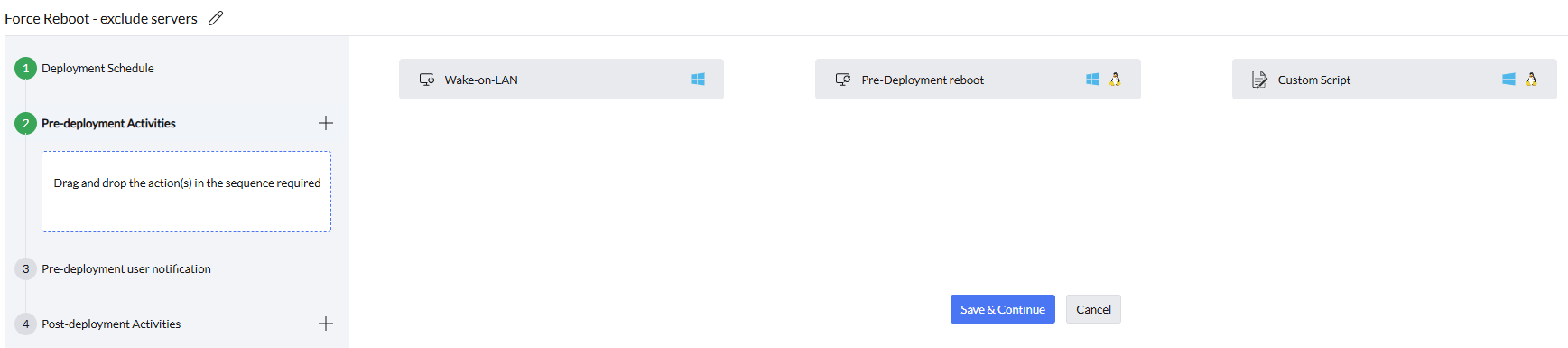
To deploy configurations to computers that are turned off, enable the "Automatically wake computers before deployment" checkbox. This option allows administrators to deploy configurations to target computers within the network but currently powered off. If the target computers are connected to the corporate LAN/WAN, they will be powered on using the Wake On LAN feature, and the configuration will be deployed. This feature is not applicable to computers outside the corporate LAN/WAN. The Wake On LAN functionality operates based on the local time zone of each computer.
Pre-Deployment Reboot settings can be configured to suit specific requirements. Administrators can exclude servers from rebooting to minimize system downtime and skip reboots for machines that don't require them. Additionally, users can be notified about upcoming reboots through a customized notification message.
Pre-Deployment Reboot reboots the computer only after the deployment task has been initiated. When Install Option is During Startup, the computer must be restarted first so the task is initiated. The policy pre-reboot is the next reboot, not that first restart. If the status remains Yet to Apply or Ready to Execute, refer to Configuration Status Yet To Apply.
Custom Script option can be used to perform a set of functions before patch deployment is about to happen. In your organization, in one of your endpoints, if there is a specific application running and you want to close that application right before the deployment is about to happen , you can create a custom script accordingly and then upload the script to the script repository. Then, under this option, you can import the script post which Script Arguments, Dependancy Files and Exit Codes needs to be specified.
If patch installation is delayed because an application is running, see Patch Update Delayed Since Application Is Used By Another Process. Use application-closing settings or a pre-deployment script only after considering the risk of unsaved user data; do not rely on application-specific patch IDs in a deployment policy.
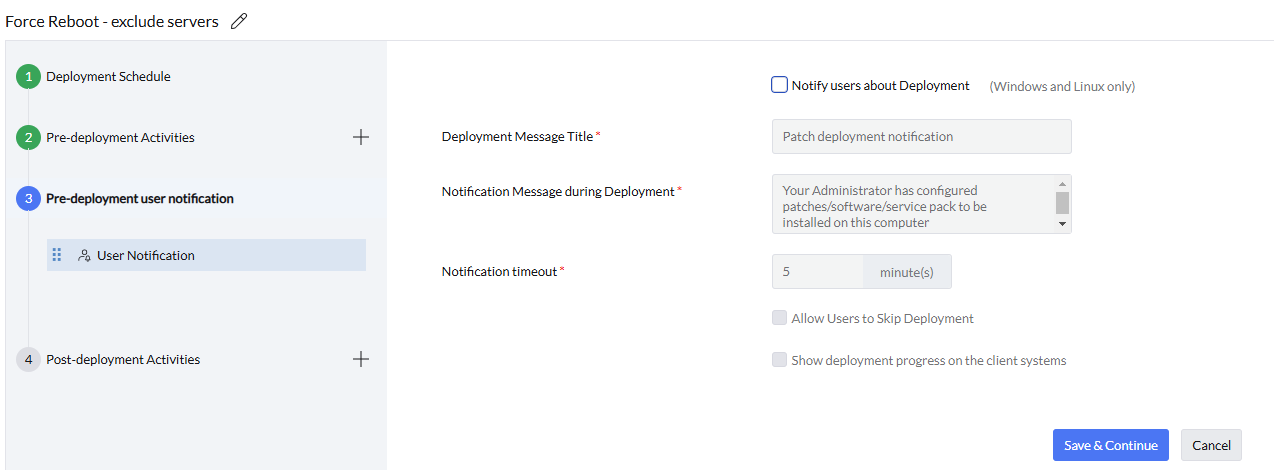
The Pre-Deployment User Notification settings can be configured as follows:
- Provide the "Title of the Message" to be displayed on client computers before deployment begins.
- Enter the message content to inform users prior to deployment.
- The notification message will appear on client computers based on the duration specified in the Notification Timeout section.
- Specify whether users can skip the deployment by selecting the "Allow Users to Skip Deployment" option. If this option is not selected, deployment will proceed without user control.
- To display the deployment progress on client computers, enable the "Show deployment progress on the client systems" option.
- Define the number of days after which deployment will be forced. This allows users to skip deployment only for the specified period, after which it will automatically proceed.
- Set the time limit for deployment to begin if the system remains idle.
The deployment notification configured here is separate from Show Information Balloons While Processing Configurations and Patch Scanning under Agent Tray Icon settings. Disabling that informational balloon does not disable the deployment or deployment-progress notification.
Notification recurrence after a skip
If a user skips a pre-deployment notification, it is displayed again during the next agent refresh cycle. The notification cannot be limited to a specified number of times per day.
Built-in pre-deployment notification
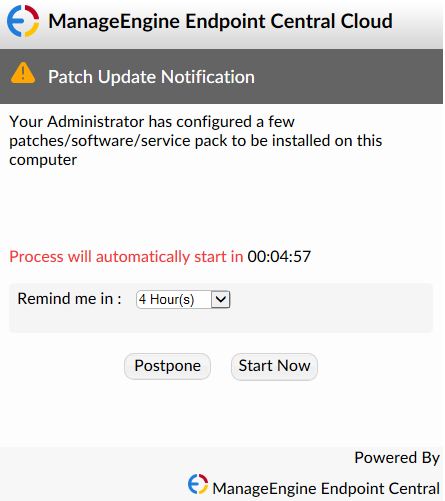
The message stating that patches are waiting to be downloaded and installed is a built-in Endpoint Central pre-deployment user notification. It is displayed during the pre-deployment notification stage.
Configuring Post-Deployment Activities
If no post-deployment reboot or shutdown activity is configured, the endpoint is not restarted and no reboot prompt is displayed. When a patch requires a restart, its deployment status remains Reboot Pending until the endpoint is restarted. The option to skip reboot through the deployment policy is available only for Server OS.
Reboot notifications are displayed only to the active user on the target computer. They are not displayed to the administrator who initiated the deployment from another computer.
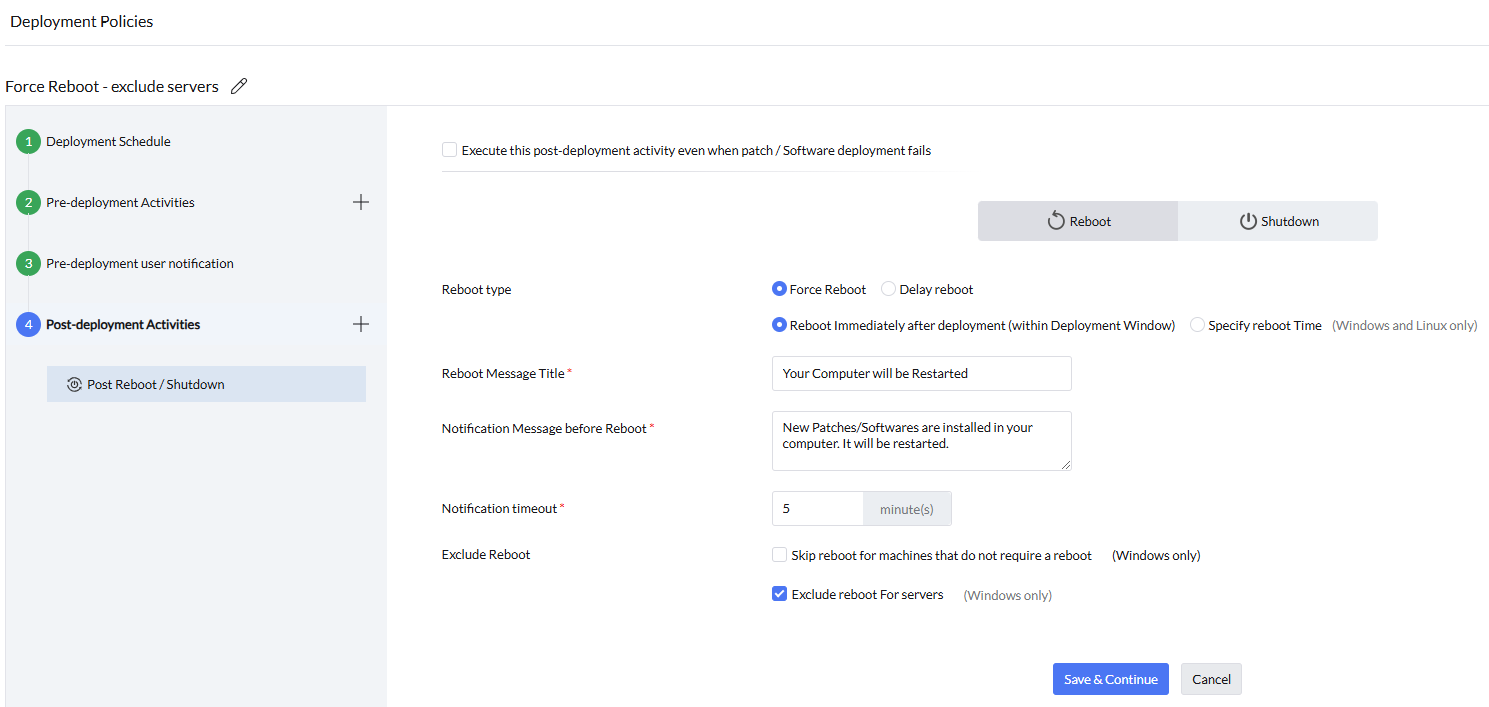
- As part of post-deployment activities, the Reboot/Shutdown settings for systems can be configured. Administrators can choose between a Force reboot/shutdown or a Delay reboot/shutdown option. Additionally, the reboot/shutdown time can be specified. Users can be notified about the reboot/shutdown through a customized notification message. An option to "Restart and then Shutdown" the systems is also available for configuration. Custom script option is given as a post deployment activity too, which you can use for performing a set of functions post patch deployment such as restarting the applications which were earlier closed using the pre-deployment custom script. Similar to Pre-deployment Custom Script, after importing the necessary script, even here the options such as Script Arguments, Dependancy Files and Exit Codes needs to be specified.
- Select Save to apply the changes.
Reboot notification behavior
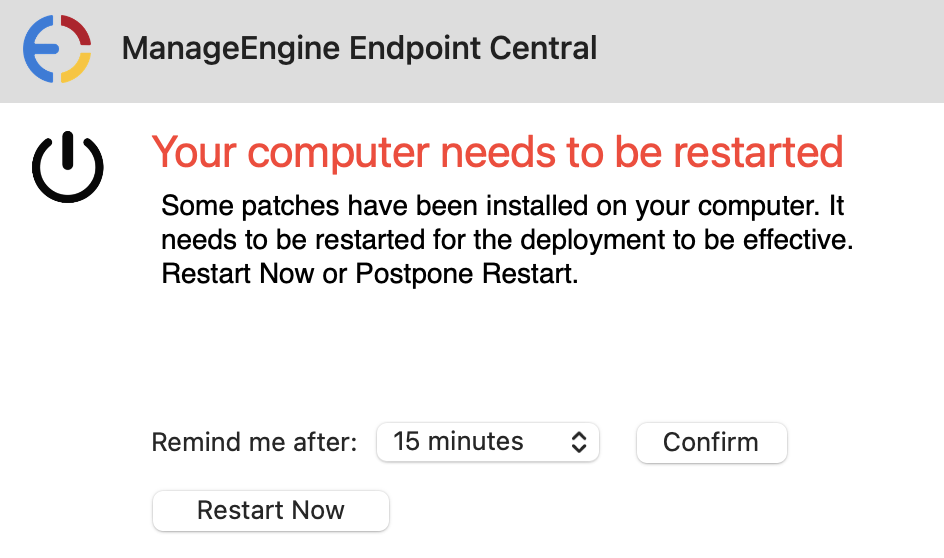
The restart notification prompt uses the default Endpoint Central display. You can customize the notification content and reboot behavior, but not the size or layout of the prompt.
For a delayed reboot, the postponement and force-reboot timers are measured from the first postponement and do not restart when the endpoint is shut down or put to sleep. No reboot occurs while the endpoint is offline. When it next comes online, the agent continues from the elapsed policy state; if the allowed postponement period has expired, the endpoint proceeds to the force-reboot stage. The force-reboot window must be longer than the postpone intervals you offer, or users never get the longer postpone option.
The delay before the force-reboot stage and the timeout of the final force-reboot prompt are separate settings. Configure the force-reboot prompt timeout to provide a longer final warning. If an endpoint comes online after the configured force-reboot delay has already elapsed, it enters the force-reboot stage immediately.
The Reboot after a time out of 5 minute(s) setting applies only to the force reboot prompt. Any other reboot prompt remains until the user accepts or postpones it.
If Windows or another installation path completes the required restart before the product's reboot timer runs, and the endpoint no longer reports a patch that requires reboot, the pending reboot queue is cleared and no force-reboot prompt is displayed.
On macOS, the Windows and Linux post-deployment postponement intervals do not apply. When a post-deployment reboot activity is configured, macOS displays the default reboot prompt.
While an Endpoint Central reboot notification is displayed, the computer is not treated as idle. A GPO idle auto-lock does not run during that countdown.
Post-deployment activity order
Post-deployment activities run in their configured order. When Reboot/Shutdown is followed by a Custom Script, the endpoint reboots first and the custom script runs after the endpoint is back online. If Skip reboot for machines that do not require a reboot applies, a post-reboot action is not run for a patch that does not require a reboot.
The deployment policy has been successfully created and can be applied to any configuration. To modify or delete the policy, use the Actions button.
Notification displayed on the End-User's Device
The Agent Tray balloon shown while configurations or patch scans are being processed is separate from deployment and reboot prompts. To hide only that balloon, navigate to Admin → Agent Settings → Agent Tray Icon, clear Show Information Balloons While Processing Configurations and Patch Scanning, and save the changes.
Windows
Mac
For instructions on configuring deployment windows, enforcement, notifications, and OS updates for macOS, see Configure a macOS Patch Deployment Policy.
Role-based access
The deployment process can be fine-tuned to meet specific requirements by configuring the deployment settings. These policies are linked to various configurations and deployment tasks. Only the user who created the deployment policy and an Admin can modify that policy. Patch Management Write and Software Deployment Write, including Full Control, do not grant modify rights on a policy created by another user. To use different settings, create a new deployment policy and assign it to the deployment. To request a change to this restriction, submit a feature request.