Product Build Number and Upgrade Notifications
Understanding how Endpoint Central versions are structured, how to find the current build number, and where to see server upgrade notifications.
Build Number Format
Every release of Endpoint Central is uniquely identified by a four-segment build number. Understanding each segment is essential before planning a server upgrade.
11.4.2528.21 = Major version 11, Feature version 4, Service Pack 2528, Minor version 21.- Segment 3 (Service Pack) is always a 4-digit number (e.g.,
2528). - Segment 4 (Minor version) is always a 2-digit number (e.g.,
21). - Rule of thumb: If only the last two digits changed between the current build and the target build, it's a patch (minor version). If the four-digit segment changed, it's a service pack — plan a maintenance window.
11.4.2528.19 → 11.4.2528.21 (only patch changed)Example:
11.4.2516.39 → 11.4.2528.21 (service pack changed → manual PPM required)| Segment | Example | Digit Count | Changes Require |
|---|---|---|---|
| Major Version (11 → 12) | 11 | 2 digits | Full migration / re-installation |
| Feature Version (11.3 → 11.4) | 4 | 1 digit | Manual PPM upgrade (may require an intermediate step) |
| Service Pack (2500 → 2528) | 2528 | 4 digits | Manual PPM upgrade (single step if within same feature tier) |
| Minor Version (.19 → .21) | 21 | 2 digits | Manual PPM upgrade |
Build Number Ordering
Build numbers are ordered numerically within the same service pack. When comparing across service packs, the service pack number always takes precedence.
11.5.2604.91 and build 11.5.2600.19 are both in the 11.5 line.2604is a newer service pack than2600— so11.5.2604.91is the newer build overall, regardless of the higher patch number.91vs.19.- Within the same service pack (e.g., both
11.5.2600.x), a higher patch suffix means a newer build.
Note: ManageEngine Desktop Central was renamed to Endpoint Central starting with version 11.2. There may be still references to "DesktopCentral" or "UEMS" in older PPM file names, installation folder paths, Windows service names, and log files — this is expected and does not indicate an error.
Check Current Build Number
Using the below options in the product console to view the current build number and related version details.
- Login the product → Profile Icon → Build Version
Sign in to the Endpoint Central console, click the Profile Icon in the top-right corner, and open Build Version to view the versions included in the current build.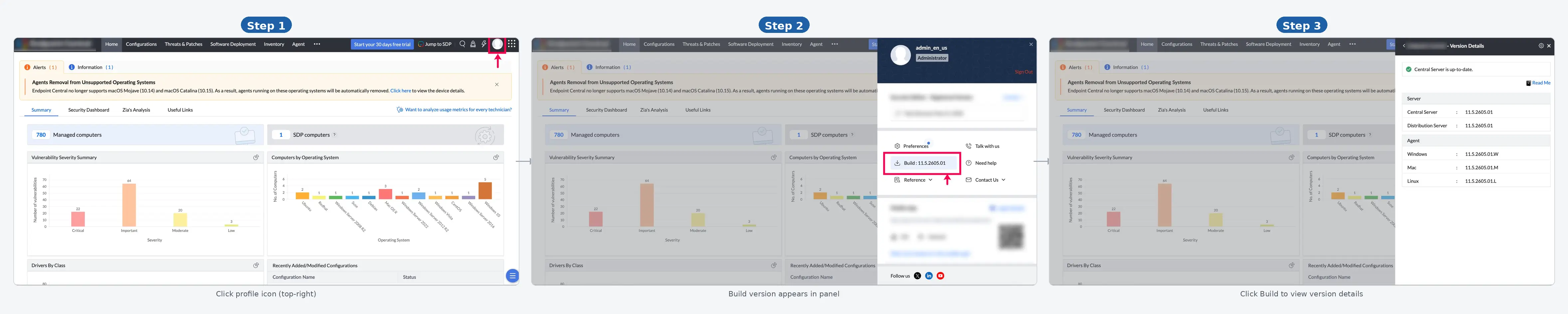
- Go to Support tab → General Information → Product Information
Open the Support tab, go to General Information, and select Product Information to verify the current build version and component details.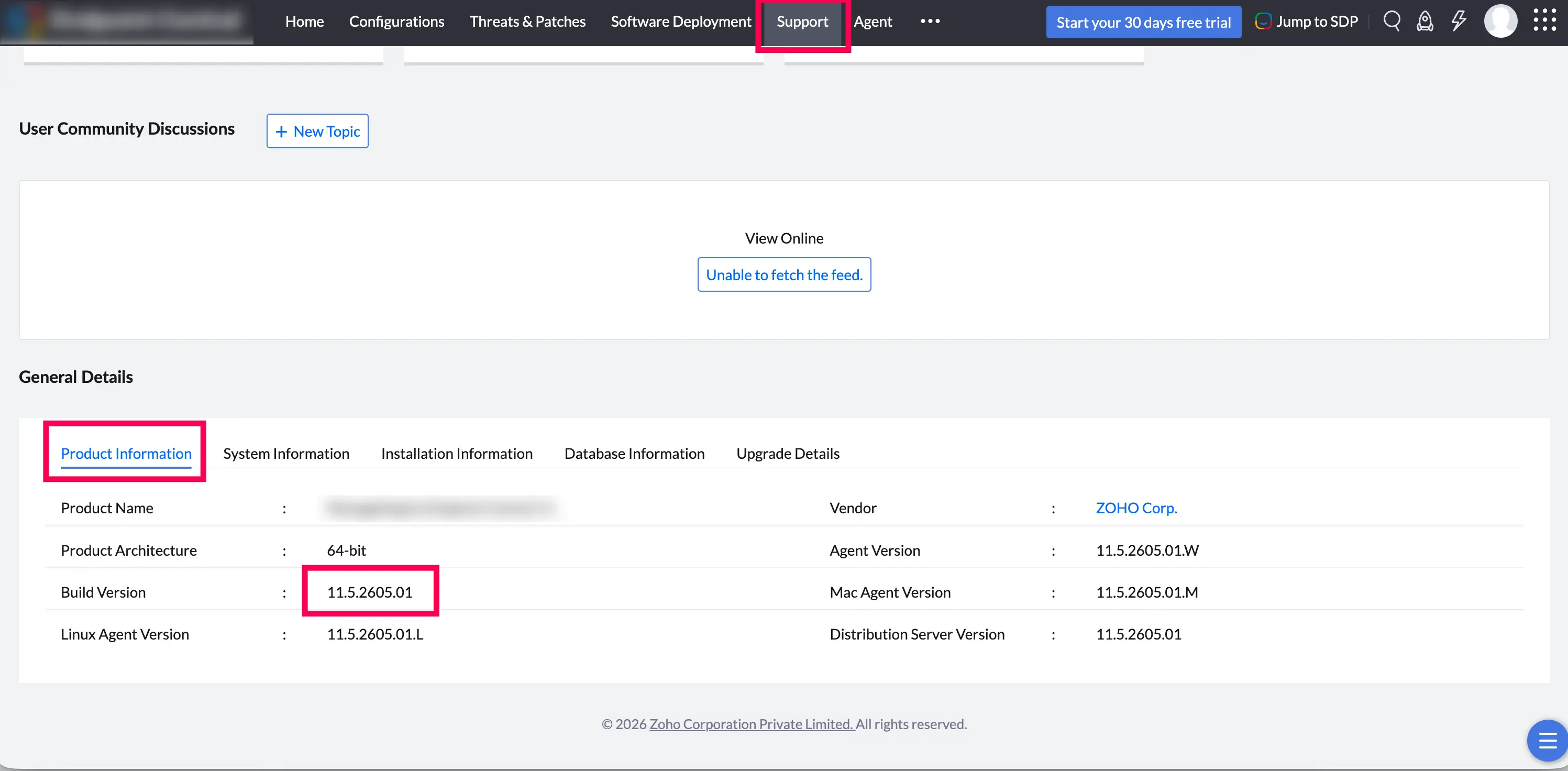
Upgrade Notifications
Upgrade notifications helps to know when a new service pack or update is available for Endpoint Central server.
- Login → Profile Icon → Build Version → Notification on new build upgrade
Sign in to the Endpoint Central console, click the Profile Icon in the top-right corner, and open Build Version to view the new upgrade available for the product. - Login page — banner message
A banner message will be displayed on the login page if a new server upgrade is applicable. - In the product console → "Check for updates" icon
Click the "Check for updates" icon in the top right corner of the console to see if a new build is available.
Upgrade Notification Settings
Use notification settings to control how administrators are informed about available updates.
Click on Profile Icon → Build Version → "Settings" icon (top right corner) to enable or disable the following notification settings.
- Display in-product notifications about updates to only administrators
Enable this option to display in-product server upgrade notifications to administrators only. Other logged-in users will not see the upgrade notification banners. - Notify me about the product updates on the login page
Enable this option to display server upgrade notifications on the login page. This ensures administrators are aware of available updates even before signing into the console.
Upgrade History
Use the server upgrade history section to review previously applied updates and confirm whether an update was completed successfully.
- Navigate to Support → General Information → Upgrade Details
A list of previously applied server upgrade version history will be displayed, showing each build number applied along with its timestamp and status.
- Confirm when a specific build was applied to an environment
- Verify that the server upgrade completed without errors
- Answer "when was this server last upgraded?" for audit or support purposes