SUSE Closed Network Patching
SUSE systems operating in a closed network do not have direct internet access to download the latest patches. To keep these systems up to date, an internet-connected server is used to download the latest vulnerability database, package manager files, and required patches. These files are then transferred to the closed network server, enabling you to identify and patch vulnerable SUSE systems within the isolated network.
To manage patches for SUSE systems in a closed network, you must set up two servers running the same product build version: one in an internet-connected network and the other in the closed network.
Follow the steps below to configure the servers and manage patches in the closed network:
Set up the internet-connected server
Follow these steps to configure the internet-connected server:
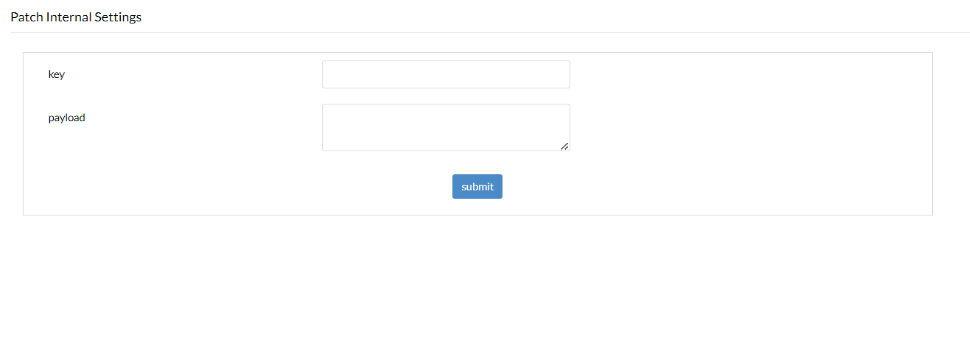
- Enable SUSE closed network support in Patch Internal Settings.
- Navigate to: <hostname>/webclient#/uems/patch-mgmt/internal-settings
- Specify the following key and payload values in Patch Internal Settings:
Key: SuseClosedNWSupport
Payload: {"param": "SuseCNSupportServer", "option": true}
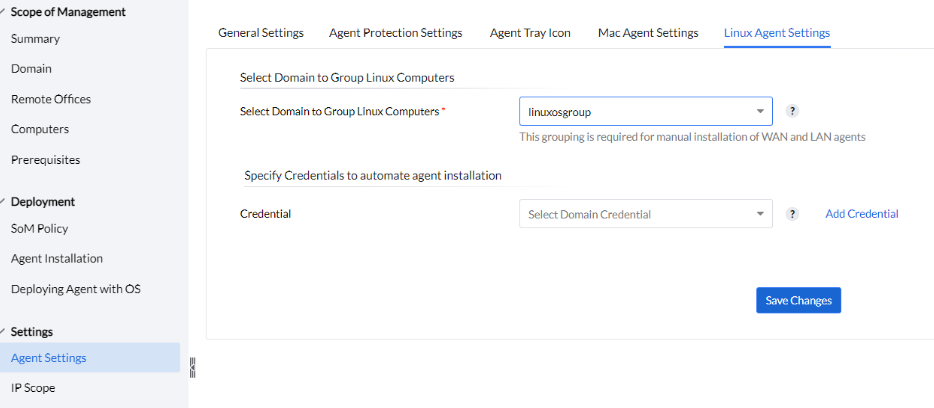
- Navigate to Admin -> Agent Settings -> Linux Agent Settings.
- Select the domain to group Linux computers and specify the credentials required to automate agent installation.
- Click Save Changes.
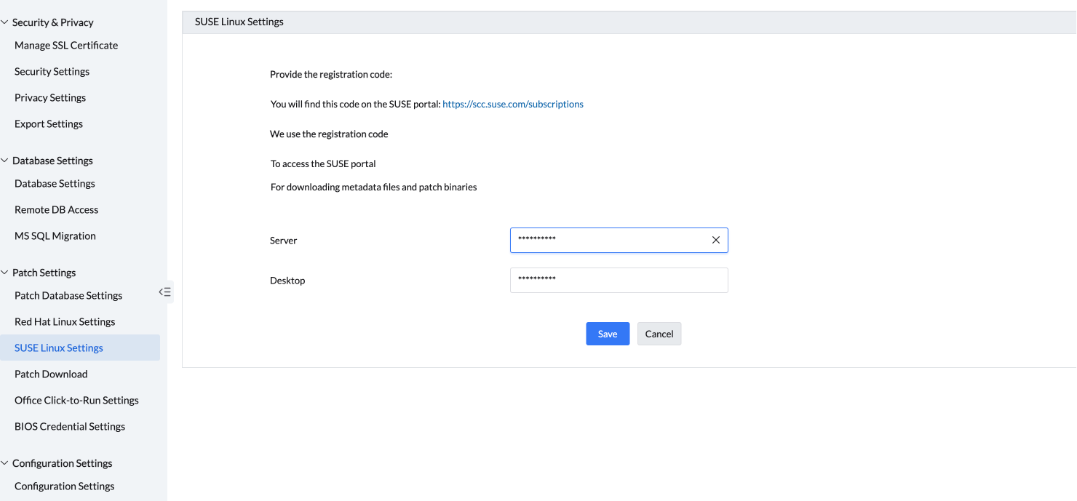
- Navigate to Admin -> Patch Settings -> SUSE Linux Settings.
- Add a valid SUSE registration code. For more information, refer to SUSE Linux Settings.
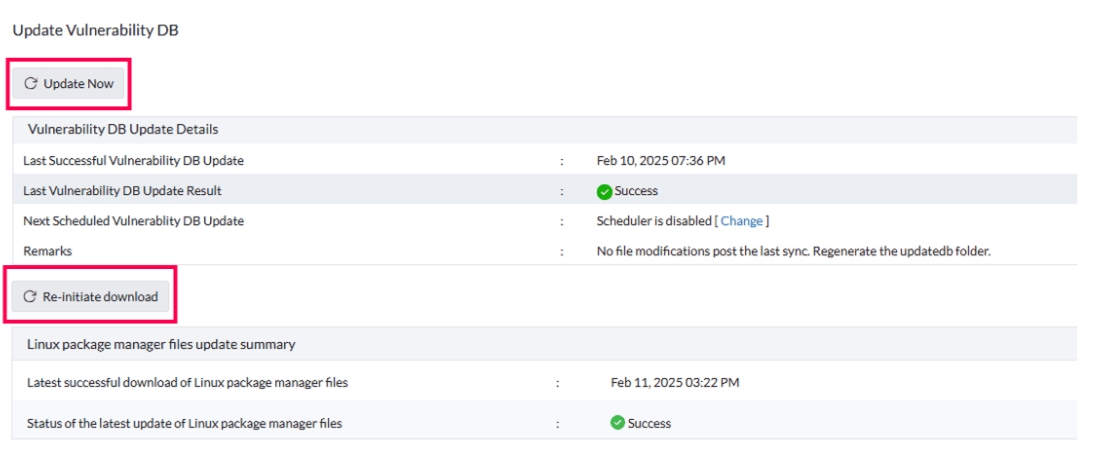
- Perform a vulnerability database sync by navigating to Patch Mgmt -> Update Now. This will take you to the Update Vulnerability DB and then click Update Now.
- Download the offline metadata and Linux package manager files by navigating to Patch Mgmt -> UpdateDB -> Re-initiate Download.
After completing these steps, the updatedb folder will be created in <Server_Home>. It contains the dc-crs and linux folders required for the closed network server.
Set up the closed network server
Configure proxy settings
- Navigate to Admin -> Server Settings -> Proxy Settings.
- Select No connection to Internet.
- Click OK to save the changes.
Configure Linux Agent Settings
- Navigate to Admin -> Agent Settings -> Linux Agent Settings.
- Select the domain to group Linux computers and specify the credentials required to automate agent installation.
- Click Save Changes.
Perform the vulnerability database sync
Follow these steps to transfer the vulnerability database from the internet-connected server to the closed network server:
- On the internet-connected server, navigate to ManageEngine > <product name>_Server > updatedb and copy the entire updatedb folder.
- On the closed network server, navigate to ManageEngine > <product name>_Server > conf > CRSData and paste the folder copied from the internet-connected server.
- After the vulnerability database is synchronized, perform a patch scan on the closed network server to identify the missing patches.
Download and transfer the missing patches
After identifying the missing patches, follow these steps to download them using the internet-connected server and transfer them to the closed network server:
- On the closed network server, navigate to the Missing Patches view and click Export Missing Patches.
- Click Export to download the downloadUrlJson.txt file containing the missing patch details.
- Copy the downloaded downloadUrlJson.txt file from the closed network server to the internet-connected server.
- On the internet-connected server, navigate to Download Patches -> Download Missing Patches and upload the downloadUrlJson.txt file.
- The required patches will be downloaded to the internet-connected server. Navigate to its default Store location and copy the downloaded patch files.
- Transfer the copied patch files to the default Store location on the closed network server.
- On the closed network server, navigate to Patches -> Downloaded Patches -> Update Downloaded Patches and click Yes.
- The transferred patches will be updated and displayed in the Downloaded Patches view.
- You can then deploy the required patches to the applicable SUSE systems in the closed network.