Setting up Endpoint Central Cloud Extension for ServiceDesk Plus Cloud
The Endpoint Central extension now integrates seamlessly with ServiceDesk Plus Cloud, allowing IT administrators to perform essential device management tasks—such as remote troubleshooting, power operations, software deployment, and more—directly from service requests. This integration bridges the gap between service and endpoint management, streamlining workflows, accelerating issue resolution, and enhancing overall IT efficiency. To know more about setting up the Endpoint Central Cloud extension in ServiceDesk plus Cloud, refer to this document .
Technicians can perform the following actions directly within the Endpoint Central extension in the ServiceDesk Plus Cloud console:
- Map a computer to the request
- Initiate remote control on a computer
- Initiate system manager on a computer
- Initiate power operations on a computer
- Initiate Wake on LAN on a computer
- Deploy a software installation or uninstallation configuration
- View DEX device health metrics
How to Map a New Computer to a Request
Required Endpoint Central Roles:Read Access
To learn how to assign these roles to a technician, refer to adding roles in Endpoint Central.
- Navigate to the right pane of the ticket and click the Endpoint Central extension.
- In the search field, enter the name of the computer and choose it from the dropdown list.
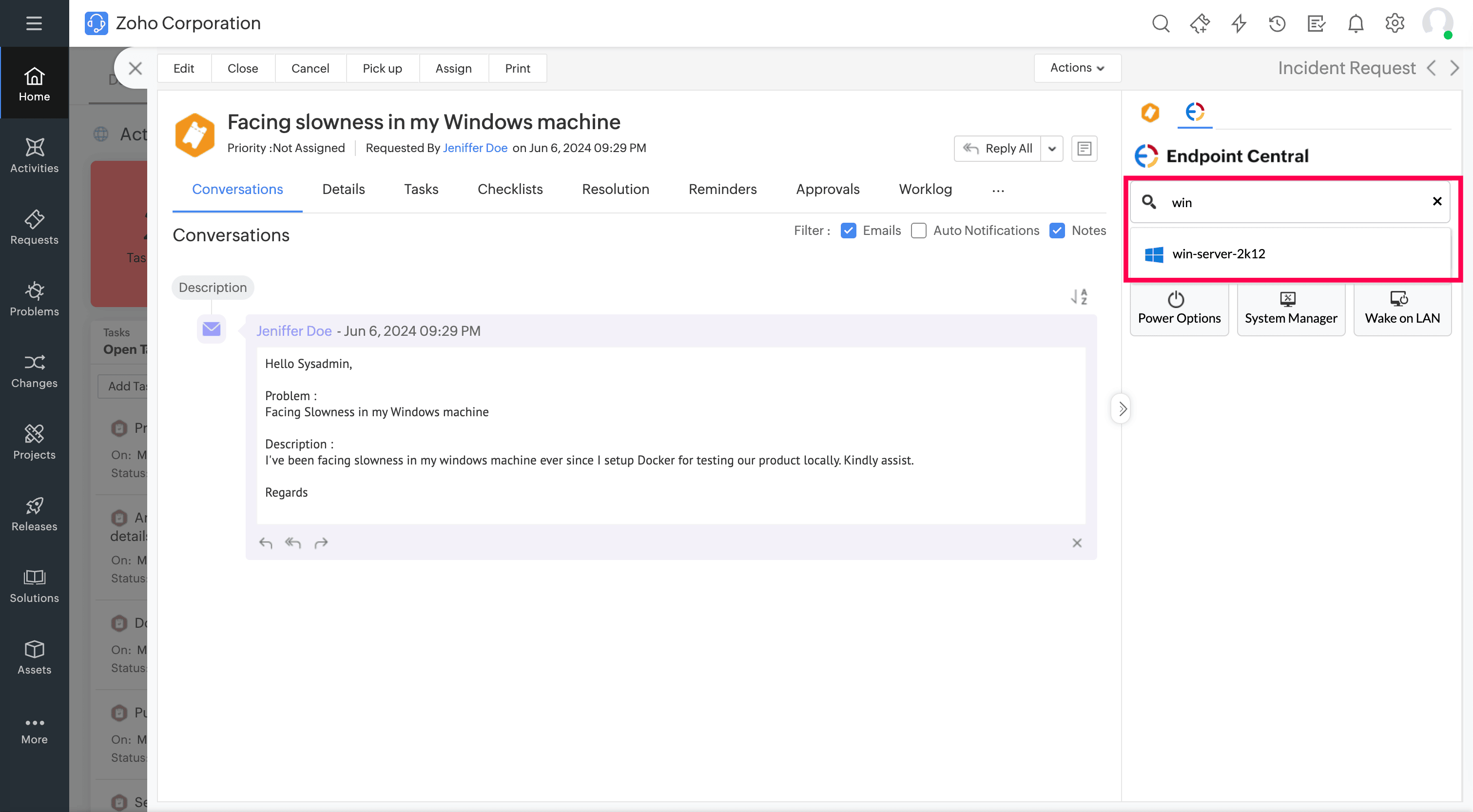
- The selected computer will be mapped to the request.
- To Modify Existing Mapping:
- Click on the mapped computer name and then click the edit icon.
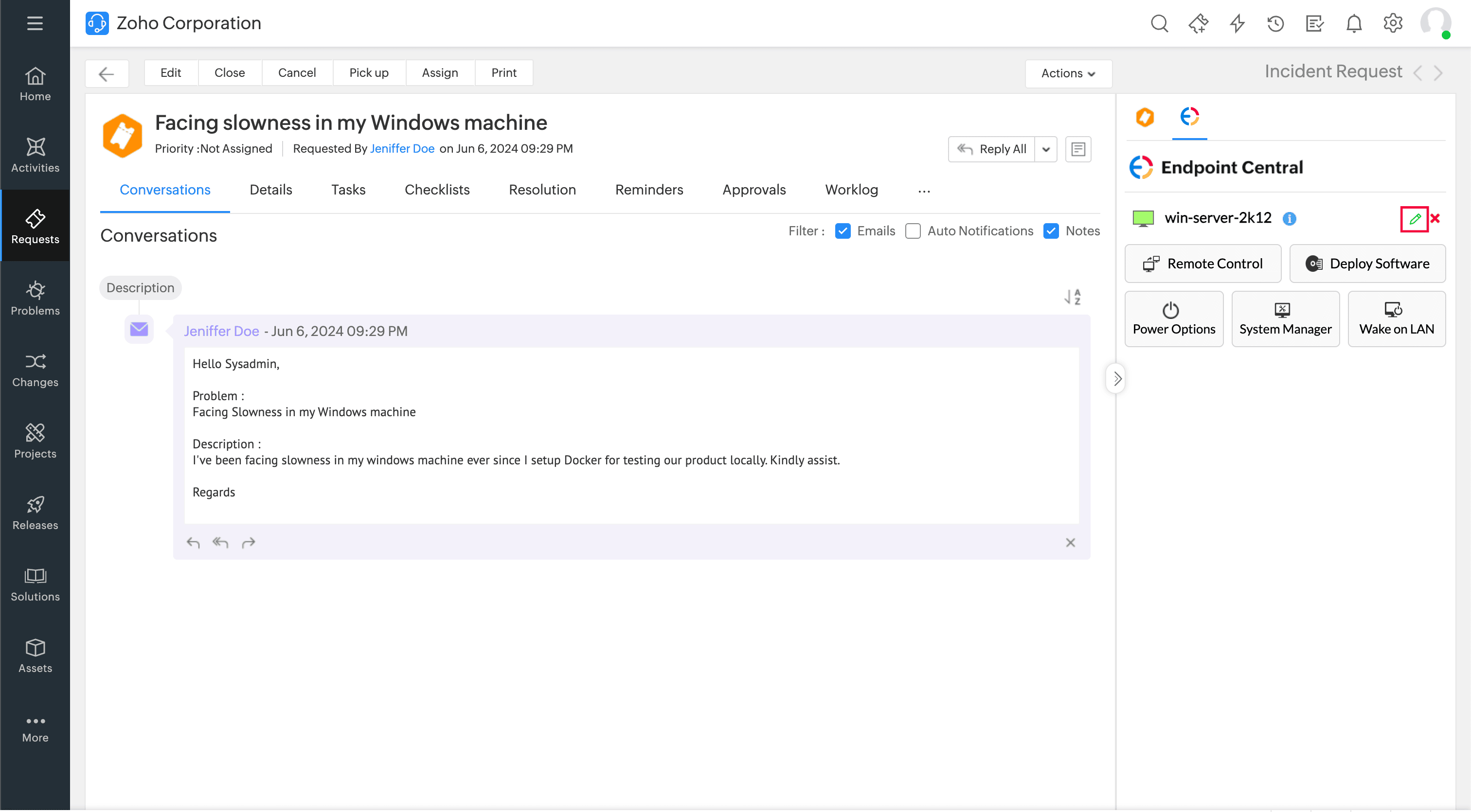
- Select a new computer from the dropdown list.
- The computer mapping will be updated.
- To Delete Computer Mapping:
- Hover over the mapped computer name and click the delete icon.
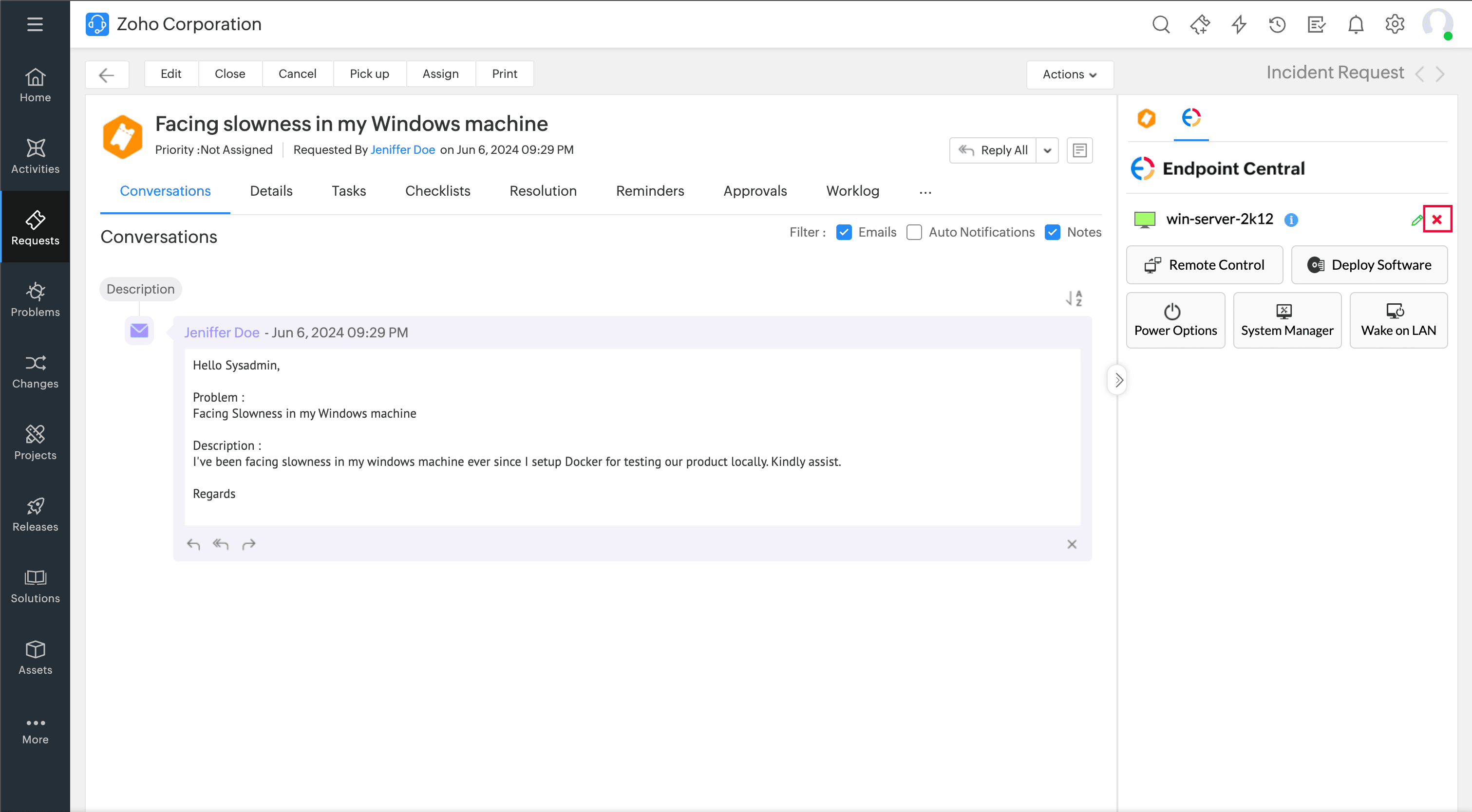
- In the confirmation prompt, click Confirm.
- The mapping will be removed successfully.
Note: This will remove the last deployed software information from the widget. Notes and worklogs added to this request will still be retained.
How to Initiate Remote Control on a Computer
Required Endpoint Central Roles:Remote Desktop Sharing - Write access
To learn how to assign these roles to a technician, refer to adding roles in Endpoint Central.
- Navigate to the right pane of the ticket and click the Endpoint Central extension.
- Ensure the computer status is live and the agent is in contact with the Endpoint Central server.
- Click Remote Control.
- Enter a reason and click Connect.
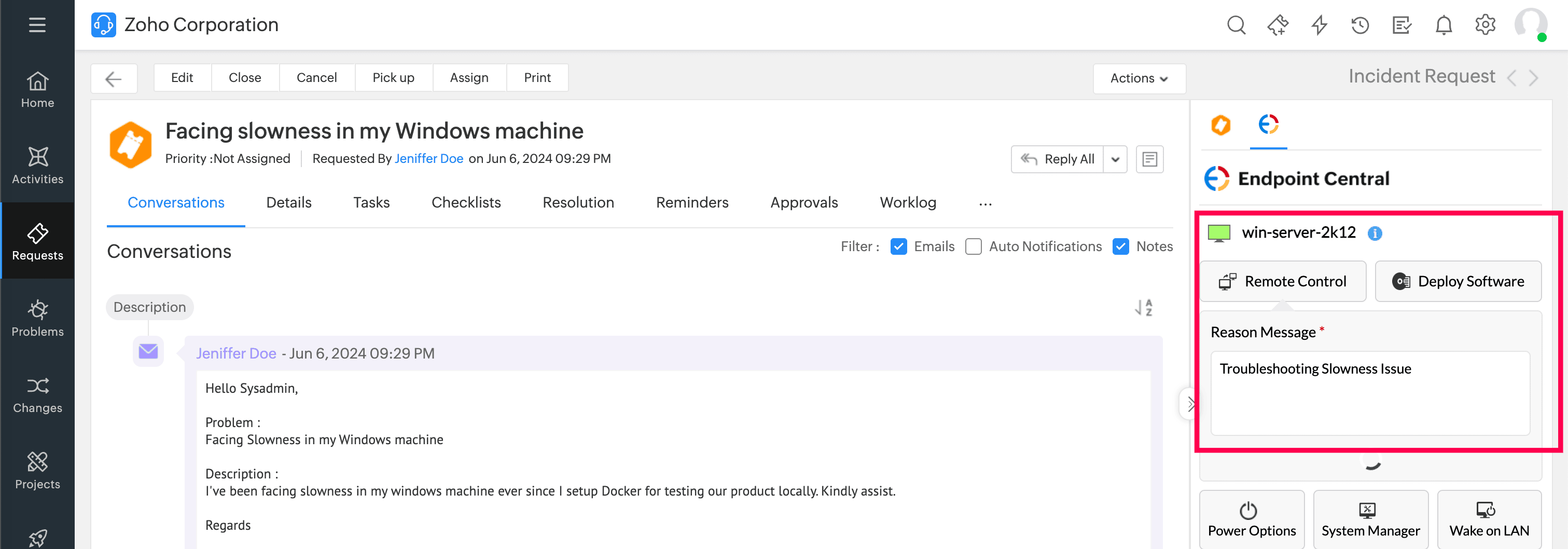
- The session will start in a new tab. Terminate it properly before closing the tab.
Note: Notes and worklogs will be added to the request once the session ends.
How to Initiate System Manager on a Computer
Required Endpoint Central Roles: Tools - Write access
To learn how to assign these roles to a technician, refer to adding roles in Endpoint Central.
- Navigate to the right pane of the ticket and click the Endpoint Central extension.
- Ensure the computer status is live and the agent is in contact with the Endpoint Central server.
- Click System Manager.
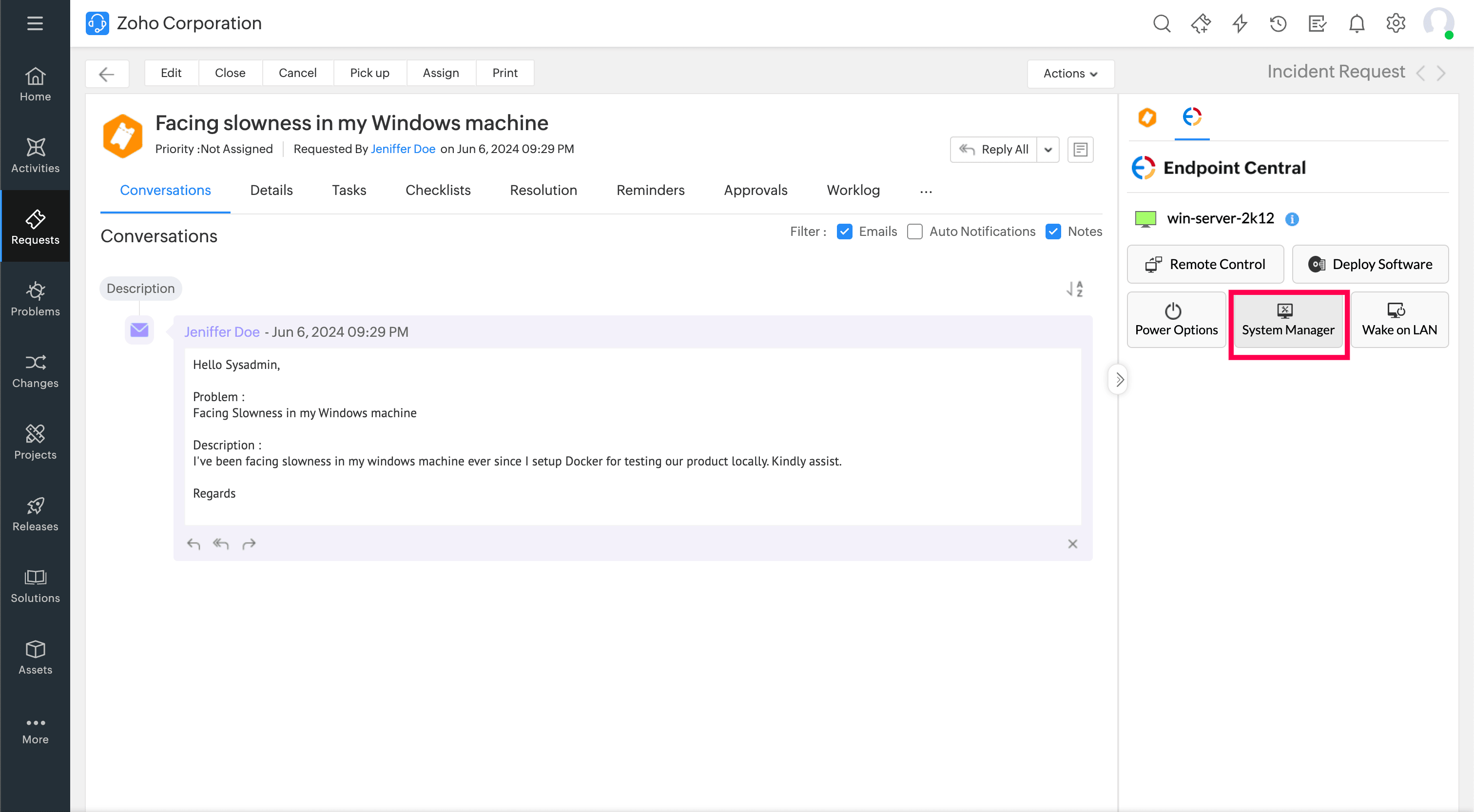
- The session will open in a new tab. To end the session, simply close the tab.
Note: Notes will be added to the request once the session ends.
How to Initiate Power Operations on a Computer
Required Endpoint Central Roles:Tools - Write access
To learn how to assign these roles to a technician, refer to adding roles in Endpoint Central.
- Navigate to the right pane of the ticket and click the Endpoint Central extension.
- Ensure the computer status is live and the agent is in contact with the Endpoint Central server.
- Click Power Options and choose the required action.
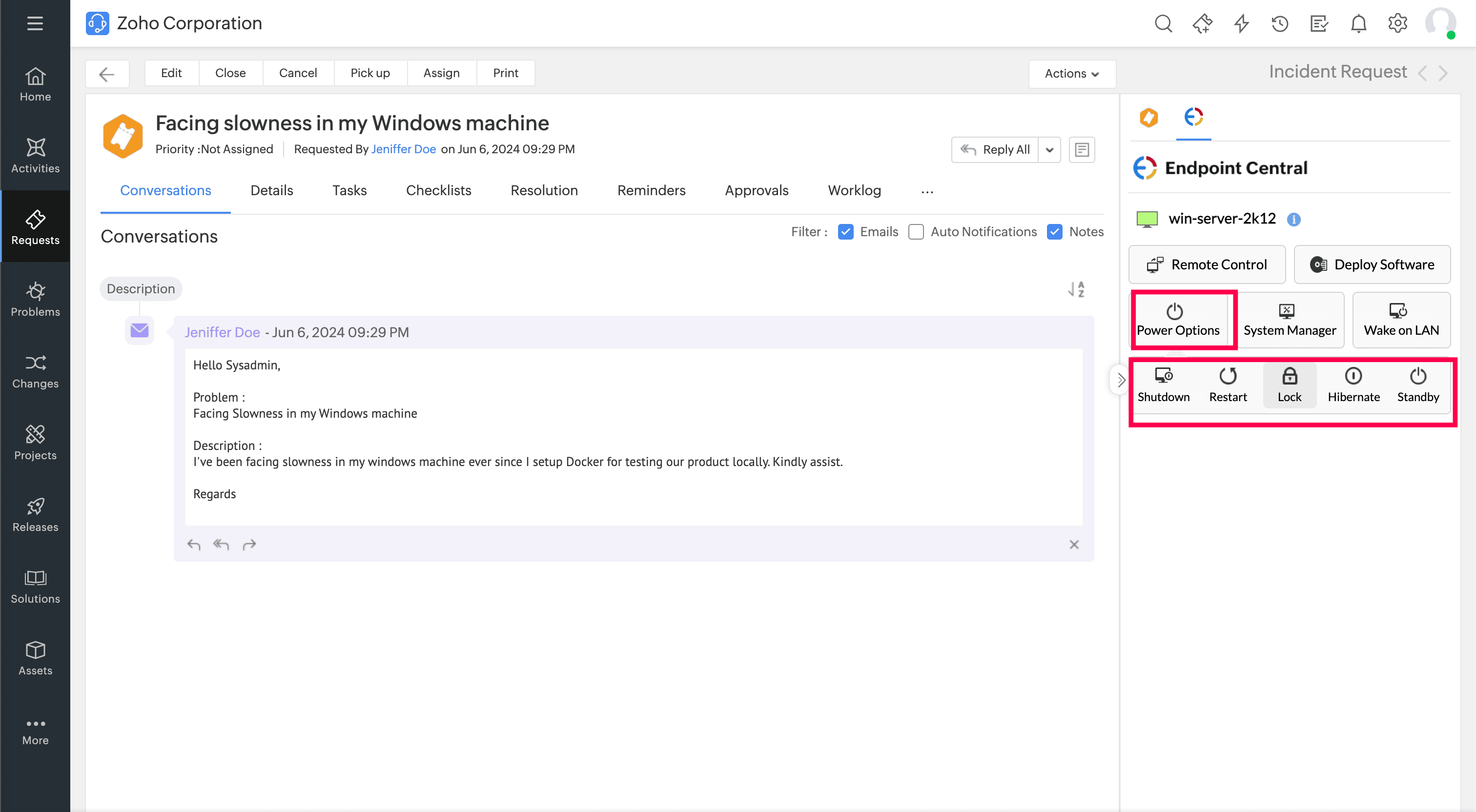
- In the prompt dialog, click Yes.
- The selected power operation will be initiated.
Note: Notes will be added to the request.
How to Initiate Wake on LAN on a Computer
Required Endpoint Central Roles: Tools - Write access
To learn how to assign these roles to a technician, refer to adding roles in Endpoint Central.
- Navigate to the right pane of the ticket and click the Endpoint Central extension.
- Ensure the computer status is Down and Wake on LAN is supported on the target device.
- Click Wake on LAN.
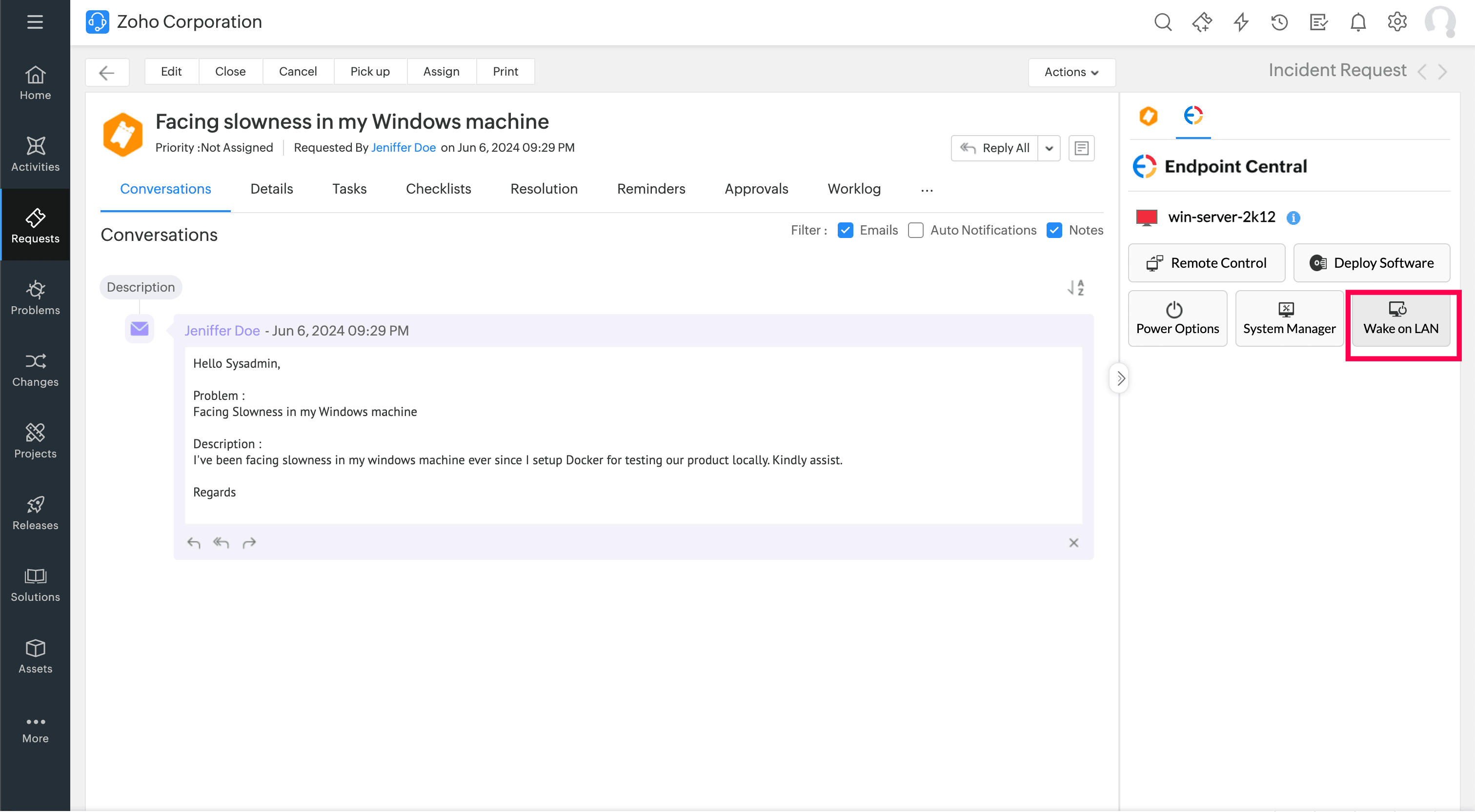
- In the prompt dialog, click Yes.
- Wake on LAN will be initiated.
Note: Notes will be added to the request.
How to Deploy Software Installation / Uninstallation on a Computer
Required Endpoint Central Roles:Software Deployment - Write access, Configurations - Read access
To learn how to assign these roles to a technician, refer to adding roles in Endpoint Central.
- Navigate to the right pane of the ticket and click the Endpoint Central extension.
- Click Deploy Software.
- Choose the deployment type: Installation or Uninstallation.
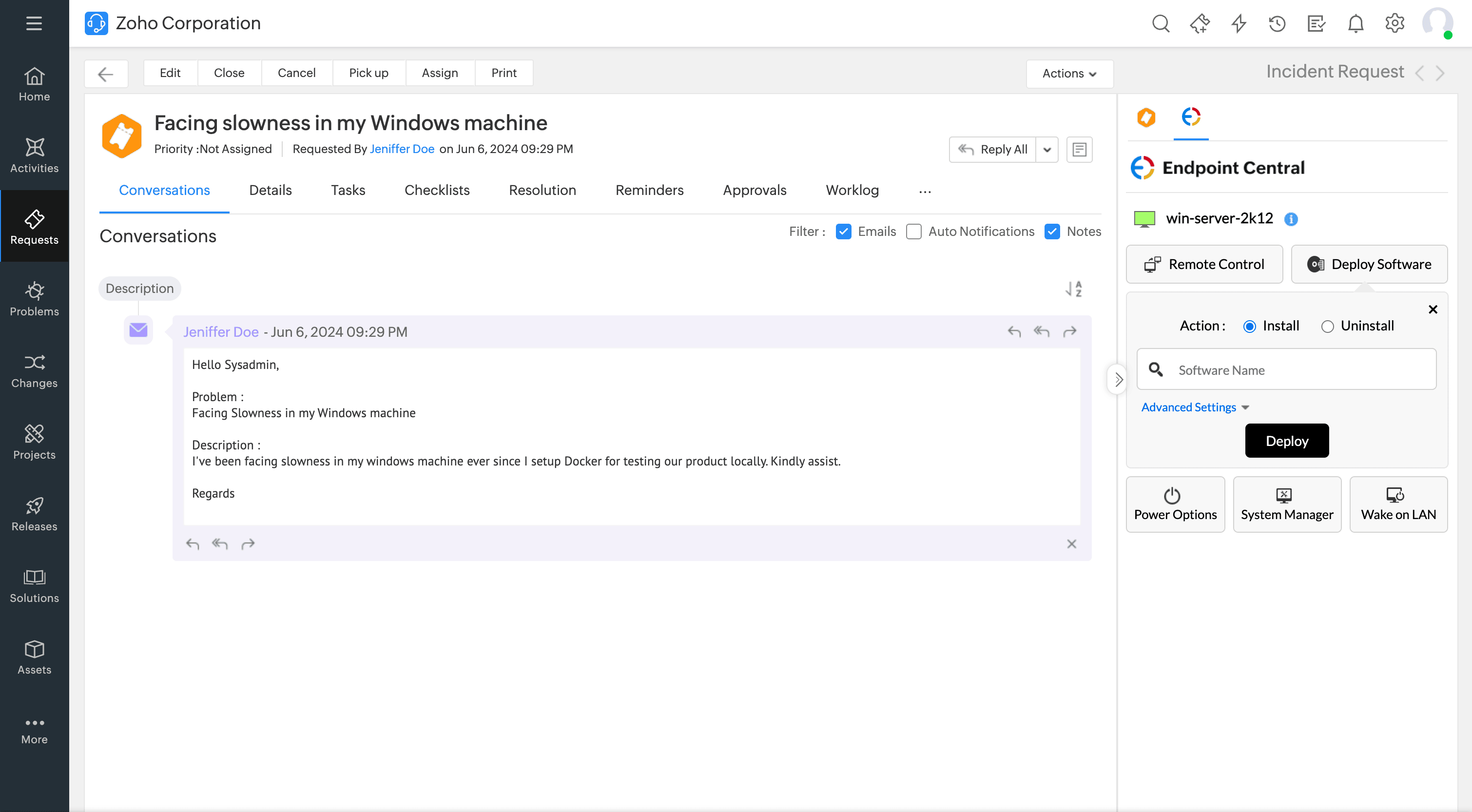
- Enter the software package name in the search field and choose it from the dropdown list.
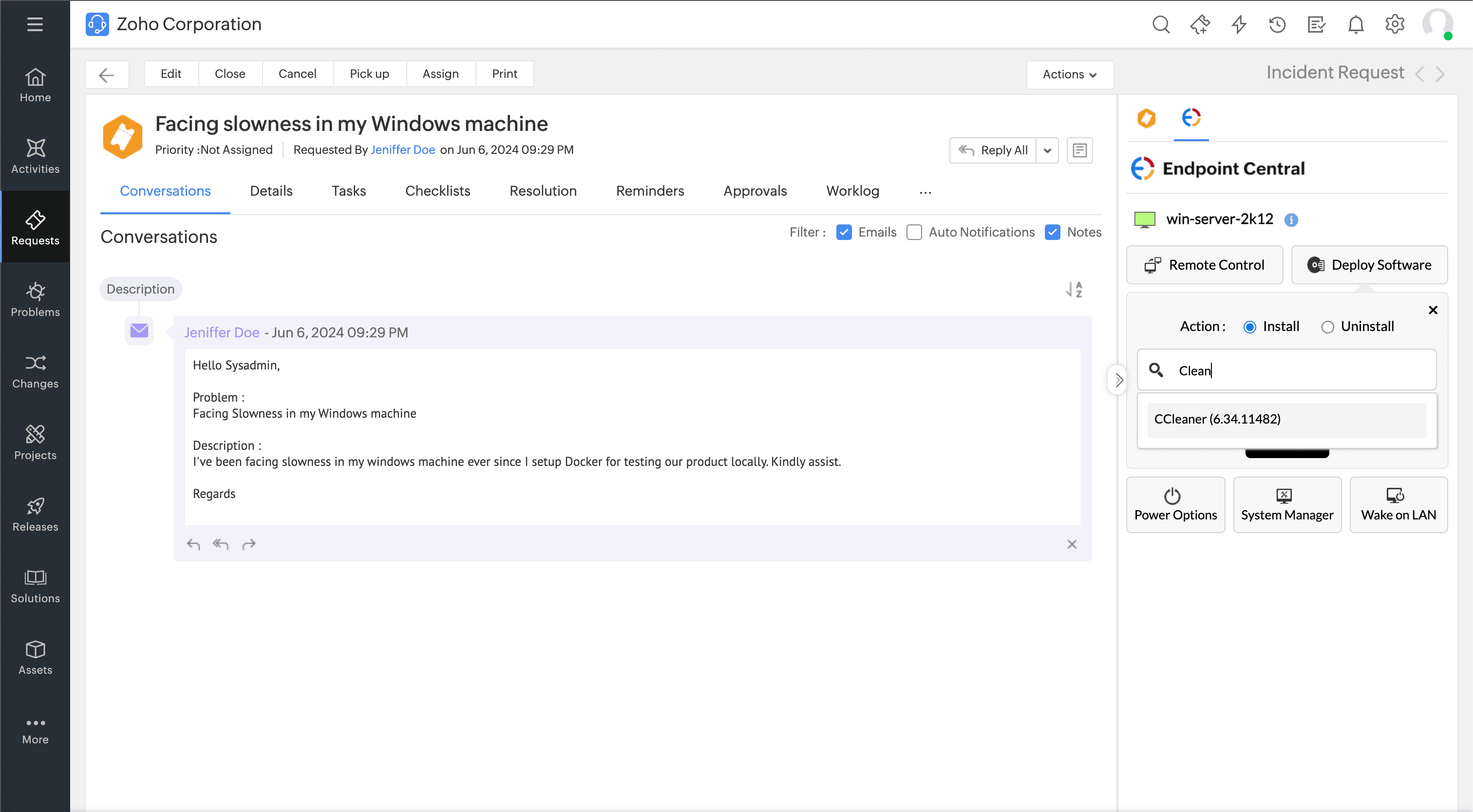
- To deploy as a specific user, click Advanced and enter the user credentials.
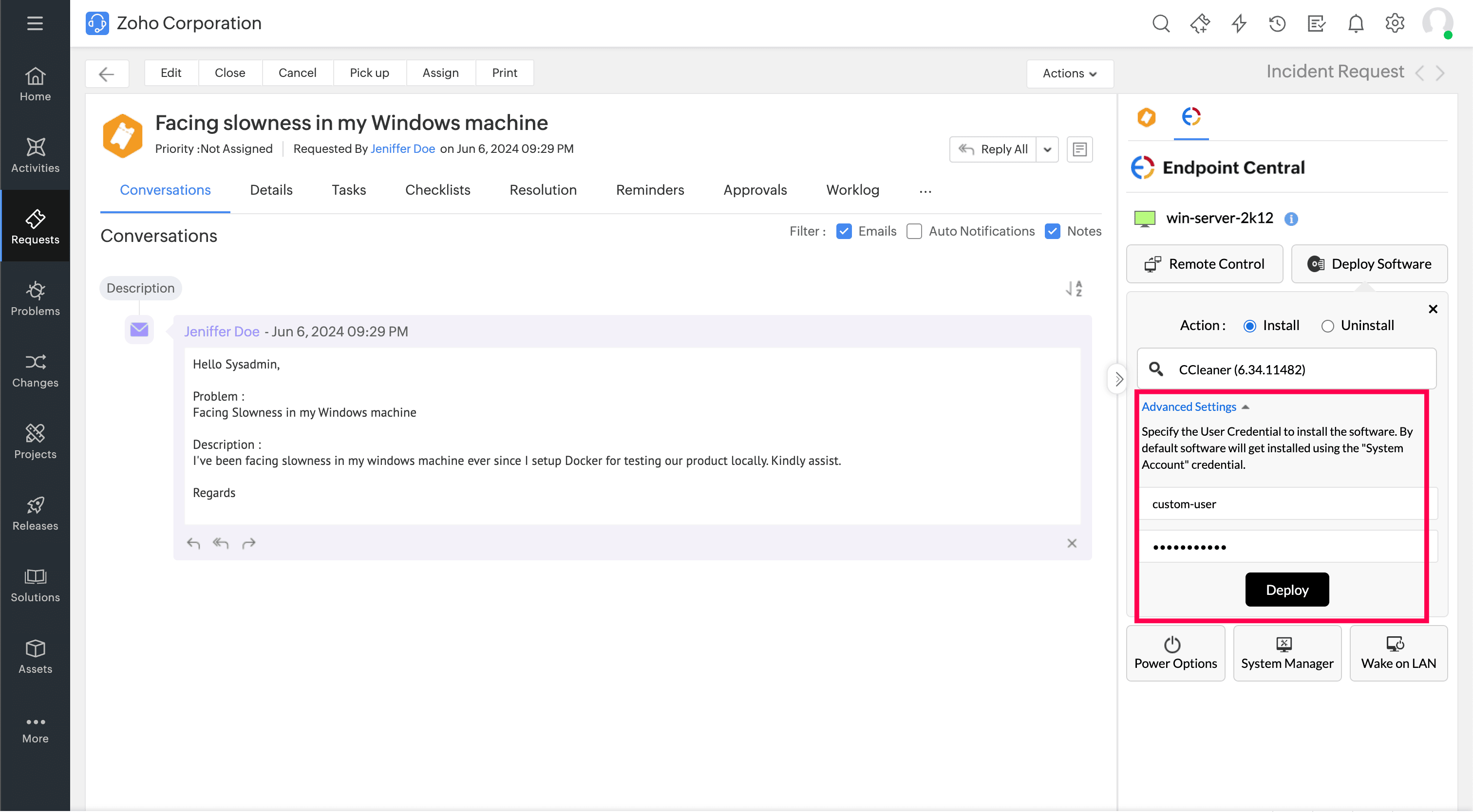
- Click Deploy.
- The software deployment will be initiated and the status will be displayed in the widget.
Note: Notes will be added to the request once software installation/uninstallation is initiated.
How to View DEX device health metrics
- The DEX (Digital Employee Experience) add-on must be enabled in Endpoint Central.
- The DEX component must be installed on the selected device.
- In the helpdesk ticket, navigate to the right pane and click the Endpoint Central extension.
- Select the required asset and click Details next to the asset.
- In the Overview tab, you can view the basic inventory information.
- Switch to the Device Health tab to view detailed device health metrics provided by the Endpoint Central DEX add-on.