Managing Computers in Scope of Management (SoM)
This document explains how to manage computers from the Central Server console using actions. Kindly note that any changes done in agent installed machine will be communicated to server during the refresh policy or when the agent communicates with Server / Distribution Server. Kindly note that only persons with administrator role can perform the following actions.
Adding Computer(s)
This explains the process of adding computers to the Scope of Management. This can be done either manually, automatically, or by importing using the CSV option. Kindly note that to manage those devices, agents must be installed.
Manually
- Navigate to Agent > Computers.
- Click Add Computers. This will open the list of computers fetched from the recent AD Sync.
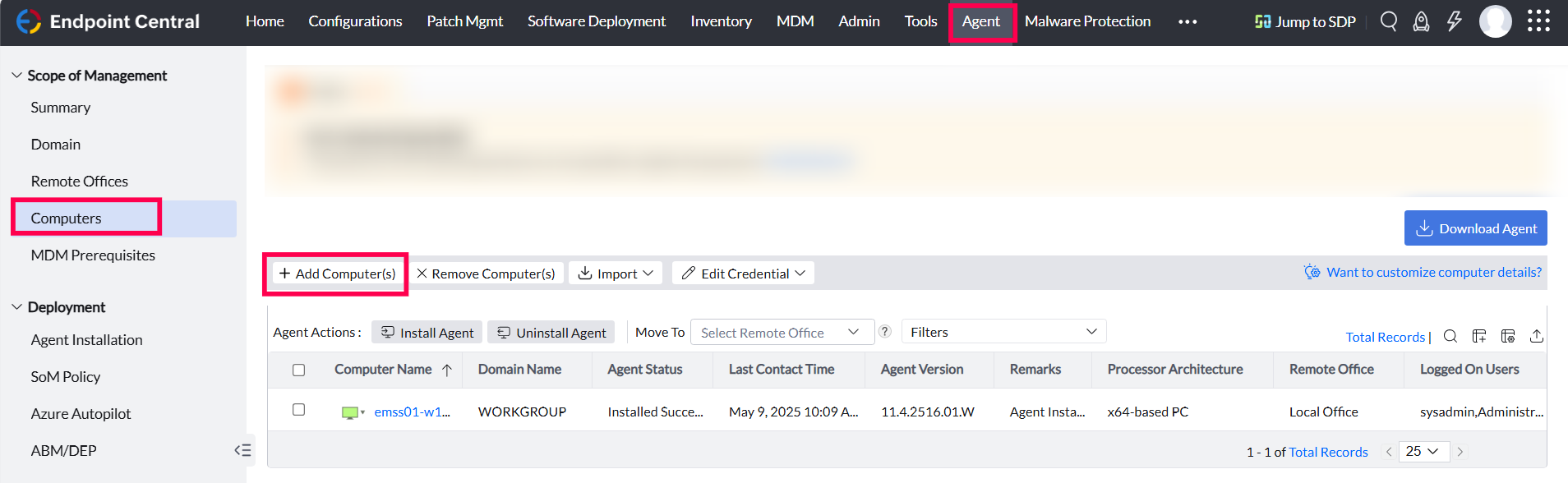
If you cannot find the computers, you can either sync them by clicking Sync now option or click the Add Computer symbol in the corner. Enter the computer name and click Next. To add multiple computers, separate them with a comma (,).

- You can also choose the remote offices responsible for managing the selected devices
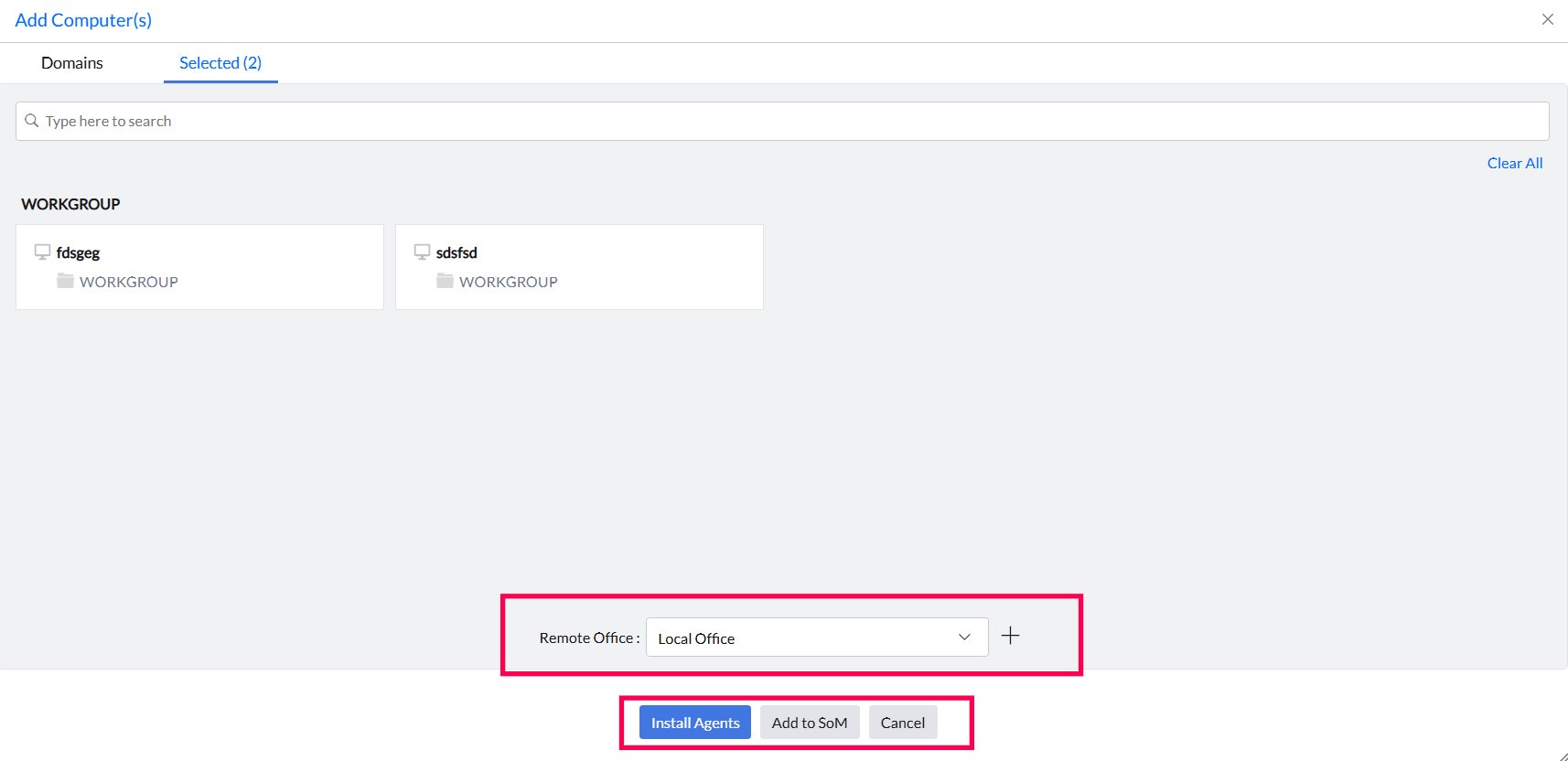
- Choose one of the following options:
- Install agents: Automatically install agents on the added computers.
- Add to SoM: Add the computers to the Scope of Management without installing agents.
Via Import Option (CSV Upload)
Import Computers

- Navigate to Agent > Computers > Import > Import Computers.
- Upload a CSV file containing the computer details.
- Click Save.
Import Custom Field Values

- Navigate to Agent > Computers > Import > Import Custom Field Values.
- Upload a CSV file containing the computer details.
- Click Save.
Removing Computer(s)
This explains the process of removing computers from SoM. Once the computer gets removed, the agent gets uninstalled in the next refresh policy. You can view the removed computers in the Agent > Summary Page under Removed computers section. It can also be viewed in Admin > Action Log Viewer > SoM Filter
Manually
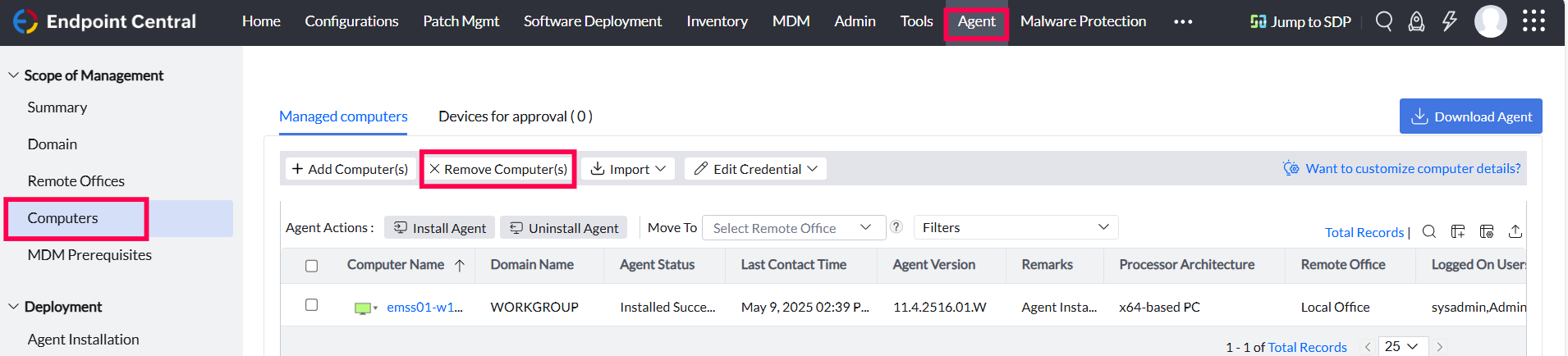
- Navigate to Agent > Computers.
- Select the computers to be removed.
- Click Remove Computer(s).
Note: If you have removed managed computers from a remote office and if you want to remove all devices from a specific Remote Office, delete the entire Remote Office. You can also use the Filter option to view specific devices before removing them.

Managing Domain Credentials
- Navigate to Agent > Computers > Edit Credential.
- Select the domain where you need to update your credentials.
- Click Modify from the Actions menu.
- Enter the updated credentials and click Update Domain Details.
Managing Agents in Scope of Management (SoM)
Installing Agents
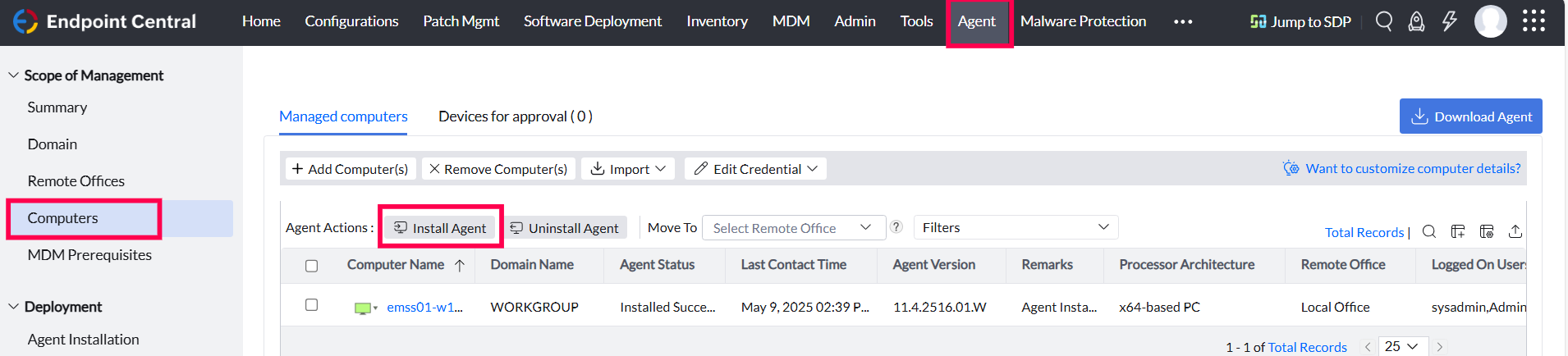
- Select the desired device(s).
- Click Install Agent.
Note: For WAN agents, installation will begin when the Distribution Server is active and reachable from the Central Server. The Distribution server is required for bandwidth consumption, to replicate files from the Central server and distribute to the agents. The installation status is available in the Remarks column.
Uninstalling Agents
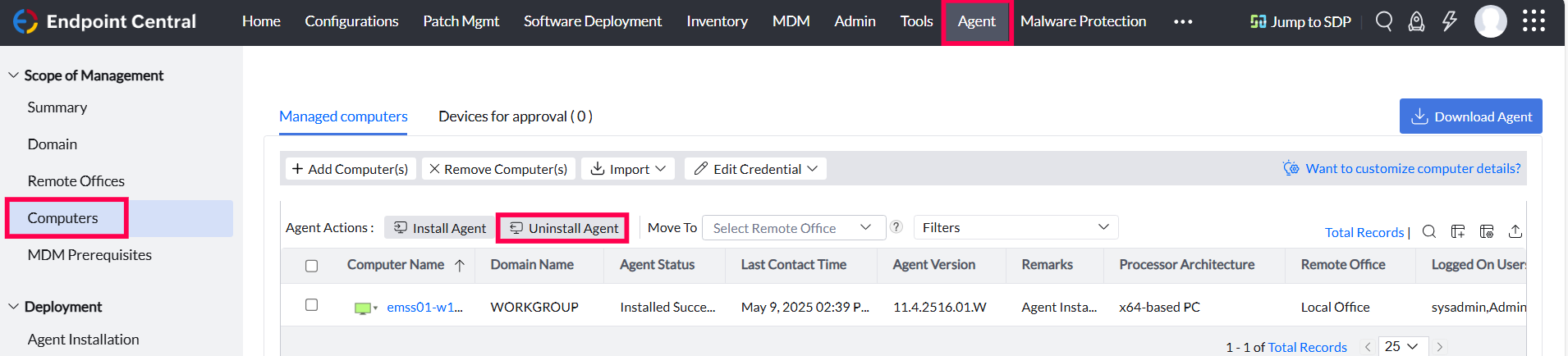
- Select the desired device(s).
- Click Uninstall Agent.
Note: Once uninstalled, the agent will no longer manage the device. The uninstallation status is available in the Remarks column.
Uninstalling Agents with OTP
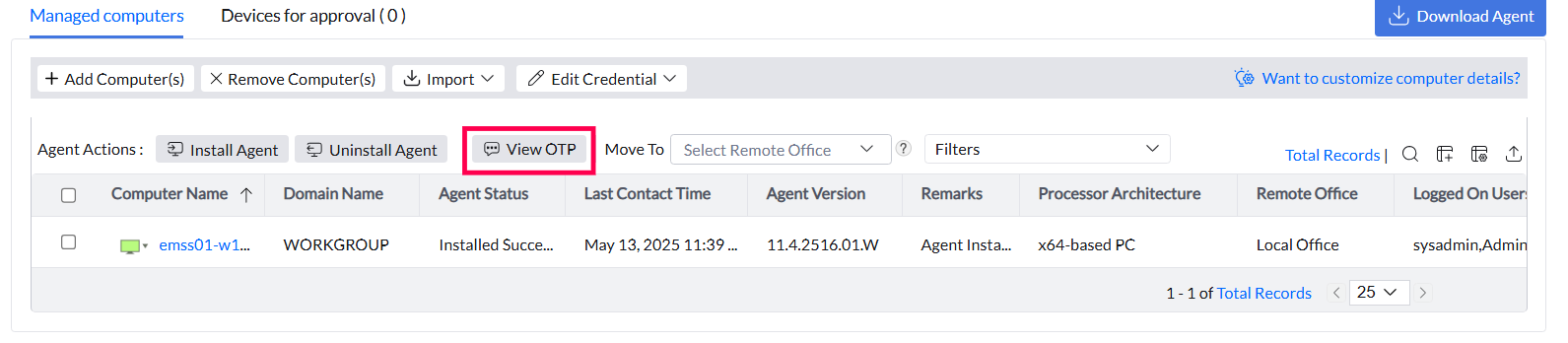
If "Restrict end-users from uninstalling agents and distribution servers" is enabled under Agent Settings, agents cannot be manually uninstalled.
- To generate an OTP for uninstallation, navigate to Agent > Computers > View OTP.
- Use the OTP to manually uninstall the agent or distribution server.
Additional Actions
Move Computers to Another Remote Office
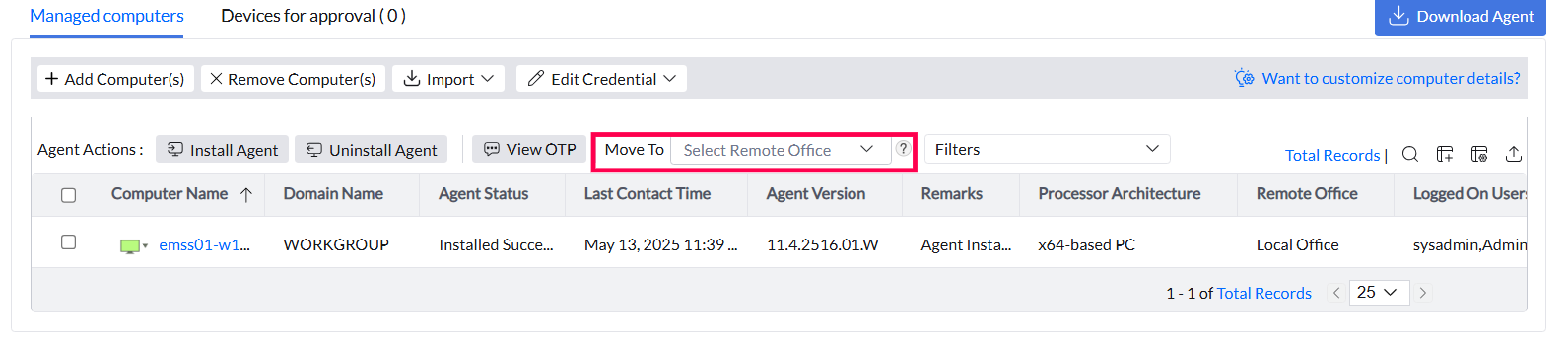
Use the Move To option to transfer devices to a different Remote Office.
Note: The agent must be live during the transfer process.
Filter and Search
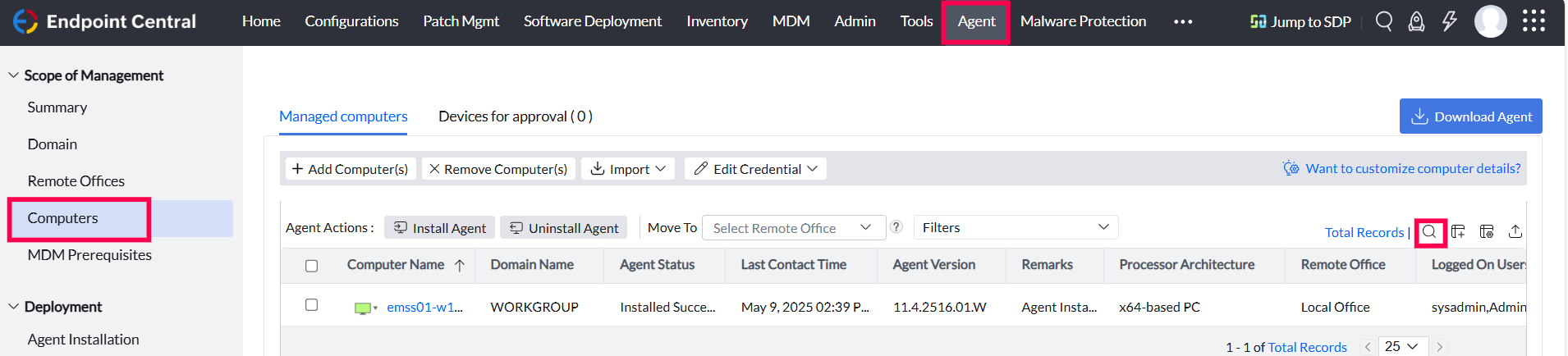
Use Filters to display computer(s) based on:
- System details - Domain name, Operating System, IP Subnet, OS Platform, Subnet Mask, OS Type, IP Address, DefaultIPGateway, DHCP Server, Remote Office, Custom Group, Processor Architecture
- Agent details - Agent version, Agent Status, Agent Live Status, Last Contact Time
- Custom fields - You can filter based on the custom fields you configured.
Use the Search feature to locate specific devices based on criteria.
Custom Fields
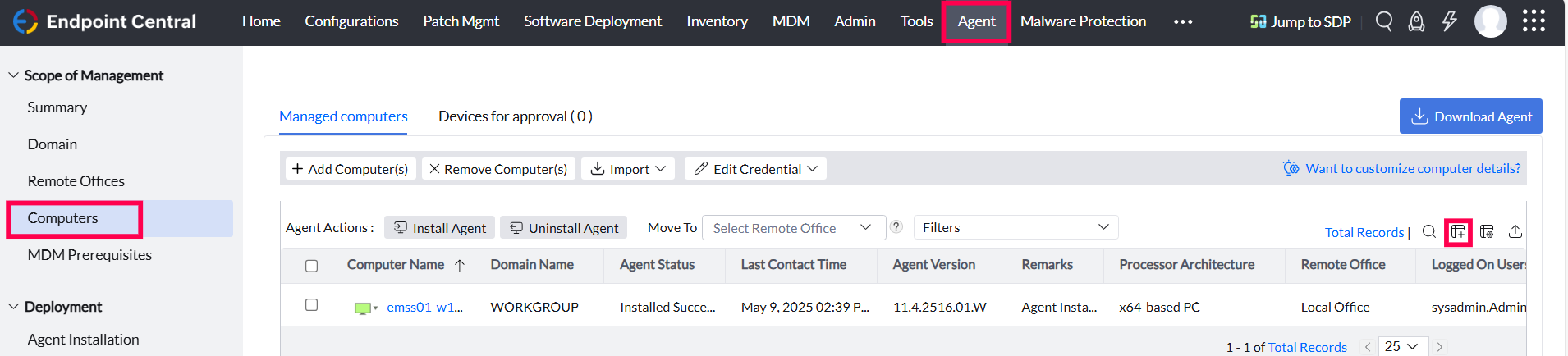
Create a Custom Field to display customized data.
Note: These fields are only visible in the Computers View.
Column Chooser
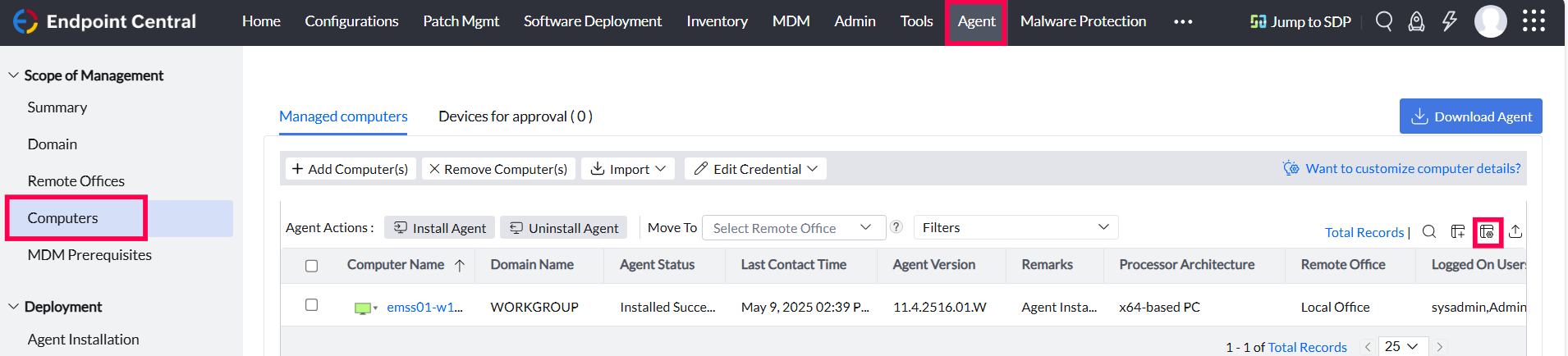
Select specific columns to display in the console.
Export Data
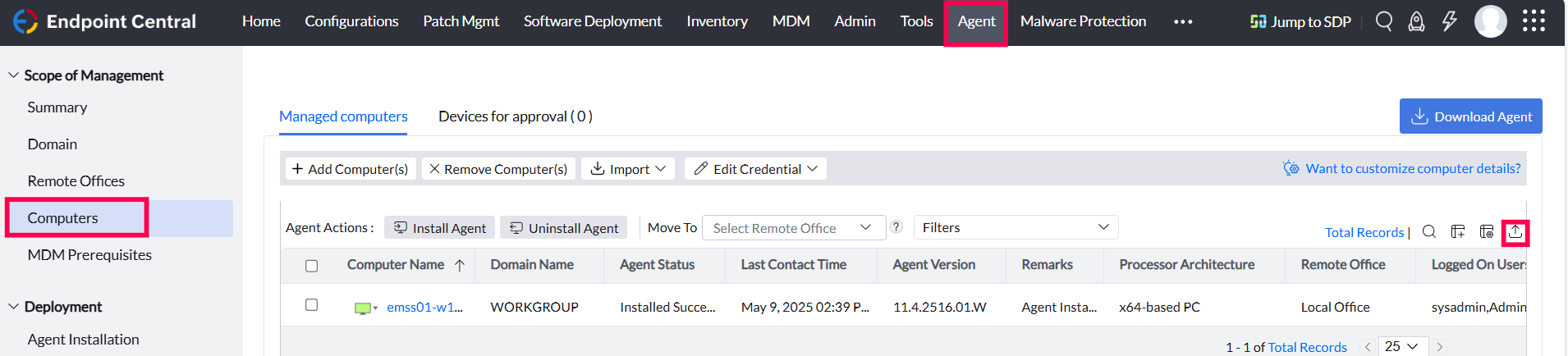
Export the Managed Computers View as a PDF.
SDP Computers View
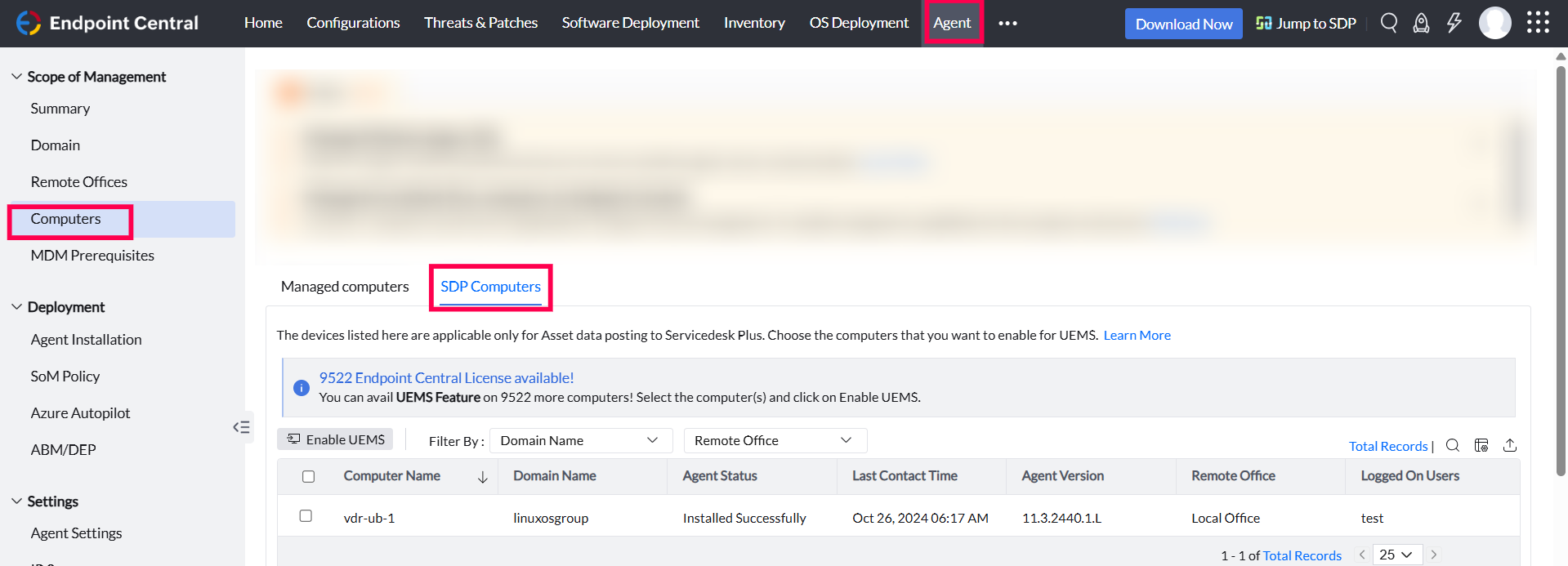
Displays devices applicable for Asset Data Posting to Service Desk Plus (SDP). Enable or disable UEMS for specific devices from this view.
Renaming Agent
If you rename the agent machine and restart it, it will be automatically updated in the console during refresh policy or when agent communicates with Central Server / Distribution Server.


