How to Uninstall agent using Agent cleanup tool?
When an agent upgrade fails, the existing agent must be completely removed before a fresh installation can succeed. Uninstalling through the Control Panel does not remove all files, folders, and scheduled tasks left by the agent — AgentCleanupTool handles the full removal.
- For Endpoint Central Cloud, contact support to obtain the AgentCleanupTool along with any one agent registry export.
- If the Central server has already been uninstalled and agents still remain on machines, contact support with an agent registry export — the support team will supply the correct cleanup tool.
To export the agent registry, navigate to the following path on the agent machine and export the key:
Computer\HKEY_LOCAL_MACHINE\SOFTWARE\WOW6432Node\AdventNet\DesktopCentral\DCAgent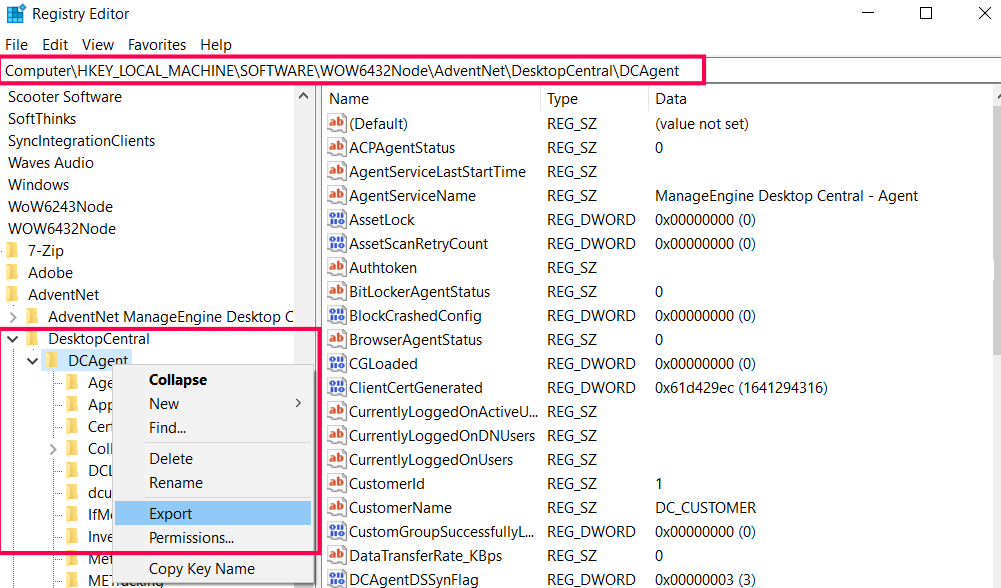
Step 1: Generate Cleanup Files
Download the AgentCleanupTool ZIP
Download Agent_Cleanup_Tool.zip to the machine where the Central server is installed.
The ZIP contains all three components required for cleanup across platforms — you no longer need to download the macOS pkg or any other component separately.
- AgentCleanupTool.exe — main executable; run on the Central server to generate client-side cleanup files.
- UEMS_MacAgent_Cleanup_Tool.pkg — used for macOS agent cleanup.
- UEMS_LinuxAgent_Cleanup_Tool — used for Linux agent cleanup.
Generate client cleanup files
- Extract the ZIP and open Command Prompt as an administrator.
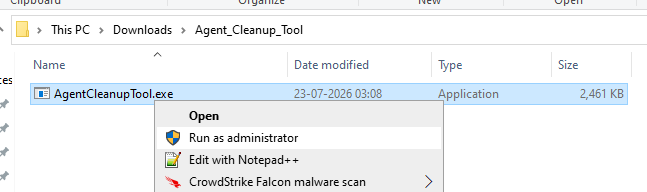
AgentCleanupTool.exe in the extracted folder — right-click and select Run as administrator. - Navigate to the directory where AgentCleanupTool.exe was extracted.
- Run the tool on the Central server machine:Command
AgentCleanupTool.exeWarningAgentCleanupTool.exe must be run on the machine where the Endpoint Central server is installed. If run on any other machine, an error will appear as shown below.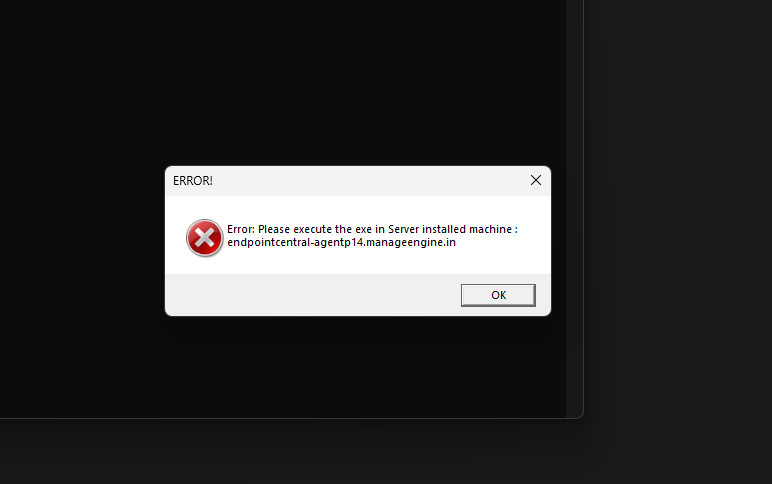
Error shown when AgentCleanupTool.exe is run on a machine other than the Central server. When run on the correct Central server machine, a SUCCESS dialog appears confirming that AgentCleanupToolClient.exe has been generated.
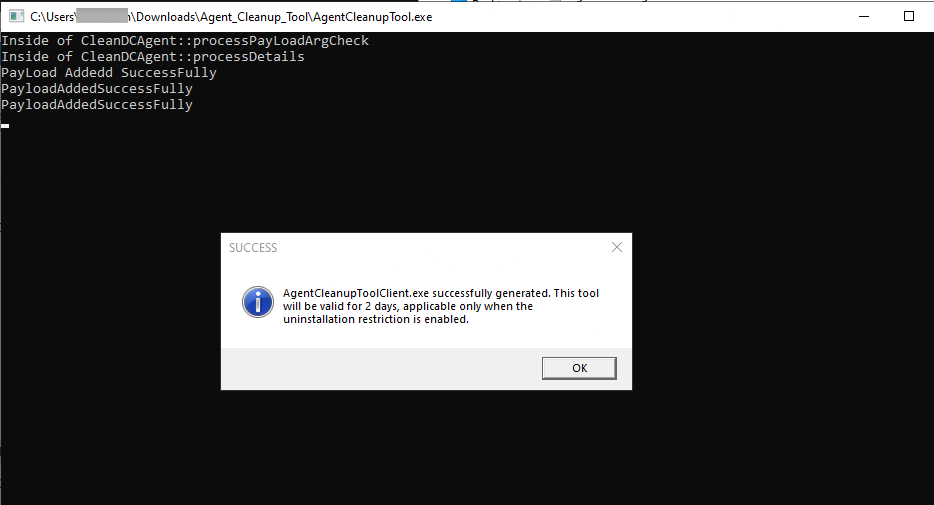
SUCCESS dialog confirming AgentCleanupToolClient.exe generation.
Click OK to proceed — this also triggers the generation of UEMS_MacAgent_UninstallInfo.plist for macOS agent cleanup and UEMS_LinuxAgent_UninstallInfo.json for Linux agent cleanup in the same directory.
- All generated files (AgentCleanupToolClient.exe, UEMS_MacAgent_UninstallInfo.plist, and UEMS_LinuxAgent_UninstallInfo.json) are valid for 48 hours only. If they expire, re-run AgentCleanupTool.exe on the Central server to regenerate them.
- Do not rename any of the generated files.
Step 2: Uninstall the Agent
Select your platform and follow the steps to remove the agent.
- Copy AgentCleanupToolClient.exe to the target Windows machine where the agent needs to be removed.
- Run AgentCleanupToolClient.exe as an administrator.
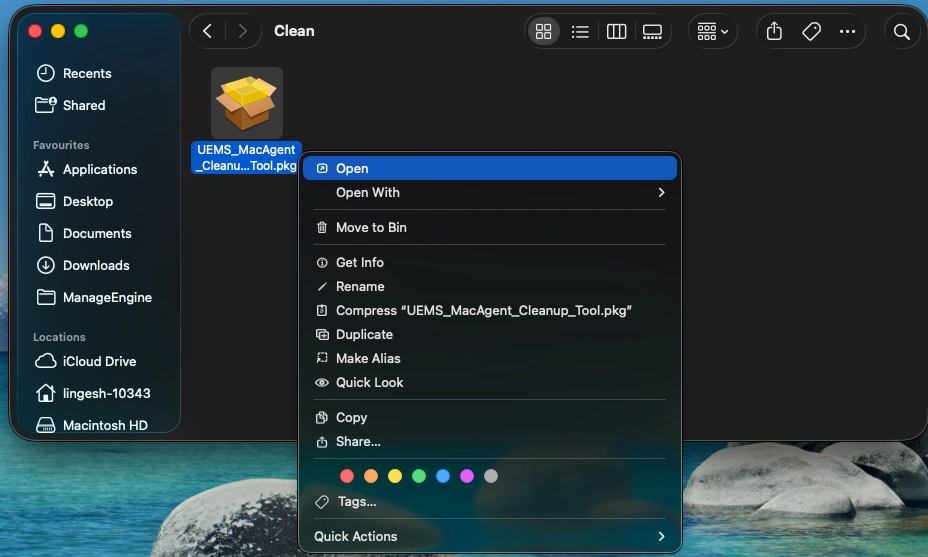
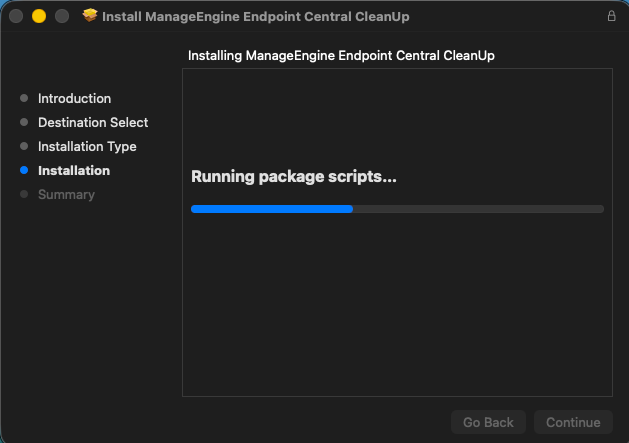
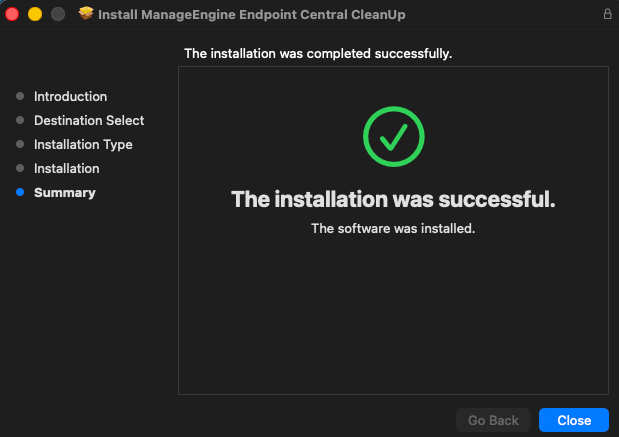
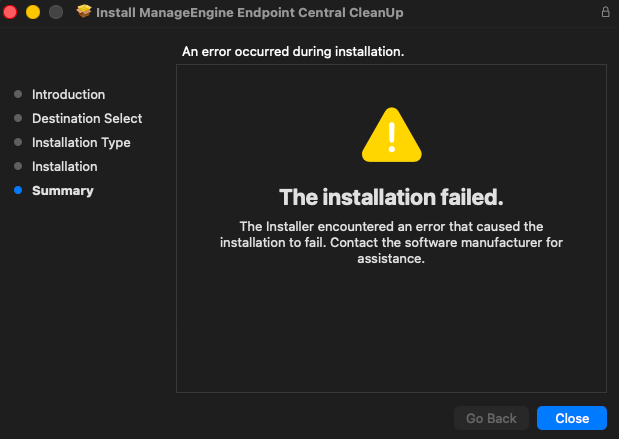
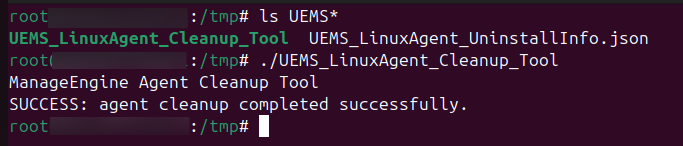
- From the extracted ZIP, locate UEMS_LinuxAgent_Cleanup_Tool.
- Copy both UEMS_LinuxAgent_UninstallInfo.json (generated in Step 1) and UEMS_LinuxAgent_Cleanup_Tool to the target Linux machine. Both files must be in the same folder.
- Run the cleanup tool using the following command:Command
chmod +x UEMS_LinuxAgent_Cleanup_Tool && ./UEMS_LinuxAgent_Cleanup_Tool

Remove the Computer from the Server
The AgentCleanupTool removes the agent software from the endpoint only. To remove the computer record from the Endpoint Central console, navigate to Agent → Computers, select the computers to remove, and choose Remove Computers.