Upgrade Manager
The upgrade process for OpManager - installed servers across your network is simplified using the Upgrade Manager. It offers a centralised platform to manage and perform upgrades for OpManager Standalone servers, their Failover servers. The enhanced smart upgrade feature helps to overcome the bottlenecks faced during the upgrade process.
...
Note:
- For service pack versions 12.8.344 and above, manual backup prerequisites are optional as the Upgrade Manager takes the backup automatically.
- The QPM, designed to deliver targeted patches can be seamlessly applied across services using Upgrade Manager, following the same steps as a service pack.
- If you are encountering issues caused by AV/EDR interactions during the upgrade process, please follow this exclusion guide.
...
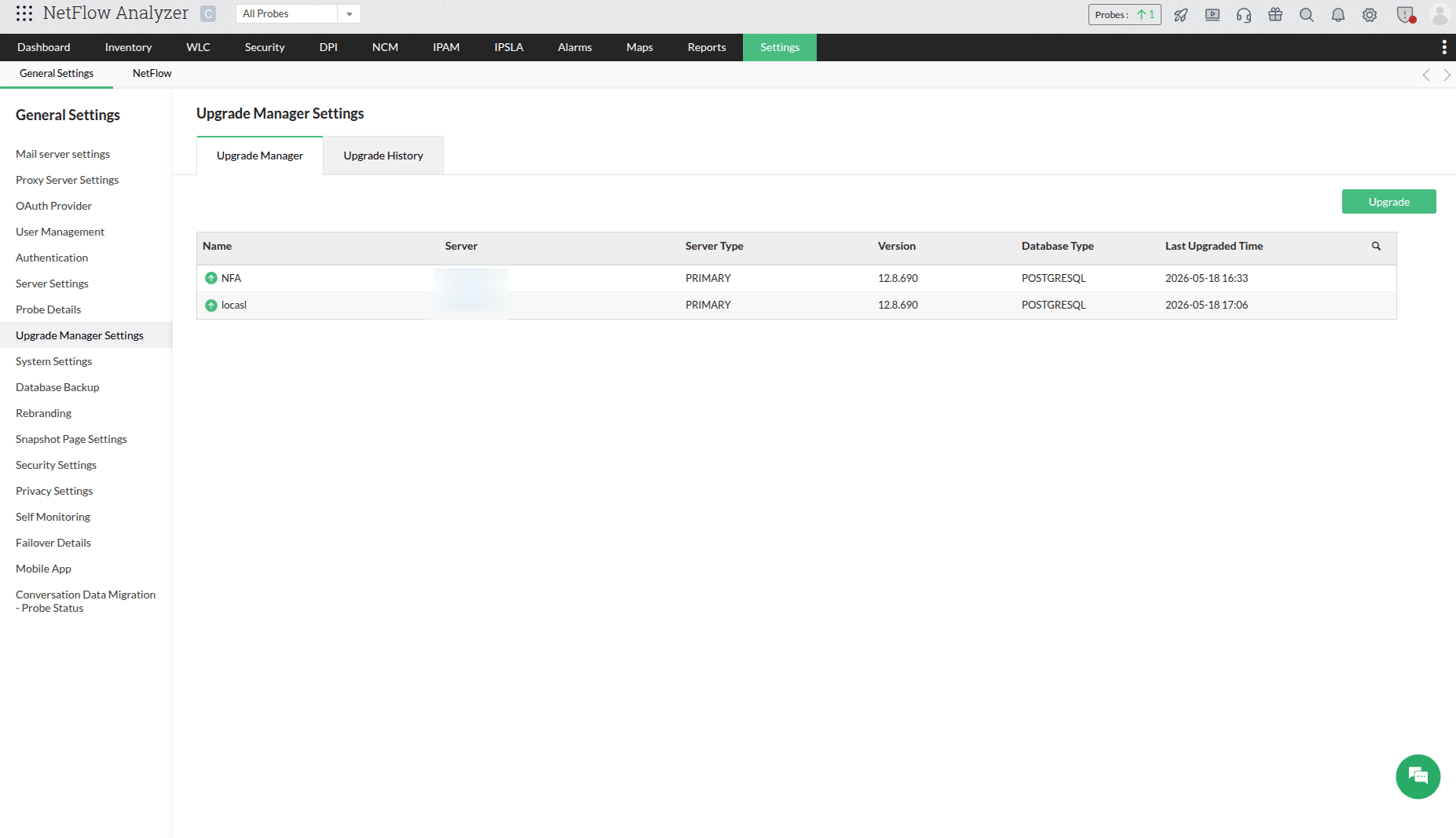
...
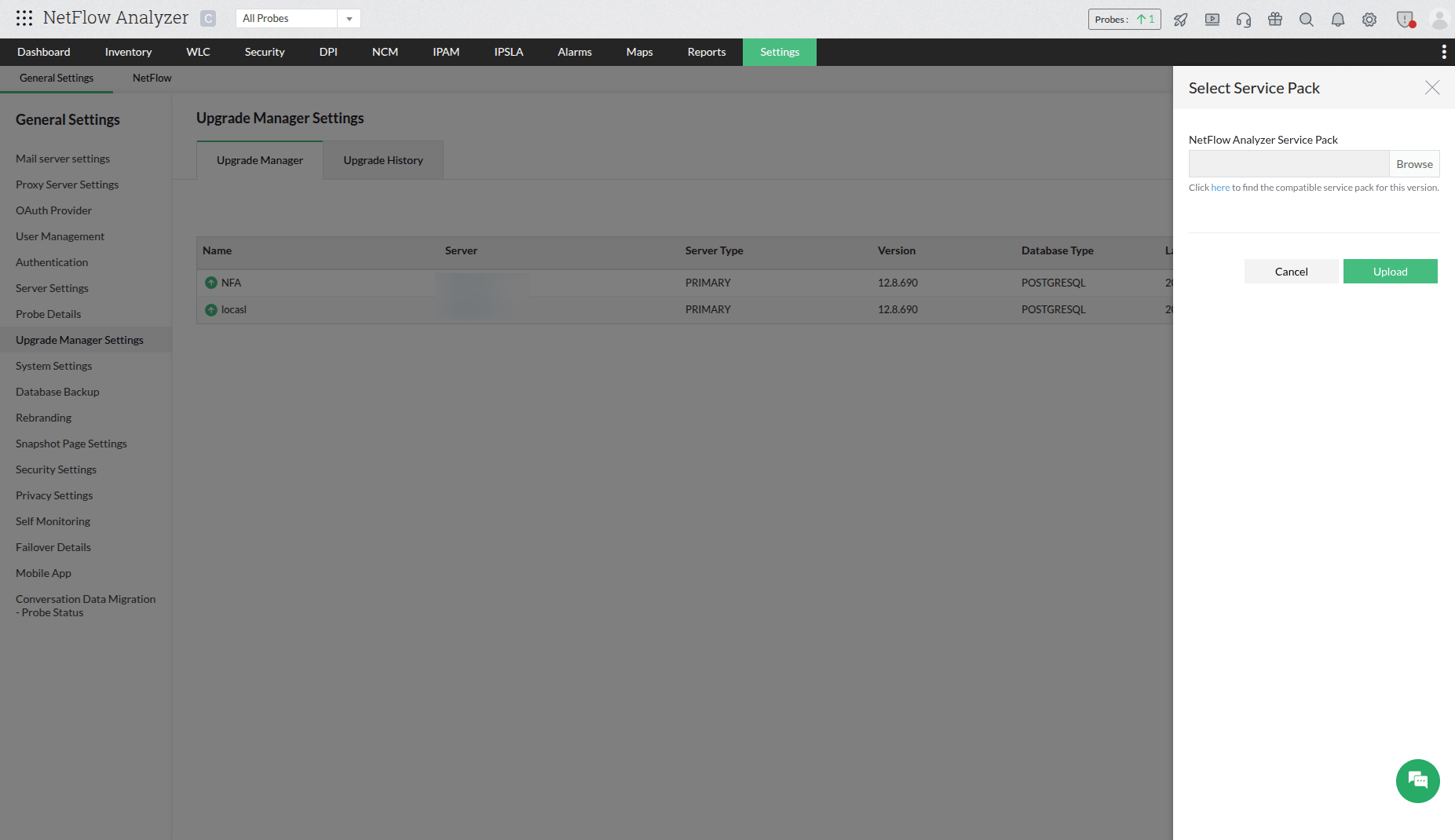
....
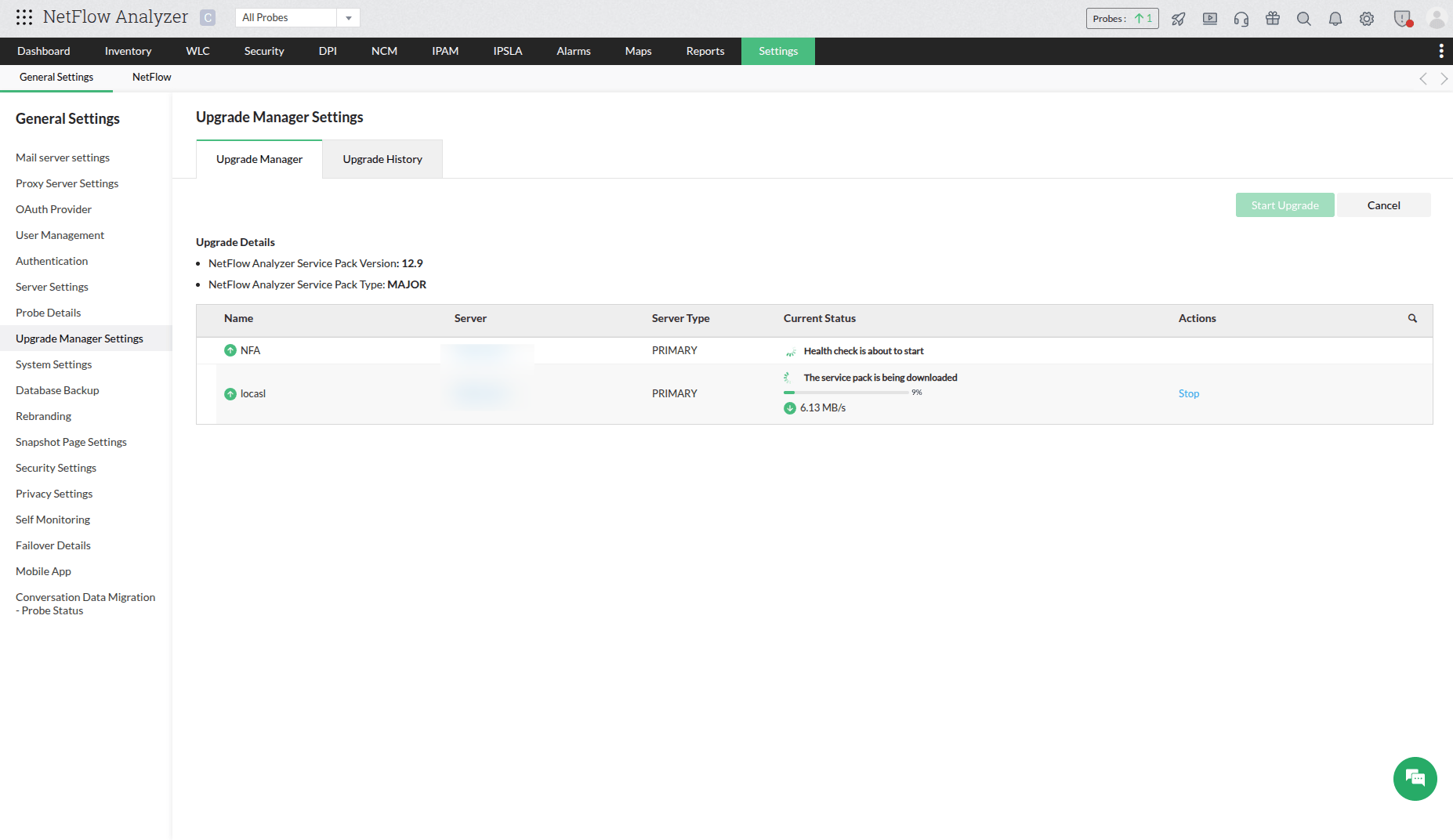
....
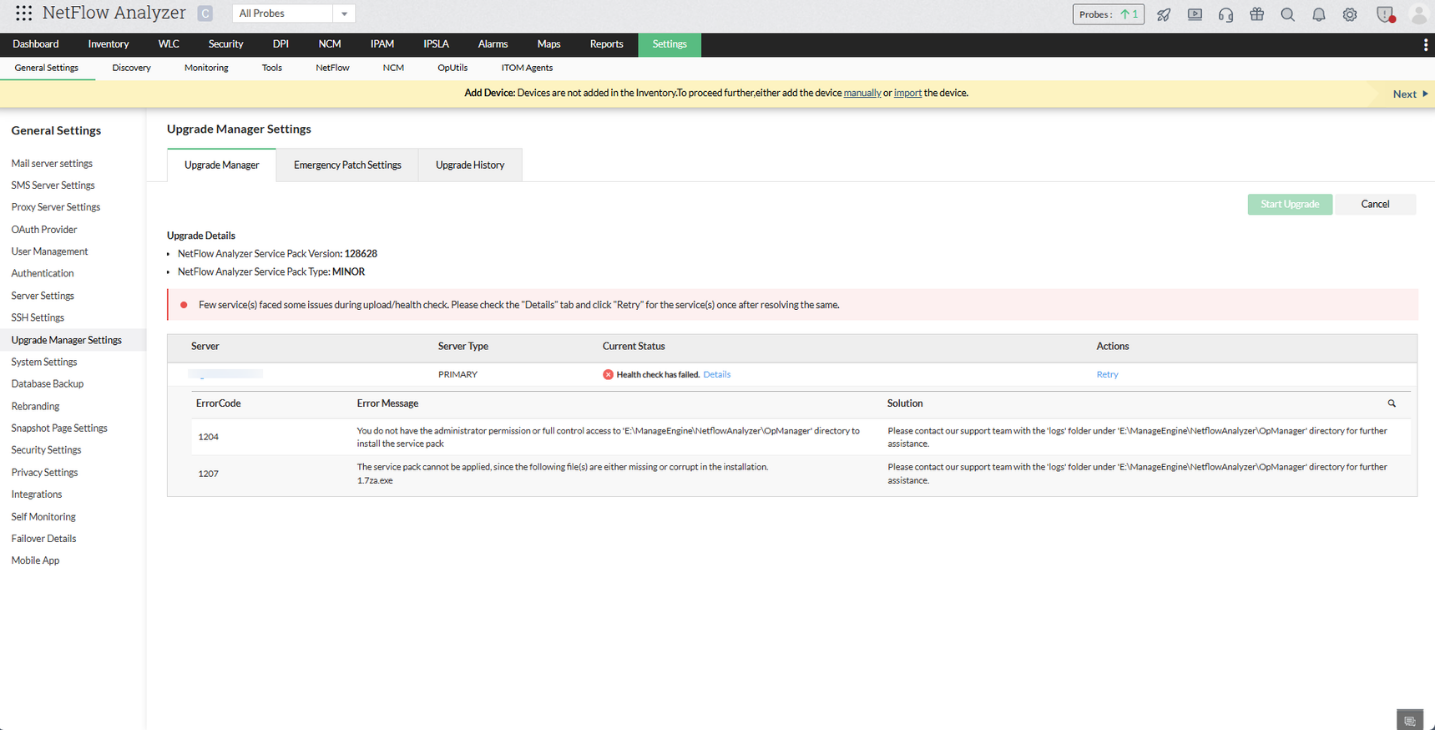
- With a successful health check, the product will now be ready for the upgrade.
...
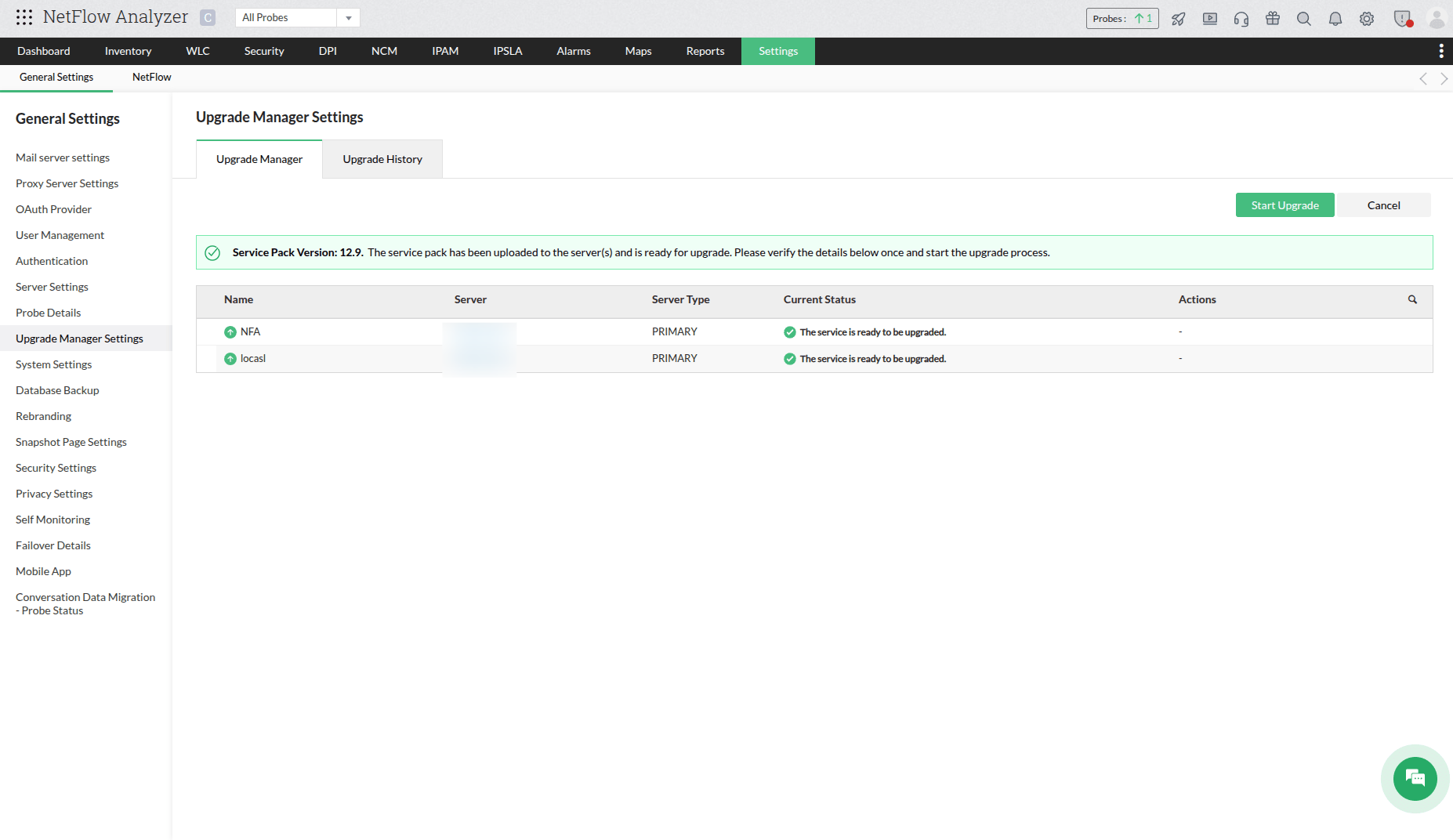
...
- For Failover servers, the upgrade will start automatically for both the active and the standby server.
- Upgrade details for individual servers will be automatically updated under the Current Status column.
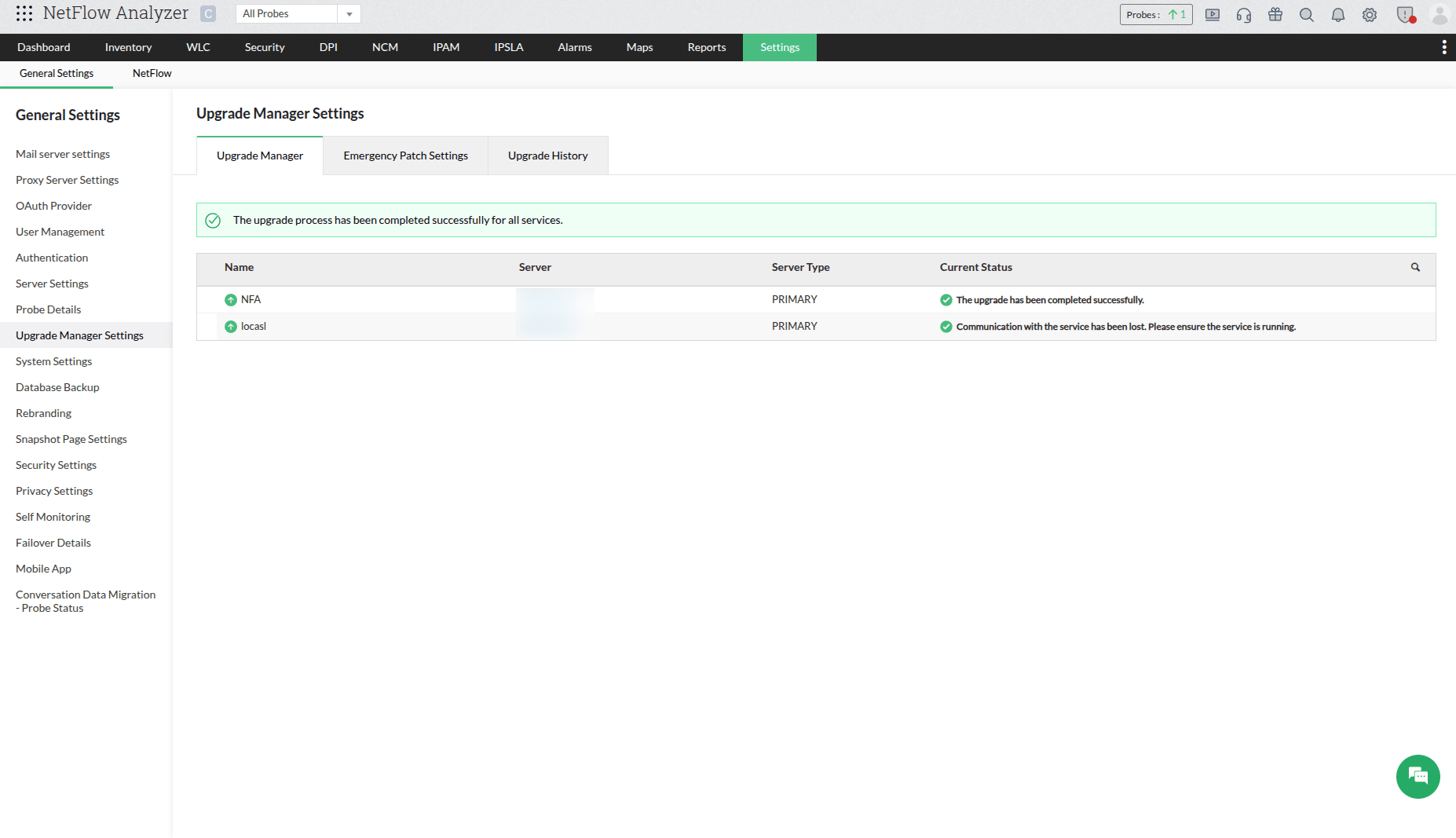
....
- Upgrade Backup Pre-requisites
- Upgrade Pre-requisites
- Edition-specific Upgrade
- Upgrade OpManager using UpdateManager.bat and .sh file
...
- If you are encountering issues caused by AV/EDR interactions during the upgrade process, please follow this exclusion guide.
- Ensure that the user performing the upgrade has the required permissions for the OpManager folder.
...
| Edition | Without Failover | New Failover |
| Standard / Professional | Upgrade the service using the UpdateManager.bat /.sh file and once the upgrade is completed start the service to continue monitoring. |
|
| Enterprise Edition |
|
|
....
....