Remote Password Reset
(Feature available only in Premium and Enterprise editions)
- Overview
- Remote Password Reset via Agent-less Mode
2.1 Configuring Remote Password Reset for individual resource types
i. Windows
ii. Windows Domain
iii. Linux/IBM AIX/HP UX/Solaris/Mac OS/VMWare ESXi
iv. IBM AS400/Sun Oracle ALOM/ILOM/XSCF Sun Oracle ALOM/ILOM/XSCF
vii. MS SQL Server
viii. Oracle DB Server
ix. Sybase ASE
x. LDAP Server
xi. HP ProCurve
xii. HP iLO
xiii. Cisco Devices (IOS, CatOS, PIX)
xiv. Juniper Netscreen
xv. AWS IAM
xvi. Google Workspace
xvii. Microsoft Entra ID
xviii. Rackspace
xix. Salesforce
2.2 Configuring Remote Password Reset for Resource Types in Bulk
- Remote Password Reset via Agent Mode
1. Overview
Password Manager Pro provides the option to remotely change the passwords of certain resource types. In general, you can configure remote password reset in Password Manager Pro for any device that can be reached via command-line interface (CLI) and accept commands for managing passwords.
Password Manager Pro allows you to change the password of a remote resource through two modes; agent-less mode and agent mode.
2. Remote Password Reset via Agent-less Mode
If you're configuring remote password reset via agent-less mode, specify the account which will be used to log in remotely to the target resource and reset the password.
2.1 Configuring Remote Password Reset for Individual Resource Types
2.1.i Windows
- Password Manager Pro is designed to perform password reset for all Windows local accounts using the service account with which it is running.
Note: The aforementioned service account should have either domain admin rights or local admin rights in the Password Manager Pro server and in the target systems that you would like to manage.
- Log in to the Password Manager Pro server and open the Services console (services.msc) to update the service account of Password Manager Pro service.
- However, if you'd like to override this and use a local account for the password reset, then navigate to Resources tab >> Resource Actions >> Configure Remote Password Reset and choose an admin account.
- If the Password Manager Pro service is running with a privileged service account (Domain admin or Local admin on all member servers), then it can forcefully reset Windows passwords without the need for the old password to be present inside.
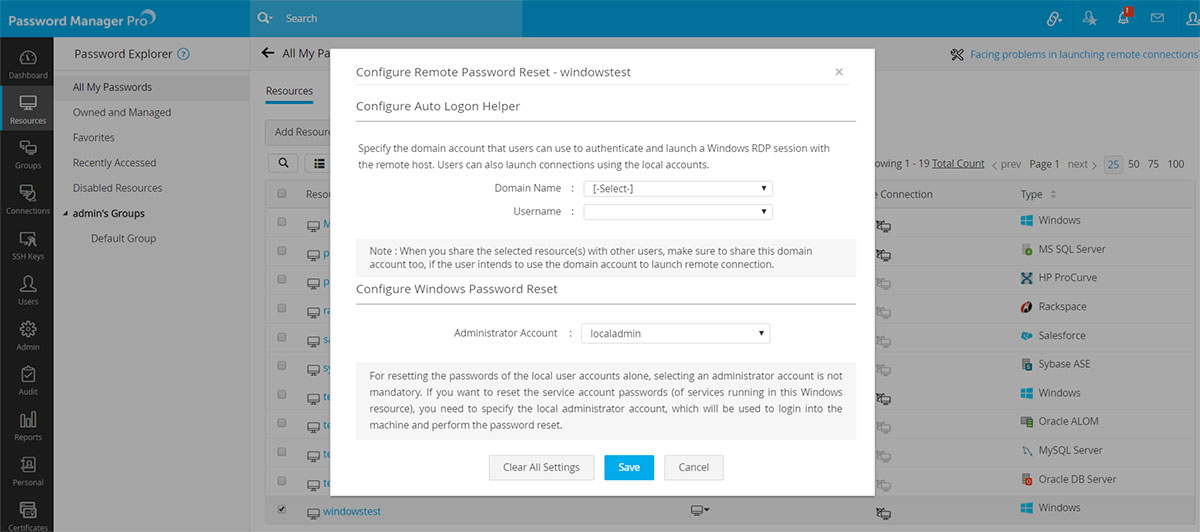
2.1.ii Windows Domain
If you are using the Privileged Accounts Discovery feature to import Windows resources from Active Directory, then Password Manager Pro will automatically add your domain controller as a resource with Resource Type as Windows Domain.
To reset domain account passwords that are present in your Windows Domain resource, specify an admin account to be used for remote login as well as password reset. Follow the below steps to configure remote password reset.
- Navigate to the Resources tab and click Resource Actions >> Configure Remote Password Reset beside the respective Windows Domain resource.
- Under the Configure Windows Domain Password Reset section, select the domain account as the administrator account.
- If you opt to use an administrator account of another Windows Domain resource, select other resource from the configure using an account of field and select the respective administrator account in the Administrator Account field.
- If you opt to perform the remote password reset over an encrypted channel, set the Connection Mode to SSL.
If you set the Connection Mode to SSL, Password Manager Pro will be connecting to the domain controller through SSL, for which the domain controller's root certificate is required in the Password Manager Pro server machine's certificate store. If you have not yet imported the domain controller's root certificate into Password Manager Pro, do the steps that follow:
Open a command prompt and navigate to <Password Manager Pro_installation_directory>\bin and execute the following command:
For Windows:
importCert.bat <Absolute Path of certificate>
For Linux:
importCert.sh <Absolute Path of certificate>Restart the Password Manager Pro server and perform the above steps for the remote password reset.
Note: In the event that the Password Manager Pro application is installed on a domain and there arises a requirement for executing remote password resets for accounts in a different domain, it is necessary to import the available root and private/intermediate certificates of the other domain into the trusted store of the Microsoft Management Console (MMC) on the Password Manager Pro server. For example, the different domain's root and private/intermediate certificates should be imported into the Trusted Root Certificate Authorities store within the Password Manager Pro server's system.
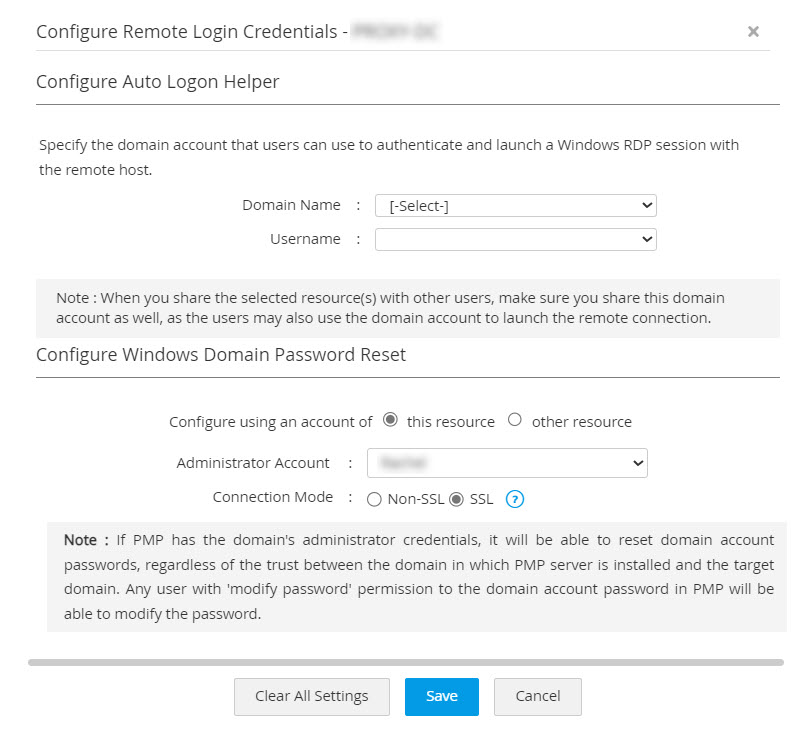
Note: If Password Manager Pro has the domain administrator credentials, it can reset domain account passwords regardless of the trust between the domain in which Password Manager Pro server is installed and the target domain. Any user with 'modify password' permission for the domain account password in Password Manager Pro will be able to modify the password.
Note:It is recommended to use the same Password Manager Pro Service Account here so that it will be helpful for AD Audit purposes
2.1.iii Linux/IBM AIX/HP UX/Solaris/Mac OS/VMWare ESXi
For remote password reset of Unix resources, Password Manager Pro first uses the remote login account to log in to the target system. Then, to carry out password reset, privilege elevation is needed. If the target system supports execution of password reset commands through Sudo, Password Manager can either use the two options available here: 'su' as root or use 'sudo' to execute the remote password reset commands.
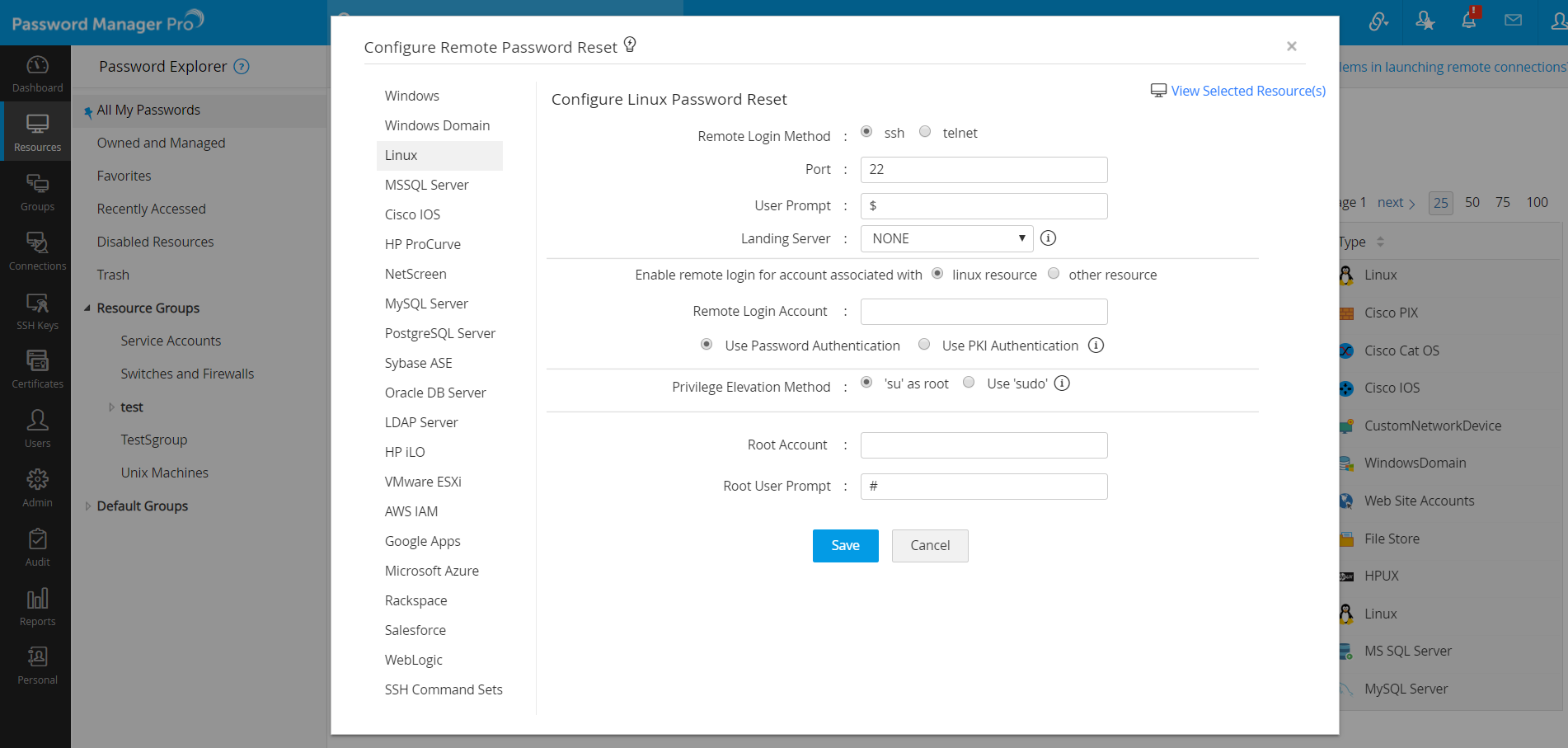
- Navigate to Resources tab >> Resource Actions >> Configure Remote Password Reset and then do the following:
i. Selecting the Protocol
- Select the protocol for remote login method - SSH or Telnet. Next, specify your remote login account. For remote login, Password Manager Pro allows you to either choose an account of the resource type for which you're setting up the password reset or specify an account of any Windows Domain resource stored in Password Manager Pro. To use a Windows Domain account as the remote login account, select the option 'other resource' while setting up the remote login account. Then, specify the Resource Name as well as the Remote Login Account of the desired account.
- Specify the authentication method. If you have chosen Telnet or SSH with Windows Domain account for remote login, you can skip this step go to setting the privilege escalation method.
ii. If you opt for SSH, specify the authentication method
- If you choose SSH as the Remote Login Method and the remote Unix resource's account as the remote login account, there are two authentication methods you can choose from: "Password Authentication" or "Public Key Infrastructure"(PKI) Authentication.
- For PKI authentication, the public key would be present in the remote system under a specific remote login account. Typically, it would be available under $Home/.ssh folder. Select the remote login account for which the public key is present; browse and supply the corresponding Private Key.
Note: Password Manager Pro supports SSH2 and above only.
iii. Specifying the root account/selecting 'sudo'
- As mentioned above, for executing remote password reset commands, Password Manager Pro can use either 'su' as root or 'sudo', which allows the user to run the command with root privileges without having to switch to the root account.
- If you use the option, 'su' as root, select the root account.
- If the target system allows execution of password reset commands through 'sudo', then select that option.
- Click "Save".
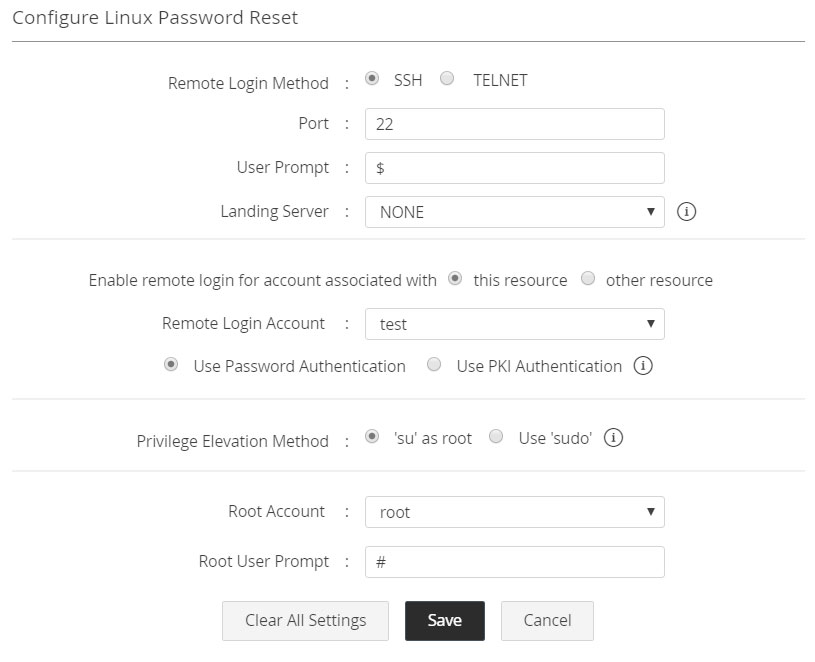
Note: You can also use SSH Command sets to configure remote password reset for the types Linux, IBM AIX, HP UX, Solaris, Mac OS, VMWare ESXi and any other Linux or Unix-based resource types. Click here to learn more.
2.1.iv IBM AS400/Sun Oracle ALOM/ILOM/XSCF Sun Oracle ALOM/ILOM/XSCF
No specific password reset configuration required for these resources as Password Manager Pro will use the accounts added to the resources to perform the password reset.
2.1.v MySQL/PostgreSQL Server
As password reset for a MySQL/PostgreSQL server is done over JDBC, the MySQL/PostgreSQL administrator credentials are required. Follow the below steps to enable remote reset of the password of MySQL/PostgreSQL server:
- Navigate to Resources tab >> Resource Actions >> Configure Remote Password Reset.
- Specify the port where the MySQL/PostgreSQL server is running. By default, MySQL/PostgreSQL occupies the port 3306.
- Specify the connection mode: Connection between MySQL/PostegreSQL Server and Password Manager Pro can be configured to be over an encrypted channel such as SSL or Non-SSL. If you choose SSL mode, do the following:
SSL Mode:
- To enable the SSL mode, the MySQL/PostgreSQL server should be serving over SSL and you have to import the MySQL/PostgreSQL server's root certificate into the Password Manager Pro server machine's certificate store. Import all the certificates that are present in the respective root certificate chain - that is the certificate of the Password Manager Pro server machine and intermediate certificates, if any.
- To import root certificate, open a command prompt and navigate to <PMP_SERVER_HOME>\bin directory and execute the following command:
For Windows
importCert.bat <Absolute Path of certificate>For Linux
importCert.sh <Absolute Path of certificate>
- Restart Password Manager Pro server. Then, continue with the below steps.
- To enable access to the MySQL server for Password Manager Pro, provide MySQL Root Account Name.
- Click Save.
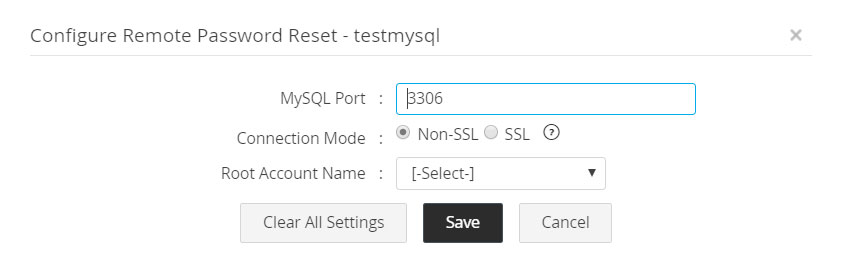
2.1.vi Oracle WebLogic Server
As Password reset for a WebLogic server is done over JMX, the administrator credentials must be specified before proceeding with the below steps.
Prerequisites
- The following JAR files wljmxclient.jar, wlclient.jar, rmic.jar, weblogic.jar will be available under the path <weblogic_install_directory>\wlserver\server\lib> in the WebLogic server.
- Copy the JAR files and save them in the
\lib folder in the machine running the Password Manager Pro server.
Steps to Configure Remote Password Reset for Oracle WebLogic Server
Follow the below steps to enable remote reset of the password of the WebLogic server:
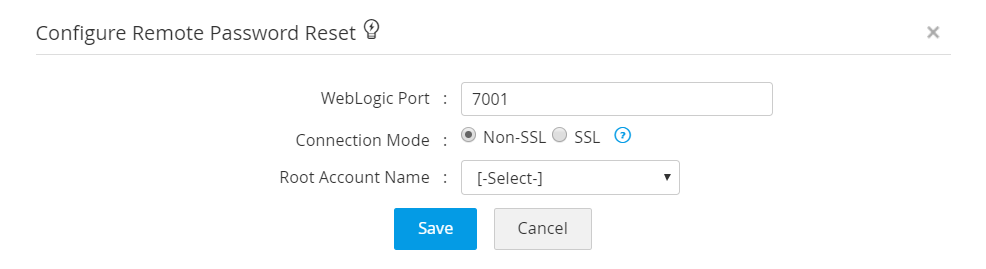
- Navigate to Resources >> Resource Actions >> Configure Remote Password Reset.
- Specify the port where the WebLogic server is running. By default, WebLogic server occupies the port 7001. Specify the connection mode - connection between WebLogic Server and Password Manager Pro can be configured to be over an encrypted channel such as SSL or Non-SSL. If you choose SSL mode, do the following.
SSL Mode:
- To enable the SSL mode, the WebLogic server should be serving over SSL and you have to import the WebLogic server's root certificate into the Password Manager Pro server machine's certificate store. Import all the certificates that are present in the respective root certificate chain - that is the certificate of the Password Manager Pro server machine and intermediate certificates, if any.
- To import root certificate, open a command prompt, navigate to <PMP_SERVER_HOME>\bin directory and execute the following command:
For Windows
importCert.bat <Absolute Path of certificate>For Linux
importCert.sh <Absolute Path of certificate>
- Restart the Password Manager Pro server. Then, continue with the following steps.
- To enable Password Manager Pro access the WebLogic server, provide the WebLogic Root Account Name.
- Click Save.
2.1.vii MS SQL Server
As Password reset for MS SQL server is done over JDBC, it is required to provide either the MS SQL Administrator credentials or a domain account credentials with enough privileges to modify SQL server passwords. Follow the below steps to enable remote reset of the password of MS SQL server:
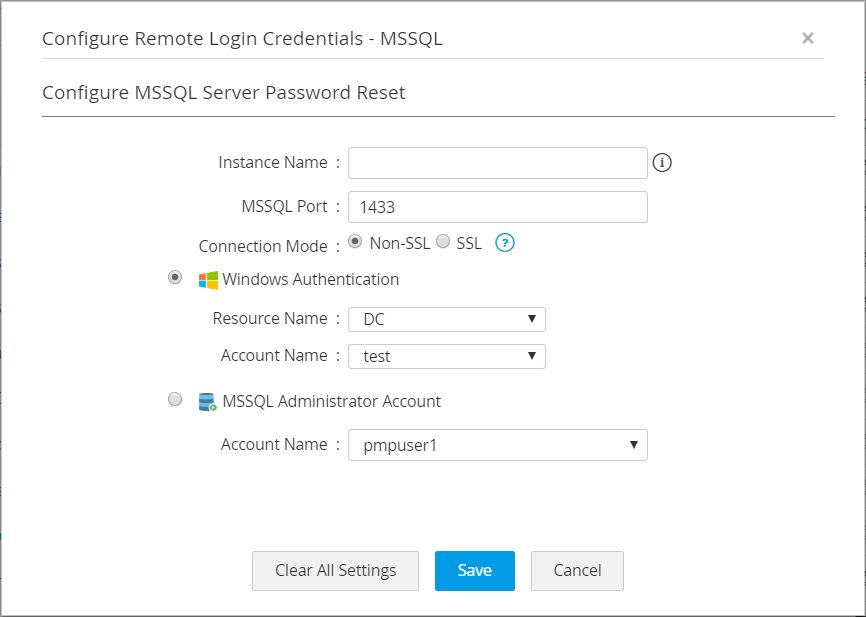
- Navigate to Resources tab >> Resource Actions >> Configure Remote Password Reset.
- Specify the instance name of MS SQL server. If the instance name is specified, Password Manager Pro will try to establish connection with specified instance. If not, Password Manager Pro will try to establish connection with the specified port.
- Specify the port where the MS SQL server is running. By default, MS SQL occupies the port 1433.
- Specify the connection mode - you can configure the connection between MS SQL Server and Password Manager Pro to be over an encrypted channel (SSL) or Non-SSL. If you choose SSL mode, do the following:
SSL Mode:
- To enable the SSL mode, the MS SQL server should be serving over SSL and you have to import the MS SQL server's root certificate into the Password Manager Pro server machine's certificate store. Import all the certificates that are present in the respective root certificate chain - that is the certificate of the Password Manager Pro server machine and intermediate certificates, if any.
- To import root certificate, open a command prompt and navigate to <pmp_server_home>\bin directory and execute the following command:
For Windows
importCert.bat <Absolute Path of certificate>For Linux
importCert.sh <Absolute Path of certificate>
- Restart Password Manager Pro server. Then, continue with the following steps.
- To enable Password Manager Pro to access the MS SQL server, provide any one of the following details: Windows Authentication (OR) MS SQL Administrator Account. Select the domain name the MS SQL server is a part of and select any account present in the domain.
- Click Save.
2.1.viii Oracle DB Server
To carry out password reset for Oracle DB server, administrative privileges are required, so specify an administrator account.
Important Note: As of August 2022, Oracle extends support to the following versions of the Oracle database only: 18c, 19c, and 21c. Therefore, PMP will also support only these three versions of Oracle DB in the product. Refer to the Oracle Lifetime Support Policy Guide for more information.
Follow the below steps to enable remote reset of the password of Oracle DB server:
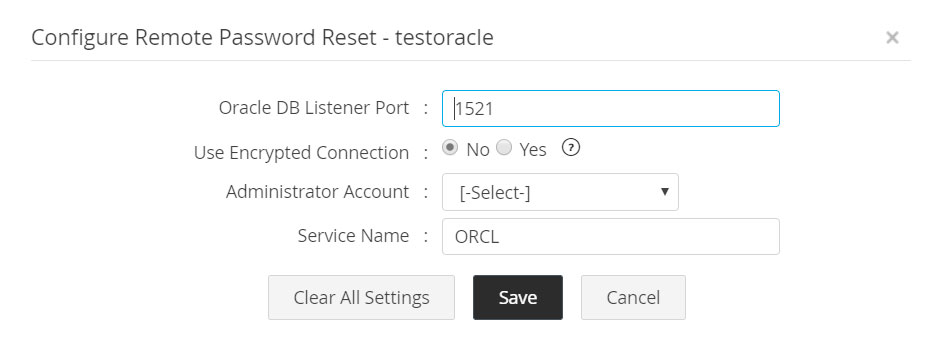
- Navigate to Resources tab >> Resource Actions >> Configure Remote Password Reset.
- Specify the Oracle DB Listener Port. By default, the Oracle DB server listens to the port 1521.
- Specify the connection mode - you can configure the connection between Oracle DB Server and Password Manager Pro to be over an encrypted channel (AES 256). If you choose the option 'YES' (encrypted mode), do the following:
- Start Oracle Net Manager.
- In the Navigator window, select "Oracle Net Configuration".
- Expand the option Local > Profile.
- From the list in the right side pane, select the option "Oracle Advanced Security".
- In the tabbed window that appears thereafter, click the tab "Encryption".
- In the drop-down list for Encryption, select the option "Server".
- For "Encryption Type" list, select the option "Accepted".
- The text field for 'Encryption Seed' can be left blank or you can enter random characters ranging between 10 and 70.
- Select the algorithm "AES 256".
- Specify an Oracle administrator account.
- Specify the Oracle Service Name. By default, the service name is taken as ORCL.
- Click Save.
2.1.ix Sybase ASE
Prerequisites
- To perform remote password reset in Sybase ASE, jConnect 6.0 JDBC driver is required. The JDBC driver is a file named "jconn3.jar" which will be available under the path <sybase_install_directory>\jConnect_6_0\classes in Sybase ASE 15.0.
- Copy the "jconn3.jar" file and save it under <pmp_install_directory>\lib folder in the machine running the Password Manager Pro server.
Steps to Configure Remote Password Reset for Sybase ASE
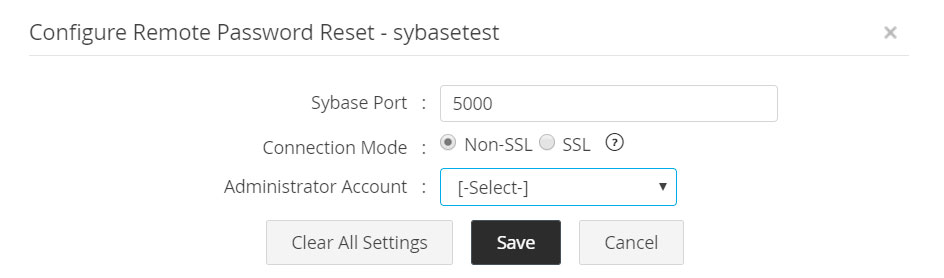
As administrative privileges are required to carry out password reset for Sybase ASE, specify an administrator account. Follow the below steps to enable remote password reset for Sybase ASE:
- Specify the Sybase ASE Port. By default, it occupies the port 5000 (in SSL mode, default port is 2748).
- Specify the connection mode - you can configure the connection between Sybase ASE and Password Manager Pro to be over an encrypted channel (SSL) or Non-SSL. If you choose SSL mode, do the following:
SSL Mode:
- Copy and save the trust root certificate of the Sybase server present under <sybase_home>\ASE-15_0\certificates (in sybase ASE 15.0) to <pmp_install_directoty>\conf\ folder.
- Run this command to import the certificate in Password Manager Pro: '<pmp_home>\jre\bin\keytool.exe -import -v -alias sybase -file <rootcert.txt> -keystore server.keystore -keypass passtrix -storepass passtrix -noprompt'.
- <rootcert.txt> is the root certificate of the Sybase ASE and usually named as <hostname>.txt.
2.1.x LDAP Server
Prerequisite
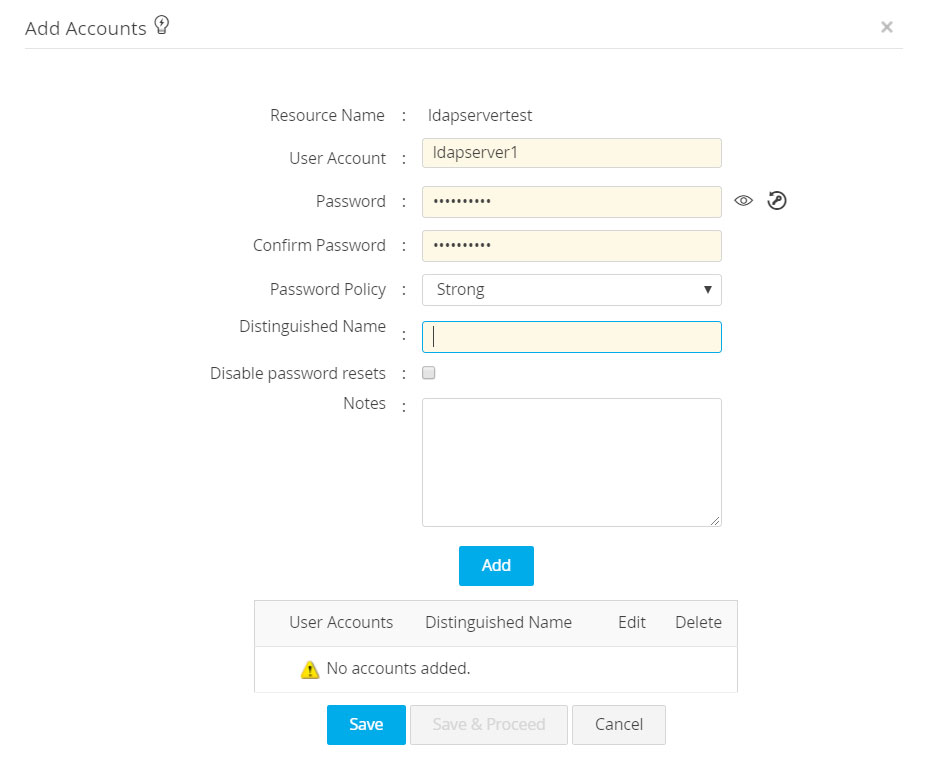
At the time of adding a new LDAP resource to Password Manager Pro, you must specify a Distinguished Name for the LDAP server account.
Example: c=administrator, cn=people, dc=test, dc=com.
Steps to Configure Remote Password Reset for LDAP Server
As administrative privileges are required to carry out password reset for LDAP server, an administrator account has to be specified.
For remote reset, Password Manager Pro supports the following types of LDAP servers:
- Microsoft Entra ID
- OpenLDAP
- Oracle Internet Directory
- Novell eDirectory.
Follow the below steps to enable remote password reset for the aforementioned types of LDAP servers:
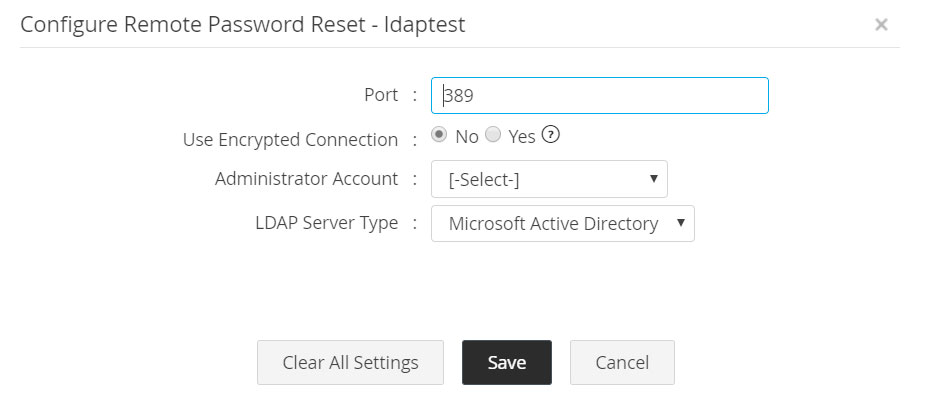
- Navigate to Resources tab >> Resource Actions >> Configure Remote Password Reset.
- Specify the type of the LDAP Server being added.
- Specify the LDAP server Port. By default, it occupies the port 389 (in SSL mode, default port is 636).
- Specify the connection mode - you can configure the connection between the LDAP server and Password Manager Pro to be over an encrypted channel (SSL) or Non-SSL. Except Microsoft Entra ID, for other LDAP servers, choose SSL or Non-SSL. If you choose SSL mode, do the following.
Note: If the selected LDAP server is Microsoft Entra ID, the connection has to be through SSL only.
SSL Mode:
- To enable the SSL mode, the LDAP server should be serving over SSL and you will have to import the LDAP server's root certificate into the Password Manager Pro server machine's certificate store. You need to import all the certificates that are present in the respective root certificate chain - that is the certificate of the Password Manager Pro server machine and intermediate certificates, if any.
- To import root certificate, open a command prompt and navigate to <PMP_SERVER_HOME>\bin directory and execute the following command:
For Windows
importCert.bat <Absolute Path of certificate>For Linux
importCert.sh <Absolute Path of certificate>
- Restart Password Manager Pro server. Then continue with the following steps.
- Specify an administrator account of LDAP server.
- Click Save.
2.1.xi HP ProCurve Devices
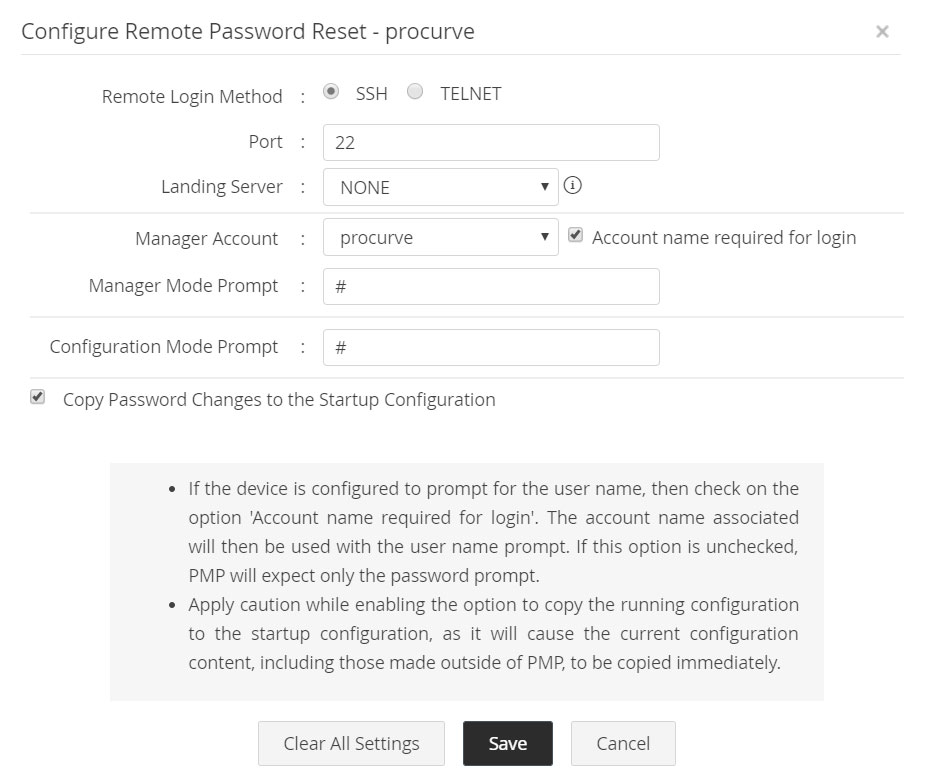
For HP ProCurve Devices, Password Manager Pro requires Telnet or SSH service to be running in the resource. Specify the Manager Account and Manager Mode Prompt and Configuration Mode Prompt details for Password Manager Pro to login to the resource. Password Manager Pro will use the configuration mode to reset the passwords.
- Navigate to Resources tab >> Resource Actions >> Configure Remote Password Reset.
- Provide the following details:
i. Remote Login Method: Password Manager Pro supports SSH and TELNET protocols through which connection could be established with the device for password reset. Select the required protocol.
ii. Manager Account: Login account for establishing connection with the device. If the device is configured to prompt for the user name, then select the option Account name required for login. The account name associated will then be used with the user name prompt. If this option is unchecked, Password Manager Pro will expect only the password prompt.
iii. Manager Mode Prompt: The prompt that appears after successful login.
iv. Configuration Mode Prompt: This is for entering into privileged mode to perform password reset.
v. Copy Password Changes to the Startup Configuration: Select this option to apply the password changes made to the running configuration in Password Manager Pro to the startup configuration.
Note: Enabling the option to copy the running configuration to the startup configuration will cause the current configuration content, including those made outside of Password Manager Pro, to be copied immediately.
2.1.xii HP iLO
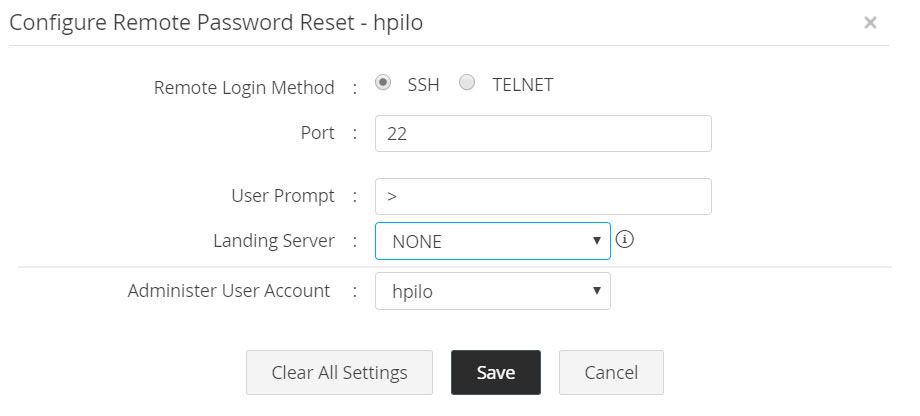
- Navigate to Resources tab >> Resource Actions >> Configure Remote Password Reset and enter the following details.
i. Remote Login Method: Password Manager Pro supports SSH and TELNET protocols by which connection could be established with the device for password reset. For this to work, Telnet or SSH service must be running in the resource.
ii. Enter the port: By default, SSH occupies the port 22.
iii. Specify the prompt: Enter the prompt that appears upon successful user login and also the user account with administrator privileges.
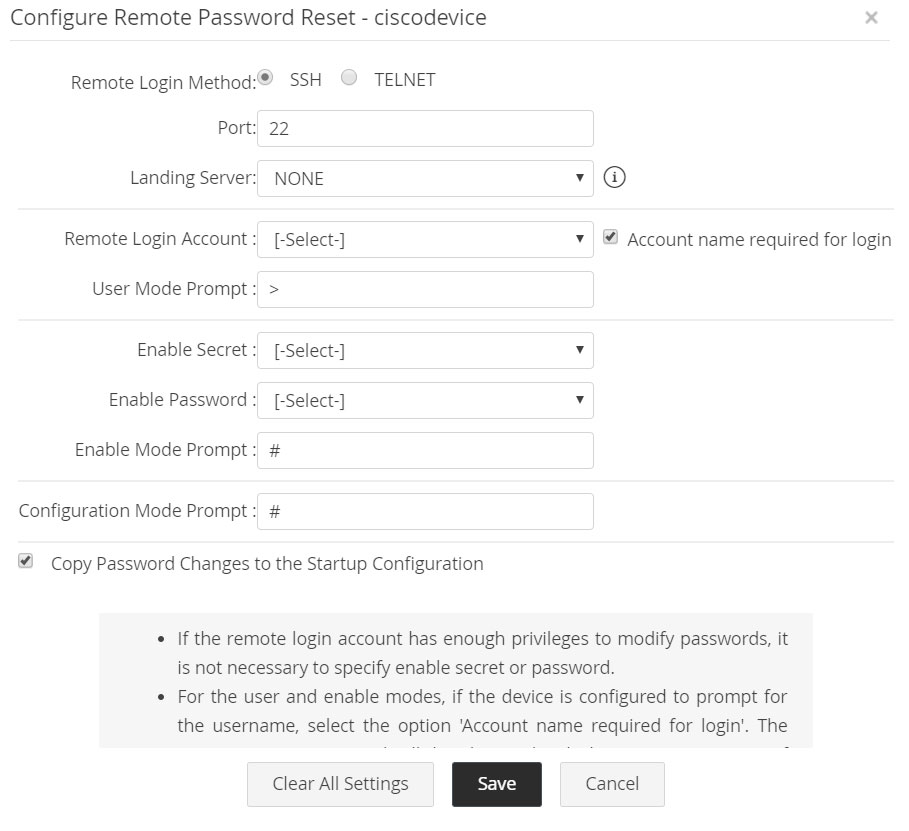
2.1.xiii Cisco Devices (IOS/CatOS/PIX)
Password Manager Pro requires Telnet or SSH service to be running in the resource. Passwords of the enable mode and a user account are required for Password Manager Pro to log into the resource. Password Manager Pro will use the configuration terminal mode to reset the passwords. Follow the below steps to enable remote password reset for Cisco devices:
- Navigate to Resources tab >> Resource Actions >> Configure Remote Password Reset and specify the following details.
i. Remote Login Method: Password Manager Pro supports SSH and TELNET protocols by which connection could be established with the device for password reset. Select the required protocol.
ii. Remote Login Account: Login account for establishing connection with the device.
iii. Account name required for login: For the user and enable modes, if the device is configured to prompt for the user name, then check on the option 'Account name required for login'. The account name associated will then be used with the user name prompt. If this option is unchecked, Password Manager Pro will expect only the password prompt.
iv. User Mode Prompt: The prompt that appears after successful login.
v. Enable Secret: This is for entering into privileged mode to perform password reset. If the remote login account has enough privileges to modify passwords, it is not necessary to specify Enable Secret.
vi. Enable Password: This is for entering into privileged mode to perform password reset. If the remote login account has enough privileges to modify passwords, it is not necessary to specify Enable Password.
vii. Enable Mode Prompt: This is the prompt that will appear after going into enable mode. For example, #.
viii. Configuration Mode Prompt: To carry out any change to any feature/configuration of the device, you need to enter configuration mode. The prompt that will appear while going into configuration mode has to be entered here. For example, # "Primary Credentials".
ix. Copy Password Changes to the Startup Configuration: Select this option to apply the password changes made to the running configuration in Password Manager Pro to the startup configuration.
Note: Enabling the option to copy the running configuration to the startup configuration will cause the current configuration content, including those made outside of Password Manager Pro, to be copied immediately.
2.1.xiv Juniper Netscreen Firewall Devices
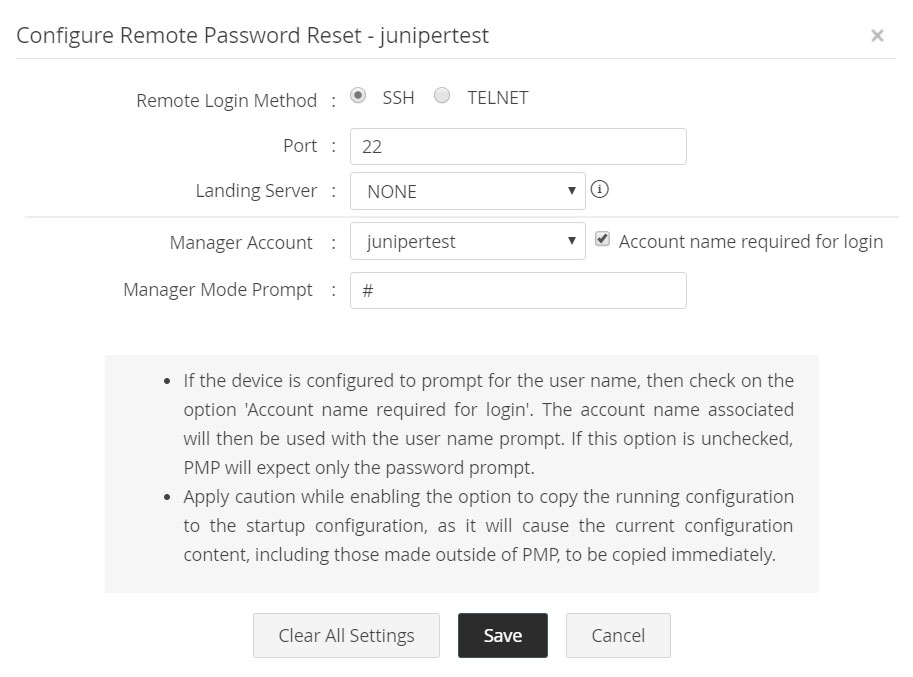
Password Manager Pro requires Telnet or SSH service to be running in the resource. Admin Account and Prompt of Admin Account are required for Password Manager Pro to login to the resource. Follow the below steps to enable remote reset of passwords for Netscreen devices:
- Navigate to Resources tab >> Resource Actions >> Configure Remote Password Reset and specify the following details.
i. Remote Login Method: Password Manager Pro supports SSH and TELNET protocols by which connection could be established with the device for password reset. Select the required protocol.
ii. Manager Account: Login account for establishing connection with the device. If the device is configured to prompt for the user name, then check on the option 'Account name required for login'. The corresponding account name will then be used with the user name prompt. If this option is unchecked, Password Manager Pro will expect only the password prompt.
iii. Manager Mode Prompt: The prompt that appears after successful login.
2.1.xv AWS IAM
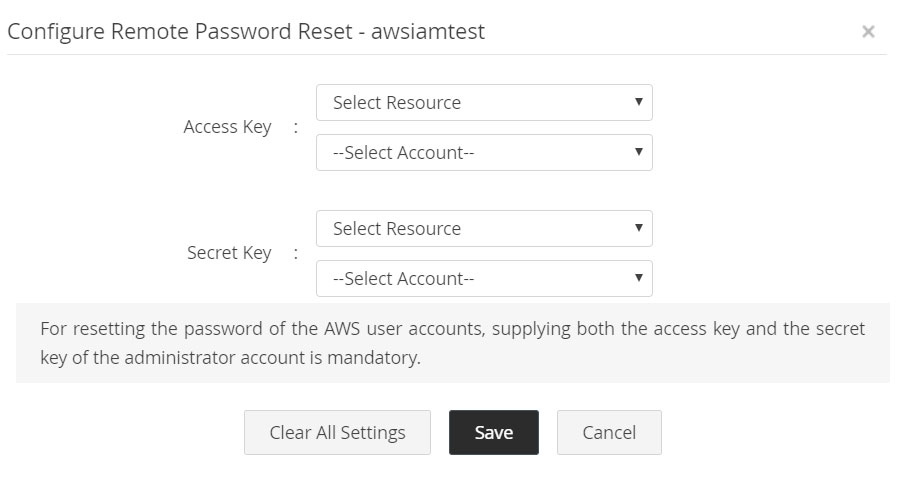
- Password reset for AWS IAM user accounts is done using AWS SDK.
- Navigate to the Resources tab >> Resource Actions >> Configure Remote Password Reset. The administrator account's access key and secret key are required.
- The access key and secret key should have been added as passwords in Password Manager Pro. These passwords can be associated with an account of any resource type, which can be used for the remote synchronization.
2.1.xvi Google Workspace
Remote Password Reset using Admin Account
(Applicable prior to build 13210)
- Navigate to the Resource tab and click the Resource Actions icon beside the Google Workspace resource, and Select Configure Remote Password Reset.
- In the window that appears, select the administrator account and click Save.

Note: Google has updated the password reset flow for Google Workspace resources using OAuth 2.0. Therefore, the passwords of Google Workspace accounts can no longer be reset using the above-mentioned procedure. Please upgrade to the Password Manager Pro version 13210 or above for a seamless password reset experience.
Remote Password Reset using Service Account Key File
(Applicable from build 13210 onwards)
Due to Google's enforcement of OAuth 2.0 authentication, Password Manager Pro supports OAuth 2.0 for server-to-server communication during remote password resets of Google Workspace resources, thereby enhancing security.
To perform remote password resets of your Google accounts, perform the actions that follow:
- Set up a service account in your Google Workspace domain, grant it the necessary scopes and permissions to execute remote password resets, and download the service account key file. Explore this link for the detailed steps on setting up a service account within your domain.
- Configure remote password reset for the desired Google Workspace accounts in Password Manager Pro using the service account key file with the steps below:
- Import the service account key file obtained from the Google Cloud Console into Password Manager Pro as a Filestore resource.
- Click the Resource Actions icon beside the desired Google Workspace resource and select Configure >> Remote Password Reset.
- In the Configure Remote Password Reset window that appears, select the administrator account and the Filestore resource and account that contains the service account key file, and click Save.


Note: When setting up or resetting passwords for Google Workspace accounts, it is important to follow the password requirements mandated by Google to ensure the security and integrity of user accounts. If the new password does not meet these requirements, the password reset for the Google Workspace account will fail due to the password not meeting the mandated password policy. To ensure a seamless password reset experience, we recommend creating a custom password policy for the Google Workspace resources that aligns with Google's password requirements. Explore this link to learn more about the password requirements for your Google Workspace accounts.
2.1.xvii Microsoft Entra ID
Caution: Due to Microsoft’s enforcement of mandatory Multi-Factor Authentication (MFA) for administrator accounts, remote password resets using traditional administrator accounts are not supported in Password Manager Pro versions prior to 13120. To enable remote password resets for IAM user accounts in Microsoft Entra ID, please upgrade to version 13120 or later.
Password Manager Pro allows you to manage IAM user accounts in Microsoft Entra ID, with the ability to rotate their passwords directly from the interface, either on demand or on a scheduled basis. To enable remote password reset, an application should be created in Entra ID with the necessary credentials and assigned an appropriate administrator role. Follow the steps below to create an application in Microsoft Entra ID and assign it the required administrator role:
- Log in to the Microsoft Azure portal.
- Create a new application that Password Manager Pro will use to communicate with Entra ID's IAM user accounts for password rotation. Ensure that the application is only granted with User.ReadWrite.All permission under both Delegated and Application types. For guidance, refer to section 1 of this document for a sample procedure on creating an application.
- To assign an administrator role to the application, follow these steps:
- In the Microsoft Azure portal, navigate to Entra ID.
- From the left-hand menu, select Manage and click Roles and Administrators.
- Use the search bar to locate a suitable administrator role, such as Privileged Authentication Administrator or Global Administrator.
Note: We recommend assigning the Privileged Authentication Administrator role to the application, as it offers the least privileged permissions required for password resets.
- On the role page that opens, click Add assignments.
- Search and select the application configured for remote password resets, and click Add to assign the administrator role to it.
- In the Microsoft Azure portal, navigate to Entra ID.
- Add the application as an Azure App resource in Password Manager Pro and add the application's client secret as an account in it.
Once the above prerequisites are completed, follow these steps to configure and perform a remote password reset for your Microsoft Entra ID user accounts from Password Manager Pro:
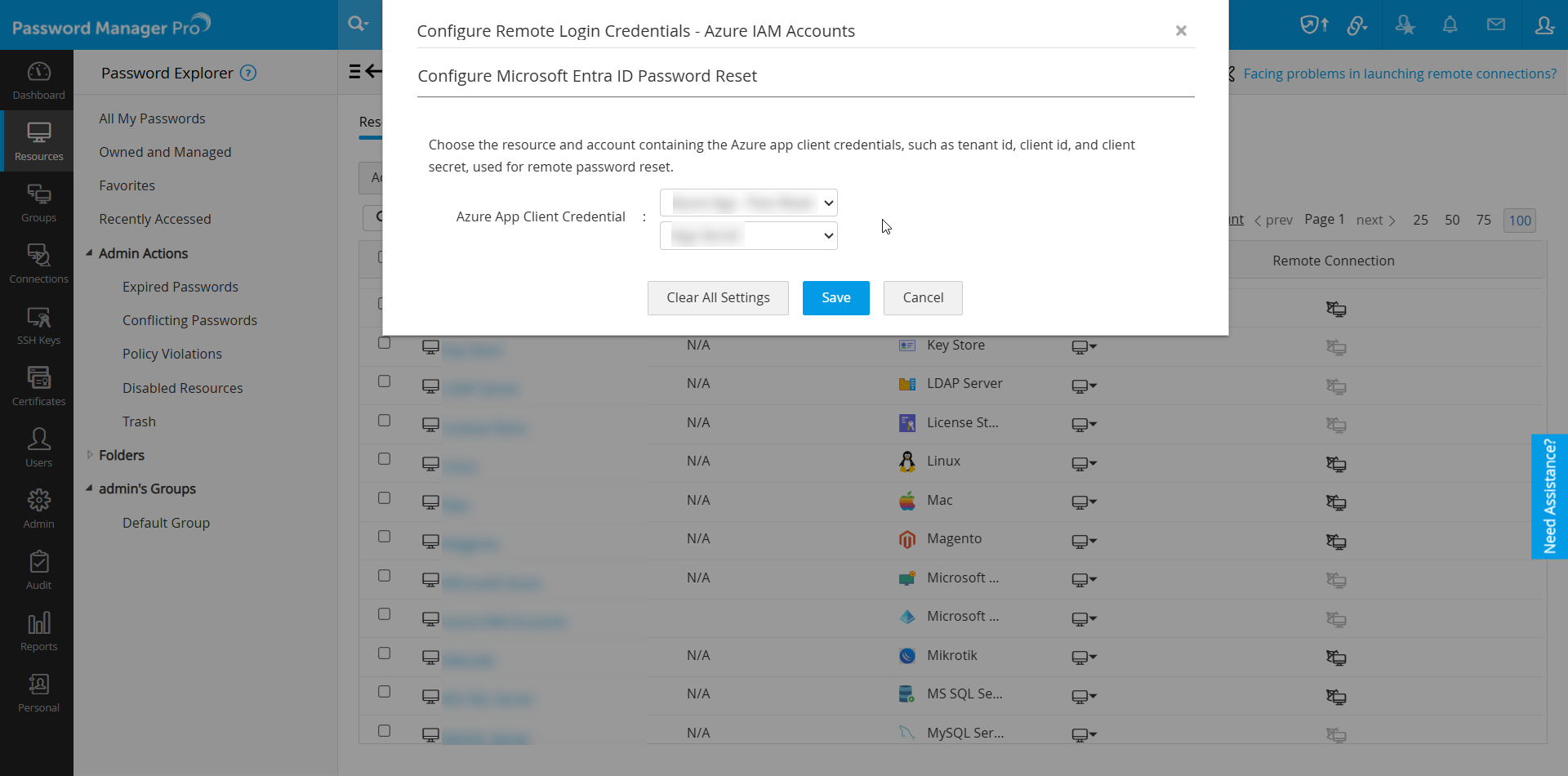
- In the Resources tab of Password Manager Pro, locate the Microsoft Entra ID resource with user accounts for which you want to configure remote password reset.
- Click the Resource Actions drop-down menu next to the resource and select Configure >> Remote Password Reset.
- In the configuration pop-up that opens:
- Click Save to complete the configuration and enable remote password reset for the selected Microsoft Entra ID resource with user accounts.
2.1.xviii Rackspace
- Password Reset for Rackspace user accounts is done using Rackspace REST APIs.
- To carry out password resets, navigate to Resources tab >> Resource Actions >> Configure Remote Password Reset. Here, a Rackspace administrative credential is required which has to be selected as the admin account.
Note: The following are the location-based Authentication End Points available for connection to the server.
US-based end point: https://identity.api.rackspacecloud.com/v2.0
UK-based end point: https://lon.identity.api.rackspacecloud.com/v2.0
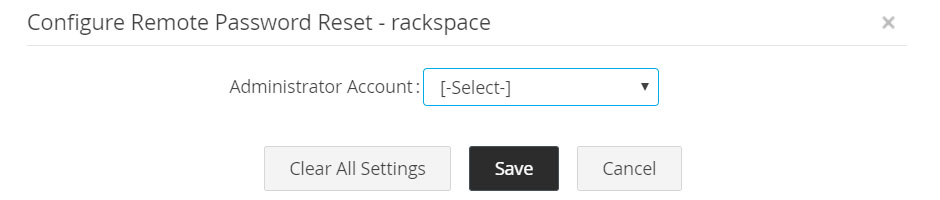
2.1.xix Salesforce
- Password reset for Salesforce user accounts is done using Force.com REST API.
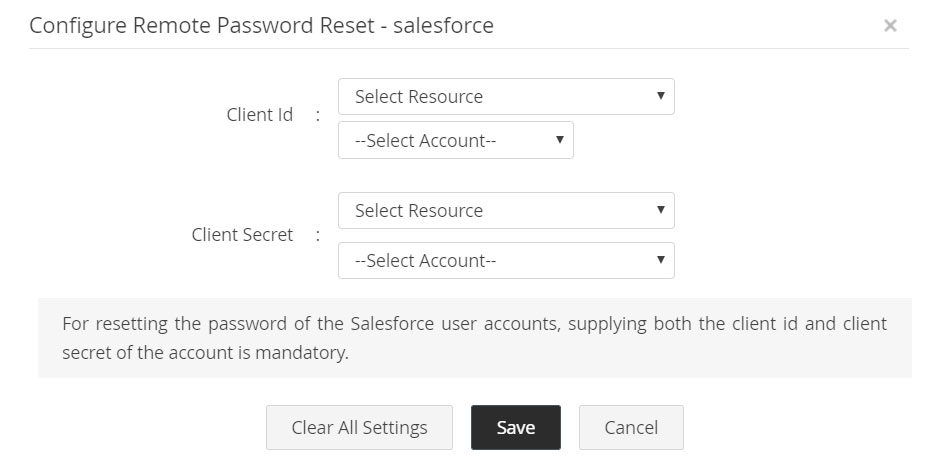
- In order to proceed with the configuration, navigate to Resources tab >> Resource Actions >> Configure Remote Password Reset. The administrator account's Client ID and Client Secret are required.
- The Client ID and Client Secret should have been added as passwords in Password Manager Pro. These passwords can be associated with an account of any resource type, which can be used for remote synchronization.
2.2 Configuring Remote Password Reset for Resource Types in Bulk
To configure remote password reset in bulk for the supported resource types, follow the below steps:
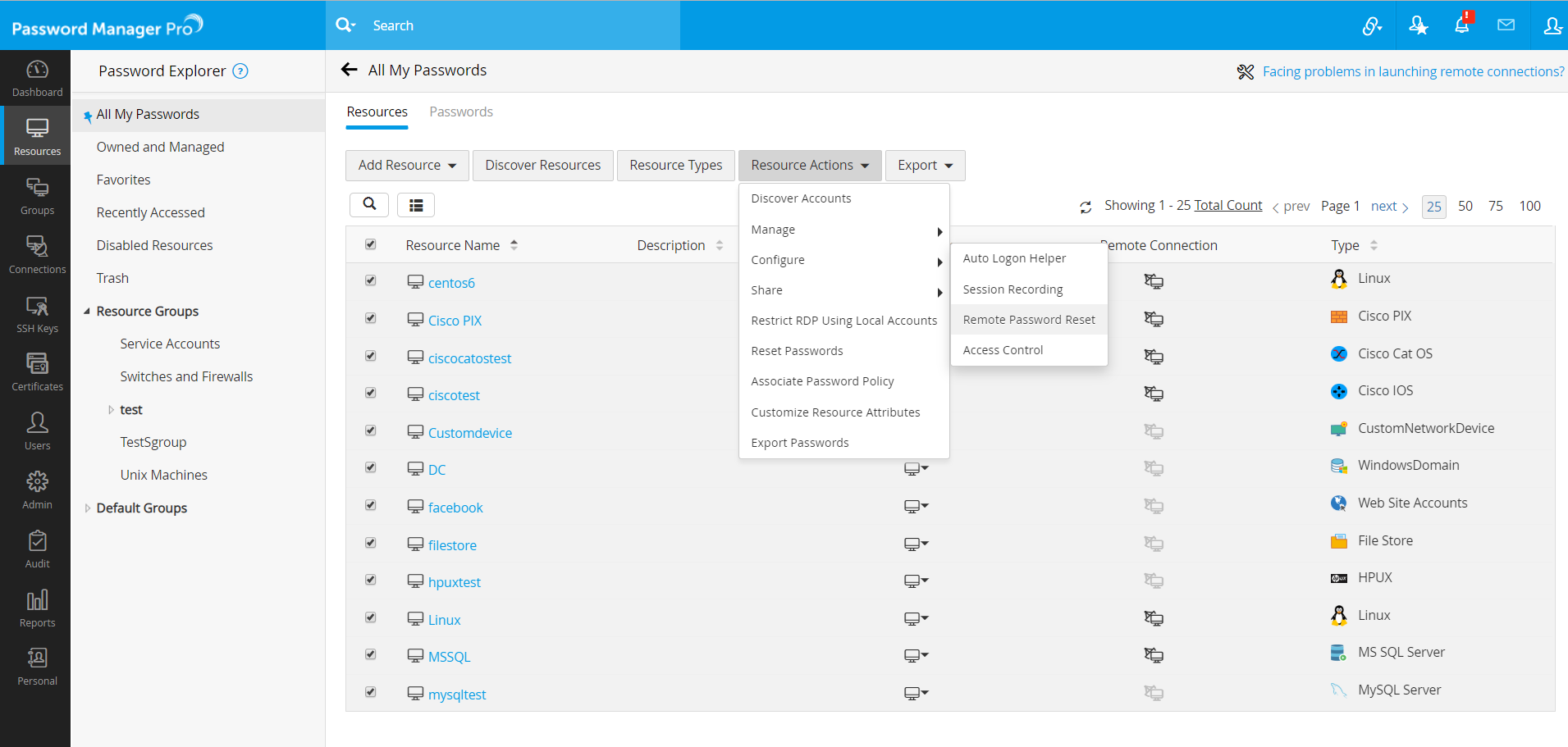
- Navigate to the Resources tab and select the required resources.
- Go to Resource Actions >> Configure >> Remote Password Reset.
- In the Configure Remote Password Reset window that opens, all the available resources will be listed. Enter configuration settings individually and save changes. Click here for more details on how to configure password reset for each resource type.
3. Remote Password Reset via Agent Mode
If you have devices residing in a demilitarized zone (DMZ) or if you have multiple sites/networks protected by firewalls, then Password Manager Pro will not have direct connectivity to those target systems. In such cases, use the Password Manager Pro Agents to manage the passwords of those target systems. Password Manager Pro Agents operate using a one-way communication from the target system to the Password Manager Pro application server. Therefore, the ports do not have to be opened for inbound traffic in the target network. Only outbound access is required for the Password Manager Pro Agent to reach the Password Manager Pro login page (Default port: 7272).
To download the Password Manager Pro Agent, navigate to the Admin tab >> PMP Agents. There are 64-bit and 32-bit agents for Windows, Windows Domain, and Linux. Among this, the Windows Domain Agent needs to be deployed in a DMZ domain controller.
Click here for more on Password Manager Pro Agents.