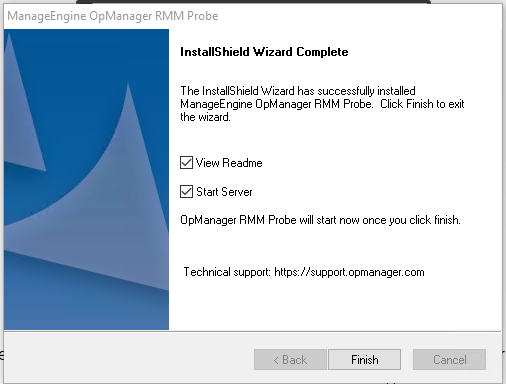
Installing RMM Central Server file :-
- Run the ManageEngine RMM Server set up.
- Click "Yes" for software license agreement.
- Click "Browse" to choose the file location.
- Click "Next" to accept the file location.
- Enter Port Number. (The default port number is 8090. You can enter any other port number of your choice.)
- In the Select Program Folder window, enter the folder name and click Next.
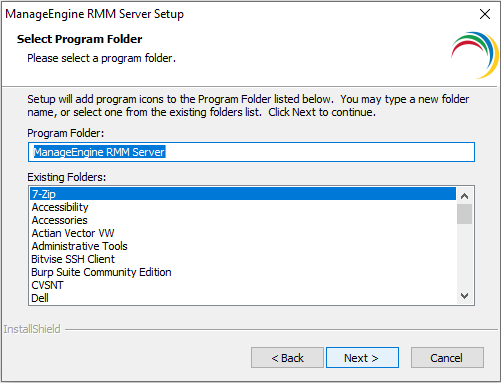
- The current settings are displayed, click on Next if satisfied.
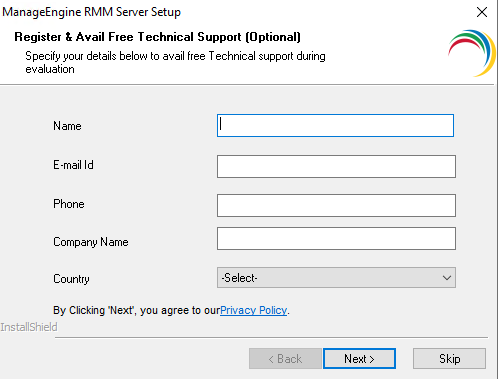
- Specify the listed details in the prompted window to avail technical support while evaluation.
- Click on Finish to complete the installation process.
Note : Add a remote office before installing RMM Central Probe for creating the Probe Key required for installing RMM Central Probe.
Installing RMM Central Probe file :-
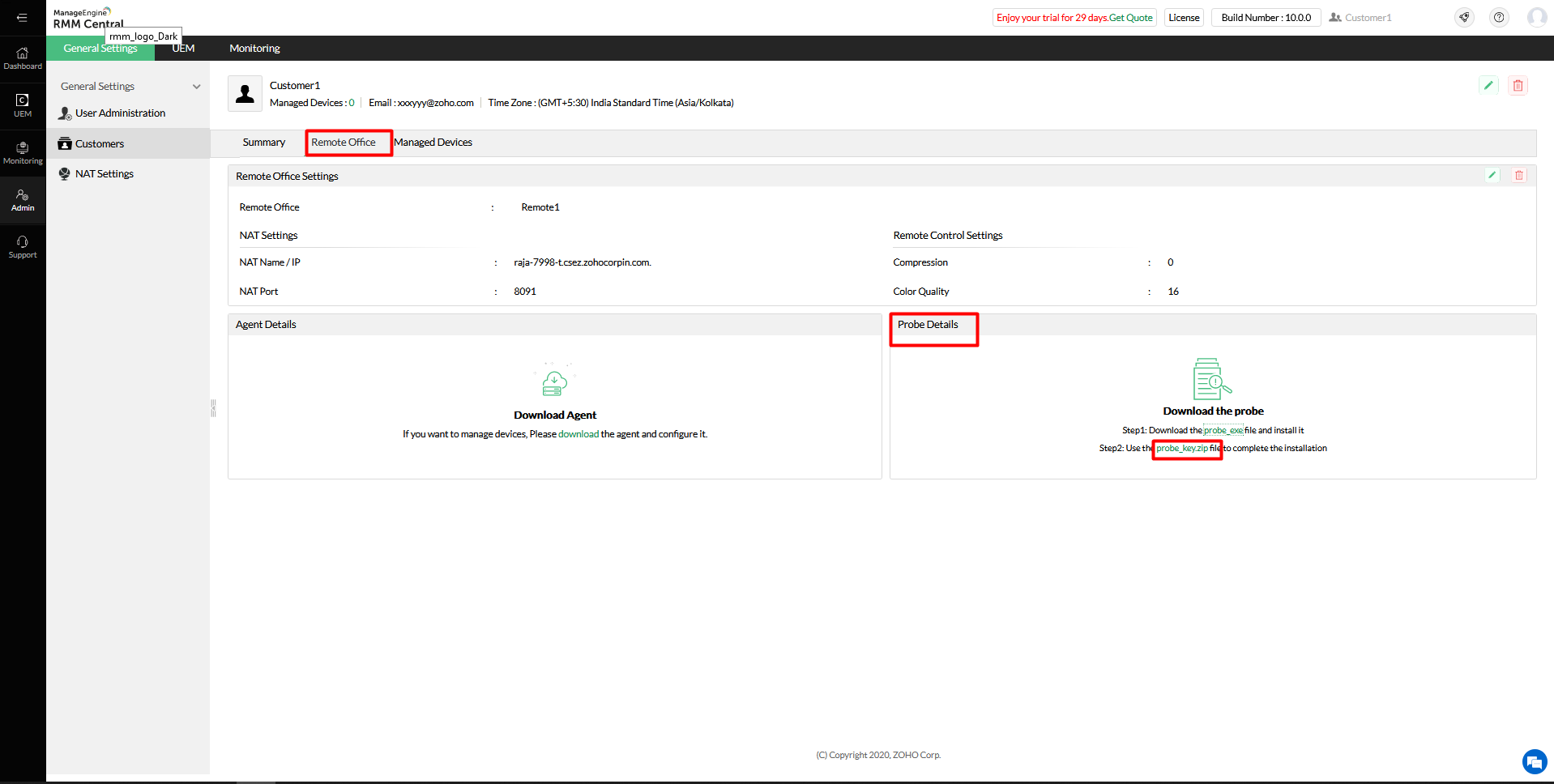
- Login to RMM Central web console and go to Admin -> General Settings -> Remote office -> Click on remote office name.
- Download ManageEngine_RMM_Monitoring_Probe_64bit.exe
- Run the ManageEngine RMM Probe set up.
- Click "Yes" for software license agreement.
- Click "Browse" to choose the file location.
- Click "Next" to accept file location.
- Enter Port Number. (The default port number is 8110. You can enter any other port number of your choice.)
- Specify the listed details in the prompted window to avail technical support while evaluation.
- Enter Probe Key.
- Navigate to Remote Office in the server. Under Probe Details, click on the probe key zip file.
- Select the backend database.
- Check the checkboxes on the prompted window and click on "Finish"