How to check your SharePoint site storage and storage limits
In this article
- Objective
- Method 1 (the SharePoint admin center)
- Method 2 (PowerShell)
- Method 3 (SharePoint Manager Plus)
- Benefits of SharePoint Manager Plus
- Related links and articles
Objective
Monitoring your SharePoint site storage is essential to avoid running out of space, plan capacity, and control costs. Regularly checking your storage usage helps you identify growth trends and decide when to clean up content or increase storage limits. This article demonstrates three methods of how to check the storage of your SharePoint sites.
Method 1: Check your site storage using the SharePoint admin center
The SharePoint admin center helps you view your site storage limit and usage as well as limits for each site. This method is suitable for admins who prefer a UI-driven approach.
Prerequisite
Ensure you have global admin or SharePoint admin rights.
Steps to follow
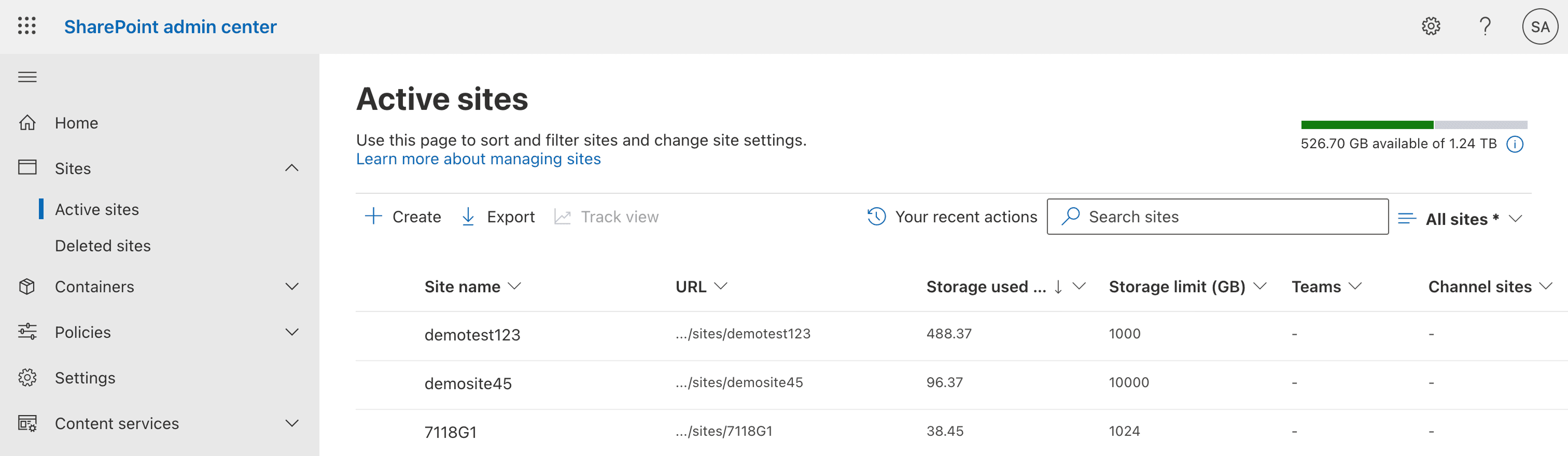
- step 1 Go to the Microsoft 365 admin center and open the SharePoint admin center.
- step 2 On the left pane, select Active sites under Sites.
- step 3 View the storage details of your sites in the Storage used and Storage limit (GB) columns.
- step 4 To quickly find a site, enter the site name in the Search sites box.
- step 5 If necessary, right-click a site and select Edit to increase the storage limit or to modify other settings.
Limitations of using the SharePoint admin center
- It requires specific admin roles and familiarity with the interface, which may not be ideal for all users.
- Limited alerting and automation for storage thresholds require admins to build custom scripts for proactive monitoring.
- Historical trend data is not readily available out of the box, so admins must export and retain reports manually to analyze growth over time.
Method 2: Check your site storage using PowerShell
PowerShell lets you quickly retrieve storage usage and quota details for SharePoint Online sites using the Get-SPOSite cmdlet.
Prerequisites
- Install the SharePoint Online Management Shell or Microsoft.Online.SharePoint.PowerShell Module if not done already.
- Ensure you have global admin or SharePoint admin rights.
Steps to follow
- step 1 Connect to SharePoint Online with the admin URL:
Connect-SPOService -Url https://<tenant>-admin.sharepoint.com - step 2 Run the script below to display the URL, current storage consumption, and quota for your preferred site:
Get-SPOSite -Identity https://<tenant>.sharepoint.com/sites/ProjectA | Select Url, StorageUsageCurrent, StorageQuota
Limitations of using PowerShell
- Crafting and debugging scripts can be time-consuming for admins who are less familiar with PowerShell.
- It requires specific admin roles and familiarity with the SharePoint Online Management Shell, which may not be ideal for all users.
- Limited alerting and automation for storage thresholds require admins to build custom scripts for proactive monitoring.
Method 3: Check your site storage using SharePoint Manager Plus
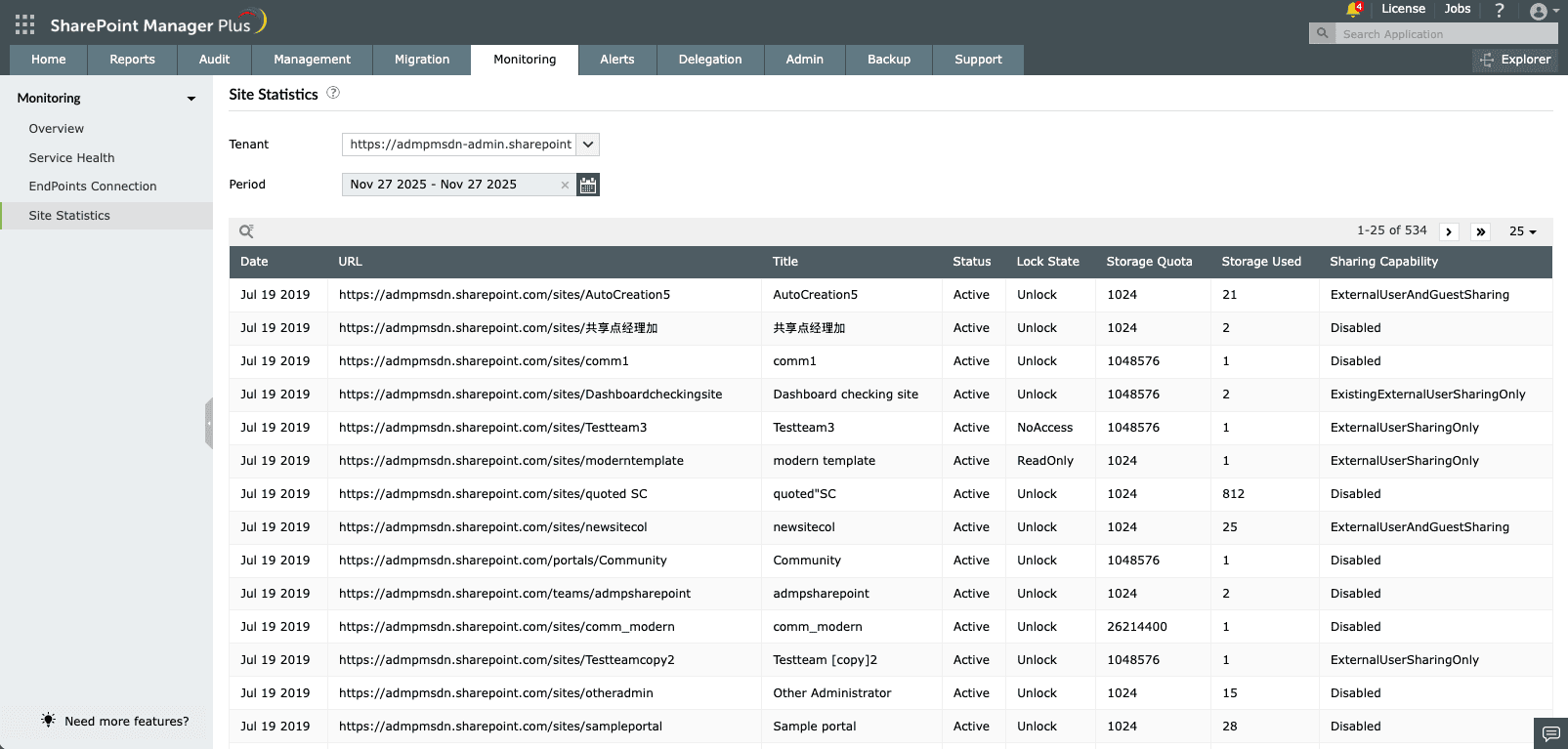
SharePoint Manager Plus provides a centralized dashboard for viewing site storage information for all SharePoint Online sites in your tenant.
- step 1 Go to Monitoring > Site Statistics. The report will display the used storage, site storage limit, and more.
- step 2 To narrow the information down to your preferred site, click the search icon and enter the site URL.
Benefits of using SharePoint Manager Plus
SharePoint Manager Plus, a unified SharePoint administration tool, helps you monitor your SharePoint storage, service health, and site connections with an easy-to-use GUI console.
- Script-free monitoring: Get quick, easy access to storage information without running complex scripts.
- Storage alerts: Get notified when a site storage limit exceeds a configured threshold and stay ahead of potential storage constraints.
- A centralized dashboard: Get information on storage as well as other statistics about your farms, site collections, lists, users, and groups.
- Hassle-free access: Empower non-IT staff to perform SharePoint tasks without elevating their native privileges.
Related links and articles
- How to check the size of your SharePoint storage
- How to audit a SharePoint site collection
- How to add a user to a SharePoint site
- How to create a SharePoint group
- How to migrate from on-premises SharePoint to SharePoint Online
Last updated on: 2025/12/08
- An overview of SharePoint
- How to add an user to a SharePoint site?
- How to create a SharePoint group?
- How to change SharePoint group permissions?
- How to check permissions of SharePoint users and groups?
- How to configure audit logging for a SharePoint site collection?
- How to check the size of SharePoint storage?
- How to migrate sharepoint on premises to online?