Patch Deployment Troubleshooting
Use this procedure if a patch task remains in Ready to Execute, Yet to Apply, or In Progress status, including after you select Deploy Immediately. Start by checking the affected computer's full execution remark.
Patch deployment can fail on endpoints across different geographical locations, even when a deployment policy is configured to manage them.
Endpoint problems and unstable network connections can cause deployment errors. These errors can be difficult to troubleshoot in environments with many endpoints. Review the affected endpoints to identify the cause.
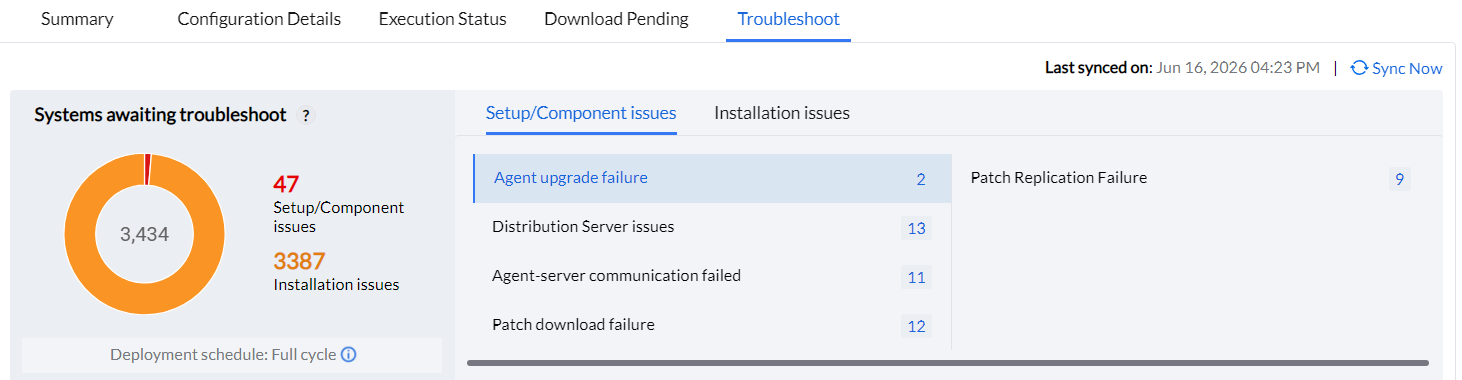
Use Patch Deployment Troubleshoot to diagnose deployment errors and find corrective guidance. This feature applies to both Automate Patch Deployment and Manual Deployment tasks.
To check connectivity from a Linux agent, open Terminal and run:
cd /usr/local/manageengine/uems_agent/binsudo ./dctroubleshootingtool -s
The tool displays the agent connectivity status in Terminal. If the issue continues, share the result and the affected agent logs with Support.
Steps to enable Patch Deployment Troubleshoot
- Go to Deployment > Automate Patch Deployment (or Manual Deployment) and open the deployment task.
- Click Troubleshoot and select Setup/Component Issues or Installation Issues.
- Click the applicable error to view its details and troubleshooting steps.
To review failed patches across categories, go to Patches → Detailed View and set Deployment Status to Failed. Display Remarks and the affected computer, then use the view's export control. Use the matching troubleshooting category to investigate each failure. For more information about report filtering, see Predefined Reports.
For targets that are still waiting to execute, use APD System View or the manual deployment task's Execution Status. A report filtered to Failed does not include all pending targets.
In Other Installation Failures, use Detail View and the report to identify the affected computer, Patch ID, deployment time, and remark. For a fatal installation error, follow the fatal installation error log checks. The troubleshooting category and remark do not replace the installer trace.
Pending deployment diagnostics
Patches Missing is a task target state. It does not by itself identify a failed installation. Open the APD System View and compare the task criteria, latest scan and full target remark. Follow APD status definitions. Use APD missing-patch count checks for a count discrepancy. Use the failed-installation procedure when the target reports a failure. If your account cannot generate the task export, ask an authorized administrator to provide it.
If a patch was absent from an earlier run but present later, compare catalog publication and synchronization times, scan time, and task creation or modification time. See patch availability guidance and Manual Deployment. These times do not by themselves prove a deployment-window failure.
For Unable to retrieve deployment policy details, confirm the policy assigned to the task, its saved deployment periods and time-zone settings. Check agent communication and refresh. If the remark continues, collect the task summary and affected agent logs. This policy-data failure is different from waiting for an eligible window. See Deployment Policy.
Open the affected task's Execution Status and review the computer's full Remarks or Detail View. If Troubleshoot is unavailable for a Windows patch task, check task permissions and supported task scope.
For status definitions, see deployment status interpretation. For deployment-window, schedule, target-membership, agent-contact and Distribution Server checks, follow Yet to Apply troubleshooting.
Diagnostic results and deployment status
A No Errors result means the diagnostic checks that ran did not identify a problem. It does not confirm that the task reached the endpoint or that installation completed.
If the task remains pending after the schedule, contact and replication checks, collect diagnostic results from an affected Windows computer:
- After diagnostics finish, select Export in the Agent Troubleshooting Tool and save the summary.
- Use Upload Logs in the agent tray menu, where available, to submit the agent logs.
- Provide Support with the diagnostic summary, computer name, task name, Patch IDs, full remarks and failure time.
The exported diagnostic summary does not replace the agent log bundle.
Patch Deployment Errors and Resolution
Use the following categories to investigate deployment errors:
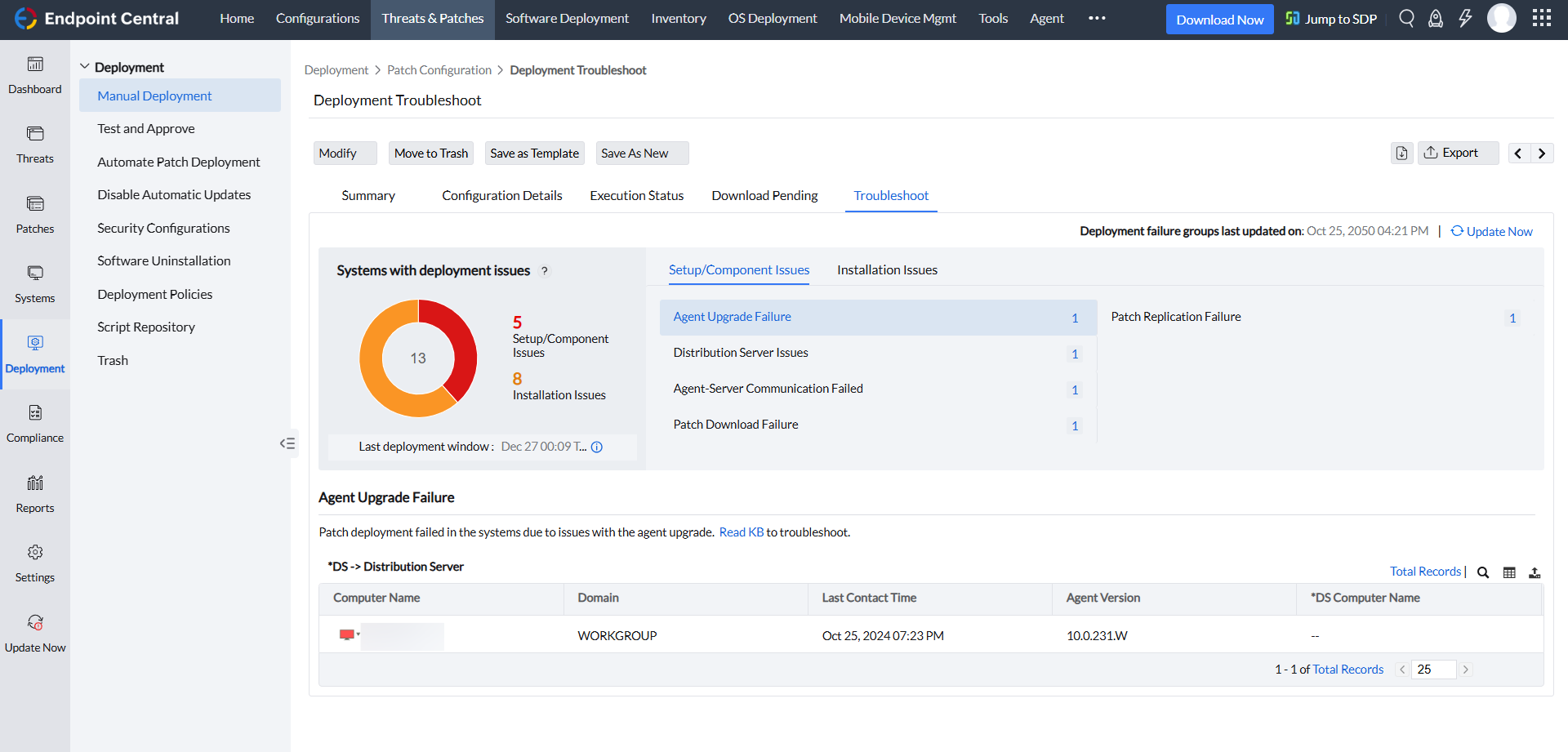
1. Agent Upgrade Failure
This group includes agents whose recorded version differs from the expected agent version after a server upgrade.
Review the upgrade status and full remark before choosing a repair or reinstalling the agent. A version mismatch alone does not identify why an upgrade is incomplete.
Open the affected-computer list and compare each installed agent version with the version required by the server. Review the status, full remark and last upgrade time. Verify contact with the assigned server or Distribution Server, and correct communication or replication failures using Distribution Server troubleshooting and agent communication troubleshooting. After contact and replication recover, verify that the agent version updates and the computer leaves the Agent Upgrade Failure group. If it remains there, provide the full upgrade remark and agent and Distribution Server logs to Support.
2. Distribution Server Issues
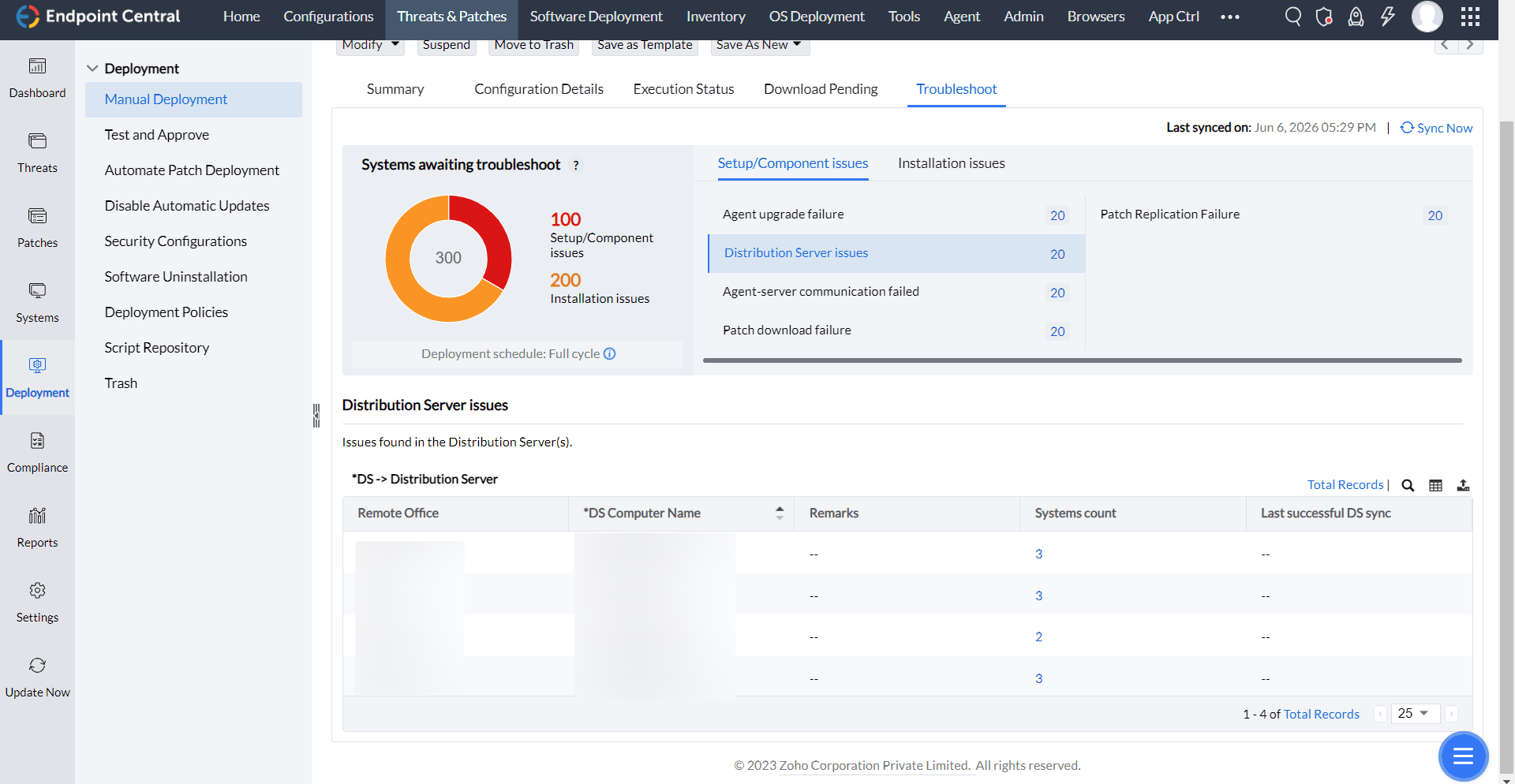
This error occurs when systems are associated with a Distribution Server (DS) that is unreachable because of a problem. Common causes include DS crashes, internet disconnections during synchronization, and insufficient storage. When the DS becomes unreachable, the systems assigned to it are categorized under this error.
Check the DS status and connectivity to restore communication. Use Distribution Server troubleshooting to check the DS service and communication. Record the exact failure details before retrying deployment.
Main View: List of remote offices with affected resource counts.
Sub View: List of affected systems.
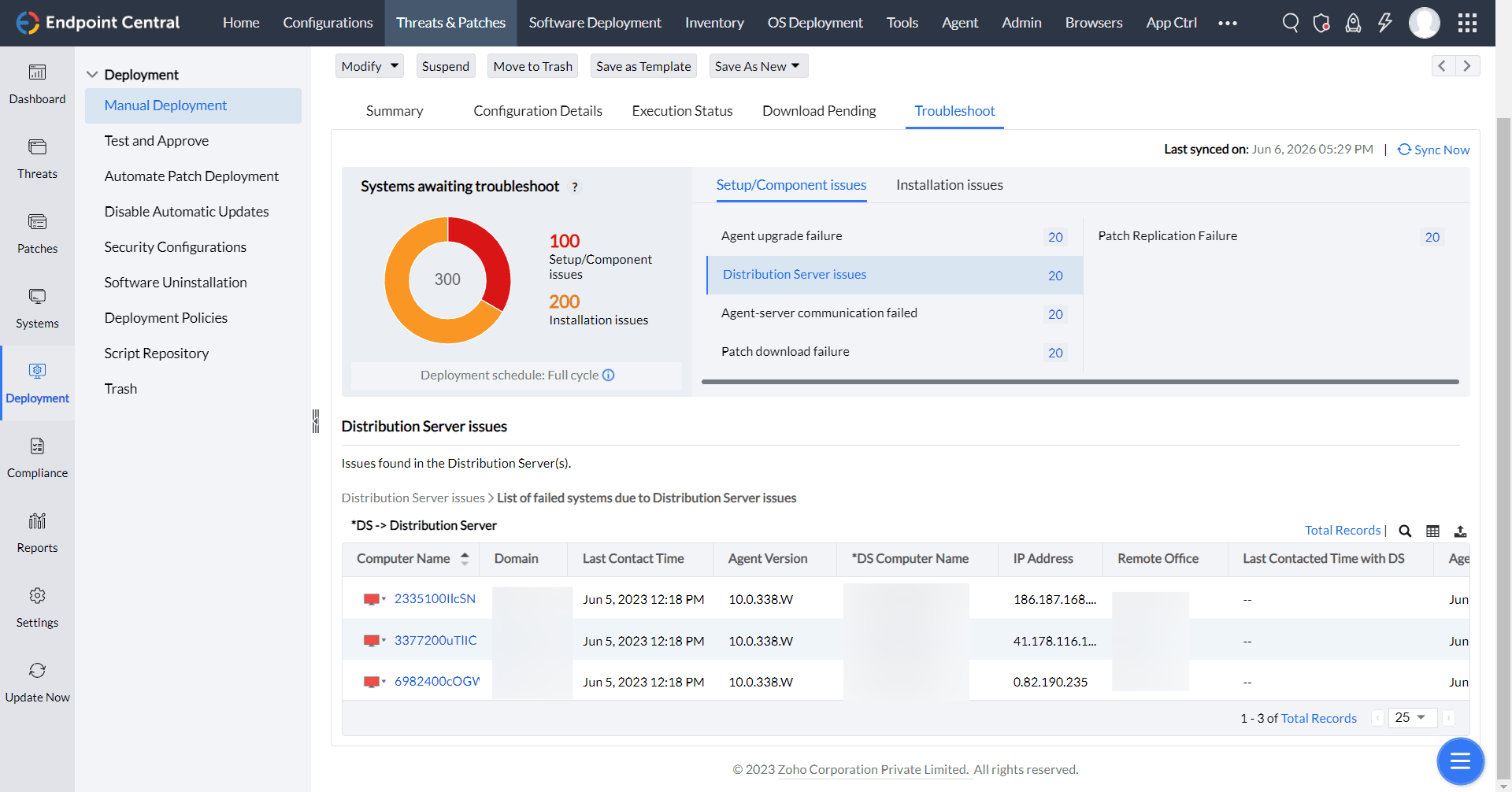
If the Remarks column displays Patch stored location is not available to download the patch from the server., verify that the patch store is available to the Distribution Server.
For patch download or replication failures, test the failing patch's vendor download URL from the affected Distribution Server or remote-office computer. If the URL is blocked or unreachable, allow access before retrying the deployment.
To reclaim patch-store space, configure Cleanup Settings instead of manually deleting files from the Distribution Server replication store. Eligible patches are removed from the Central Server according to the configured retention period and from the Distribution Server during the next replication cycle.
3. Agent Not in Contact
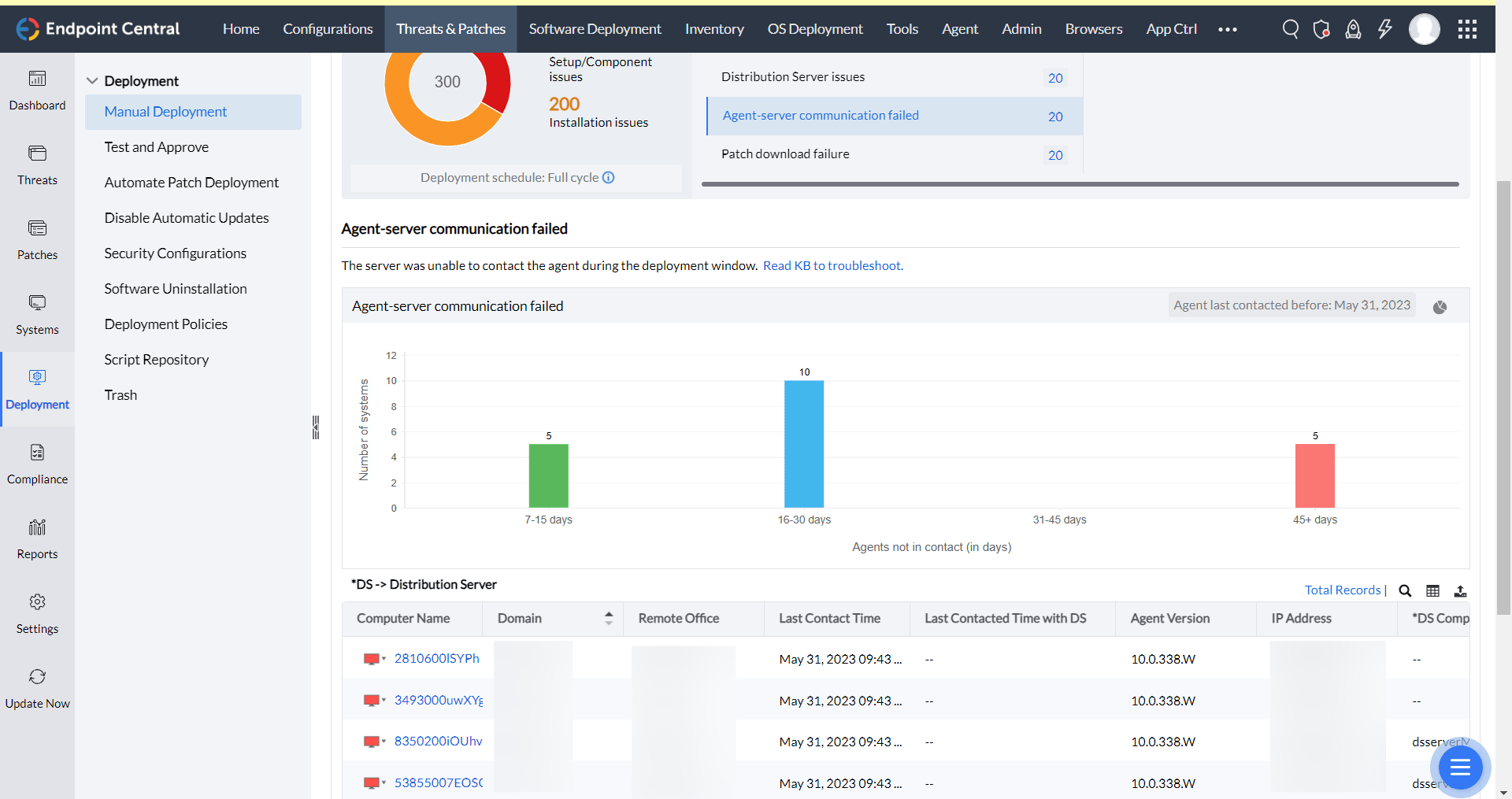
This error occurs when systems have not contacted the server or Distribution Server (DS) for more than 7 days. These systems are grouped for investigation because communication has been inactive for a prolonged period. Check network connectivity and confirm that the systems are operational.
A computer being powered on does not confirm that its agent has contacted the server or DS. If Last Contact Time is outdated and a requested scan does not complete, use the Agent Troubleshooting Tool to check agent connectivity.
For the reported communication error, follow agent communication troubleshooting before retrying deployment. Record the last contact time, scan time, assigned Remote Office, and agent version. If the failure continues, collect the affected agent logs. You do not need to wait until the 7-day no-contact threshold is reached to investigate a communication problem.
Main View: List of systems with their last contact time.
4. Patch Download Failure in Server
An already downloaded patch does not confirm installation on a target computer. Review the computer-level execution status and full remark. See download counters and deployment status.
For Cloud, identify the failed transfer stage. If the Distribution Server cannot retrieve the patch from the vendor, follow Patch Replication Failure. If the agent cannot retrieve a file from its serving host, follow Patch Download Failed in Agent. Use the full remark and requested file to select the procedure.
For a download failure, identify the affected Patch ID, file and download source. See Patch Download Failures for connectivity diagnostics, or Checksum Failed when the downloaded file does not match its expected checksum.
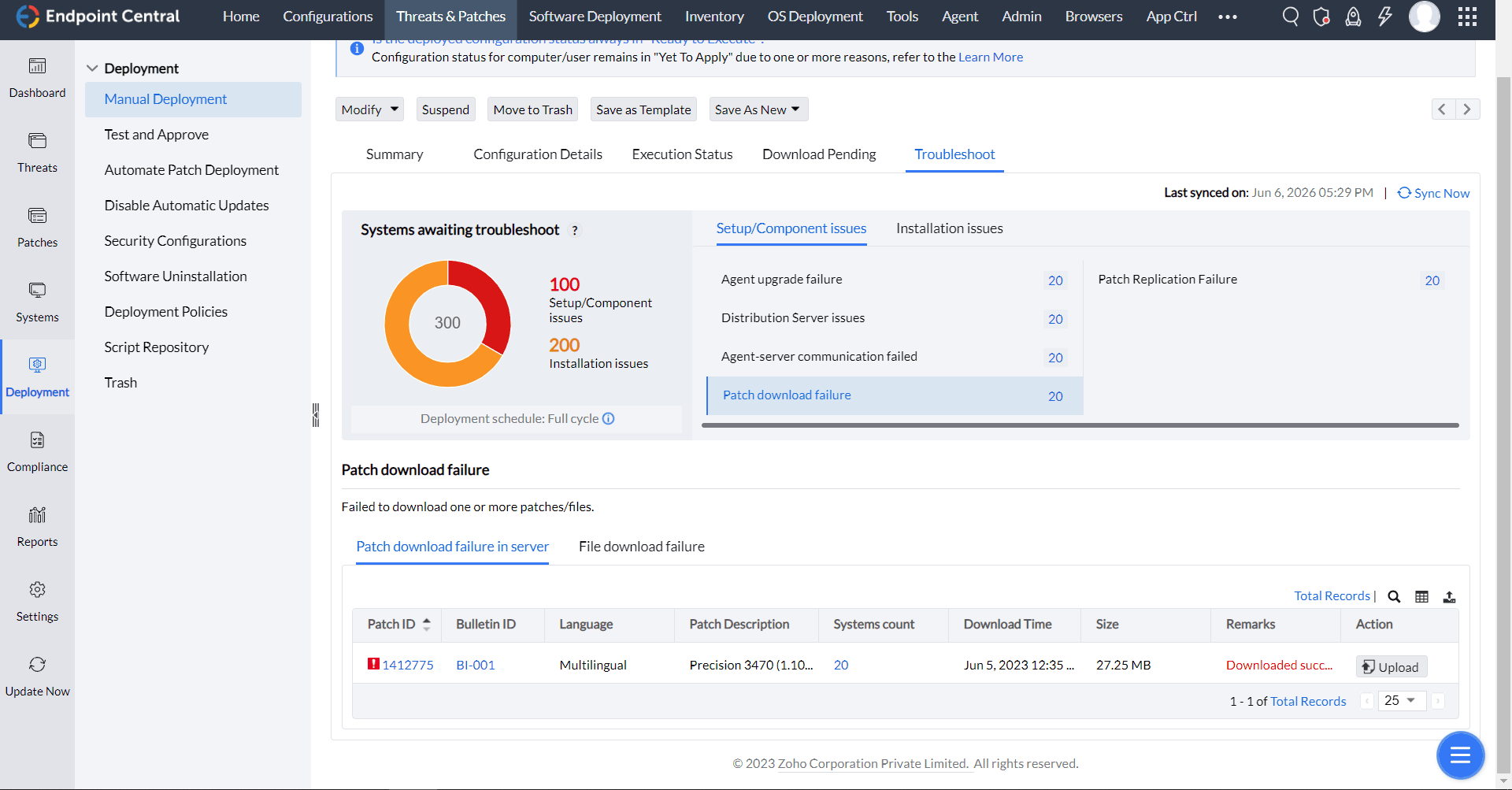
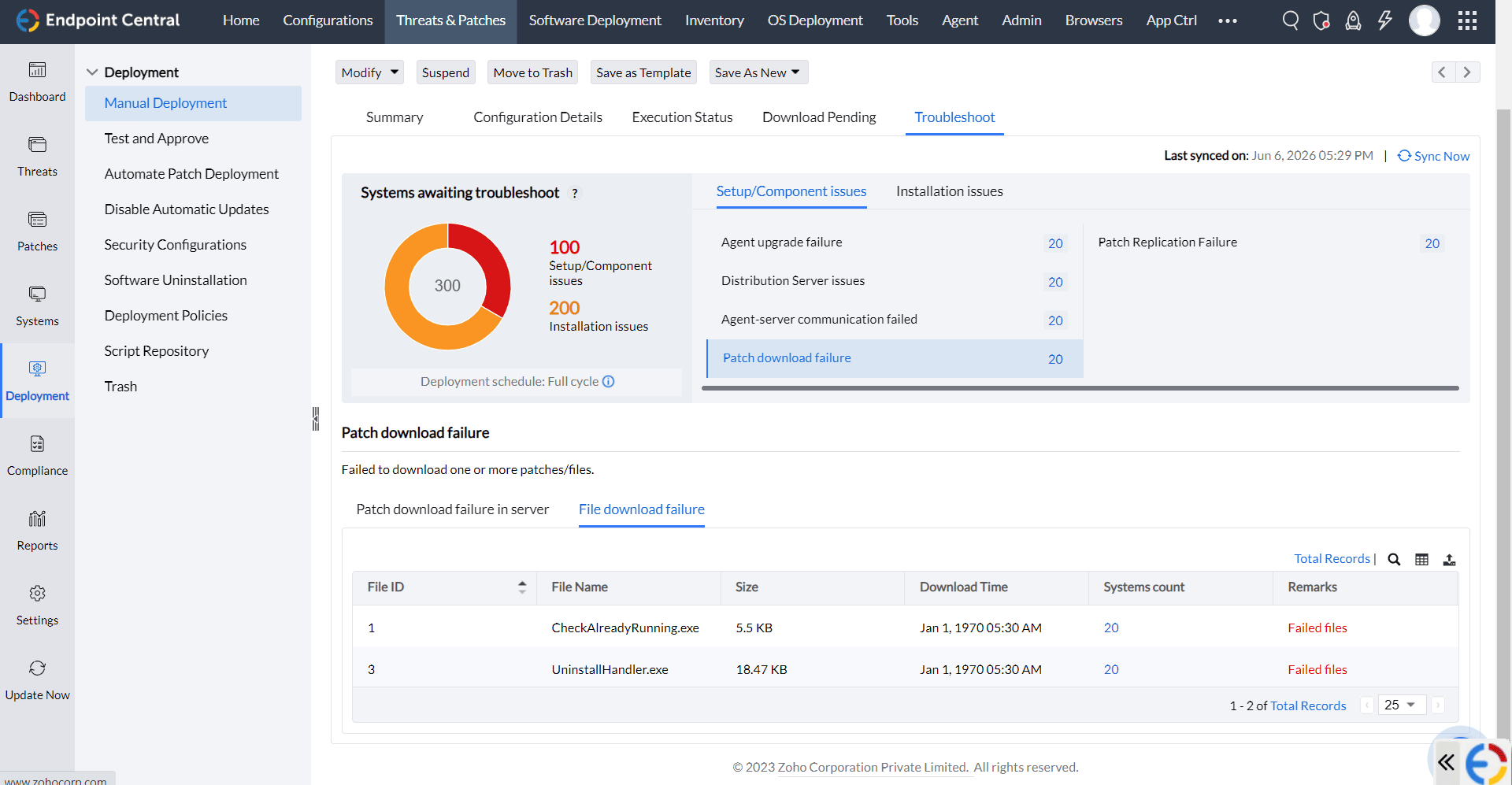
This group covers Central Server download failures when DS direct download is disabled. A failed server download can prevent subsequent replication and deployment. If DS direct download is enabled, check downloads on the Distribution Server under Patch Replication Failure. This error group includes two tabs: Patch Download Failure (including dependency patches) and File Download Failure. If a patch has multiple language IDs, the grouping depends on the patch ID’s language and the OS language, which may result in duplicate patch IDs.
PATCH FAILURE IN SERVER:
SYSTEMS AFFECTED DUE TO PATCH DOWNLOAD FAILURE:
Main View:
System View:
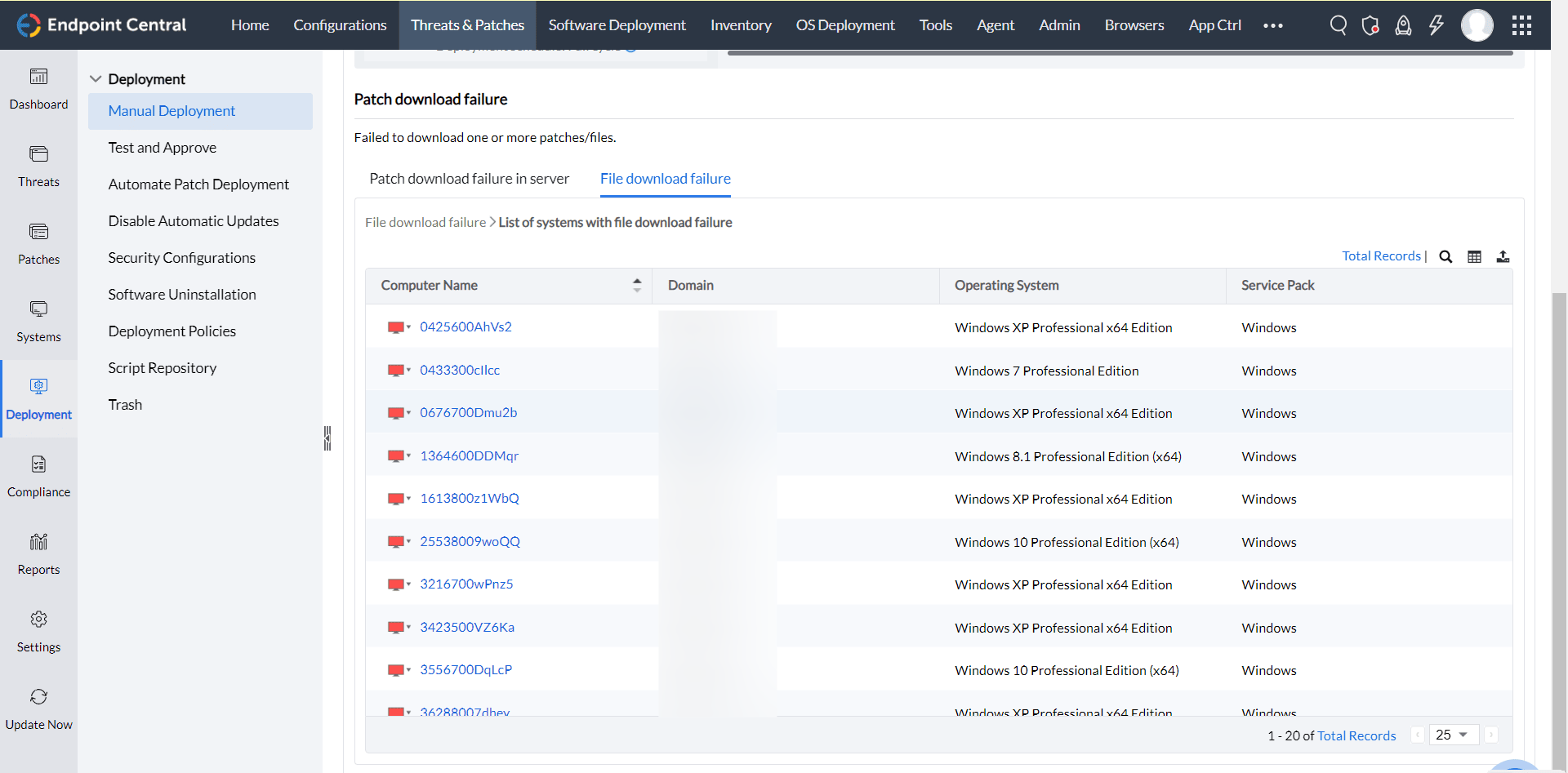
For example, two failed patches affect 20 and 25 systems. If the affected systems do not overlap, the total is 45 systems (20 for patch 1 + 25 for patch 2). If 20 systems are missing both patches and 5 additional systems are missing only the second patch, the total is 25 systems.
5. Patch Replication Failure
This error group covers two types of patch download failures, both categorized under Error Group 1. Patches can fail to replicate from the Central Server to the Distribution Server (DS), typically in on-premises deployments. Patches can also fail to download directly from vendor sites to the DS, commonly in on-demand or Cloud deployments. Both failures can prevent affected systems from deploying or applying patches.
When DS direct download is enabled, check patch and dependency downloads on the DS. Otherwise, check the Central Server download and subsequent replication to the DS. On-premises deployments can also use DS direct download when enabled.
If Replication Details shows Retry In Progress, review the Distribution Server's full remark and replication times. The status alone does not identify the cause. If the remark identifies low disk space, check the named DS drive using the Distribution Server disk-space checks.
For Office patches, verify that both the main patch binary and its associated dependency package have downloaded completely and are available in the affected Distribution Server's patch store. A downloaded main binary alone does not confirm that the dependency download is complete. See Office Patch Download Failure for download troubleshooting.
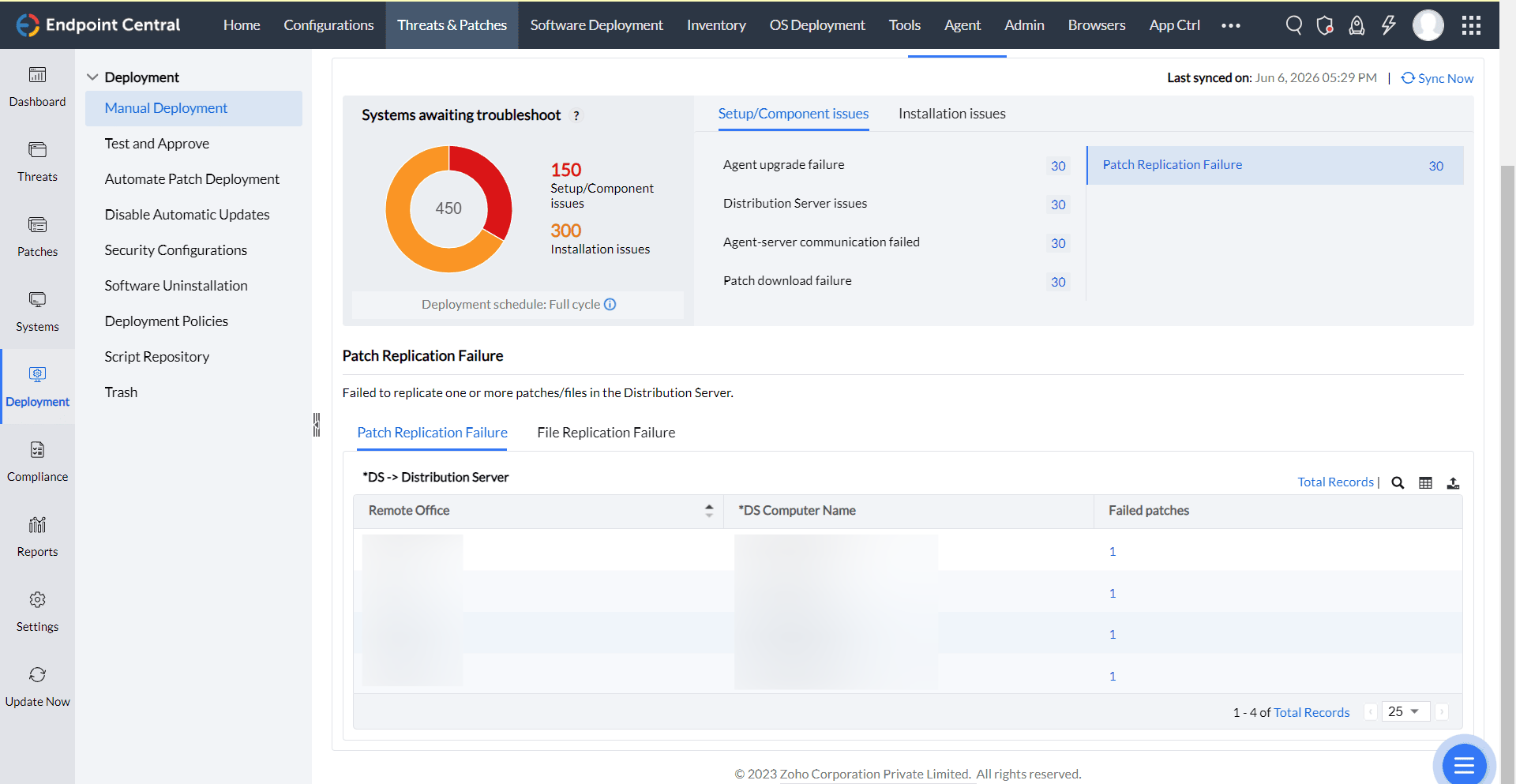
PATCH REPLICATION FAILURE - AFFECTED PATCHES
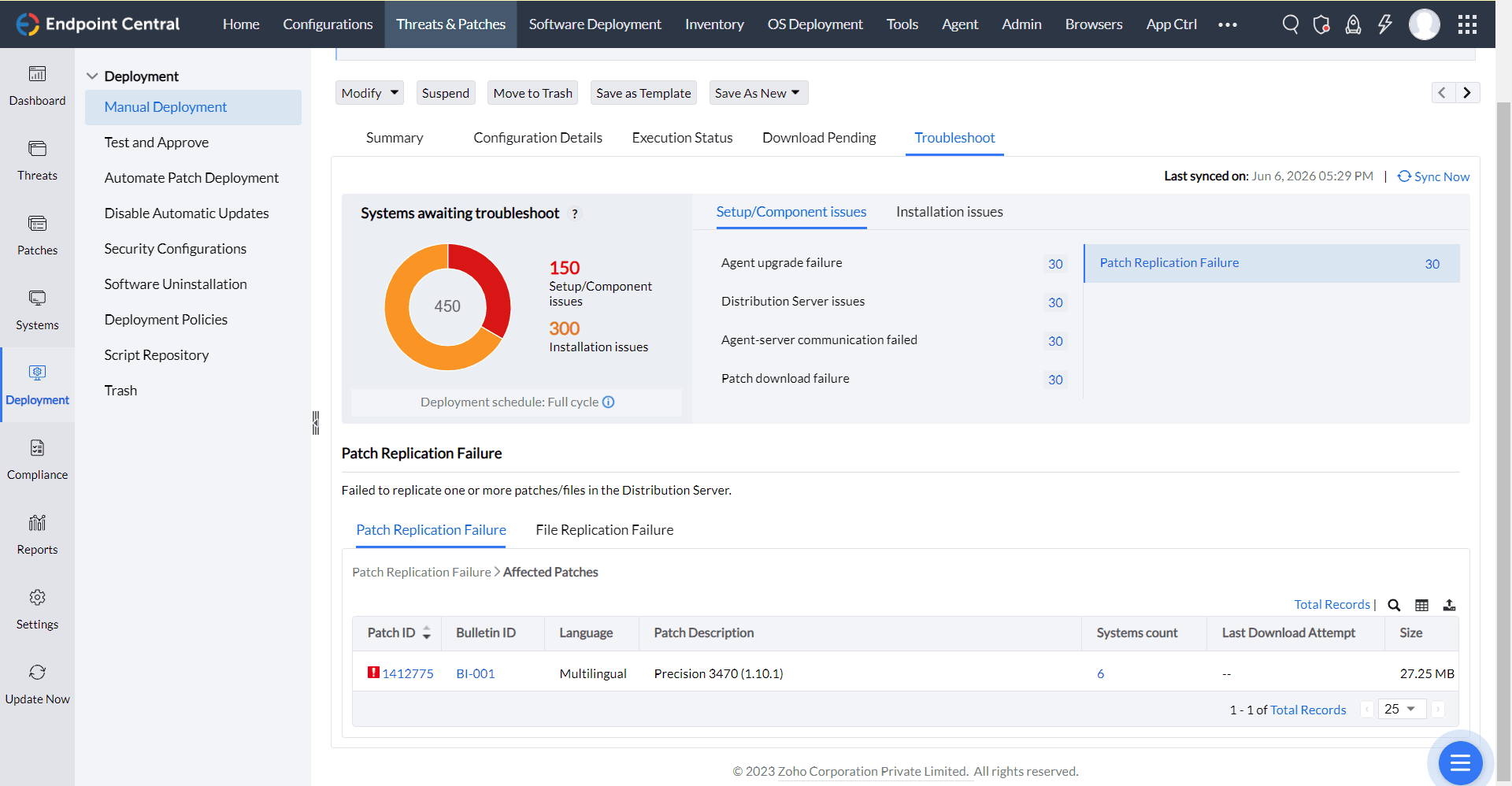
Patch Replication Failure → Affected Patches → Systems affected due to Replication Failure:
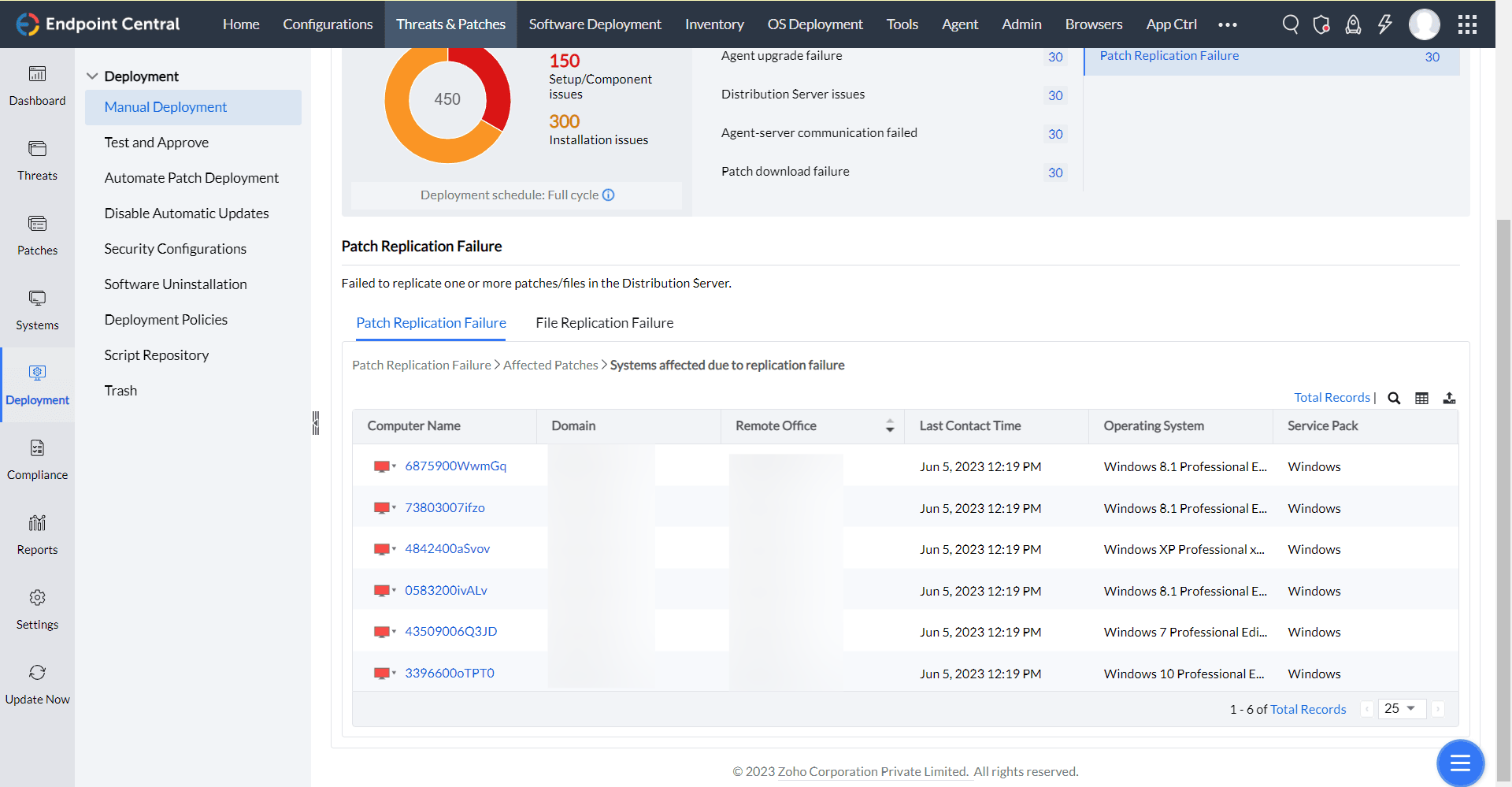
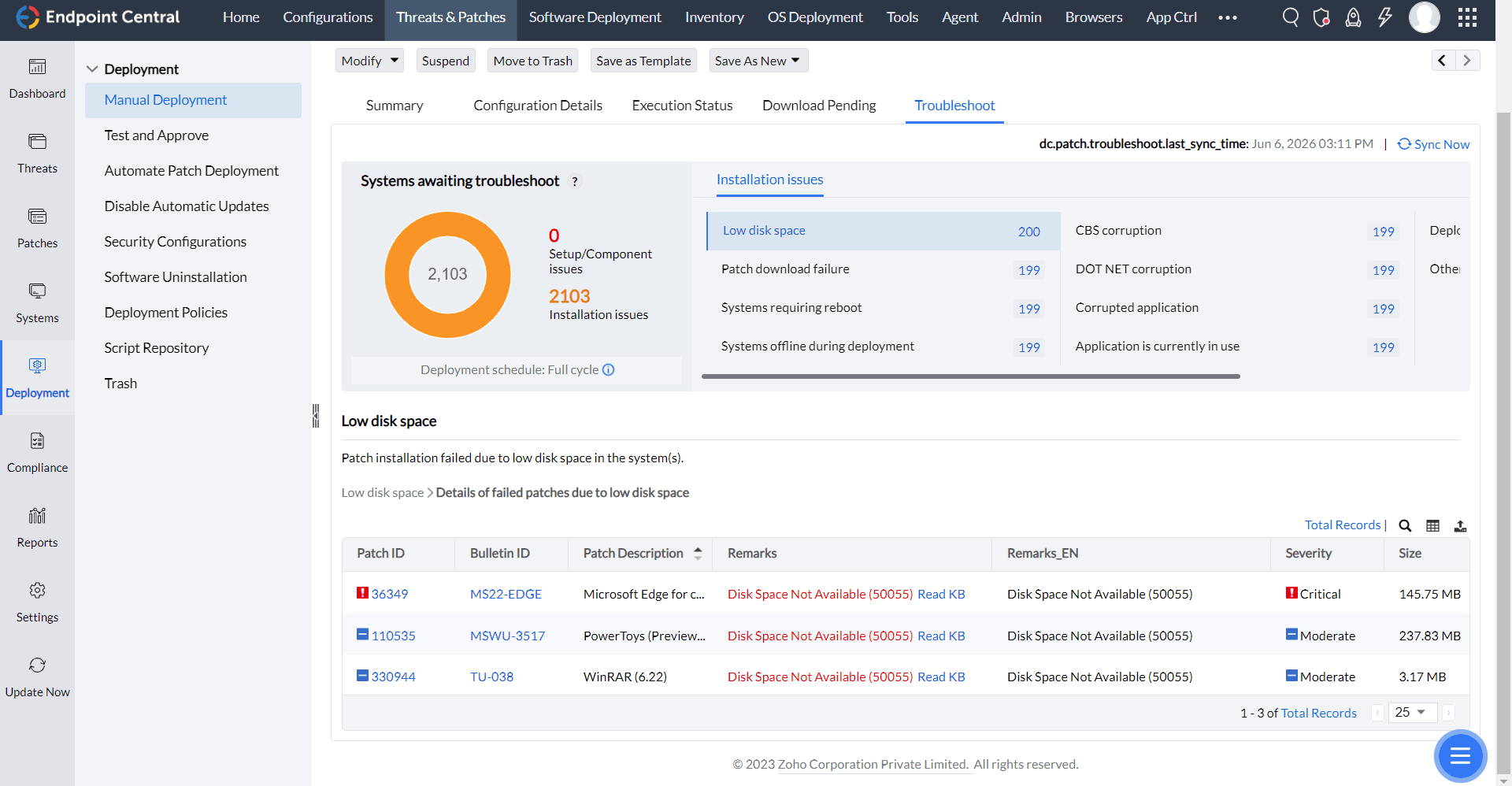
6. Low Disk Space
This error occurs when systems have insufficient disk space on the drive where the agent is installed. Low disk space can prevent patches from downloading or replicating to the agent store. This issue has top priority in post-deployment troubleshooting. The main view lists affected resources and the number of patches that failed. The subview provides detailed information about the affected patches.
Main View: List of resources and the number of patches that failed because of low disk space.
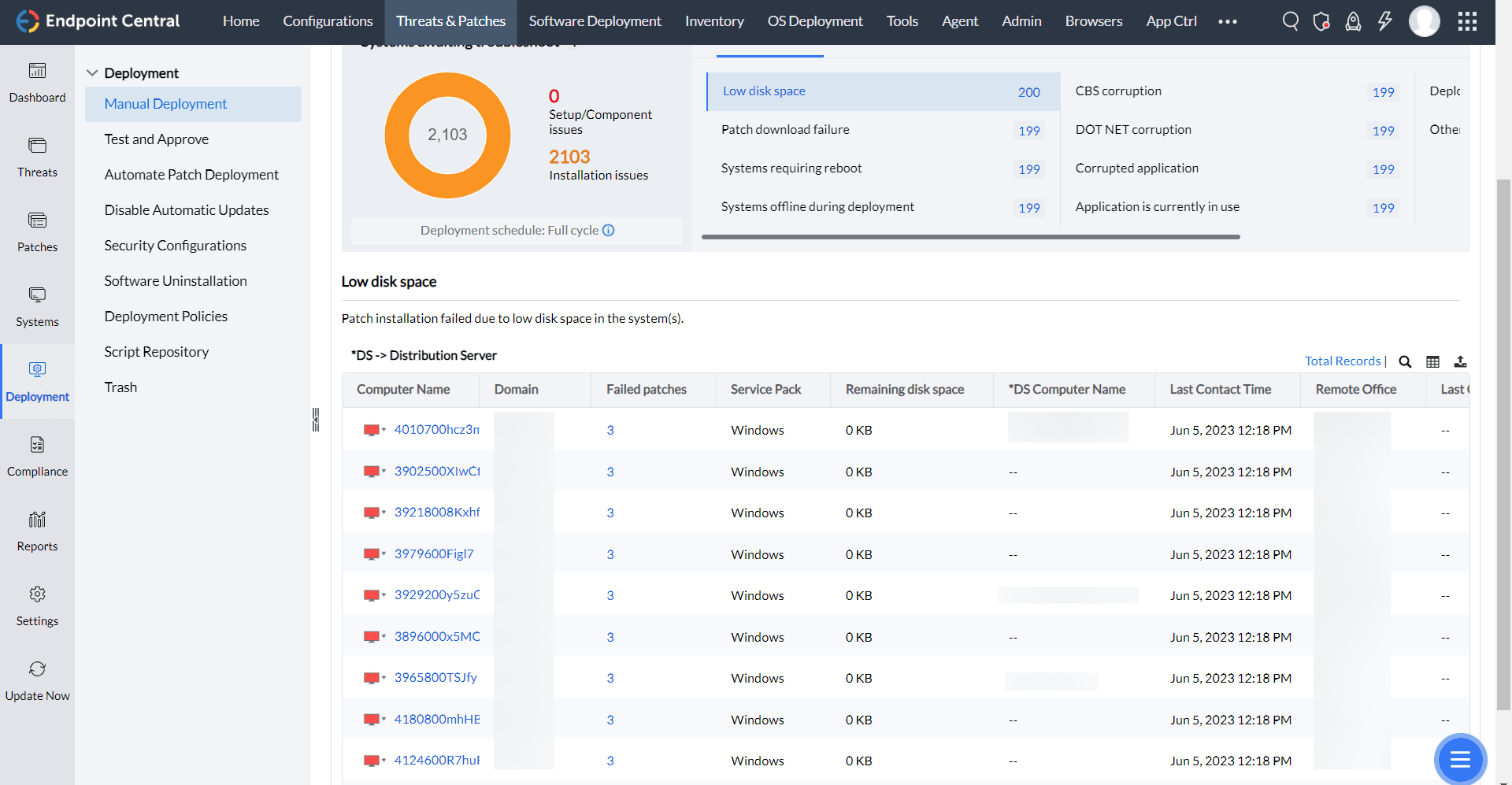
Sub View: Click the failed-patch count to open the subview.
7. Patch Download Failed in Agent
If downloads start only when deployment begins despite Download patches from server to agent being set to Any time agent contacts the server, verify the policy saved on the task, the policy received by that agent and its contact times. Check the Central Server or Distribution Server according to the agent's actual assignment. A DS replication schedule does not diagnose an agent that communicates directly with the server. See Deployment Policy and Cleanup Settings. Allowing downloads outside the window does not guarantee a fixed interval before deployment.
This group covers failed patch replication or downloads from the Central Server, Distribution Server or vendor sites. The requested file can be a patch installer or configuration, scan or threat metadata, such as declined-hardening.xml.
Failed to download XML means the agent could not download a configuration XML file. It does not identify low disk space as the cause.
For Failed to download and load declined/approved patches xmls., identify whether the metadata download or loading failed. Do not delete cached policy files to bypass the error.
- Identify the affected Patch ID, filename and download source. Record the full error, requested URL, serving host and failure time.
- Check the computer's remote-office assignment and task replication result. Use Agent Troubleshooting Tool to test its connection to the configured server or DS using the environment's ports.
- If the failure persists, collect the agent logs. If connectivity succeeds but the file still cannot be downloaded or loaded, share the troubleshooting result and logs with Support.
A successful connection test does not confirm that metadata was downloaded and loaded correctly. A file being present in the DS store does not confirm that the endpoint can download it.
For error 701, retain the underlying transfer or file-loading error and numeric code. Include matching agent and serving-host logs with the URL and host recorded above. The code alone does not identify a Distribution Server failure.
See agent-download troubleshooting procedure for agent-to-DS download checks, Patch Download Failures for download diagnostics, or Checksum Failed when the downloaded file does not match its expected checksum.
Main View:
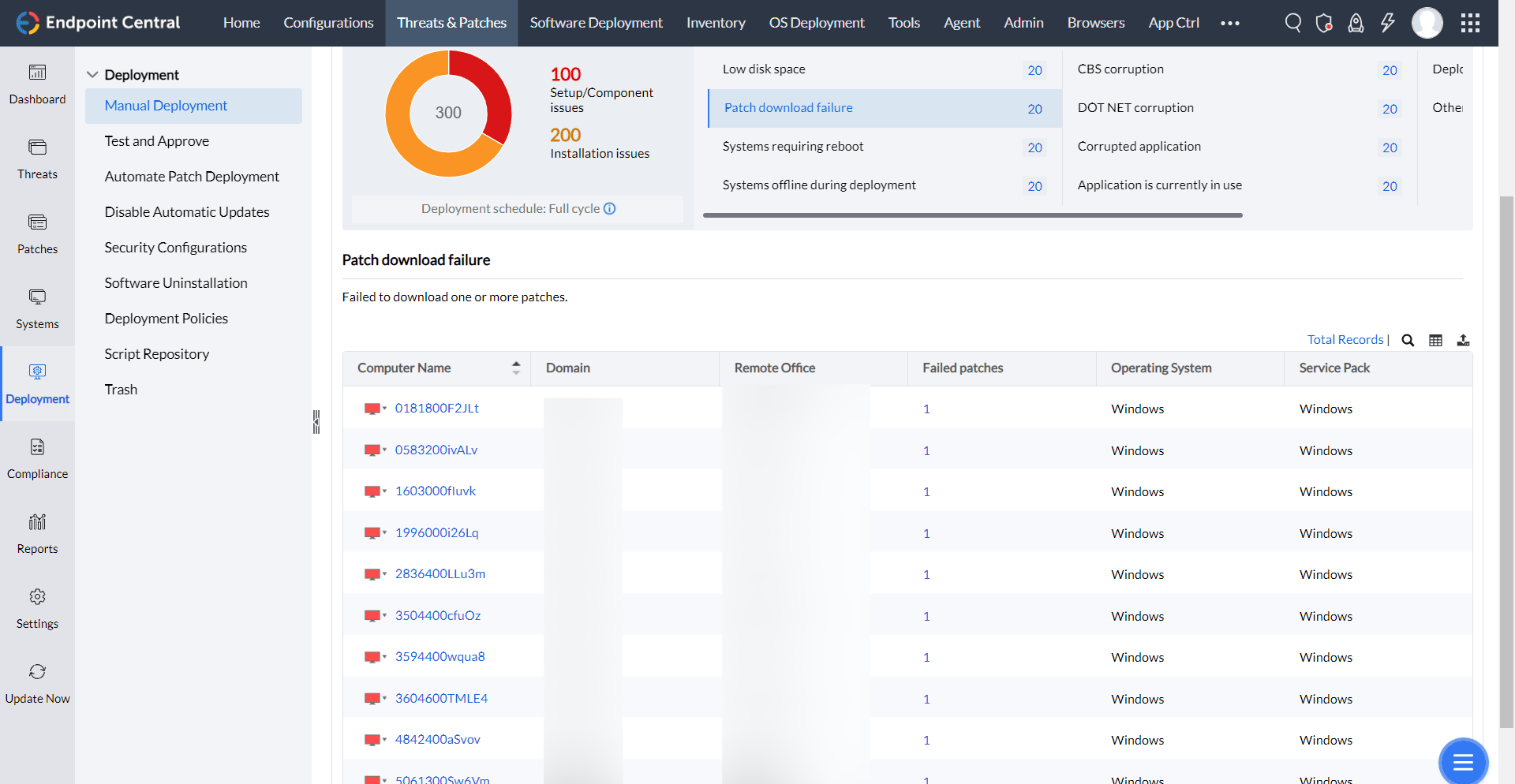
Sub View:
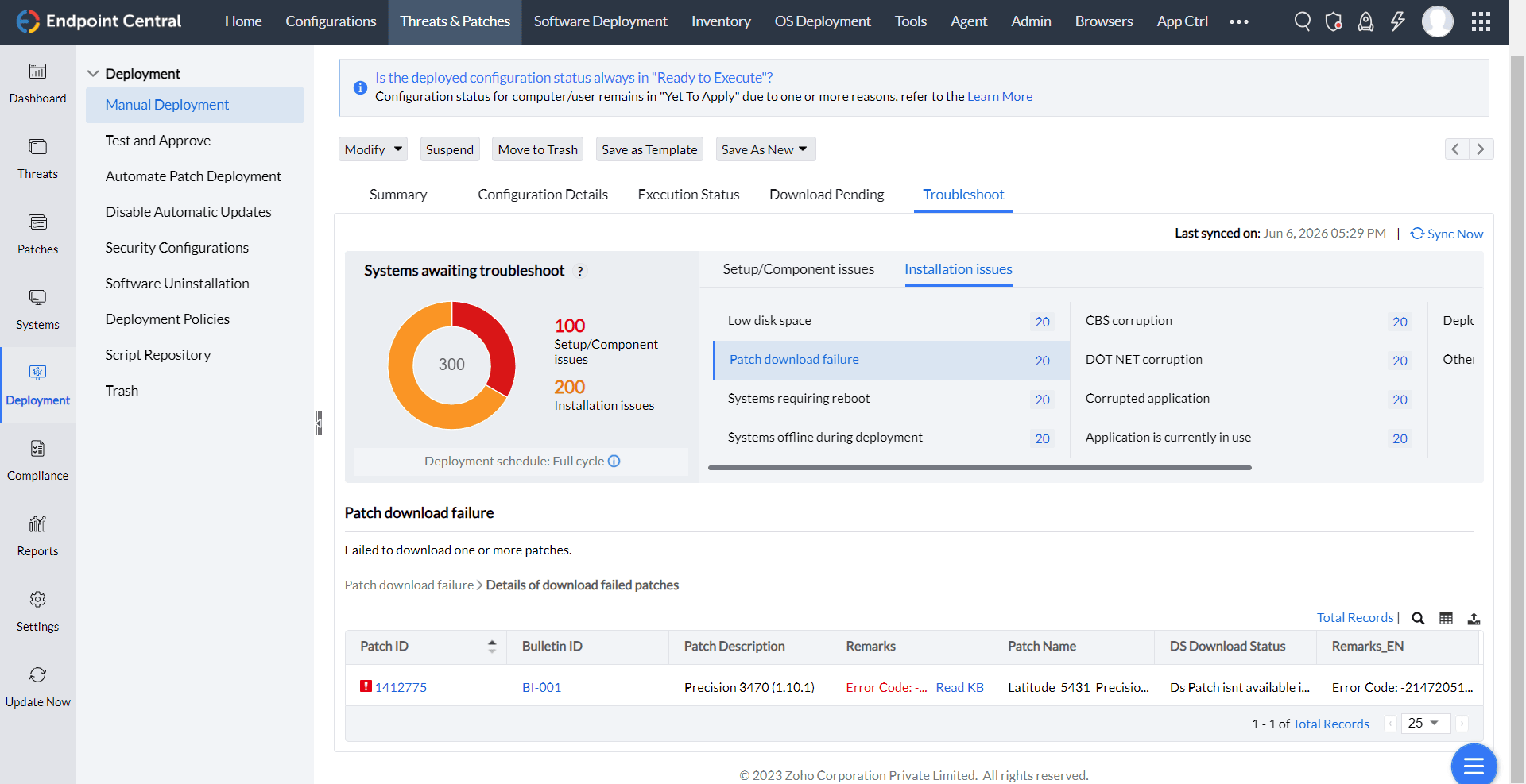
8. Reboot Pending Machines
If Missing Patches reports This version already exists, compare the exact Patch ID or KB, current reboot requirement and latest successful scan. Complete a required reboot, then scan again. If the states still disagree, follow Understanding patch detection results and the persistent-mismatch checks. A historical remark alone does not confirm current installation.
This category lists computers that have processed the deployment successfully but require a reboot to complete patching. Review the remarks in each view to identify the affected computers. Use the available shutdown or restart actions to complete deployment.
Main View: Resources with count of patches waiting for a reboot.
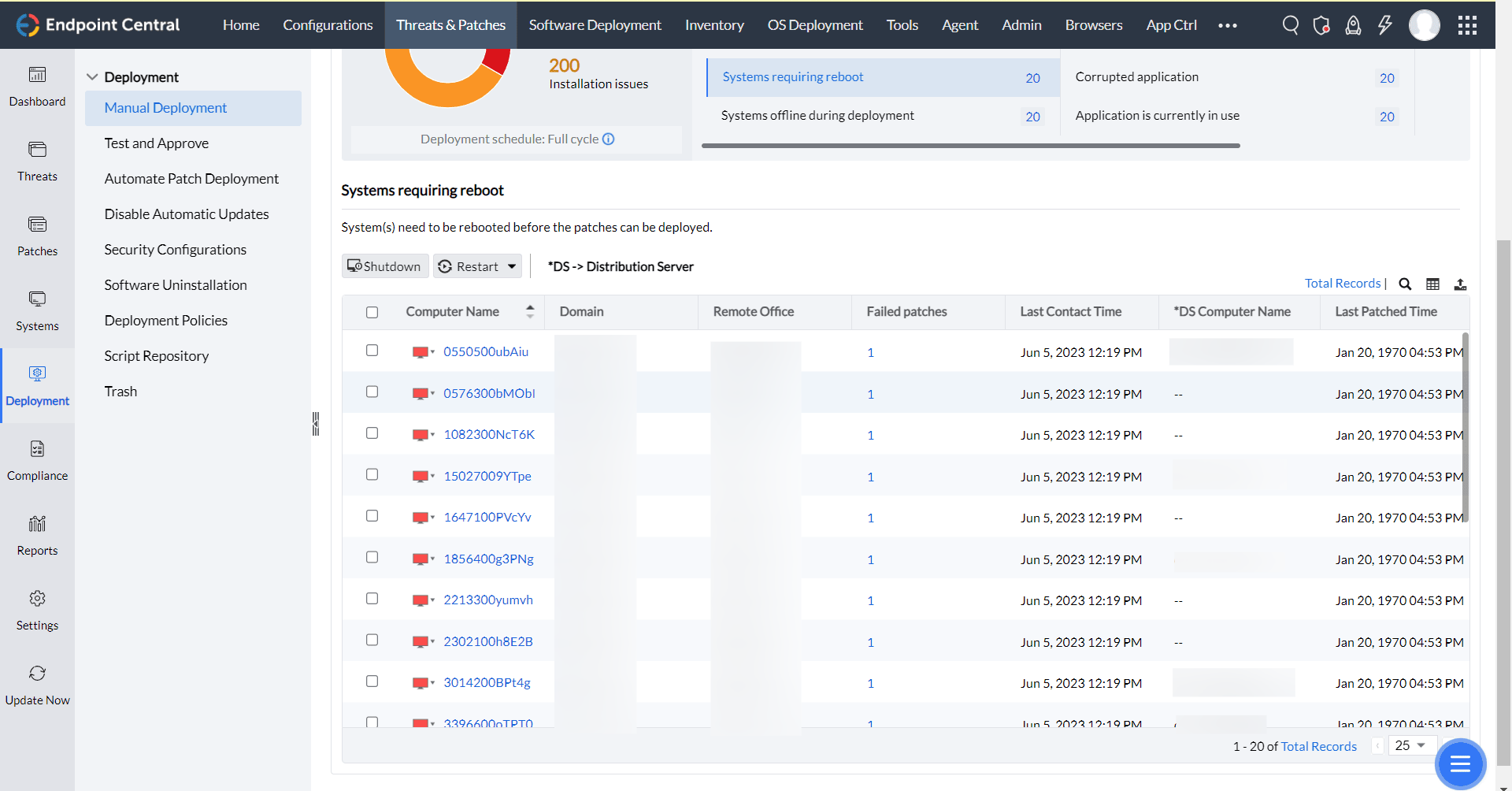
Sub View: List of patches specific to the resource waiting for a reboot to complete patching.
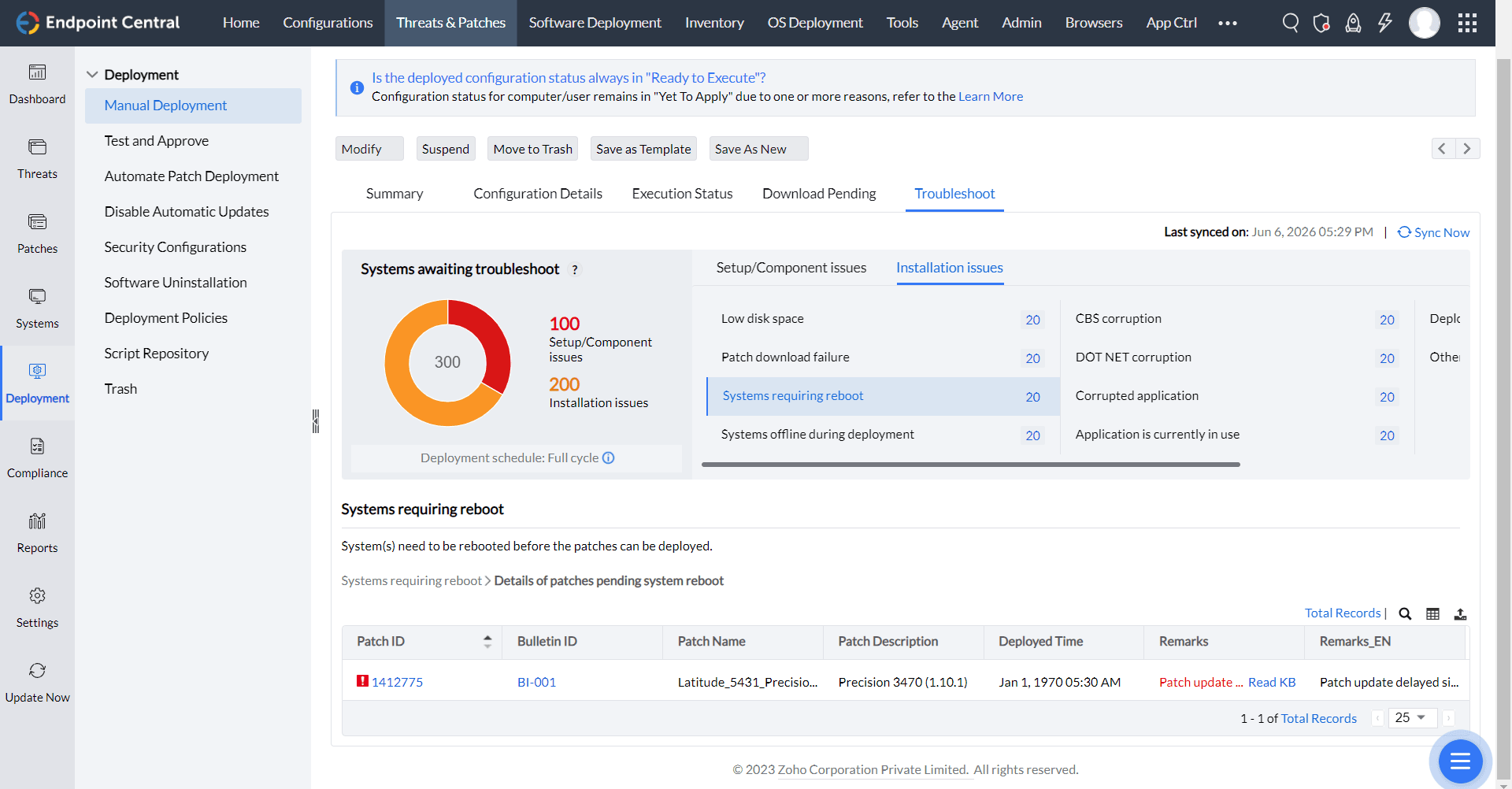
Actions: Select and perform Shutdown/Restart available in Main View.
Redirections: Click Failed patches.
If another configuration reports that deployment will be initiated after an Automated Patch Deployment task completes, that APD deployment is still outstanding. An expired deployment window does not clear this lock when the endpoint is in Reboot Pending. Reboot the computer, then retry the waiting configuration.
Reboot notification not received
If some endpoints do not receive the post-patch reboot notification, collect the agent logs from the affected endpoints and upload them for analysis. Compare the affected endpoints with endpoints that received the notification to confirm that the same deployment policy and target settings apply.
If a reboot prompt is missing, review the applied policy, notification window and the task associated with the restart. Check Power Event History to see whether the device had already restarted. If those checks do not explain the result, collect the agent logs for support.
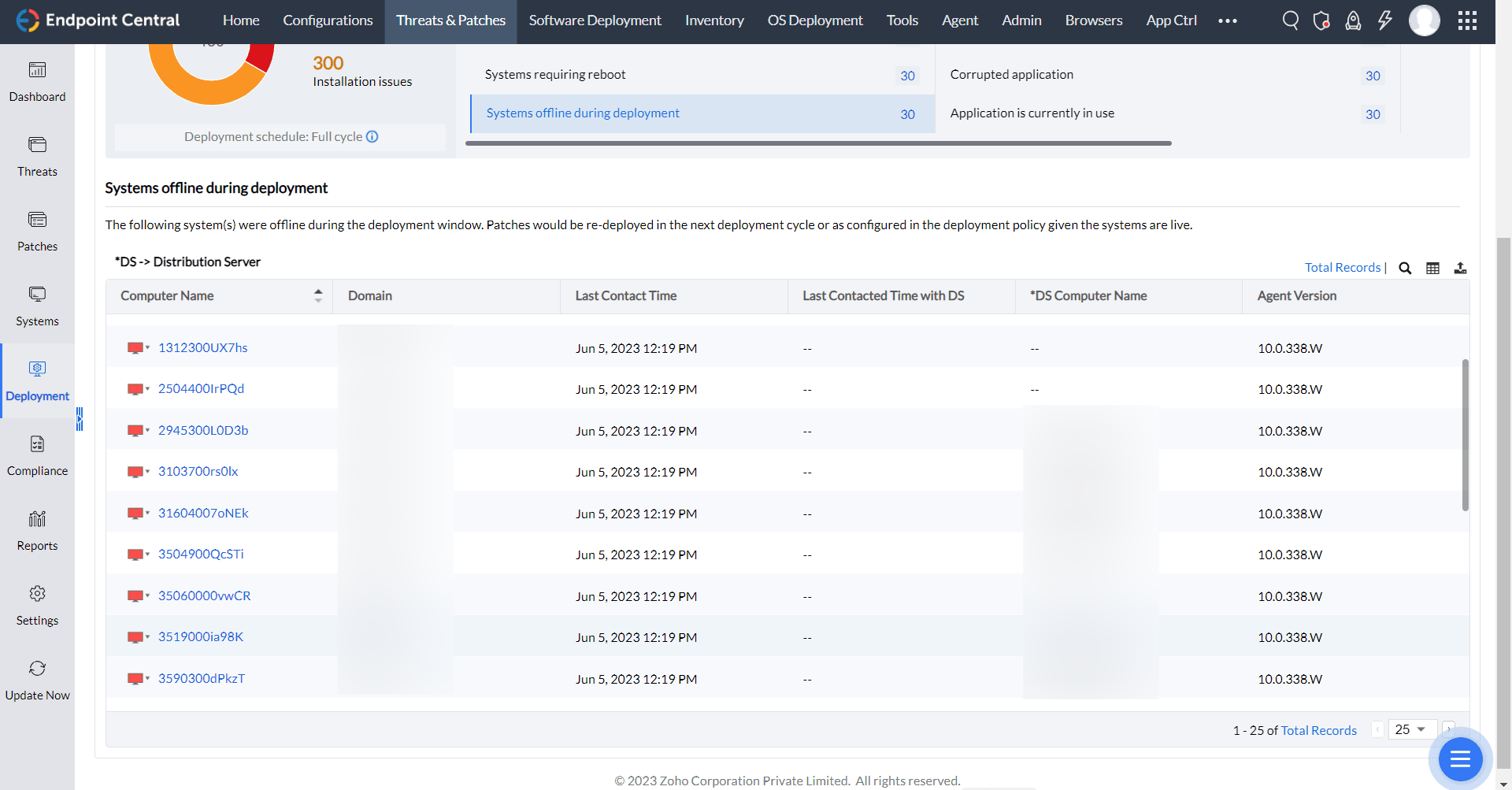
9. Systems Offline During Deployment Window
This error occurs when the system agent is offline during the deployment window, particularly for server-based updates. For example, a deployment policy schedules patching on the first and second Mondays and Tuesdays of the month, between 1:00 AM and 5:00 AM. If the system is offline during this window, the Systems Offline During Deployment Window error occurs.
If a patch installs only at a later startup, compare the patch approval time, task creation or modification time, deployment window, remaining retries, and endpoint action log. Review the APD retry conditions or the manual task execution settings, depending on the deployment task. A later startup alone does not identify the original cause of the delay or bypass the configured deployment window.
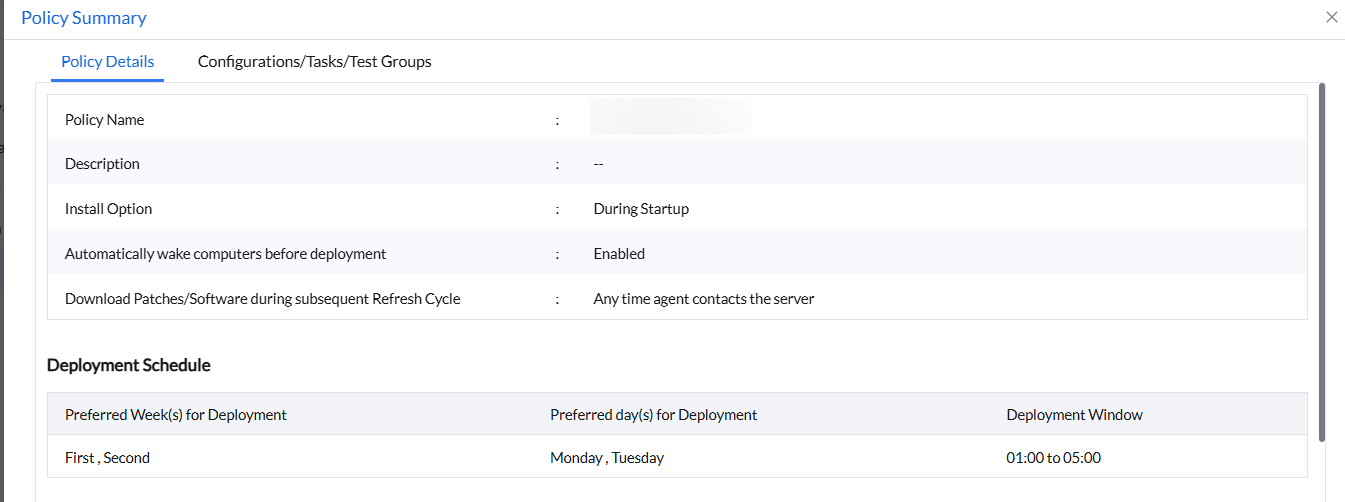
If Wake-on-LAN is configured as a pre-deployment activity but the system remains inactive, check its power state and location. It may be in Stand-by or Hibernate mode, or outside the LAN coverage where Wake-on-LAN is effective.
This view lists the systems not live during the deployment window.
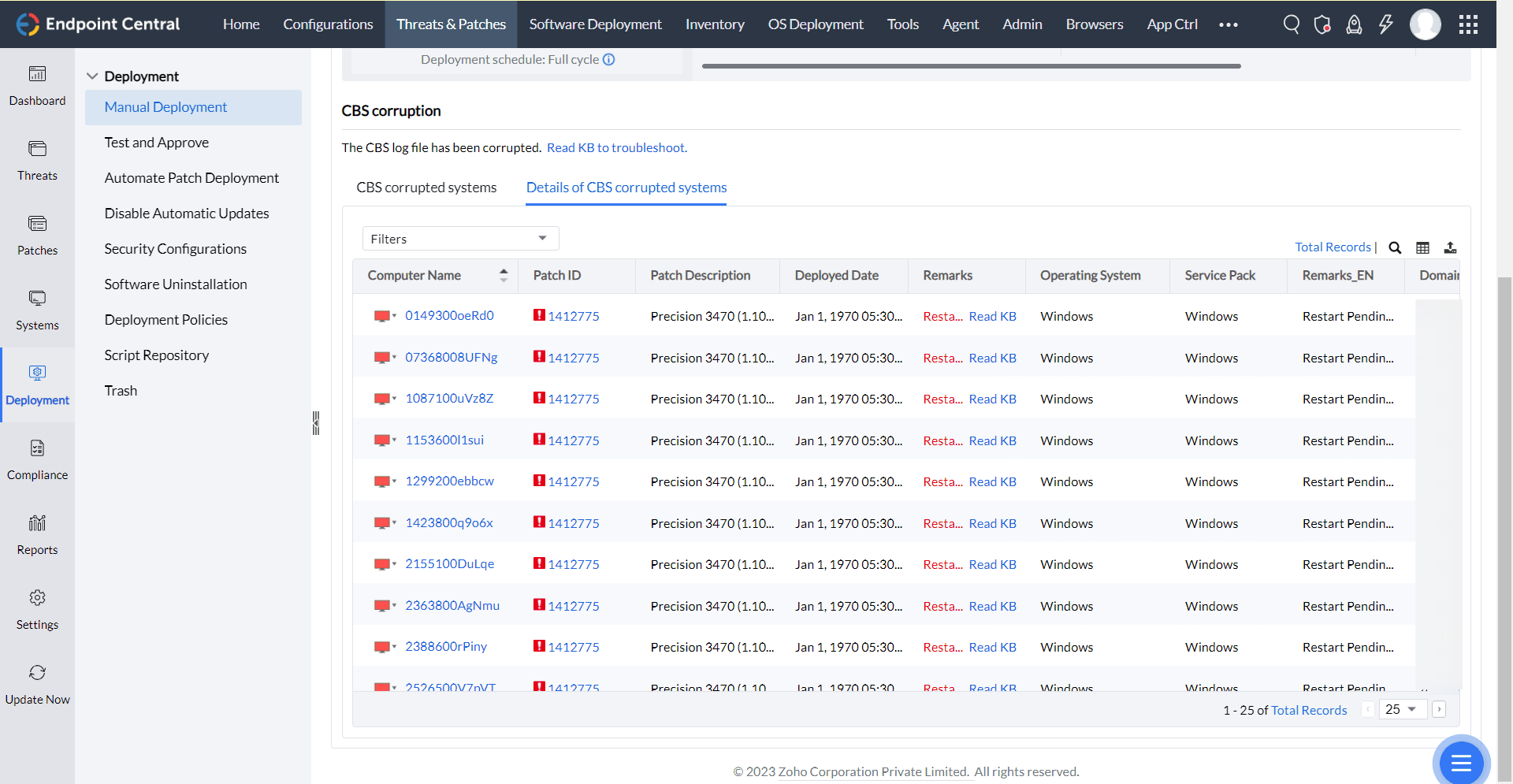
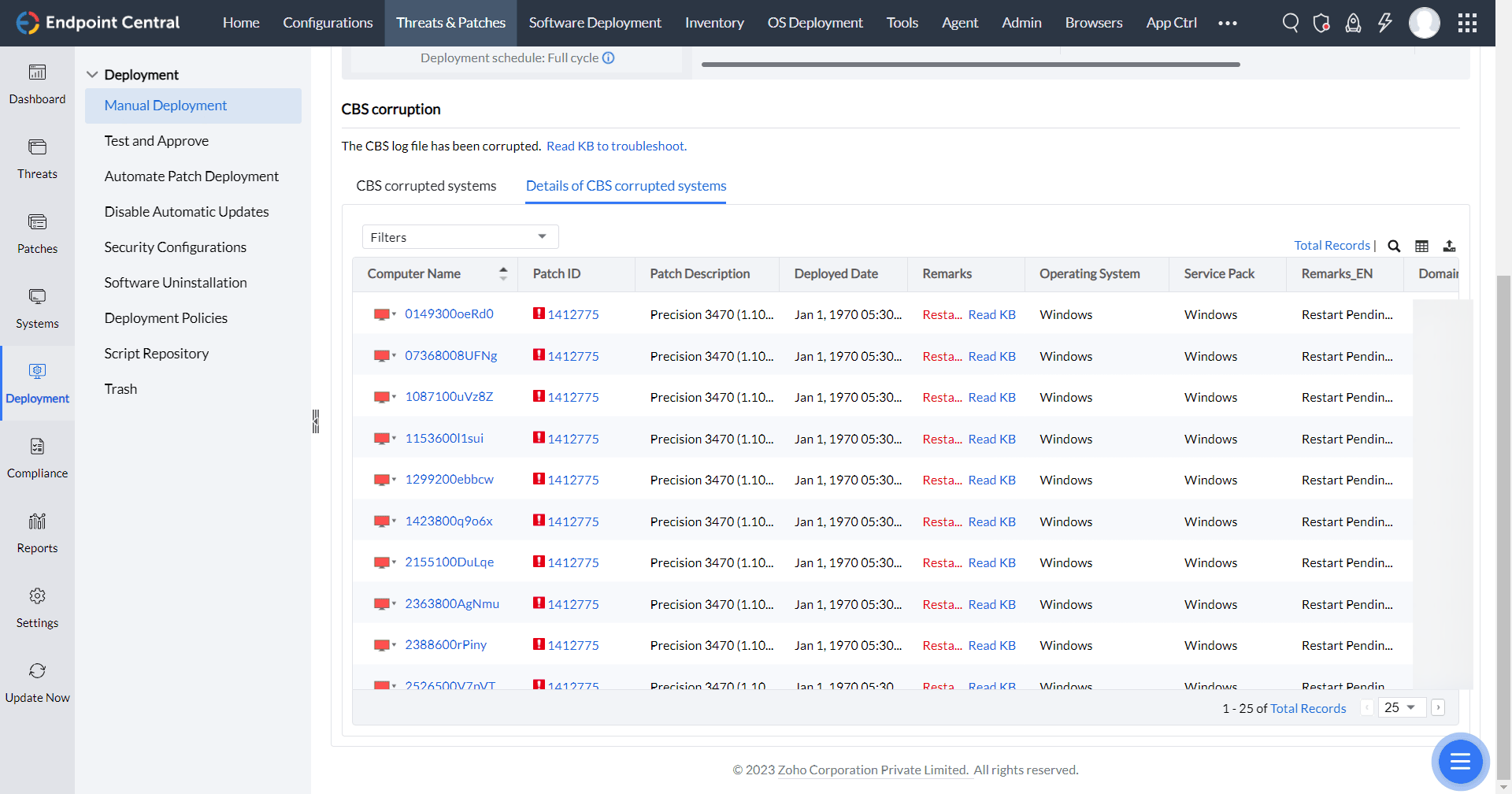
10. CBS Corruption
This category groups systems that encounter CBS log issues during patch deployment. Two views are available:
System View: Lists systems and the number of patches affected by CBS corruption.
Detail View: Lists systems and the specific patches that failed.
Open the Detail View tab directly, or click the patch count in System View to open a filtered view.
For troubleshooting instructions, see Troubleshooting Errors in Windows Updates.
On the affected Windows computer, review %SystemRoot%\Logs\CBS\CBS.log for the failed servicing attempt. The agent's <agent-installation-directory>\logs\dcpatchinstallaccess.log records the product's patch action. Collect both for the same computer and time when Support needs to correlate the action with Windows servicing. See Microsoft Windows Update log files and Windows Update error troubleshooting.
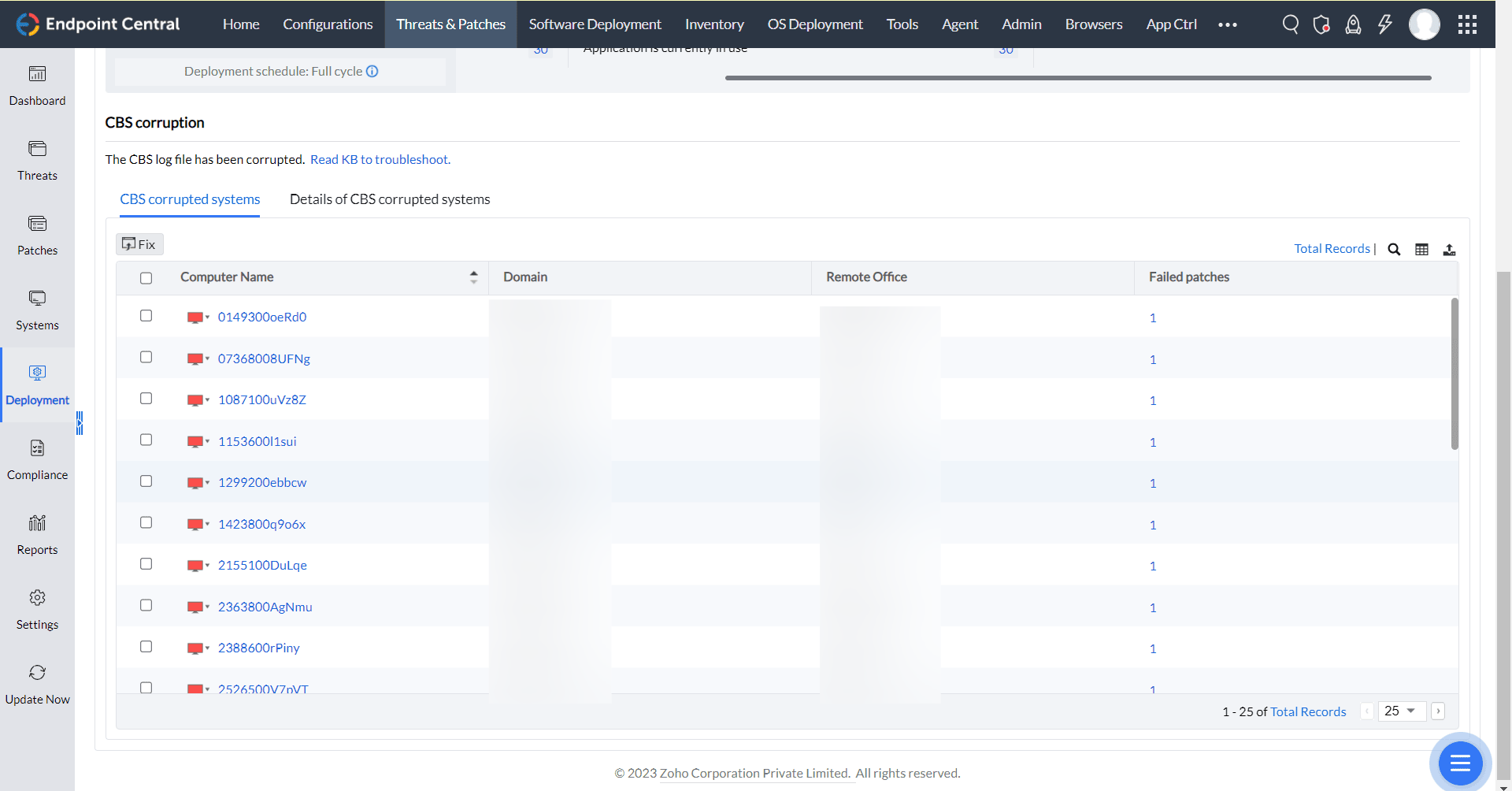
DETAILS OF CBS CORRUPTED SYSTEMS:
If a patch installs successfully but rolls back after reboot, deploy the current CBS Cleanup Patch to the affected computer. Reboot the computer, and then redeploy the rolled-back patches.
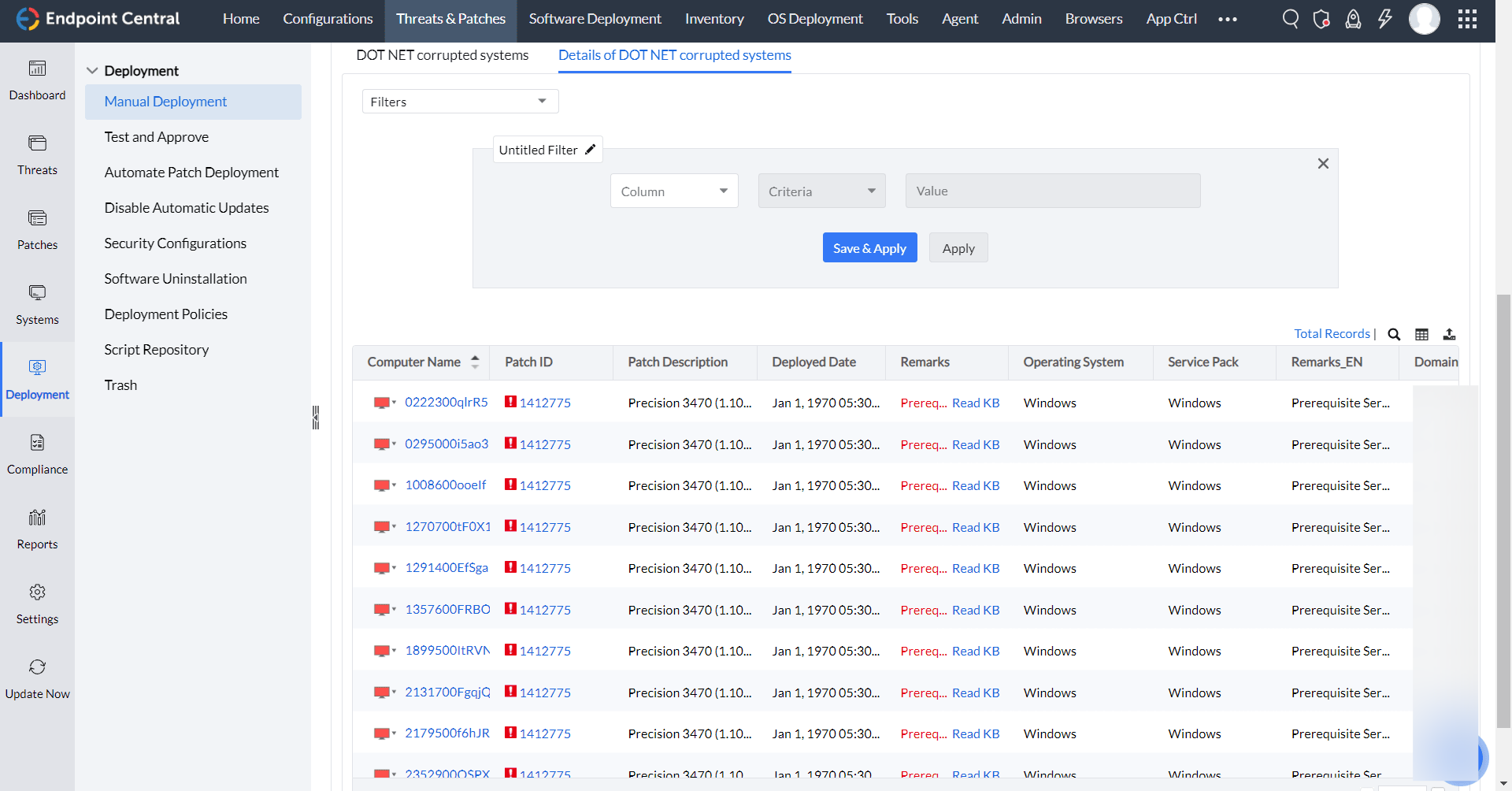
11. .NET Corruption
This category groups systems that encounter .NET corruption or damage during patch deployment. Two views are available:
System View: Lists systems and the number of patches affected by .NET corruption.
Detail View: Provides specific information about the failed patches.
Open the Detail View tab directly, or click the patch count in System View to open a filtered view.
.NET CORRUPTED SYSTEMS:
DETAILS OF .NET CORRUPTED SYSTEMS:
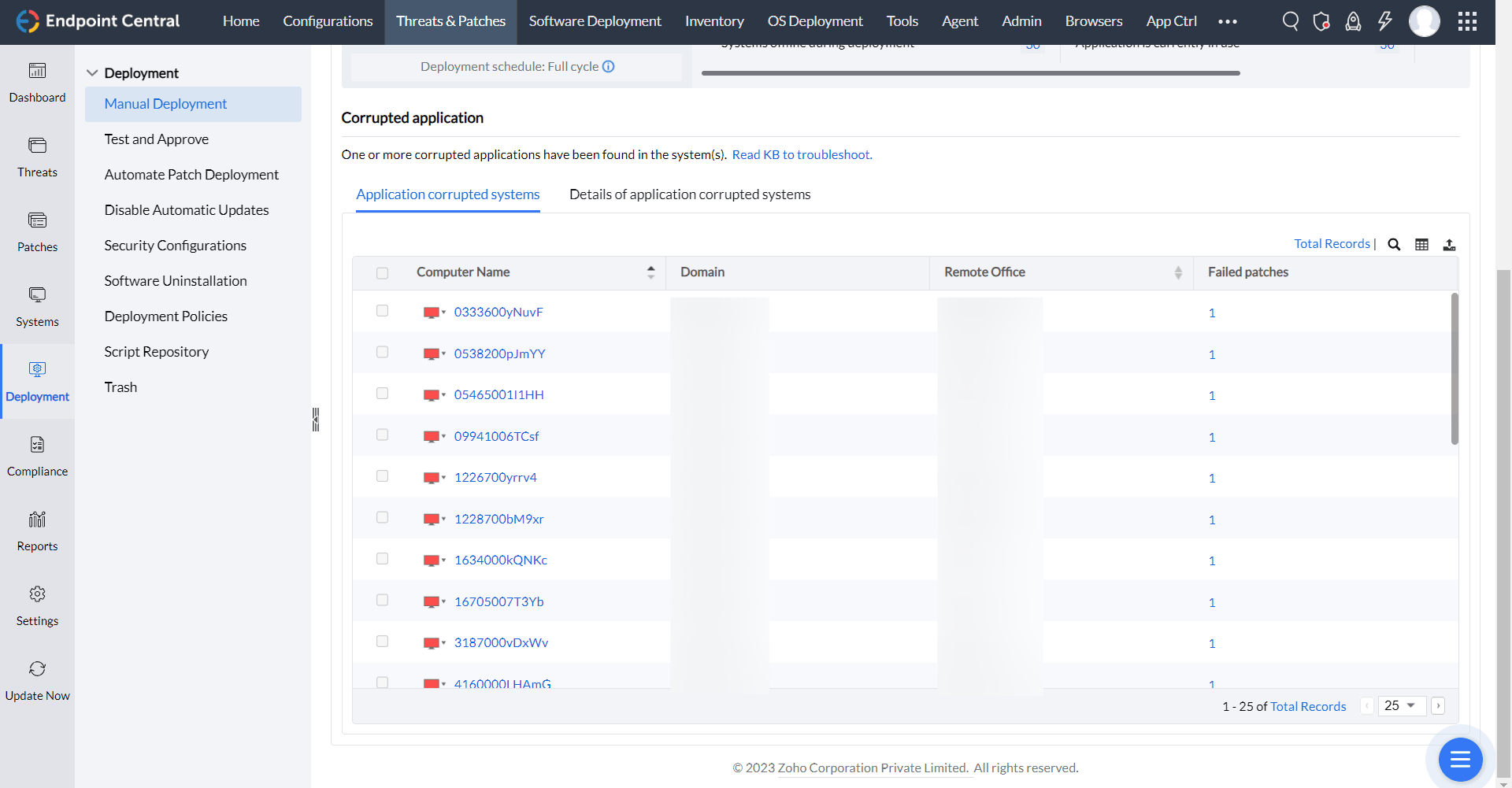
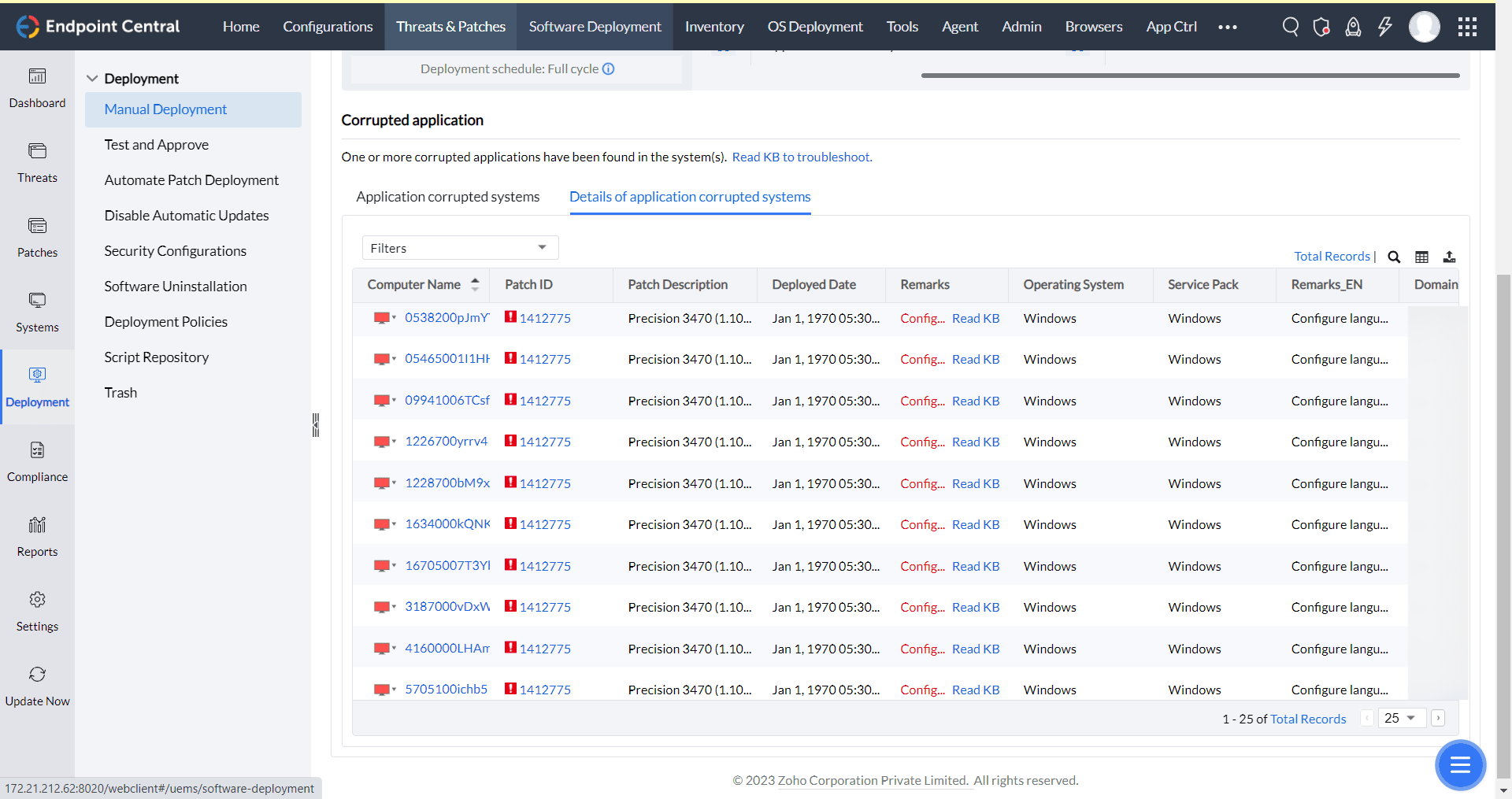
12. Application Corruption
This category groups systems that encounter application corruption during patch deployment. Operating-system and .NET corruption are covered by separate categories. Two views are available:
System View: Lists systems and the number of patches affected by application corruption.
Detail View: Provides information about the failed patches.
For an application upgrade failure caused by a missing or mismatched base installer, see Application upgrade patch cannot be installed.
For more information about Microsoft Office installer issues, see Microsoft Office Installer Issues.
APPLICATION CORRUPTED SYSTEMS:
DETAILS OF APPLICATION CORRUPTED SYSTEMS:
13. Application Already Running
If an application closes during patching, identify the deployment task active on that computer and review its deployment policy and configured scripts. On Windows, compare the application event time with retained dcpatchinstallaccess.log and configured action records in dcprepostaccess.csv. If the source remains unclear, provide the task report, Patch ID, exact prerequisite executable details and application crash/event logs to Support. See installation-source audit details.
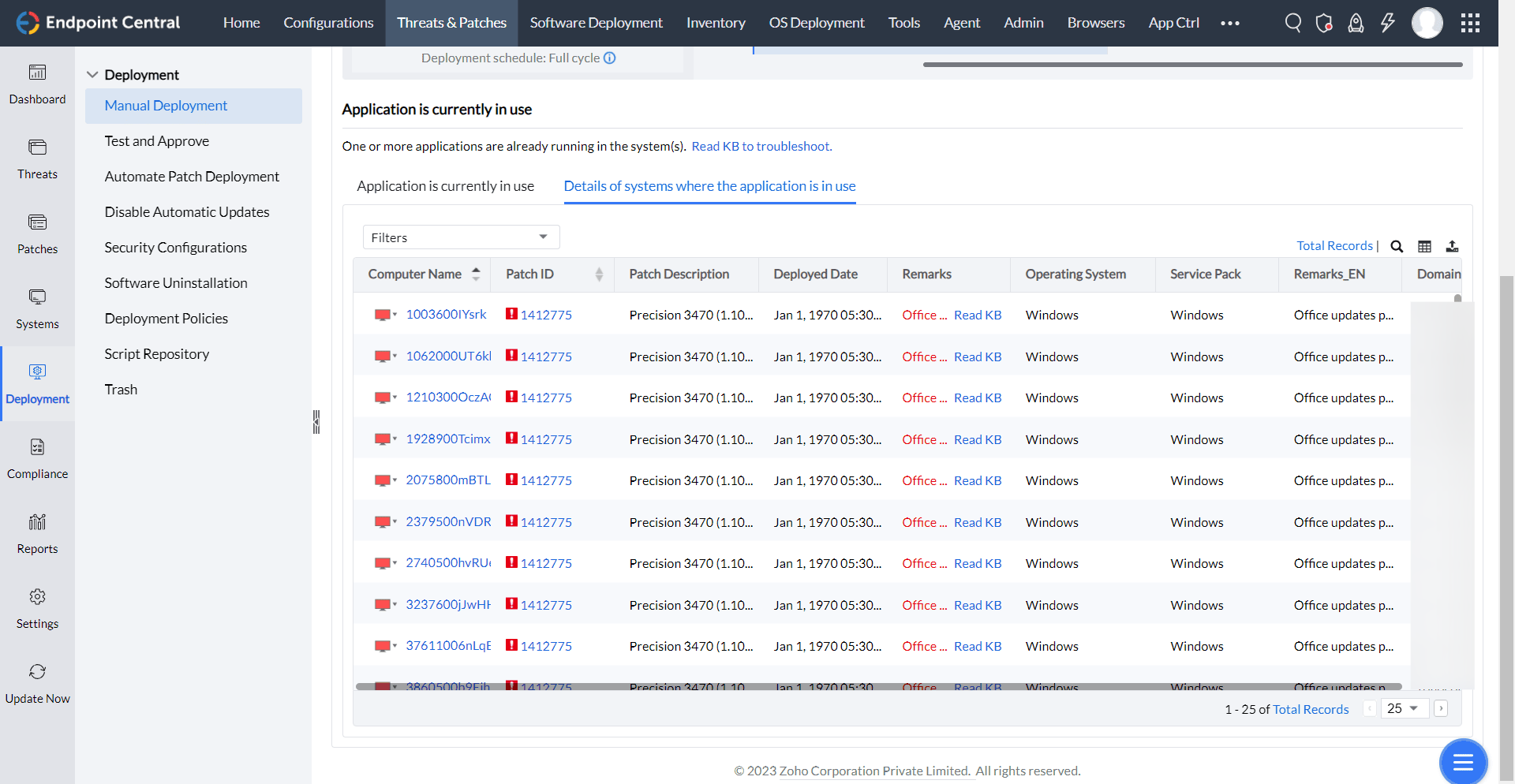
This error occurs when applications cannot be patched because they are running. The end user must close the affected application before patch deployment can resume. This issue commonly occurs during workdays and has the lowest troubleshooting priority.
Two views are available:
SYSTEM VIEW: Lists systems and the number of patches blocked because an application is running.
DETAIL VIEW: Lists systems and provides information about the failed patches.
APPLICATION IS CURRENTLY IN USE:
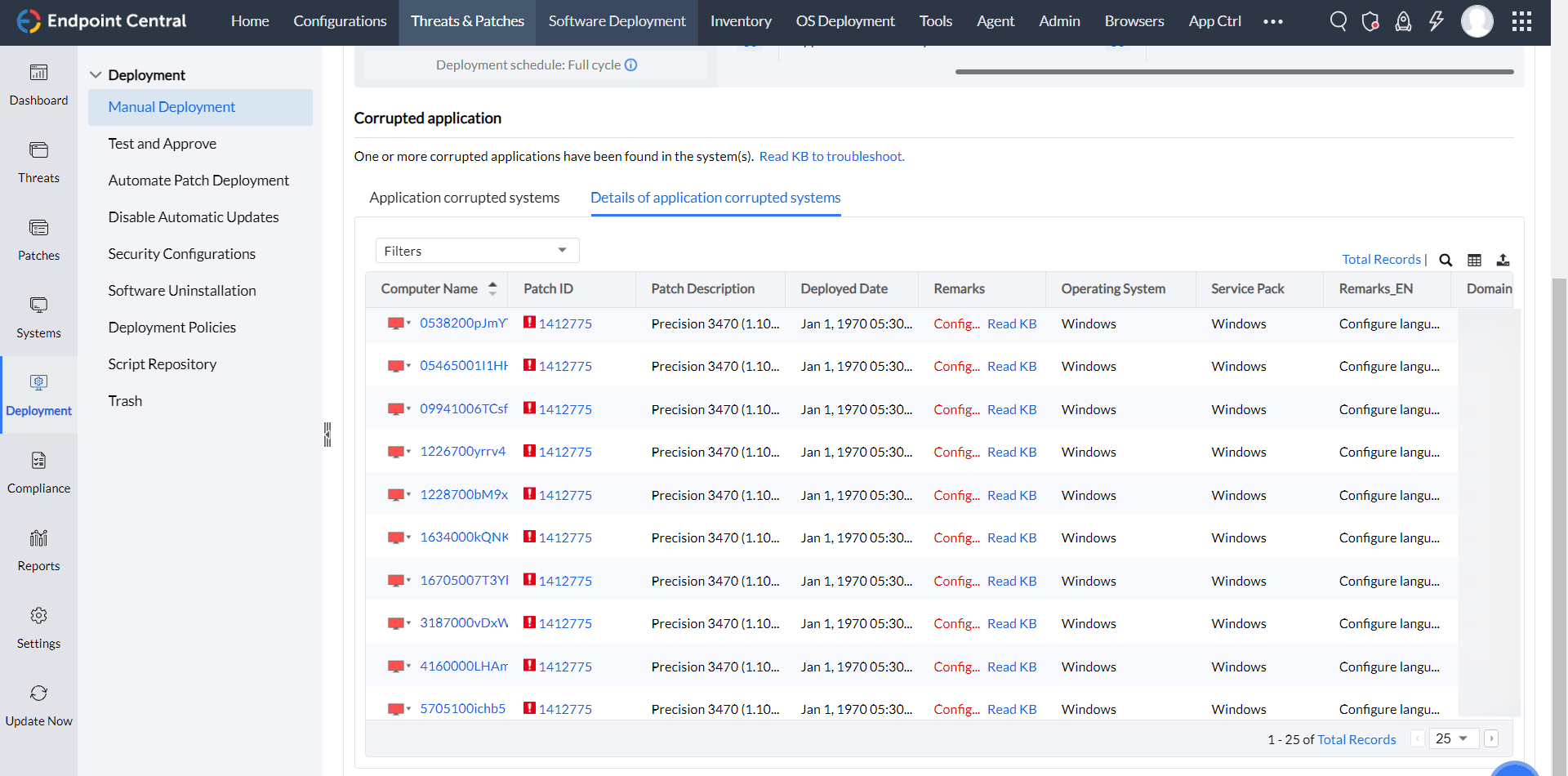
DETAILS WHERE APPLICATION IN USE:
14. Other Installation Failures
For a BIOS update with Failed Patch Deployments or Patch Installation failed! Contact Support, record the affected computer, Patch ID and full remark. Follow BIOS patch installation failure diagnostics to collect the firmware and agent logs. Use the vendor result to choose the next step. The console summary alone does not identify a password or dependency failure. For setup and mapping checks, see BIOS and Driver Updates.
If updates appear to install in an unexpected order, compare exact application versions, task history, Deployed Using and deployment times. Review the FAQ sequencing explanation and installation-source audit fields. Give Support the affected task summary and agent installation log. Include other tasks or native updaters that may target the same application.
For an unlisted Windows update result, retain the complete numeric or hexadecimal code and follow Troubleshooting Errors in Windows Updates. Include the affected KB, operating-system build and deployment log when requesting further analysis.
Allow Skip controls whether a user can skip through the product notification. The application installer can return its own cancellation result. If installation reports cancellation, check the installer and agent logs to identify its source.
For an installer remark such as Class does not exist or The window cannot act on the sent message, or another error without a known cause, record the Patch ID, affected computer, application and version, full remark, and numeric installer result, if available. Compare the failure time with the task report. Then, collect the affected agent logs and vendor setup logs. For an MSI installation, include the verbose MSI log, if available. The error message alone does not confirm that an application is running. Match the error to the affected vendor installer before selecting a corrective action. Similar messages or neighboring error codes do not necessarily have the same cause or resolution.
This category groups deployment failures that do not fit the preceding categories. Reason View groups individual errors by their remarks. Switch between Reason View and Detail View to investigate specific failures.
For a driver update failure, review the error reported by Windows or the device vendor. Follow the official Windows or vendor recovery instructions for that error. Correct the endpoint condition and retry the deployment.
Three tabs are available:
SYSTEMS VIEW: Lists systems and the number of failed patches.
DETAIL VIEW: Lists systems and provides information about the failed patches.
REASON VIEW: Groups errors by remark and shows the number of affected systems for each error in the Other Installation Failures category.
Open Detail View from Systems View or Reason View. In Systems View, click Failed Patches. You can also open Detail View by using either of these options:
- Click Computer Name in Systems View.
- Click the system count in Reason View.
OTHER INSTALLATION ISSUES:
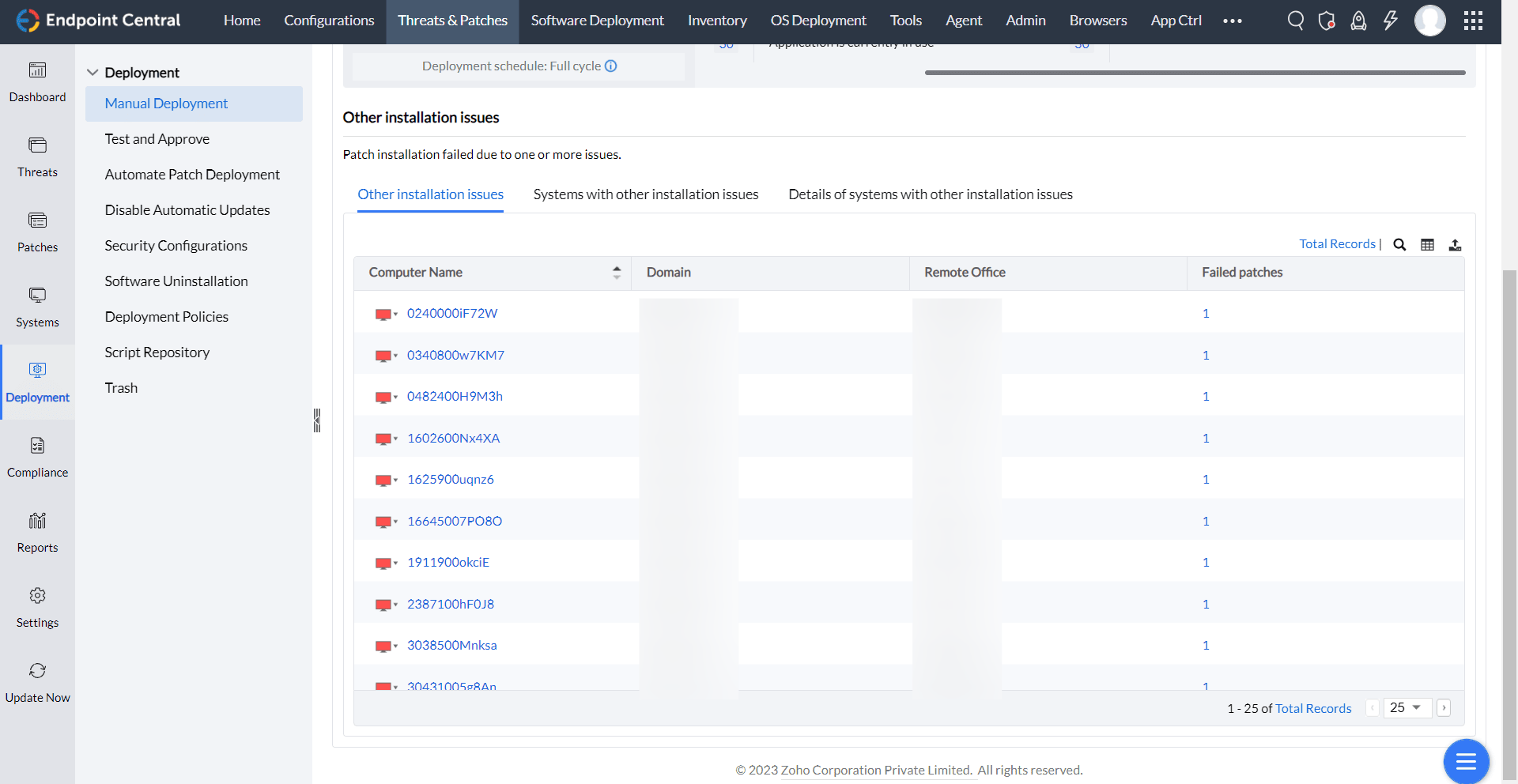
SYSTEMS WITH OTHER INSTALLATION VIEWS(TAB VIEW):
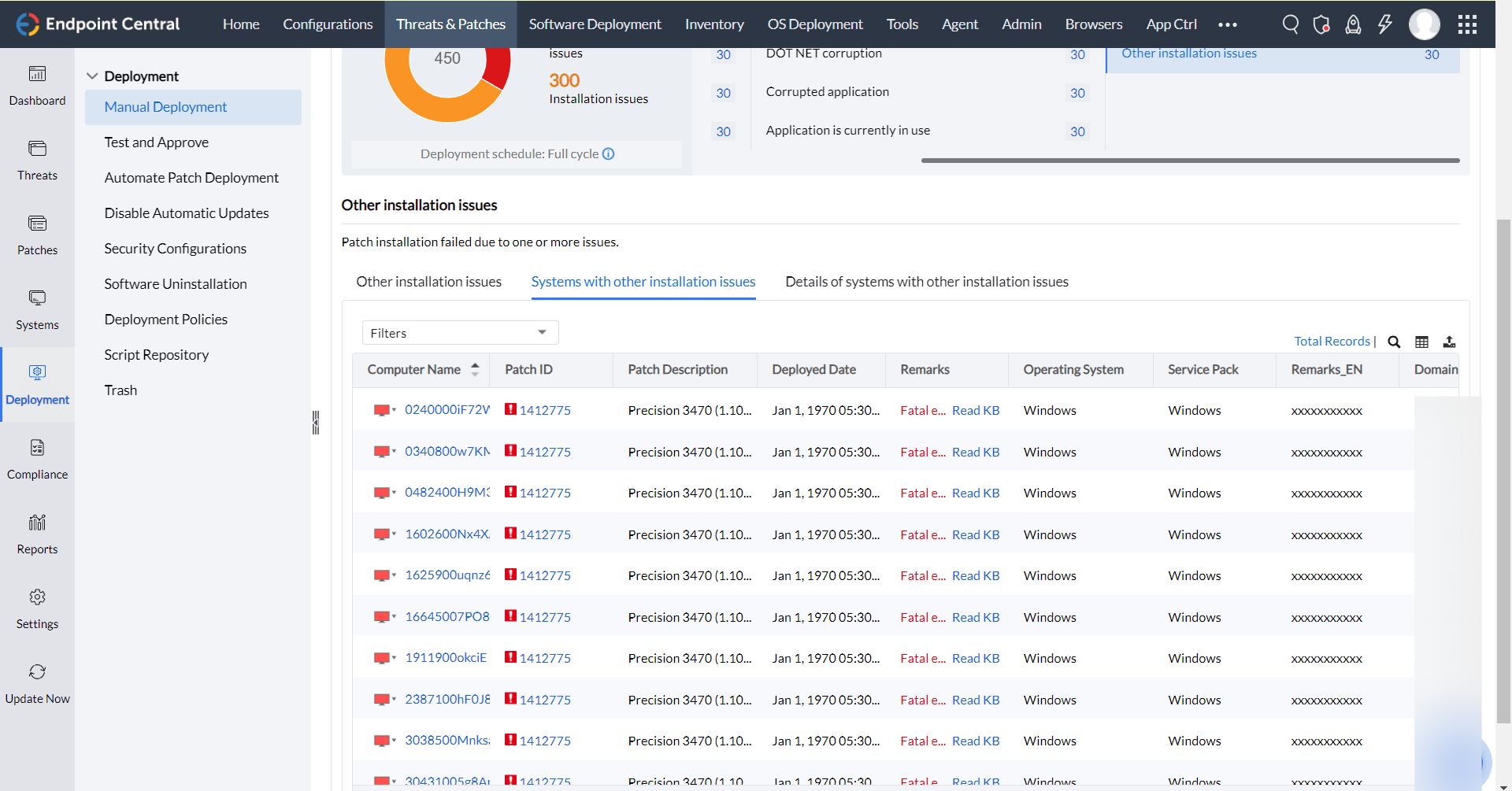
DETAILS OF SYSTEM WITH OTHER INSTALLATION VIEW:
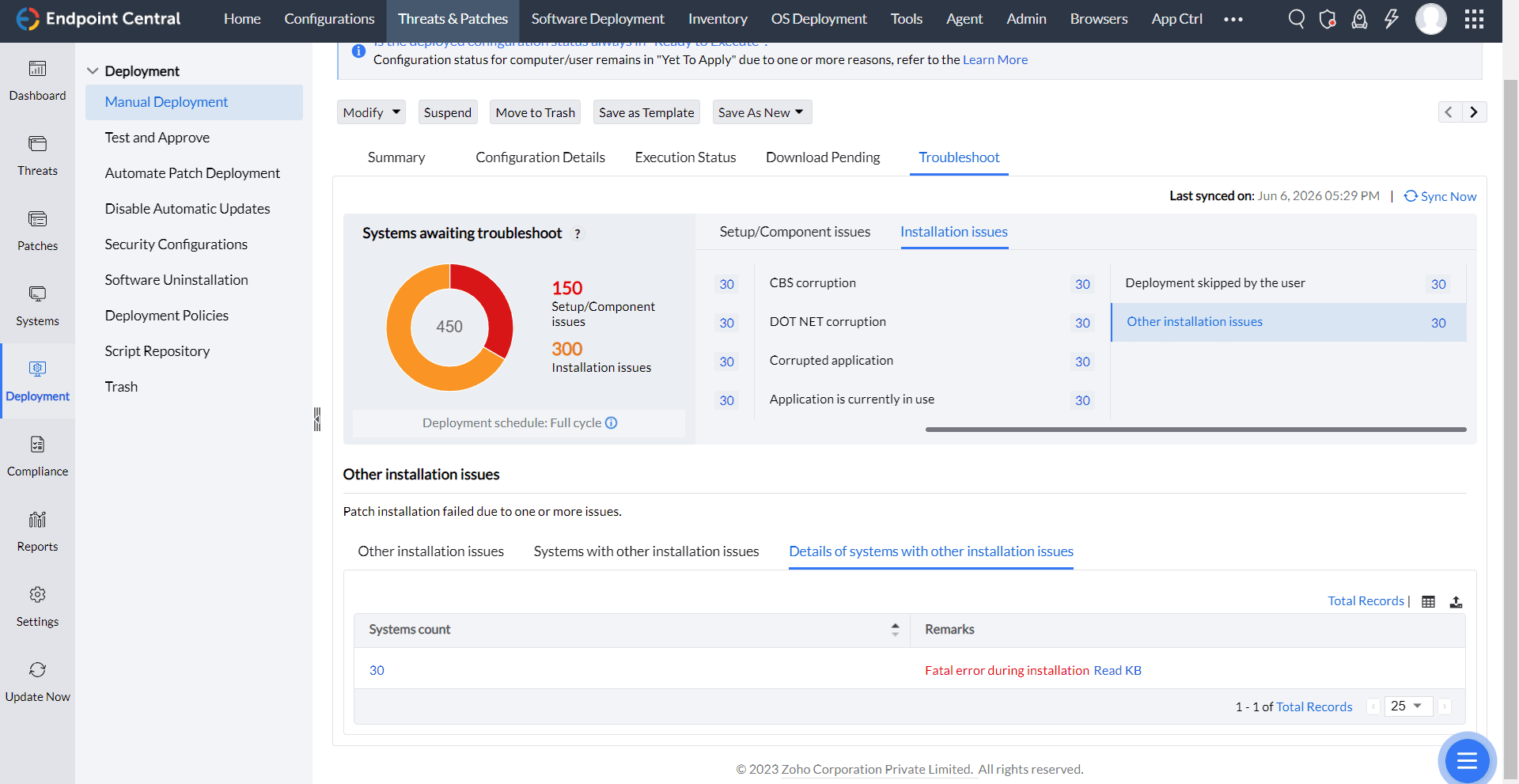
The RPC server is unavailable
This Windows error is not specific to patch installation. On the affected computer, open services.msc and verify the following services:
- Remote Procedure Call (RPC): Startup type is Automatic and the service is running.
- DCOM Server Process Launcher: Startup type is Automatic and the service is running.
- Remote Procedure Call (RPC) Locator: Startup type is Manual.
After correcting the service settings, redeploy the patch. If the error continues, run the Windows Update troubleshooter and retry deployment.
If the Remarks column displays Access is denied, see Access Denied for the applicable causes and resolution.
Missing Systems view is empty
If a patch remains listed under Missing Patches but the Missing Systems drill-down shows no systems, verify that the server and agents are running a supported build with the latest available fixes. Then run a Patch Database sync and patch scan to refresh the result.
If the view remains empty after updating and rescanning, collect the affected patch details, server and agent build numbers, and patch scan logs before contacting support.
Re-deploy and re-sync
After the errors listed above are resolved, patches are automatically redeployed for Setup/Component issues. For Installation issues, you must redeploy the patches through a Manual Deployment task.
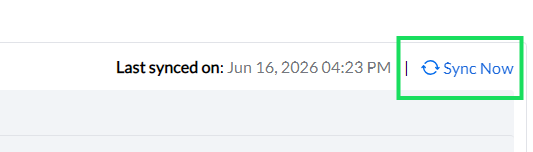
After resolving the errors, click Sync Now to update the error status.