Steps to integrate Vulnerability Manager Plus with ServiceDesk Plus
This document walks you through the steps of integrating Vulnerability Manager Plus with ServiceDesk Plus. Here's a summary of the steps involved:
- API key generation in Vulnerability Manager Plus
- API key generation in ServiceDesk Plus
- API key is mandatory to secure communication between both the servers and should be generated in Vulnerability Manager Plus and ServiceDesk Plus servers, separately.
- Authentication key can be created only for the logged-on user having administrative privileges.
- The integration is available on the following builds:
- Vulnerability Manager Plus (existing users) - 10.1.2228.8 and above
- Vulnerability Manager Plus (new users) - 11.1.2238.1 and above
- ServiceDesk Plus - 14000 and above
- Asset Explorer - 6980 and above
API key generation in Vulnerability Manager Plus
An API key should be generated in Vulnerability Manager Plus and updated in ServiceDesk Plus. This will authenticate any communication from the Vulnerability Manager Plus server to the ServiceDesk Plus server.
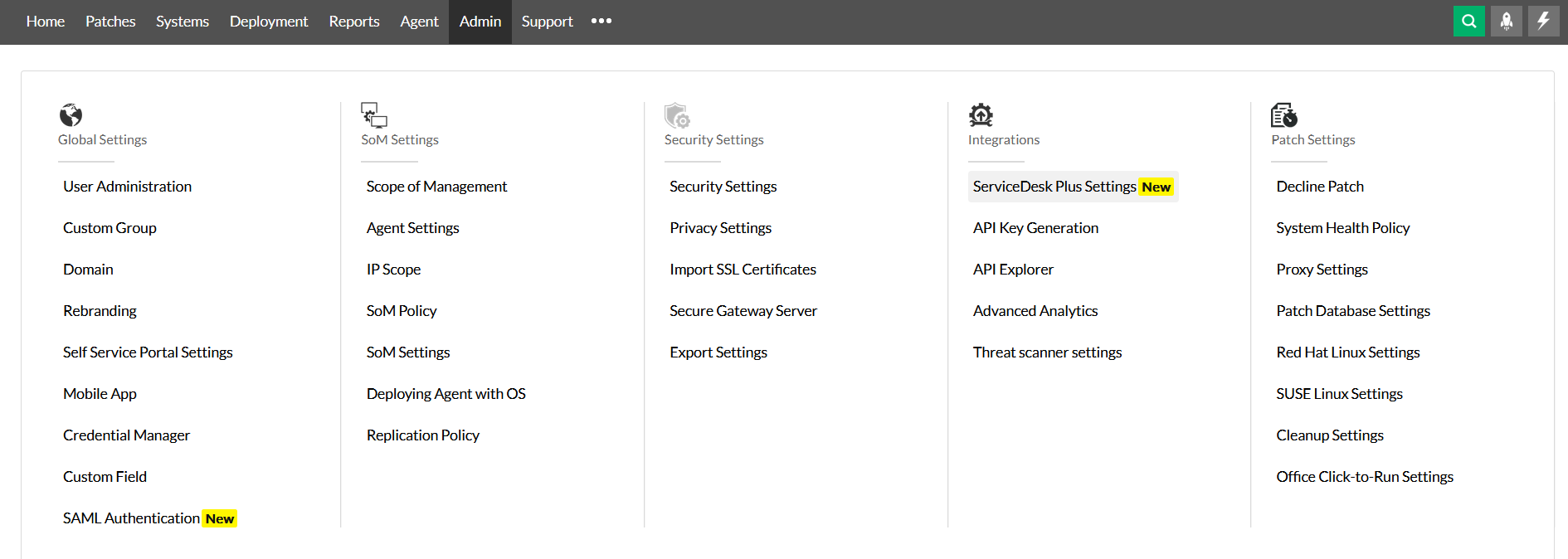
- Login to Vulnerability Manager Plus web console using admin credentials and navigate to Admin > ServiceDesk Plus Settings > Integrate with ServiceDesk Plus.
- Type in the server IP address / DNS name of the ServiceDesk Plus server along with the configured server port number.
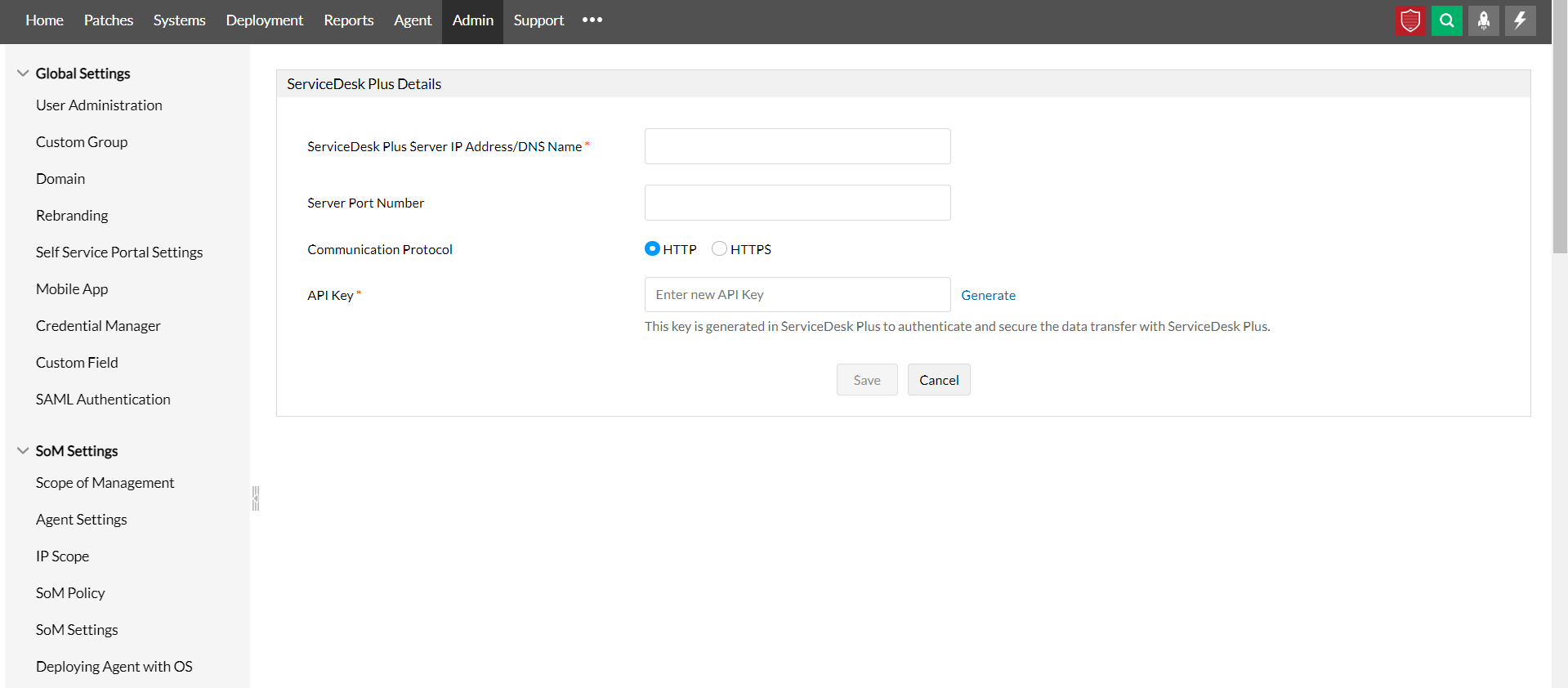
- Click on Generate to generate the API key. Copy the key and paste it into API Key and click on Save.
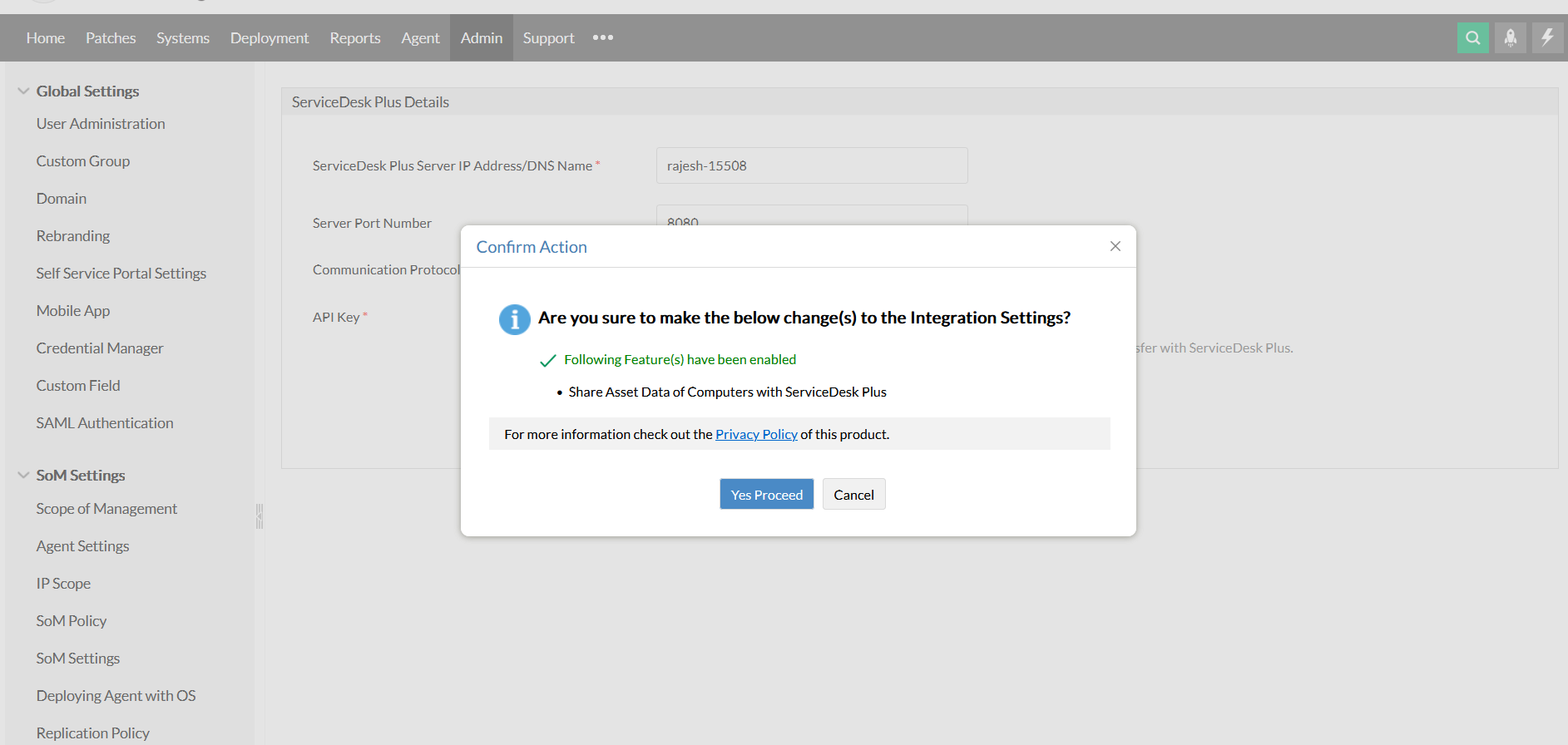
- Once done, click on Yes Proceed to integrate.
API key generation in ServiceDesk Plus
Generation of an API key is a must to authenticate the communication between the ServiceDesk Plus and the Vulnerability Manager Plus server. Here's how to generate the API key in the ServiceDesk Plus console.
- Login to ServiceDesk Plus web console using admin credentials.
API Key generation for a new technician:
- Navigate to Admin > Users
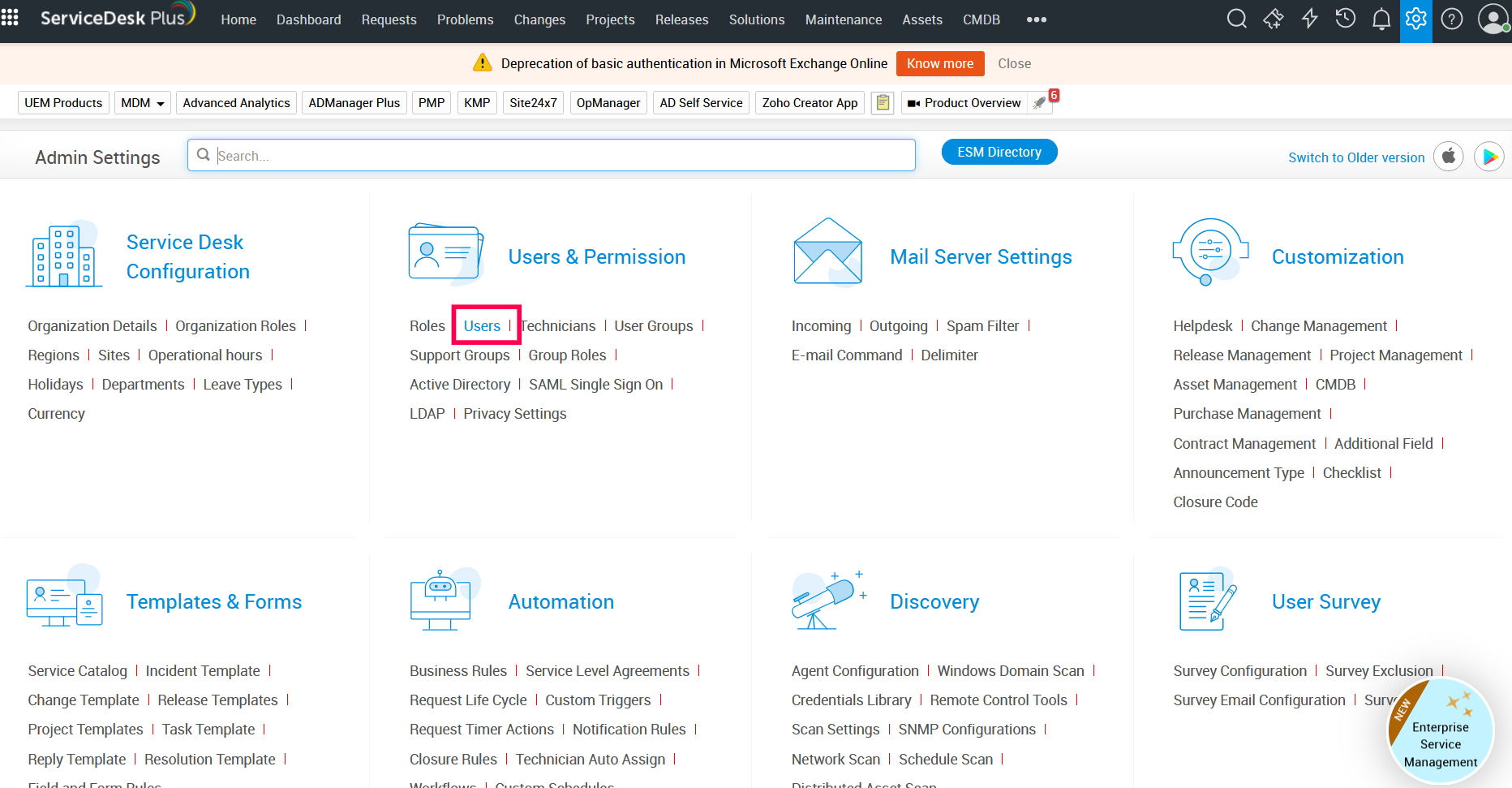
- Click on Technicians
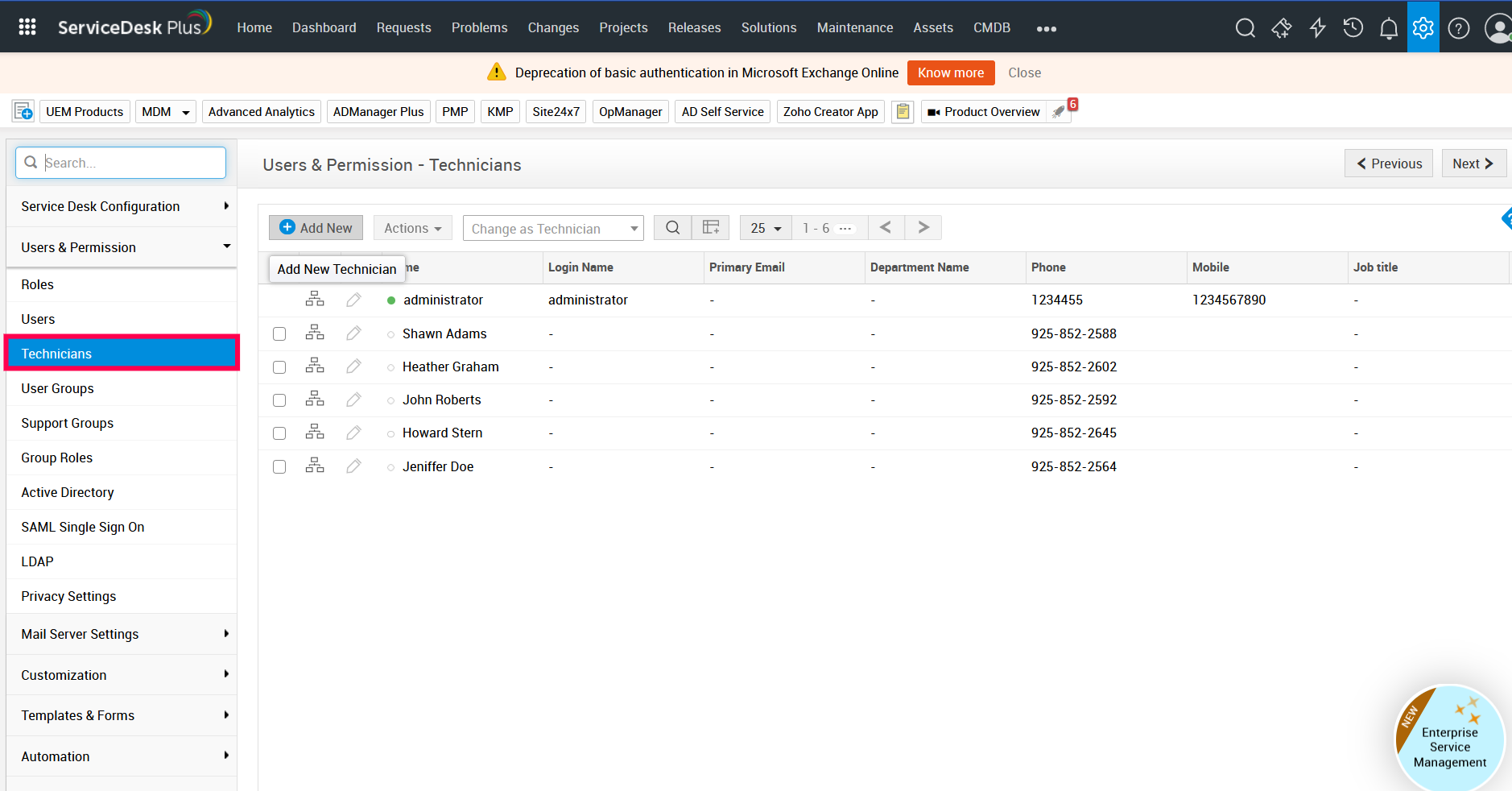
- Furnish technician details such as personal details, employee details, contact information, cost details, department details, assign group(s) for the technician, and select permissions by choosing an appropriate project role for the technician.
- The next step is to enable login for this technician by providing login details such as name, password, and domain. Also, enable administrator privileges (SDAdmin) by choosing the appropriate checkbox.
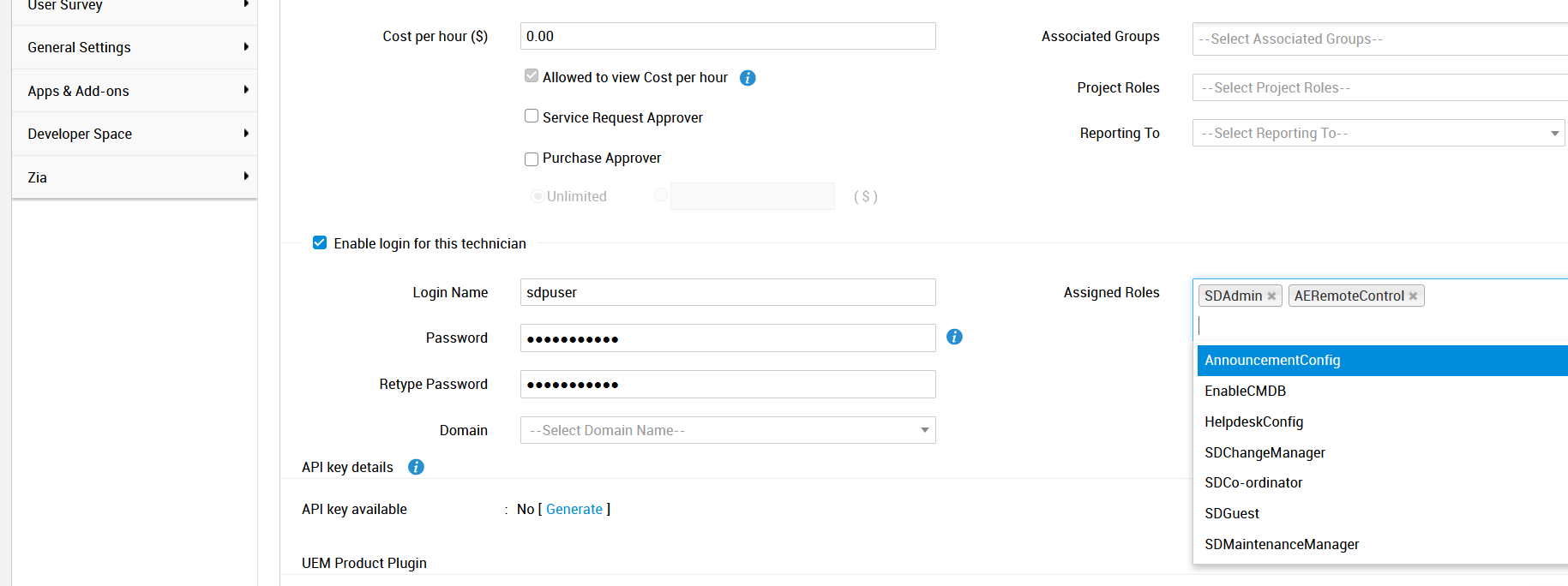
- Under API key details, either generate or regenerate the API key.
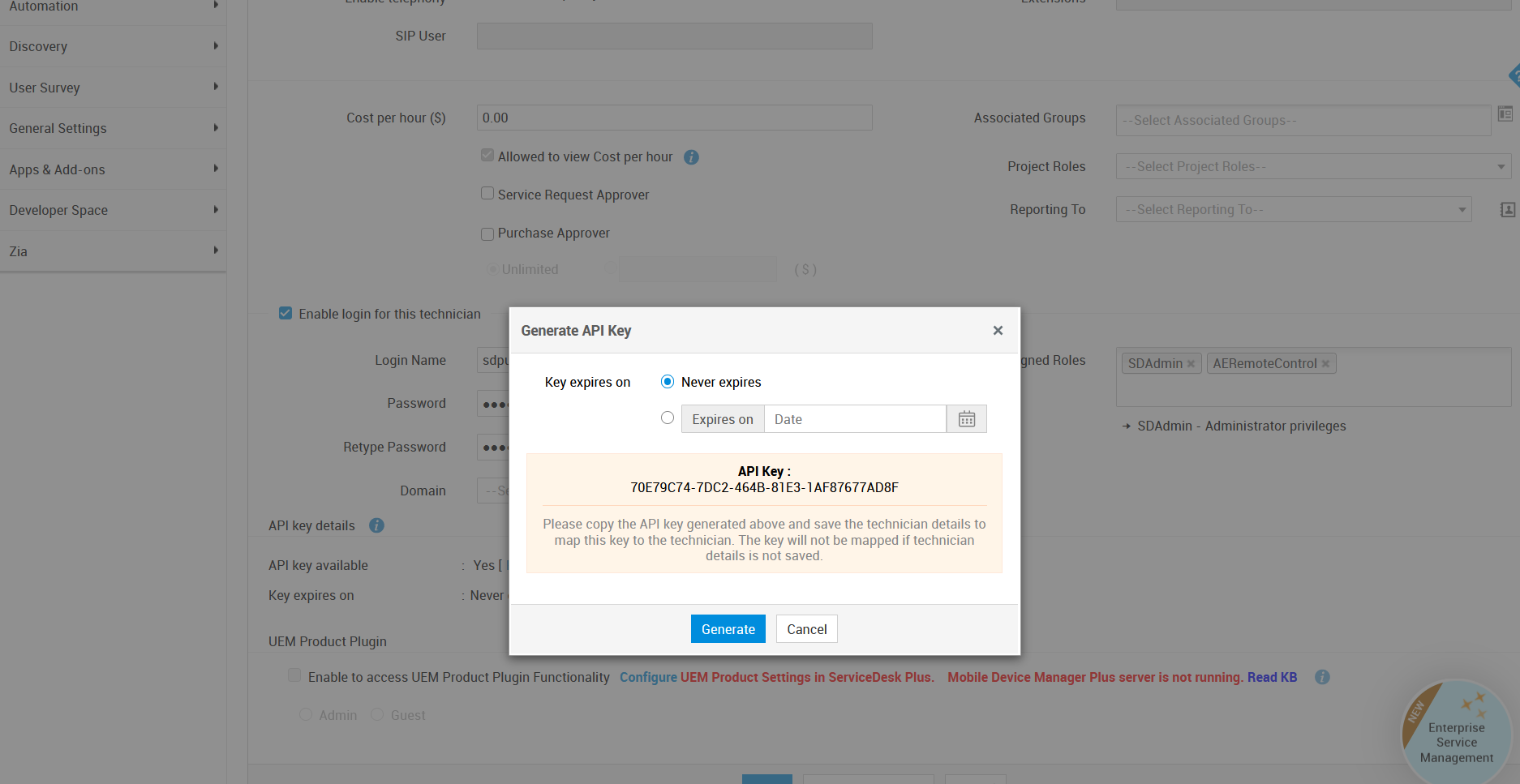
Generation for an existing technician:
To generate the API key for an existing technician, edit the technician details and generate the API key under API key details.
Generation for currently logged-on technician:
To generate the API key for the currently logged-on user:
- Click on the user icon from the top-right corner of the console
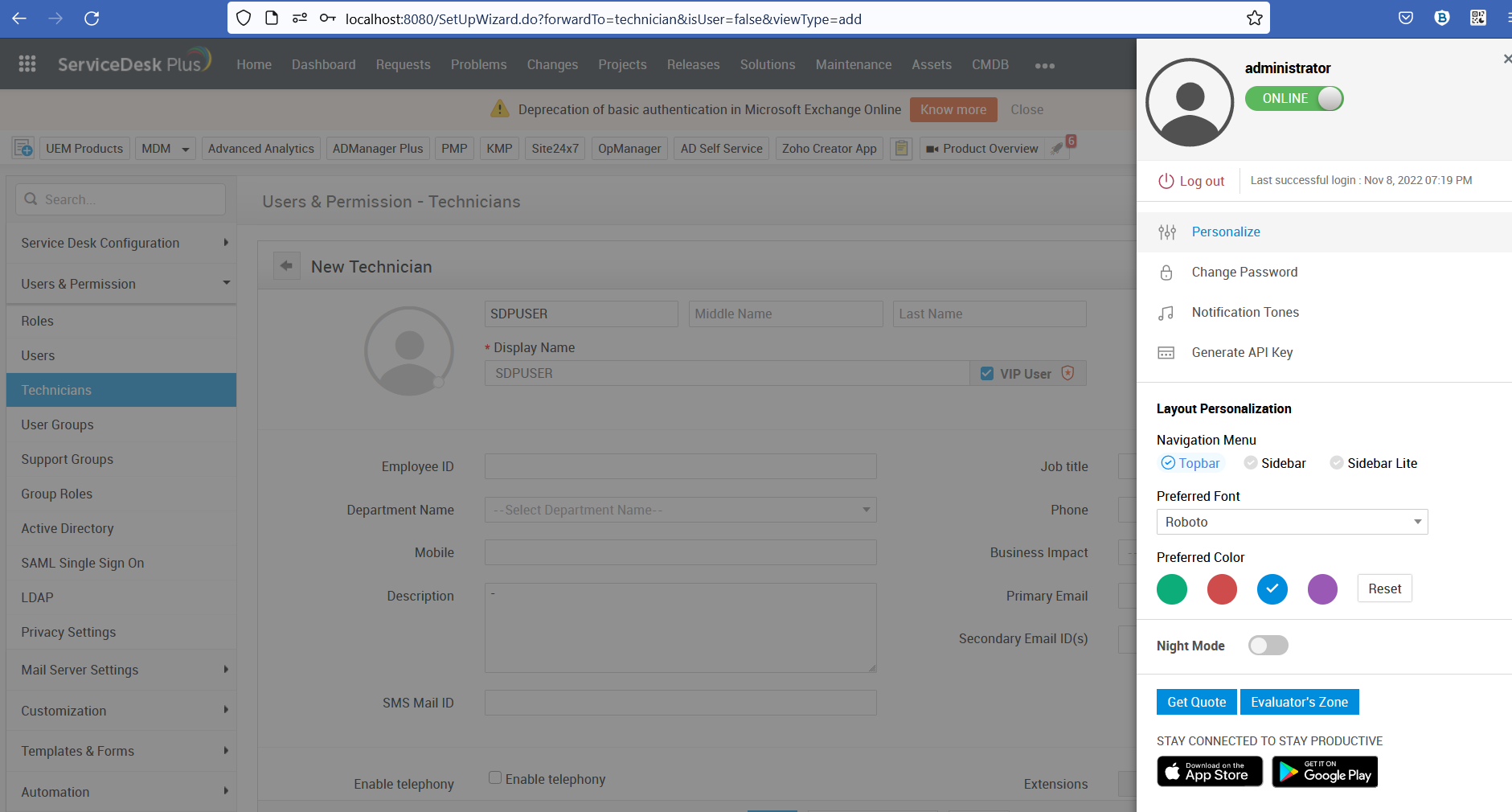
- Click API Key Generation or Personalize > API Key Generation
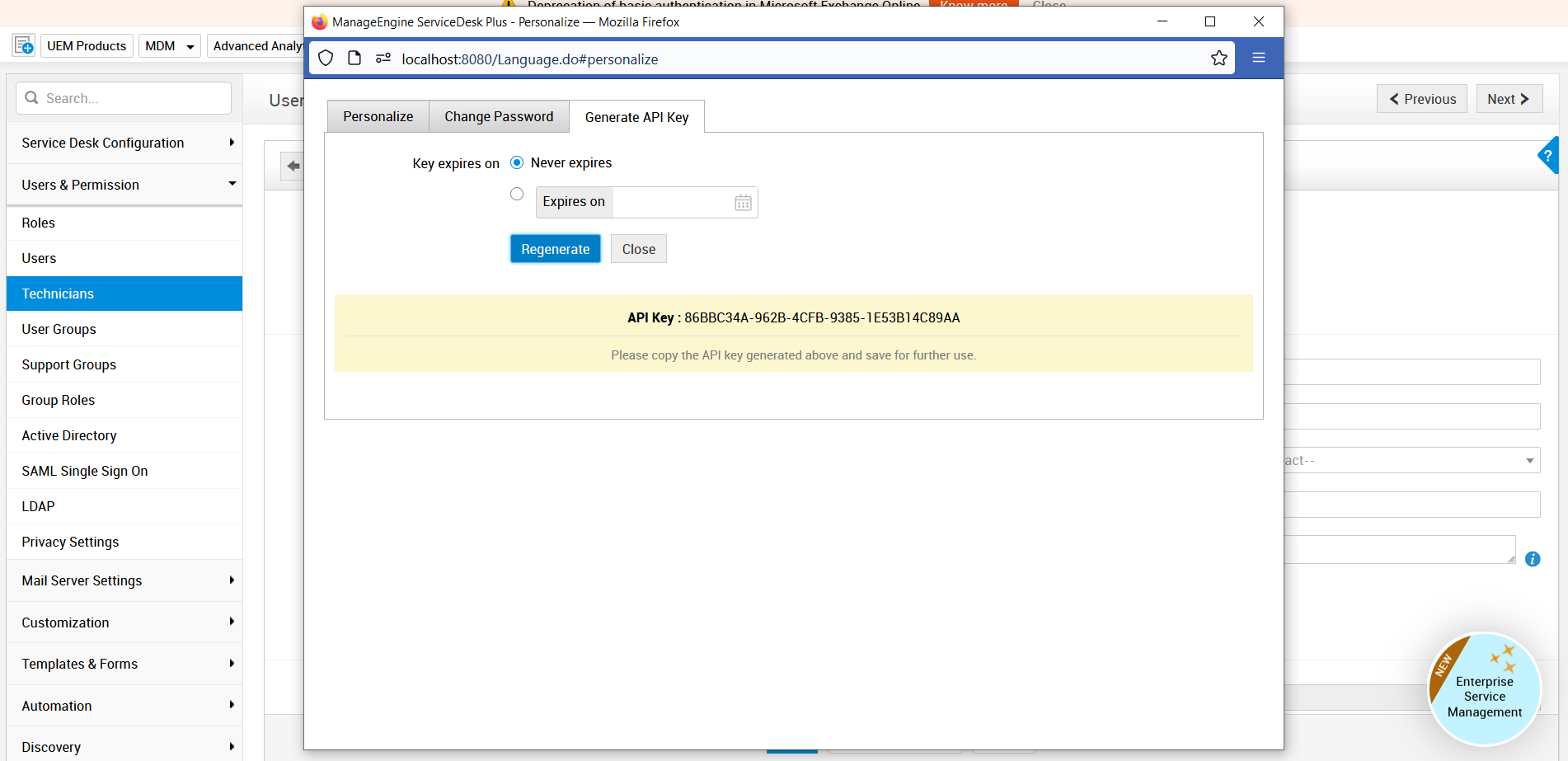
- Copy the generated key and update it in the Vulnerability Manager Plus server for the integration to work.
- On the Vulnerability Manager Plus console, navigate to Admin > Integrations > ServiceDesk Plus settings > ServiceDesk Plus details > paste the copied API key > Save.