Azure Optimization report
The Azure Optimization Report in CloudSpend helps you identify under-utilized Azure virtual machines and shows how much cost you can save by rightsizing them. It analyzes usage patterns and recommends more suitable VM instance types that match actual workload needs. This report is especially useful for teams that run VMs continuously but are unsure whether they are paying for more capacity than required.
Why do you need this report?
Azure VMs are often provisioned with extra CPU and memory to handle peak loads. Over time, workloads change, but VM sizes remain the same. This leads to unnecessary cloud spend.
Consider a DevOps team provisions a Standard D4ds v4 VM for an application expecting high traffic. After deployment, the application stabilizes and runs at much lower utilization. The VM continues running 24x7 at the same size, even though a smaller instance can handle the workload.
Without visibility, this over provisioning goes unnoticed and costs continue to add up every month.
The Azure Optimization report solves this problem by:
- Detects under utilized VMs based on usage data.
- Recommends a smaller, more cost efficient VM instance.
- Clearly shows current cost vs suggested cost.
- Quantifies savings in both percentage and currency.
This allows teams to confidently resize VMs without guessing or manual analysis.
Benefits of Azure Optimization report
You can leverage the following benefits with Azure Optimization report
- Reduce unnecessary Azure VM costs by identifying oversized virtual machines.
- Surface clear right sizing opportunities based on actual workload usage.
- Support data backed optimization decisions using real performance insights.
- Improve cost accountability across subscriptions and cost centers.
- Save time by eliminating manual usage and cost analysis.
Use case
Consider a platform engineering team that runs several Azure virtual machines to support internal applications across multiple cost centers. Over time, these VMs are sized conservatively to avoid performance issues, but usage patterns change as applications stabilize and traffic becomes predictable.
The team notices that the monthly Azure costs keep increasing, but it is unclear which VMs are driving the spend or whether resizing them is safe. Using CloudSpend’s Azure Optimization Report, the team identifies under-utilized virtual machines and reviews the recommended instance sizes based on actual usage.
The Azure Optimization report clearly provides the current cost, suggested cost, and expected savings for each VM, helping the team prioritize which resources to resize first. By acting on these suggestion during scheduled maintenance windows, the team reduces unnecessary VM costs while maintaining performance, and gains ongoing visibility to ensure workloads stay right sized as usage evolves.
Azure Optimization report dashboard
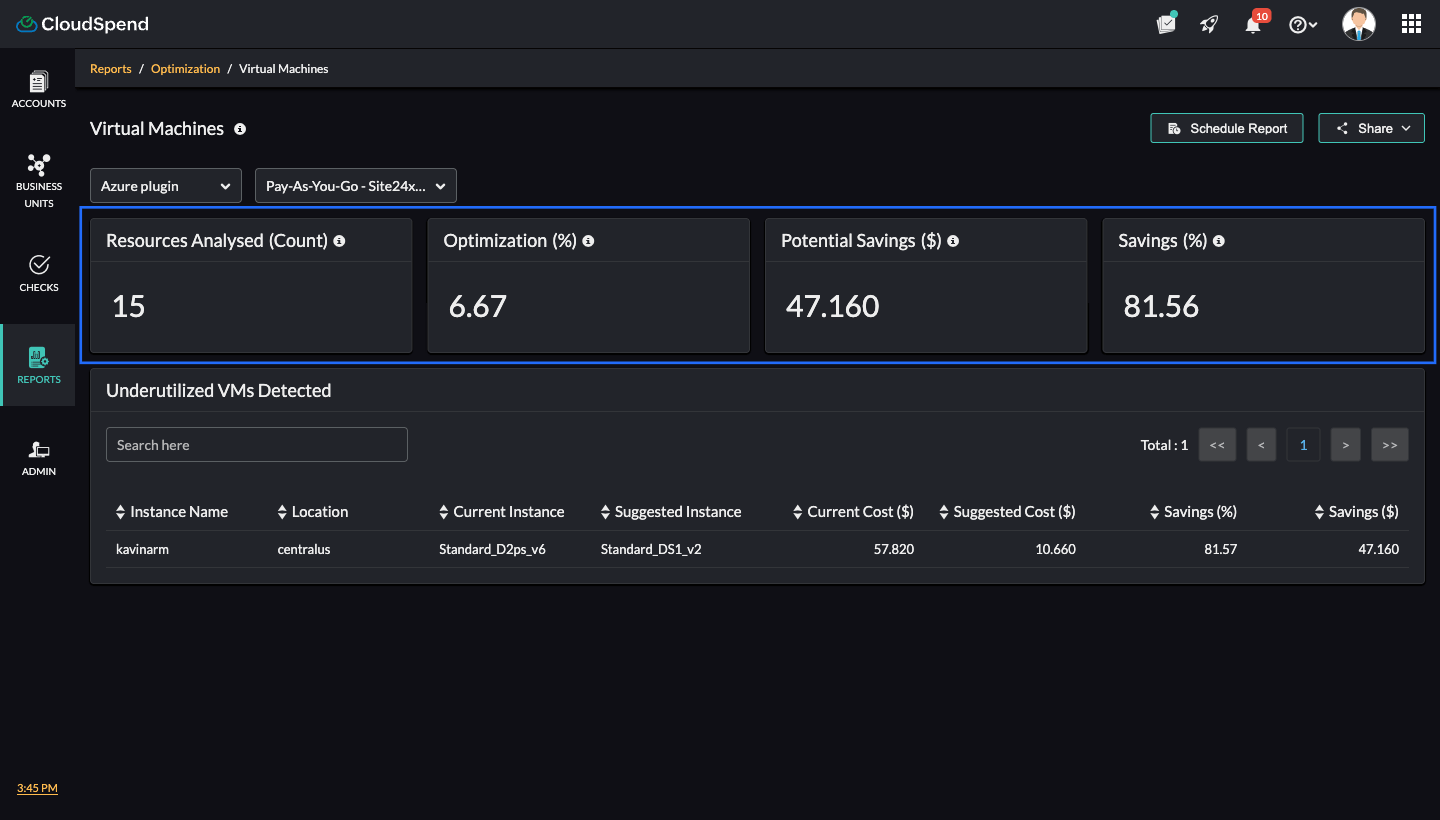
The Azure Optimization dashboard comprises high-level summary cards followed by a detailed tabular report. Here's a breakdown of each section:
- Filters : You can select the desired Azure subscriptions account you want to analyze and filter results based on specific organizational units.
- Resource (Count): Displays the total number of Azure VMs analyzed for optimization.
- Optimization (%): Indicates the percentage of resources that have optimization recommendations.
- Potential Savings ($): Estimated monthly savings if the suggested changes are implemented.
- Savings (%): Average cost reduction percentage across all optimizable VMs.
- Schedule Report: Click Schedule Report to automate the delivery of Azure Optimization reports to stakeholders.
- Share: Click the Share to download and share the report as a PDF.
Underutilized VMs Detected section
The Underutilized VMs Detected section provides the following details:
| Column name | Description |
| Instance Name/ID | The Azure VM name detected as under utilized. |
| Region | The Azure region where the VM is running. |
| Current Instance | The existing VM size in use. |
| Suggested Instance | The recommended smaller VM size based on usage analysis. |
| Current Cost ($) | Monthly cost associated with the current VM. |
| Suggested Cost ($) | Estimated monthly cost if the VM is resized as recommended. |
| Savings (%) | Cost savings percentage achieved by right-sizing. |
| Savings ($) | Monthly cost savings per VM. |
UI breakdown and value derivations
Let’s walk through the UI components in the report and understand how CloudSpend derives values for Resource Count , Optimization (%) , Potential Savings ($) , and Savings (%) based on the image below.
Resource (Count)
CloudSpend shows the total number of virtual machines evaluated under the selected account and filters.
Example from image:
- Resource (Count): 15
This means CloudSpend analyzed 15 Azure virtual machines for utilization and cost efficiency, regardless of whether they have recommendations.
Optimization (%)
This represents the percentage of VMs that have at least one right sizing recommendation.
Formula:
Optimization (%) = (Number of Optimizable VMs ÷ Total VMs analyzed) × 100
Example from image:
Note that in the given image only one VM is listed in the Under-utilized VMs Detected table.
- Optimization (%) = 1 optimized VM ÷ 15 total VMs × 100 = 6.67%
Therefore, VMs optimized = 6.67%
Potential Savings ($)
This shows the total estimated cost savings if all recommended optimizations are applied.
Formula (per VM):
Potential Savings = Monthly cost of current VM - Monthly cost of suggested VM
Example from image (single instance):
Potential Savings = $57.820 - $10.660 = $47.160 (since only one under-utilized VM is listed in the image)
Savings (%)
This indicates the percentage cost reduction for the optimized resources.
Formula:
Saving(%) = [(Current cost − Suggested cost) ÷ Current cost ] × 100
Example from image
Savings (%) = [(57.820 - 10.660) ÷ 57.820 ] x 100 = 81.56%
This value reflects how much cheaper the suggested VM is compared to the current VM.
Viewing the Azure Optimization report
To access the Azure Optimization report:
- Log in to CloudSpend and navigate to Reports > Optimization > Azure.
- Select the applicable report.
The Azure Optimizer Report helps you quickly identify under utilized virtual machines and understand the real cost impact of right sizing them. By turning usage data into clear savings insights, it enables teams to reduce cloud spend without affecting performance. Use this report regularly to keep Azure VM costs aligned with actual workload needs.