Cost Allocation report
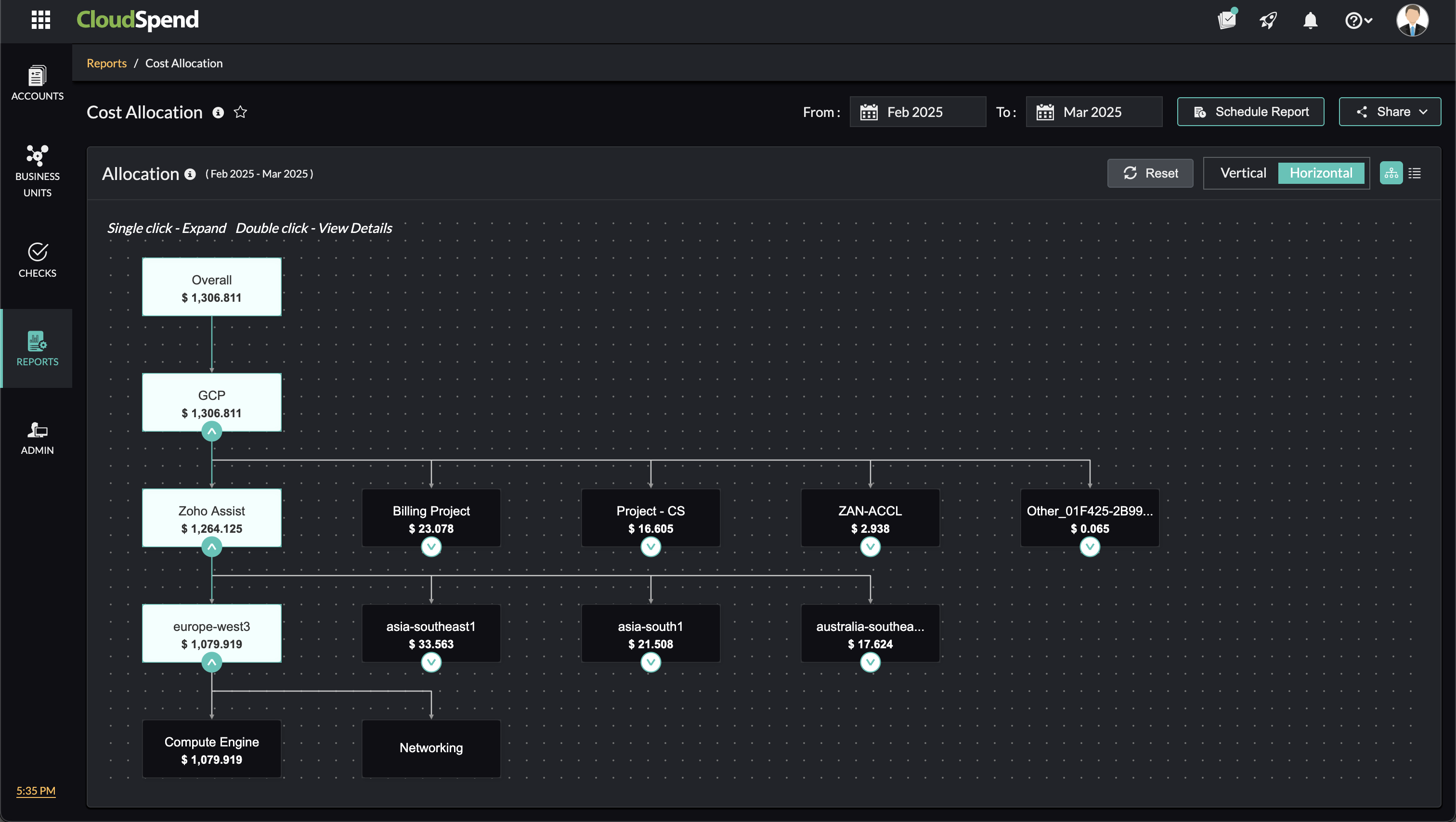
The Cost Allocation report in ManageEngine CloudSpend provides a detailed visualization of your organization's cloud expenses with a clear and structured view of their cloud spending across multiple hierarchical levels. It provides flexible visualization options to suit your preferences and analytical needs. You can view your cost allocation details in both Hierarchical view and Table view, and display data horizontally or vertically. This flexibility ensures that you can analyze your cloud spending in the most intuitive and effective way.
Overview
The Cost Allocation report tracks and informs on cloud costs, helping you understand exactly where your money is being spent in your multi-cloud environment. The hierarchy levels typically include Overall Cost > Account Name > Linked Account Name > Region > Service, with each level providing a more detailed cost split.
By aligning cloud cost expenses within these levels, the report delivers a clear view of cost distribution and accountability. Here is an elaborate explanation of this concept:
| Cost allocation level | Description |
|---|---|
| Overall Cost | This is the top-level view of your total cloud spending across all accounts, services, and regions in your multi-cloud environment. It gives you a high-level overview of your cloud expenditure, helping you understand the total amount spent. |
| Account Name | This level helps you analyze cloud spending at the integrated cost account level. By providing a detailed cost breakdown for each account, it enables you to optimize spending and improve financial accountability. |
| Linked Account Name | In some cloud environments, you might have multiple linked accounts under a master account. This level provides a cost breakdown for each linked account. It enables you to track spending at a more granular level, especially in organizations with multiple teams or departments using separate linked accounts. |
| Region | This level breaks down costs by the region where the resources are hosted. It helps you understand how much you’re spending in each region, which is useful for optimizing resource placement and minimizing costs. |
| Service | At the most granular level, costs are broken down by Service. This level provides a detailed view of how much you’re spending on each cloud service, helping you identify which services are driving your costs. |
Additionally, you can dive deeper into the spending details of individual accounts by clicking on any cost allocation level, such as Account, Linked Account, Region, and Service. This enables you to view these details about the account:
- Overview: A summary of the selected account’s cloud spending. You can view details such as Cost, Resource Count, Contribution % from child accounts, Savings %, Anomaly Count, and Forecast value of the selected account.
- Split-up: A breakdown of costs for each resource.
With its detailed drill-down capability, the Cost Allocation report enables you to identify cost drivers, allocate expenses accurately, and implement effective cost-saving measures.
Benefits of the Cost Allocation report
You can leverage the following benefits with Cost Allocation reports:
- Cost segmentation: Break down cloud costs into meaningful categories to enable precise cost allocation, governance, and identify opportunities for optimization.
- Financial accountability: Assign cost ownership to teams or cost centers, improving financial responsibility.
- Sharing and reporting: Share charts and lists in CSV format for sharing with stakeholders.
- Time savings: Quickly access all relevant cost details in one place, eliminating the need for manual analysis.
Use case
The Cost Allocation report in CloudSpend provides significant benefits for organizations managing multi-department or multi-project cloud environments. Consider an organization with multiple teams sharing a single cloud infrastructure, such as development, marketing, and operations. Without proper cost allocation, it becomes challenging to track which team is responsible for specific cloud expenses, leading to inefficiencies and budget overruns.
By leveraging the Cost Allocation report, the organization can assign cloud costs to each team based on resource usage, such as compute instances, storage, or data transfer. This granular visibility enables accurate chargebacks or showbacks, ensuring teams are accountable for their cloud consumption.
Viewing the Cost Allocation report
To access the Cost Allocation report:
- Log in to your CloudSpend account.
- Go to the Reports > Cost Allocation report.
- Navigate to the desired Account Name > Linked Account > Region > Service.
Additionally,
- To view spending details of individual accounts, click the desired Account, Linked Account, Service, or Region.
- To get a chart view, click the Chart view icon on the top-right corner. Similarly, for table view, click the Table view icon on the top-right corner.
- To share the report, click Share.
- If the Cost Allocation report is available for your cost accounts, you can view the cost allocation data on the Accounts page. Select Table or Allocation to access the detailed cost information.
Adding a Cost Allocation report
You can create custom Cost Allocation reports to define how your cloud expenses are segmented by adding specific tags and arranging them in the order that best suits your analysis. This gives you granular visibility into your cloud costs based on your organizational structure, business priorities, or cost centers.
Adding a custom Cost Allocation report helps you gain better financial transparency, control, and accountability. By tailoring the segmentation order using your own tagging strategy, you can align cloud spending insights with your internal cost centers or departments, making it easier to monitor budgets, track usage patterns, and identify optimization opportunities. This also simplifies internal chargebacks and cost reporting across teams.
Let’s say your organization runs multiple cloud projects across various environments, like development, testing, and production, and these projects are managed by different teams under distinct cost centers. You'll want to understand how much each team is spending in each environment to improve accountability and track budgets effectively.
By creating a Cost Allocation report, you can apply the tags Team, Environment, and Project and arrange them in that order. This allows you to generate a report where cloud costs are broken down first by team, then by the environment they’re using, and finally by individual projects. With this setup, finance teams can quickly identify which teams are incurring high production costs or which environments are underutilized, enabling proactive cost control and more accurate forecasting.
To add a Cost Allocation report:
- Log in to your CloudSpend account.
- Go to Reports > Cost Allocations.
- Click Add Allocation.
- In the Choose Accountpage, provide the following details:
- Name: Enter the report name.
- Accounts: Select the cloud accounts you want to include in the report.
- Click Next.
- In the Configure Orderpage, provide the below details:
- Tags: Enter the tags you want to use for segmenting the cost data. These could be cost centers, project names, environments, or any custom tagging used in your cloud setup.
- Allocation Order: Drag and drop the tags to arrange them in your preferred order of segmentation. The report will display the cost data accordingly.
- Click Save to save your Cost Allocation report.
Once saved, your new Cost Allocation report will appear on the Cost Allocations page. You can view and analyze cloud costs as per your custom-defined segmentation and allocation order.