Labels
Labels help you logically group CloudSpend components across the product. As your cloud environment grows, you create multiple accounts, cost centers, budgets, governance checks, anomaly checks, and reports. These components are called Variations in CloudSpend. Each Variation can contain one or more entities. Labels enable you to connect these components under a shared context so they can be viewed and managed together.
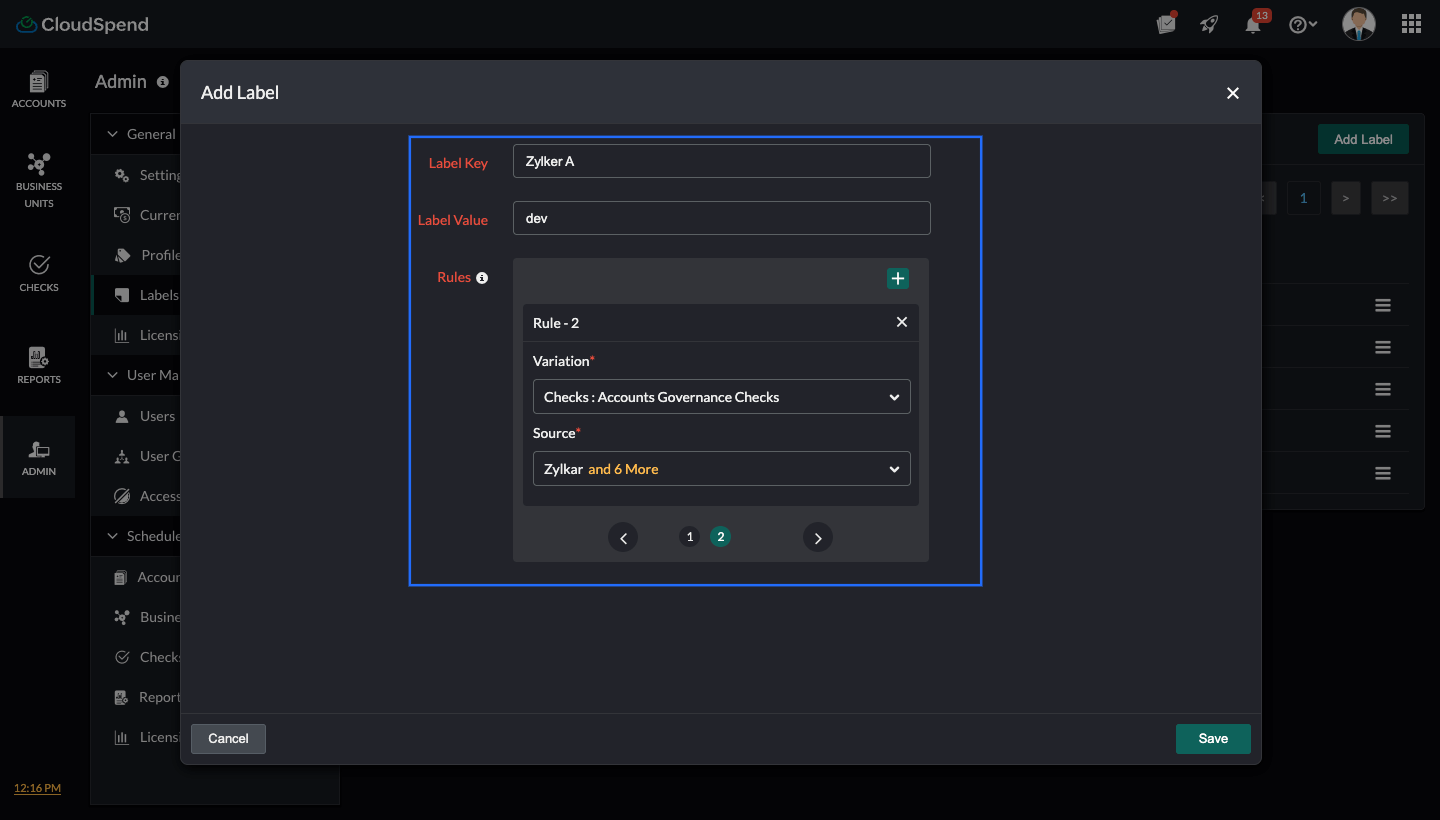
When creating a label, you should define two components: a Label Key and a Label Value. A Label Key represents the category or classification type. It defines what kind of grouping you are creating. For example, environment, department, or project can all be label keys. A Label Value represents the specific identifier within that category. For example, if the label key is environment, the label value could be dev, testing, or production. If the label key is department , the label value could be finance or marketing. Together, the key and value form a complete label, such as environment: dev or department: marketing.
After defining the key and value, you configure Rules. Rules determine where the label applies within CloudSpend. Each rule links the label to a selected Variation and its entities. For example, you can associate the label with specific Accounts, Cost Centers, Governance Checks, or Reports. A single label can have multiple rules, allowing it to span across different modules at the same time.
You can also assign labels while integrating new cloud accounts or configuring cost centers, budgets, anomaly checks, or governance checks. Once saved, the label appears in the Labels tab and can be used to view all associated elements in one place.
In simple terms, labels help you organize CloudSpend configurations, while tags organize cloud resources inside provider accounts. Labels operate at the CloudSpend level and provide structure across modules.
Benefits of Labels
Utilizing Labels provides you with the following distinct advantages:
- Centralized visibility across modules: Labels bring related configurations together in one place, so you can see how accounts, budgets, checks, and reports are connected without navigating through multiple sections.
- Clear logical grouping: By organizing Variations under a defined key and value, Labels help you structure your CloudSpend setup to reflect your environment, teams, or projects.
- Improved scalability for large environments: As the number of configurations grows, labels help maintain clarity by preventing fragmentation across modules.
- Reduced administrative effort: By grouping related elements once under a label, you avoid repeatedly searching and cross referencing configurations during analysis or updates.
Why are Labels useful?
As cloud usage grows, configurations increase across accounts, budgets, checks, and reports. Without grouping, these elements exist in isolation. It becomes harder to understand how they relate to each other. Labels create that connection. They give structure to your setup. They help you see related elements together and make managing complex environments more practical.
Labels do not replace tags. They complement them by organizing CloudSpend at the configuration level.
Use cases
- In an environment based setup, labels can be used to group all elements related to dev, testing, or production. For example, you can create a label with the key environment and value dev, then associate it with the dev account, dev budget, dev anomaly checks, and related governance policies. This allows you to quickly view everything tied to the dev environment without manually checking each module.
- For department level organization, labels help group elements that belong to a specific team such as finance, marketing, or sales. You can create a label with the key department and value finance, and link it to the finance cost centers, associated accounts, budget checks, and reports. This makes it easier to understand what is defined for that department and simplifies coordination during reviews.
- In project driven scenarios, labels can group elements that support a specific initiative. For instance, during a migration or optimization project, you can create a label with the key project and value migration2026. All related accounts, governance checks, anomaly monitors, and reports can be mapped to this label. This gives stakeholders a clear view of everything involved in that project.
How Labels differ from Tags
Labels and tags serve different purposes. This table explains the major differences.
| Labels | Tags |
| Exist within CloudSpend. | Exist at the cloud provider level. |
| Group elements such as Accounts, Cost Centers, Budget Checks, and ReportsExample: A label Environment: Dev that groups a dev account, dev cost center, and dev budget check. | Group cloud resources inside an account.Example: EC2 instances tagged with Environment:Dev |
| Tied to CloudSpend configurations, not cloud resources. | Tied to resources. |
| Organize CloudSpend elements. | Organize infrastructure. |
Adding a Label
To add a Label, follow the steps below:
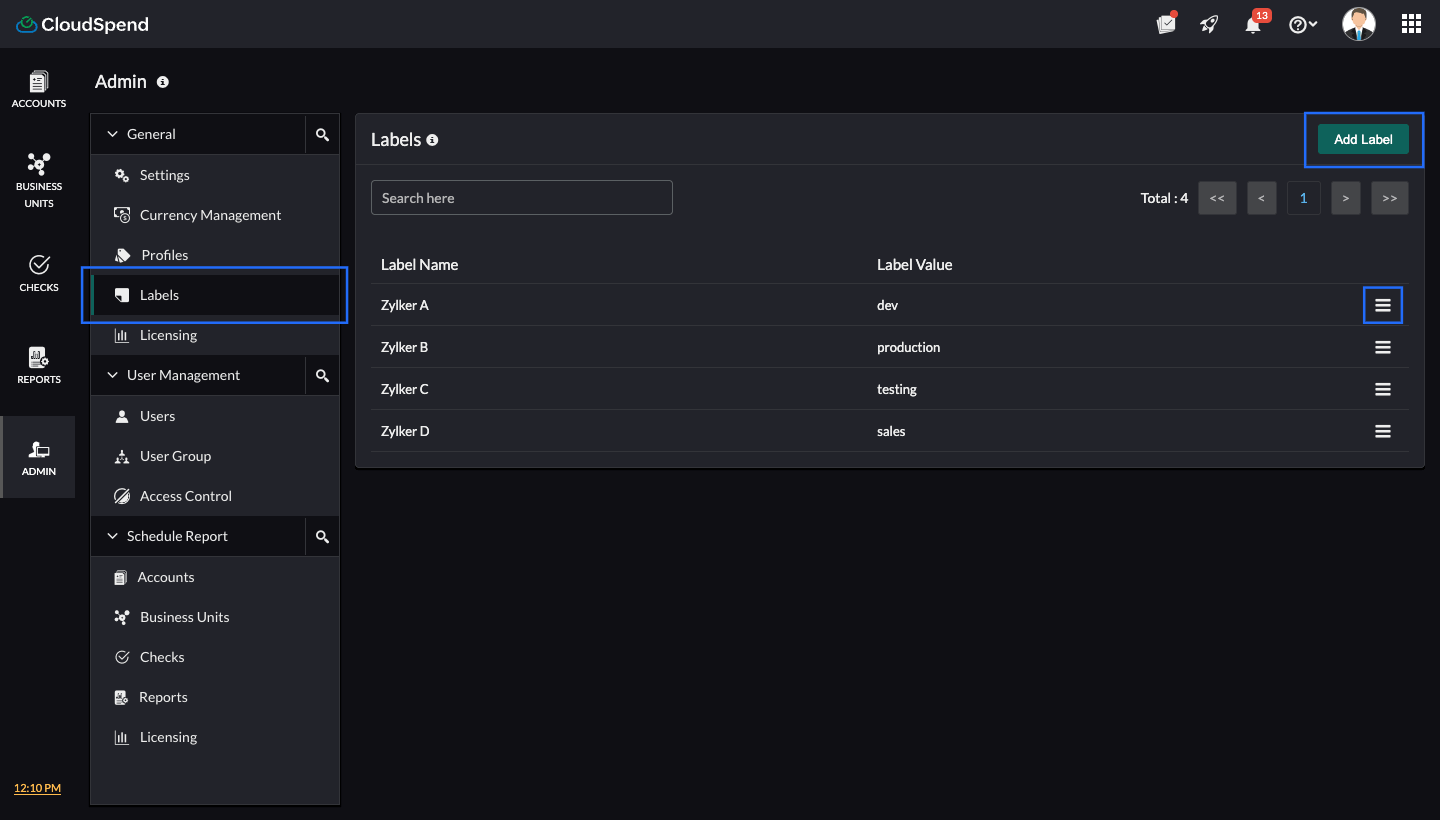
- Navigate to Admin > Labels.
- Click Add Label.
- In the Add Label page, enter the following details:
- Label Key: Enter the label key.
- Label Value: Enter the label value.
- Rules: Group and assign rules that define a label. Select the applicable Variation and Source. If you wish to add more rules, click the plus icon + in the Rules section and select your variation and source.
- Click Save. The Label you created will be saved and displayed on the Labels page.
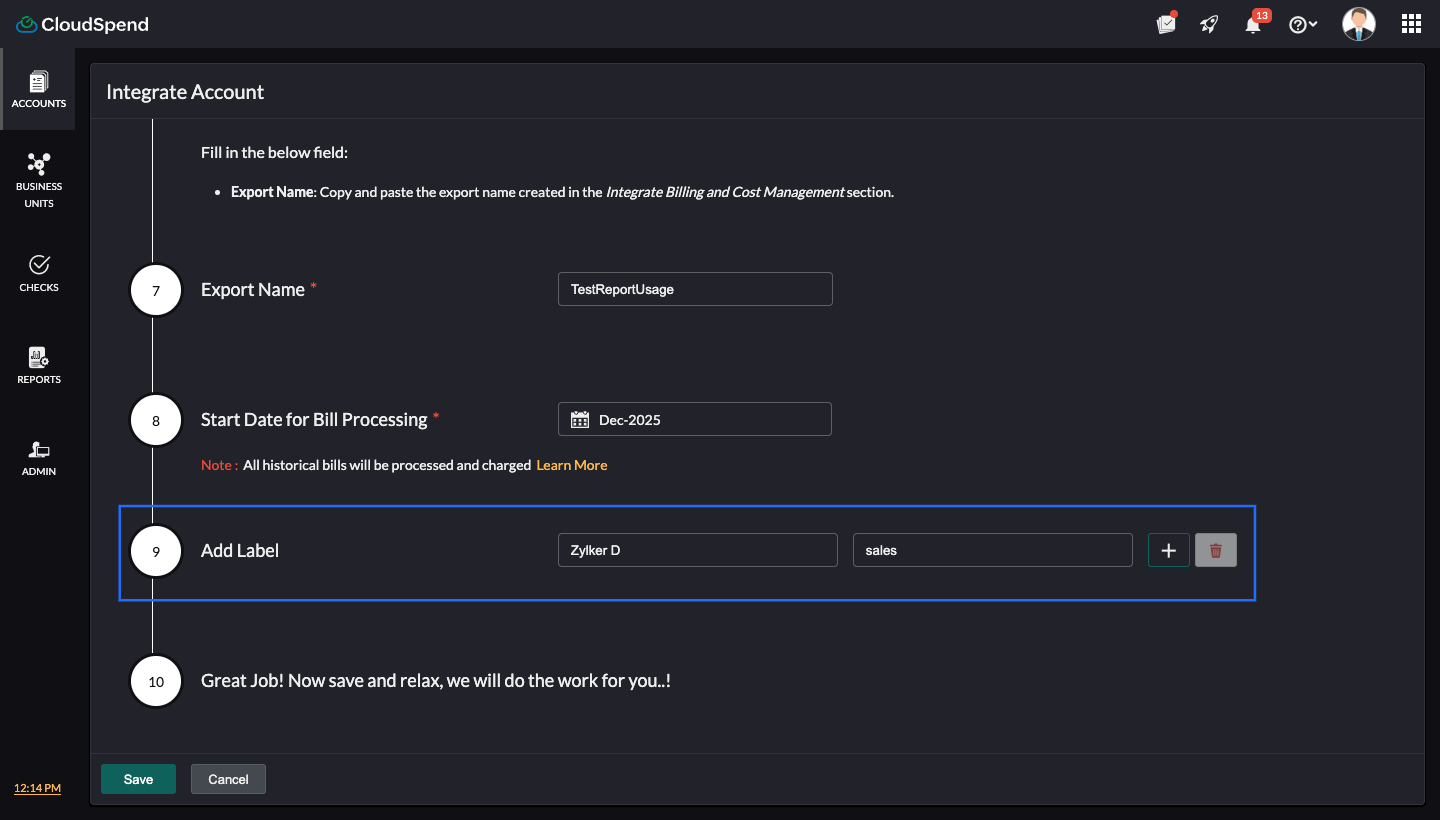
In addition to creating labels from the Labels tab, you can also assign labels while integrating a new cloud account or configuring elements such as a Cost Centers, siness UnitBudget Check, or Governance Check. During setup, enter the required Label Key and Label Value in the Label field. Once saved, the label appears in the Labels tab.
You can associate multiple labels at the time of setup. In the example below, the Label field is shown while integrating a cost account with CloudSpend. The same Label field is available across all add pages in CloudSpend.
Viewing Label details
When you click a label from the Labels page, the detail page opens. This page displays:
- All Variations associated with the label.
- The number of entities under each variation. When click the new tab icon against the entity name, it'll open the Spend Analysis page of that entity.
You can expand any variation to view the entities mapped to it. For example, in the image below under Accounts Governance Policy, you can view the entity named testing. Under Billed Accounts Solutions Reports, you can view the entity named S247-AWS-team_AWS.

Editing a Label
To edit a Label:
- Click the hamburger icon next to the applicable Label.
- Select Edit and make the necessary changes.
- Click Save.
Deleting a Label
To delete a Label:
- Click the hamburger icon next to the applicable Label.
- Click Delete.