Notification Profiles
Notification Profiles enable you to define how ManageEngine CloudSpend sends notifications when a configured check is breached. Instead of configuring recipients, email templates, and alert preferences for every Budget, Anomaly, or Governance check individually, you can create a reusable notification profile and associate it with multiple checks.
A notification profile centralizes your notification settings, ensuring that the right users receive alerts at the right time while maintaining consistency across all your checks.
Benefits of Notification Profiles
Notification Profiles help you:
- Configure notification settings once and reuse them across multiple checks.
- Notify individual users or user groups based on responsibility.
- Standardize email notifications using reusable templates.
- Reduce configuration effort when creating new checks.
- Control when alerts are triggered and how frequently reminder notifications are sent.
- Include RCA information in notifications to speed up troubleshooting.
Use cases
Here are some use cases for Notification Profiles.
Avoid notifications for temporary cost spikes
Suppose you have configured an anomaly check to alert when your daily cloud spend increases by more than 30%.
Occasionally, a scheduled deployment or a short-lived workload may cause a temporary spike that returns to normal during the next evaluation. If Alert After (consecutive checks) is set to three, CloudSpend sends a notification only if the anomaly persists for three consecutive evaluation cycles. This helps eliminate alerts caused by brief or expected fluctuations and ensures that only sustained anomalies generate notifications.
Keep stakeholders informed about unresolved issues
Assume a budget check detects that a project's monthly cloud spend has exceeded 90% of its allocated budget. Since the budget remains over the threshold until corrective action is taken, the breach continues to exist.
If Persistent Breach Frequency is set to six hours, CloudSpend sends the initial notification when the breach occurs and continues sending reminder notifications every six hours until the spend returns below the configured threshold or the issue is resolved. This ensures that ongoing breaches remain visible without overwhelming recipients with frequent emails.
Creating a notification profile
To create a notification profile:
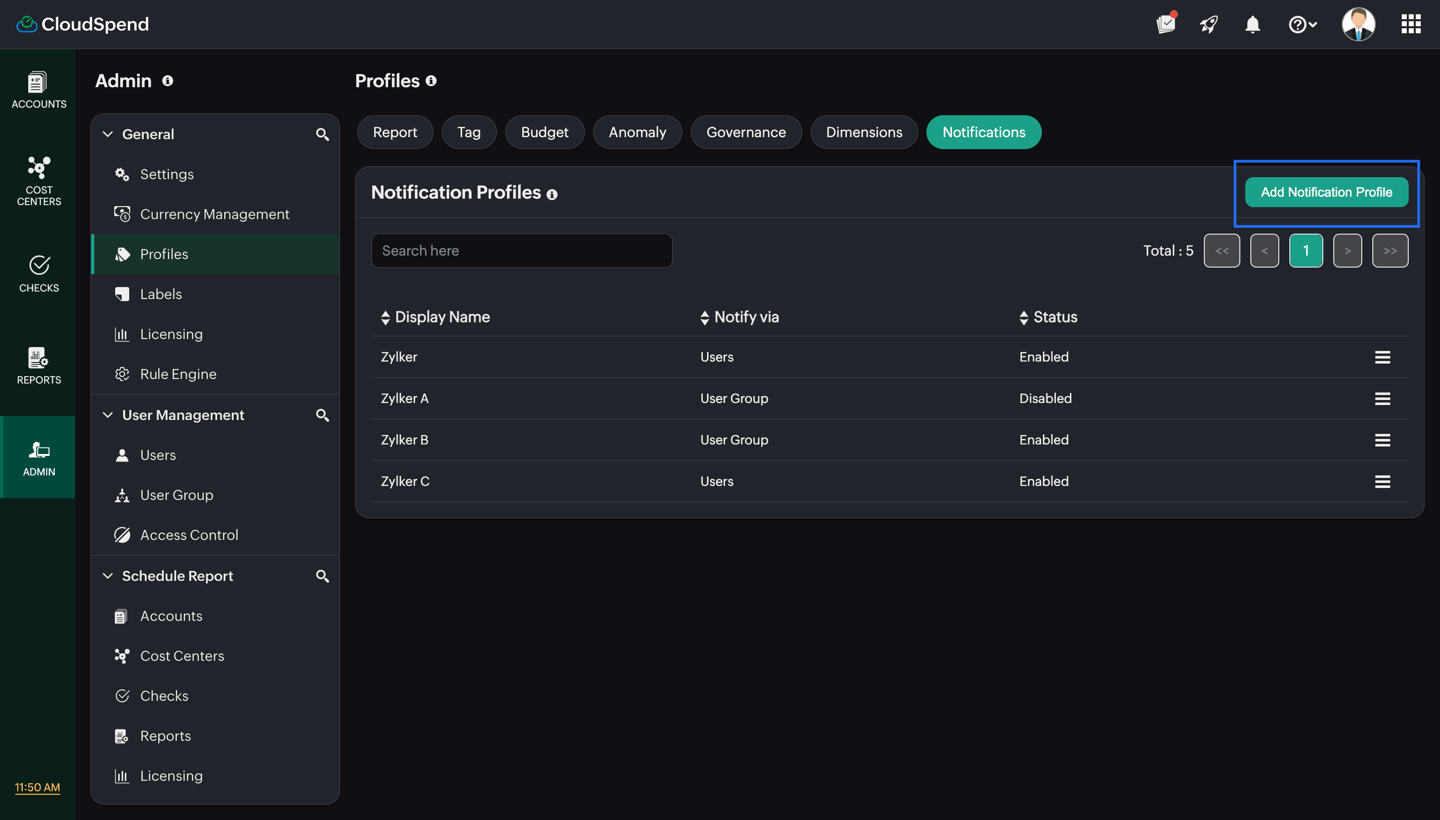
- Navigate to Admin > Profiles > Notifications.
- Click Add Notification Profile.
- In the Add Notification Profile page, provide the following details:
- Name: Enter a meaningful name to identify the notification profile.
- Notify via: Choose how CloudSpend should send notifications. Select Users to notify one or more individual CloudSpend users, or User Group to notify all members of a selected user group. Using user groups simplifies notification management because any changes to the group membership are automatically reflected in the notification profile.
- Contacts: Select the users or user groups that should receive notifications when an associated check is breached.
- Email Template ID: Select an existing email template that defines the notification subject and email content. Click Add to create a new template or Edit to modify the selected template.
- DRI: Select the directly responsible individual accountable for responding to the notification.
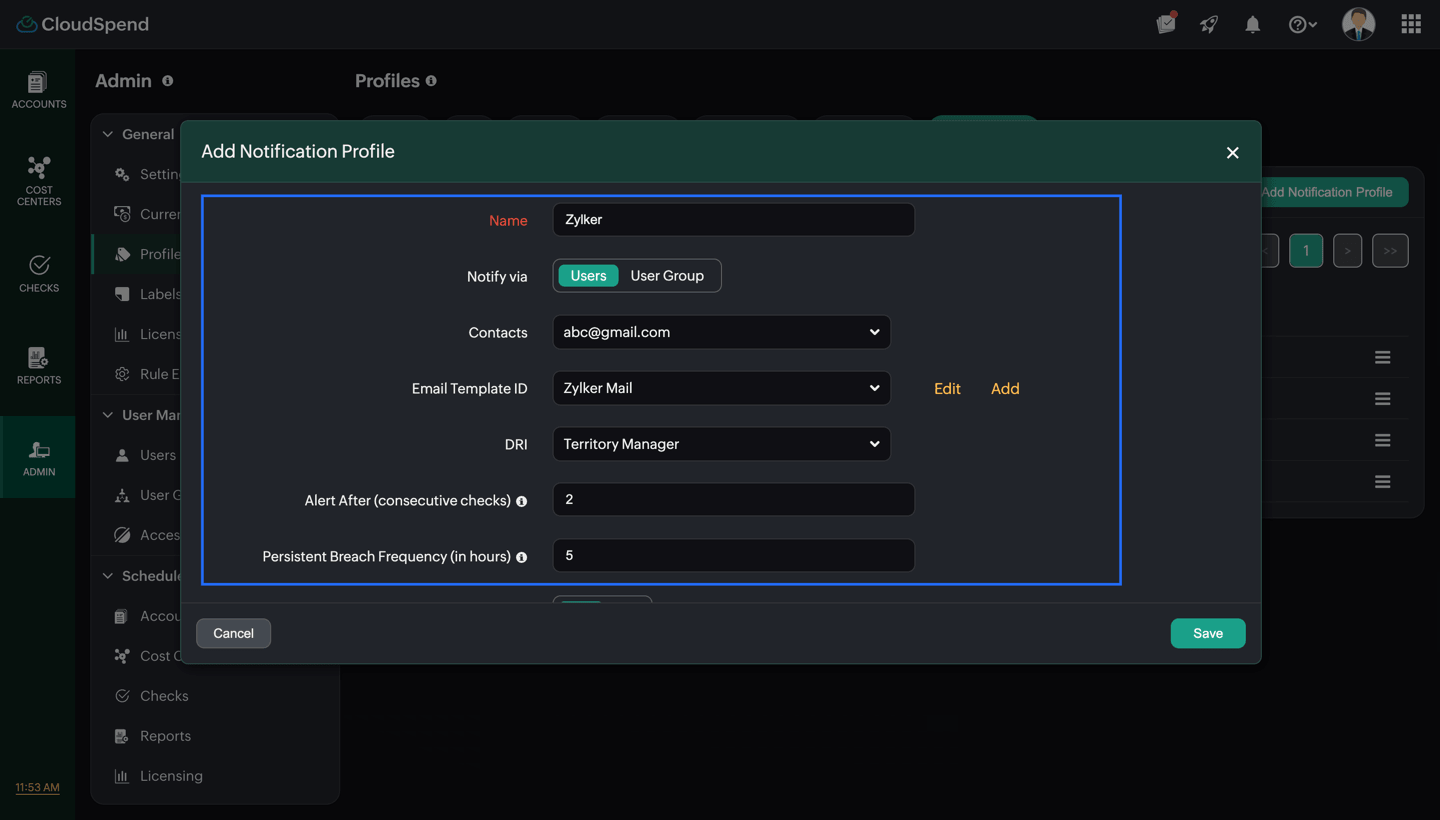
- Alert After (consecutive checks): Specify the number of consecutive check evaluations that must breach the configured threshold before CloudSpend sends a notification. This helps prevent alerts caused by temporary or short lived issues.
- Persistent Breach Frequency (in hours): Specify how often CloudSpend should resend notifications while the check remains in a breached state.
- Notification Enabled: Enable or disable notifications for the profile. When disabled, the associated checks continue to run, but CloudSpend does not send notifications. This is useful when you want to temporarily suppress alerts without deleting or modifying the notification profile.
- Include RCA: Enable this option to include RCA details in notification emails. Including RCA helps recipients understand the likely cause of the breach and begin troubleshooting more quickly.
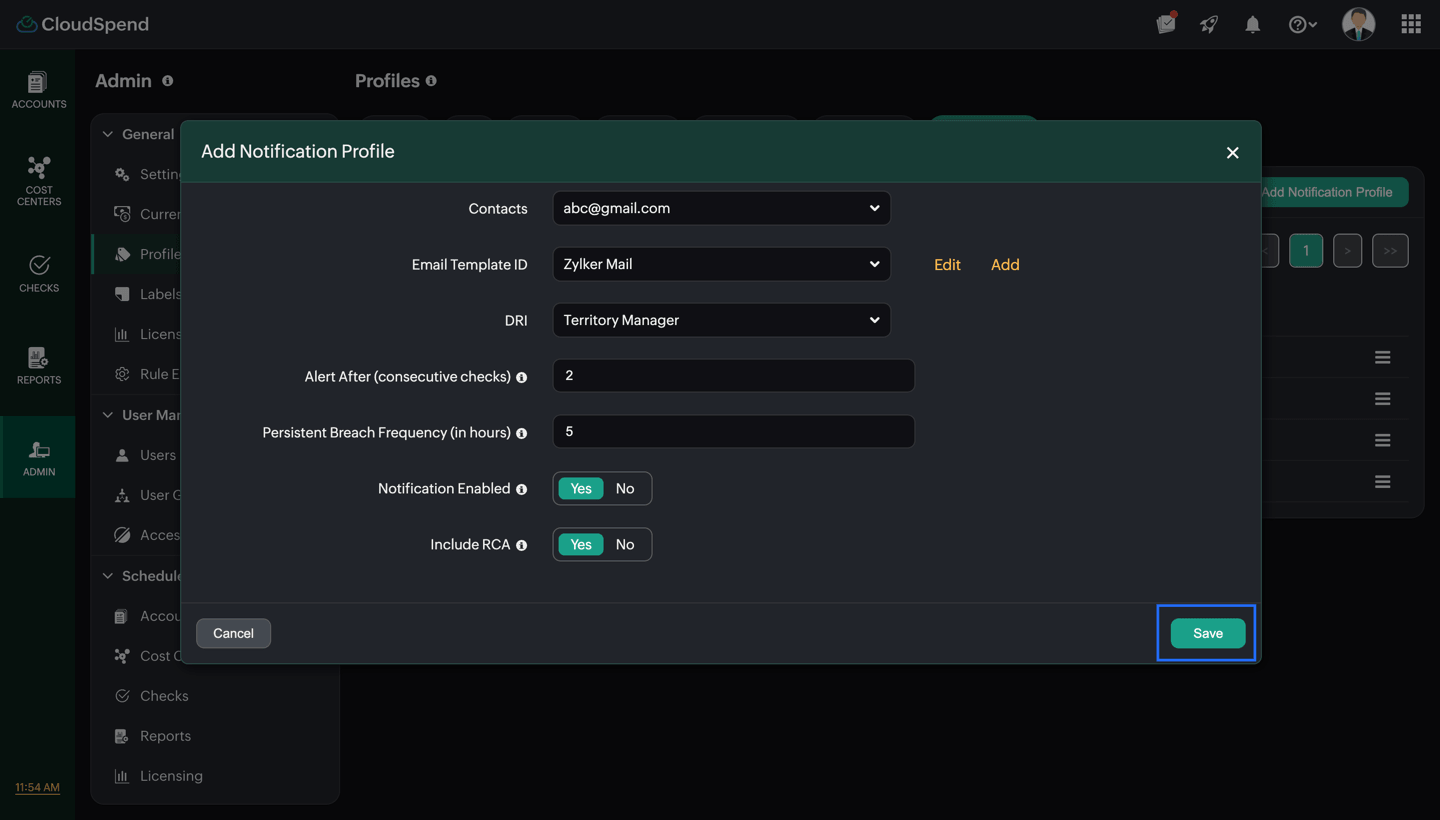
- Click Save.
Once created, the notification profile can be selected while configuring Budget, Anomaly, or Governance checks.
Creating an email template
If you want to use a custom email template, click Add next to Email Template ID and provide the following details:
- Display Name: Enter a unique name to identify the email template.
- Subject: Enter the subject line that appears in the notification email.
- Content: Enter the body of the notification email.
Click Save to create the template. The template will then be available for selection in the Email Template ID field while configuring notification profiles.
Using Notification Profiles
Notification Profiles can be associated with the following CloudSpend checks:
When a configured check breaches its threshold, CloudSpend uses the selected notification profile to determine:
- Who should receive the notification.
- Which email template should be used.
- When the first notification should be sent.
- How often reminder notifications should be delivered.
- Whether RCA information should be included.
This separation between checks and notification settings makes it easier to maintain consistent alerting across your CloudSpend environment.