Access Control
Access Control in CloudSpend lets admins manage who can see or modify cost data. The feature has two main parts:
- Roles, which decide what actions a user can perform.
- Permission Boundaries, which limit where those actions apply.
Together, they help keep access organized and controlled. For example, a user may have a role that lets them edit budgets, but a boundary can limit them to the budgets of only the cost accounts they manage. Another user might have a role to view reports, but their boundary restricts access to only the cost accounts assigned to that user by that the user can view only reports related to allowed cost accounts. When both parts work together, admins can give users exactly what they need without exposing unrelated or sensitive cost data.
Benefits of Access Control
You can leverage the following benefits with the Access Control feature:
- Better control of data access: Keeps cost data organized and accessible only to the right users.
- Safer changes across the product: Reduces the risk of accidental updates or deletions.
- Smoother user setup: Makes onboarding easier with predefined access patterns.
- Consistent oversight: Helps maintain steady governance across accounts, cost centers, reports, budgets, and other areas.
Roles
Roles are CloudSpend’s role based access control (RBAC) layer, enabling organizations to define and manage user permissions efficiently. With RBAC, admins can assign specific access levels to users based on their roles, ensuring that only authorized personnel can read, write, or delete cost-related data. Once a role is assigned to a user, that user can perform the allowed actions across the product unless further restricted by a Permission Boundary.
Use cases for Roles
To get a better understanding of how the RBAC work, let's look at a few scenarios.
Scenario 1
A finance team needs access to budget reports to study spending trends, but they should not touch cost configurations. The cost admin creates a Finance Viewer role with read-only access to Budget Checks and Reports. To narrow the scope further, a Permission Boundary is applied so the team can view data only for the cost centers they manage. This keeps financial analysis accurate while preventing changes to cost settings and unrelated accounts.
Scenario 2
The IT operations team works on resolving cost anomalies but does not need access to budgets or admin settings. The cost admin creates an Anomaly Manager role with read and write access to Anomaly Checks. A Permission Boundary is then attached to restrict visibility to only the cost accounts handled by the operations team. This lets them review anomalies, update findings, and act on issues while keeping financial controls and other modules out of reach.
Scenario 3
During a cloud outage, an IT admin needs temporary access to adjust budgets and fix misconfigured rules. The cost admin assigns a Temporary Admin role with read, write, and delete permissions. A Permission Boundary is added to limit this emergency access to the specific accounts affected by the outage. The admin resolves the issue, updates the required rules, and the boundary ensures no other cost areas are exposed. Once normal conditions return, the temporary role is removed.
Adding a role
To add a new custom role:
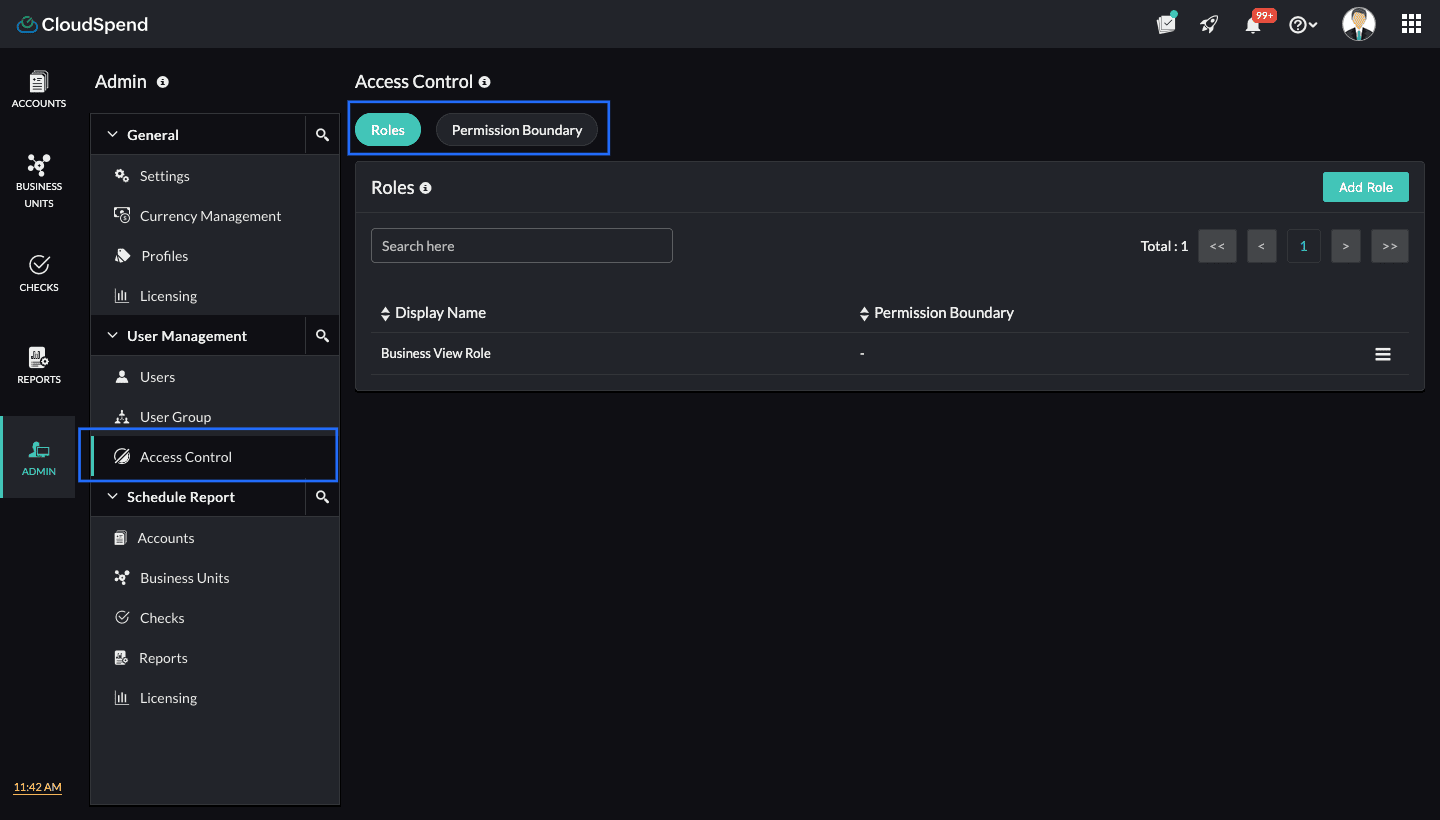
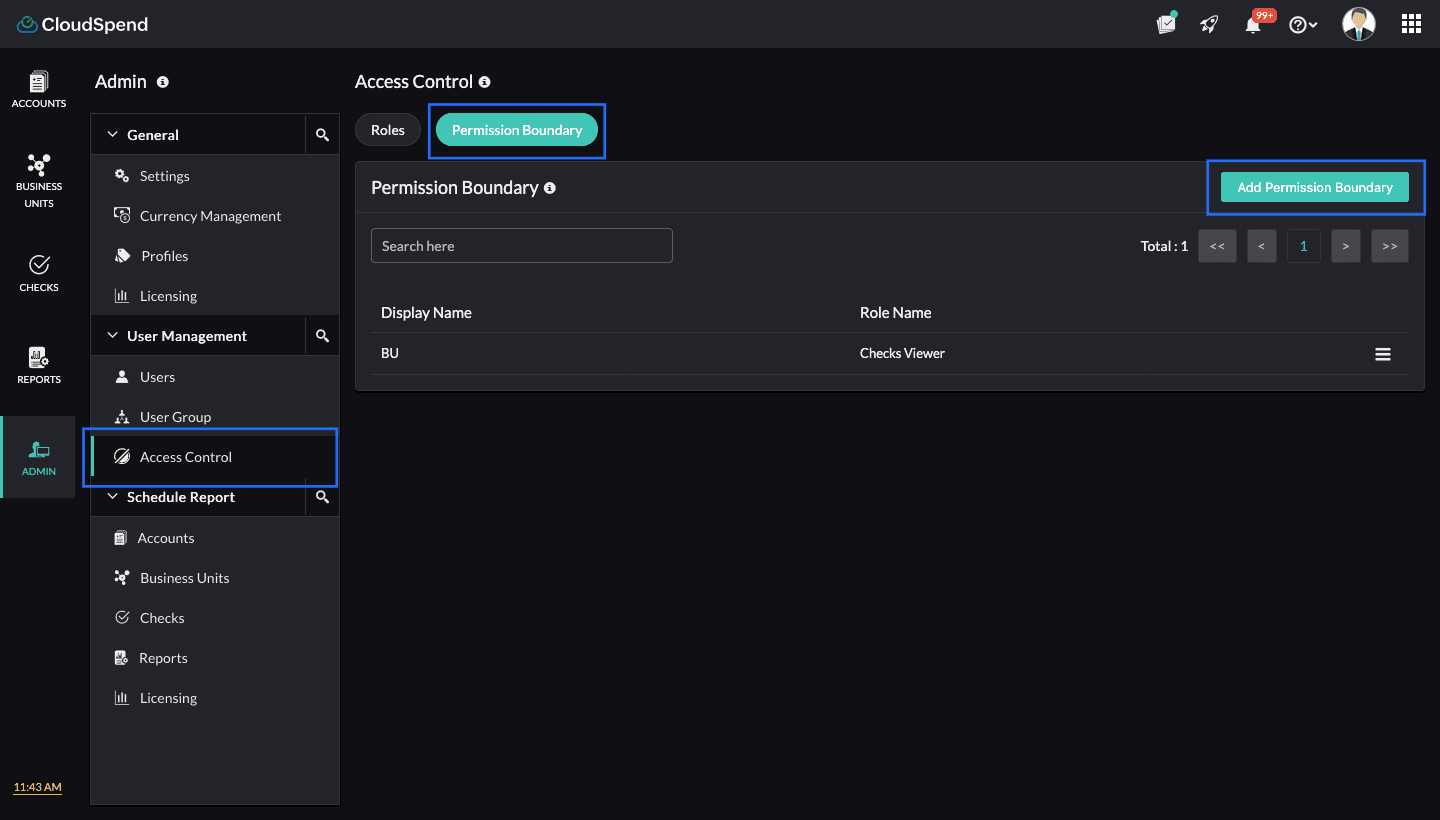
- Navigate to Admin > UserManagement > AccessControl.
- Select Roles.
- Click Add Role.
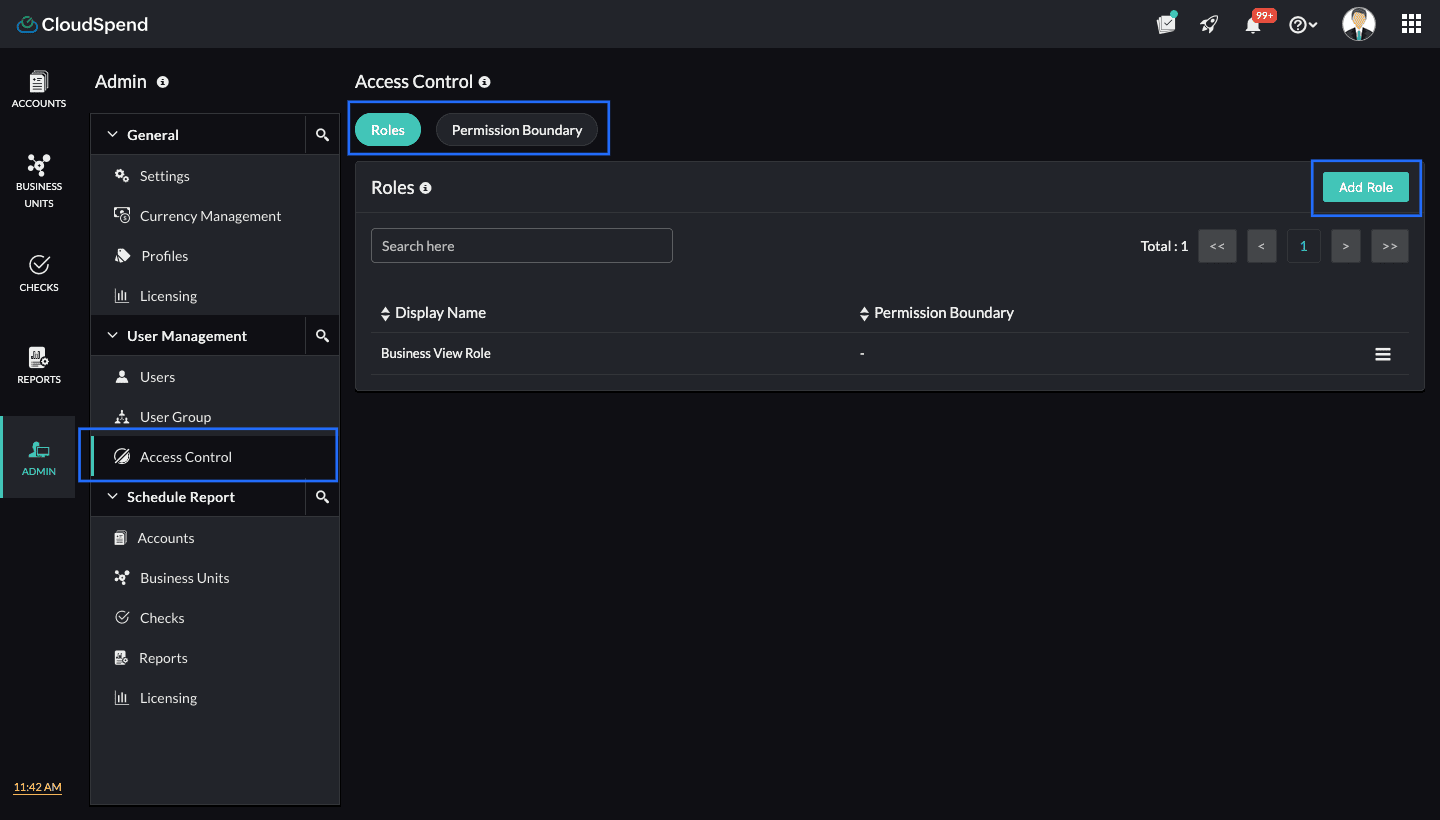
- On the Add Role page, follow the below steps:
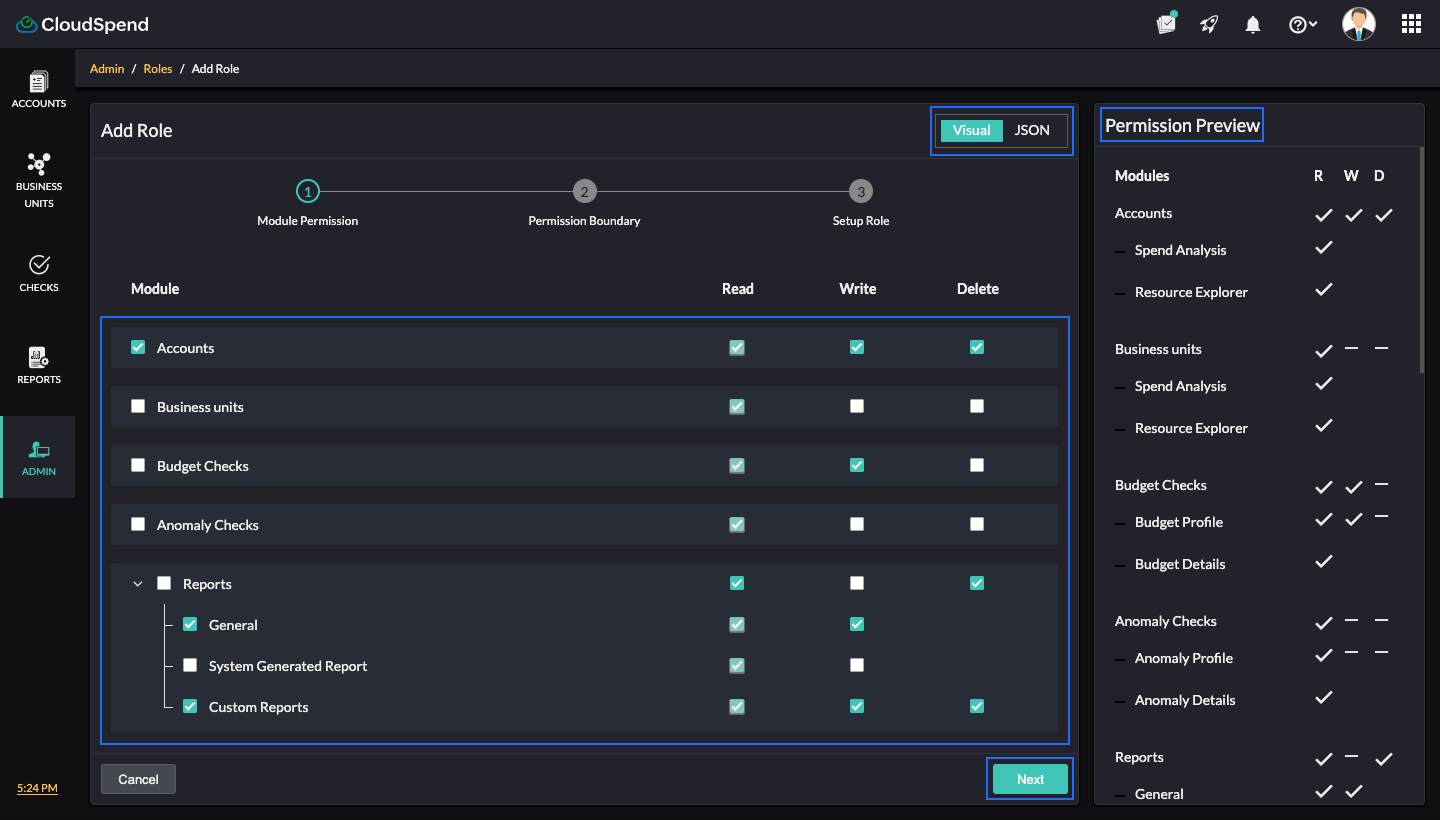
- Step 1 - Module Permission
Select the desired modules and the applicable permissions. Alternatively, you can toggle to the JSON option to add the desired permissions to the custom role. Review the Permission Preview panel to verify access settings.
When you add the desired permissions for the custom role in JSON format, ensure that you follow the below syntax:
[
{
"module_name": "<enter the required module name>",
"permissions": [
"Read",
"Write",
"Delete"
]
} ]- Click Next.
- Step 2 - Permission Boundary
- Select the required Permission Boundary from the drop-down menu. If you wish to add a new Permission Boundary, click Add and follow steps 6 and 7 in Creating a Permission Boundary. To edit the current Permission Boundary, click Edit, make the necessary changes and click Save.
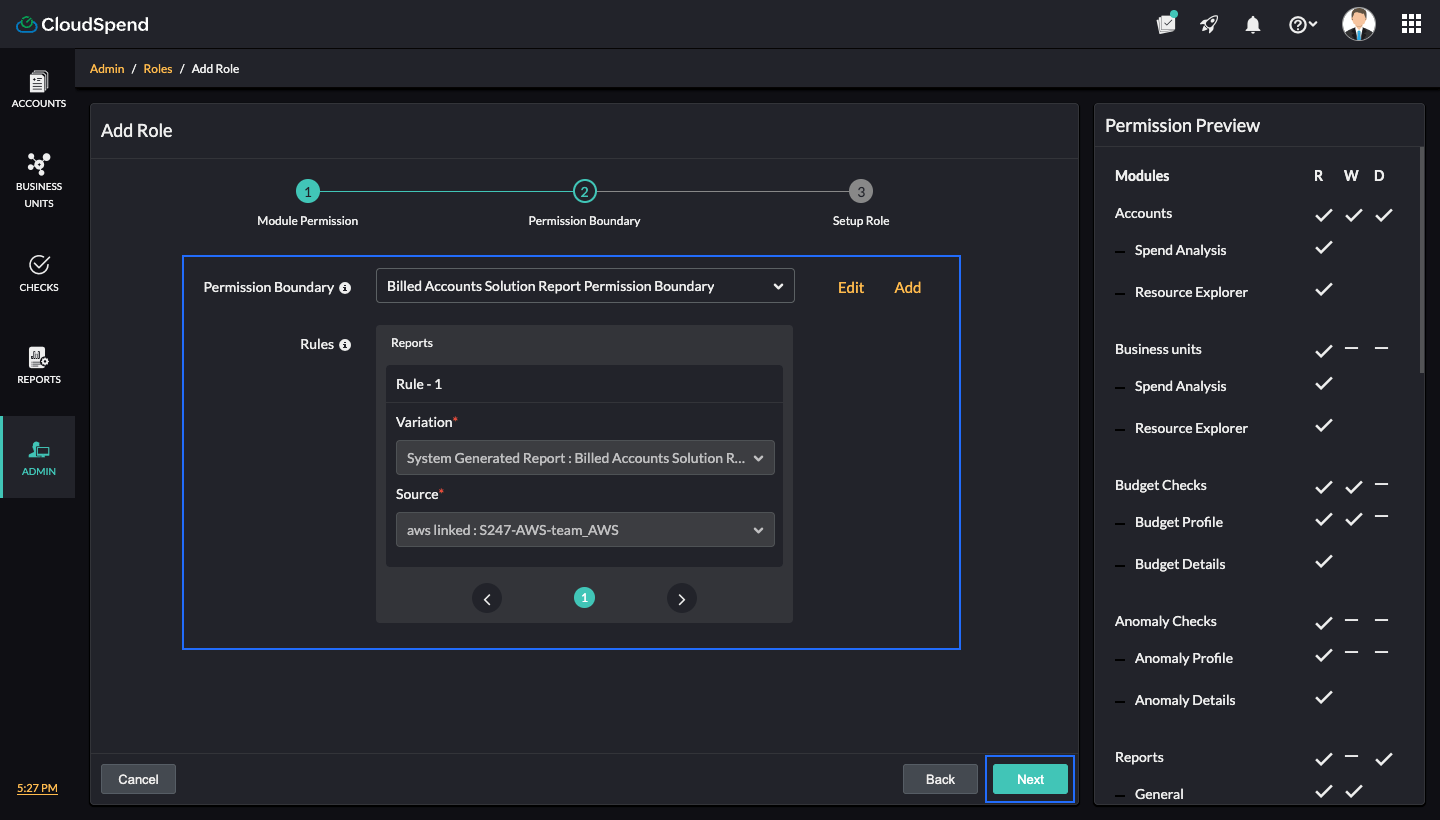
- Click Next.
- Select the required Permission Boundary from the drop-down menu. If you wish to add a new Permission Boundary, click Add and follow steps 6 and 7 in Creating a Permission Boundary. To edit the current Permission Boundary, click Edit, make the necessary changes and click Save.
- Step 3 - Setup Role
- Enter the Role Name and Role Description.
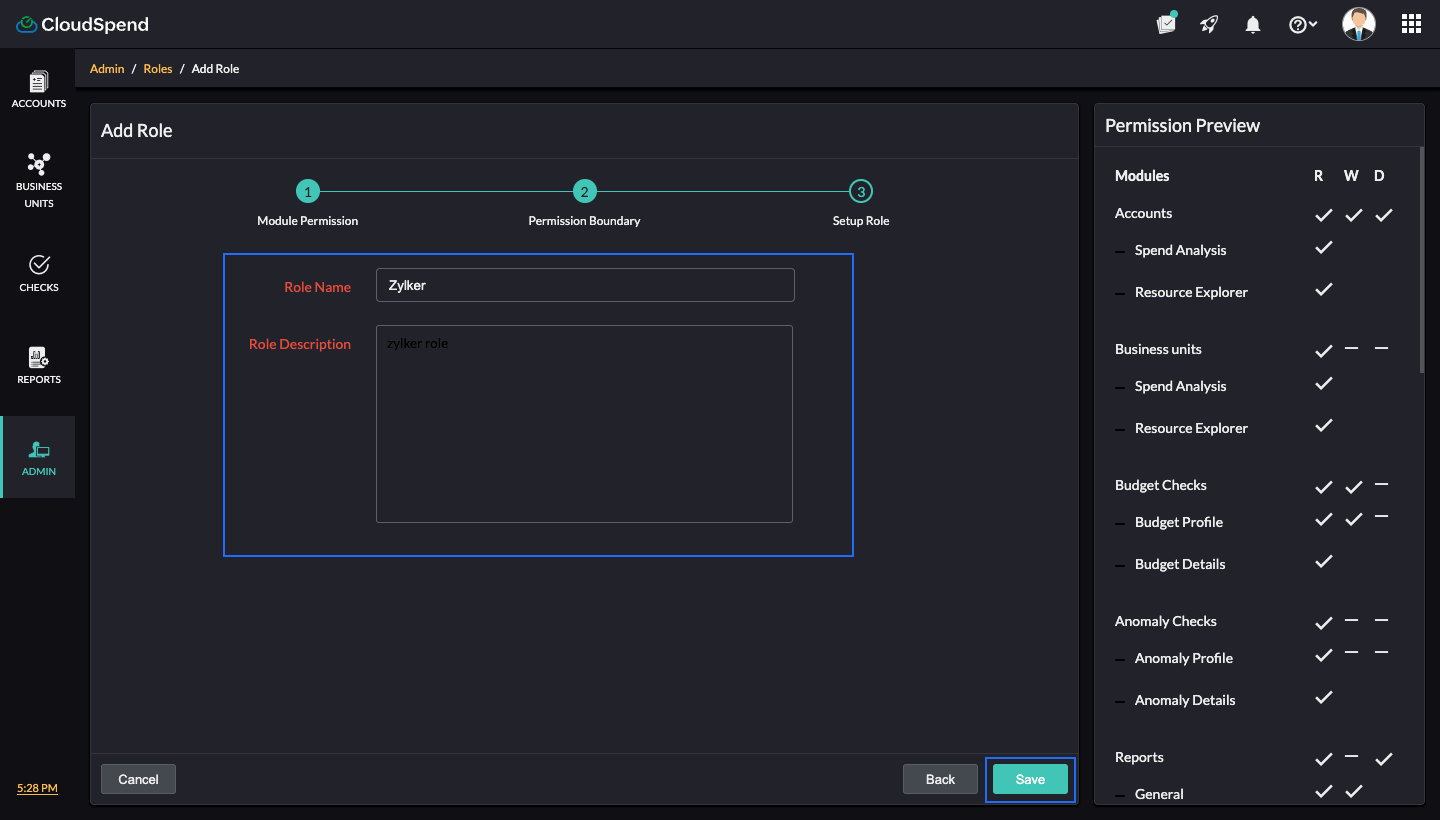
- Click Save to add the role. You can view the role you added on the Roles page.
- Enter the Role Name and Role Description.
- Step 1 - Module Permission
Editing a custom role
To edit custom roles details:
- On the Role page, click the hamburger icon next to the applicable custom role.
- Click Edit.
- Make the required changes in the Module Boundary, Permission Boundary, or Role Setup steps.
- Click Save.
Deleting a custom role
To delete a custom role:
- On the Role page, click the hamburger icon next to the applicable custom role.
- Select Delete and type Delete in the text box.
- Click Delete.
Permission Boundary
A Permission Boundary is a rule-based access control layer in CloudSpend. It limits what a user or role can see or do by applying filtering rules on different entities called variations. These variations include cost accounts, cost centers, reports, budgets, and other areas across the product.
When you create a Permission Boundary, you choose which resources should be allowed for read, write, or delete actions. After that, you can attach the boundary to any custom role. The role still has its permissions, but the boundary limits them so users stay within the allowed scope.
How a Permission Boundary works
A Permission Boundary contains one or more rules. Each rule has a:
- Variation: The module you wish to control with read, write, or delete access. For example: Cost Account or Cost Centers.
- Source: The exact resources you wish to allow with read, write, or delete access. For example: Zylker or Zylker BU.
CloudSpend uses a parent and child hierarchy to decide how these rules flow through modules. If a rule exists at the parent level, it usually affects everything below it. If a child has its own rule, that child uses its own rule first. If the parent has no rule, the child rule works on its own. If both have rules, CloudSpend combines them and shows only what items match both.
For example, if a cost account has a rule but its cost centers do not, the cost centers follow the cost account filter. If both have rules, CloudSpend combines them and allows only items that match both.
Suppose you set a rule on a Cost Account and another rule on a Cost Centers.
- Cost Account rule allows access only to Zylker Cost Account.
- Cost Centers rule allows access only to Zylker BU West.
Cost Centers (child) belong to Cost Accounts (parent). Because both levels have rules, CloudSpend shows only the cost centers that match both.
- If Zylker BU West is linked to Zylker Cost Account , the user will have the applicable access to it.
- If Zylker BU West belongs to a different cost account, the user will not have access to it.
This is how the hierarchy keeps access consistent and avoids exposing data outside the boundary.
Supported Variations
The following Variations can be used when creating rules in a Permission Boundary:
- Cost Account
- Cost Centers
- Checks
- System Generated Reports
- General Report
- Custom Report
- Schedule Reports
- Budget Profile
- Anomaly Profile
- Report Profile
Variation hierarchy
The following table shows the parent-child hierarchy variations in CloudSpend.
| Hierarchy 1 (Parent) | Hierarchy 2 (Child) | Hierarchy 3(Child) | Hierarchy 4(Child) |
| Account | Cost Centers | Budget Checks | Budget Profile |
| Account | Cost Centers | Anomaly Checks | Anomaly Profile |
| Account | Budget Checks | Budget Profile | |
| Account | Anomaly Checks | Anomaly Profile | |
| Account | System Generated Report | Budget Checks | Budget Profile |
| Account | System Generated Report | Anomaly Checks | Anomaly Profile |
| Account | General Report | ||
| Account | Custom Report | ||
| Account | Report Profile |
How filtering works based on rules
CloudSpend looks at the rules you set and applies them based on where those rules sit in the hierarchy. The hierarchy has parent variations at the top and child variations linked below them.
When a rule is missing at one level, CloudSpend uses the closest rule it can find. When rules exist at both levels, it combines them.
Let's consider some scenarios:
Scenario 1: The child has a rule but the parent does not
This means the parent variation has no restrictions, but the child does. CloudSpend applies the child rule because that is the only rule available.
Example
- You do not set any rule for cost accounts.
- You set a Cost Centers rule allowing only Zylker BU East.
In this case, the cost account has no rule. Therefore, CloudSpend ignores it and filters everything based on the Cost Centers rule. The user will see only Zylker BU East and the related data. This is useful when you want to control access at a more detailed level while keeping the higher level open.
Scenario 2: The parent has a rule but the child does not
Here, the child variation has no rule of its own. It inherits whatever rule you set at the parent level.
Example
- You allow only Cost Account Zylker.
- You do not set any rule for Cost Centers.
Since Cost Centers belong to a cost account, CloudSpend will allow only the Cost Centers that fall under Zylker . The user will see only the Cost Centers linked to that cost account. This works well when you want high level filtering without needing to configure every child item.
Scenario 3: Both parent and child have rules
When both levels have rules, CloudSpend combines them. Only items that satisfy both rules will be visible. Think of this as the overlap between the two allowed lists.
Example
- Cost Account rule allows Zylker A and Zylker B.
- Cost Centers rule allows BU North and BU West.
So, CloudSpend checks which Cost Centers belong to which cost account. If BU North belongs to Zylker A and BU West belongs to Zylker C then, the final result will be:
- Access is allowed for BU North.
- Access is not allowed for BU West, because BU West does not belong to either Zylker A or Zylker B.
This prevents access to unrelated data even when individual rules might allow more.
Scenario 4: A rule exists for any variation
Whenever you set a rule for a variation, CloudSpend blocks users from creating new items under that variation unless they fall inside the rule.
Example
You set a rule allowing access only to Custom Report Zylker report A. In this case, users cannot create new custom reports unless those reports belong to the allowed scope.
This keeps the boundary secure and prevents bypassing access restrictions by creating new items.
Use cases for Permission Boundary
Restricting access for a finance team
A finance analyst may need visibility into only two cost accounts. You can create a Permission Boundary with rules for those accounts and link it to the custom role assigned to the analyst. Even if the role grants access to reports or budgets, the boundary ensures they see data only from the allowed accounts.
Limiting access for BU-level owners
A BU owner might need access only to specific cost centers. A boundary with cost center rules ensures they view only their own BU, its budgets and its anomaly profiles. If no cost account rule exists, CloudSpend still filters everything using the BU rule.
Allowing report access but restricting creation
You may want a user to view only certain custom reports. A Permission Boundary with report rules ensures they can access only those reports. Because rules exist, users cannot create new reports that fall outside the permitted list.
Applying layered controls
Some environments need filtering at multiple levels. For example, you might restrict cost accounts at the parent level and budgets at the child level. CloudSpend uses the intersection of the two rules. The user sees only budget profiles tied to the allowed cost accounts and also allowed within the budget rules.
Creating a Permission Boundary
To create a new Permission Boundary:
- Go to the Admin module.
- Select User Management.
- Select Access Control.
- Choose Permission Boundary.
- Click Add Permission Boundary to create a new one.
- On the Add Permission Boundary page, enter the following details:
- Display Name: Provide the display name for your Permission Boundary.
- Rules: Group and assign rules that define what a custom role can access. Assigning a rule to a custom role restricts access to specific modules within your integrated cost accounts. Select the applicable Variation and Source. If you wish to add more rules, click the plus icon + in the Rules section and select your variation and source.
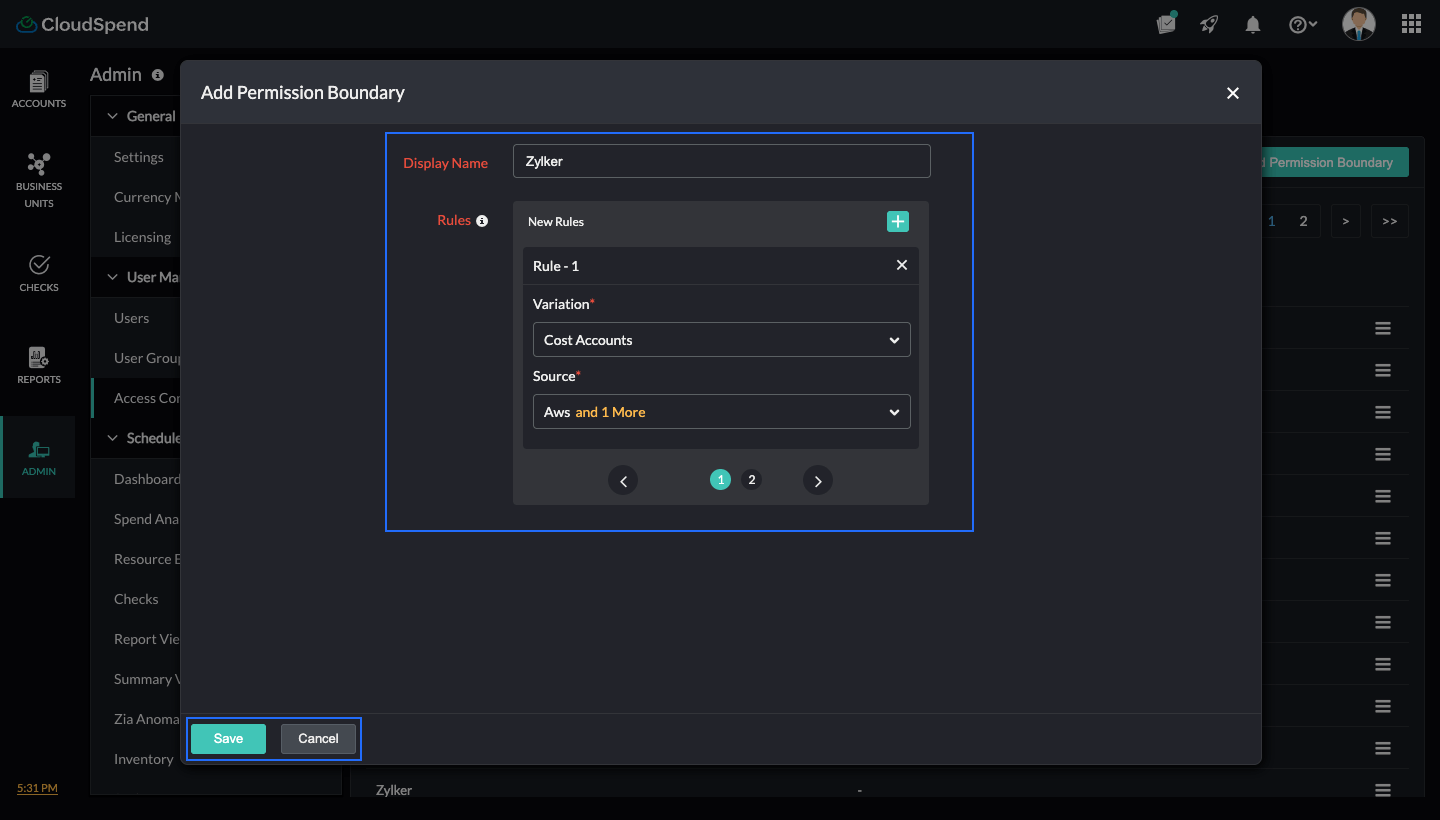
- Click Save. The Permission Boundary you created will be saved and displayed on the Permission Boundary page.
Editing a Permission Boundary
To edit a Permission Boundary:
- Click the hamburger icon next to the applicable Permission Boundary.
- Select Edit and make the necessary changes.
- Click Save.
Deleting a Permission Boundary
To delete a Permission Boundary:
- Click the hamburger icon next to the applicable Permission Boundary.
- Select Delete and type Delete in the text box.
- Click Delete.
Mapping a Permission Boundary to a custom role
Once configured, a Permission Boundary can be mapped to a custom role. All permissions assigned to that role will operate within the filtering defined by the boundary.
To map a Permission Boundary to a new custom role:
- Go to the Admin > User Management > Access Control.
- Select Roles.
- Click Add Role.
- In the Add Role page, select the desired modules and the applicable permissions. Alternatively, you can toggle to the JSON option to add the desired permissions to the custom role.
- Click Next.
- Select the required Permission Boundary from the drop-down menu. If you wish to add a new Permission Boundary, click Add and follow steps 6 and 7 in Creating a Permission Boundary. To edit the current Permission Boundary, click Edit, make the necessary changes and click Save.
- Click Next.
- Enter the Role Name and Role Description.
- Click Save.
To map a Permission Boundary to an existing custom role:
- Go to the Admin > User Management > Access Control.
- Select Roles.
- Click the hamburger icon next to the applicable role and select Edit.
- Make the necessary changes in the Module Permission step and click Next.
- Select the required Permission Boundary from the drop-down list. If you wish to add a new Permission Boundary, click Add and follow steps 6 and 9 in Creating a Permission Boundary. To edit the current Permission Boundary, click Edit, make the necessary changes and click Save.
- Click Next and then, click Save.