Zia Agent Studio
Zia Agent Studio enables you to create and manage custom AI agents by defining the tools, knowledge sources, and behavior that guide how each agent operates. You can use system tools or custom tools within Zia Agent Studio to build agents from scratch and tailor them to your needs.
Use the CloudSpend tools in Zia Agent Studio to create agents for cost analysis, anomaly detection, reporting, governance insights, and more, based on the tasks they need to handle. You can also define the knowledge sources the agent can refer to, and control how it interprets and responds to user queries. This determines what data the agent can access and how it generates responses. By selecting the right combination of tools and context, you can create focused agents for different use cases. This makes it easier to manage cloud spend, investigate anomalies, track budgets, and retrieve insights in a more structured and efficient way.
Benefits of Zia Agent Studio
You can leverage these advantages provided by Zia Agent Studio:
- Create task specific agents: Build agents focused on a single purpose like cost analysis, anomaly investigation, or budget tracking, instead of using a one size fits all approach.
- Control what each agent can access: Limit or expand access to CloudSpend system tools based on the agent’s role, ensuring more relevant and accurate responses.
- Reduce manual effort: Agents can fetch data, analyze trends, and generate insights without requiring users to navigate multiple dashboards.
- Improve consistency in responses: With predefined tools and knowledge sources, agents return structured and predictable outputs across teams.
- Support different team needs: Finance, DevOps, and governance teams can use agents tailored to their specific workflows.
- Scale easily with new use cases: As requirements change, you can create new agents or update existing ones by adjusting tools and configurations.
How does it work?
Zia Agent Studio follows a configuration-driven approach where you define what an agent can access and how it should respond.
You start by creating an agent, selecting the required CloudSpend system tools, and adding relevant knowledge sources. These configurations determine what actions the agent can perform and how it understands user queries.
Once set up, the agent processes requests by using the selected tools, applying context from knowledge sources, and generating structured responses. The quality of the output depends on how well the agent is configured, so keeping its scope focused helps improve accuracy.
Connecting multiple agents for complex workflows
Multi-agent setup lets you connect multiple agents and make them work together as a group to handle tasks that are too complex for a single agent.
Instead of expecting one agent to do everything, you split the work. Each agent is assigned a specific role based on what it is best at. One agent might handle cost data, another might check logs, and another might look at incidents or changes. These agents are then linked so they can work as a team. This makes it easier to handle workflows that involve multiple steps or require data from different systems.
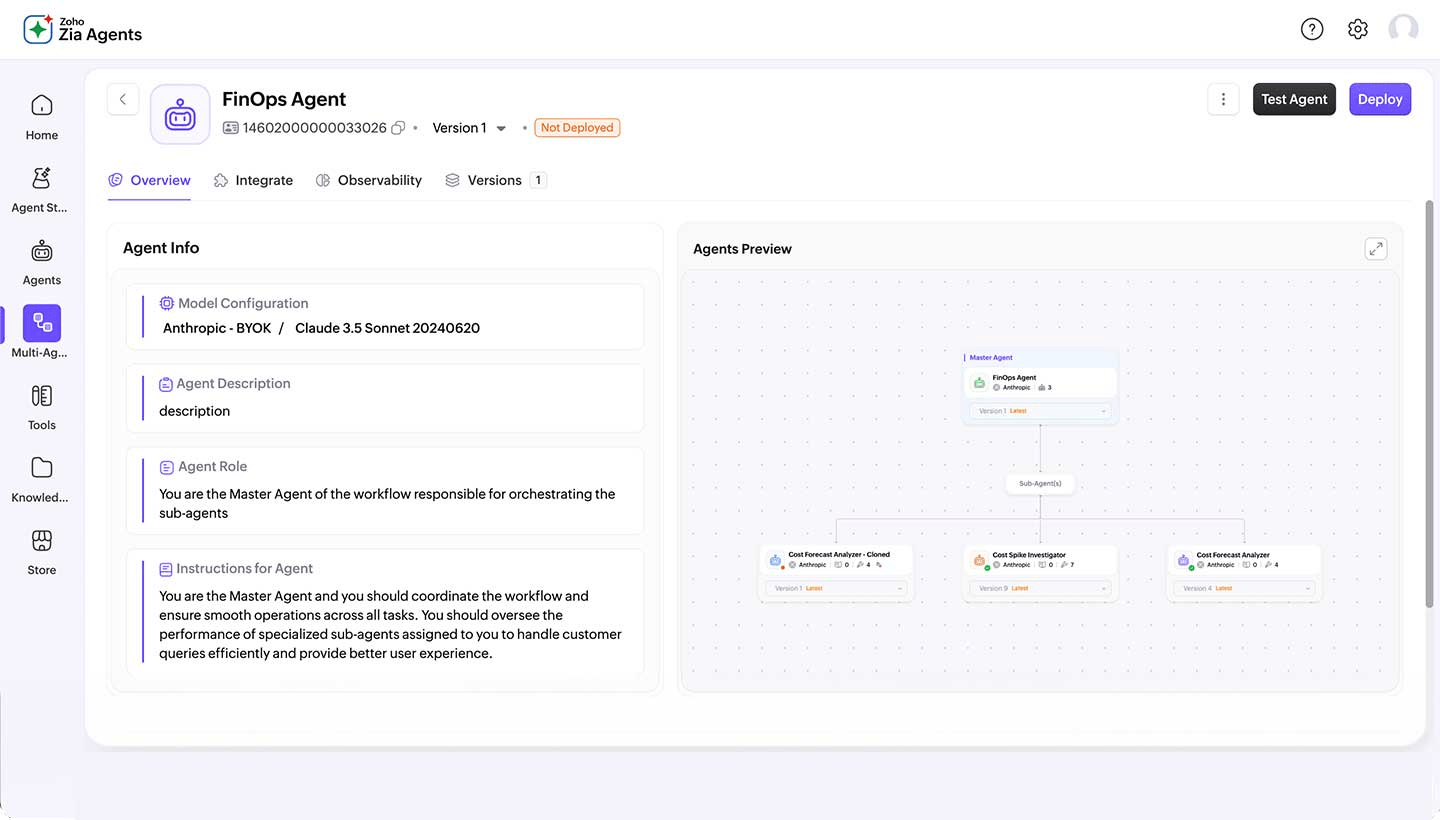
How do multi-agents work?
When a request is triggered, the system does not try to solve everything in one step. First, the request is understood and broken down into smaller parts. Each part is then sent to the right agent based on its role.
Each agent uses its own configured tools to perform its task. For example, one agent may fetch cost data, while another checks for unusual activity.
Once all agents complete their part, the results are brought together and combined into a single response. The final output gives a complete view instead of separate pieces of information.
This approach is useful when you need to connect data from different areas and understand the full picture. It reduces the need to switch between tools manually and helps teams receive faster and more meaningful insights.
Creating agents
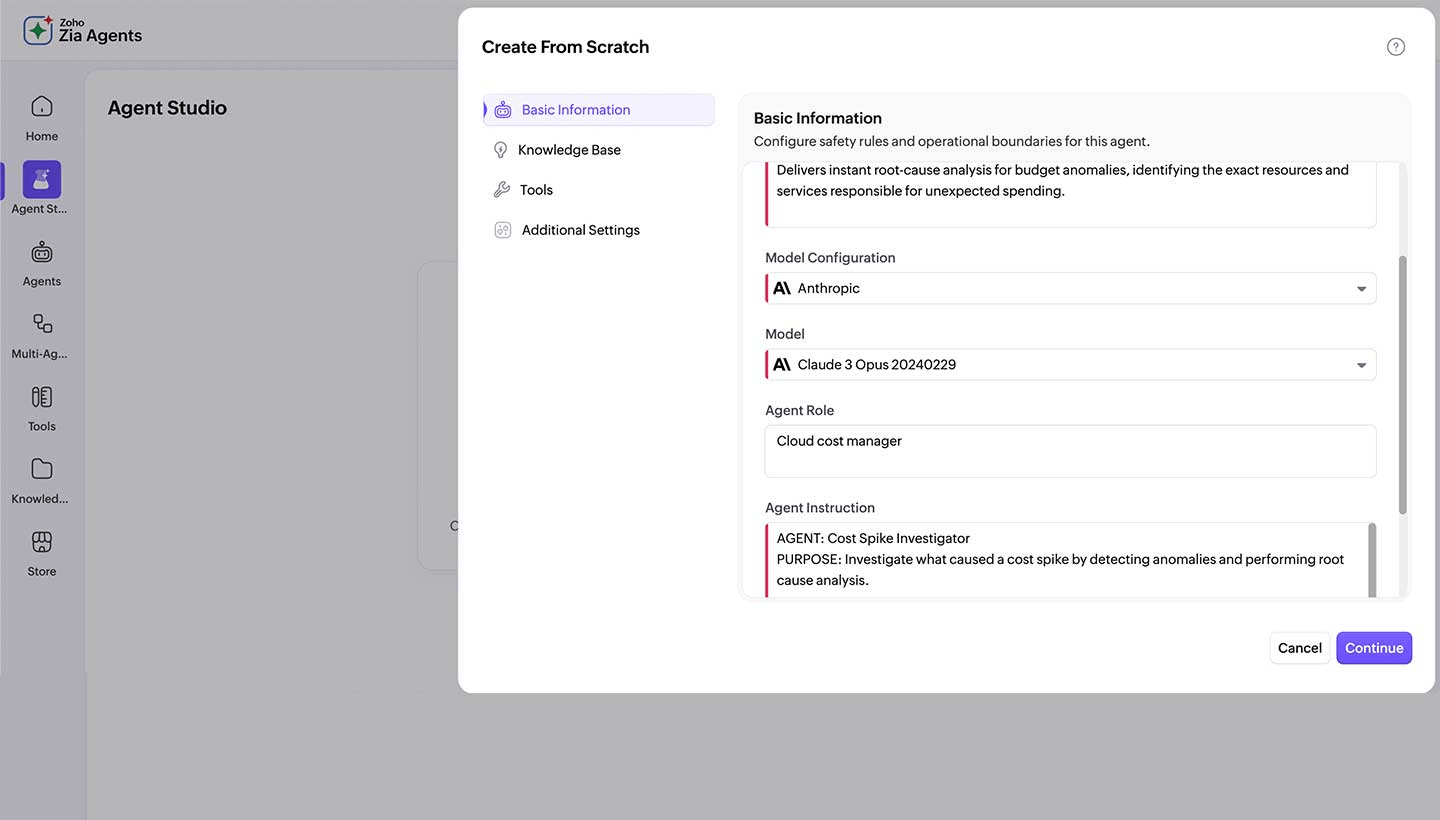
To create agents from scratch, login to Zia Agent with your CloudSpend credentials and navigate to Agent Studio, click Create From Scratch, and follow the steps below:
Step 1 - Basic Information
Provide the following details:
- Agent Name: Enter the agent name.
- Agent Description: Purpose of the agent.
- Model Configuration: Select the AI provider.
- Model: Select the specific model from your chosen AI provider.
- Agent Resource Role: The role the agent fills within your system.
- Agent Instruction: Provide the necessary context and tasks that the agent should perform.
- Click Continue.
Step 2 - Knowledge Base
- Add knowledge base articles to shape how the agent understands queries and generates responses.
- Click Continue.
Step 3 - Tools
- Click + Add Tools.
- At the top, you'll see a dropdown to switch between System Tools and Custom Tools.
- System Tools are organized by service. Select CloudSpend and you'll see all the available tools on the right. Each tool shows its name and a short description.
- Custom Tools show the tool groups you've created. Pick a group from the left, and its tools appear on the right.
- Select the ones your agent needs, and click Add. You can mix system and custom tools in the same agent. Just switch the dropdown, select, and add.
- Click Continue.
Step 4 - Additional Settings
- Built-in guardrails are enabled by default for every agent:
- Fairness & Bias: Checks responses to reduce bias that may come from personal views, cultural context, or broader societal patterns.
- Toxicity Check: Blocks responses that may be harmful, offensive, or inappropriate, helping keep interactions safe and respectful.
- Custom Guardrails: Turn this on to define your own rules for the agent. You can add clear instructions under Do’s and Don’ts as numbered lists to guide how the agent should behave.
- Click Create and your agent is built. You'll land on the agent details page.
CloudSpend Zia Agents
You can use the following prebuilt CloudSpend agents available in the Agent Store. Once added, the agent is available in your Zia Agents portal, where you can configure, deploy, and use it based on your workflow requirements.
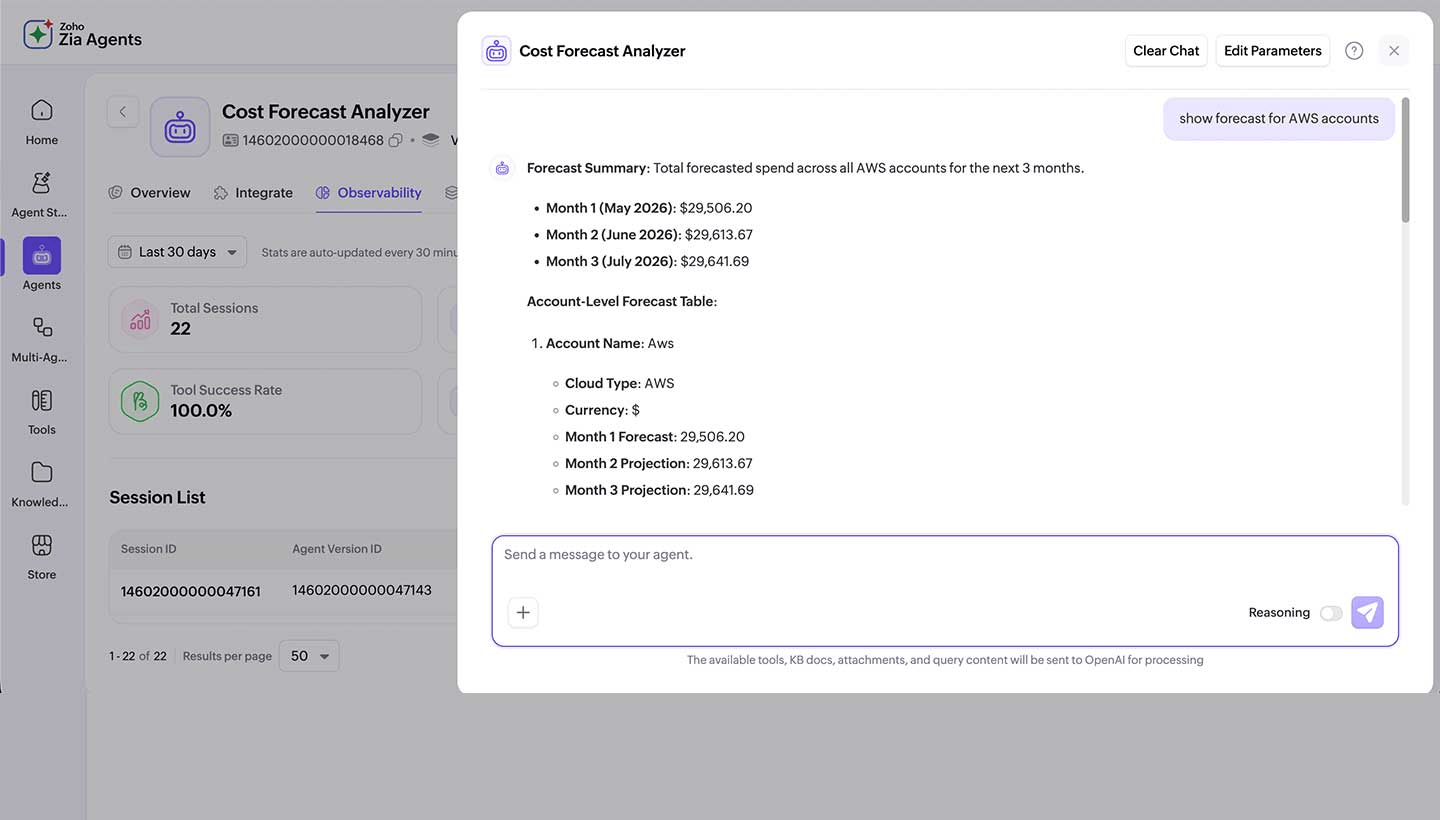
Cost Forecast Analyzer
The Cost Forecast Analyzer provides a detailed three month cloud cost forecast across your AWS, Azure, and GCP accounts. It gathers data from all connected accounts and uses ML-based forecasting to estimate future spend. It also calculates daily projections for upcoming months and highlights trends and accounts with increasing costs.
Steps to configure
- This agent must be triggered within the CloudSpend module.
- Use prompts such as: "what is my cost forecast", "forecast for next 3 months", "show forecast for AWS accounts", or "predict my cloud spend"
Key features
- Forecasts cloud spend for the next three months across all connected accounts.
- Uses ML-based predictions for accurate current month estimates.
- Generates daily projections for the next two months at entity level.
- Identifies accounts with high spend growth as alerts.
- Shows trend direction such as increasing, decreasing, or stable.
- Supports drill down by accounts, services, regions, or resource groups.
- Includes validation checks to ensure forecast accuracy.
Cost Spike Investigator
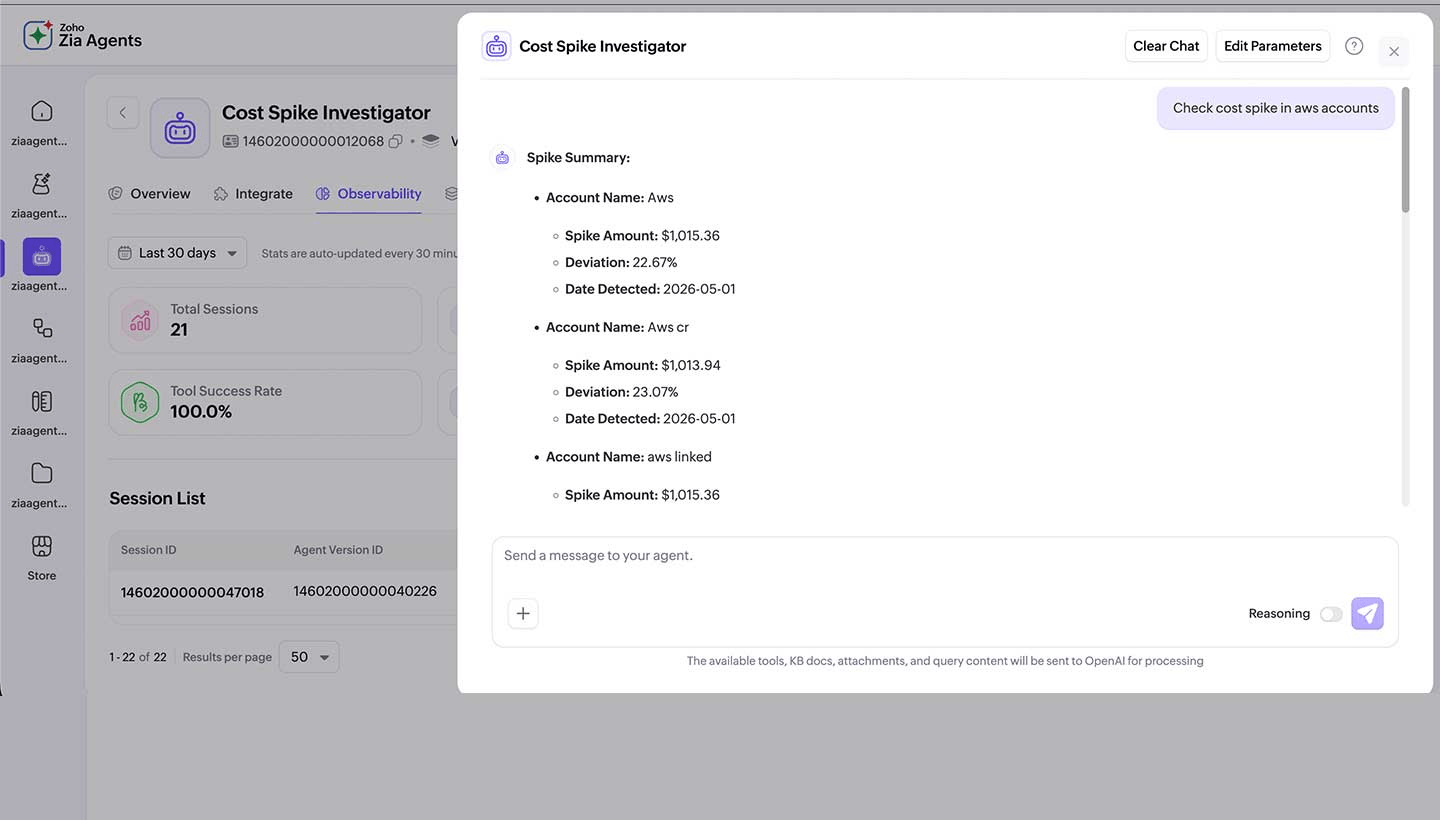
The Cost Spike Investigator automatically detects and analyzes unusual increases in cloud spend across your AWS, Azure, and GCP accounts. It uses ML-based anomaly detection to identify abnormal spending patterns, tracks when the spike occurred, and performs root cause analysis to find what caused the increase. It also provides a severity view along with suggested actions to help you resolve the issue.
You can also narrow down the analysis to specific Cost Centers for more focused investigation.
Steps to configure
- This agent must be triggered within the CloudSpend module.
- Use prompts such as: "investigate cost spike", "check for anomalies", "check anomalies in my AWS accounts", or "check cost centers for spikes"
Key features
- Detects cost anomalies across all connected AWS, Azure, and GCP accounts using ML-based analysis.
- Tracks the full anomaly timeline to show when spikes occurred.
- Identifies the exact resources and services responsible for the cost increase.
- Provides severity details including deviation percentage and cost impact.
- Supports analysis across all Cost Centers or specific ones.
- Compares current and previous month spend to highlight spike contributors.
- Suggests actions to help reduce or control unexpected costs.
Example scenarios
Scenario 1: Investigating an unexpected spike in cloud costs
An operations team notices that their cloud bill has suddenly increased during the current billing cycle. The total cost is higher than expected, but it is not immediately clear what caused the spike. It could be due to increased usage, a new resource being added, or a misconfiguration, but finding the exact reason manually would require checking multiple dashboards and reports.
To simplify this, they use the Cost Spike Investigator agent. The agent looks at anomaly data and compares current usage with past trends to identify what changed. It then pinpoints the exact resources, services, or accounts that contributed to the increase.
Instead of showing raw data, the agent explains the issue in a clear way. For example, it might highlight that a specific service had a sudden increase in usage or that a new resource was running longer than expected.
With this information, the team can quickly understand what went wrong and take action, such as stopping unused resources, correcting configurations, or optimizing usage. This avoids the need to trace the issue across multiple services manually and speeds up the resolution process.
Scenario 2: Planning next quarter cloud budget across multiple accounts
A finance team is preparing for the next quarter and needs to estimate how much the organization will spend on cloud services. Since the company uses multiple cloud accounts, the data is spread across different places, making it difficult to get a clear overall picture. Manually checking each account and combining the data takes time and can lead to errors.
To simplify this, they use the Cost Forecast Analyzer agent. The agent collects forecast data from all cloud accounts and brings it together into a single, unified view for the next three months.
Instead of just showing numbers, the agent helps the team understand where the costs are likely coming from. For example, it can highlight which services are expected to consume more budget or which accounts are likely to see an increase in spending.
With this information, the finance team can plan budgets more accurately, allocate costs to the right teams, and take early action if something looks too high. This helps avoid surprises at the end of the billing cycle and makes budget planning more predictable.
Scenario 3: Investigating a cost spike using connected CloudSpend agents
A cloud operations team notices a sudden spike in cloud costs during the current billing cycle but is unsure what caused it. Since cost and resource level details are available only for accounts linked with CloudSpend, the team relies on CloudSpend agents to investigate the issue instead of checking multiple systems.
To handle this, they set up a multi-agent workflow using three CloudSpend agents with distinct roles. The Cost Spike Detector agent identifies the anomaly, pinpoints when the spike started, and highlights the affected accounts and services. The Cost Analyzer agent then drills deeper into those services to break down the costs and identify the exact resources and usage patterns contributing to the increase. Finally, the Cost Insight Summarizer agent consolidates the findings and presents a clear, easy to understand explanation of the issue.
Each agent uses CloudSpend system tools to perform its task. One detects the issue, another analyzes it in detail, and the third simplifies the output into actionable insights.
The combined response gives the team a complete view of what caused the spike, without manually navigating through multiple reports. With this clarity, they can quickly take corrective actions such as stopping unused resources, optimizing workloads, or adjusting configurations.