Zia Agents
Zia Agents in CloudSpend uses AI to help you analyze cloud costs, investigate anomalies, generate reports, and work with CloudSpend data using natural language.
You can use the predefined agents available in CloudSpend or create custom agents for specific FinOps requirements. Custom agents can be configured with selected CloudSpend tasks, instructions, and additional knowledge through solutions.
Why use Zia Agents
CloudSpend delivers cost, account, anomaly, hierarchy, tagging, and governance information across different areas of its interface. Zia Agents brings these capabilities together through an AI-based conversational experience.
With Zia Agents, you can:
- Ask questions about cloud spending using natural language.
- Investigate unexpected cost increases and anomalies.
- Analyze cost trends across accounts and services.
- Generate and retrieve account reports.
- Analyze account and cost allocation hierarchies.
- Work with resource tagging information.
- Investigate governance-related data.
- Create custom agents for specific FinOps workflows.
- Provision custom agents with organization-specific knowledge.
- Configure supported AI providers using your own API keys.
Benefits of Zia Agents in CloudSpend
Zia Agents delivers the following advantages:
- Faster cost analysis: Ask questions directly instead of navigating through different CloudSpend screens and reports.
- Focused FinOps assistance: Use specialized agents for activities, including cost analysis, anomaly investigation, account reporting, and cost center reporting.
- Custom workflows: Create agents based on the specific tasks and analysis required by your organization.
- Organization-specific knowledge: Add reference documents to solutions and associate them with agents to provide additional context that may not be available through CloudSpend data alone.
- Flexible AI configuration: Select an available AI model for your queries and configure supported AI providers through BYOK.
Use cases
Understand how Zia Agents can support common cloud cost management and analysis with the below scenarios.
1. Investigating unexpected cost increases
When cloud spending suddenly increases, identifying the reason can require reviewing multiple accounts, services, and cost reports. Zia Agents can help investigate these changes by using cost and anomaly data to identify unusual spending and the areas contributing to the increase. For example, you can ask, "Why did my cloud spending increase this month?" and use the response as a starting point for investigating the underlying cost drivers.
2. Monitoring daily and monthly spending
FinOps teams often need to keep track of spending throughout a given billing period rather than waiting until the end of the month. Agents, such as the Daily Cost Trend Monitor, can help analyze changes in spending over time. You can use natural language queries to understand whether costs are increasing, decreasing, or remaining consistent and identify trends that may require attention.
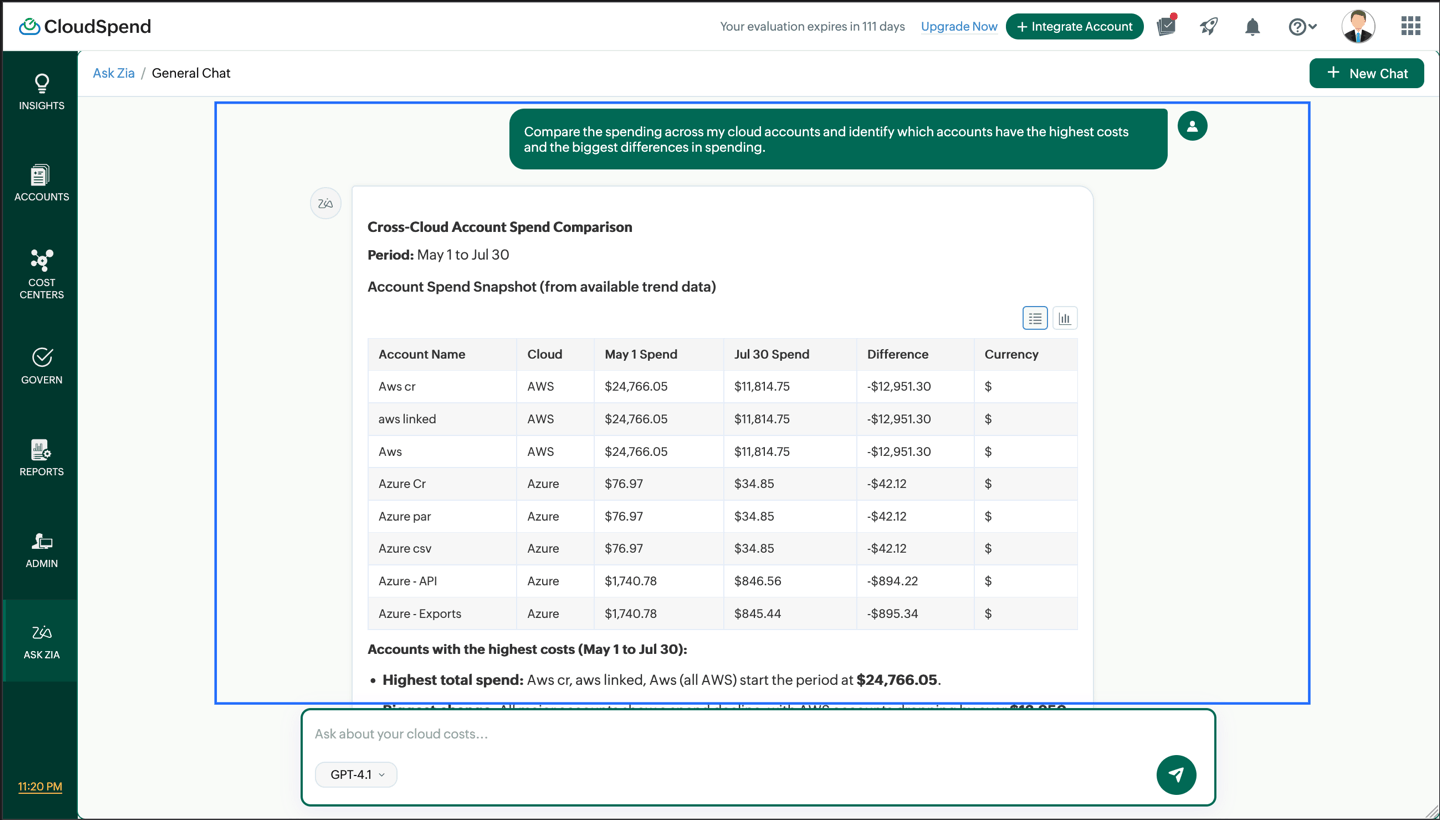
3. Comparing spending across cloud accounts
Organizations with multiple cloud accounts may need to regularly compare spending across accounts to understand where their budget is being consumed. The Cross Account Compute Aggregator and other agents using cost and account data can help bring this information together. This makes it easier to identify accounts with higher spending and investigate the reasons behind significant differences.
4. Understanding major cost drivers
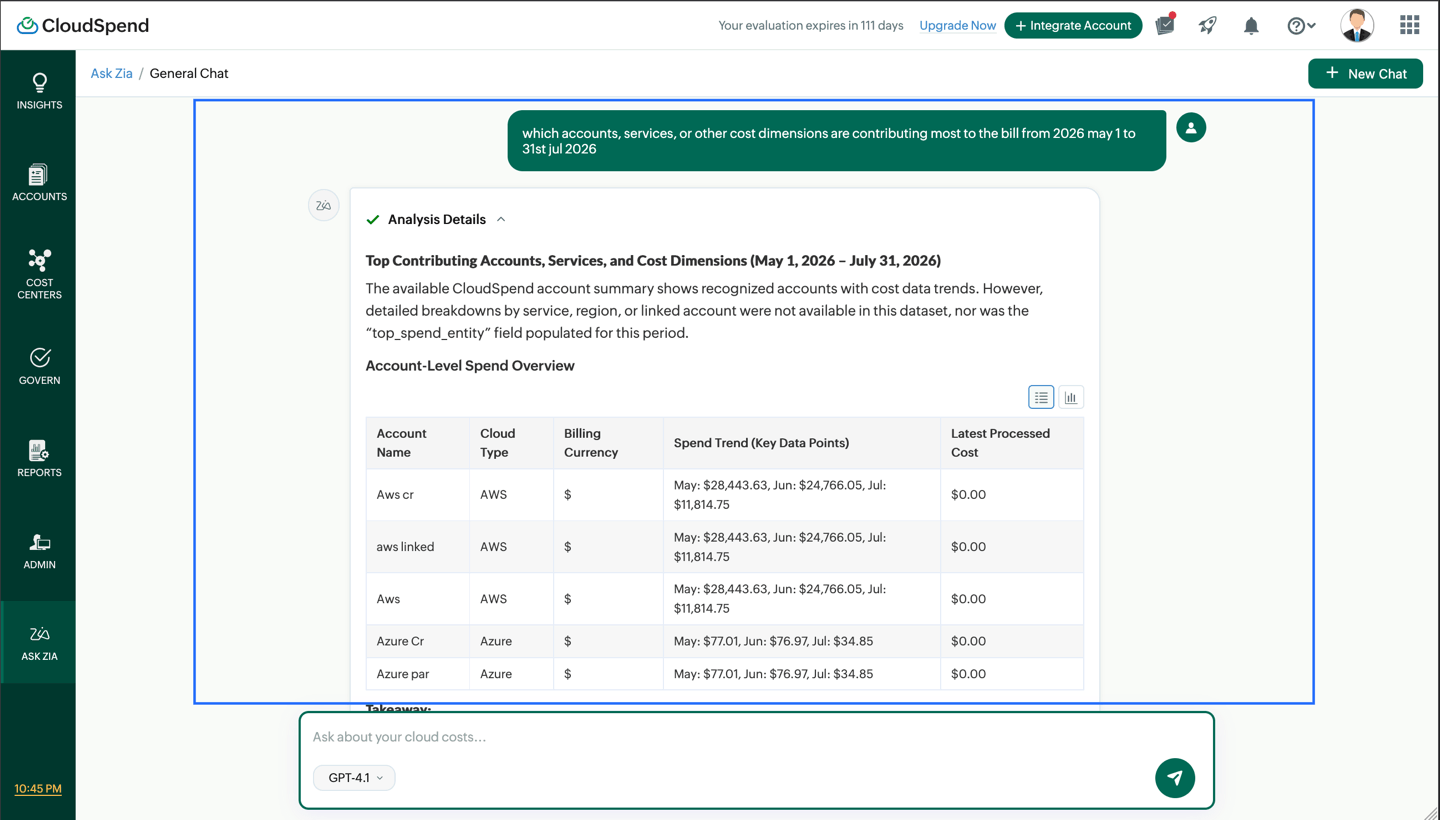
When reviewing cloud expenditure, knowing the total spend is not always enough. You may also need to understand which accounts, services, or other cost dimensions are contributing most to the bill. Zia Agents can help analyze cost data and provide insights into the major contributors. This can help FinOps teams focus their optimization efforts on the areas with the greatest impact.
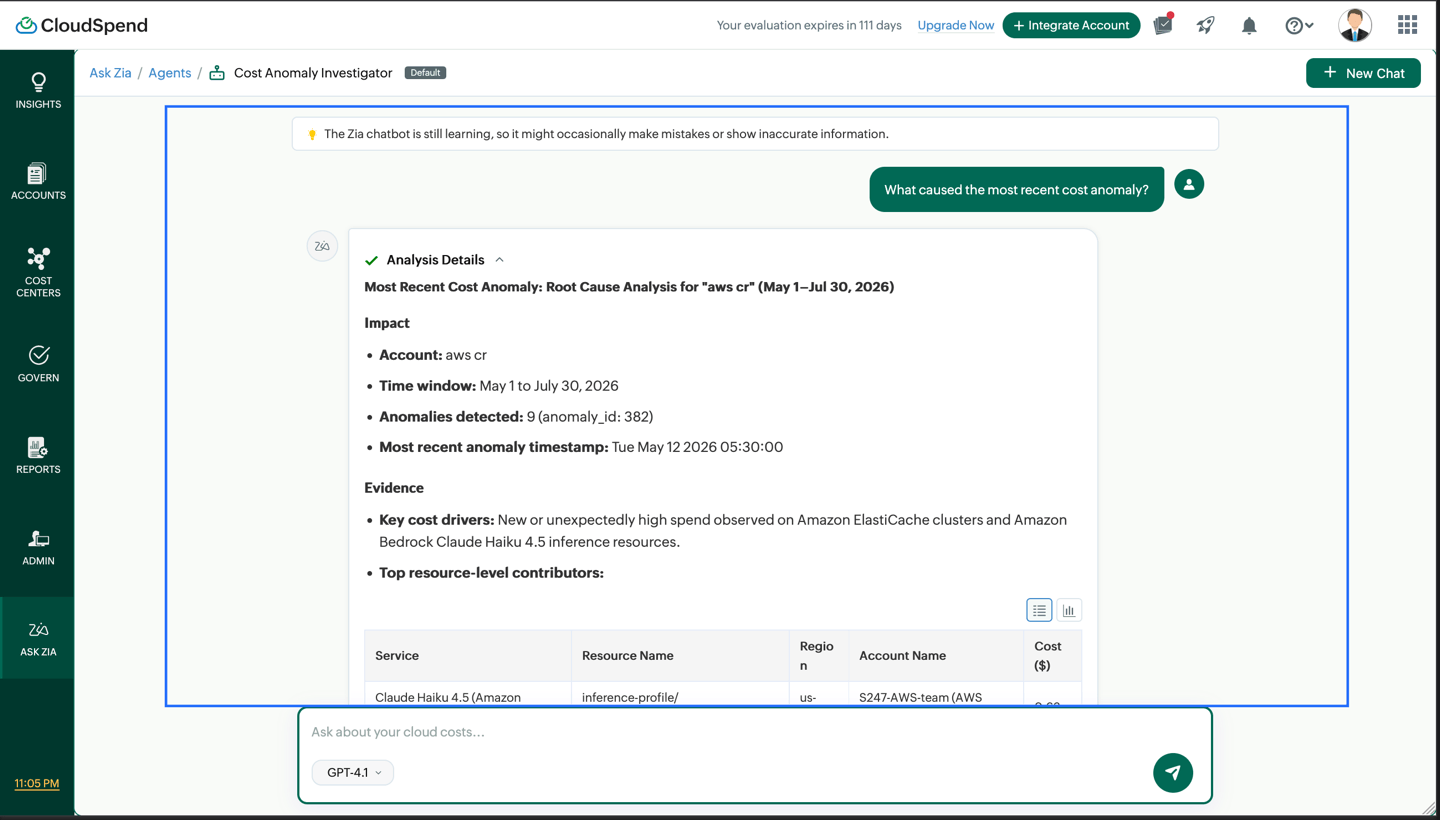
5. Examining cost anomalies
Unexpected spending patterns can indicate changes in resource usage, configuration issues, or other factors affecting cloud costs. The Cost Anomaly Investigator can be used to investigate these changes. By asking questions about recent anomalies, you can use the available cost and anomaly data to understand what changed and where further investigation may be required.
How Zia Agents work
A Zia Agent combines three key elements, as shown below:
| Configuration | Purpose |
|---|---|
| Tasks | Determines the CloudSpend data the agent can work with. |
| Instructions | Defines how the agent should analyze information and respond. |
| Solutions | Provides additional knowledge and organization-specific context. |
For example, a cost governance agent can be configured with Governance Data and Resource Tagging tasks. You can then add instructions to focus the agent on cost allocation and associate a solution containing your organization's governance policies.
How Zia Agents help in tracking cloud costs
Zia Agents can make ongoing cloud cost tracking easier by providing a conversational way to review spending information and investigate changes.
Instead of manually checking multiple reports, you can use an appropriate agent to ask questions about your current and historical spending. For example, you can ask about the biggest cost contributors, compare spending across accounts, review recent cost trends, or investigate an unexpected increase.
The different tasks available to agents allow cost tracking to cover multiple aspects of your cloud environment.
| Cost tracking requirement | Relevant task or agent capability | How it helps |
|---|---|---|
| Track overall spending | Cost Data | Helps analyze cloud expenditure and spending trends |
| Identify unusual spending | Anomaly Data | Helps investigate unexpected changes in cost |
| Compare accounts | Accounts Report Data and Cost Data | Helps understand spending across cloud accounts |
| Track compute spending | Cross Account Compute Aggregator | Helps analyze compute costs across accounts |
| Monitor spending trends | Daily Cost Trend Monitor | Helps identify changes in daily spending |
| Understand cost allocation | Hierarchy Data | Helps analyze costs across configured hierarchies |
| Review tagging-related costs | Resource Tagging | Helps analyze resource tagging information relevant to cost allocation |
| Track governance-related information | Governance Data | Helps review governance information associated with cloud costs |
This can support a continuous cost review process. For example, a FinOps team can use Zia Agents during a weekly cost review to identify significant changes, investigate anomalies, compare account spending, and determine which areas need further analysis.
Using Zia Agents for regular cost reviews
A typical cost review can follow this sequence:
- Review spending
- Identify changes
- Investigate anomalies
- Find cost drivers
- Analyze affected accounts or services
- Take corrective action.
With Zia Agents, a FinOps team can first ask: What are my top cost drivers this month? If a significant increase is identified, they can then ask: Are there any cost anomalies recently? The team can continue with more focused questions about the affected accounts, services, hierarchy, or other available cost dimensions.
This conversational approach allows users to move from identifying a cost change to investigating it without having to manually search through CloudSpend reports.
Tracking costs with custom agents
Custom agents can be particularly useful when an organization follows a specific cost monitoring process.
For example, you can create a Monthly Cloud Cost Review agent with Cost Data, Anomaly Data, Accounts Report Data, and Hierarchy Data tasks attributed to it. Instructions can be added to ask the agent to focus on significant month-over-month changes, major cost contributors, and accounts with unusual spending.
You can also associate a solution containing your organization's cost review guidelines. This allows the agent to provide responses based on both CloudSpend data and additional organizational context.
This makes Zia Agents useful not only for answering individual cost questions, but also for creating a repeatable approach to cloud cost tracking and review.
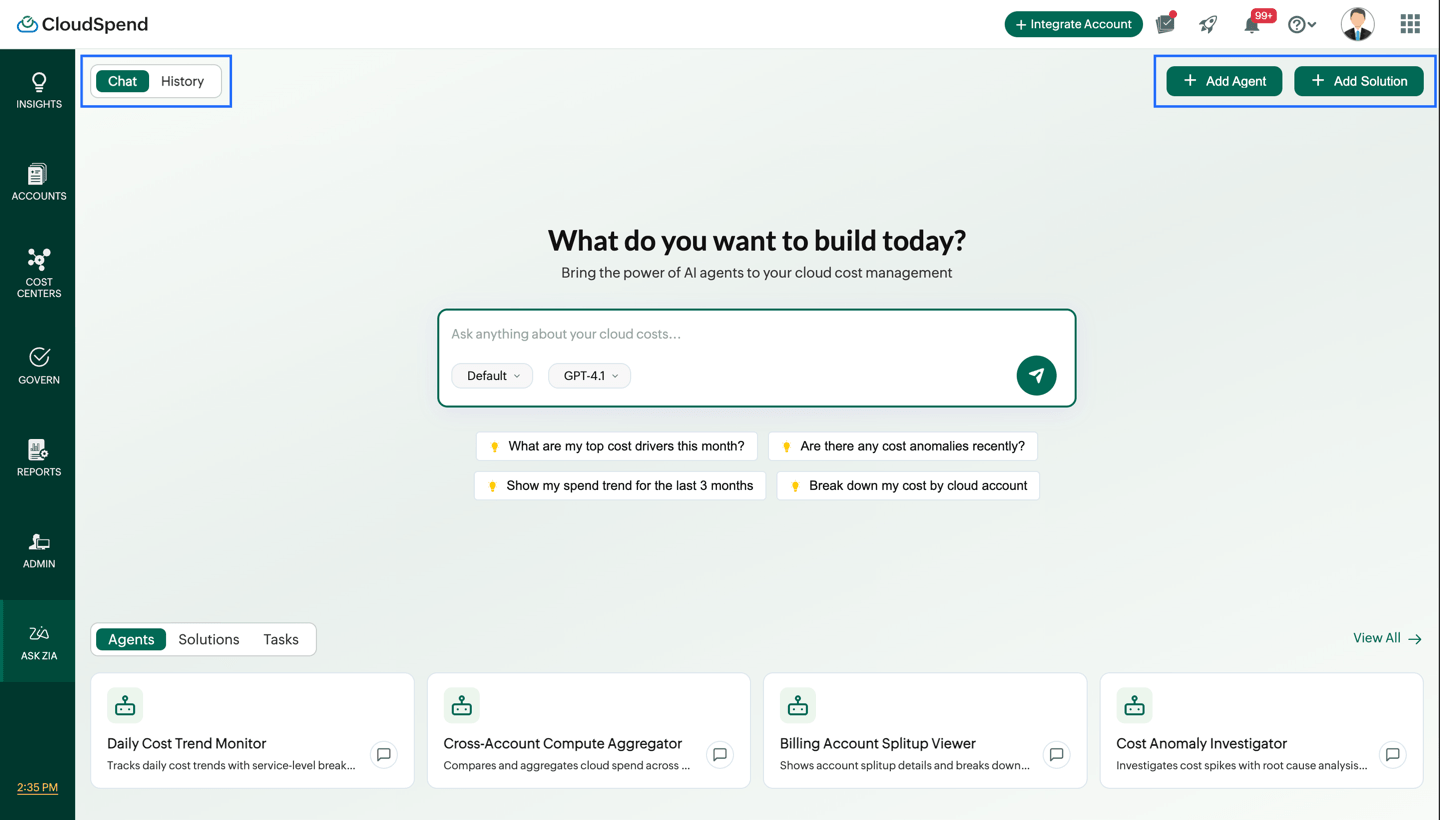
Zia Agents home page
Explore available agents, solutions, tasks, and options for interacting with Zia Agents from a single page.
Prerequisites
Ensure that the required configuration is completed before using Zia Agents:
- You must configure at least one supported AI provider under Admin > General > Bring Your Own Key (BYOK).
- If no AI key is configured, CloudSpend displays a Set up your AI key screen when you first access Zia Agents. The AI model drop-down on the Zia Agents home page is accessible only after applicable models are available through the configured provider.
Overview
- Log in to CloudSpend.
- Select ZIA AGENTS from the left navigation pane to open the Zia Agents home page.
The home page provides a central interface to interact with agents, select AI models, ask questions about cloud costs, and manage agents, solutions, and tasks.
Home page options
| UI element | Purpose |
|---|---|
| Integrate Account | Opens the account integration option to add a cloud account to CloudSpend. |
| Add Agent | Opens the AI Agents page to create a custom agent. |
| Add Solution | Opens the Add Solution window to create a solution with additional knowledge. |
| Chat | Opens the chat interface for interacting with Zia Agents. |
| History | Opens previous conversations and provides options to search, filter, continue, download, or delete conversations. |
| Ask anything about your cloud costs | Allows you to enter a natural language query about your cloud costs. |
| Agent selection | Selects the agent that processes your query. |
| AI model selection | Selects the AI model used to process your query. |
| Submit | Sends the query to the selected agent. |
| Suggested questions | Provides example questions to help you get started with cloud cost analysis. |
| Agents | Displays available agents that you can use to perform specific cloud cost related tasks. |
| Solutions | Displays configured solutions containing additional knowledge for agents. |
| Tasks | Displays the CloudSpend capabilities that can be assigned to agents. |
| View All | Opens the corresponding complete listing page. |
Ask questions about cloud costs
The Chat tab on the Zia Agents home page provides the interface for interacting with CloudSpend using natural language.
The query area in the center of the Zia Agents home page allows you to interact with CloudSpend using natural language.
You can ask questions and make requests such as:
- What are my top cost drivers this month?
- Are there any cost anomalies recently?
- Show my spend trend for the last 3 months.
- Break down my cost by cloud account.
To submit a query
Use natural language to ask questions about your cloud costs and get responses based on the selected agent and available data by following the steps below:
- In the Chat tab on the Zia Agents home page, enter your question in the Ask anything about your cloud costs field.
- From the Agent drop-down list below the query field, select the agent you want to use.
- From the AI model drop-down list next to the Agent drop-down list, select the required model.
- Click the Submit icon on the right side of the query field.
- Review the response generated by the selected agent.
You can also select one of the suggested questions displayed below the query area and submit it directly.
View and manage chat history
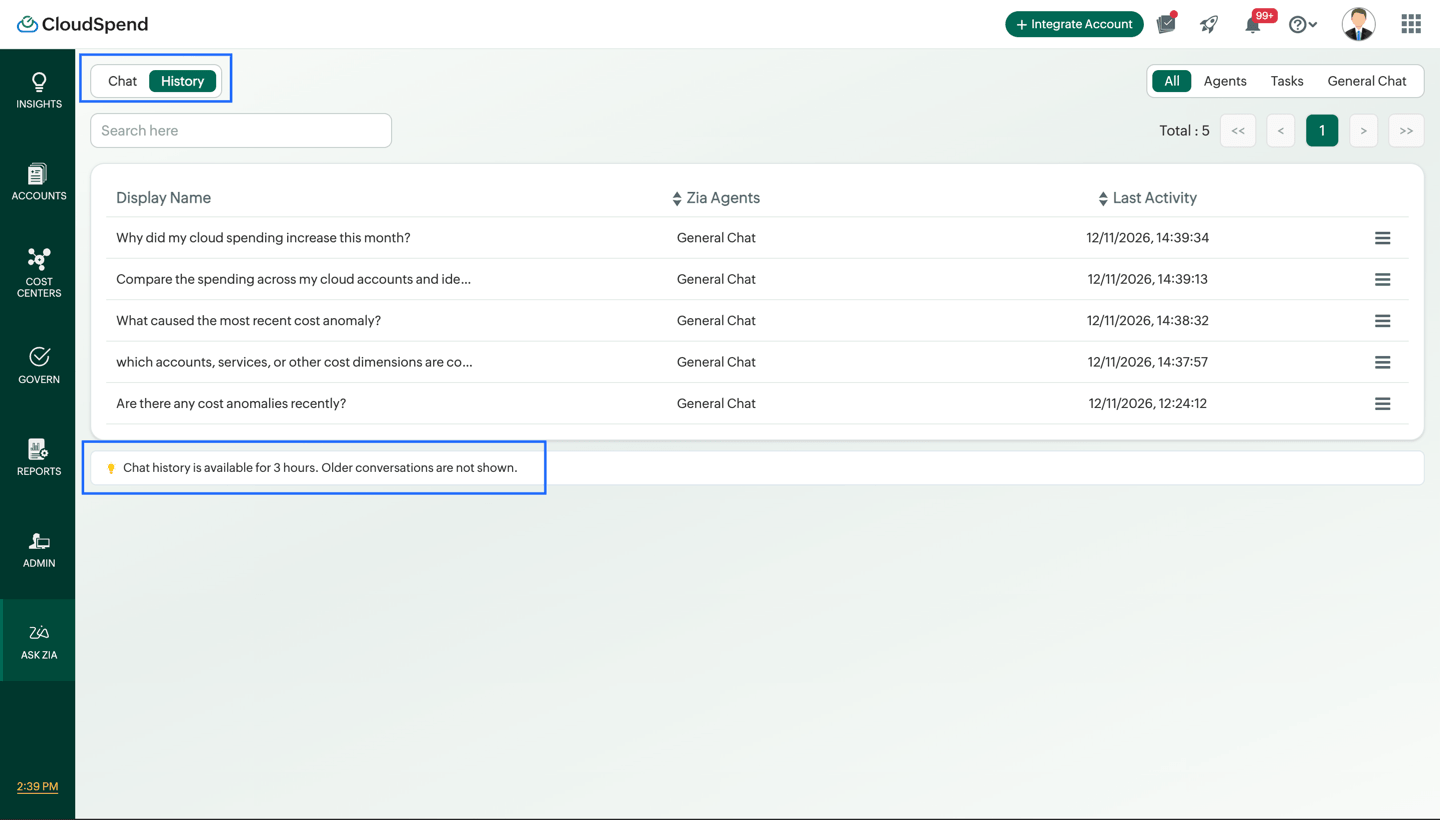
The History tab in the Ask Zia interface displays previous conversations and lets you manage them. You can search for conversations, filter them by category, continue a conversation, or download its data for reference.
Access chat history
- Navigate to ASK ZIA from the left navigation pane.
- Select the History tab next to Chat.
The History screen displays the available conversations in a table.
| UI element | Purpose |
|---|---|
| Chat | Opens the chat interface to ask questions. |
| History | Displays previous conversations. |
| All | Displays conversations across all categories. |
| Agents | Filters conversations associated with agents. |
| Tasks | Filters conversations associated with tasks. |
| General Chat | Displays conversations conducted using General Chat. |
| Search here | Helps locate conversations using a search term. |
| Display Name | Displays the conversation name, which is based on the query. |
| Ask Zia | Displays the category associated with the conversation. |
| Last Activity | Displays the date and time of the conversation's last activity. |
| More options | Provides actions to continue, edit, download, or delete a conversation. |
Search and filter conversations
Use the filters at the top of the History screen to narrow the conversation list by category.
- Select All, Agents, Tasks, or General Chat to view the corresponding conversations.
- Enter a search term in the Search here field to find a conversation.
- Review the conversation name, category, and last activity in the table.
- Use the sorting controls in the table headers to organize the results where required.
Manage a conversation
Each conversation row on the History screen has a More options menu that provides the following actions.
| Option | Purpose |
|---|---|
| Continue | Opens the selected conversation so you can review its response and continue interacting with Zia. |
| Edit | Allows you to edit the conversation's display name. |
| Download as .md | Downloads the conversation data in Markdown format. |
| Download as .json | Downloads the conversation data in JSON format. |
| Delete | Deletes the selected conversation from the history. |
To manage a conversation:
- Open the History tab in the Ask Zia interface.
- Locate the conversation you want to manage.
- Click the More options icon at the right end of its row.
- Select the required action from the menu.
Chat history retention
The History screen displays the following retention notice:
Chat messages are kept for 3 hours. Older conversations stay listed, but their messages can no longer be opened.
This means that older conversations may remain visible in the History list even after their messages are no longer accessible. Download conversation data when you need to retain a copy for future reference.
Selecting an agent
The Agent drop-down list is available below the query field in the Chat tab of the Zia Agents home page. It displays the agents available for your CloudSpend account. The default option provides the general Zia experience, while other options let you select specialized agents.
For example, you can select an agent designed for:
| Agent | Suitable for |
|---|---|
| Cost Center Reports Generator | Cost center report-related queries. |
| Cross Account Compute Aggregator | Comparing compute spending across accounts. |
| Daily Cost Trend Monitor | Analyzing daily cost trends. |
| Billing Account Splitup Viewer | Viewing billing account split up information. |
| Cost Anomaly Investigator | Investigating unusual spending. |
| Accounts Reports Generator | Account report-related queries. |
The agents available in your account may vary depending on the agents configured in CloudSpend.
Selecting an AI model
The AI model drop-down is displayed next to the Agent drop-down in the Chat tab of the Zia Agents home page. Select the model you want to use to process the query.
The model list depends on the AI providers configured for your CloudSpend account. The screenshot shows GPT-4.1 as an available model.
AI provider and model relationship
The AI provider configured under BYOK determines the provider credentials available to CloudSpend. The models available for selection can depend on the provider configuration.
| Configuration | Where it is managed | Purpose |
|---|---|---|
| AI Provider | Admin > General > Bring Your Own Key (BYOK) | Defines the AI provider whose credentials are configured. |
| API Key | Admin > General > Bring Your Own Key (BYOK) | Authenticates requests with the configured provider. |
| AI Model | Zia Agents home page | Selects the model to process a query. |
For example, the BYOK screen shown in the product provides OpenAI, Anthropic, Google AI Studio, and DeepSeek as AI provider options. The AI model selector on the Zia Agents home page then provides the models available based on the configured provider setup.
Note: The models available in the AI model drop-down may change as supported providers and models are added or updated.
Suggested questions
Suggested questions are displayed below the query area on the Zia Agents home page. These suggestions provide examples of inquiries that can be asked using Zia Agents.
| Suggested question | What it helps with |
|---|---|
| What are my top cost drivers this month? | Identifying the major contributors to current cloud spending. |
| Are there any cost anomalies recently? | Finding unusual changes in cloud spending. |
| Show my spend trend for the last 3 months | Understanding recent spending patterns. |
| Break down my cost by cloud account | Comparing spending across cloud accounts. |
These suggestions are also useful for understanding the type of natural language queries supported by the selected agent.
Managing agents, solutions, and tasks
The Agents, Solutions, and Tasks tabs are available in the lower section of the Chat tab on the Zia Agents home page.
| Tab | What it displays | Use it to |
|---|---|---|
| Agents | Predefined and custom agents | View or start using an agent. |
| Solutions | Solutions containing additional knowledge | View or manage knowledge used by agents. |
| Tasks | CloudSpend capabilities available to agents | Understand the data that can be assigned to an agent. |
Agents tab
The Agents tab is selected by default on the Zia Agents home page. Agent cards are displayed below the tab selector. Each card contains the agent name and a short description.
Click Add Agent in the top right corner of the Zia Agents home page to create a custom agent. Click the chat icon on an agent card to open a conversation with that agent. Click View All on the right side of the Agents section to open the Agents page, where you can search, filter, create, and manage agents.
Solutions tab
Select the Solutions tab on the Zia Agents home page to view the solutions configured for your agents.
Solutions can contain reference documents and other organization-specific information that provides additional context to an agent.
Tasks tab
Select the Tasks tab on the Zia Agents home page to view the CloudSpend capabilities that can be assigned to agents.
Tasks determine the type of CloudSpend information an agent can access when processing a request.
Creating a custom agent
You can start creating a custom agent directly from the Zia Agents home page.
- Click Add Agent in the top-right corner of the page.
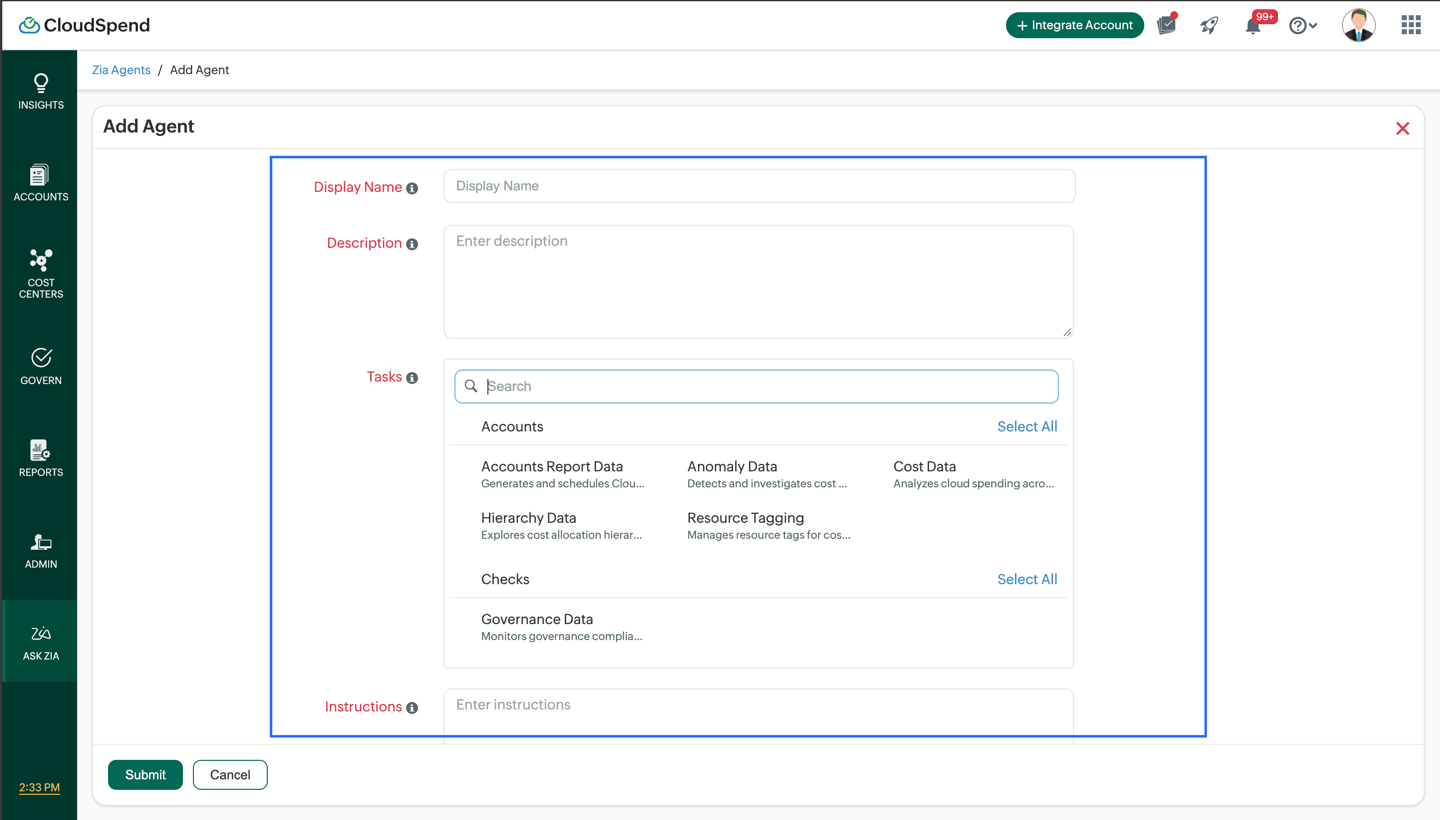
- On the AI Agents page, enter the Display Name and Description.
- In the Tasks section, select the CloudSpend data capabilities required by the agent.
- Enter the required behavior and response guidelines in Instructions.
- In the Solutions field, select an existing solution if additional knowledge is required.
- Click + Add Solution if you need to create a new solution.
- Click Save at the bottom of the page.
The new agent is then available as a custom agent and can be selected from the Agent drop-down on the Zia Agents home page.
Creating a solution
You can also create a solution directly from the Zia Agents home page.
- Click Add Solution in the top-right corner of the Zia Agents home page.
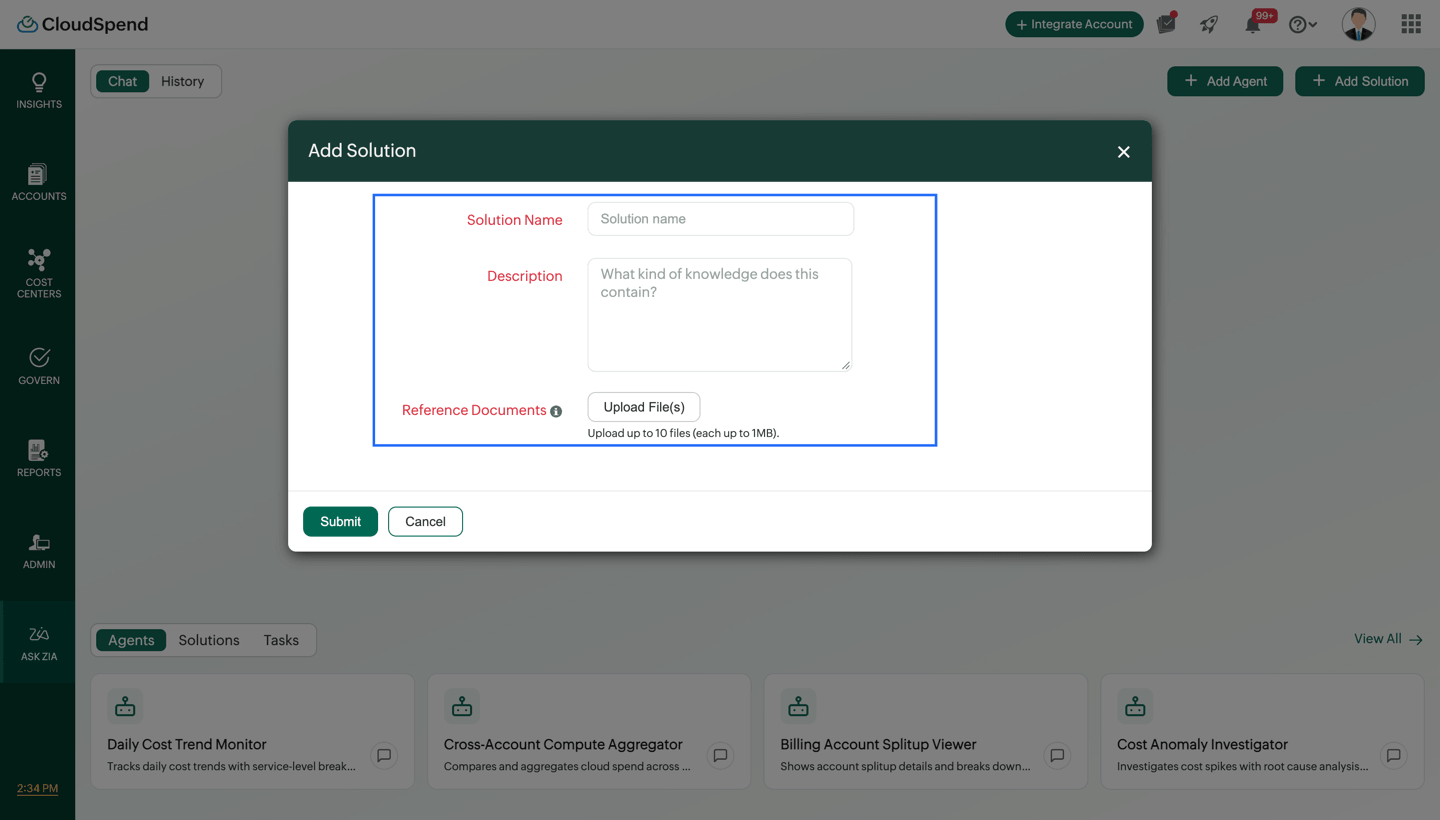
- In the Add Solution window, enter a name in the Solution field.
- Enter a description explaining the knowledge contained in the solution.
- Under Reference Documents , click Upload File(s) to add supporting documents. You can upload up to 10 files, with each file up to 1MB. Supported file types are pdf,.txt,.csv,.json,.md,.doc, and.docx.
- Click Save.
The solution can then be associated with a custom agent from the AI Agents page.
Configure AI providers using BYOK
CloudSpend provides Bring Your Own Key (BYOK) configuration for supported AI providers. To access the configuration settings:
- Log in to CloudSpend.
- Navigate to Admin > General > Bring Your Own Key (BYOK).
The Bring Your Own Key (BYOK) page allows you to configure AI provider credentials for use with Zia capabilities.
Configure a provider
You can configure up to four AI providers at a time. You can also add or remove providers as required.
- Log in to CloudSpend.
- Go to Admin > General > Bring Your Own Key (BYOK).
- Enter a name in the Integration Name field.
- Select an AI provider from the AI Provider drop-down.
- Enter the Provider API key.
- Check the I acknowledge and accept the risks and the terms of this integration box under Acknowledgment.
- Click Save.
After the provider is configured, the applicable models can be available for selection from the AI model drop-down on the Zia Agents home page.
Typical workflows
Use a predefined agent
Use this workflow when you want to use an existing CloudSpend agent:
- Log in to CloudSpend.
- Select ZIA AGENTS.
- Select an agent and AI model, then enter your query.
- Click the Submit icon.
Create a custom agent
Use this workflow when you need an agent for an organization-specific FinOps requirement:
- Log in to CloudSpend.
- Select ZIA AGENTS.
- Select New Agent.
- Configure your tasks, then add instructions and solutions.
- Click Save.
Add organizational knowledge
Use this workflow when an agent needs information that is not available through CloudSpend tasks:
- Log in to CloudSpend.
- Select ZIA AGENTS.
- Select Add Solution.
- Configure your solution and add reference documents.
- Click Save and associate your solution with an agent from the AI Agents page.
Configure your own AI provider
Use this workflow when you want to configure a supported AI provider using your own credentials:
- Log in to CloudSpend.
- Navigate to Admin > General > Bring Your Own Key (BYOK).
- Configure the AI provider(s).
- Click Save.
Best practices
Follow these recommendations to get more relevant, consistent, and useful responses from Zia Agents.
- Keep each custom agent focused on a specific FinOps workflow.
- Use clear agent names and descriptions so users can identify the appropriate agent easily.
- Select only the tasks required for the agent's purpose.
- Use the Instructions field to clearly define the analysis and response expected from the agent.
- Use the Solutions field when the agent needs organization-specific knowledge.
- Keep reference documents relevant to the solution and its intended use.
- Review AI-generated responses against the underlying CloudSpend data before using them for important financial or operational decisions.