Sender Mail Address
Endpoint Central MSP Cloud sends various email notifications such as alerts, reports, and policy updates to administrators and end users. By default, these emails are sent from a system-generated email address provided by ManageEngine. The Custom Sender Email Address feature allows you to replace this default address with your own organization's email address, giving you full control over the sender identity of all outgoing emails from Endpoint Central MSP Cloud.
When configured, every email dispatched by Endpoint Central MSP including patch deployment alerts, software installation notifications, and scheduled reports will appear to originate from your chosen email address (for example, it-alerts@yourcompany.com), rather than a generic ManageEngine address.
If a custom sender email is not configured for a customer, or if the configured sender fails, emails for that customer will automatically be sent from the system default address.
Why is this Feature Needed?
Using a custom sender email address provides several operational and security benefits:
- Emails sent from your organization's domain (e.g., it-support@yourcompany.com) reinforce brand identity and improve user trust.
- Modern email systems rely heavily on authentication mechanisms. Without proper validation, emails may land in spam folders or be rejected by recipient servers.
- Verifying the domain using DKIM significantly improves email deliverability.
- Authentication mechanisms ensure that emails are genuinely sent on behalf of your domain.
- Spoofing and phishing risks are minimized through proper email authentication.
Understanding the Verification Process
To protect against email spoofing and ensure that only authorized senders can use a given email address, Endpoint Central MSP Cloud requires a two-step verification process before a custom sender email becomes active.
Step 1: Email Address Verification
The first step confirms that you own and have access to the email address you want to use as the sender. When you enter your desired sender email address, the system sends a unique, time-limited verification code to that inbox. You then retrieve this code from your email and enter it back into Endpoint Central MSP Cloud. This proves that the person configuring the feature has legitimate access to the mailbox in question.
This step is similar to how websites verify your email during account registration it is a simple but effective ownership check.
Step 2: Domain Verification with DKIM
Once the email address is verified, the second step involves authenticating the email domain itself using DKIM (DomainKeys Identified Mail). DKIM is an industry-standard email authentication protocol that allows the receiving mail server to verify that an email claiming to come from a specific domain was genuinely authorized by the domain owner and was not tampered with during transit.
How DKIM Works
DKIM uses a pair of cryptographic keys a private key and a public key to sign and verify emails:
- Signing: When Endpoint Central MSP Cloud sends an email on behalf of your domain, it attaches a digital signature to the email header using a private key held by the system.
- Verification: The receiving mail server looks up the corresponding public key, which is published in your domain's DNS records, and uses it to verify the signature. If the signature matches, the email is confirmed as authentic and unaltered.
DNS changes can take up to 24—48 hours to propagate, depending on the TTL (Time To Live) value set by your DNS provider. Plan accordingly when configuring DKIM for the first time.
Configuring a Custom Sender Email Address
Follow the steps below to configure a custom sender email address in Endpoint Central MSP Cloud.
Step 1: Add and Verify the Email Address
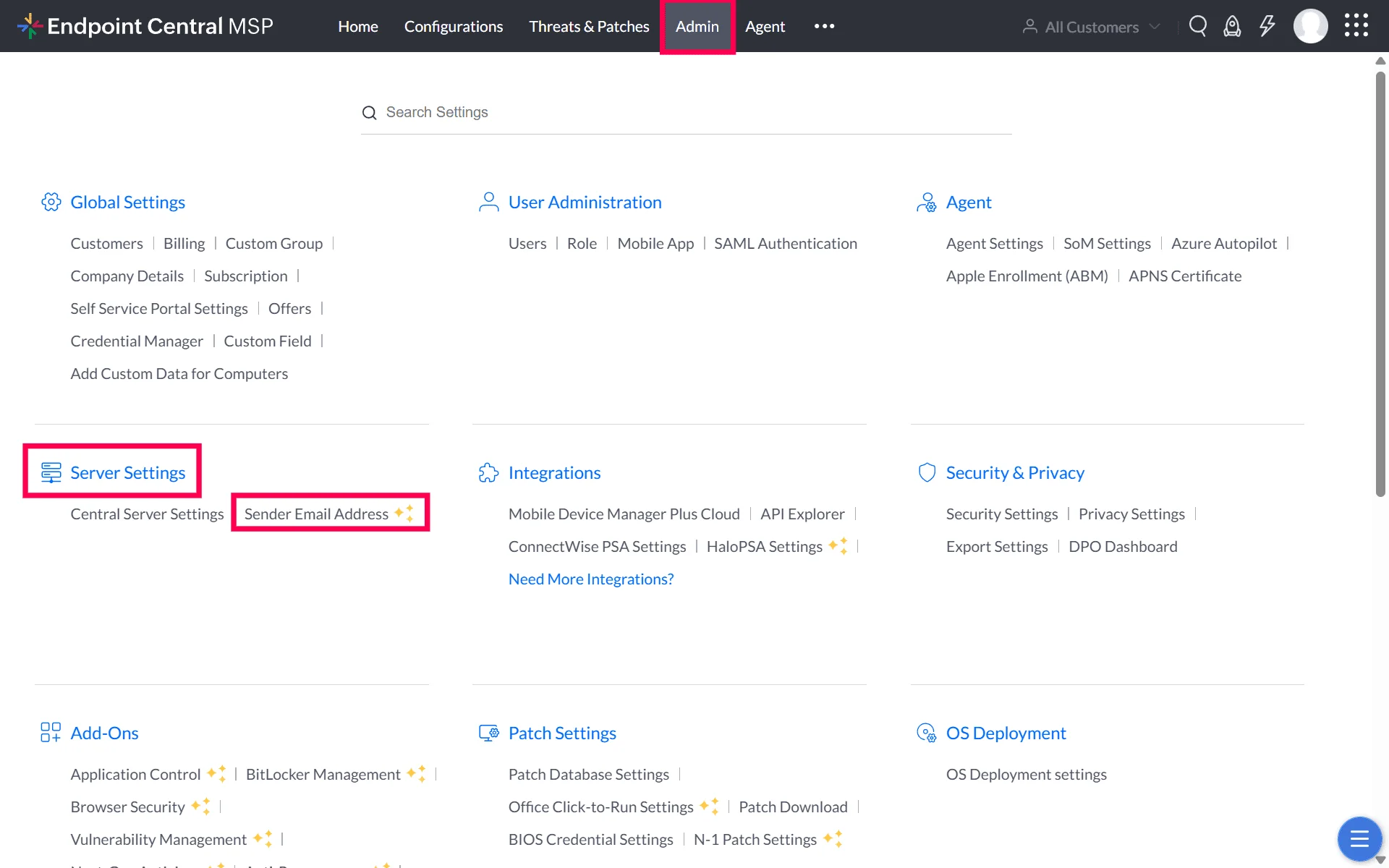
- Navigate to Admin → Server Settings → Sender Email Address.
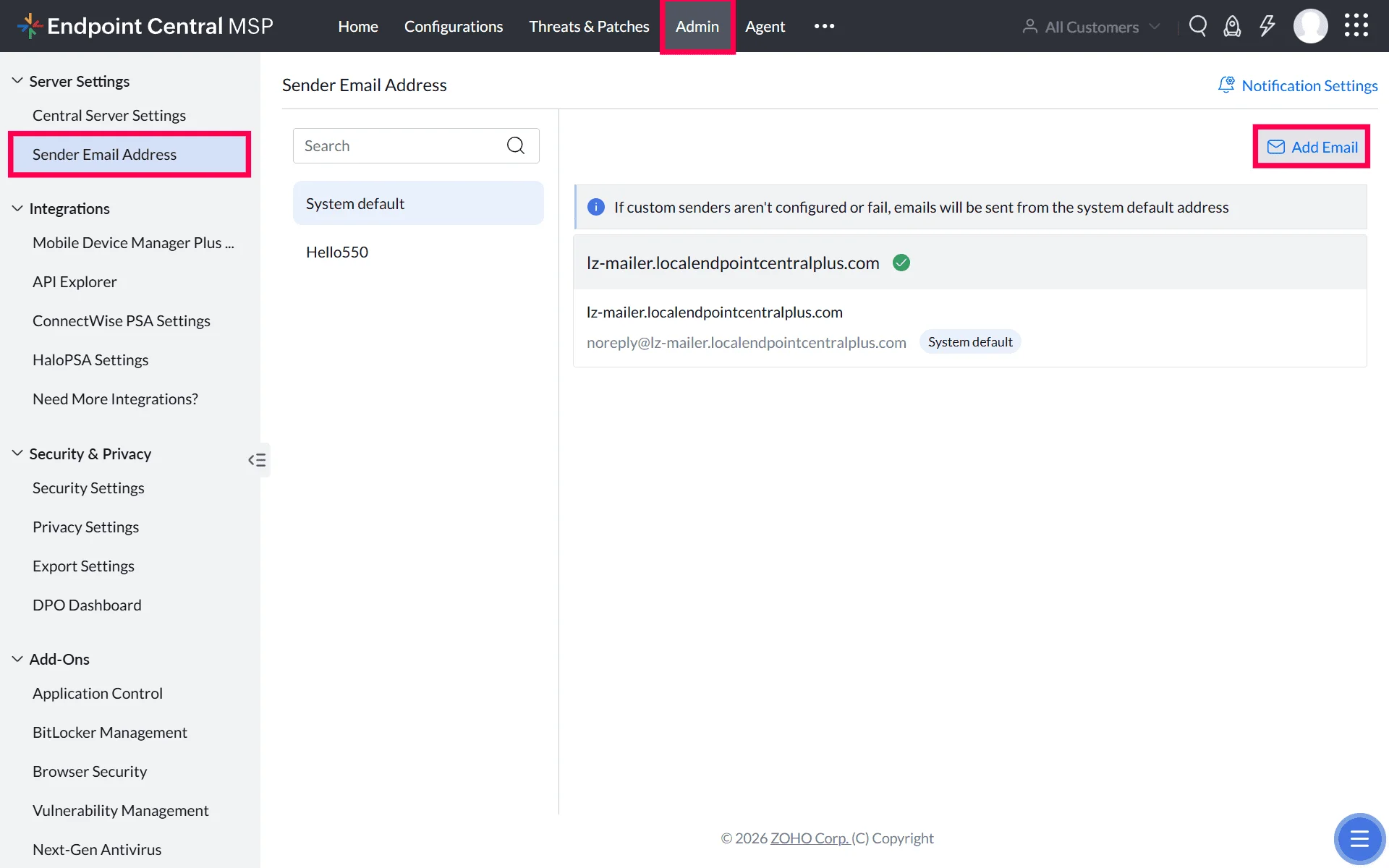
- Click Add Email for the respective customer to configure a sender email address specific to that customer.
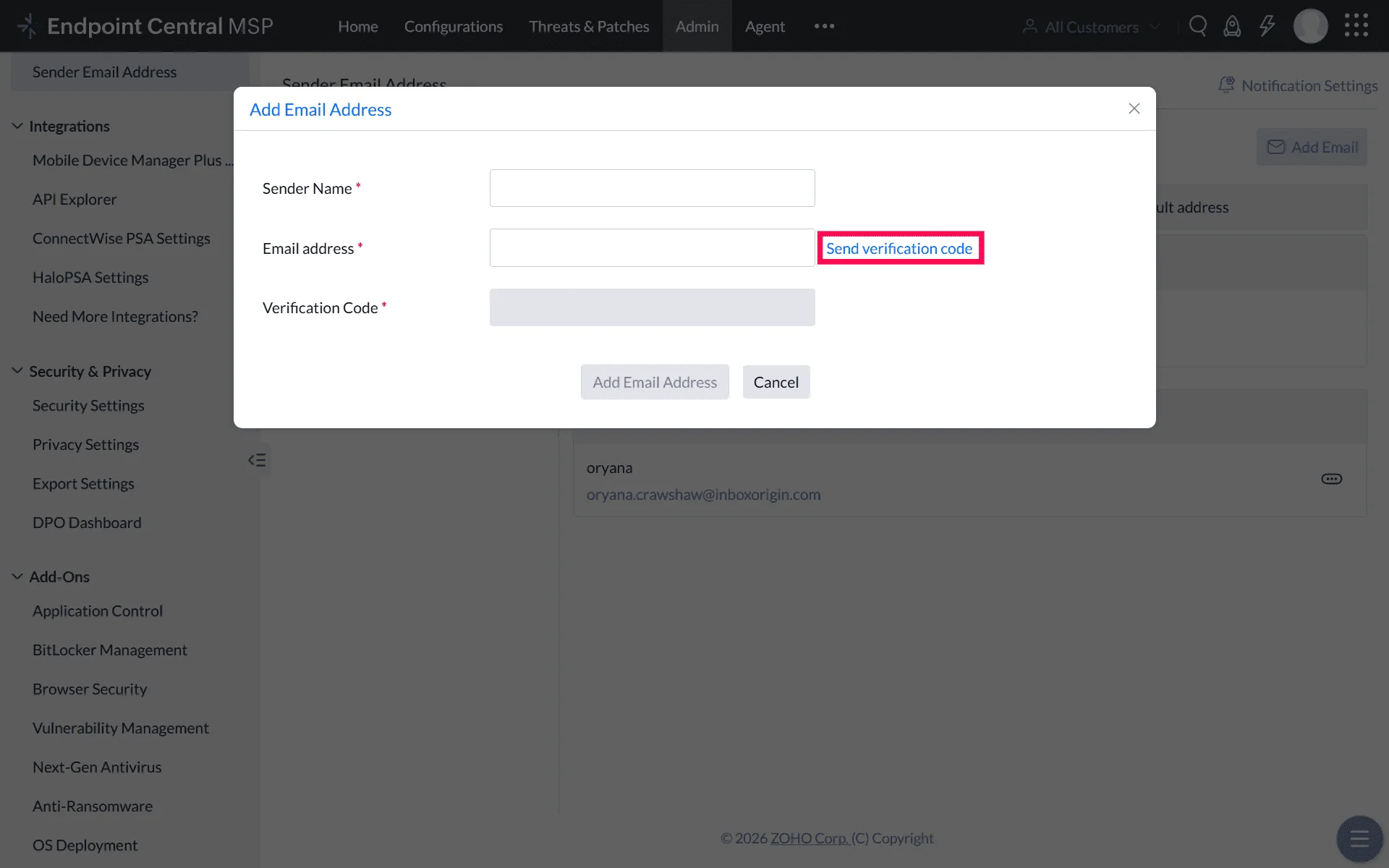
- Enter the Sender name, Email address you want to use as the sender mail (e.g., it-alerts@yourcompany.com).
- Click Send Verification Code. A unique, time-limited code will be sent to the entered email address.
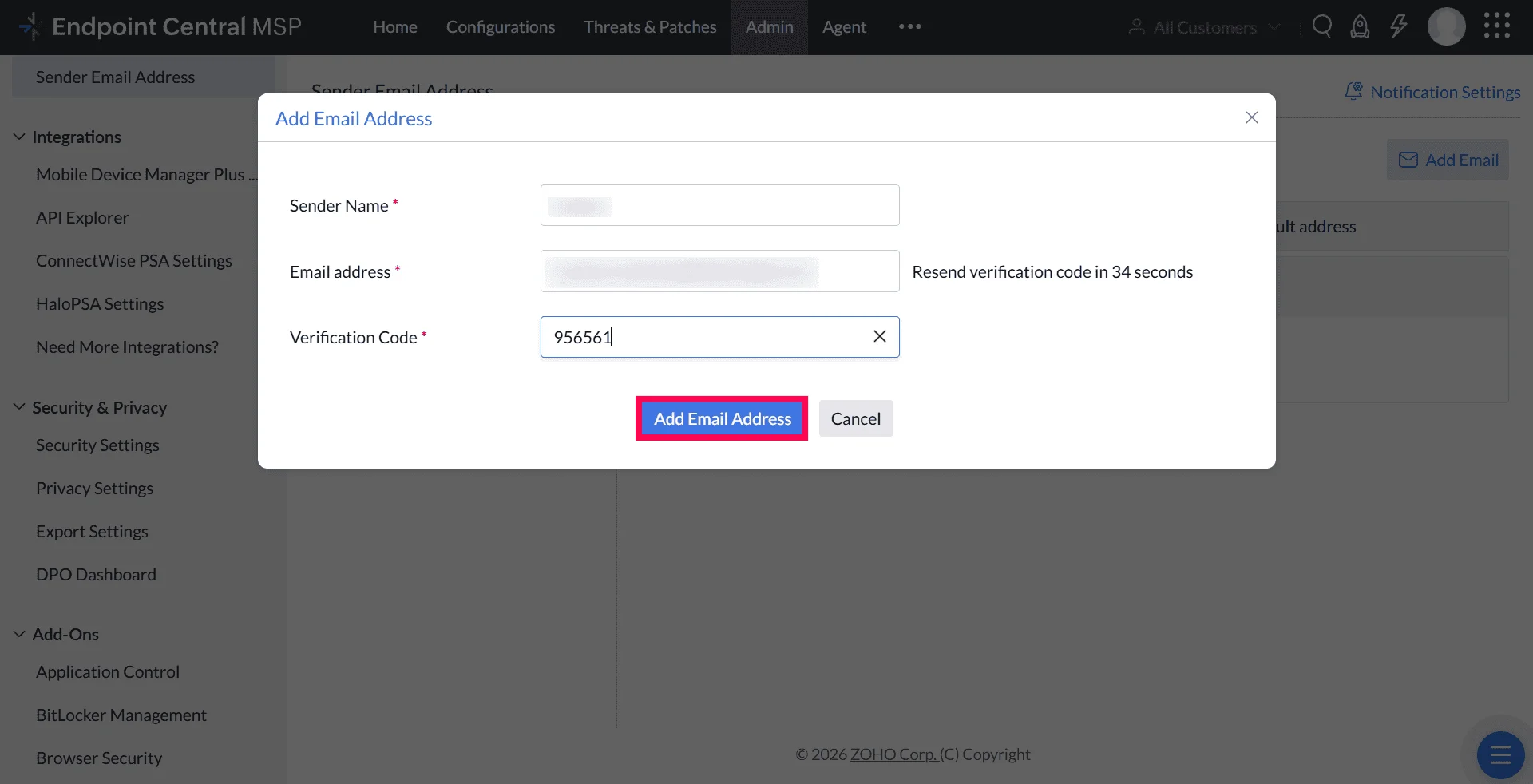
- Retrieve the code from your inbox and enter it in the Verification Code field.
- Click Add Email Address to confirm ownership of the email address.
Step 2: Configure DKIM for Domain Authentication
After verifying the email address, you must authenticate the domain by publishing a DKIM record in your DNS settings.
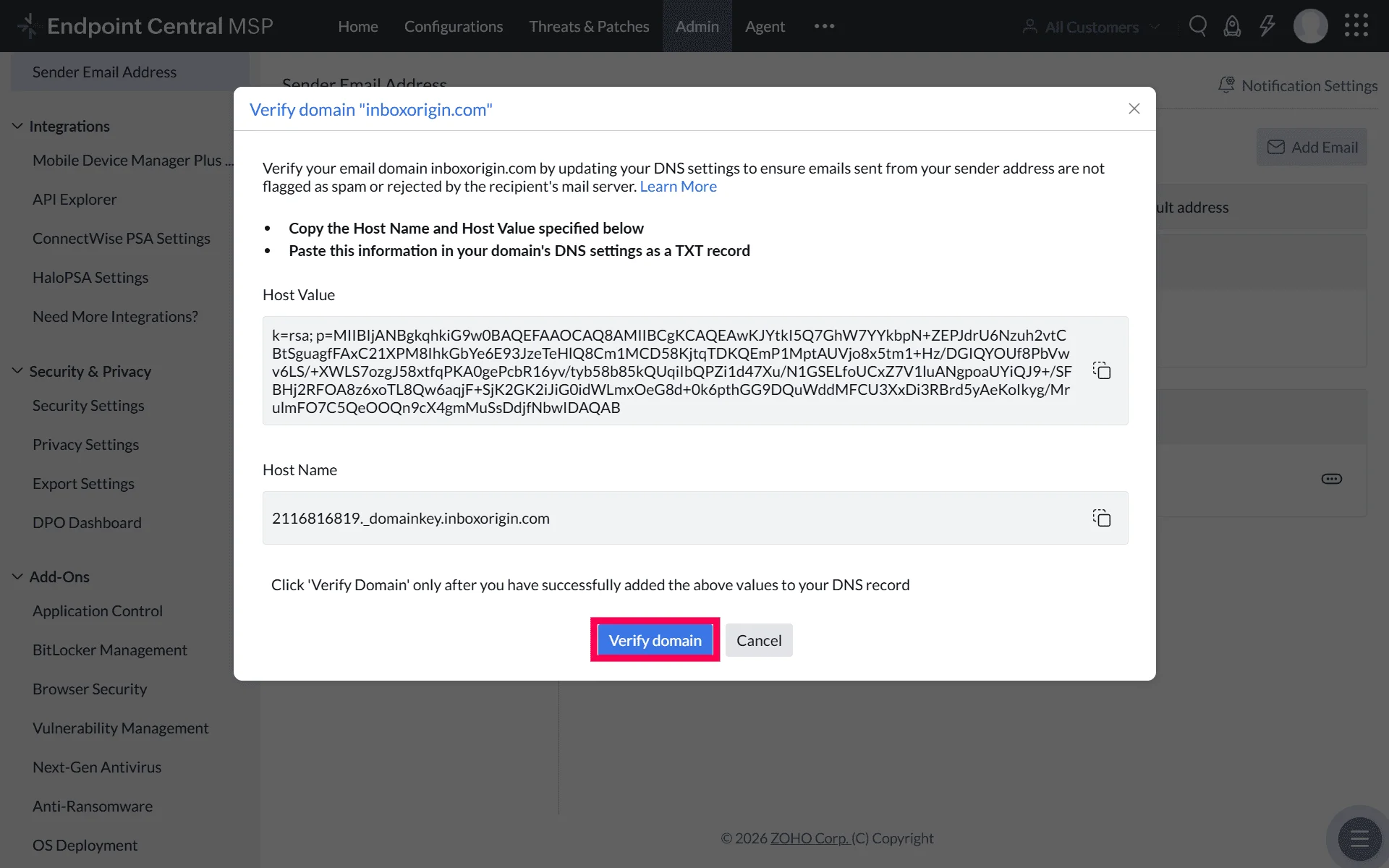
- After email verification, the system will display a DKIM TXT record this includes a selector name (Host name) and a public key value (Host value).
- Log in to your domain's DNS management console (e.g., GoDaddy, Namecheap, Cloudflare, or your organization's DNS provider).
- Create a new TXT record using the provided Host Name and Host Value.
- Copy the respective values from the Endpoint Central MSP pop-up and paste them into the TXT record fields in your DNS console.
- Save the TXT record to complete the configuration.
- Return to Endpoint Central MSP Cloud and click Verify Domain.
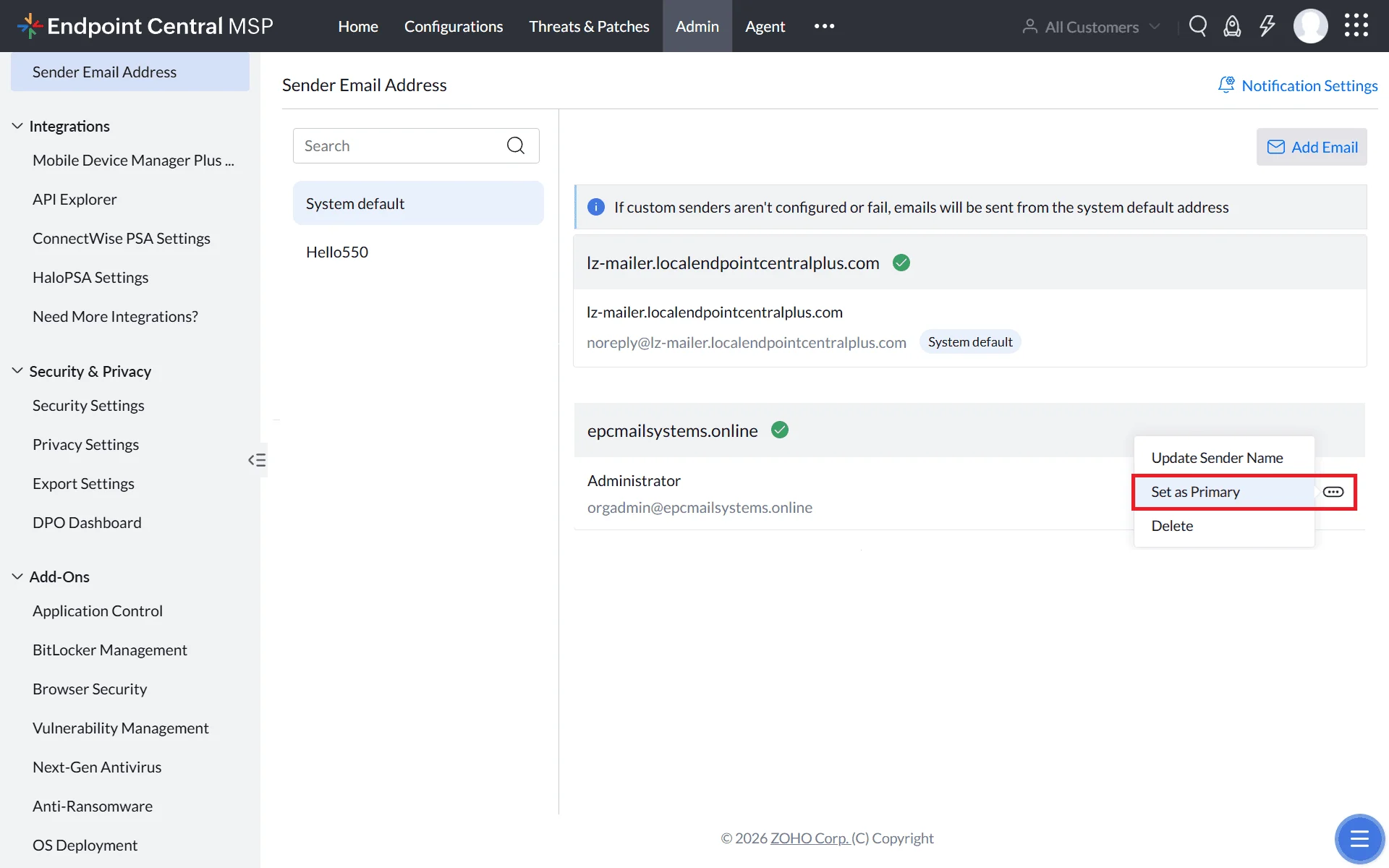
- Once validated successfully, you can use this email address as the sender email address by setting it as primary from the Actions menu.
Some DNS providers (such as GoDaddy, Wix, Squarespace, and Namecheap) automatically append the domain name to TXT records. In such cases, enter only <selector>._domainkey as the record name. Refer to your DNS provider's documentation for the exact steps to add a TXT record.
Notification Settings
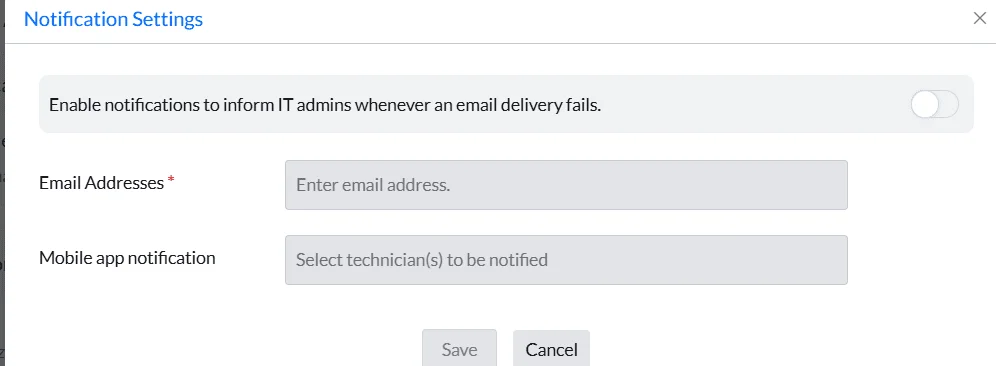
By default, the option will be disabled. If you want to be notified via mail when the email delivery fails, add the email addresses and press enter to be notified.
If you want to be notified via app, select the technicians to be notified