Troubleshooting steps for two-factor authentication
User/Administrator cannot access Authenticator?
The user/administrator can contact other users with administrator privileges to restore two-factor authentication using Authenticator. Administrators can regenerate the QR code via e-mail from Admin tab -> User Administration -> Actions (Under the appropriate user) -> Regenerate QR Code.
How to disable two-factor authentication if there are no other administrators available or email server is unreachable?
Follow the below steps to disable the two-factor authentication.
These steps are applicable in Endpoint Central only from build version #10.1.2138.7
1. If user wants to disable TFA temporarily when there is a temporary mail server issue:
- Go to Services.msc and stop your ManageEngine Endpoint Central MSP server service.
- Open a command prompt in administrator mode, navigate to <Install_Dir>\BrowserSecurity_Server\bin directory and execute disableTFA.bat with argument TempDisable. Example: disableTFA.bat <space> TempDisable
- Enter administrator username and password.
- Now the TFA will be disabled and TFA Enforcement will be added with a grace period of 2 days.
- Start the ManageEngine Endpint Central MSP server service from Services.
2. If user wants to disable TFA permanently:
- Follow the previous steps to disable TFA temporarily.
- There will be a User Interface request for permanent exclusion of TFA , you may choose to select that.
If Endpoint Central MSP build version is less than #10.1.2138.7
- From the machine in which your Endpoint Central MSP server is running, navigate to services.msc and stop your Endpoint Central MSP Server service.
- Using command prompt in administrator mode, navigate to <Install_Dir>\BrowserSecurity_Server\bin directory and execute ExecuteQuery.bat disable2FA.xml.
- Start Endpoint Central MSP server service from services.msc.
- Now login to the Endpoint Central MSP web console using a different browser to avoid any cache issues.
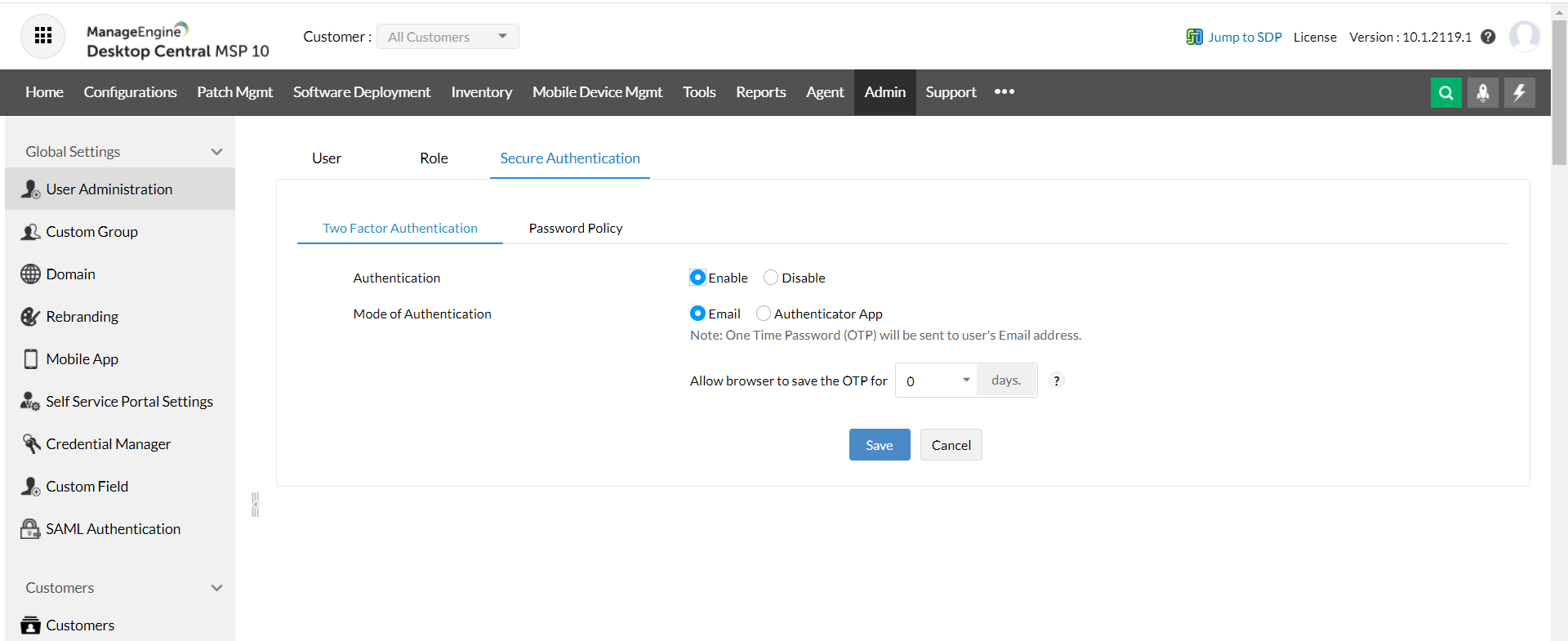
Note: Following the above steps will disable two-factor authentication for all the users. However, You can enable it again by navigating to Admin Tab -> User Administration -> Secure Authentication -> Enable Two-Factor Authentication.
For more troubleshooting help, please contact support.