×![]()
×
×![]()
×
×
Install agent via SCCM | Device Control Plus
How to Install Agent with SCCM
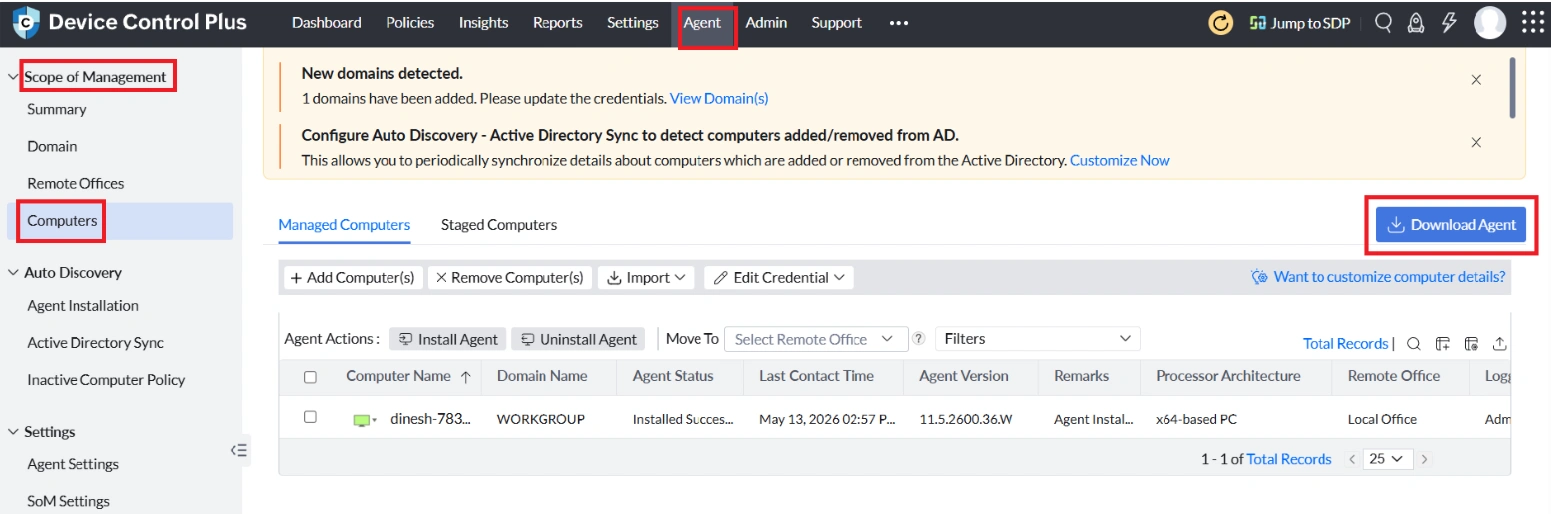
- Navigate to Agent > Computers > Download Agent and download the respective Remote Office agent installer.
- Rename the downloaded file to LocalOffice_Agent.exe.
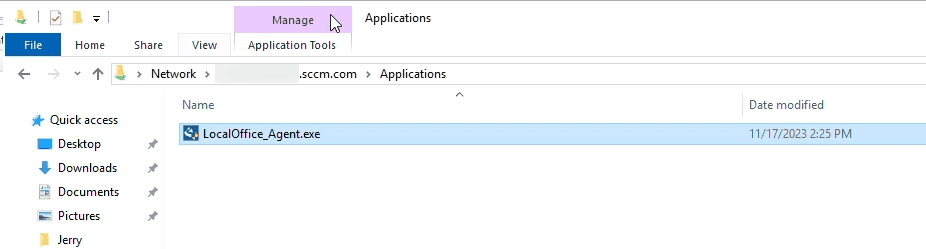
- Open the SCCM deployment share and paste the renamed executable file.
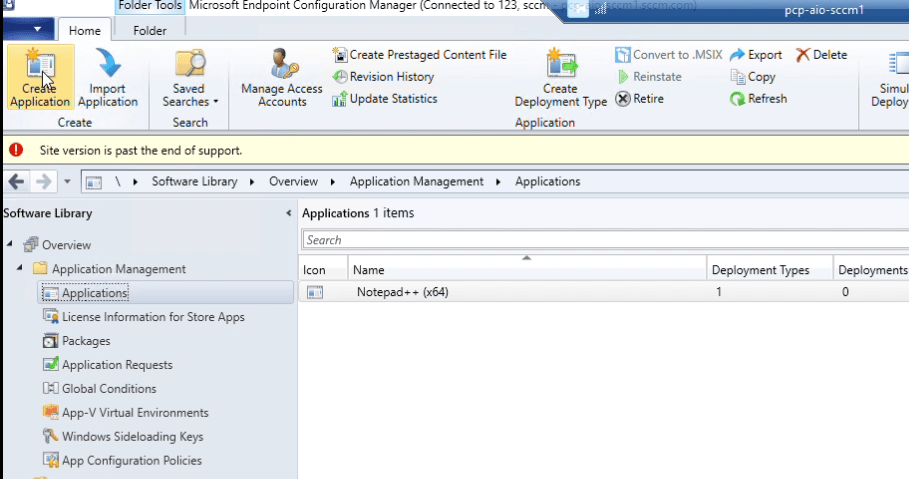
- Open the System Center Configuration Manager (SCCM) console and navigate to:Application Management > Applications > Create Application
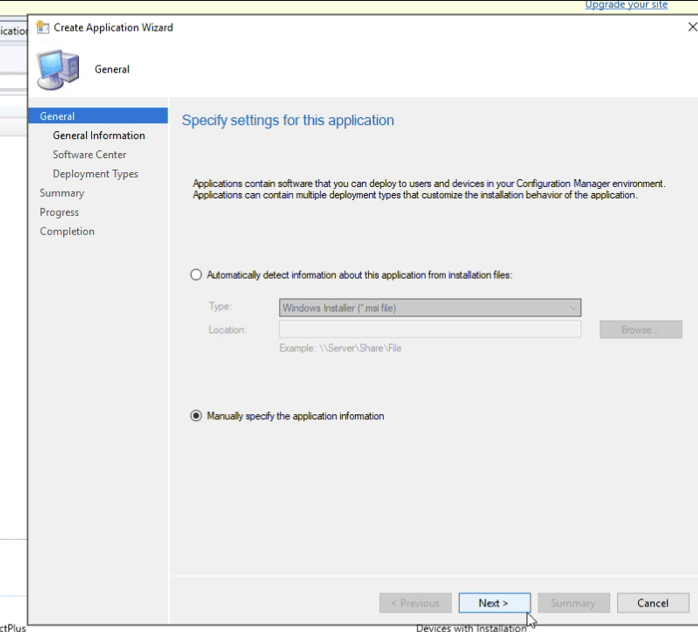
- Select Manually specify the application information and proceed.
- Enter the application name and continue.
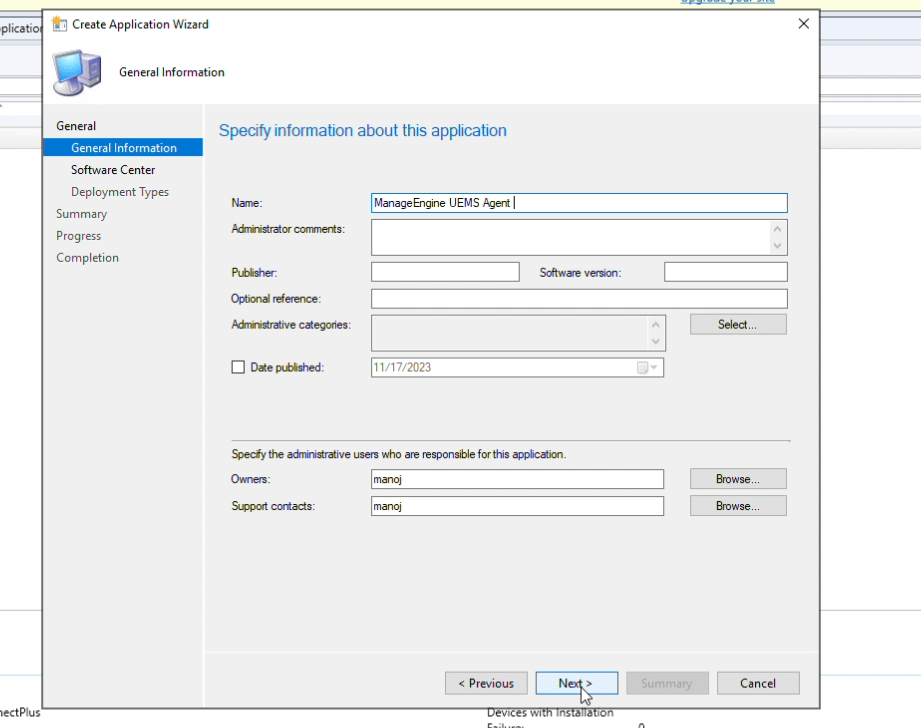
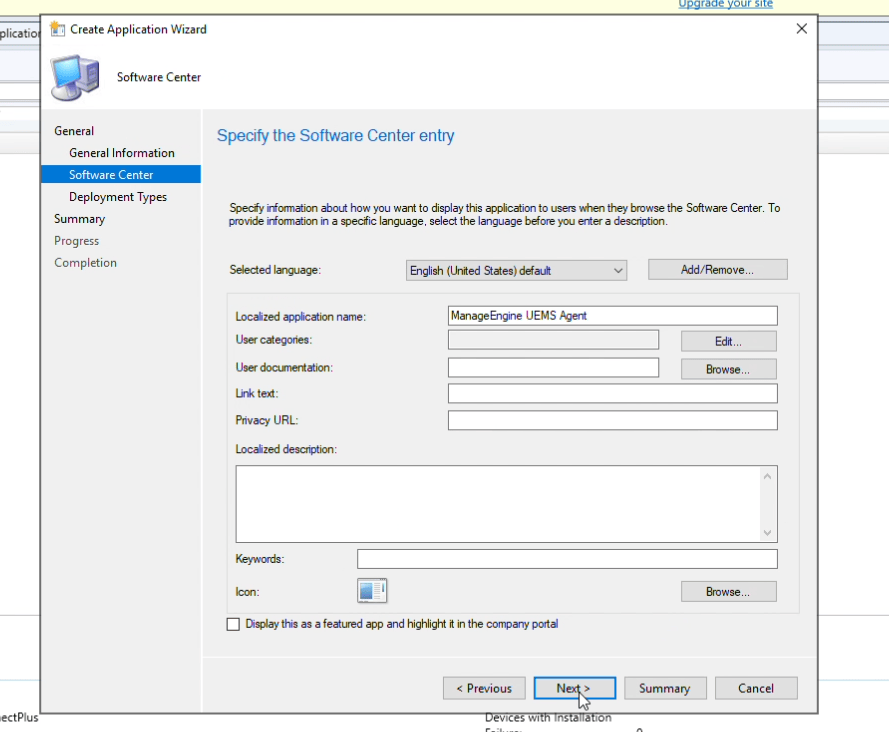
- Add a new deployment type:
- Select the deployment type as Script Installer.
- Enable Manually specify the deployment type information.
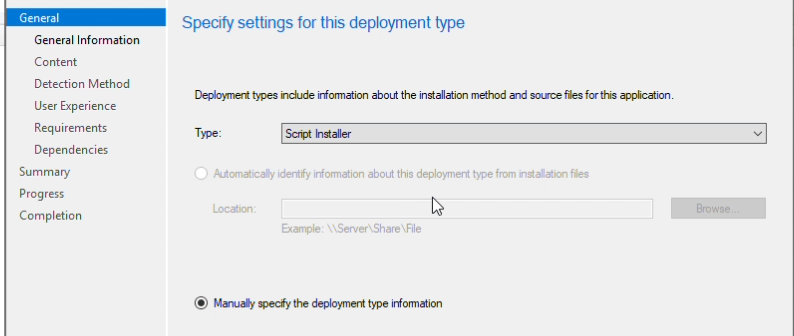
- Enter the deployment type name as UEMS Agent.
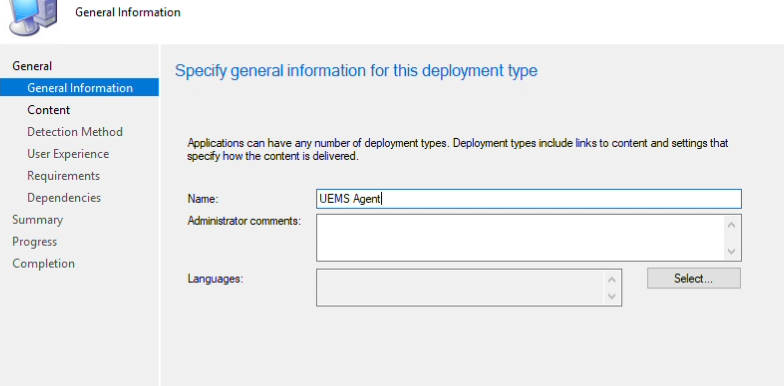
- Configure the following:
- Content Location: Specify the Application Share path.
- Install Command:
LocalOffice_Agent.exe /silent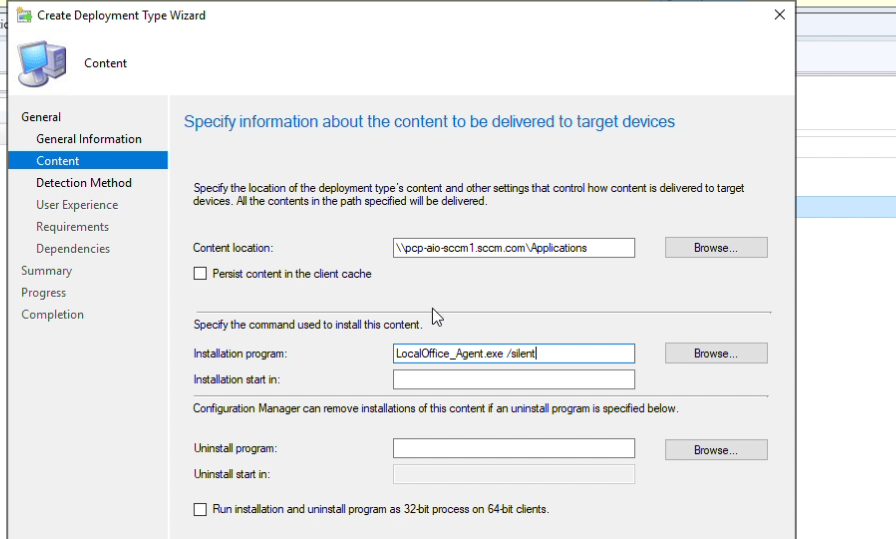
- Configure the detection rule as follows:
- Hive: HKEY_LOCAL_MACHINE
- Key Path: SOFTWARE\AdventNet\DesktopCentral\DCAgent
- Value: DCAgentVersion
- Data Type: String
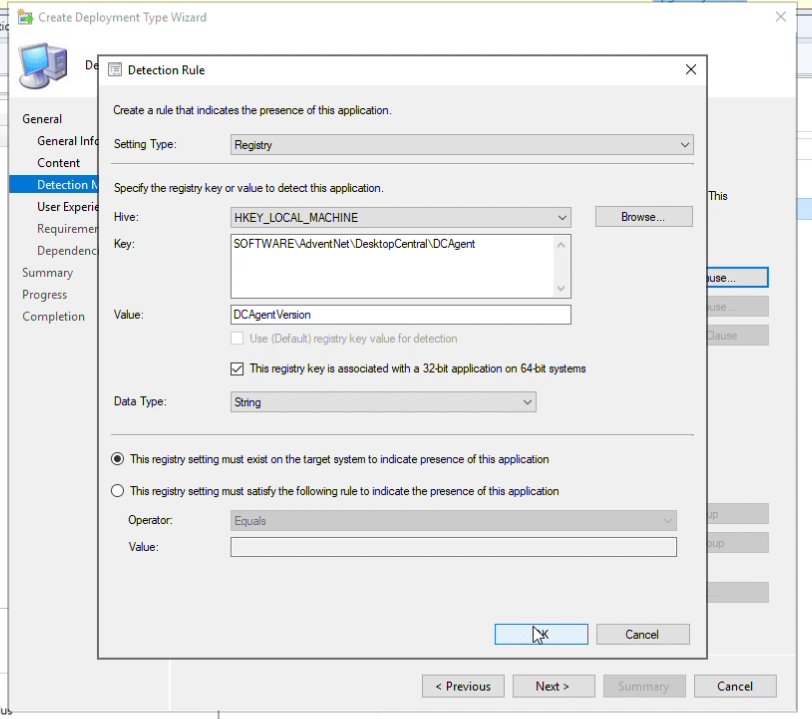
- Ensure that the option "This registry setting is associated with a 32-bit application on a 64-bit system" is enabled.
- Select the installation behaviour as shows in the below image.
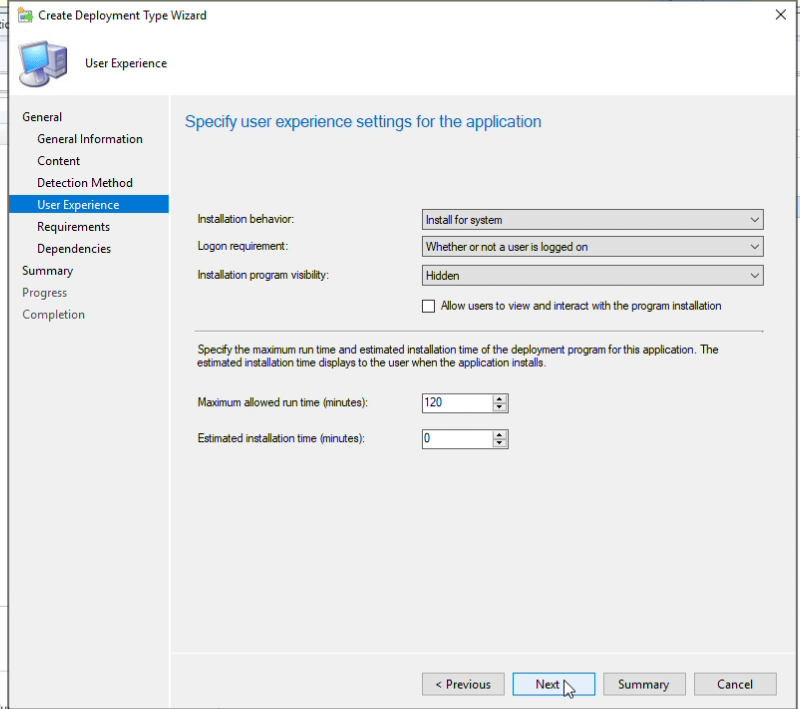
- Once the package is created successfully, select the target devices and initiate the deployment.
You have now successfully installed the agent on target endpoints using SCCM.