How to Enforce USB Encryption Across Your Organization
Key Points
Need for Removable Storage Device Encryption: Explains why the portability of USB drives creates a significant risk of data theft and why implementing automated encryption policies is crucial for securing data on the move.
Quick Setup: Provides a step-by-step walkthrough of the console to configure and deploy encryption policies, enabling you to automatically prompt users to encrypt devices upon connection and centrally manage recovery keys.
End user experience: Illustrates the workflow for employees, showing exactly how they are prompted to encrypt devices upon insertion and how they can securely access their data without hindering productivity.
Introduction
Securing removable media allows your workforce to remain mobile without compromising data integrity, effectively turning potential security vulnerabilities into encrypted vaults.
Unprotected USB drives are a primary vector for data leaks, but blocking them entirely hinders productivity. This policy solves that dilemma by enforcing intelligent, conditional encryption. Instead of relying on manual processes, the system automatically intervenes the moment a user attempts to copy files to a removable device. The user is prompted to password-protect the drive immediately, ensuring that Write Access is granted only after security is guaranteed. This document explains how to configure this seamless encrypt-on-write workflow to ensure no data leaves your network unprotected.
Strengthen data security with automated USB encryption via Device Control Plus!
Start EncryptingConfiguring USB Encryption Policies
- Navigate to Device Control -> Policy Creation
- Click Create Policy -> Windows

- For Removable Storage Devices, Select Allow or Allow Trusted Devices option
- Select Read-only mode for unencrypted devices and enable the option to notify users to encrypt devices for write access
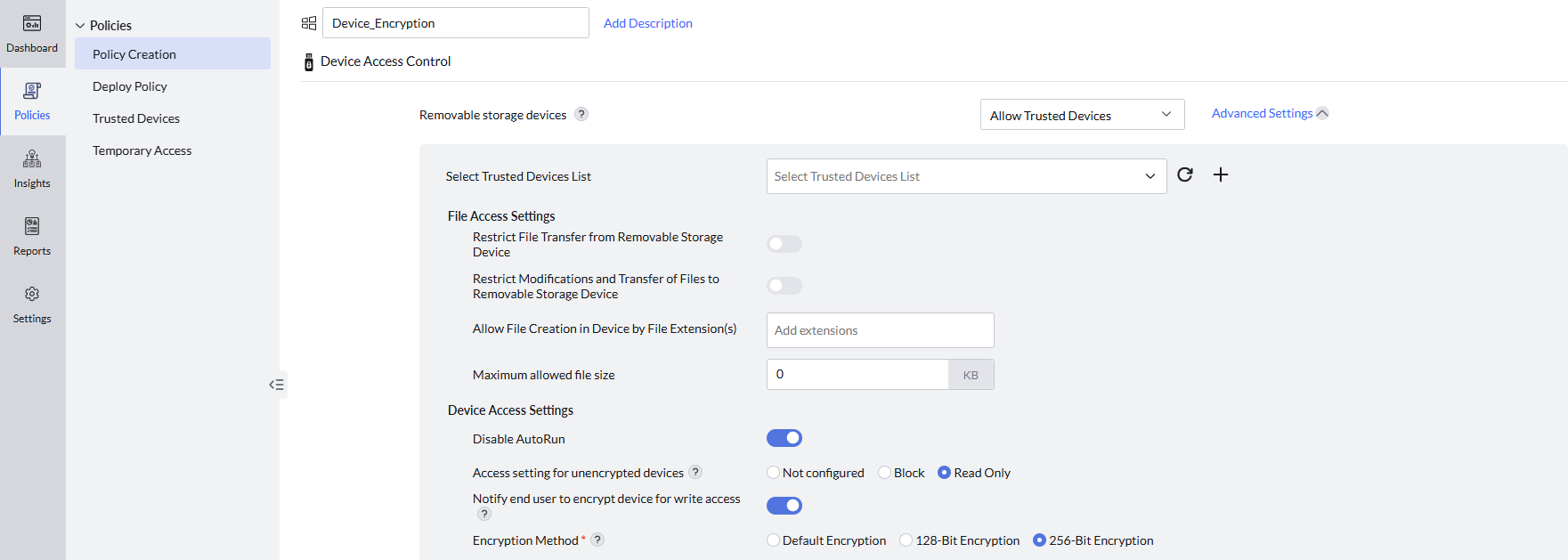
- Select the preferred encryption method and Save the policy
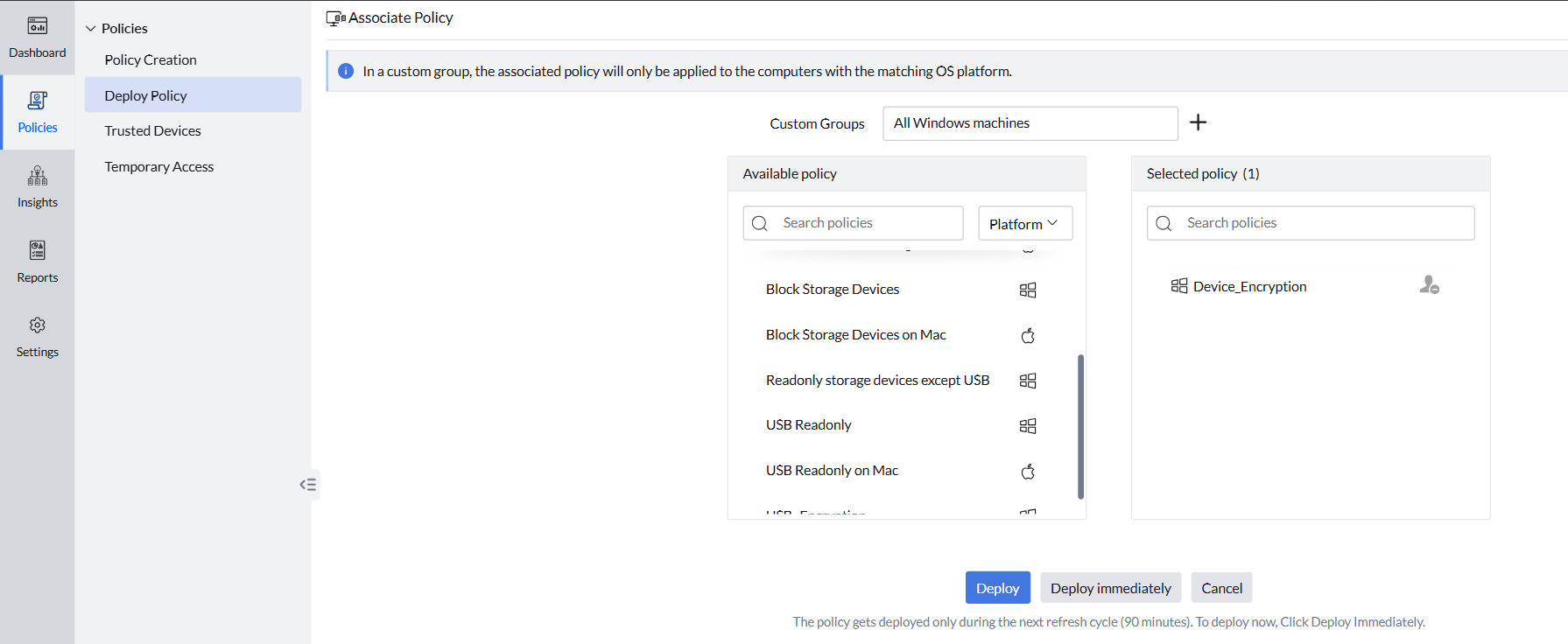
- Navigate to Deploy Policy -> Select the target computer groups and deploy the policy
User Experience After the Policy Is Applied
- When a user connects a USB drive to his computer, he will be able to read and open the files on the drive without any restrictions.
- If the user attempts to create or copy files to the USB drive, a prompt will appear asking them to encrypt the device with a password for write access.
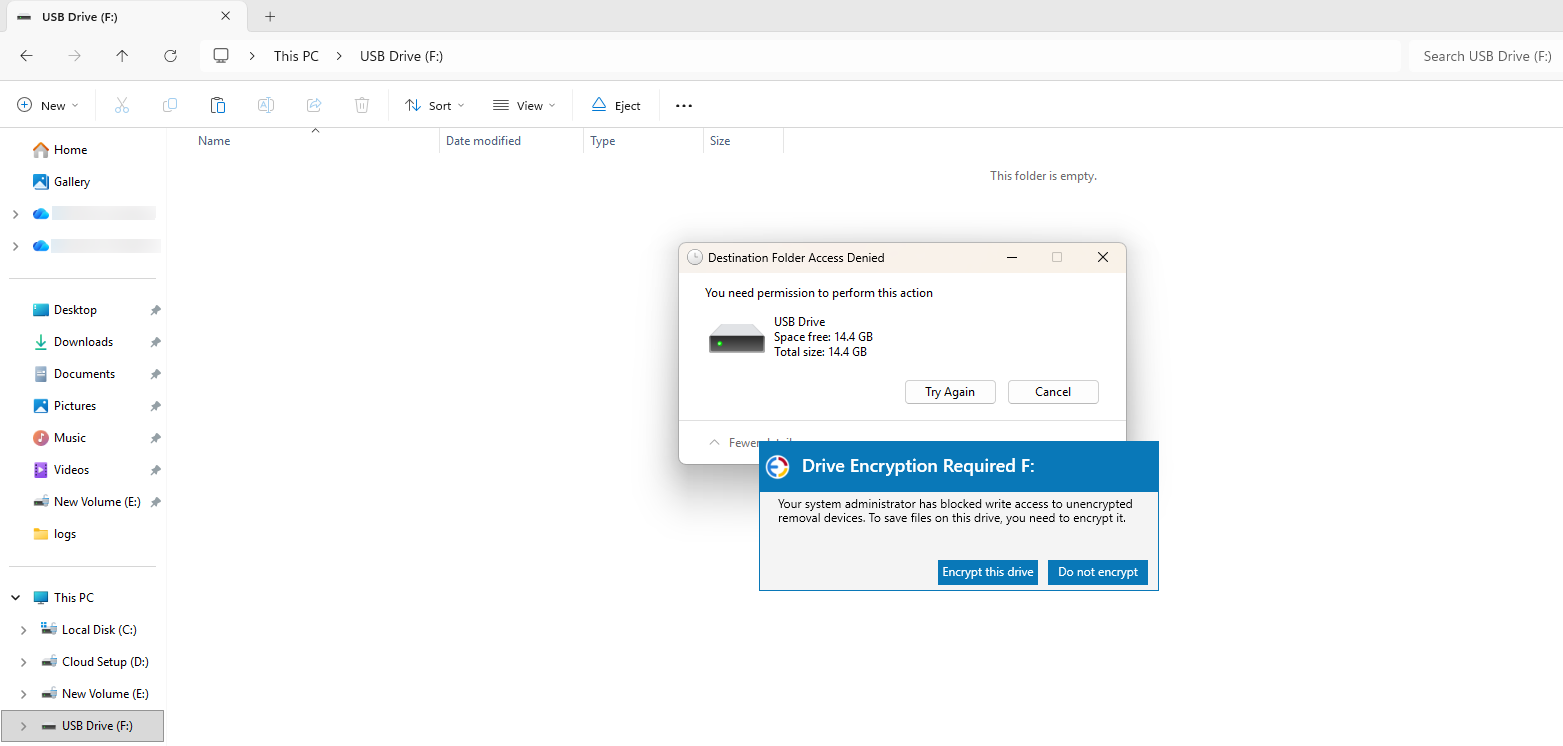
- When user clicks on Encrypt this drive, they will be prompted to set a password for the encryption.
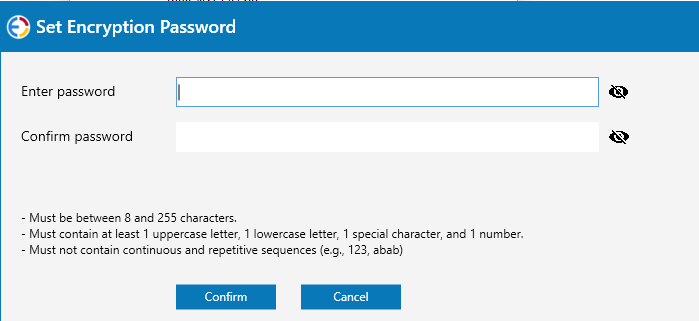
- After setting the password, the device will be encrypted using BitLocker-to-Go
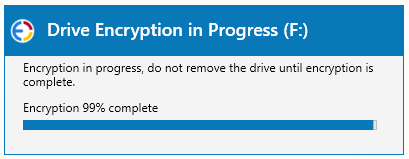
- The user can then navigate to select the drive from File Explorer, Enter the Password to unlock the drive, and have write access.
Unlocking the Drive using Recovery Key
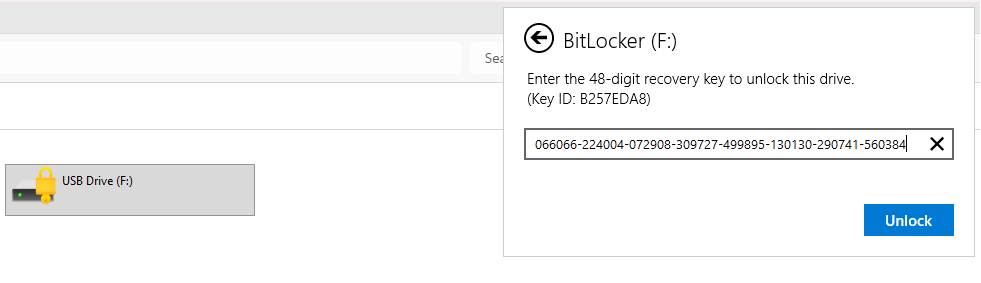
- Insert the USB drive into your computer. When the unlock prompt appears, click the Enter recovery key option.
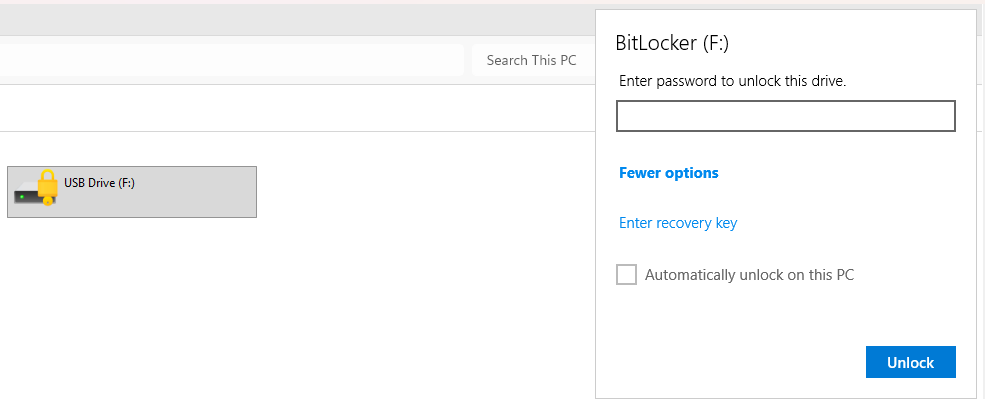
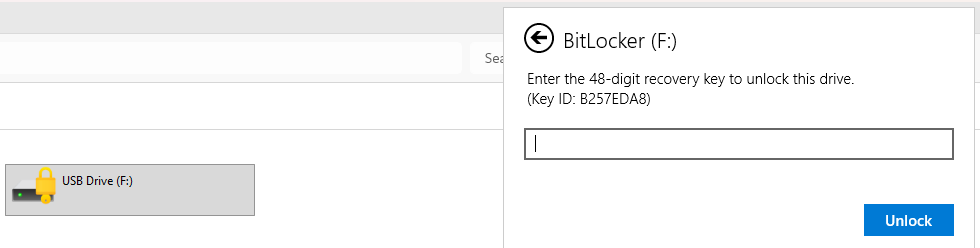
- Copy the Key ID displayed in the dialog box. You will need this to identify the correct recovery key.
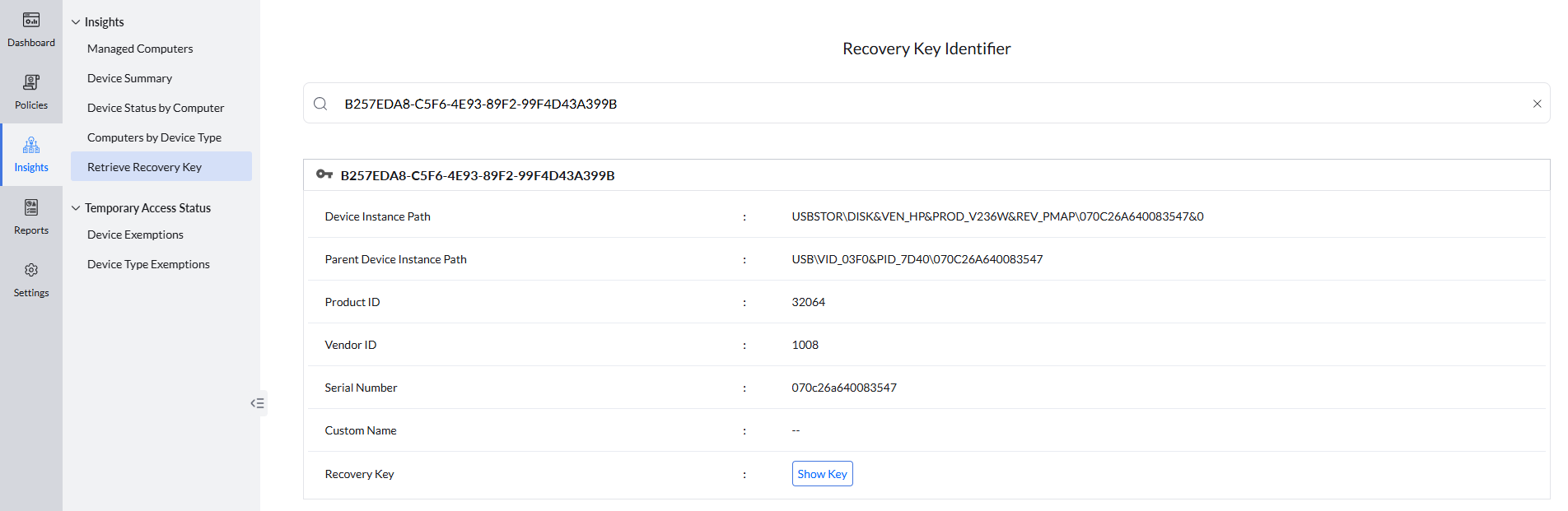
- In the console navigate to Insights -> Retrieve Recovery Keys & enter the Key ID into the search box.
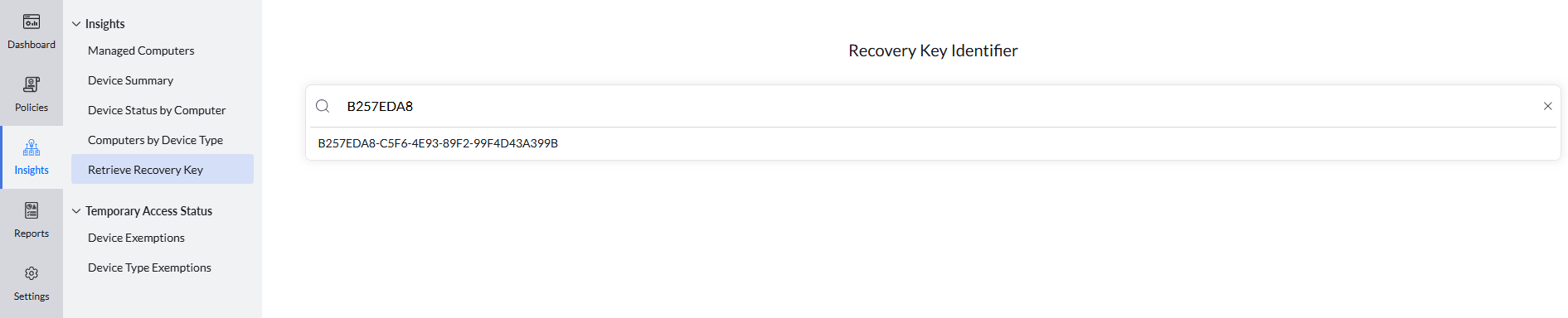
- Once the device appears in the search results, click Show key to reveal the recovery key.
- Enter the displayed recovery key into the unlock prompt on your computer to access the drive.
Start your 30-day free trial and manage unlimited endpoints — secure and protected!