How to Uninstall agent using Agent cleanup tool
If you are trying to uninstall the agent but are being asked for a verification code (OTP) and cannot obtain it, the AgentCleanupTool is the recommended bypass — it does not require the OTP. Learn more about the uninstall verification code.
The AgentCleanupTool is used to completely remove the DEX Manager Plus agent from Windows, Mac, and Linux machines. Unlike uninstalling from the Control Panel or deleting from Applications folder, this tool ensures all files, folders, services, and scheduled tasks related to the agent are fully removed.
- Your DEX Manager Plus server has been shut down or decommissioned, and you still need to remove agents from machines.
- You already tried to uninstall the agent from the Control Panel or System Preferences, but some parts were left behind.
- The agent is stuck, broken, or you cannot manage it from the console anymore.
- You cannot obtain the OTP/verification code required to uninstall (for example, the server is inaccessible or the admin who configured it is no longer available).
- On-Premises customers: You must run AgentCleanupTool.exe on the machine where DEX Manager Plus server is installed. The tool needs to read data from the server to work correctly.
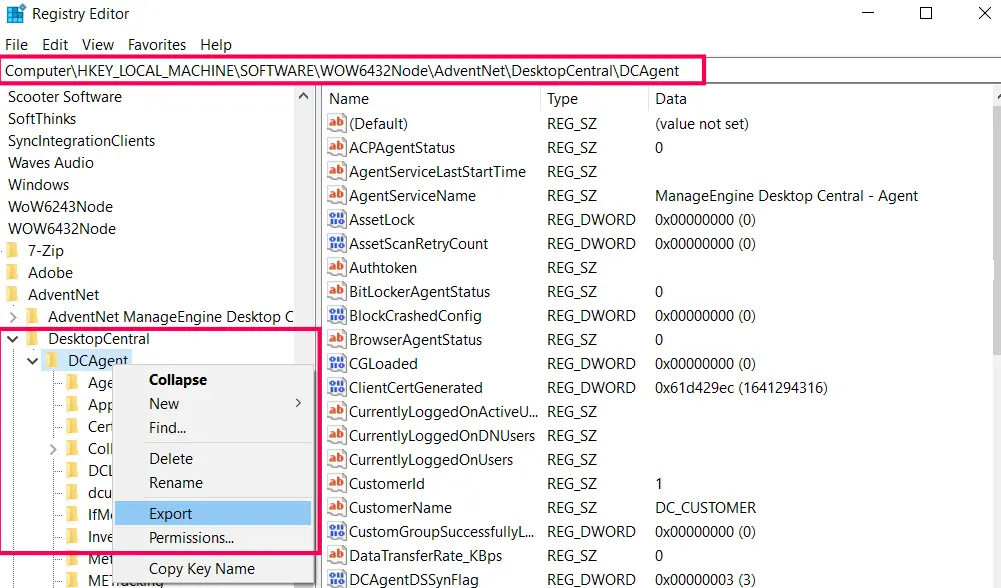
- If the server is already uninstalled: Contact ManageEngine Support with an agent registry export. Support will provide the AgentCleanupClient configured for your environment.
- DEX Manager Plus Cloud customers: You do not have access to a server machine. Please contact ManageEngine Support with an agent registry export from any one managed machine. Support will provide the required cleanup files directly.
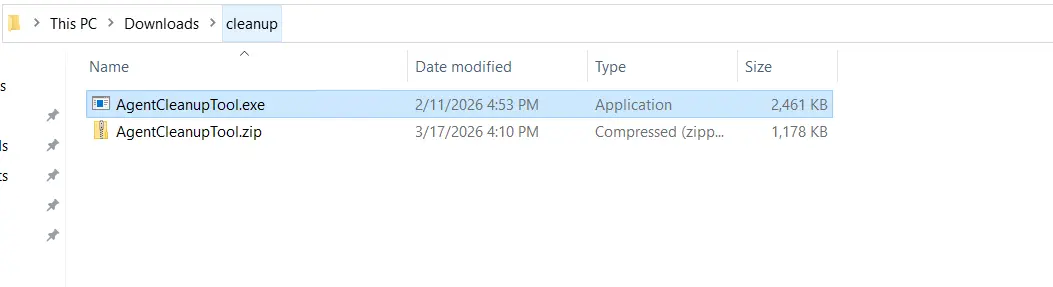
- Download the AgentCleanupTool.exe(SHA 256 Checksum: Calculating...)
- Save the file to a convenient location on the server machine.
- On the server machine, navigate to the folder where you saved AgentCleanupTool.exe.
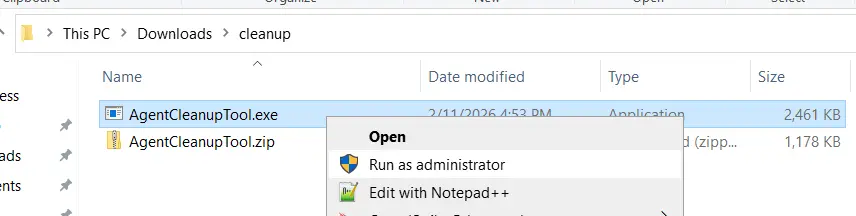
- Right-click AgentCleanupTool.exe and select "Run as administrator":
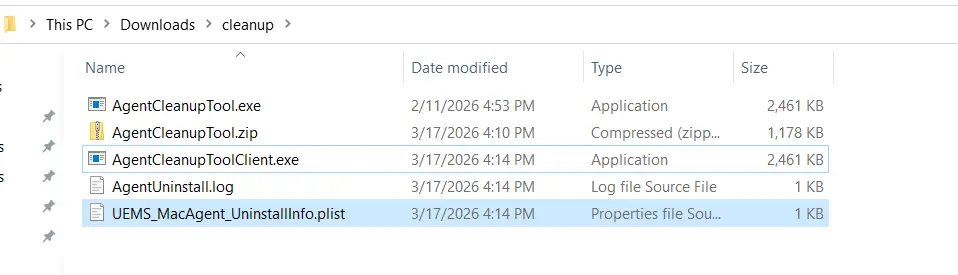
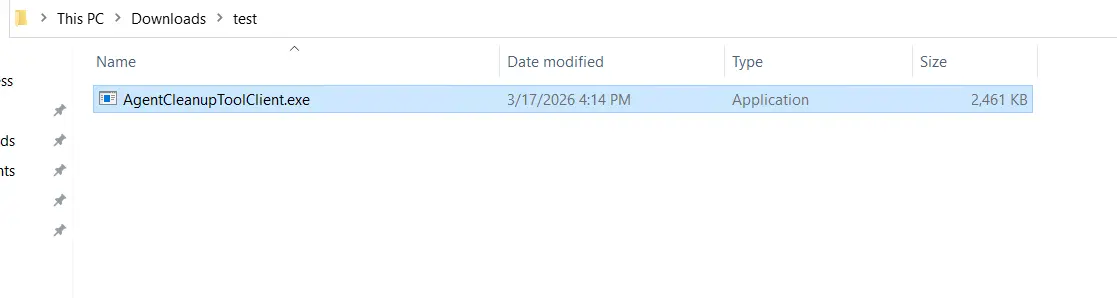
- AgentCleanupToolClient.exe — Used to clean up agents on Windows machines.
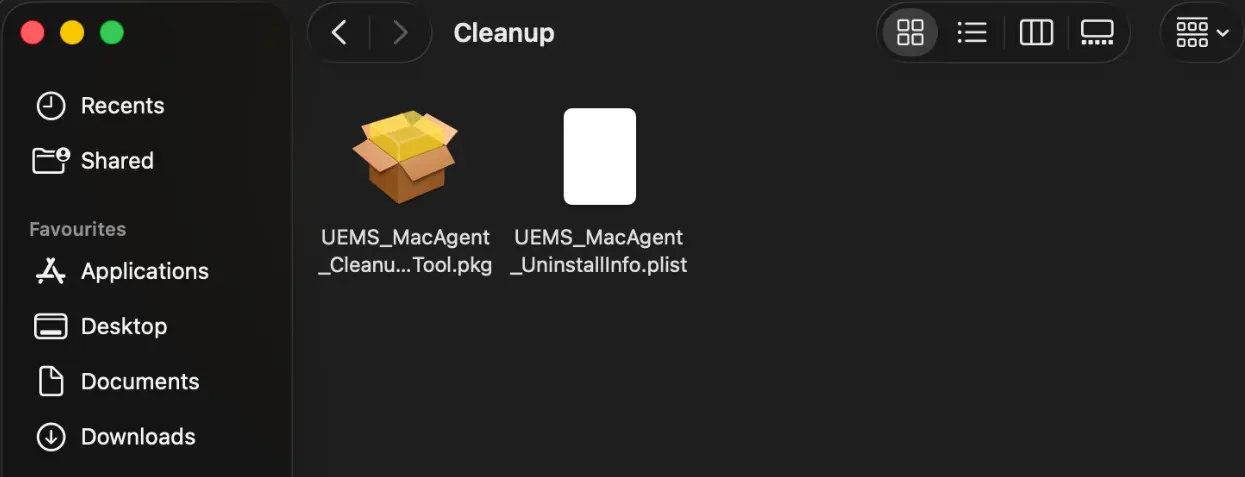
- UEMS_MacAgent_UninstallInfo.plist — Used (along with a separate .pkg) to clean up agents on Mac machines.
Wait for the tool to complete. On success, it will generate two files in the same directory:
- Copy AgentCleanupToolClient.exe (generated in Step 1) to any location on the target machine. Do not place it in the agent installation directory or rename the file.
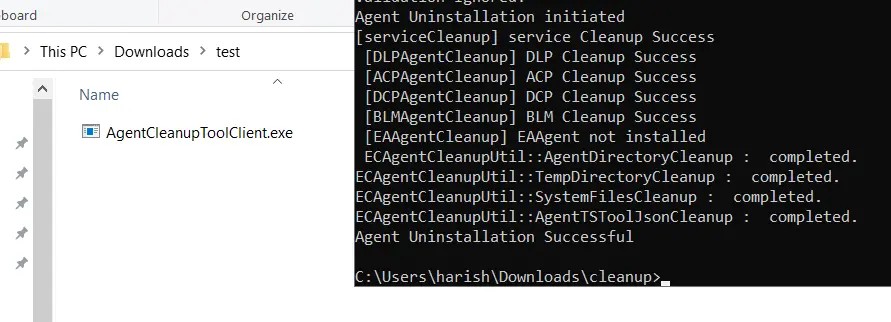
- Right-click AgentCleanupToolClient.exe and select "Run as administrator".
- Wait for the cleanup to complete. A success message will confirm the agent has been removed.
- Download UEMS_MacAgent_Cleanup_Tool.pkg
- Copy both UEMS_MacAgent_UninstallInfo.plist (generated in Step 1) and UEMS_MacAgent_Cleanup_Tool.pkg to the target Mac machine.
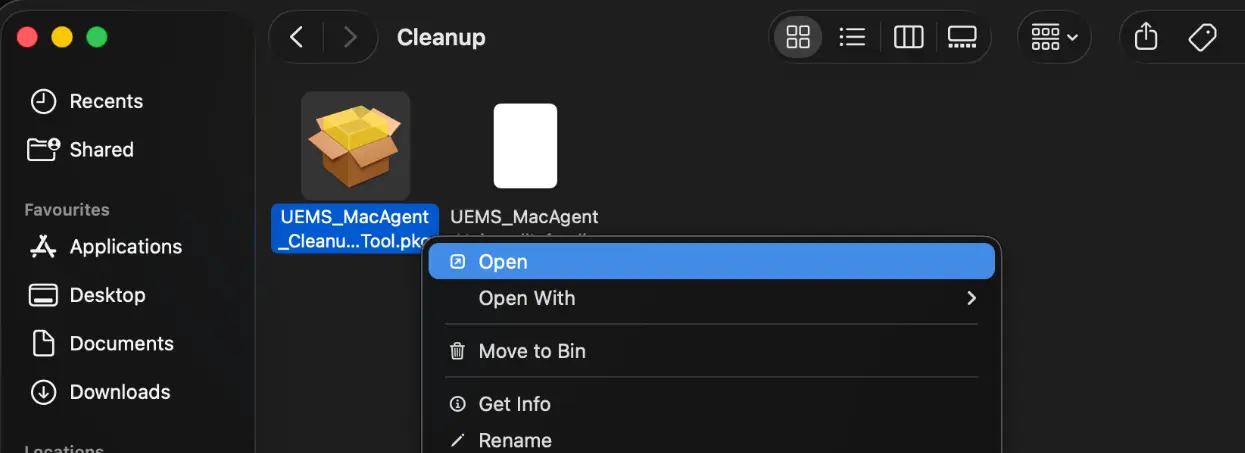
- Double-click UEMS_MacAgent_Cleanup_Tool.pkg to launch the installer.
- Follow the on-screen prompts. When prompted, enter your Mac admin password to authorize the cleanup.
- Wait for the installer to complete. The agent will be fully removed.
- 48 hour expiry: The generated files (AgentCleanupToolClient.exe and UEMS_MacAgent_UninstallInfo.plist) are valid for 48 hours only. If they expire, return to Step 1 and regenerate them.
- Do not rename files: The cleanup tools validate file names internally. Renaming any file will cause the cleanup to fail.
- Do not run from the agent directory: Never execute AgentCleanupToolClient.exe from inside the agent installation folder (e.g., C:\Program Files (x86)\ManageEngine\UEMS-Agent\).
- Server-side removal: The cleanup tool removes only the agent from the endpoint. To also remove the computer entry from the DEX Manager Plus server, navigate to Agent > Computers, select the computers, and click Remove Computers.
- Log in to the DEX Manager Plus web console.
- Navigate to Agent > Scope of Management > Computers.
- Select the target computer and click Install Agent.
- Navigate to Agent > Scope of Management > Computers > Download Agent.
- Select the appropriate agent type (LAN Agent or Remote Office Agent).
- Run the installer on the target machine.
- The computer will reappear in the console within 5—15 minutes after installation. If it does not appear after 30 minutes, check Agent > Computers > Waiting for Approval — admin approval may be required.
When should you use AgentCleanup tool?
Step 1: Download AgentCleanupTool and Generate Cleanup Files
This step is done on your DEX Manager Plus server machine.
Downloading the AgentCleanupTool
Run AgentCleanupTool.exe on the Server
Step 2: Uninstalling the agent
Uninstall Windows agent using Agent cleanup tool
Uninstall Mac agent using Agent cleanup tool
After uninstalling — how do I reinstall the agent?
Once the agent has been successfully removed, follow the steps below to redeploy it:
Alternatively, download the agent installer manually:
Applies to:DEX Manager Plus Uninstallation, Agent Uninstallation.
Keywords: Uninstall Agents, Agent Uninstallation, DEX Manager Plus Agent Uninstallation, AgentCleanupTool, remove agent Linux, remove agent macOS, reinstall agent.