How to Add or Modify a Remote Office
This guide walks you through the steps required to add/modify a remote office in your system. The process includes configuring server details, communication settings, replication policies, and managing devices. Follow each step carefully to ensure a smooth setup.
Add Remote Office Details
Go to Agent > Remote office. Click the Add Remote Office icon.
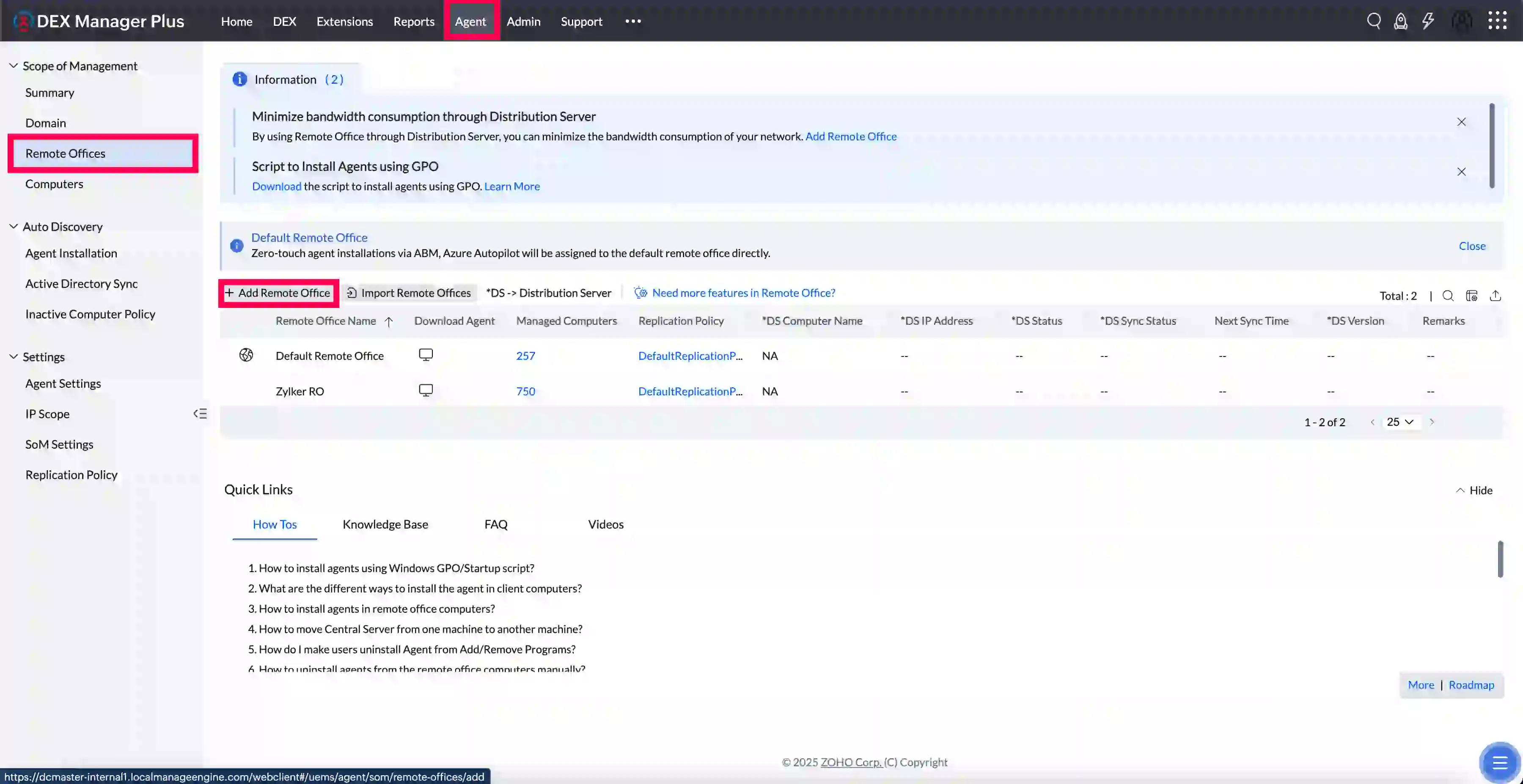
Enter the Remote Office Name and Click Add Description for adding the description related to the Location/Remote Office.
Communication Details
Select the communication type: either through a distribution server or direct communication.

Distribution Server Details
- Enter the NetBIOS name of the domain for the machine you plan to use as the Distribution Server (DS) (e.g., for a server under the domain "manageengine.com," specify "manageengine").If it is under the Entra ID / workgroup, it is the workgroup name.
- Enter the computer name and IP address. If you have a registered public DNS name, enter it in the FQDN/DNS Name field.
- Enter the Port number; if it's not required, leave it at the default port number.
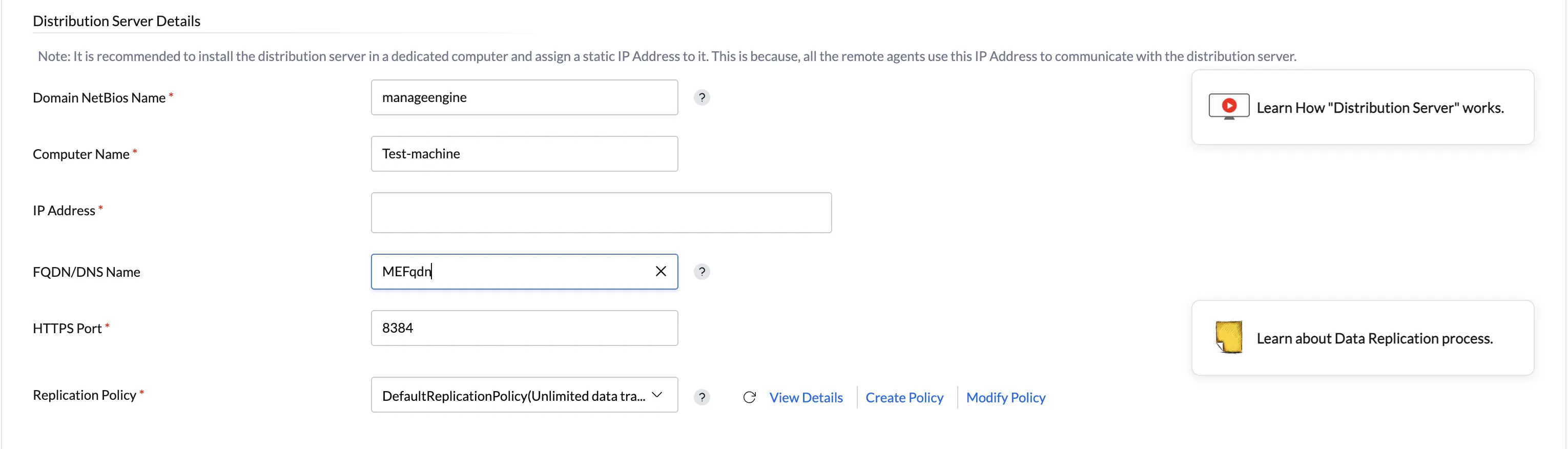
Replication Policy:Ensures software and patches are replicated from Central Server to Distribution Server/Agent with the controlled Data Transfer rate and desired day schedules.
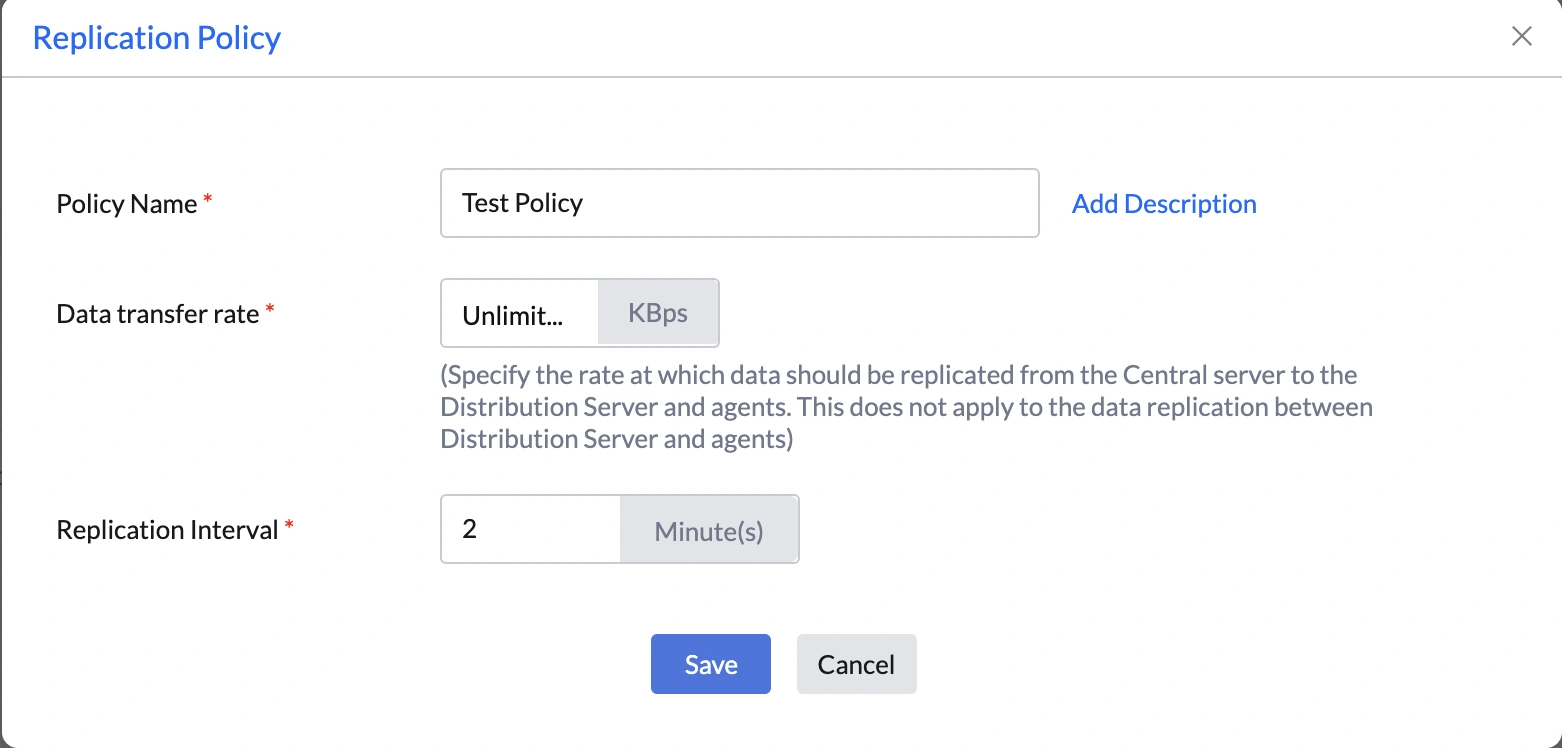
- If you haven’t created a policy yet, click "Create Policy."
- Provide a policy name and description (optional).
- Select the data transfer rate from the drop-down menu.
- Set the replication interval (in minutes).
- Choose the days and times to replicate patches and software, then click Save. The policy will be automatically applied.
- For Direct Communication type of Remote Office, only the Data Transfer Rate from Replication Policy is applicable.
- The data transfer rate applies to communication between the Distribution Server and the Central Server, or between the Agent and the Central Server. It does not apply to communication between the Agent and the Distribution Server, as both will typically be on the same LAN.
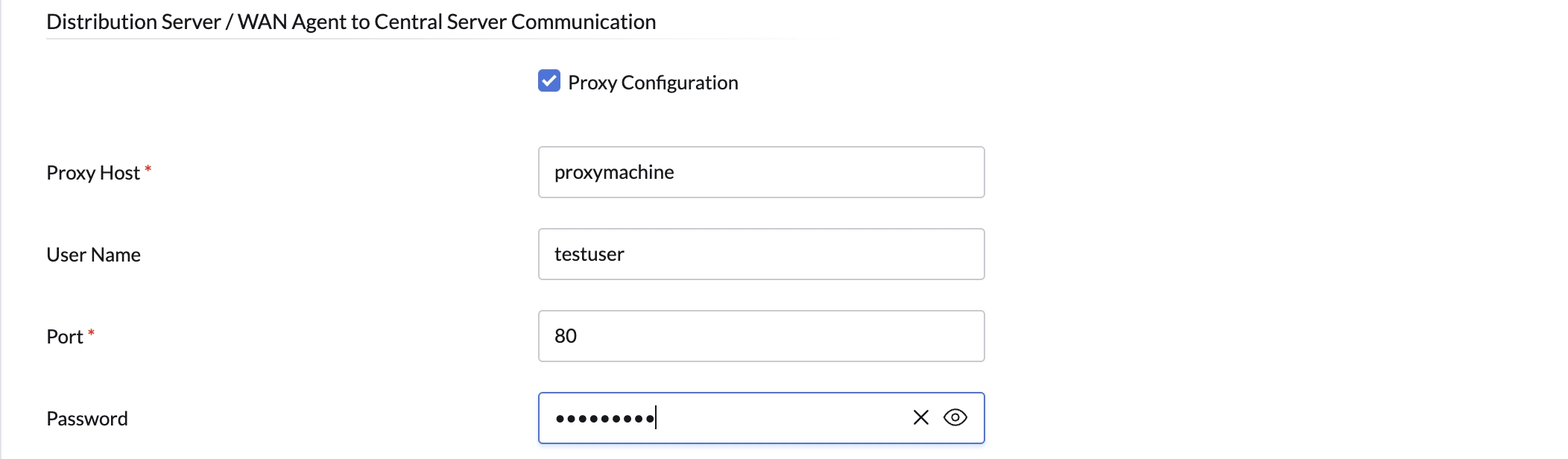
Distribution Server/WAN Agent to Central Server Communication
Communication is set to HTTPS by default. If needed, you can configure a proxy by enabling the checkbox.
Configure Proxy:
- Enter the proxy host name.
- Enter the Proxy server port number.
- If the Proxy Server is configured with credentials to allow communications, provide username and password.
OS Deployment Settings
OS deployment enables automated installation of operating systems on endpoints in remote offices. Select a replication policy and configure the necessary repositories.
- Enter the image repository. If you don’t have one, click "Add Image Repository" in the right pane to create it.
- Enter the driver repository. If you don’t have one, click "Add Driver Repository" in the right pane.

Managed Computers
Add the list of computers to be managed under the Remote Office by clicking Add Computer or by importing a CSV file using Import CSV. Once the Remote Office is added, the installation of the Distribution Server and Agent will be triggered automatically based on the configuration and the added list.
Modifying a Remote Office
To modify an existing remote office:
- Go to the Remote Office section.
- Find the office you want to modify and click the Modify icon in the Actions column.
Conclusion
By following these steps, you can successfully set up and manage a remote office, ensuring proper synchronization, secure communication, and streamlined OS deployments. Each setting plays a crucial role in maintaining the network's efficiency and security across remote locations.