×![]()
×
×![]()
×
×
Installing Distribution Server and WAN Agents
When setting up a remote office in the cloud version of DEX Manager Plus, you need to configure a Distribution Server (DS) and install WAN agents to manage endpoints in that office.
Installing the Distribution Server
The Distribution Server must be installed on a dedicated computer with a static IP for smooth communication.
To install:
- Go to Scope of Management → Remote Offices and click Add Remote Office.
- Enter a Remote Office Name.
- Under Communication Type, select Through Distribution Server (DS).
- Fill in the Distribution Server Details:
| Field | Description |
|---|---|
| Domain NetBIOS Name | Enter the domain name (for example, %domainname%). |
| Computer Name | Enter the name of the computer designated as the DS. |
| IP Address | Provide the static IP address of the DS machine. |
| FQDN/DNS Name | (Optional) Enter the fully qualified domain name. |
| HTTPS Port | Specify the port (default: 8384). |
| Replication Policy | Select a replication policy for data transfer. |
Save the remote office configuration.
Once saved, you will find the DS Installation EXE listed next to the remote office entry.
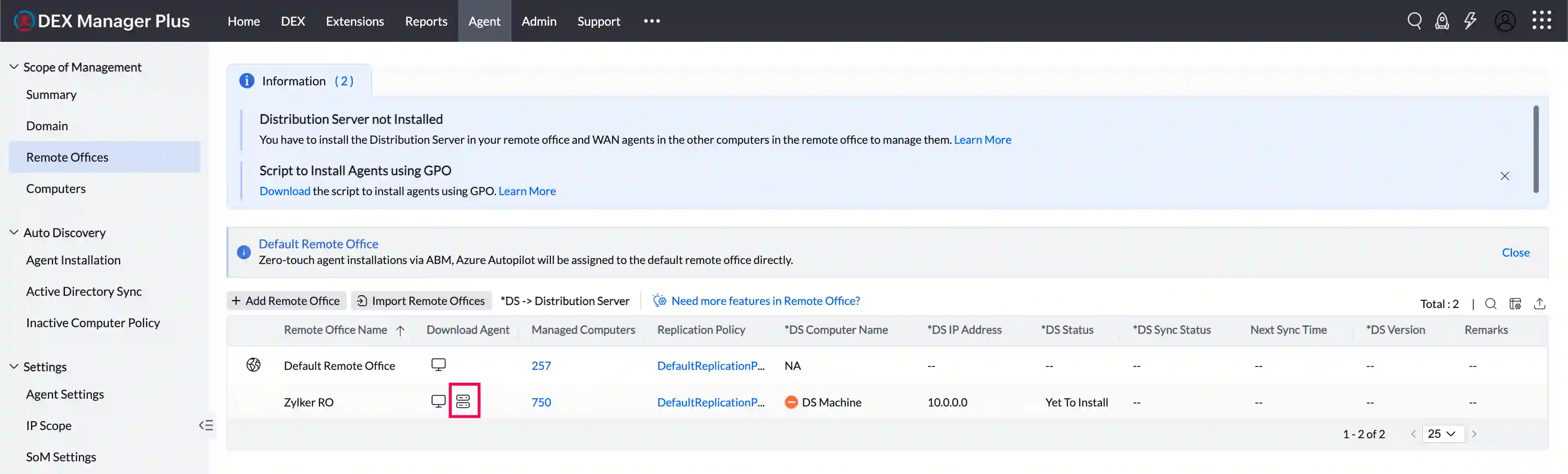
Download and install it on the designated DS machine.
Installing WAN Agents
WAN Agents are required to manage computers in the remote office.
To install:
- After saving the remote office, locate the WAN Agent download option next to it.
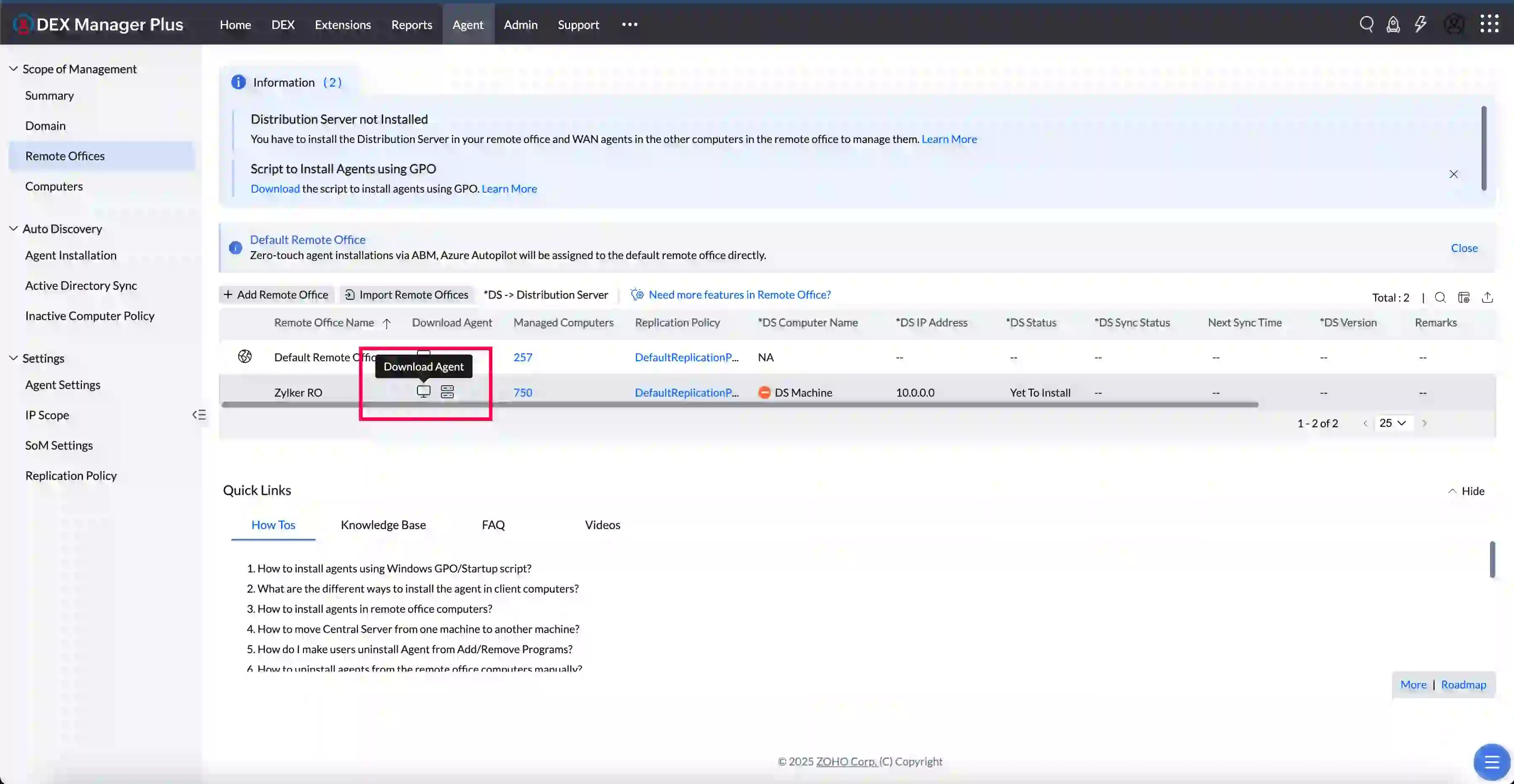
- Windows: Download the .exe file and run it.
Conclusion
By following these steps, the Distribution Server and WAN Agents will be installed successfully, ensuring effective endpoint management for your remote office in DEX Manager Plus Cloud.