Agent Installation Methods
DEX Manager Plus is a client server model which manages all the endpoints in an enterprise from a centralized location. These are the various agent installation methods available for endpoint management.
The agent will be upgraded automatically during refresh policy or when it connects to the Central server / Distribution Server.
Using agent installation link
DEX Manager Plus agent can be downloaded from a copied link. The copied link can be shared to end users who could then download and install the agents in their machines. This option is available on clicking Download Agent from Remote Offices or Computers tab. On clicking copy option, the URL for the selected Remote Office will be created. The default expiry time of the URL is 15 days. Using the copied link, agent can be installed:
- Directly from the browser
- From the terminal
Directly from the browser:
On visiting the copied URL from the browser, the user will be presented with an option to download the agent. The user has to select the OS and the agent download will be initiated. If the user visits the URL from an unsupported browser, an error page will be displayed. If the user visits the copied URL from a supported browser post the expiry time, the error page will be displayed.
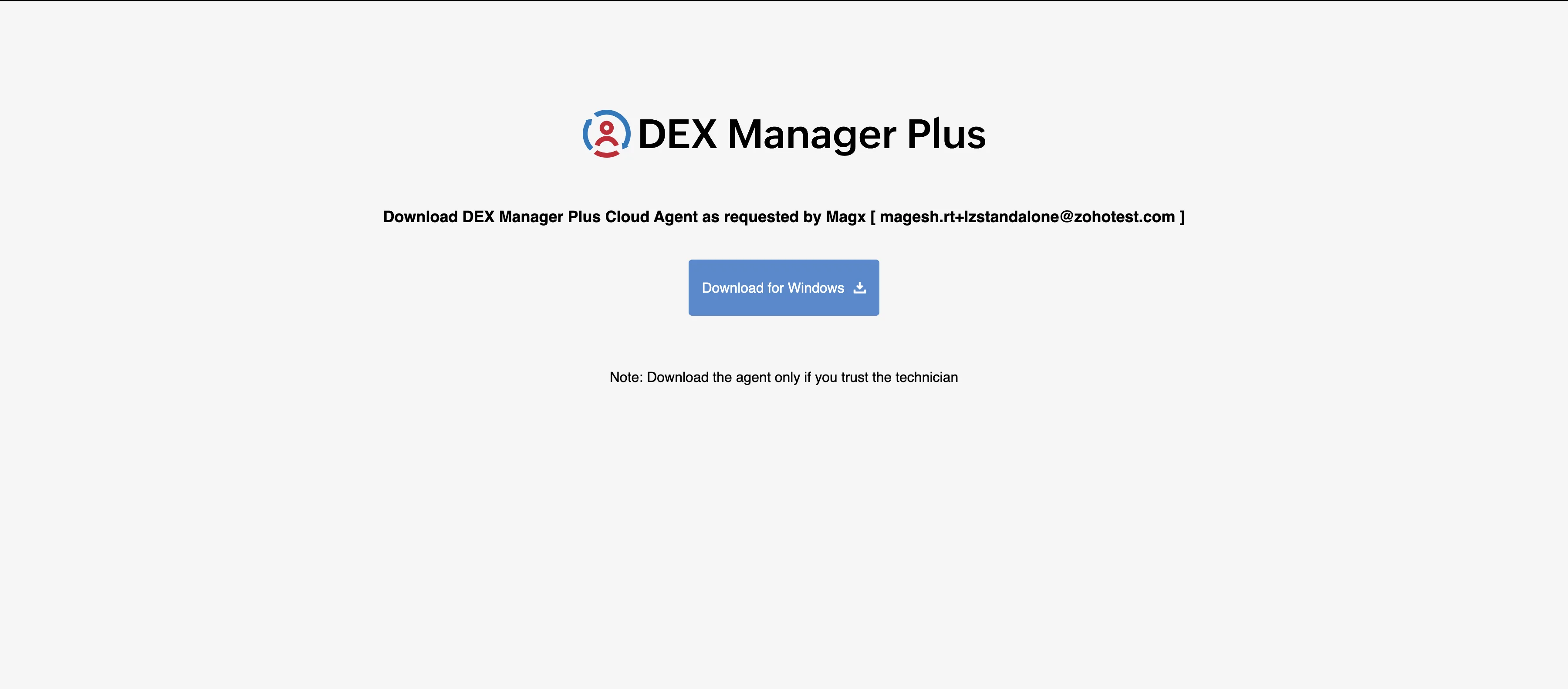
Valid OS parameters are:
- windows
Note: OS must be supported for the product for which agent is downloaded.
Agent can be downloaded using CURL. The CURL download command is:
- curl "paste_copied_url_with_os_param" --output DCAgent.exe - (Windows)
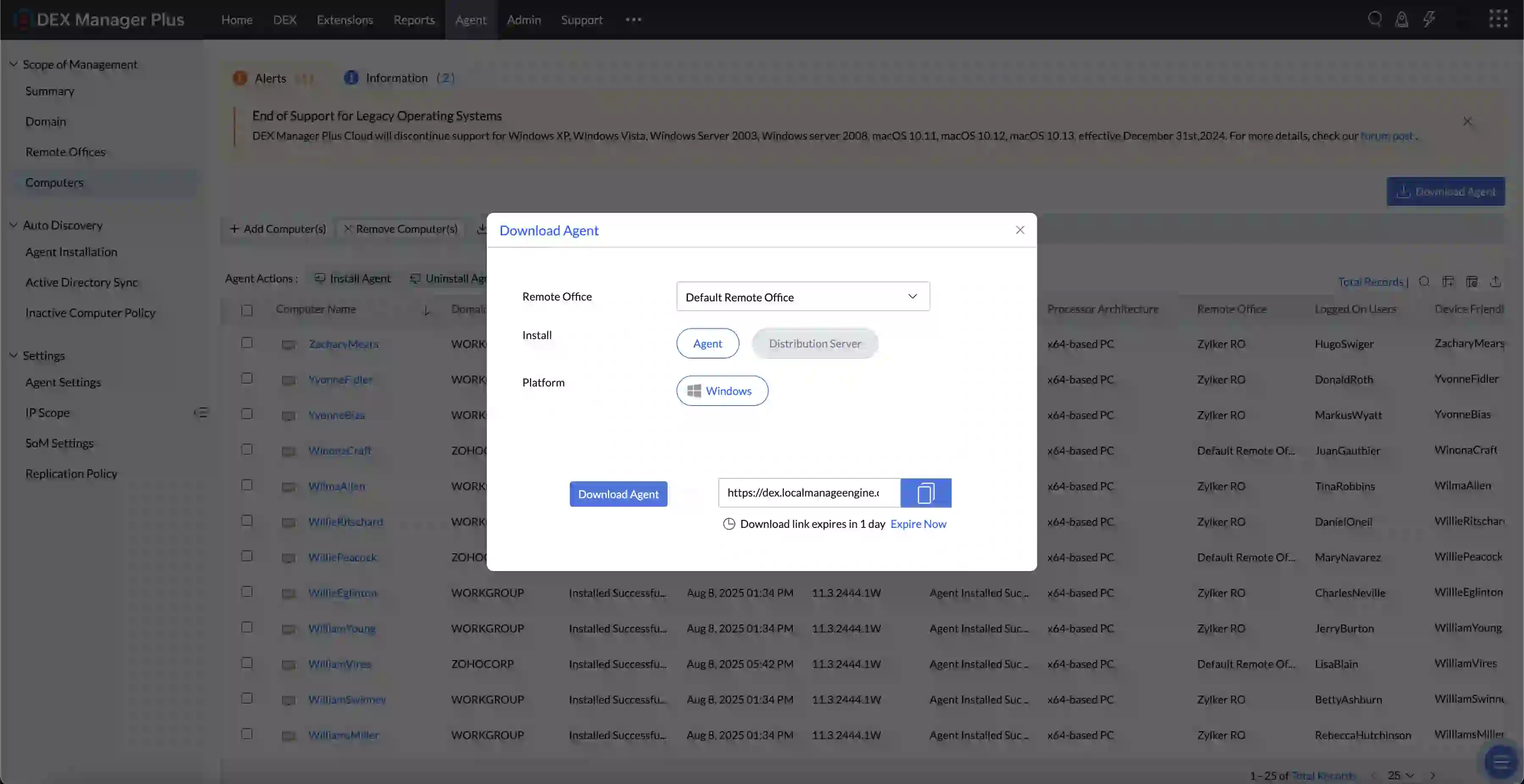
Silent Installation of Agent EXE (Windows):
Once the URL is downloaded, the agent can be installed silently using EXE itself for Windows machines by adding "/silent" argument. The command to install agent is:
DCAgent.exe /silent
Alternatively, the installation process can be automated using a powershell script.
- Replace the url in the below script with the copied url
- Save the script as .ps1 filetype
- Run the powershell script
Downloaded User:
For additional security, on enabling waiting for approval option, we can get to know from which technician's shared link, the agent was installed. Based on this, we can approve the computers to be managed.
Agent deployment along with OS
For enterprises which have new machines to be managed and where the required operating system has to be deployed, the agent can be deployed with the OS.
Agent installation through GPO
In enterprises with an Active Directory Domain setup and numerous endpoints to manage, Group Policy Objects (GPO) offer an efficient way to deploy agents. This method is particularly useful during the initial bulk onboarding of agents, as GPOs automate the installation process, ensuring consistency and reducing manual effort across the network.
IP Range based Agent deployment
When there are numerous endpoints in a workgroup-based setup in an enterprise, using IP ranges, agents can be deployed in bulk to all the devices.
- IP ranges: Agent can be installed using IP address or IP ranges or using computer names
Agent installation through network share
Agent installer files can be easily accessed from a common central location. There is no need for transferring complete agent installer files to all devices in a network.
Agent installation for Microsoft Services & AWS
You can use System Center Configuration Manager (SCCM) to deploy the DEX Manager Plus agent across multiple endpoints. By creating and deploying an SCCM package, you can automate agent installation in branch offices or distributed networks. Follow the steps below to create the package and push the agent to target computers.
- Navigate to Agent → Computers → Download Agent and download the respective remote office agent installer file.
- Paste the EXE file in a shared path accessible by all the computers on which the agent is to be installed.
- Download the script below and update the shared path with your network share path.
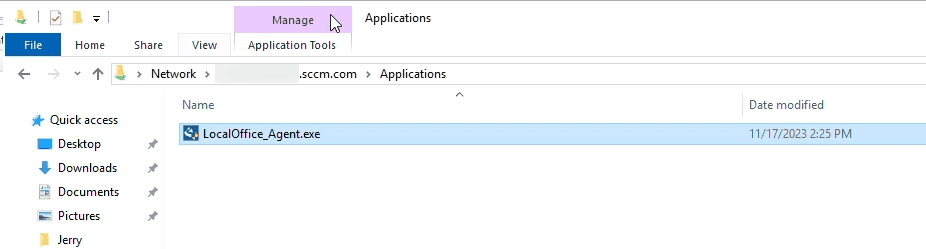
- Open SCCM Console and navigate to Software Library → Overview → Application Management → Packages.
- This will launch the Create Package and Program Wizard, where you will be asked to fill in details such as Name, Description, Manufacturer, etc.
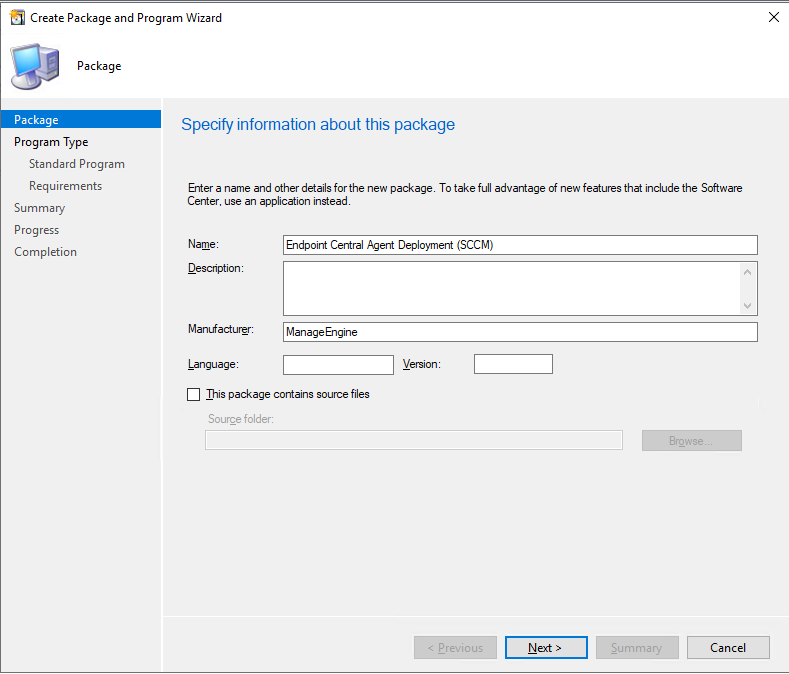
- Enable the checkbox This package contains source files. Select Network path and enter the shared folder path.
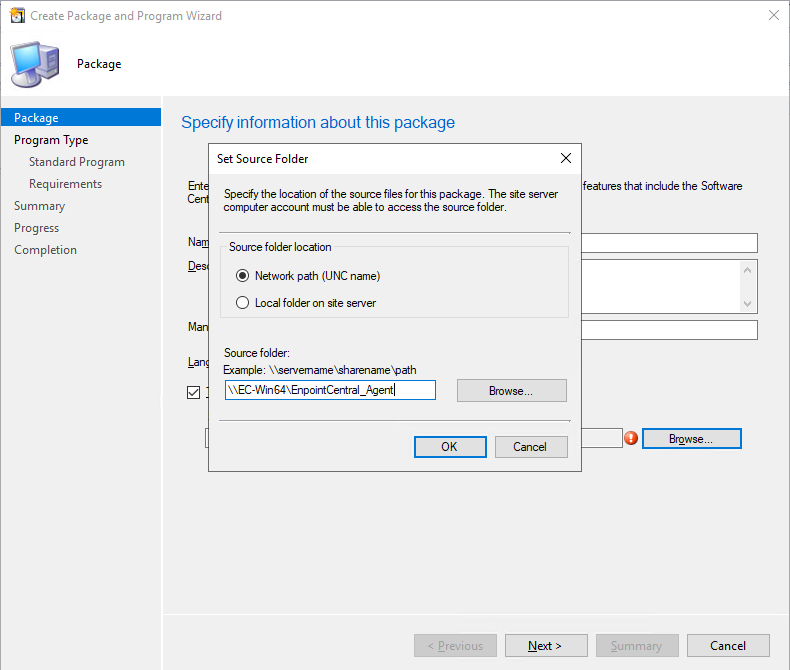
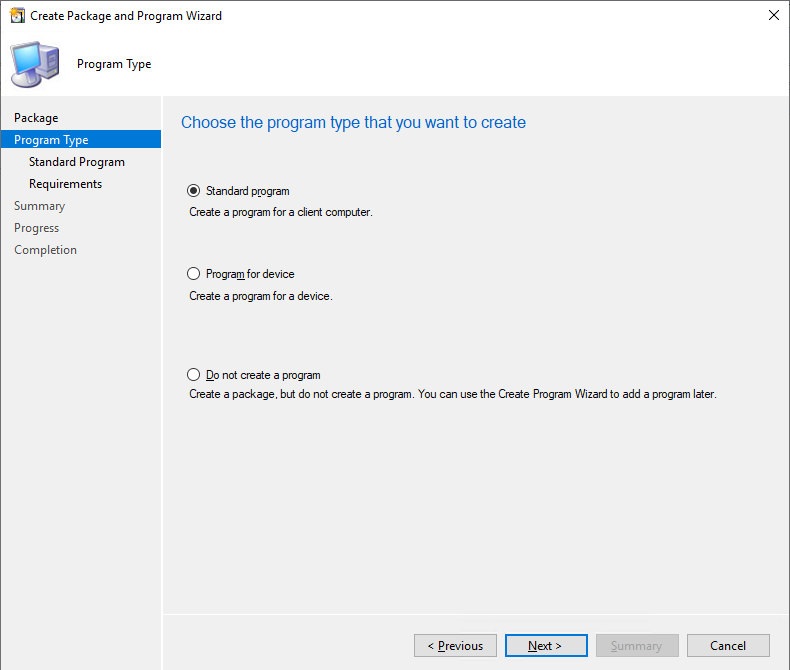
- Select Architecture as x86 (if available) and the program type as Standard, then click Next.
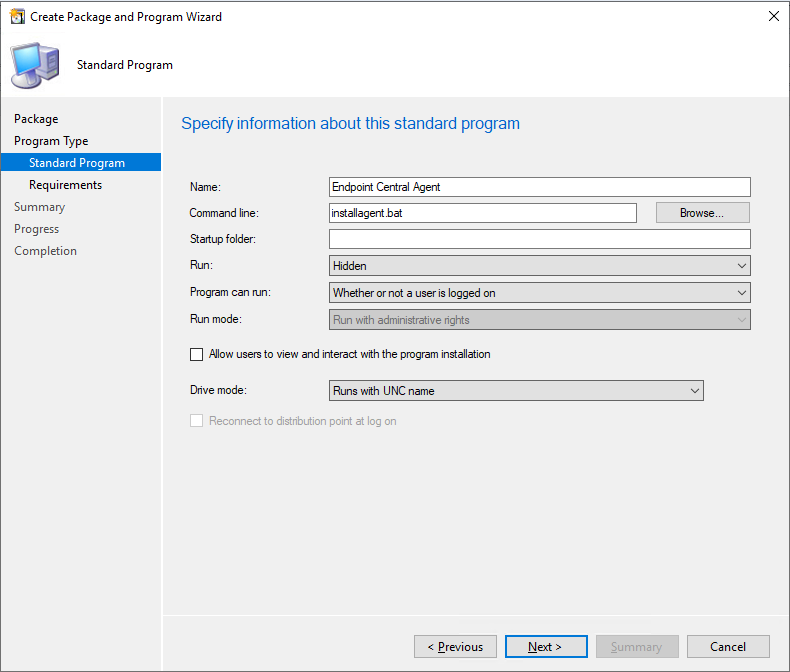
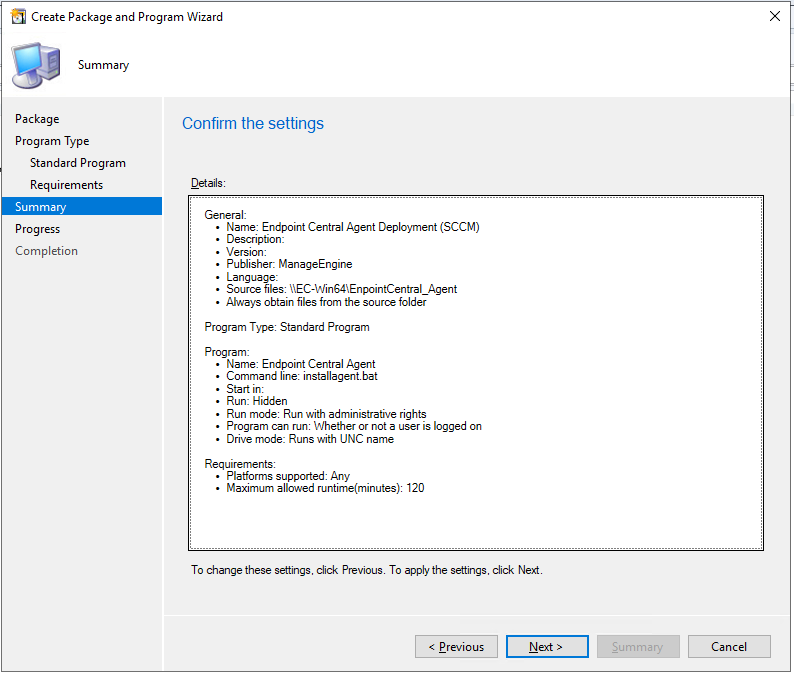
- Fill in the necessary program information as shown in the example below, then click Next.
- Review the requirements and ensure they match your environment. Click Next to continue.
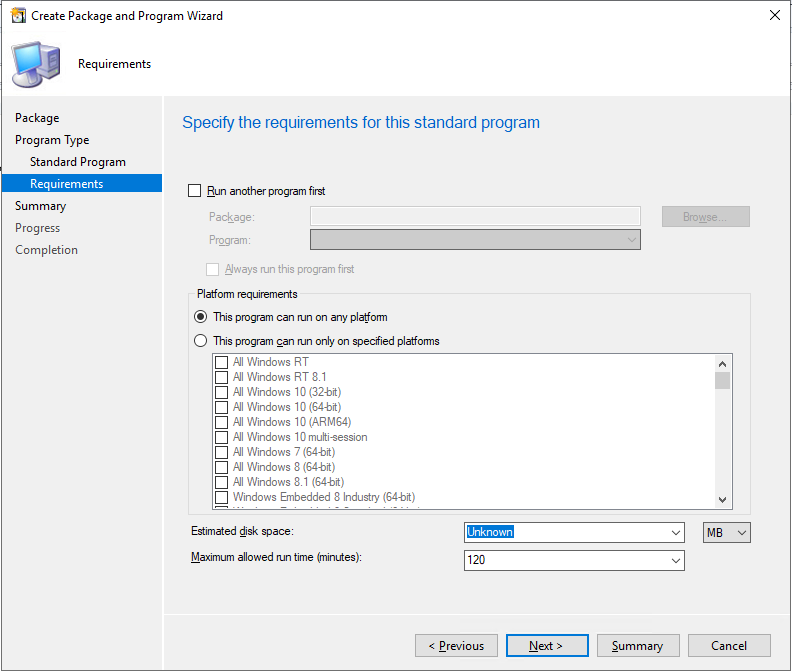
- Confirm the settings to proceed and create the package.
- The package has been created successfully.
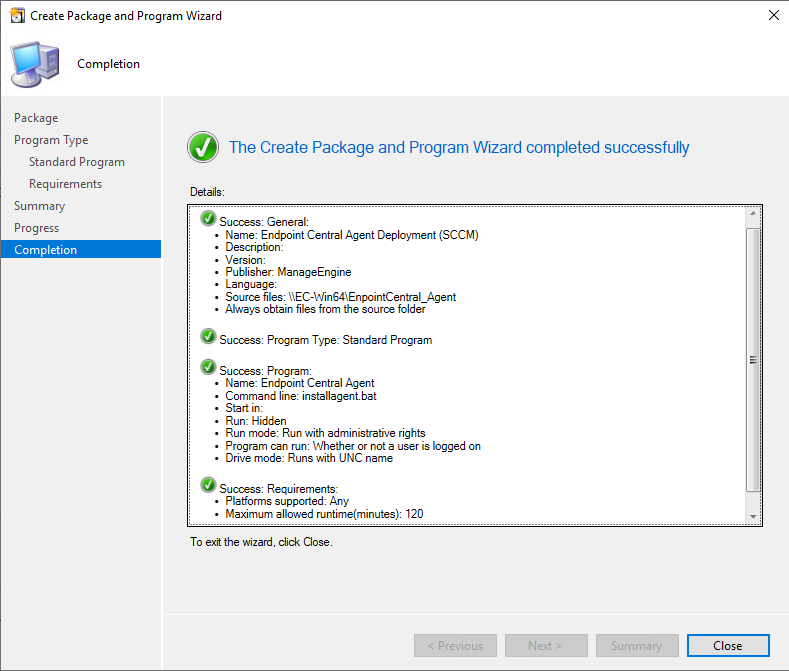
- The package can now be deployed to the end-user computers.
Conclusion: You have now successfully installed agents in target endpoints using SCCM.
 Yes No