Circuit Workflows in DEX
A Circuit automates a cloud task as a series of connected steps. A Circuit can check a condition, run custom code, wait, call another Circuit, and continue to the next action. You build it by dragging steps onto a canvas, where the complete flow is visible at a glance.
Circuits run in the cloud. They do not require the DEX agent and do not run on managed devices. Use them for tasks that are not tied to a single device, such as calling another application, processing data, raising tickets, or sending scheduled updates.
For automations that run on managed devices, such as cleaning up disk space or restarting a device, use a Device workflow. See Managing Workflows in DEX.
Device Workflow vs. Circuit
| Capability | Device workflow | Circuit |
|---|---|---|
| Runs on | Managed devices through the DEX agent | The cloud, without an agent or device |
| Use it for | Device tasks such as cleanup, restarts, fixes, and user prompts | Tasks not tied to a device, such as calling other applications, processing data, or raising tickets |
| Deployment modes | Immediate, Scheduled, or Trigger | Immediate or Scheduled |
| Results | Status of every stage for each device | Status, input, and output of every step for each run |
| Available in | Cloud and On-Premises | Cloud only |
Create a Circuit
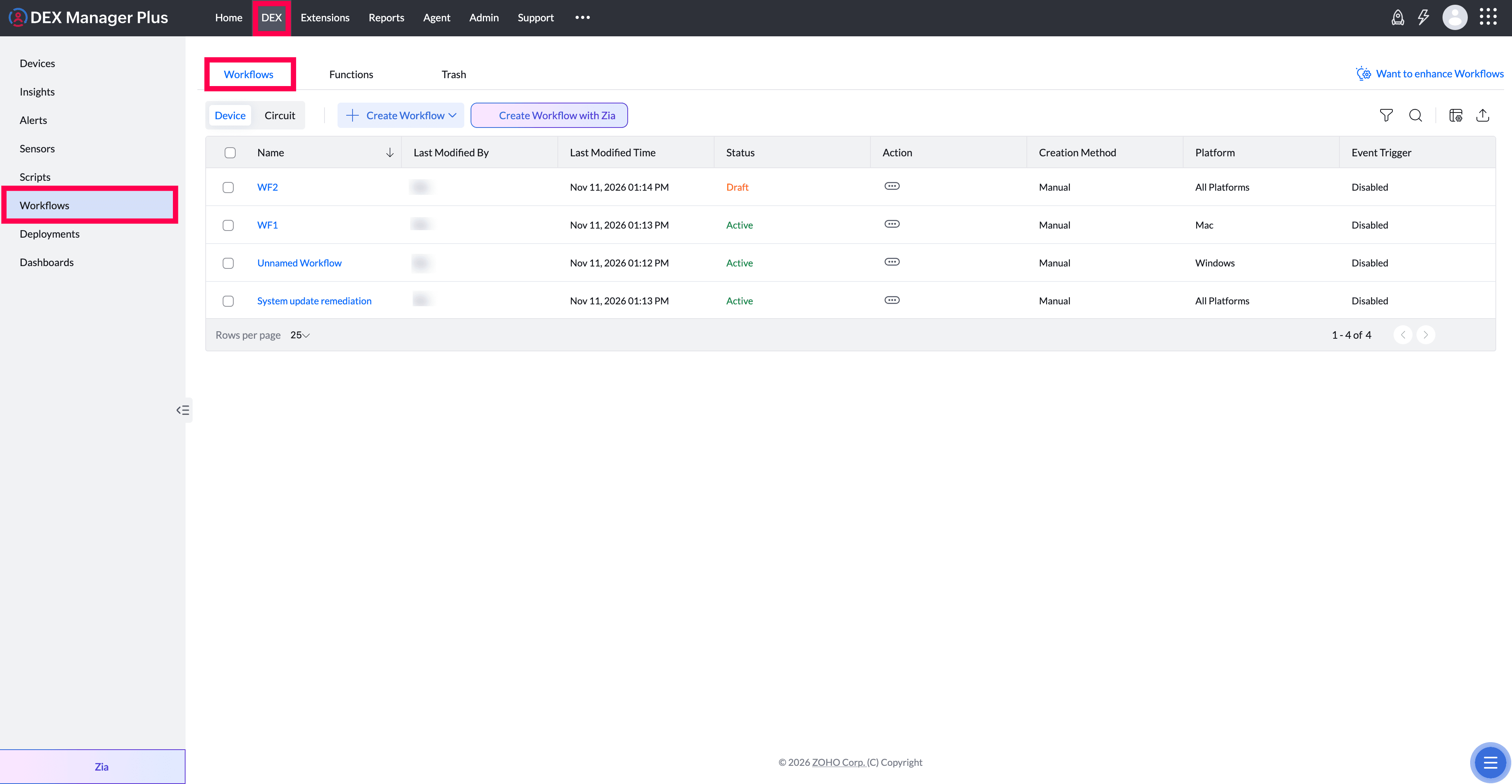
- Go to DEX > Workflows and select Circuit.
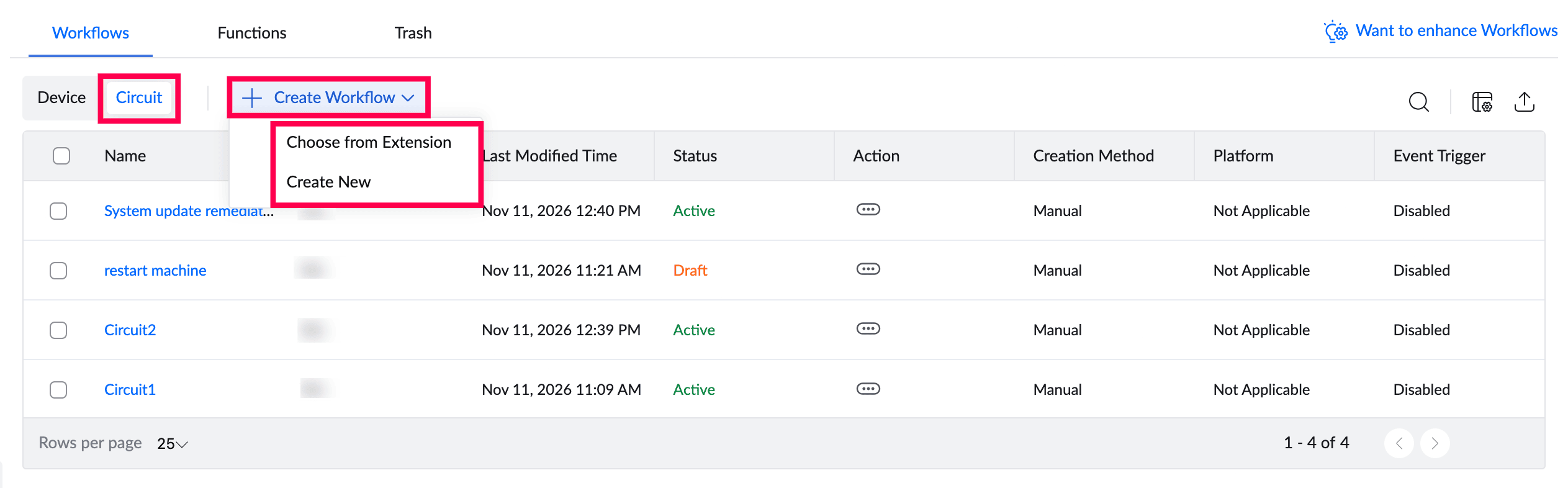
- Click + Create Workflow, and then select Create New.
- Enter a name and description, and then click Done. The workflow is created as a draft, and the Circuit canvas opens.
- Drag the required steps from the left pane onto the canvas, and configure each step in the right pane.
- Click Save to make the Circuit active and available for deployment. To finish it later, click Save as Draft.
Add a Function to a Circuit
- Open the Circuit to display its canvas.
- Drag the Function step from the left pane onto the canvas.
- Select the step, and then choose a function from the list. Functions created in the Functions tab are available here.
- Add the input values required by the function.
- Configure the action to take if the function fails.
- Click Save.


Run Another Circuit
When multiple workflows share the same steps, build the shared steps as a separate Circuit and call it from the other Circuits.
- Open the Circuit to display its canvas.
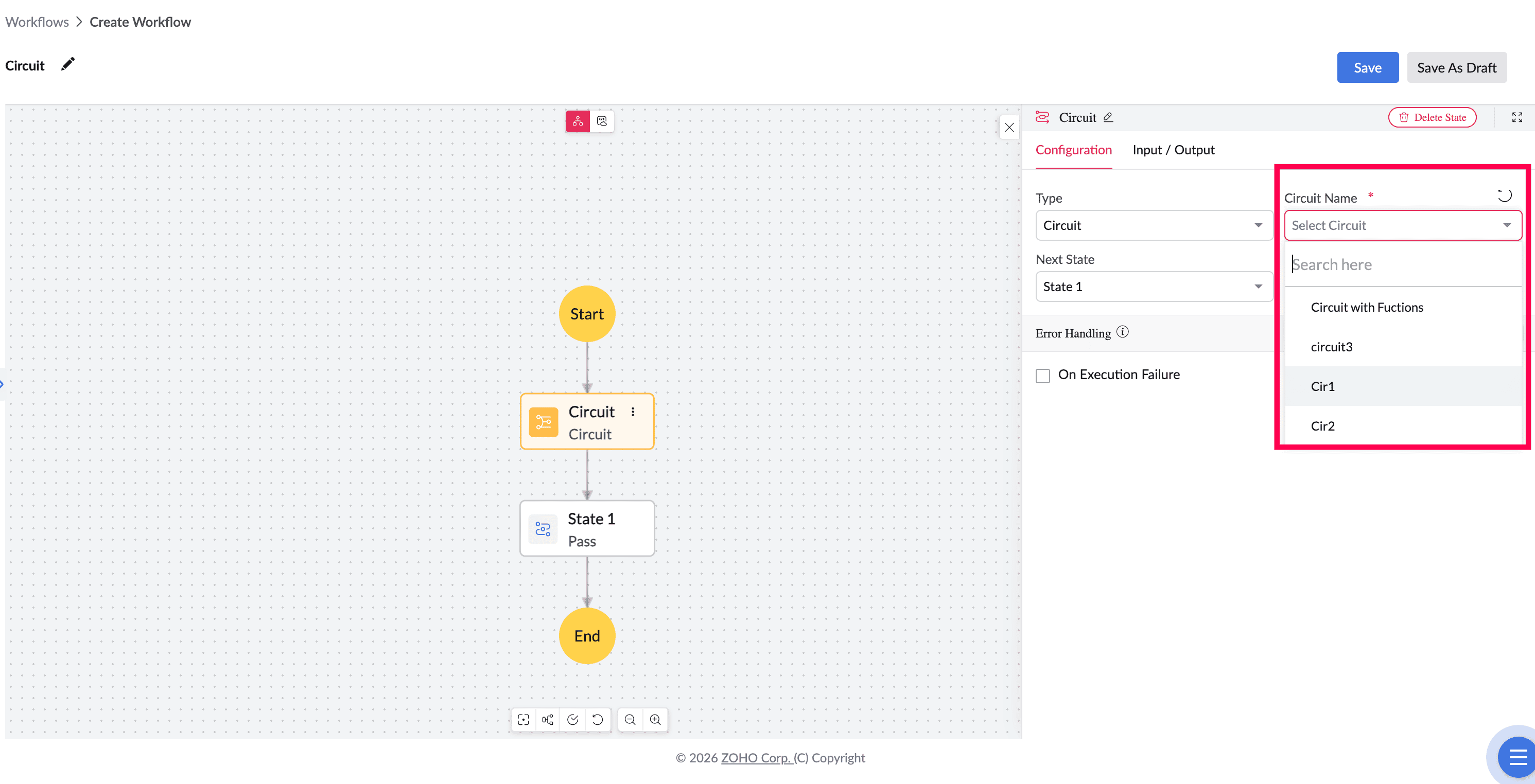
- Drag the Circuit step from the left pane onto the canvas.
- Select the step, and then choose the Circuit to run.
- Add the input values required by the selected Circuit.
- Click Save.
Deploy a Circuit
Saving a Circuit does not run it. Create a deployment to run the Circuit.
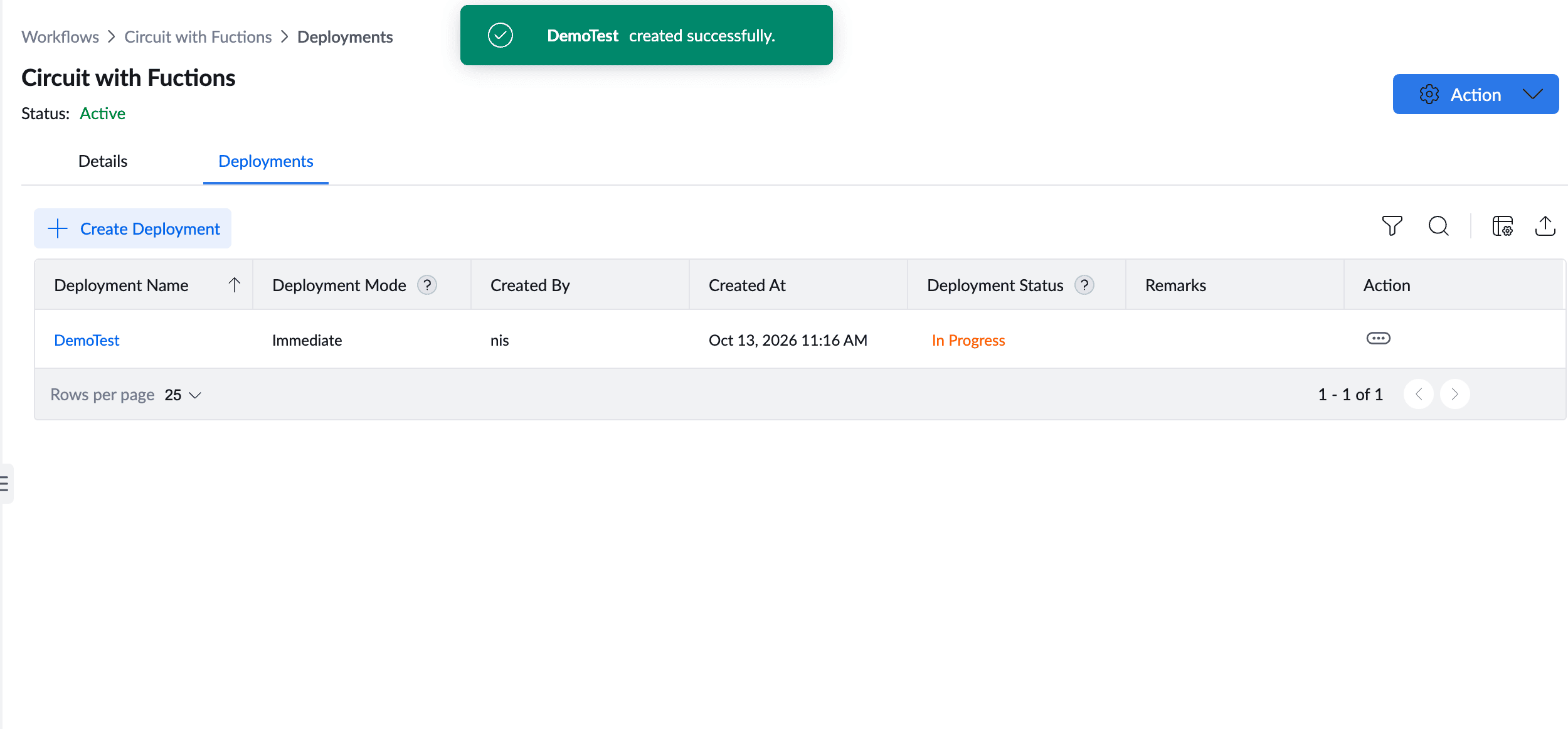
- Open the Circuit, and then click its Deployments tab.
- Click Create Deployment.
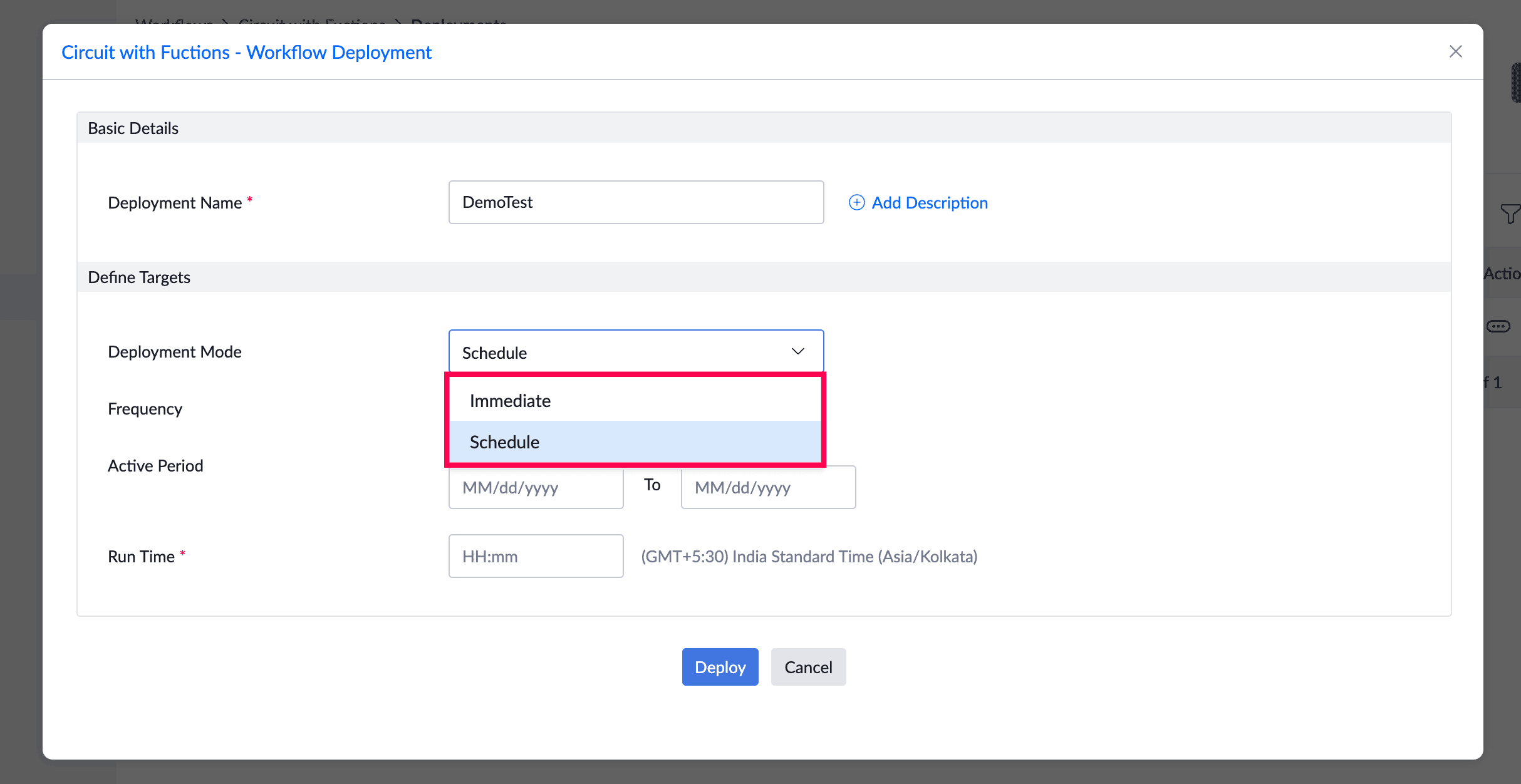
- Enter a name and description.
- Choose when the Circuit runs. Immediate runs it once immediately. Scheduled runs it on the configured dates and times.
- Click Create.
View Run Details
Open a deployment to view every run and its status. Select a run to view its details. The canvas shows whether each step passed or failed, together with the data that entered and left the step.

Example: Create a Ticket for Missing Critical Patches
This example checks daily for critical patches that have been missing for more than seven days and creates one service desk ticket that lists the patches and affected computers.
- Function — Find missing critical patches: Retrieves critical patches that have been missing for more than seven days.
- Branch: Continues to the ticket step when patches are found; otherwise, it proceeds to Success.
- Function — Create ticket: Creates one service desk ticket containing the patches and affected computers.
- Success: Ends the workflow.
Deploy the Circuit as a scheduled deployment that runs daily. Each run appears in the deployment with its current status.