Delay Stage
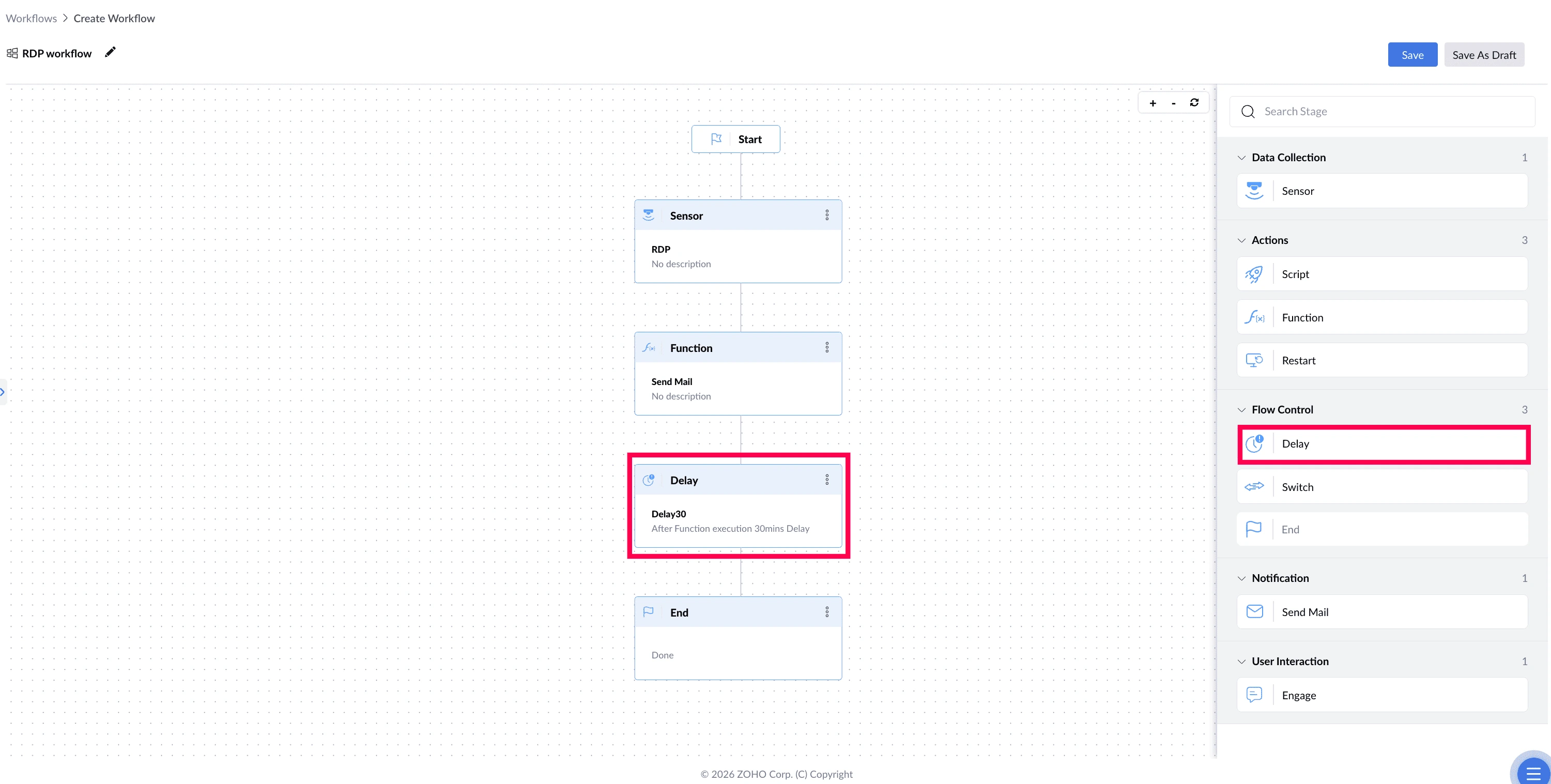
The Delay stage pauses the workflow for a set period before moving on to the next stage. Use it when something needs time to take effect, or when the workflow should wait before continuing.
What This Stage Solves
Actions don't always finish the moment they're triggered. A cleanup script may still be running, a service may take time to come back up, a setting may need a moment to apply. A check that runs too soon reports the wrong result. The Delay stage holds the workflow for a set period so the next stage sees what actually happened.
| The problem | What Delay does about it |
|---|---|
| A follow-up check runs before the fix has finished, and wrongly reports failure | Waits before the next stage runs |
| A device restarts the instant the user is told about it, leaving no time to save work | Holds the workflow between the message and the restart |
| Repeated actions run too close together on the same device | Spaces them out |
Example : Managed Device Restart
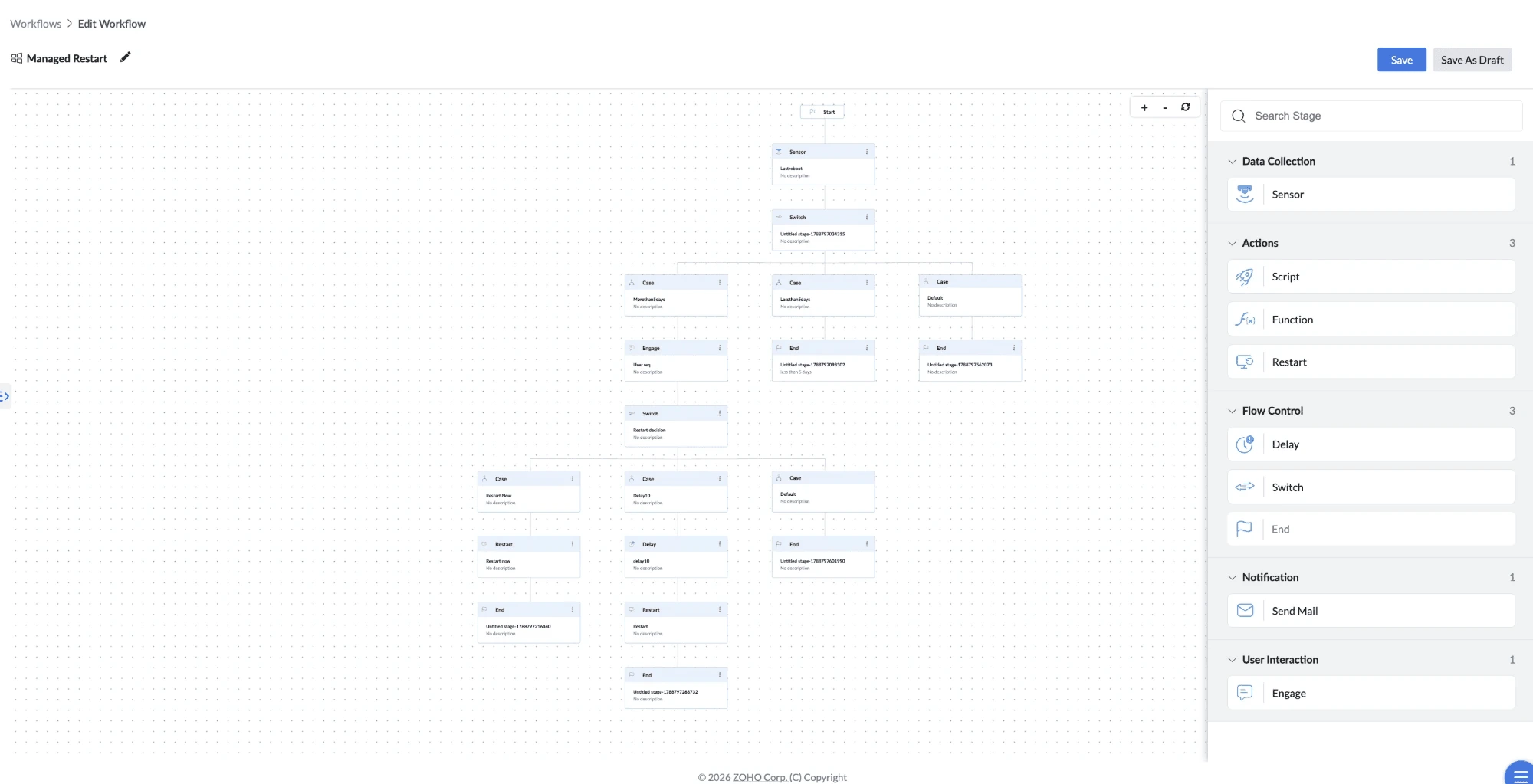
This workflow restarts devices that haven't restarted in over 5 days. Before restarting, it asks the user whether to do it now or in 10 minutes. If the user chooses to wait, the Delay stage pauses the workflow for 10 minutes, then the Restart happens. If the user chooses to restart now, the workflow skips the Delay.
How to Configure
- Drag the Delay stage onto the canvas and connect it to the preceding stage.
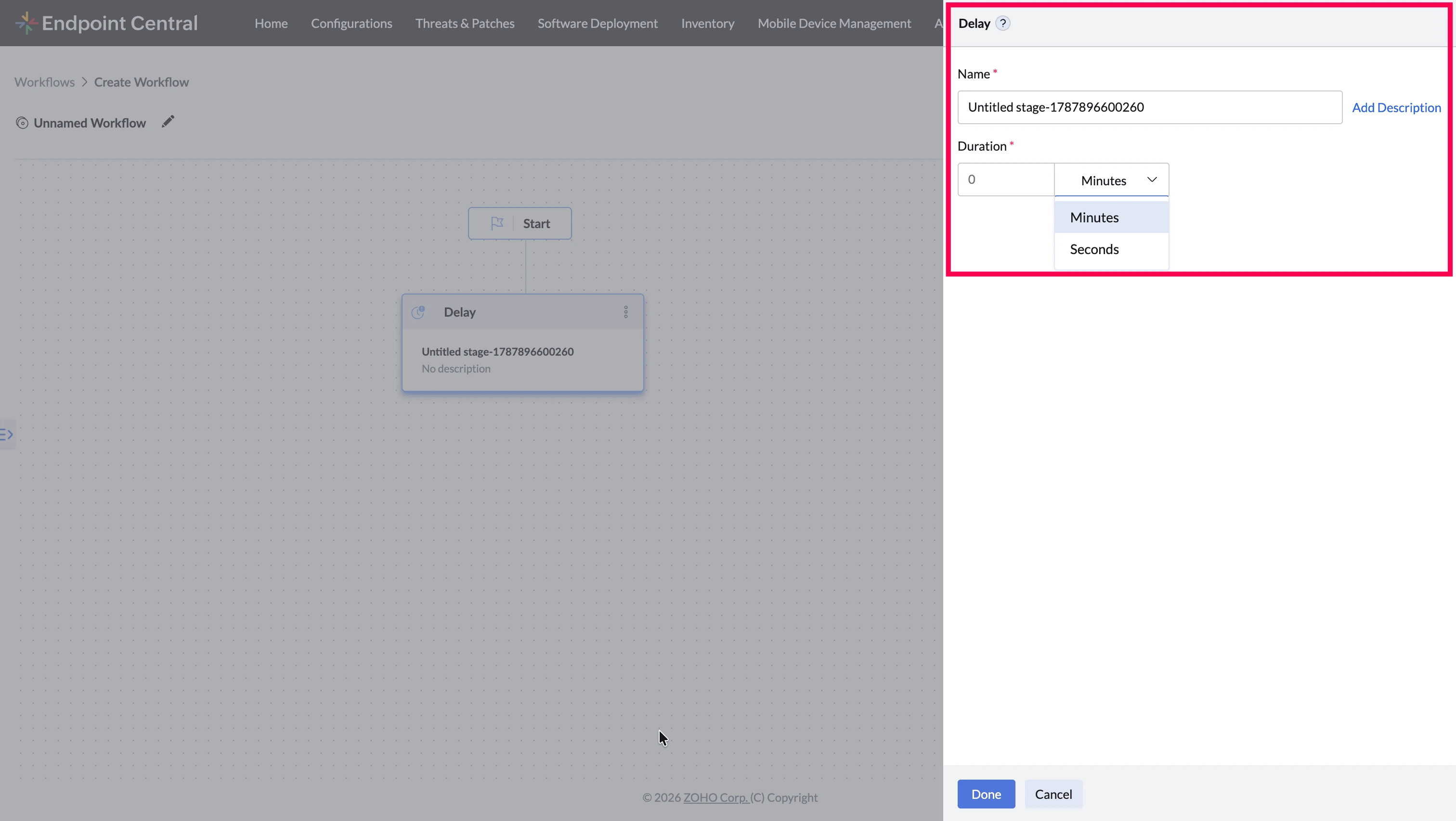
- Enter a Name for the stage (required).
- Enter a Description (optional).
- Set the duration — enter a number and choose the unit, Minutes or Seconds.
- Connect the Delay stage to the next stage in your workflow.
Things to Know
- The wait can be set in Minutes or Seconds, up to a maximum of 60 minutes
- Nothing happens on the device during the delay — only the workflow waits