Engage Stage
The Engage stage shows a message on the user's device and asks them to pick from choices you define. The workflow waits for their answer, then continues along the path that matches what they chose.
Instead of making changes silently, the workflow pauses and brings the user into the process.
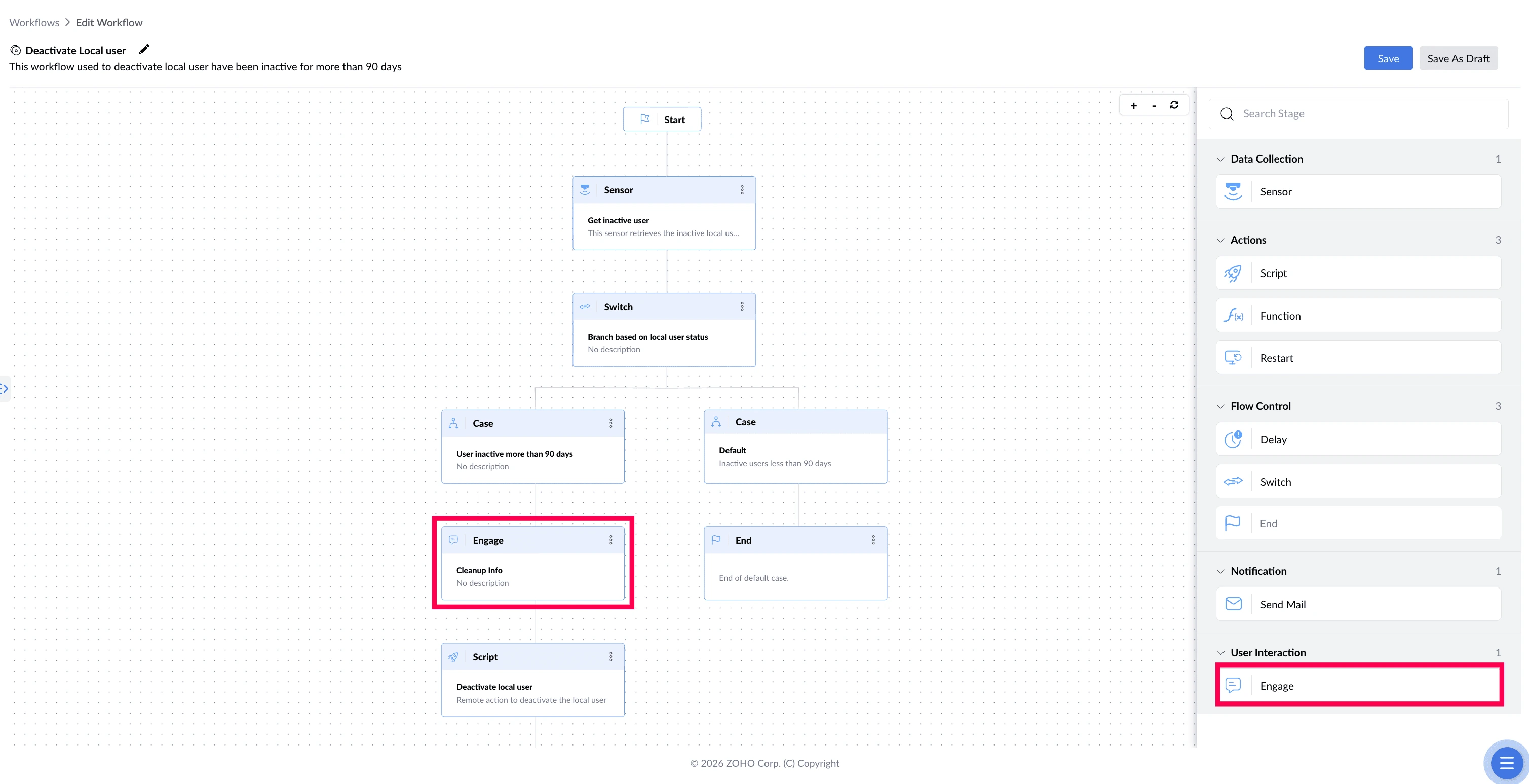
What This Stage Solves
A workflow has no way of knowing what the person is doing at that moment. Restarting a device during a presentation, or clearing files someone still needed, causes more disruption than the fix was worth. The Engage stage asks them first, putting the decision with the only person who knows whether it's a good time.
| The problem | What Engage does about it |
|---|---|
| A device restarts while someone is presenting to a client | Asks first and lets them pick when it happens |
| Files get cleared automatically, including something the user still needed | Gets their agreement before anything is removed |
| IT emails users asking them to act, and the emails are ignored | Puts the message on the screen in front of them |
| Nobody is at the device, so a prompt would sit unanswered forever | Falls back to a choice you set in advance |
Example
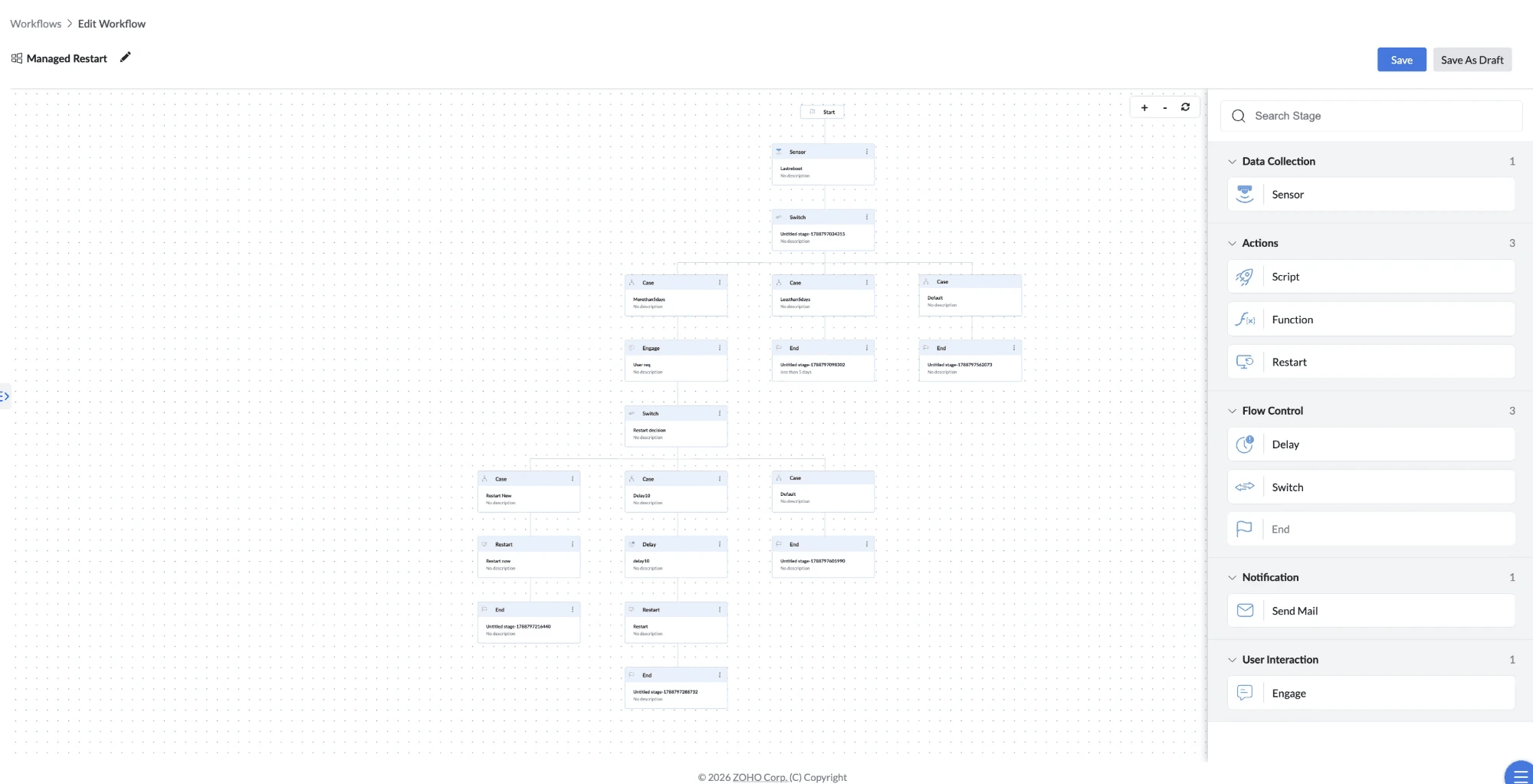
Managed Device Restart
In this workflow, the Engage stage is what gives the user a say in the restart. Once a device is found to have gone more than 5 days without restarting, the Engage stage puts a message on that person's screen asking when it should happen, with two choices: Restart Now or Delay 10. Whichever they pick is read by the Switch that follows, which sends the workflow down the matching path — straight to the restart, or through a 10-minute wait first.
How to Configure
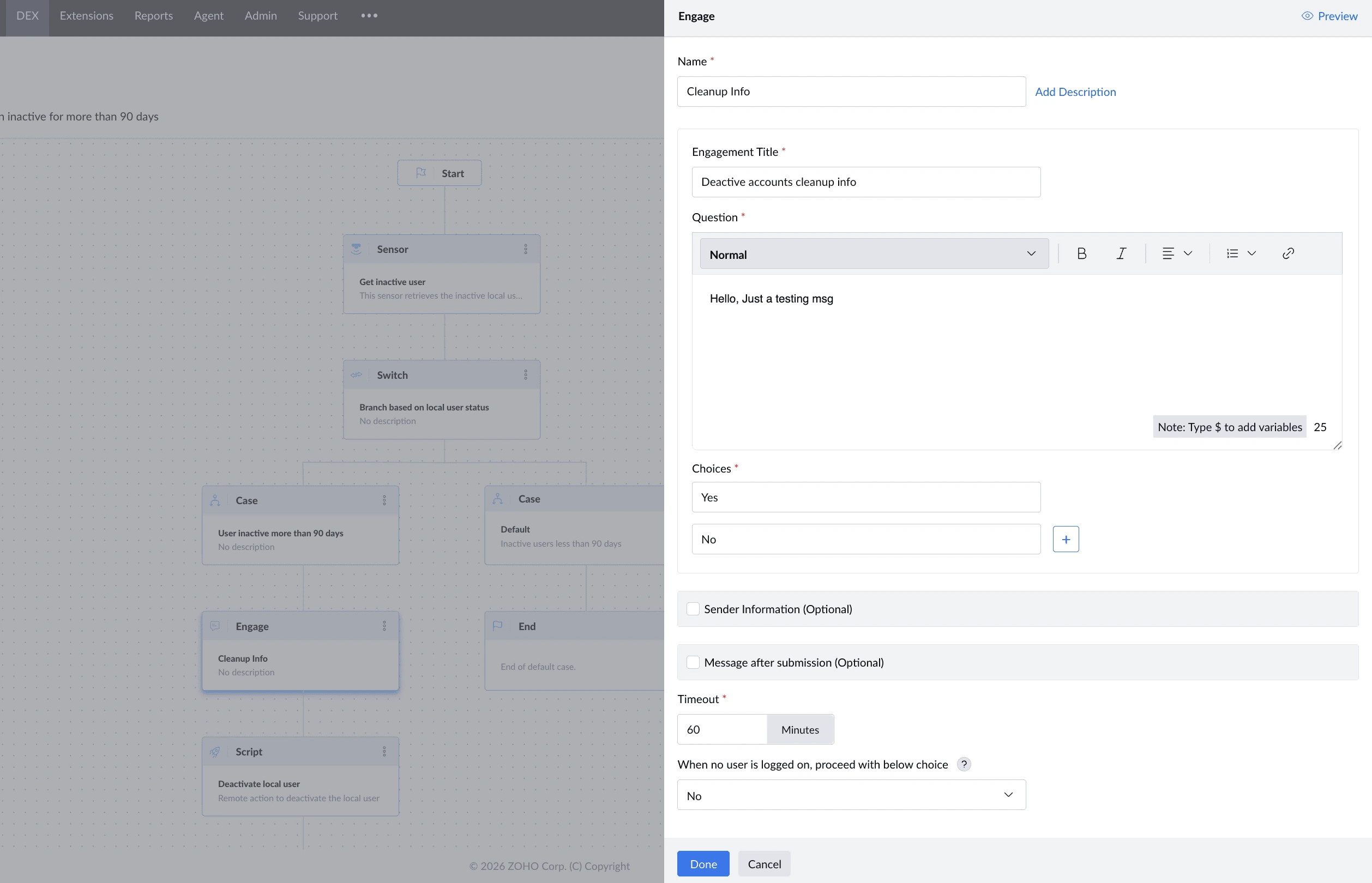
- Drag the Engage stage onto the canvas and connect it to the preceding stage.
- Enter a Name for the stage (required).
- Click Add Description to describe the stage (optional).
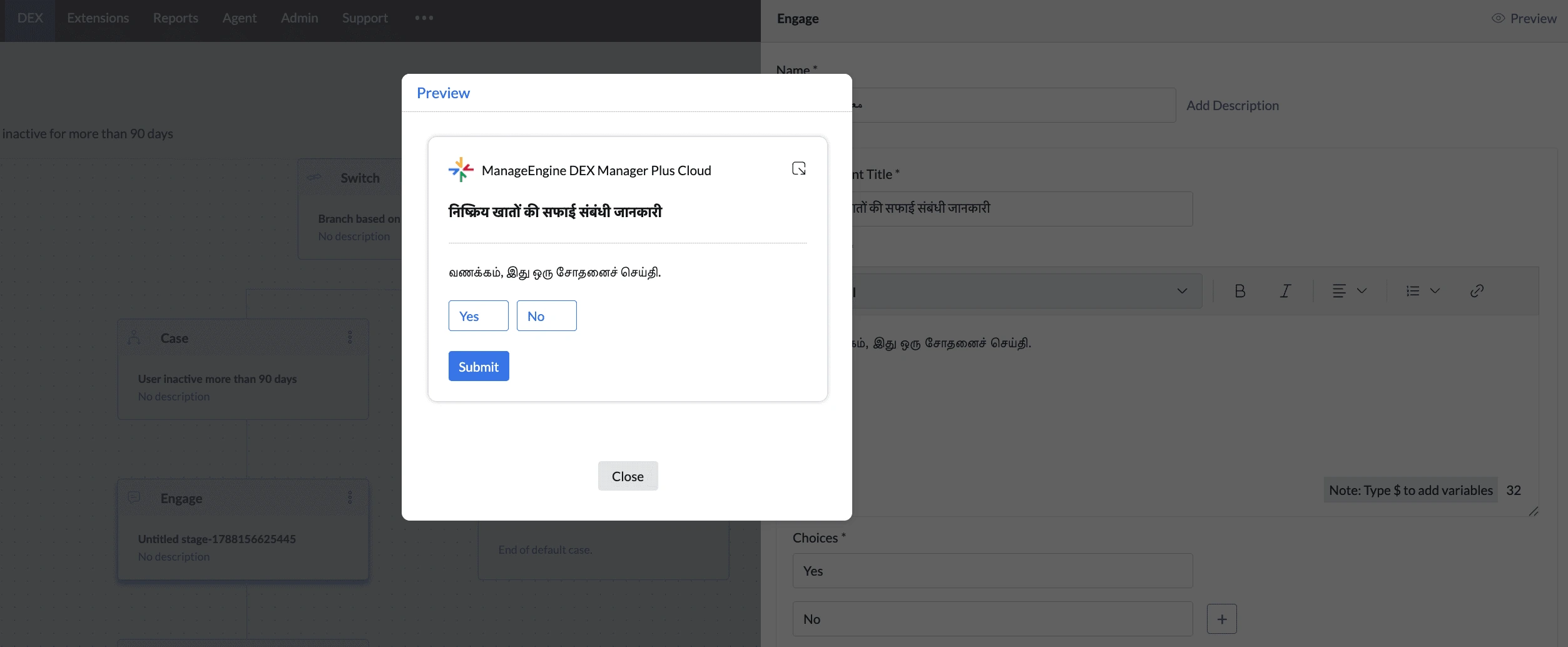
- Enter an Engagement Title — the heading the user sees.
- Enter the Question shown to the user — Type $ to insert a variable.
- Add the Choices the user can pick from. Click + to add more.
- Turn on Sender Information to show who the message is from (optional).
- Turn on Message after submission to show a confirmation once they answer — Type $ to insert a variable here too.
- Set the Timeout — how long to wait for an answer.
- Under When no user is logged on, proceed with below choice, pick what should happen if nobody is signed in to the device.
- Connect the Engage stage to the next stage in your workflow.
Engagement Title, Question, and Message after submission support any language — the prompt displays exactly as typed on the user's device.
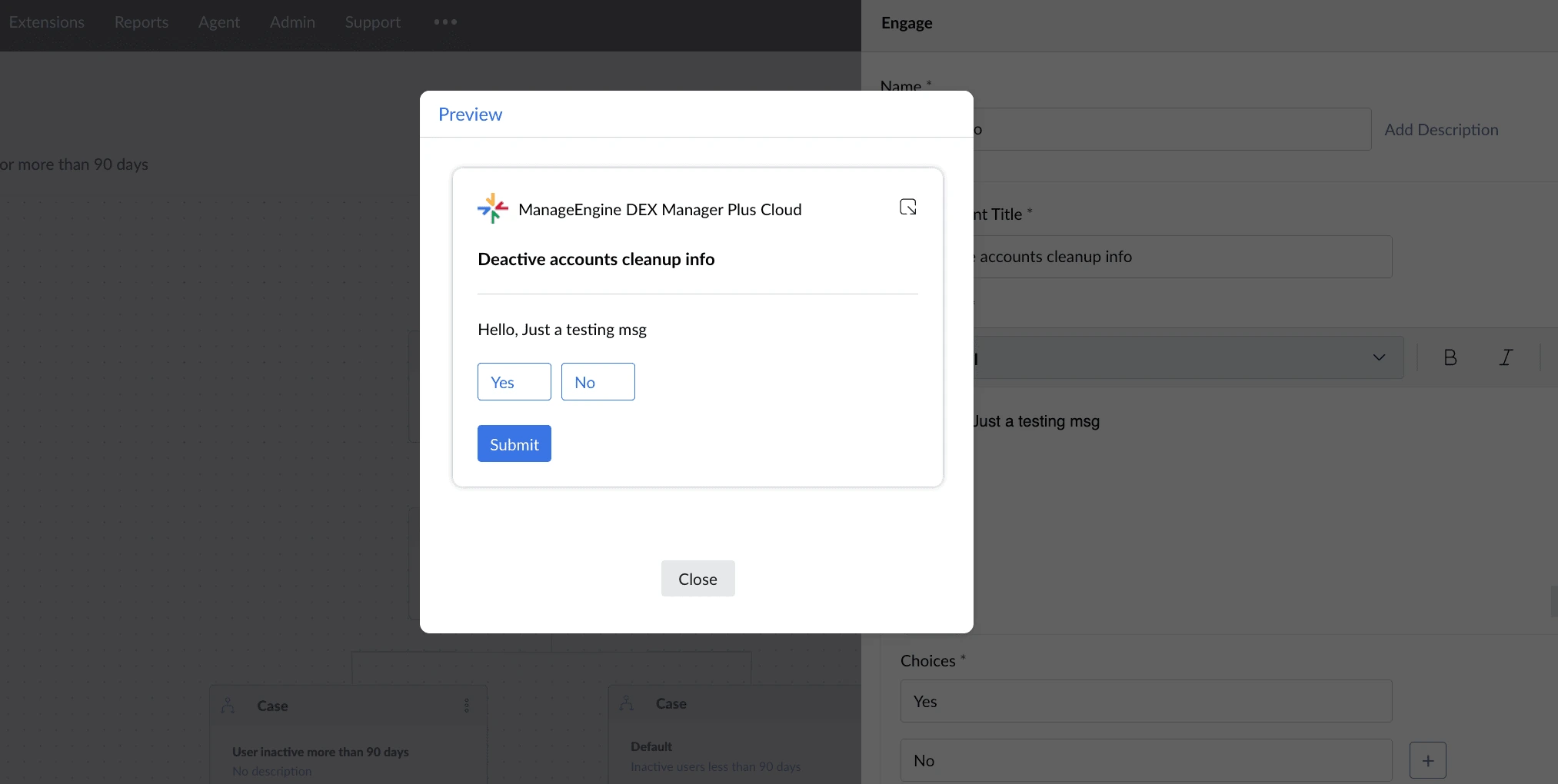
Tip: Click Preview at the top right at any point to see exactly how the message will appear on the user's screen — title, question, choices, and all.
What You Can Show the User
Type $ in the Question or Message after submission to insert a value from the workflow, so the message reflects that specific device.
| Source | What it includes |
|---|---|
| Previous stage output | A value produced by an earlier stage in the workflow |
| Device properties | Details about the device, such as network information or OS version |
| Sensor fields | Fields from your existing sensors; selecting one runs that sensor during the workflow to fetch its value. |
For example: "Your disk is 94% full. Can we clear temporary files?" — where the percentage comes from a Sensor earlier in the workflow.
Things to Know
- The user's answer can only be read by a Switch stage — place a Switch anywhere after the Engage to branch on what they chose
- When a Switch evaluates an Engage response, only equals and does not equal are available, since the answer is one of your choices
- Preview shows the message exactly as the user will see it, before you save
- If nobody is logged on to the device, the workflow uses the fallback choice you set.